# Supplier Management
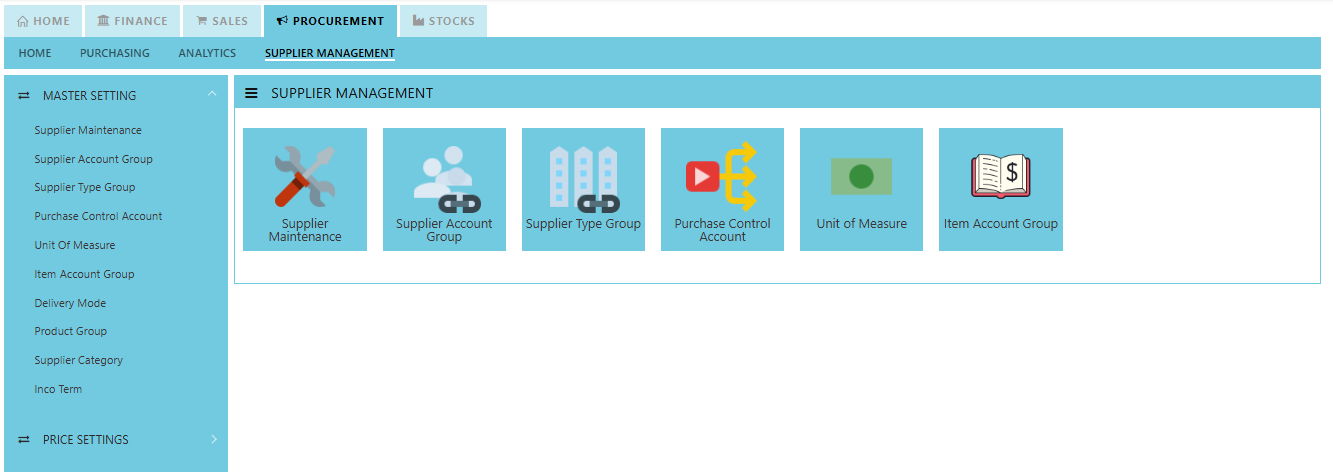
##### The **Supplier Management** tab comprises the following options that are crucial to setting up and using the Procurement Module:
##### [](https://doc.uniq365.com/uploads/images/gallery/2025-01/jqNimage.png)
- Supplier Maintenance
- Supplier Account Group
- Supplier Type Group
- Purchases Control Account
- Unit of Measure
- Item Account Group
- Delivery Mode
- Product Group
- Supplier Category
- Inco Terms
Supplier Maintenance
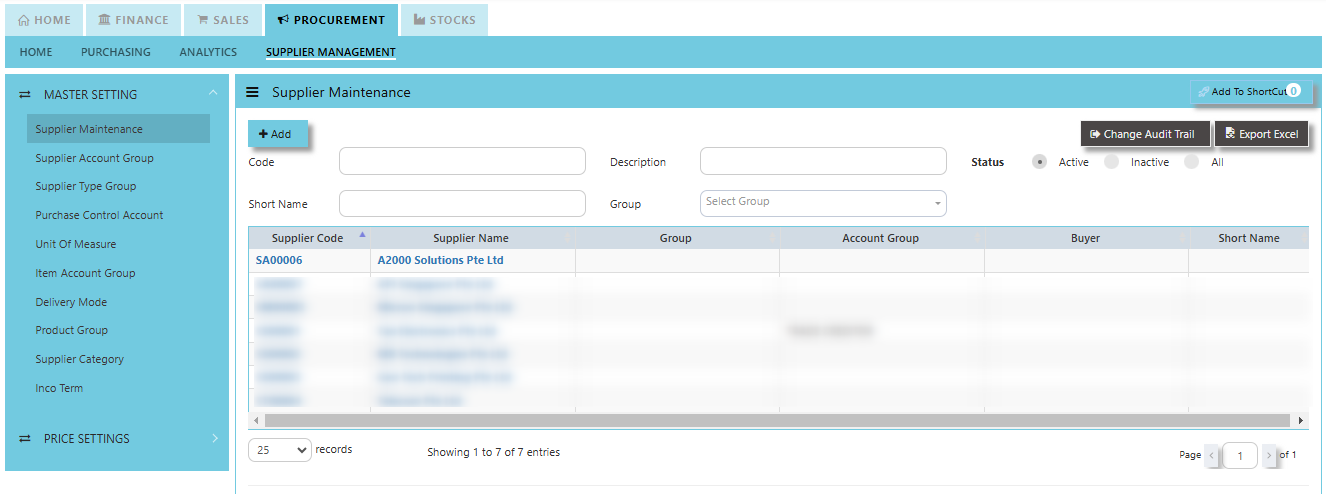
##### The **Supplier Maintenance** stores all the supplier information such as the supplier code, name, and addresses. The supplier code created in the Supplier Maintenance is used to present all the transactions entered for that supplier.
[](https://doc.uniq365.com/uploads/images/gallery/2025-01/jJLimage.png)
#### **How to create Supplier Maintenance?**
- Click on Procurement – Supplier Management – Supplier Maintenance icon for the following screen:
[](https://doc.uniq365.com/uploads/images/gallery/2025-01/zwDimage.png)
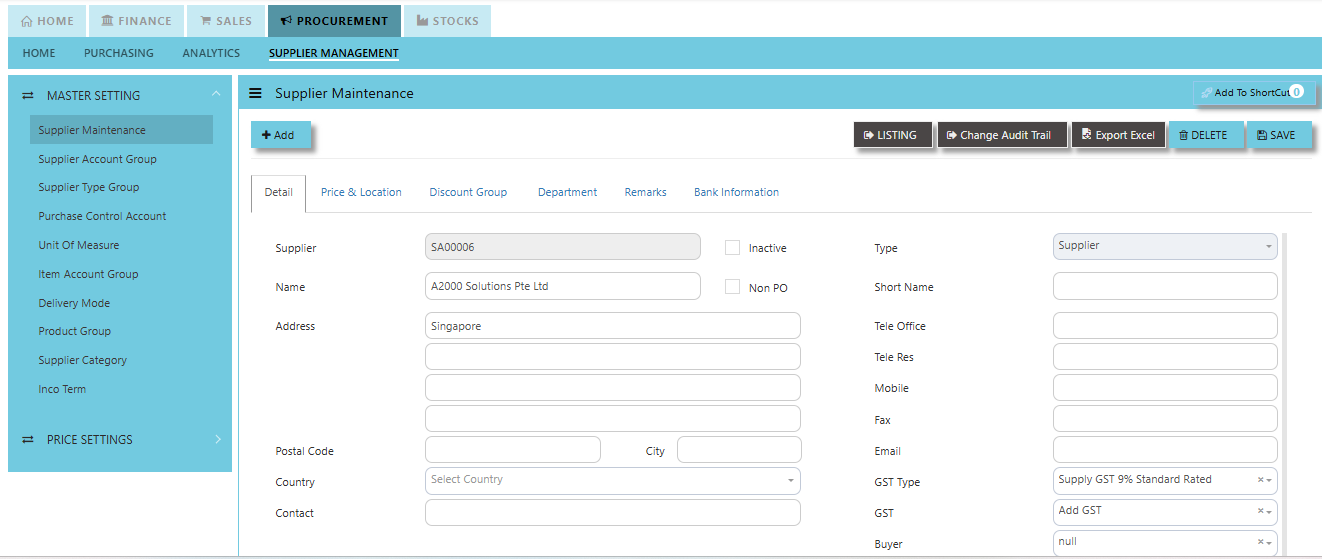
- This is where you add new suppliers or edit existing ones. Some of the fields are mandatory, such as the following:
##### Mandatory Information:
**Supplier** - Enter the code for the new supplier. The maximum is 10 alphanumeric characters.
**Name** - Enter the name of supplier. The maximum is 50 alphanumeric characters.
Key in the necessary information, such as addresses, telephone, fax and e-mail.
**Type** - Select S for supplier or B for both supplier and customer.
**Account Group** - If the account posting is set based on supplier, then select the relevant Account Group here which has been defined under Procurement – Supplier Management – Account Group.
**Group** - This is to select the Group defined under Procurement – Supplier Management – Supplier Type Group. This grouping is for the reports under Purchases\\Purchases Analysis Reports\\Supplier Group wise Purchases Analysis.
**Delivery Term** – This is to select the Delivery Term defined under Procurement – Supplier Management – Delivery Term
Example: FOB - Free on Board
CIF - Carriage, Insurance & Freight
**Delivery Mode** - Click to select the Delivery Mode defined under Procurement – Supplier Management – Delivery Mode
Example: Truck, Flight, Self-Collection
**Payment Term** - Click to select the Payment Term defined under Procurement – Supplier Management – Payment Terms
Example: 30 Days, 60Days, COD (Cash on delivery)
**Payment Mode** - Click to select the Payment Mode defined under Procurement – Supplier Management – Payment mode
Example: Cash Payment, Cheque Payment and TT
**Default Currency** - Select the currency that this supplier normally transacts in.
**Discount** - Enter the discount in percentage this supplier is enjoying. For example, if a wholesale supplier gets 30% off List Price, enter “30” in this field for that supplier. With this feature, you need not remember each and every of your supplier’s discount rate.
**Credit Period** - Enter the number of days, weeks, or months that this supplier enjoys as credit period.
**Credit Limit** - Enter the Credit Limit of supplier. The system will block the purchase transaction once the figure reaches the limit.
**Credit Used** - This is a non-editable field. It is updated automatically by the system every time the credit is used up.
**SP/Buyer** - Click to select the Purchaser defined under System Manager – System Utilities – Employee
**Price Type** - You may decide on pricing method for each and every supplier.
**Price Table (Purchases/Last)** - Every time an invoice is created for this supplier, the system will call out the selling price from the Supplier Maintenance Price Table.
**Group Table (Purchases/Last)** - Every time an invoice is created for this supplier, the system will call out the selling price from the Supplier Maintenance Group Table (defined under Purchase – Maintenance – Supplier Type Group). This group assumes that all items in the group carry the same purchase price.
**Product Setting** - Every time an invoice is created for this supplier, the system will show the selling price from the Product & Service Maintenance (Depends on the Price Type selected).
**Purchases** - Every time an invoice is created for this supplier, the system will call out the Purchase Price from the Product & Service Maintenance. The user will have to manually set and update the Purchase Price field there.
**Last Price** - If Last Price is selected, the price billed for a particular product will be saved in the Last Price column of the Price table. The next time the same product is entered in an invoice for that supplier, the Last Price will be automatically picked up.
**Location** - Create different delivery locations for this supplier.
**Price** - Records the history of selling price for this supplier if Price Table is selected for the Price Type.
Supplier Account Group
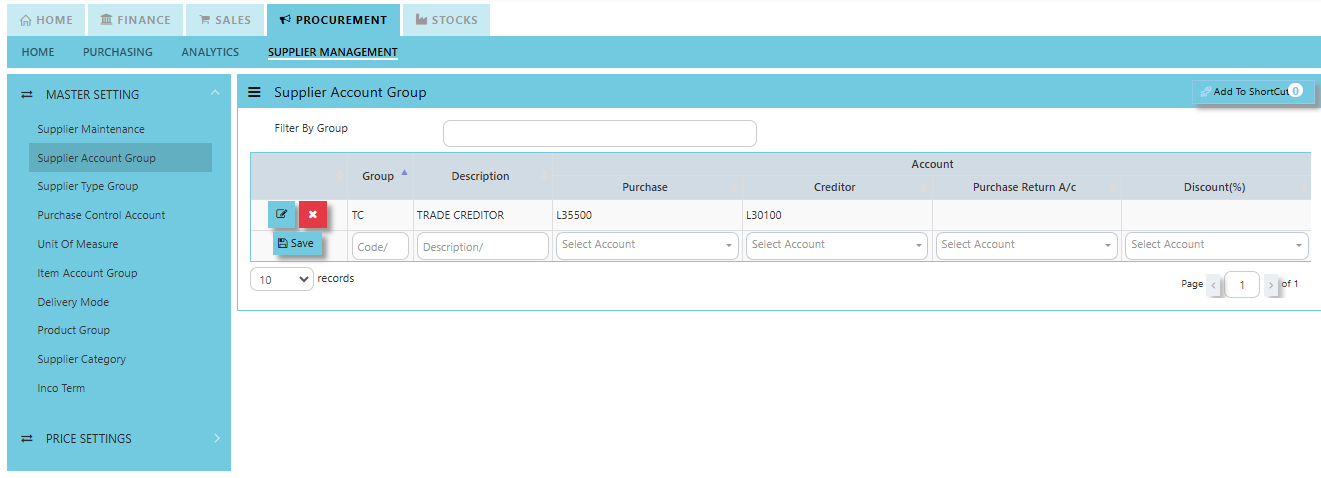
##### This feature is used for auto accounts posting when saving Purchase Transactions. Unlike other systems that are hard-coded, Uniq365 allows the user to set their own Supplier Accounts postings. The Supplier Account Group needs to be set if the account posting is by Supplier.
##### **How to Setup Supplier Account Group?**
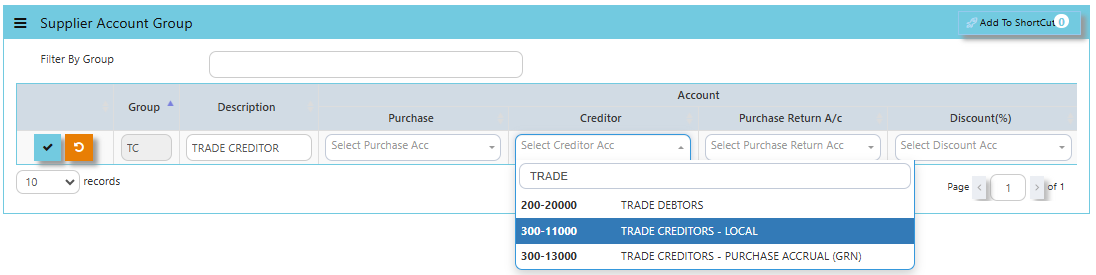
- Click on Procurement – Supplier Management – Supplier Account Group icon for the following screen.
[](https://doc.uniq365.com/uploads/images/gallery/2025-01/p1simage.png)
- Enter the Code and Description to create the Supplier Account Group. After this is done, set the GL Chart of Account code for “Creditor A/C”, “Purchases A/C” & “Discount A/C”.
[](https://doc.uniq365.com/uploads/images/gallery/2025-01/Z29image.png)
Supplier Type Group
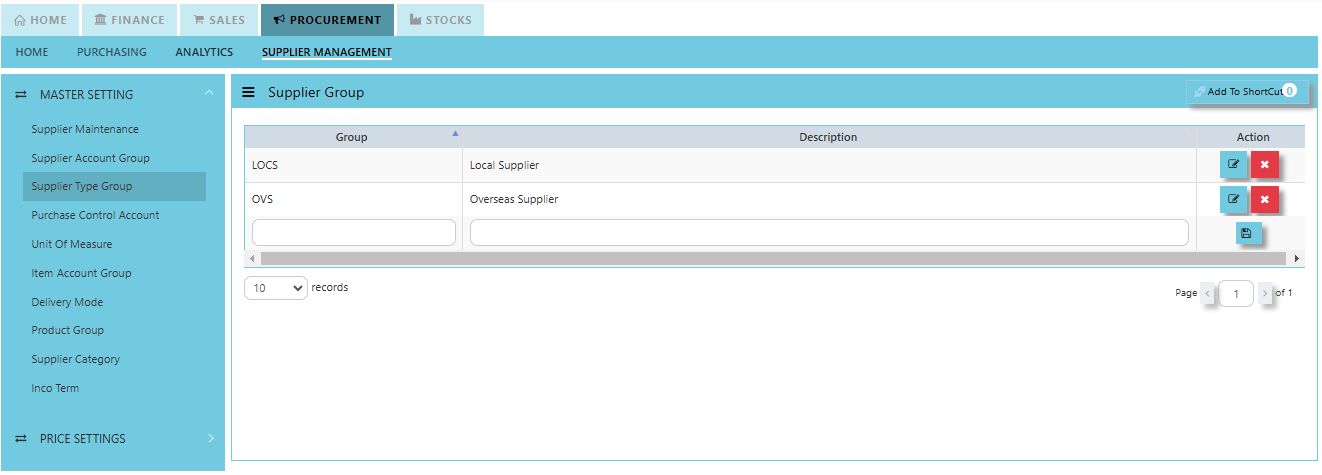
##### In Uniq365, this is where you create the Supplier Group which will be used to sort or filter reports (Optional).
##### **How to Setup Supplier Type Group?**
- Click on Procurement – Supplier Management - Supplier Type Group for the screen below.
[](https://doc.uniq365.com/uploads/images/gallery/2025-01/noaimage.png)
Purchase Control Account
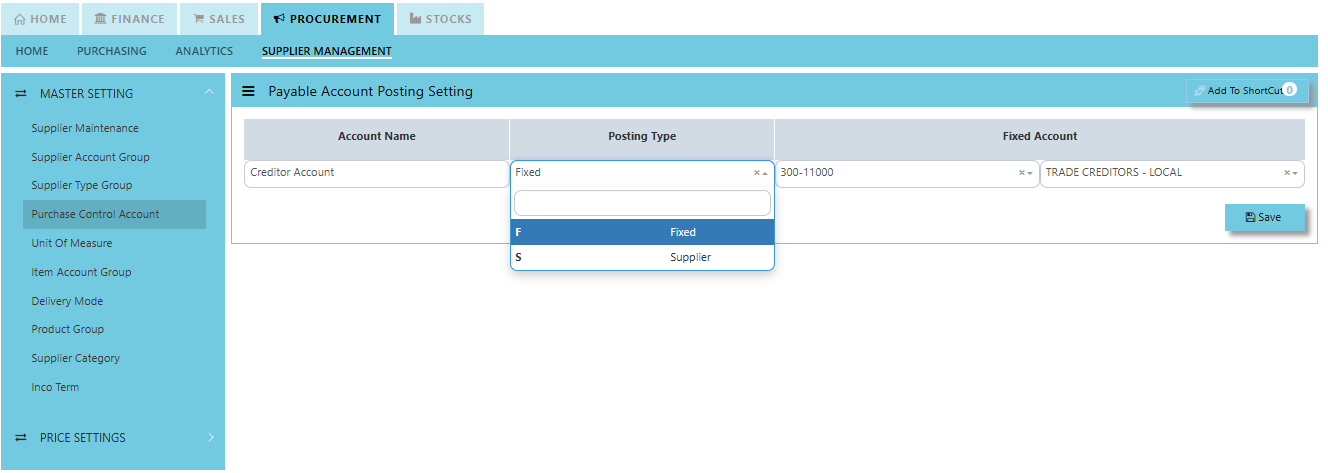
##### In Uniq365, this is where you can set the Purchase Control Accounts for the GL Auto Account Posting.
##### **How to set Purchase Control Account?**
- Click on Procurement – Supplier Management – Purchase Control Account for the screen below.
[](https://doc.uniq365.com/uploads/images/gallery/2025-01/Xl8image.png)
Unit of Measure
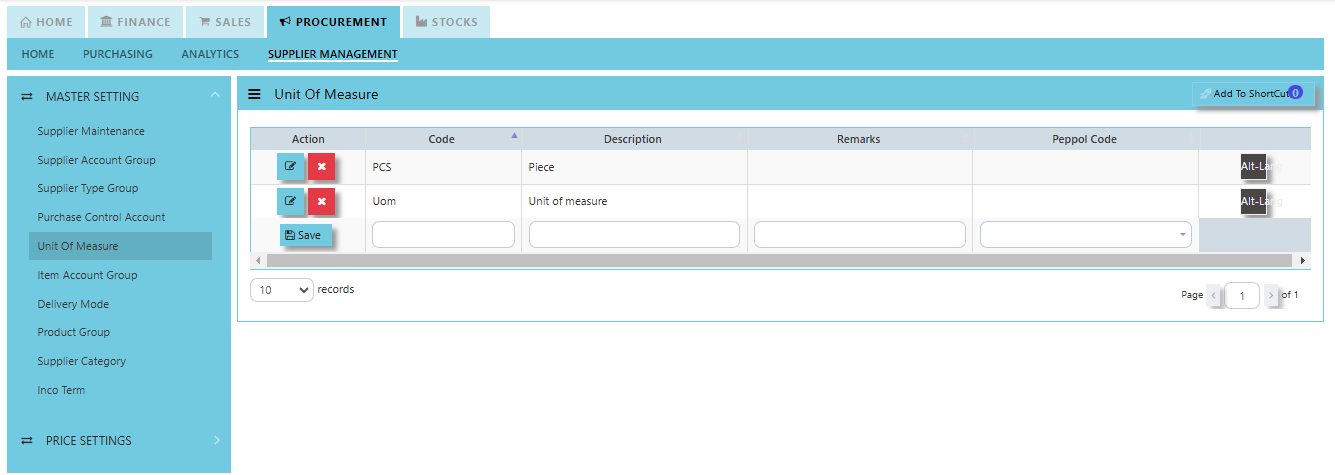
##### In Uniq365, this is where you indicate the Unit of Measure for the product in Procurement Module.
##### **How to create Unit of Measure?**
- Click on Procurement – Supplier Management – Unit of Measure for the screen below.
[](https://doc.uniq365.com/uploads/images/gallery/2025-01/wFvimage.png)
Item Account Group
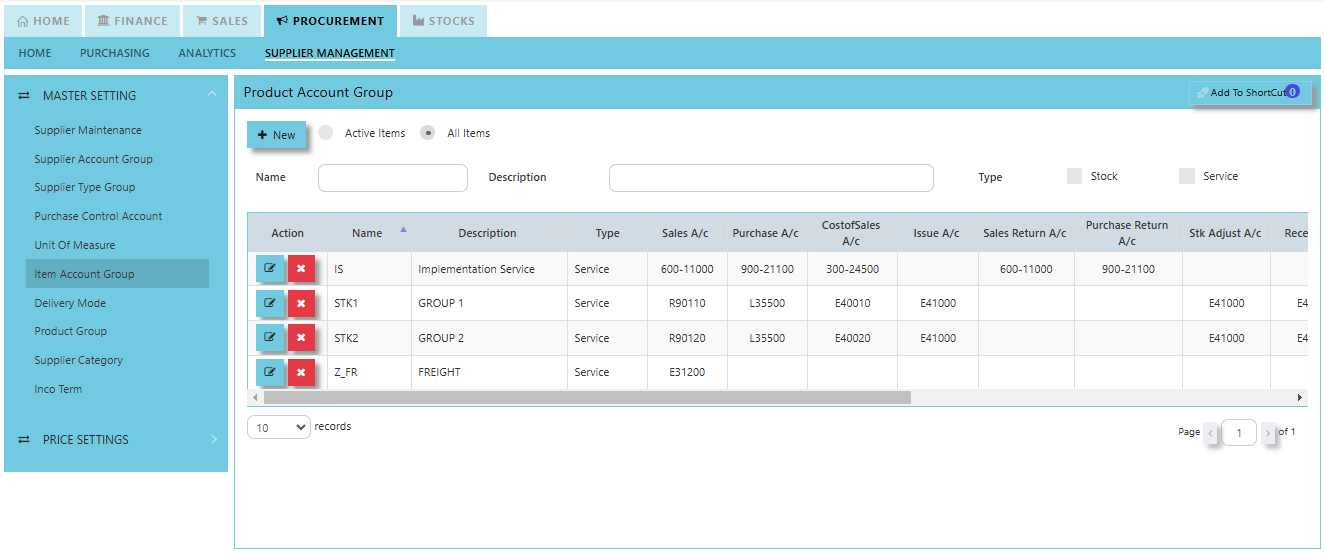
##### The **Product Account Group** is used to categorize products into different accounting groups to manage the financial posting and treatment of transactions related to those products.
##### **How to create Product Account Group?**
- Click on Procurement – Supplier Management – Item Account Group for the screen below.
[](https://doc.uniq365.com/uploads/images/gallery/2025-01/pDximage.png)
Delivery Mode
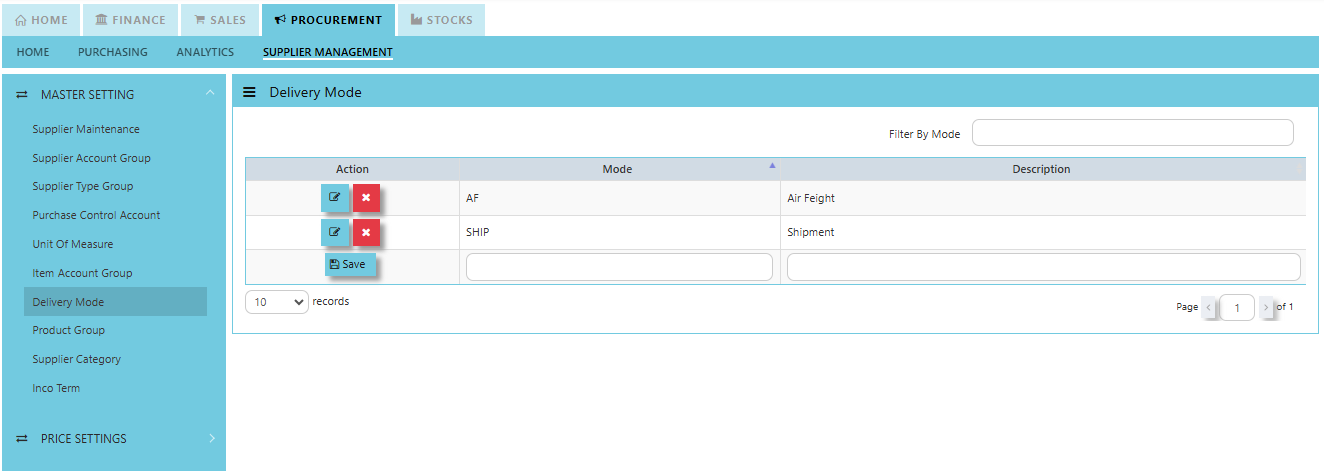
##### In Uniq365, you can indicate the Supplier Delivery Mode in the Supplier Maintenance or Transactions. You can also sort or filter reports by Delivery Mode.
##### **How to create Delivery Mode?**
- Click on Procurement – Supplier Management – Delivery Mode for the screen below.
[](https://doc.uniq365.com/uploads/images/gallery/2025-01/Zleimage.png)
Product Group
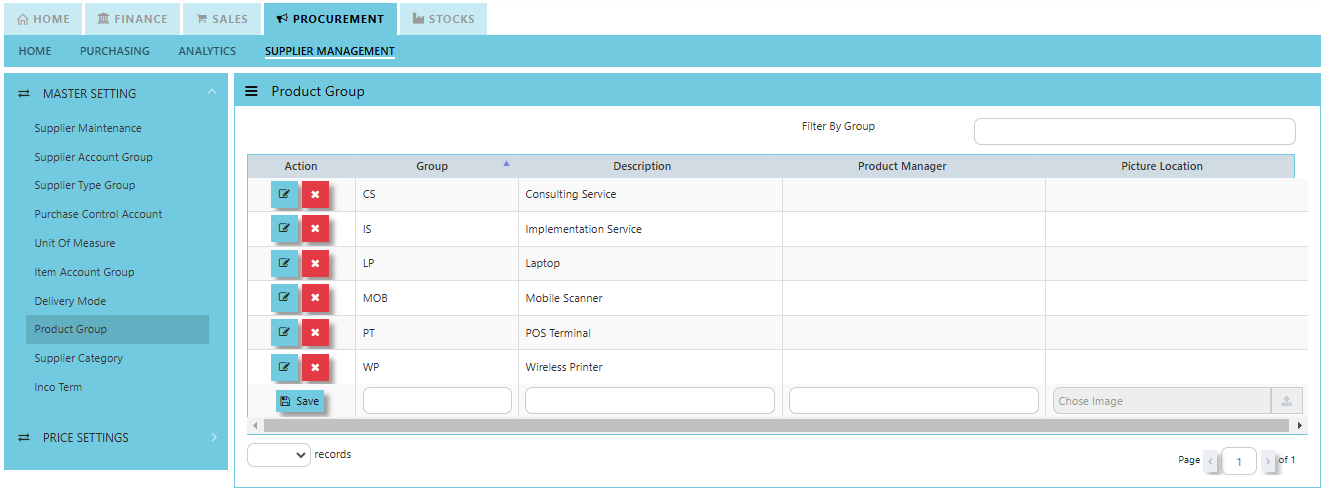
##### In Uniq365, this is where you can set the Product Group for the classification or categorization of products based on shared characteristics and usage.
##### **How to set Product Group?**
- Click on Procurement – Supplier Management – Product Group for the screen below.
[](https://doc.uniq365.com/uploads/images/gallery/2025-01/vZXimage.png)
Supplier Category
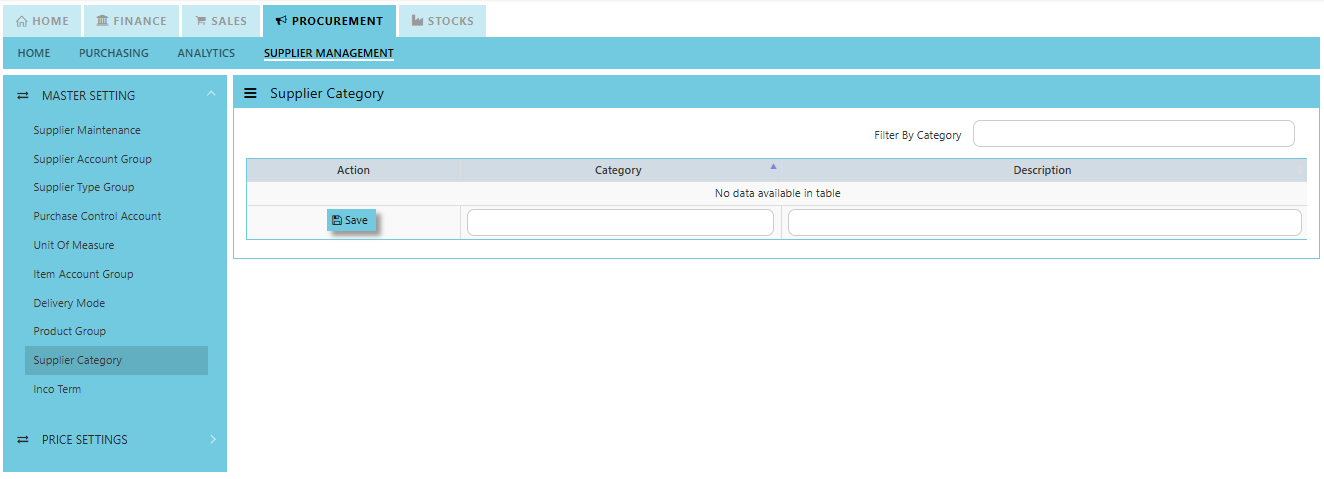
##### In Uniq365, this is where you can set the Supplier Category for the classification used to group suppliers based on specific characteristics, such as the types of products or services they provide.
##### **How to set Product Group?**
- Click on Procurement – Supplier Management – Product Group for the screen below.
[](https://doc.uniq365.com/uploads/images/gallery/2025-01/QFximage.png)
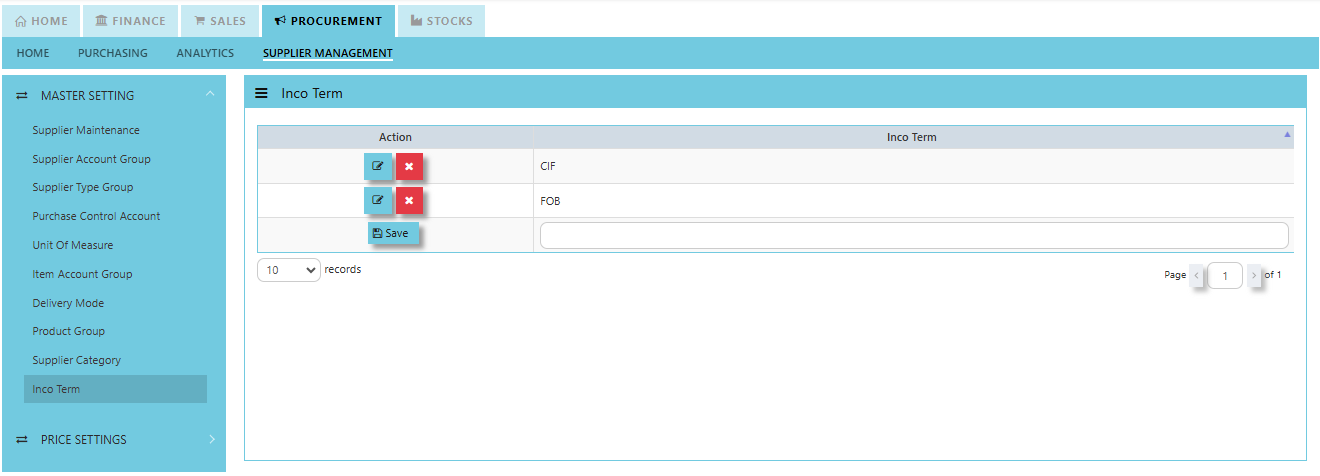
Inco Term
##### In Uniq365, you can specify the Inco Terms in Supplier Quotation and Purchase Order Transactions. The Inco Terms will first need to be created in the Maintenance first before it can be used at the transaction level.
##### **How to create Inco Term?**
- Click on Procurement – Supplier Management – Inco Term for the screen below.
[](https://doc.uniq365.com/uploads/images/gallery/2025-01/DZ1image.png)
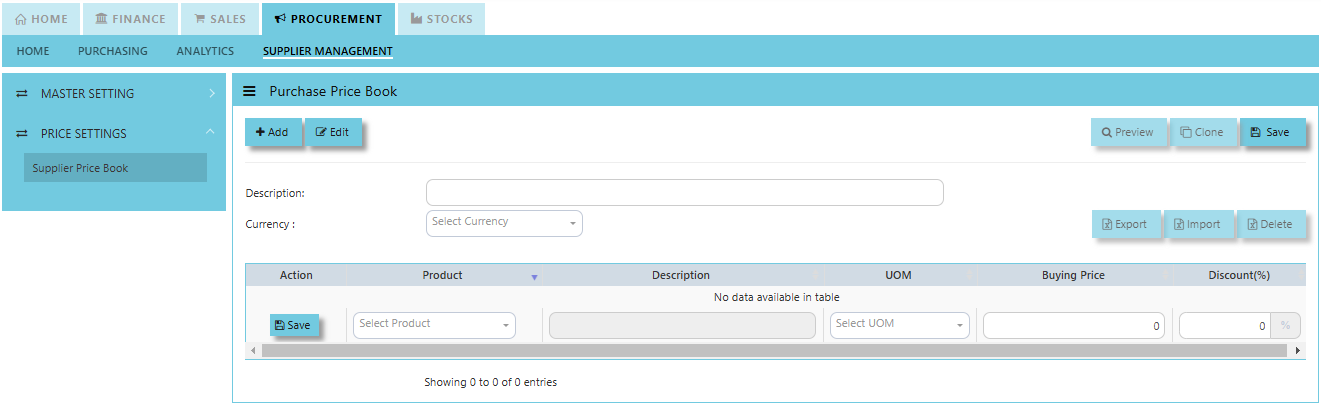
Supplier Price Book
##### In Uniq365, you may maintain a **Supplier Price Book** which is a record or catalog that contains the agreed-upon prices for products or services provided by a specific supplier. The price book typically includes a list of items or services, their associated prices, and any other terms or conditions related to the purchase, such as buying price, UOM and discounts.
##### **How to create Supplier Price Book?**
1. Click on Procurement – Supplier Management – Price Settings - Supplier Price Book for the screen below.
[](https://doc.uniq365.com/uploads/images/gallery/2025-01/yoximage.png)
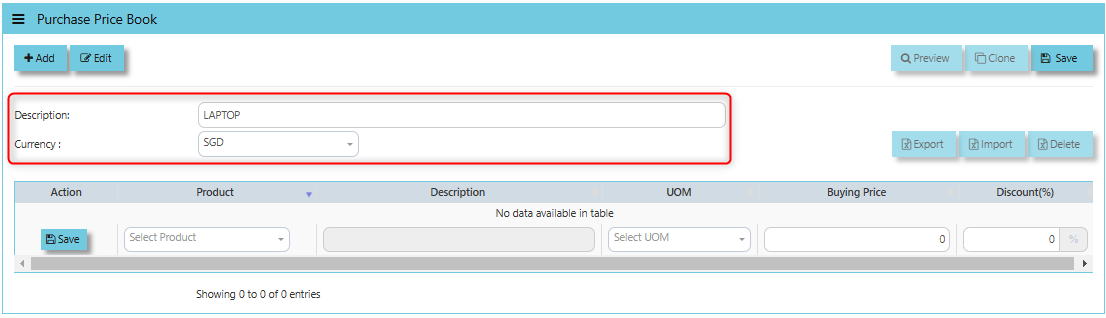
2. Key in Description and Select Currency
[](https://doc.uniq365.com/uploads/images/gallery/2025-03/aRpimage.png)
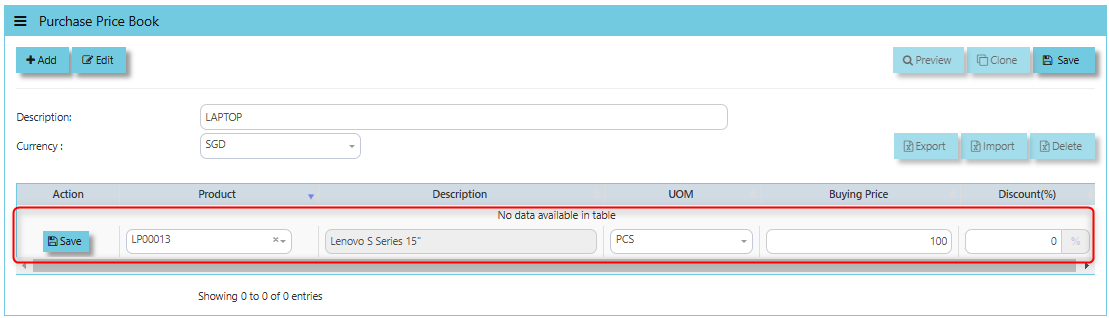
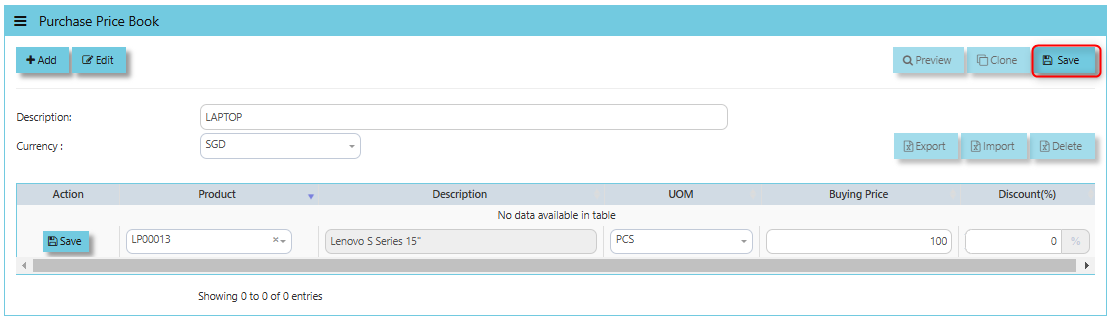
3. Select for the product then description and UOM will automatically appear and key in the price and discount if any.
[](https://doc.uniq365.com/uploads/images/gallery/2025-03/VyMimage.png)
4. Click SAVE to maintain.
[](https://doc.uniq365.com/uploads/images/gallery/2025-03/GOBimage.png)
##### **How to use Import Function?**
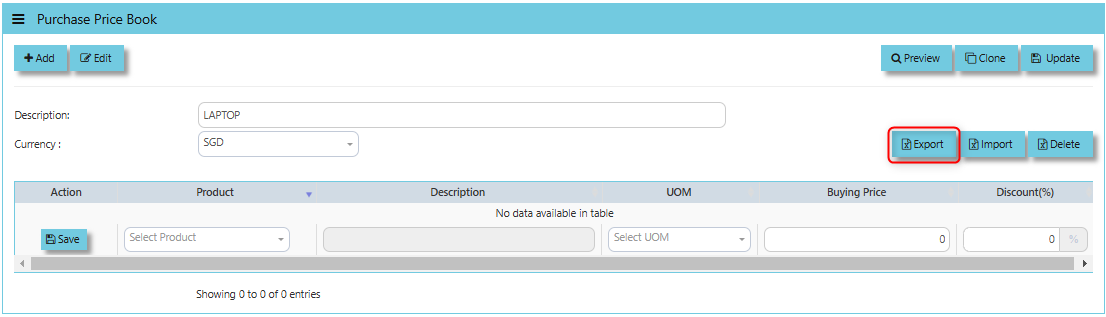
**"Import"** button is typically used to upload or import price lists from suppliers in bulk.
1. Export the excel format by clicking the "Export Button"
[](https://doc.uniq365.com/uploads/images/gallery/2025-03/lipimage.png)
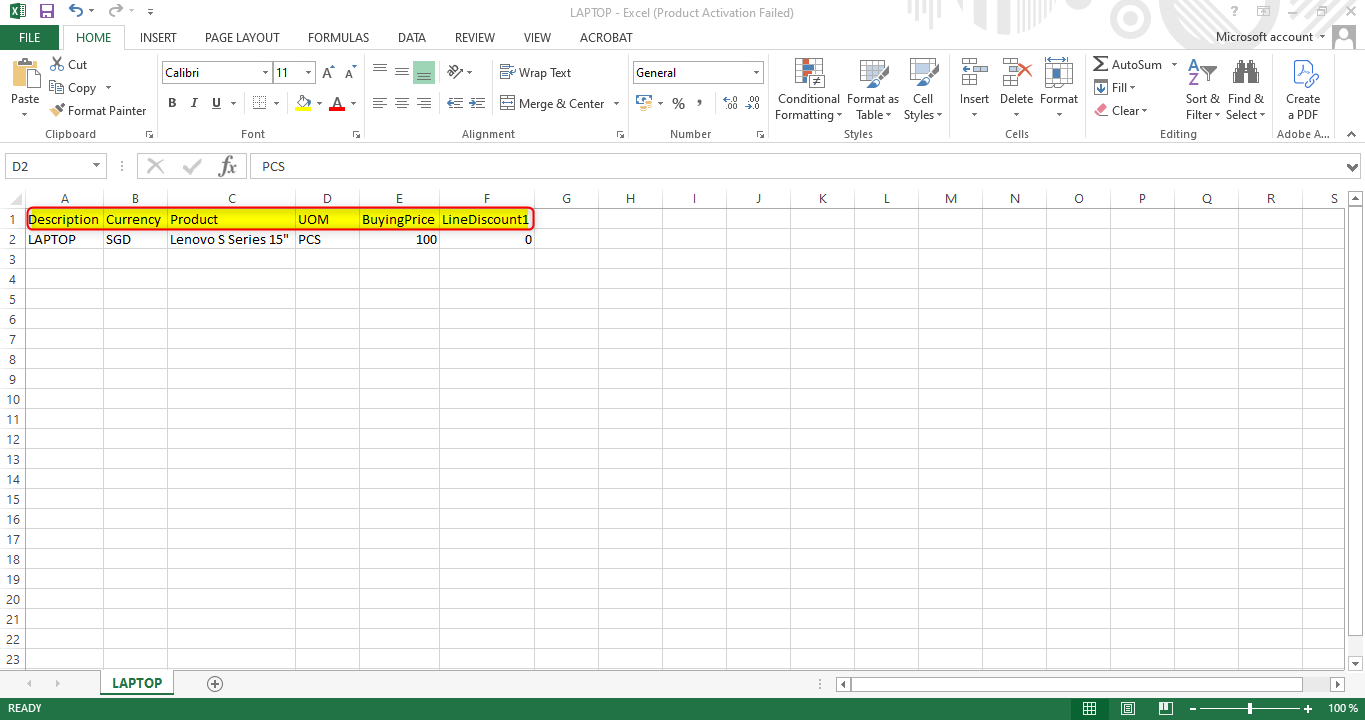
2. Fill the necessary details base on excel format provided then save properly the file.
[](https://doc.uniq365.com/uploads/images/gallery/2025-03/I8Iimage.png)
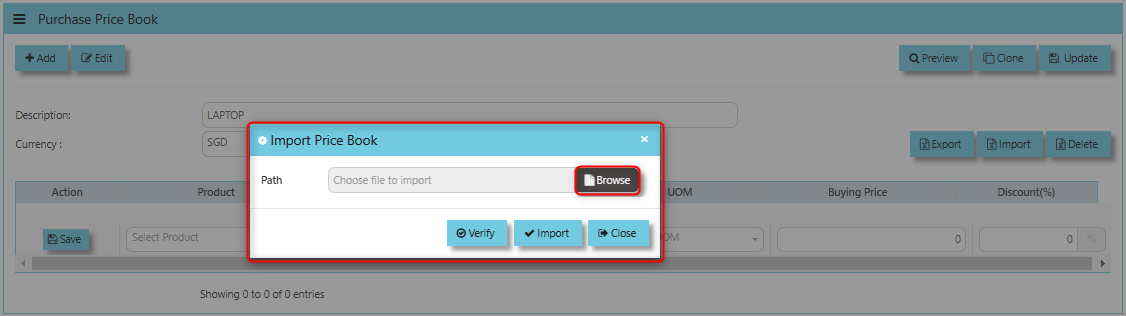
3. Click the Import button to upload then click the browse.
[](https://doc.uniq365.com/uploads/images/gallery/2025-03/TGQimage.png)
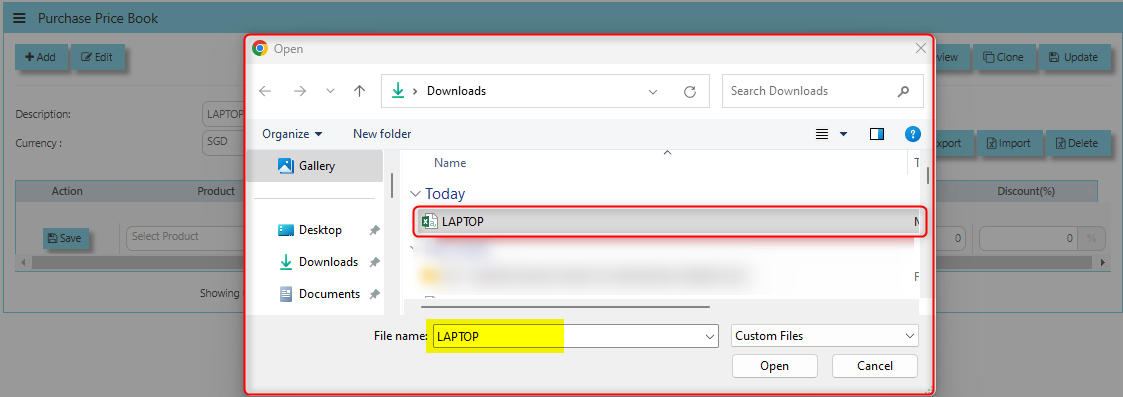
4. Once clicked the Browse then there will be windows prompt and select excel file to upload.
[](https://doc.uniq365.com/uploads/images/gallery/2025-03/B94image.png)
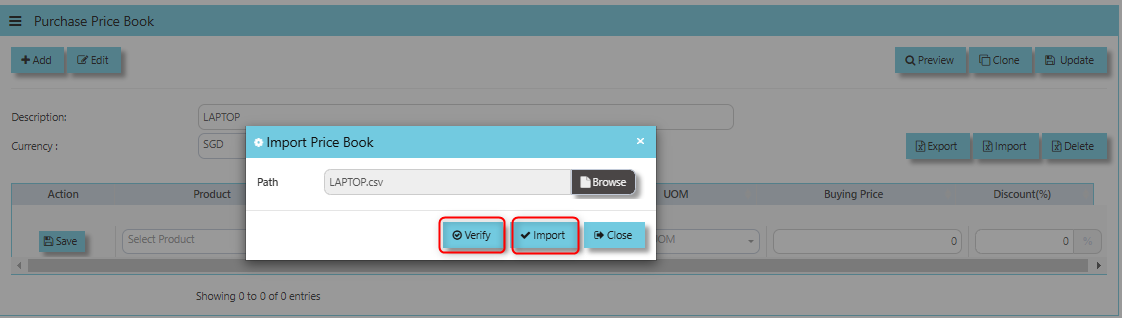
5. Click Verify once done verified the file, click import button to process uploading
[](https://doc.uniq365.com/uploads/images/gallery/2025-03/n8nimage.png)
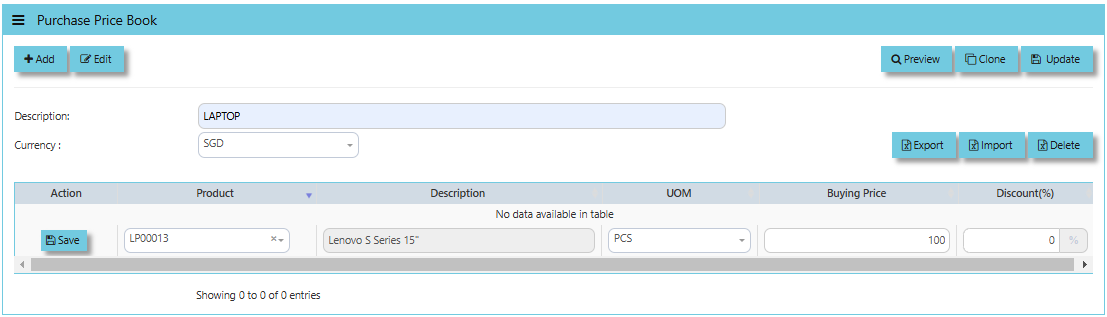
6. Once file imported below are the screen
[](https://doc.uniq365.com/uploads/images/gallery/2025-03/1dUimage.png)
Below are the buttons that users may utilize:
- The **Preview button** allows you to view the contents of the imported file to ensure everything appears as expected before saving or applying it.
- The **Clone button** allows users to quickly create a new price book entry by duplicating an existing one.
- If user made any modifications to the supplier price book), clicking the **Update** button will save those changes to the system.
- The **Delete button** allows users to permanently remove a supplier’s price book or a specific price list entry from the system.