# Reports Queries
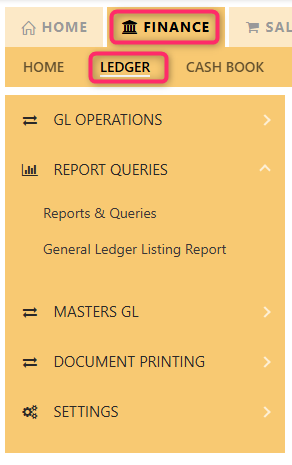
#### **REPORT QUERIES** **NAVIGATION** in **Uniq365** lists all the available reports in the Ledger
[](https://doc.uniq365.com/uploads/images/gallery/2025-02/Gumimage.png)
\_\_\_\_\_\_\_\_\_\_\_\_\_\_\_\_\_\_\_\_\_\_\_\_\_\_\_\_\_\_\_\_\_\_\_\_\_\_\_\_\_\_\_\_\_\_\_\_\_\_\_\_\_\_\_\_\_\_\_\_\_\_\_\_\_\_\_\_\_\_\_\_\_\_\_\_\_\_\_\_\_\_\_\_\_\_\_\_\_\_\_\_\_\_\_\_\_\_\_\_\_\_\_\_\_\_\_\_\_\_\_\_\_\_\_\_\_\_\_\_\_\_\_\_\_\_\_\_\_\_\_\_\_\_\_\_\_\_\_\_
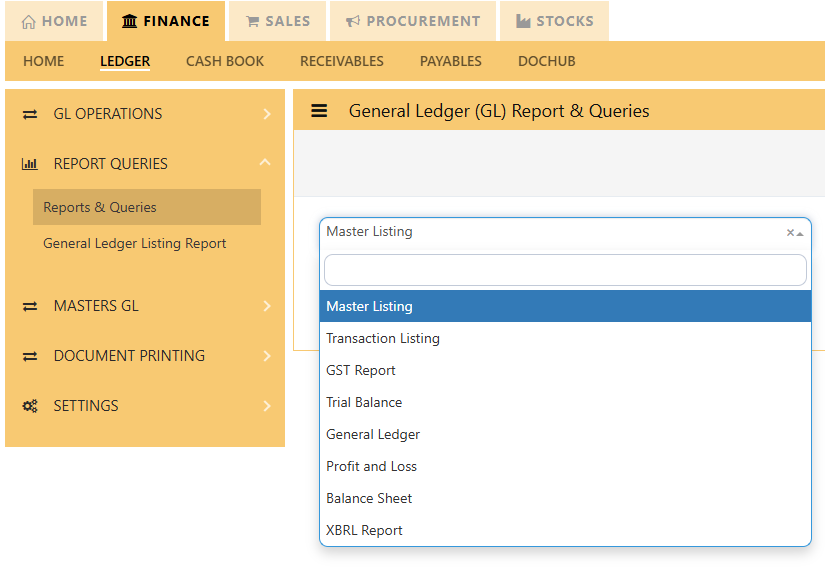
#### **CLICK REPORT QUERIES** will show list of reports to select:
- **MASTER LISTING**
- **TRANSACTION LISTING**
- **GST REPORT**
- **TRIAL BALANCE**
- **GENERAL LEDGER**
- **PROFIT AND LOSS**
- **BALANCE SHEET**
- **CASH FLOW STATEMENT**
[](https://doc.uniq365.com/uploads/images/gallery/2025-02/azbimage.png)
MASTER LISTING
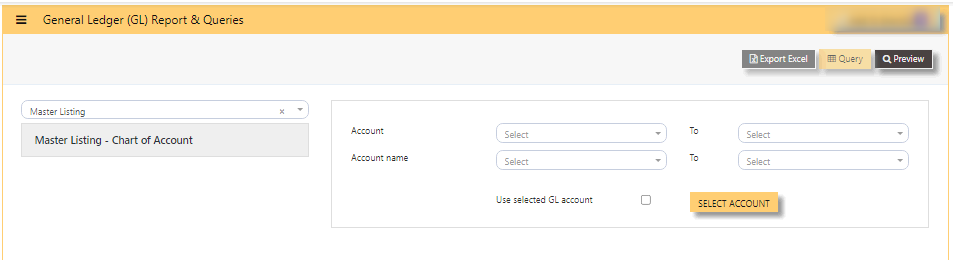
#### **HOW TO GENERATE MASTER LISTING - CHART OF ACCOUNT?**
- **ACCOUNT** - to view specific account or when left blank, will show full list of chart of account or
- **ACCOUNT NAME** - to view specific name
- **USE SELECTED GL ACCOUNT** button - tick, this selection is use when user want to select 2 or more chart of account
- then **SELECT ACCOUNT** - tick 2 or more chart of account
- **PREVIEW** - click will show list of chart of account in either select by '**ACCOUNT**' or by '**USE SELECTED GL ACCOUNT**
#### [](https://doc.uniq365.com/uploads/images/gallery/2025-02/6USimage.png)
TRANSACTION LISTING
#### **TRANSACTION LISTING REPORT or otherwise know GL transaction listing,** can be previewed here.
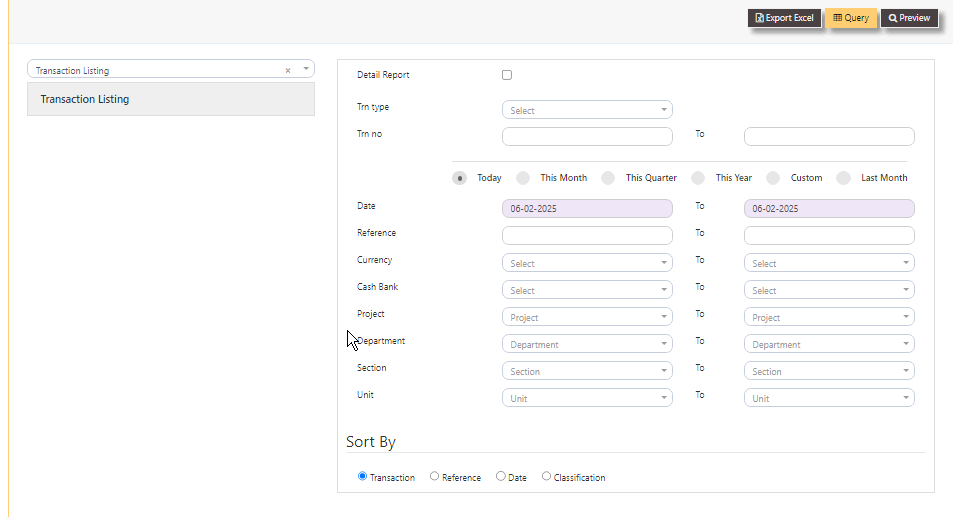
#### **HOW TO PREVIEW TRANSACTION LISTING?**
Fill up the following filter parameters:
- DETAIL REPORT
- TRN TYPE
- TRN NO
- BUTTON - TODAY, THIS MONTH, THIS QUARTER, THIS YEAR, CUSTOM, LAST MONTH
- DATE
- REFERENCE
- CURRENCY
- CASH BANK
- PROJECT
- DEPARTMENT
- SECTION
- UNIT
- SORT BY - select TRANSACTION, REFERENCE, DATE or CLASSIFICATION
- PREVIEW
- QUERY
- EXPORT EXCEL
#### [](https://doc.uniq365.com/uploads/images/gallery/2025-02/YlPimage.png)
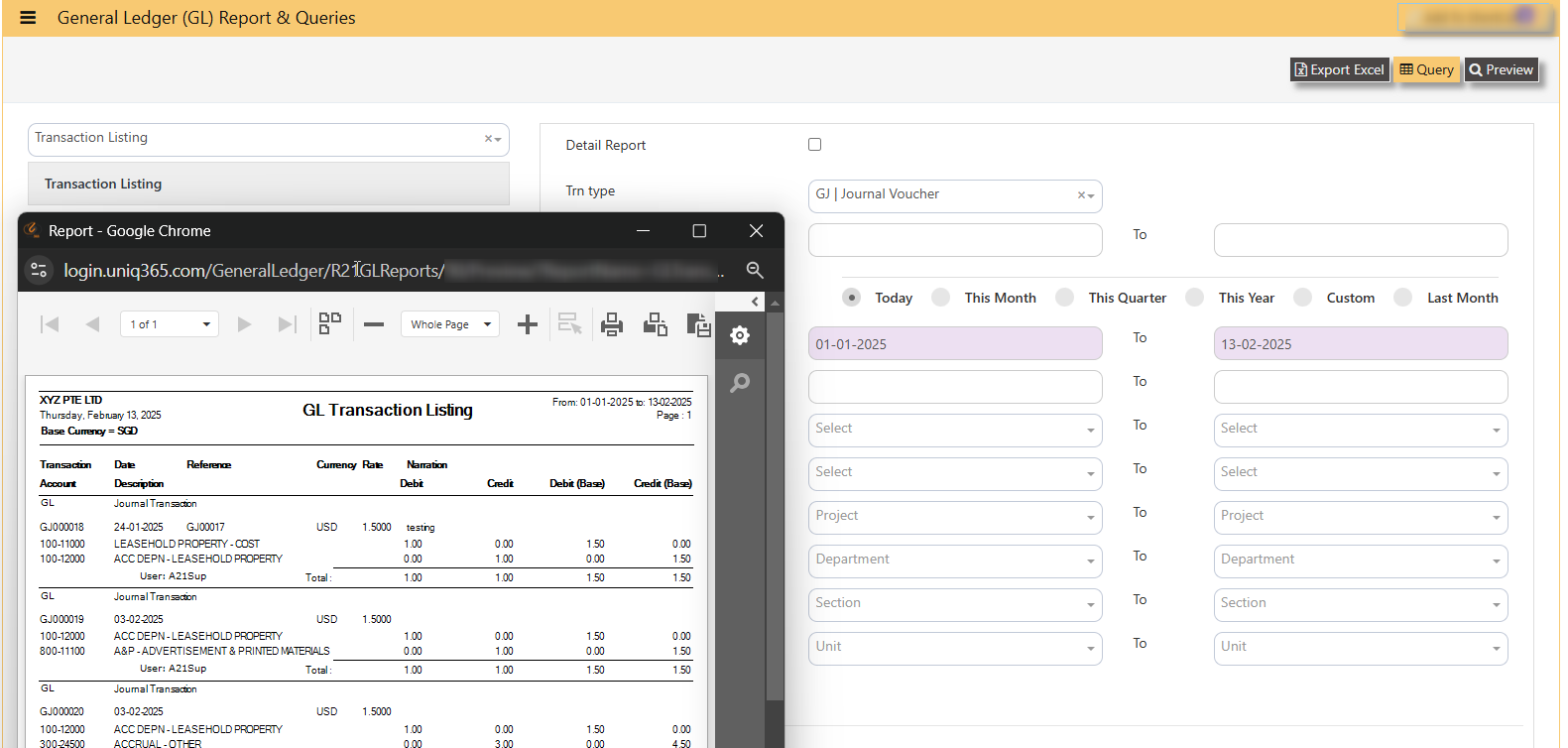
Sample transaction listing if selected a specific TRN TYPE GJ with selected date range 01 January 2025 to 13 February 2025, will show as below:
[](https://doc.uniq365.com/uploads/images/gallery/2025-02/qXqimage.png)
GST REPORT
#### **HOW TO GENERATE GST F5?**
#### **This report is generated for submission to IRAS.**
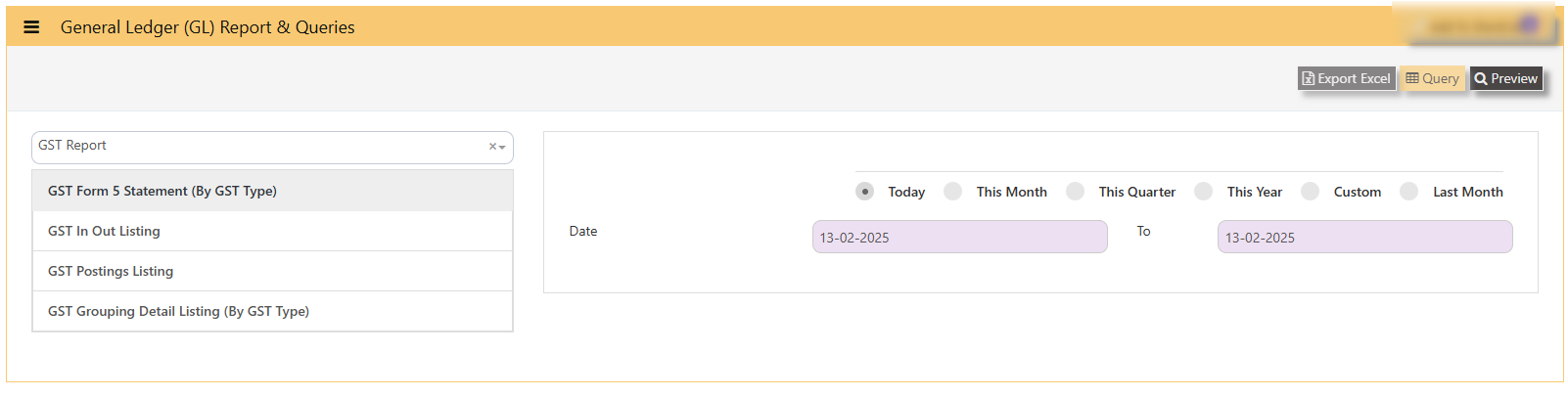
- **GST Form 5 Statement (By GST TYPE) -** is the most commonly used Form5
- **Date -** select date range
- **PREVIEW -** click to view
- **QUERY -** to export excel with filter capability
- **EXPORT EXCEL -** to export to excel
#### [](https://doc.uniq365.com/uploads/images/gallery/2025-02/Nwjimage.png)
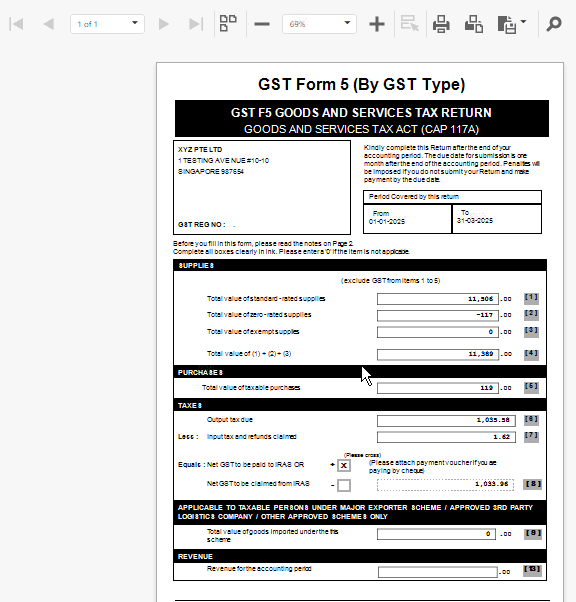
#### **SAMPLE PREVIEW OF GST FORM5 (BY GST TYPE):**
- **ARROW LEFT OR RIGHT**- select pages \[in sample will show pages 1 of total 1 page\]
- **- or +** - zoom from 1% to 100%
- **PRINT** - select to print
- **DOWNLOAD** - to pdf or excel.
[](https://doc.uniq365.com/uploads/images/gallery/2025-02/c75image.png)
\_\_\_\_\_\_\_\_\_\_\_\_\_\_\_\_\_\_\_\_\_\_\_\_\_\_\_\_\_\_\_\_\_\_\_\_\_\_\_\_\_\_\_\_\_\_\_\_\_\_\_\_\_\_\_\_\_\_\_\_\_\_\_\_\_\_\_\_\_\_\_\_\_\_\_\_\_\_\_\_\_\_\_\_\_\_\_\_\_\_\_\_\_\_\_\_\_\_\_\_\_\_\_\_\_\_\_\_\_\_\_\_\_\_\_\_\_\_\_\_\_\_
#### **HOW TO GENERATE GST IN OUT LISTING?**
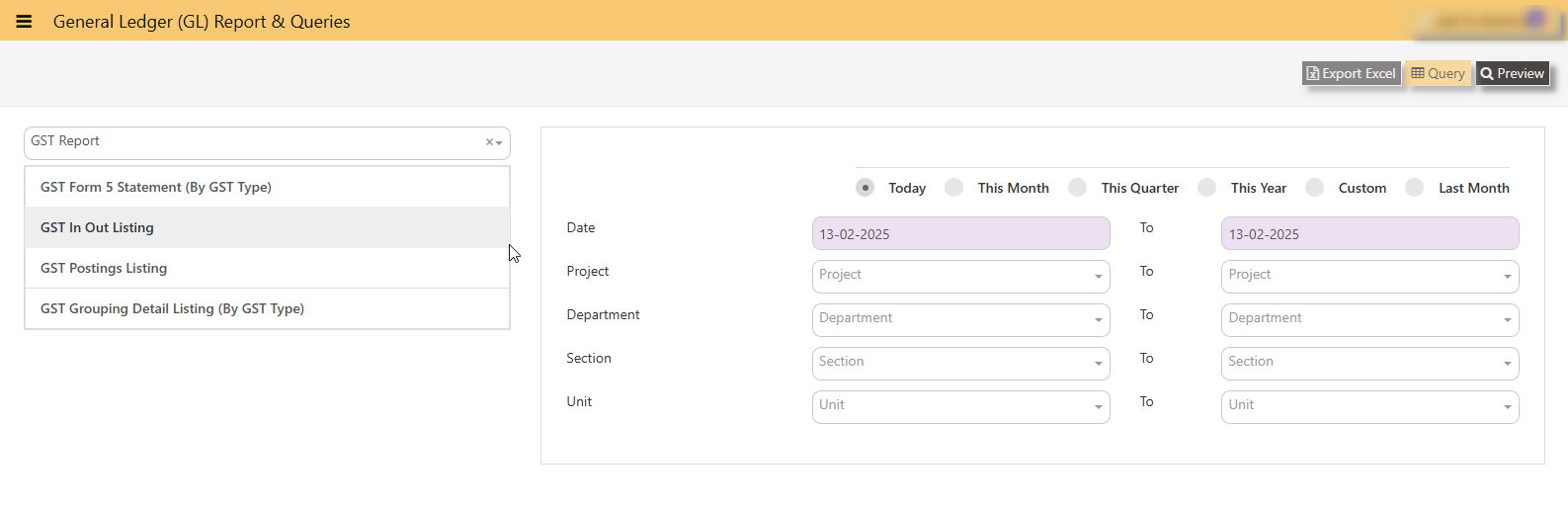
**This report reflects all posted transactions with GST (sorted from payable to receivable).**
- **GST IN OUT LISTING**
- **DATE**
- **PROJECT**
- **DEPARTMENT**
- **SECTION**
- **UNIT**
[](https://doc.uniq365.com/uploads/images/gallery/2025-02/5nVimage.png)
#### **SAMPLE PREVIEW OF GST IN OUT LISTING:**
[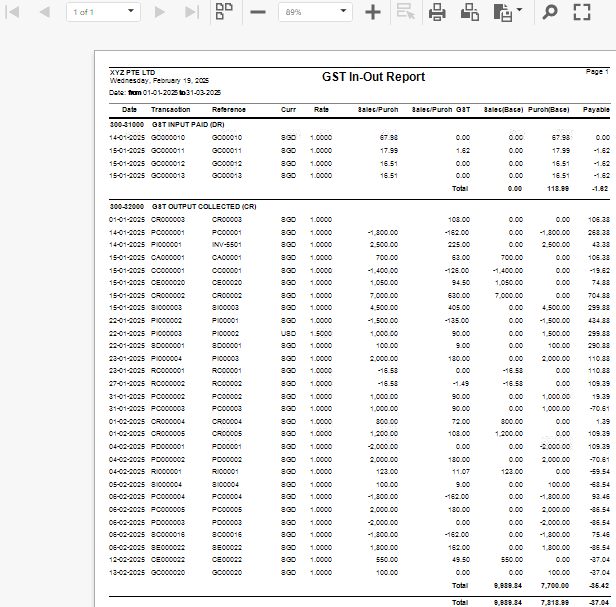](https://doc.uniq365.com/uploads/images/gallery/2025-02/1u6image.png)
\_\_\_\_\_\_\_\_\_\_\_\_\_\_\_\_\_\_\_\_\_\_\_\_\_\_\_\_\_\_\_\_\_\_\_\_\_\_\_\_\_\_\_\_\_\_\_\_\_\_\_\_\_\_\_\_\_\_\_\_\_\_\_\_\_\_\_\_\_\_\_\_\_\_\_\_\_\_\_\_\_\_\_\_\_\_\_\_\_\_\_\_\_\_\_\_\_\_\_\_\_\_\_\_\_\_\_\_\_\_\_\_\_\_\_\_\_\_\_\_\_\_\_\_\_
#### **HOW TO GENERATE GST POSTING LISTING?**
**This report reflects transactions sorted by GST CODE, grouped by GL ACCOUNT CODE.**
Navigate on the GST Posting Listing Report and fill up your required parameters for the report generation.
[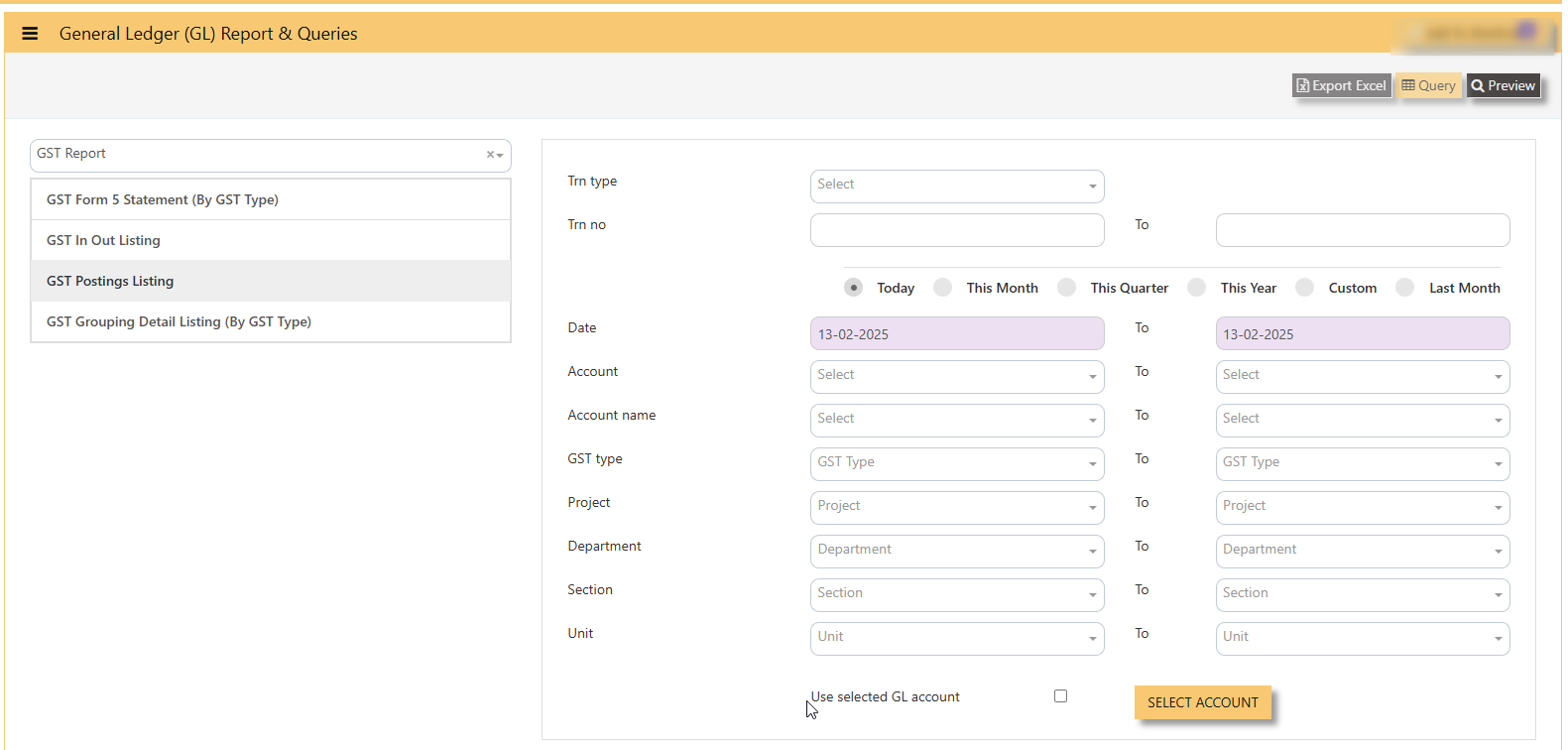](https://doc.uniq365.com/uploads/images/gallery/2025-02/KsFimage.png)
#### **SAMPLE PREVIEW OF GST POSTING LISTING:**
[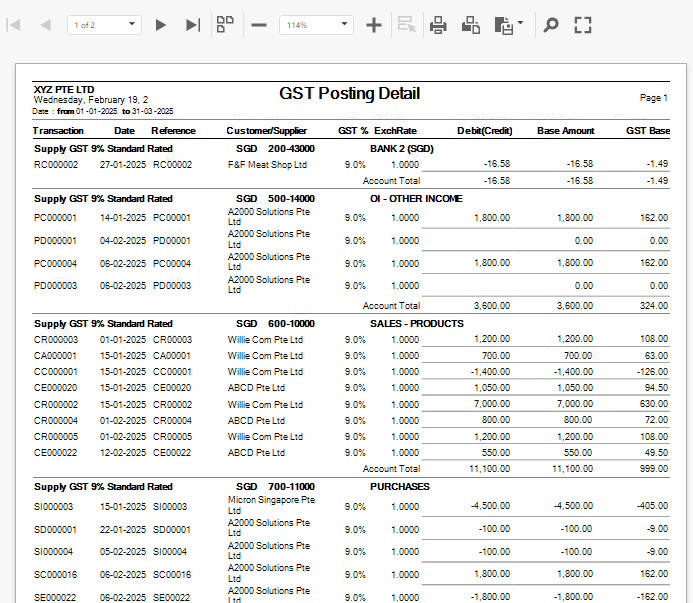](https://doc.uniq365.com/uploads/images/gallery/2025-02/bQYimage.png)
\_\_\_\_\_\_\_\_\_\_\_\_\_\_\_\_\_\_\_\_\_\_\_\_\_\_\_\_\_\_\_\_\_\_\_\_\_\_\_\_\_\_\_\_\_\_\_\_\_\_\_\_\_\_\_\_\_\_\_\_\_\_\_\_\_\_\_\_\_\_\_\_\_\_\_\_\_\_\_\_\_\_\_\_\_\_\_\_\_\_\_\_\_\_\_\_\_\_\_\_\_\_\_\_\_\_\_\_\_\_\_\_\_\_\_\_\_\_\_\_\_\_\_\_\_
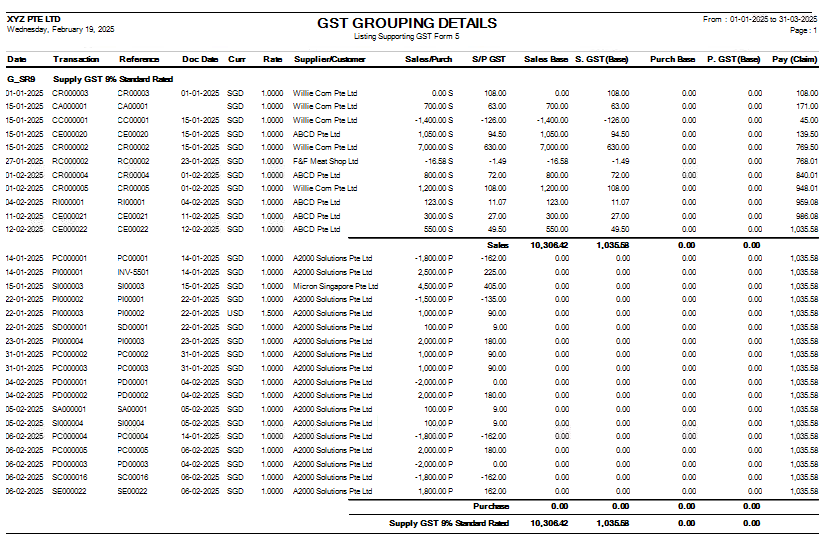
#### **HOW TO GENERATE GST GROUPING DETAIL LISTING BY GST TYPE?**
**This report report reflect summary of transaction posted with GST involved, grouped by GST TYPE.**
Navigate on the GST Grouping Detail Listing(By GST Type) and fill up your required parameters for the report generation.
[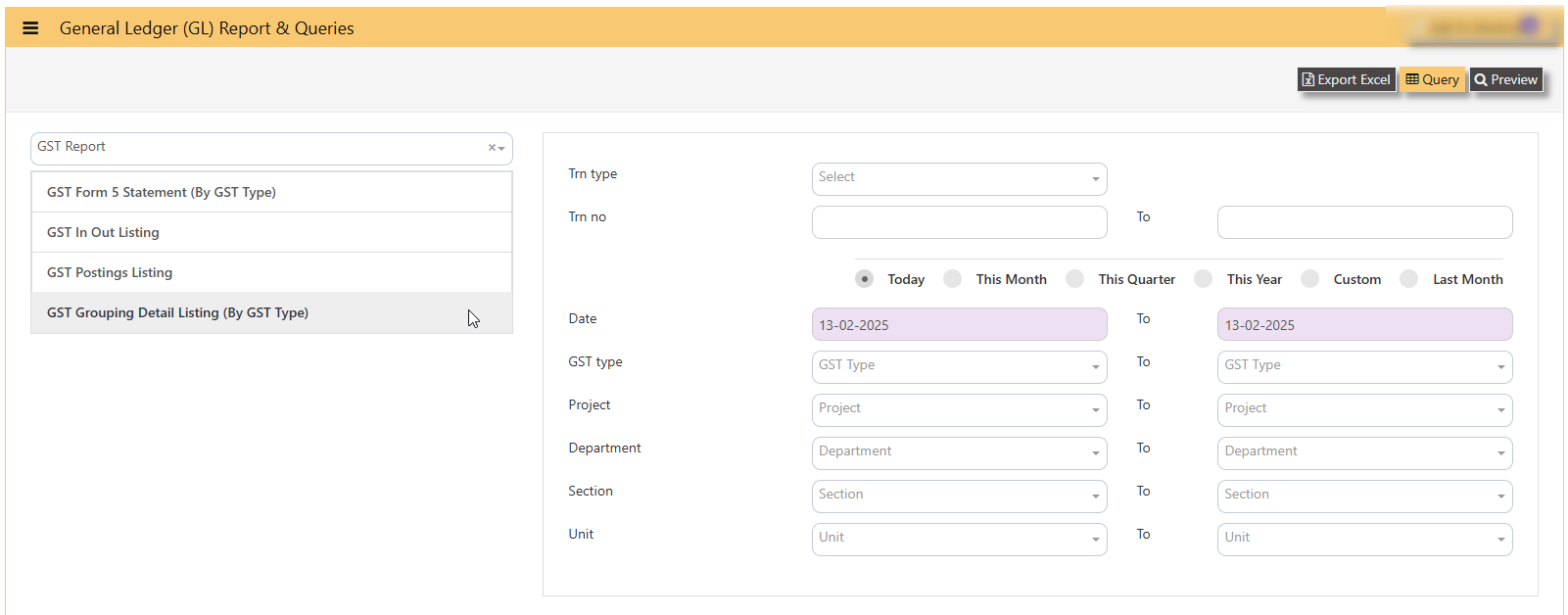](https://doc.uniq365.com/uploads/images/gallery/2025-02/l17image.png)
#### **SAMPLE PREVIEW OF GST GROUPING DETAIL LISTING BY GST TYPE?**
[](https://doc.uniq365.com/uploads/images/gallery/2025-02/Groimage.png)
TRIAL BALANCE
#### **TRIAL BALANCE** in **Uniq365** can be previewed in 2 ways-
- **Trial balance By Date**
- **Trial balance By Year / Period**
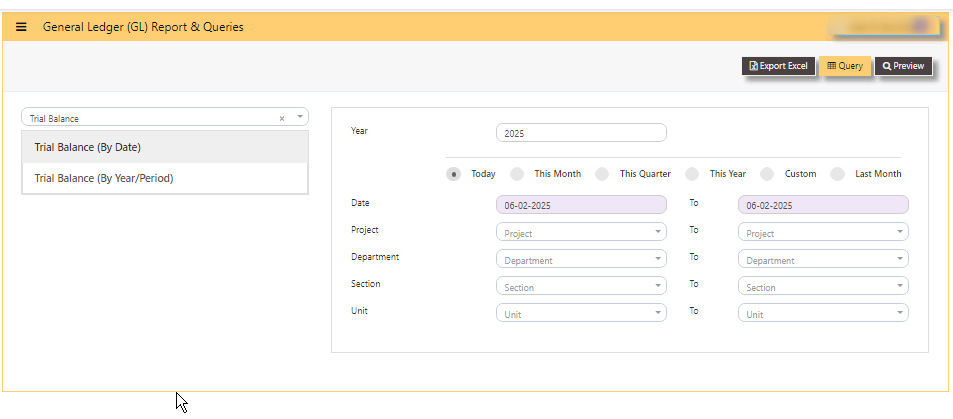
#### **HOW TO GENERATE TRIAL BALANCE BY DATE?**
- select **TRIAL BALANCE BY DATE**
- **YEAR -** key in
- **TODAY** - defaulted but you may select **'THIS MONTH', 'THIS QUARTER', 'THIS YEAR', 'CUSTOM' or 'LAST MONTH'**
- **DATE** - select from and to (in this format DD-MM-YYYY)
- **PROJECT** - filter by project
- **DEPARTMENT** - filter by department
- **SECTION** - filter by section or
- **UNIT** - filter by unit
- **PREVIEW** - tick to preview
- **QUERY** - to export in excel with filter capability
- **EXPORT EXCEL** - to export in excel
[](https://doc.uniq365.com/uploads/images/gallery/2025-02/eg4image.png)
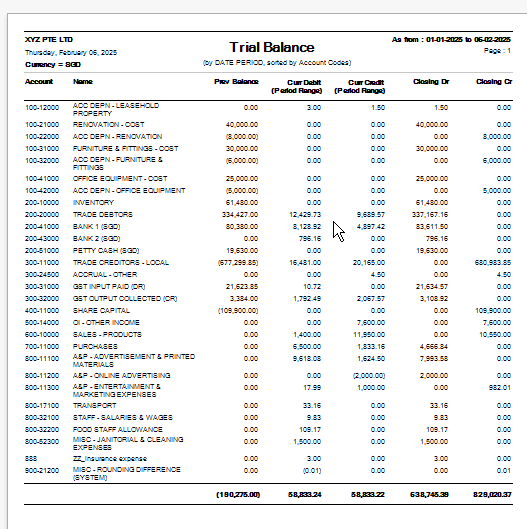
#### **SAMPLE FORMAT OF TRIAL BALANCE BY DATE:**
[](https://doc.uniq365.com/uploads/images/gallery/2025-02/8Osimage.png)
\_\_\_\_\_\_\_\_\_\_\_\_\_\_\_\_\_\_\_\_\_\_\_\_\_\_\_\_\_\_\_\_\_\_\_\_\_\_\_\_\_\_\_\_\_\_\_\_\_\_\_\_\_\_\_\_\_\_\_\_\_\_\_\_\_\_\_\_\_\_\_\_\_\_\_\_\_\_\_\_\_\_\_\_\_\_\_\_\_\_\_\_\_\_\_\_\_\_\_\_\_\_\_\_\_\_\_\_\_\_\_\_\_\_\_\_\_\_\_\_
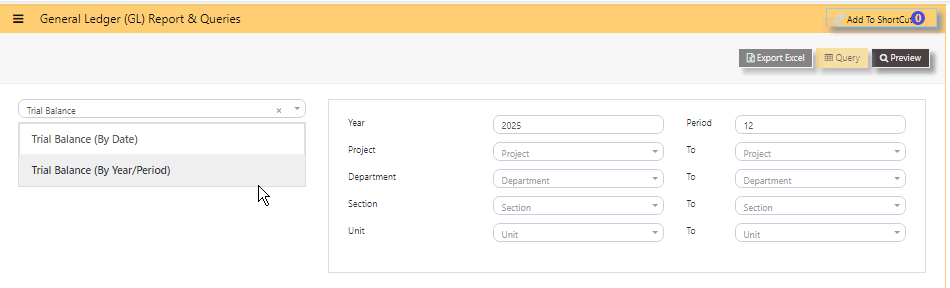
#### **HOW TO GENERATE TRIAL BALANCE BY YEAR PERIOD?**
- select **TRIAL BALANCE BY YEAR PERIOD**
- **YEAR -** key in
- **PERIOD** - key in from 1 to 12 \[end of month basis\]. Example, if you key period 12, system will take the sum from month 1 to 12. If the start period is January, system will sum up from January 1 to December 31 of the selected year.
- **PROJECT** - filter by project
- **DEPARTMENT** - filter by department
- **SECTION** - filter by section or
- **UNIT** - filter by unit
- **PREVIEW** - tick to preview
- **QUERY** - to export in excel with filter capability
- **EXPORT EXCEL** - to export in excel
[](https://doc.uniq365.com/uploads/images/gallery/2025-02/98Ximage.png)
#### **SAMPLE FORMAT OF TRIAL BALANCE BY YEAR PERIOD:**
In this sample, year is 2025, the start month is January as period 1, so key in period 12 \[system will sum up from period 1 to 12\], trial balance will show as of \[last day\] DECEMBER 2025.
#### **HOW TO READ THE COLUMNS OF TRIAL BALANCE?**
- **YEAR -** as keyed in
- **PERIOD - 12** as **DECEMBER**
- **ACCOUNT -** chart of account code
- **NAME** - description of chart of account
- **PREV MONTH BALANCE** - in this sample, balance is from November 30 2025
- **CURR DR MONTH** - sum of transactions from DECEMBER 1 to 31 2025
- **CURR CR MONTH** - sum of transactions from DECEMBER 1 to 31 2025
- **CLOSING DR**-sum of columns previous month bal, Curr Dr and Curr Cr
- **CLOSING CR**-sum of columns previous month bal, Curr Dr and Curr Cr. [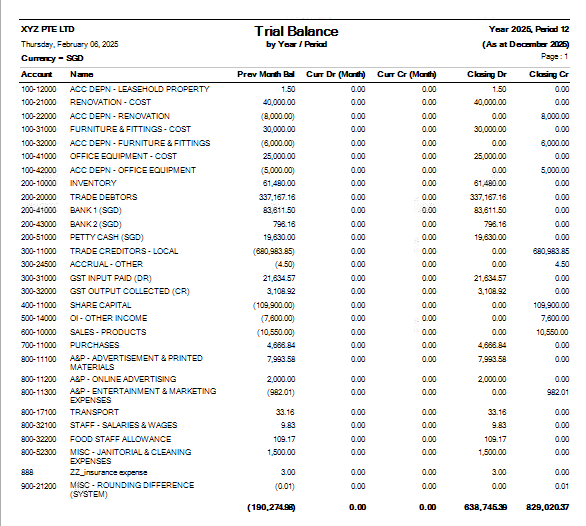](https://doc.uniq365.com/uploads/images/gallery/2025-02/4gWimage.png)
GENERAL LEDGER
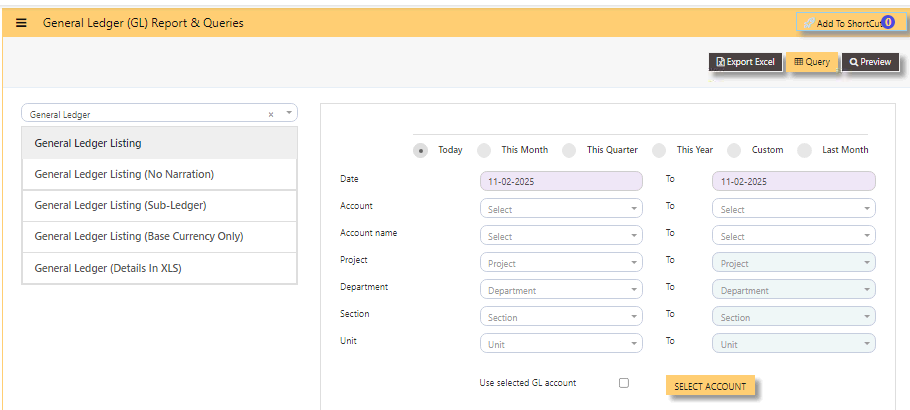
#### **GENERAL LEDGER LISTING** can be previewed in many ways
- **GENERAL LEDGER LISTING**
- **GENERAL LEDGER LISTING NO NARRATION**
- **GENERAL LEDGER LISTING SUB LEDGER**
- **GENERAL LEDGER LISTING BASE CURRENCY ONLY**
- **GENERAL LEDGER LISTING DETAILS IN XLS**
#### [](https://doc.uniq365.com/uploads/images/gallery/2025-02/CrRimage.png)
- tick **TODAY**, THIS MONTH, THIS QUARTER, THIS YEAR, CUSTOM or LAST MONTH
- **DATE** - select from and to (in this format DD-MM-YYYY)
- **ACCOUNT** - select either from dropdown chart-of-account code or
- **ACCOUNT NAME** - select from and to
- **PROJECT** - you may leave blank if no project-department-section-unit use or select from and to
- **DEPARTMENT** - you may leave blank if no department-section-unit use
- **SECTION** - you may leave blank if no section-unit use
- **UNIT** - you may leave blank if no unit use.
- **USE SELECTED GL ACCOUNT** - you may use this if you wish to view selected chart of account.
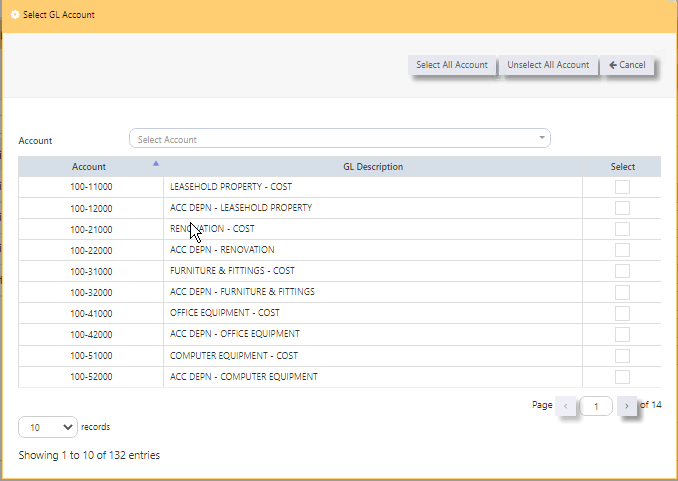
- **SELECT ACCOUNT BUTTON** - upon tick, another page will show, select the chart of account you wish to include in the preview by checking the box.
- **SELECT ALL ACCOUNT** - will help tick all chart of accounts
- **UNSELECT ALL ACCOUNT** - will untick all chart of accounts
- **CANCEL** - will let you return to the previous page
- **ARROW LEFT and RIGHT** on PAGES 1 to last - will let you select and tick chart of account.
- **RECORDS** - 10, 25, 50 100 and 200 lines to show on each page.
[](https://doc.uniq365.com/uploads/images/gallery/2025-02/k5Vimage.png)
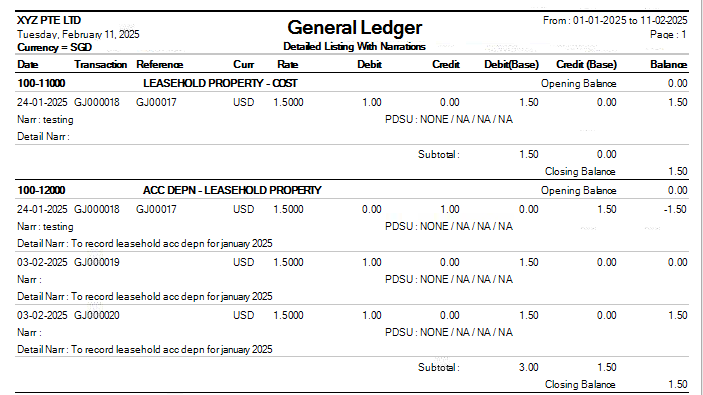
#### **GENERAL LEDGER LISTING SAMPLE PREVIEW**
[](https://doc.uniq365.com/uploads/images/gallery/2025-02/anEimage.png)
#### **GENERAL LEDGER LISTING NO NARRATION SAMPLE PREVIEW**
[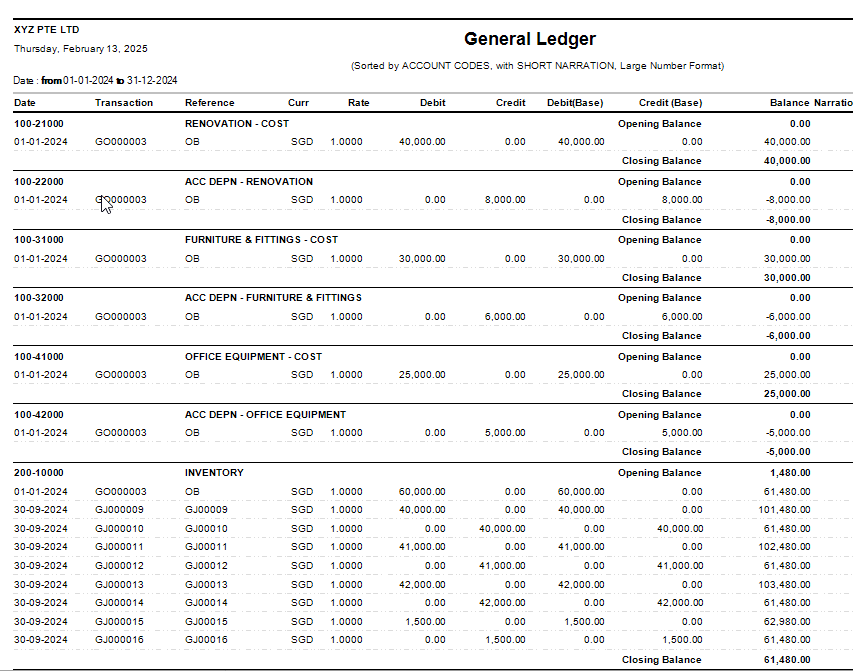](https://doc.uniq365.com/uploads/images/gallery/2025-02/J30image.png)
#### **GENERAL LEDGER LISTING SUBLEDGER SAMPLE PREVIEW**
[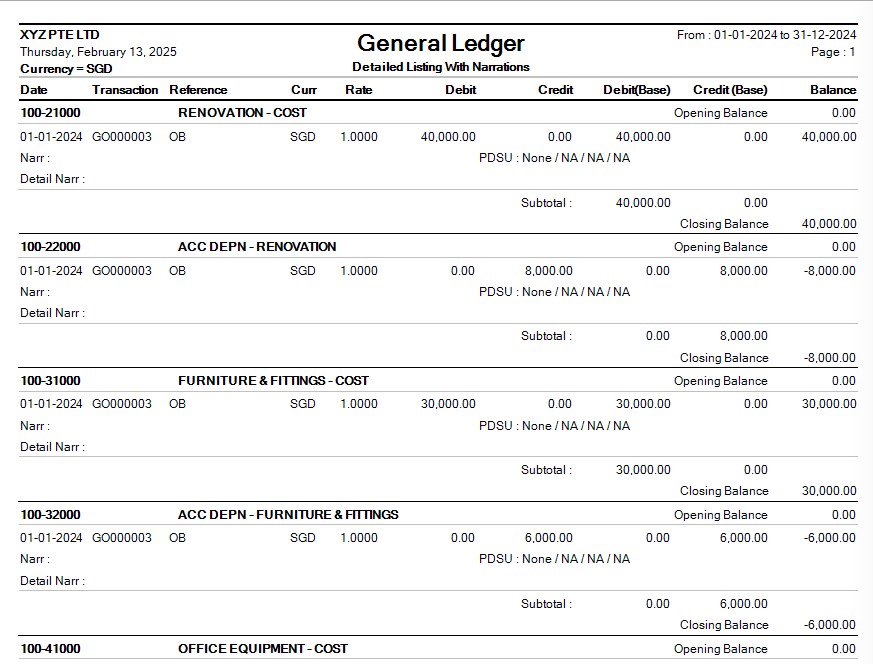](https://doc.uniq365.com/uploads/images/gallery/2025-02/z4Jimage.png)
#### **GENERAL LEDGER LISTING BASE CURRENCY ONLY SAMPLE PREVIEW**
[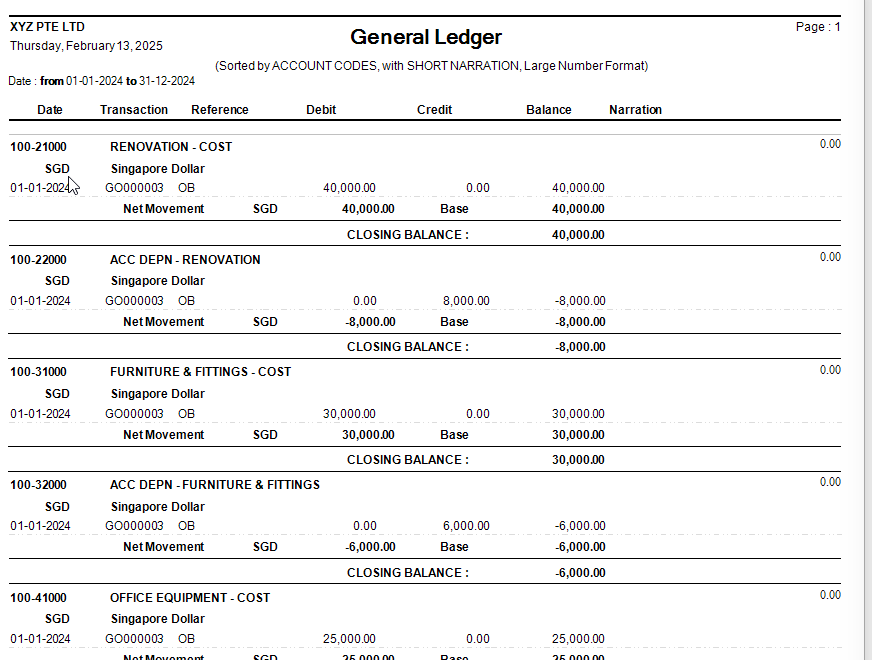](https://doc.uniq365.com/uploads/images/gallery/2025-02/N2limage.png)
#### **GENERAL LEDGER LISTING XLS SAMPLE PREVIEW**
[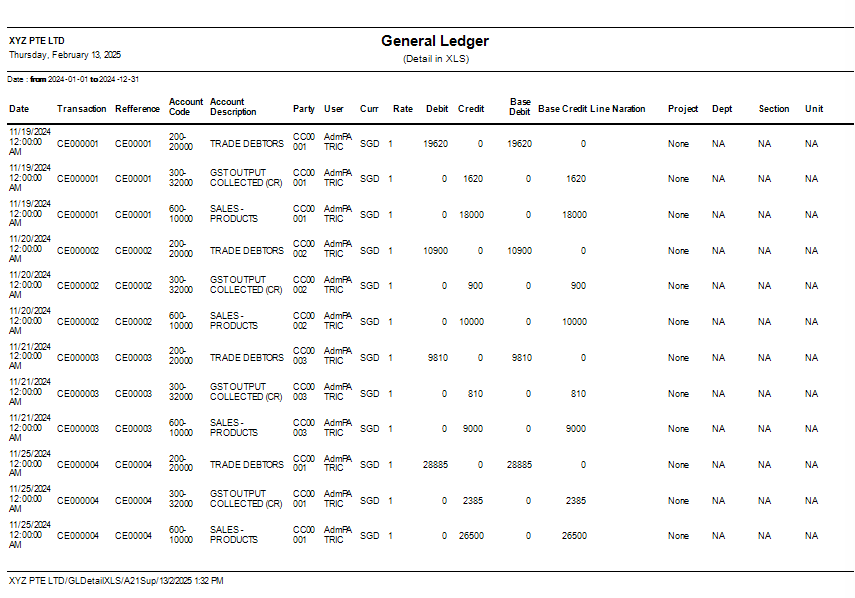](https://doc.uniq365.com/uploads/images/gallery/2025-02/kYBimage.png)
PROFIT AND LOSS
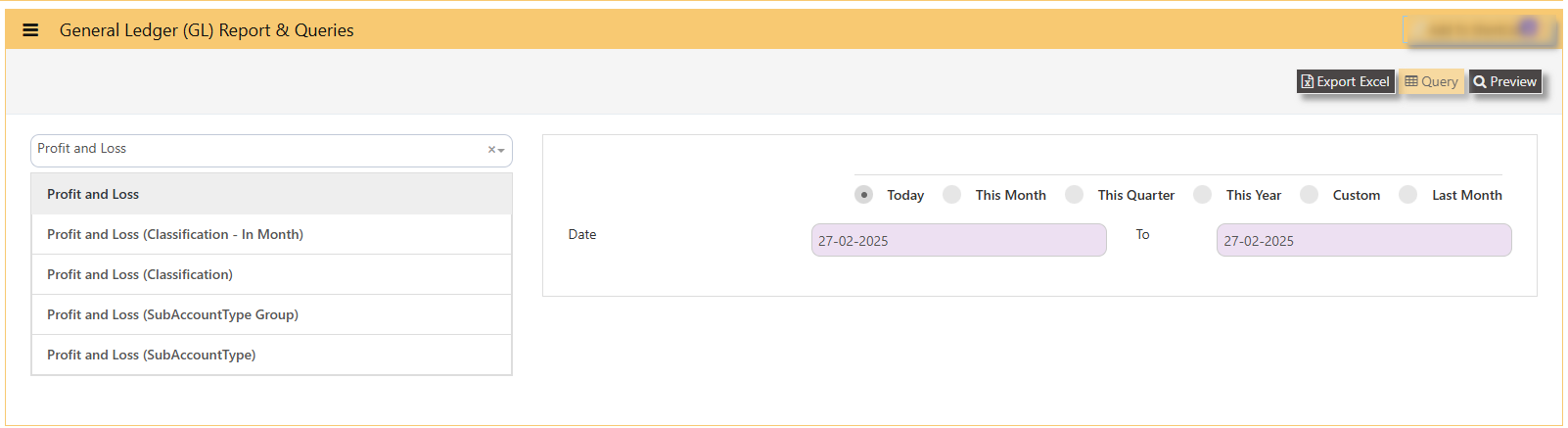
#### **PROFIT AND LOSS can be previewed in many ways**
- **PROFIT AND LOSS**
- **PROFIT AND LOSS CLASSIFICATION IN MONTH**
- **PROFIT AND LOSS CLASSIFICATION**
- **PROFIT AND LOSS SUBACCOUNT TYPE GROUP**
- **PROFIT AND LOSS SUBACCOUNT TYPE**
[](https://doc.uniq365.com/uploads/images/gallery/2025-02/uhPimage.png)
\_\_\_\_\_\_\_\_\_\_\_\_\_\_\_\_\_\_\_\_\_\_\_\_\_\_\_\_\_\_\_\_\_\_\_\_\_\_\_\_\_\_\_\_\_\_\_\_\_\_\_\_\_\_\_\_\_\_\_\_\_\_\_\_\_\_\_\_\_\_\_\_\_\_\_\_\_\_\_\_\_\_\_\_\_\_\_\_\_\_\_\_\_\_\_\_\_\_\_\_\_\_\_\_\_\_\_\_\_\_\_\_\_\_\_\_\_\_\_\_\_
#### **HOW TO PREVIEW PROFIT AND LOSS?**
- **select the report -** PROFIT AND LOSS, PROFIT AND LOSS CLASSIFICATION IN MONTH, PROFIT AND LOSS CLASSIFICATION, PROFIT AND LOSS SUBACCOUNT TYPE GROUP AND PROFIT AND LOSS SUBACCOUNT TYPE
- **DATE -** from and to
- **TODAY -** will auto select date range from 'today' to 'today', this month, this quarter, custom or last month.
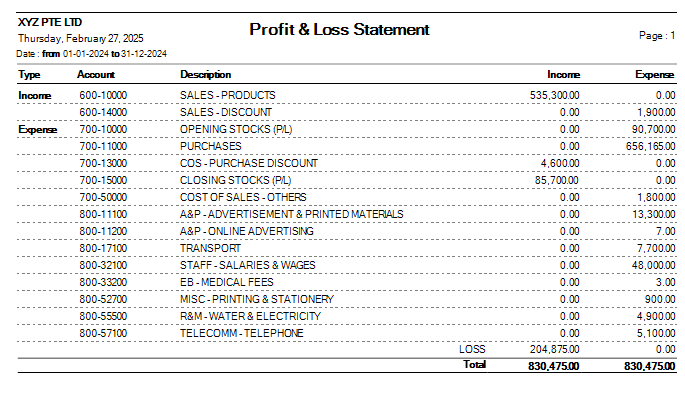
#### **SAMPLE PREVIEW PROFIT AND LOSS**
- **HEADER -** company, date generated, date of profit and loss statement
- **PAGE** - number of page
- **TYPE -** income or expense
- **ACCOUNT -** chart of account code
- **DESCRIPTION -** description
- **INCOME -** column of all debit balance
- **EXPENSE -** column of all credit balance
- **PROFIT/LOSS** - auto-indicate loss if 'debit balance' \[this sample is loss\] or profit if 'credit balance'
- **TOTAL** - total debit or income and total credit or expense
#### [](https://doc.uniq365.com/uploads/images/gallery/2025-02/ey9image.png)
\_\_\_\_\_\_\_\_\_\_\_\_\_\_\_\_\_\_\_\_\_\_\_\_\_\_\_\_\_\_\_\_\_\_\_\_\_\_\_\_\_\_\_\_\_\_\_\_\_\_\_\_\_\_\_\_\_\_\_\_\_\_\_\_\_\_\_\_\_\_\_\_\_\_\_\_\_\_\_\_\_\_\_\_\_\_\_\_\_\_\_\_\_\_\_\_\_\_\_\_\_\_\_\_\_\_\_\_\_\_\_\_\_\_\_\_\_\_\_\_\_\_\_\_\_\_\_
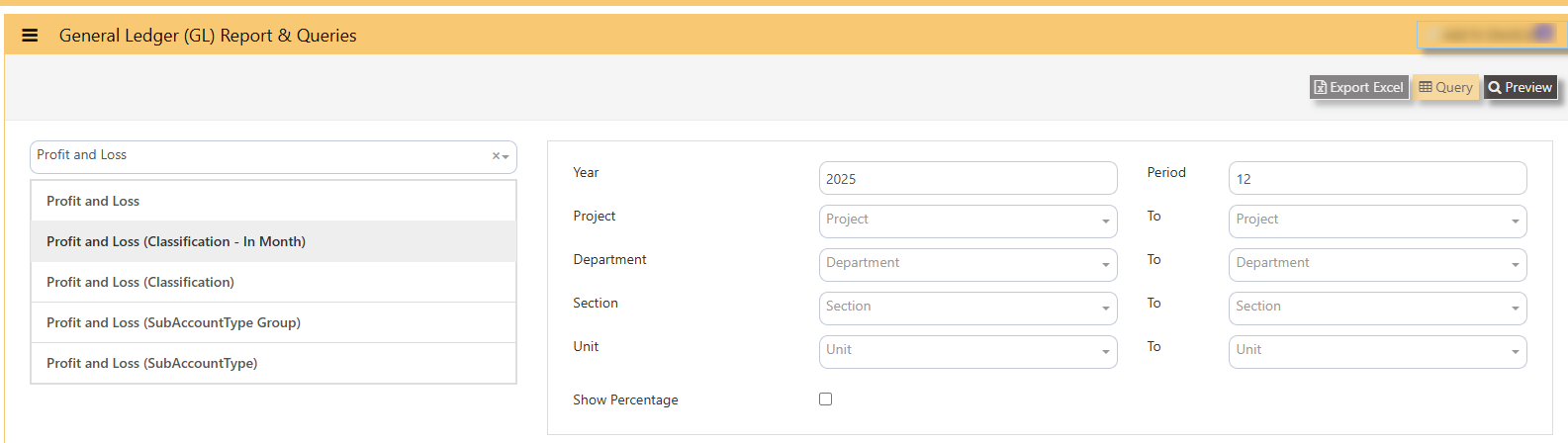
#### **HOW TO PREVIEW PROFIT AND LOSS CLASSIFICATION IN MONTH?**
- **select the report -** PROFIT AND LOSS CLASSIFICATION IN MONTH
- **YEAR AND PERIOD -** key in
- **PROJECT -** select from and to
- **DEPARTMENT -** select from and to
- **SECTION -** select from and to
- **UNIT -** select from and to
- **SHOW PERCENTAGE -** tick to show percentage per row
[](https://doc.uniq365.com/uploads/images/gallery/2025-02/K34image.png)
- **PREVIEW** - click
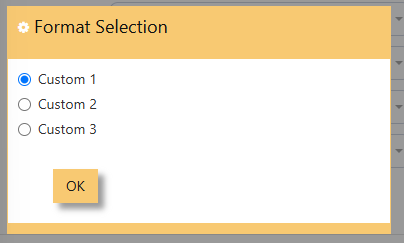
- **FORMAT SELECTION** - select custom 1, 2 or 3
[](https://doc.uniq365.com/uploads/images/gallery/2025-02/pv7image.png)
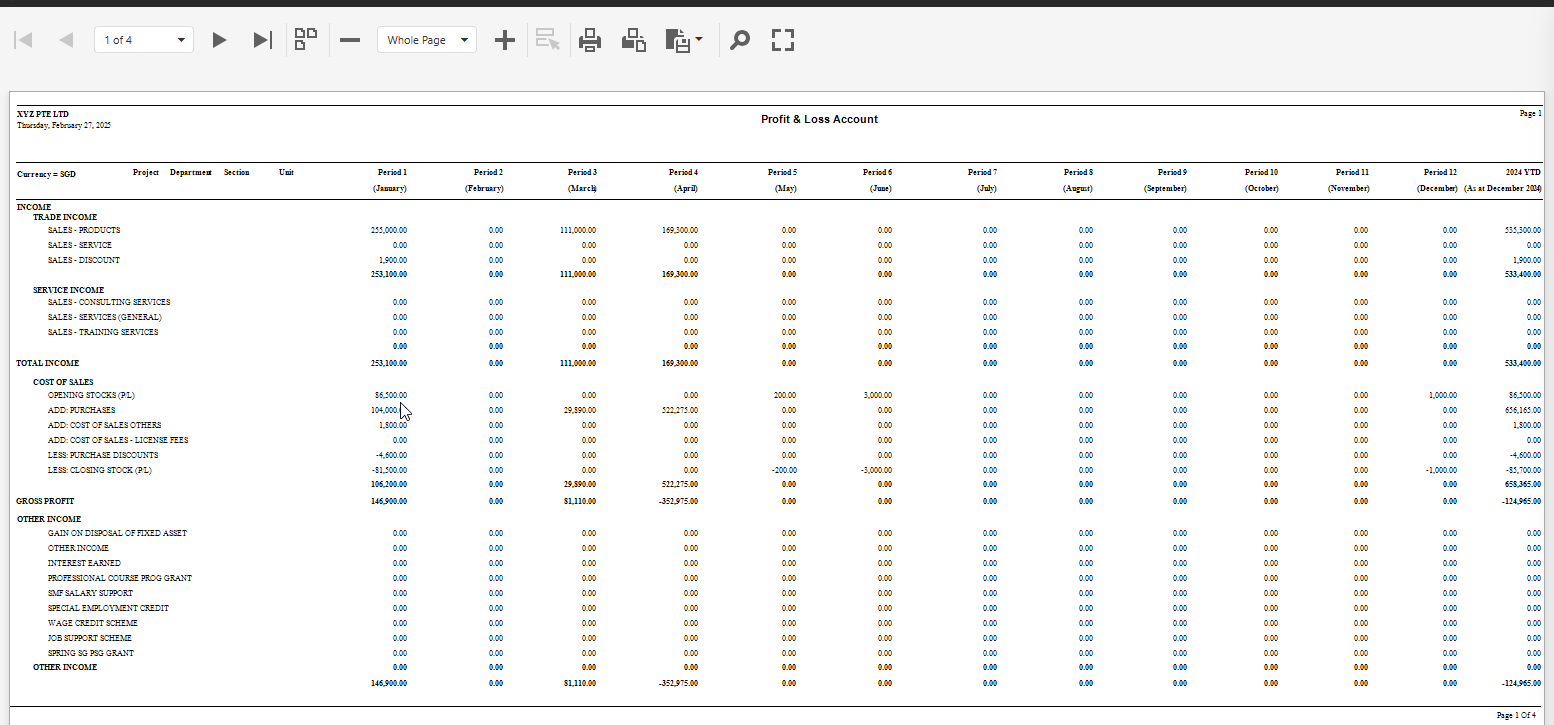
#### **SAMPLE PREVIEW PROFIT AND LOSS CLASSIFICATION IN MONTH**
- **report** will show the monthly values in 12 months
- **arrows left or right** - show page 1 to 4
- **- or +** - zoom in report
- **printer icon** - click to print
- **export** - click to pdf or excel
#### [](https://doc.uniq365.com/uploads/images/gallery/2025-02/xhKimage.png)
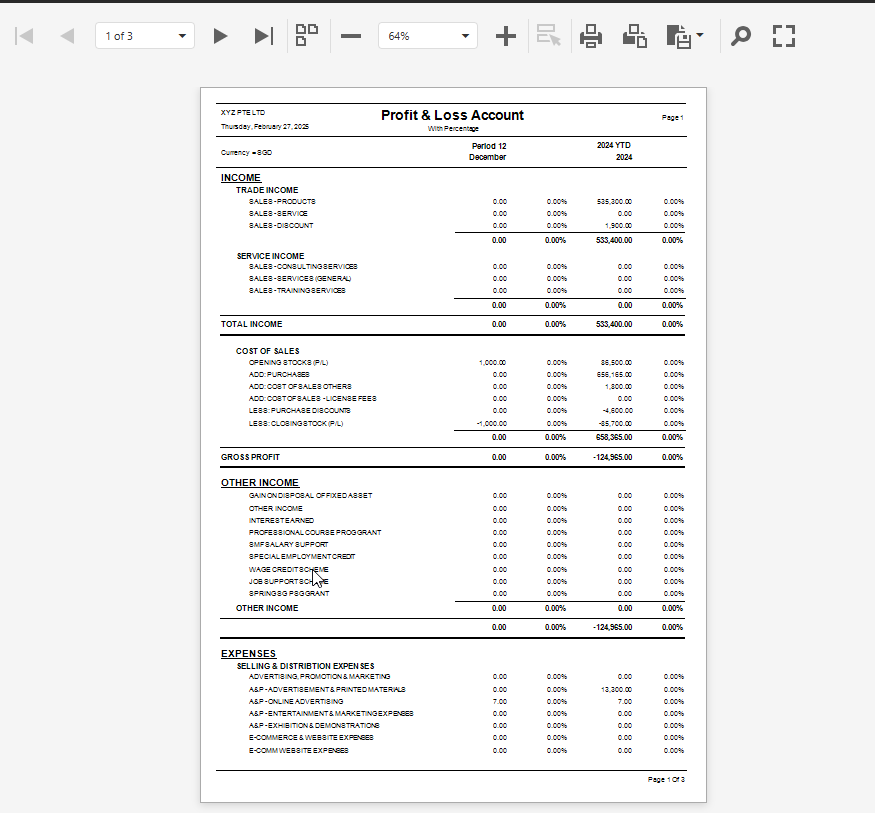
#### **SAMPLE PREVIEW PROFIT AND LOSS CLASSIFICATION**
[](https://doc.uniq365.com/uploads/images/gallery/2025-02/0jSimage.png)
\_\_\_\_\_\_\_\_\_\_\_\_\_\_\_\_\_\_\_\_\_\_\_\_\_\_\_\_\_\_\_\_\_\_\_\_\_\_\_\_\_\_\_\_\_\_\_\_\_\_\_\_\_\_\_\_\_\_\_\_\_\_\_\_\_\_\_\_\_\_\_\_\_\_\_\_\_\_\_\_\_\_\_\_\_\_\_\_\_\_\_\_\_\_\_\_\_\_\_\_\_\_\_\_\_\_\_\_\_\_\_\_\_\_\_\_\_\_\_\_
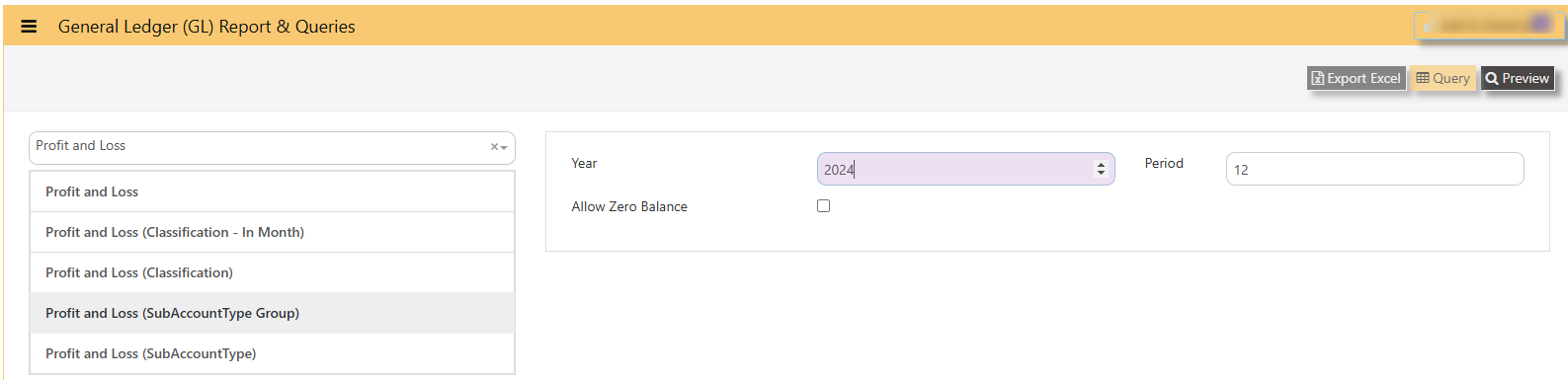
#### **SAMPLE PREVIEW PROFIT AND LOSS SUBACCOUNT TYPE GROUP**
- **YEAR and PERIOD -** select from dropdown and key in period from 1 until 12
- **PREVIEW -** click to preview
- **EXPORT EXCEL -** to export to excel
- **ALLOW ZERO BALANCE** - tick to allow accounts with zero balances
- [](https://doc.uniq365.com/uploads/images/gallery/2025-02/ZdZimage.png)
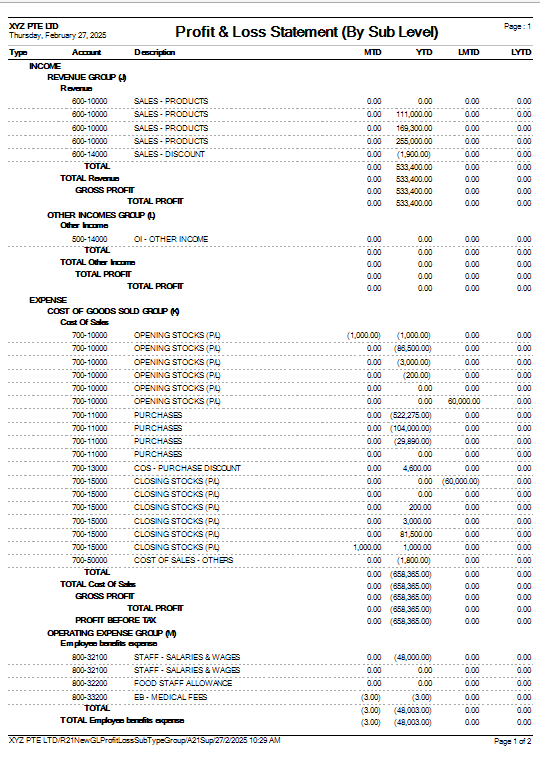
#### **PROFIT AND LOSS STATEMENT BY SUB ACCOUNT or BY SUB LEVEL**
- **TYPE -** income or expense
- **ACCOUNT -** chart of account code
- **DESCRIPTION -** chart of account
- **MTD -** month to date
- **YTD -** year to date
- **LMTD**
- **LYTD**
[](https://doc.uniq365.com/uploads/images/gallery/2025-02/1fTimage.png)
\_\_\_\_\_\_\_\_\_\_\_\_\_\_\_\_\_\_\_\_\_\_\_\_\_\_\_\_\_\_\_\_\_\_\_\_\_\_\_\_\_\_\_\_\_\_\_\_\_\_\_\_\_\_\_\_\_\_\_\_\_\_\_\_\_\_\_\_\_\_\_\_\_\_\_\_\_\_\_\_\_\_\_\_\_\_\_\_\_\_\_\_\_\_\_\_\_\_\_\_\_\_\_\_\_\_\_\_\_
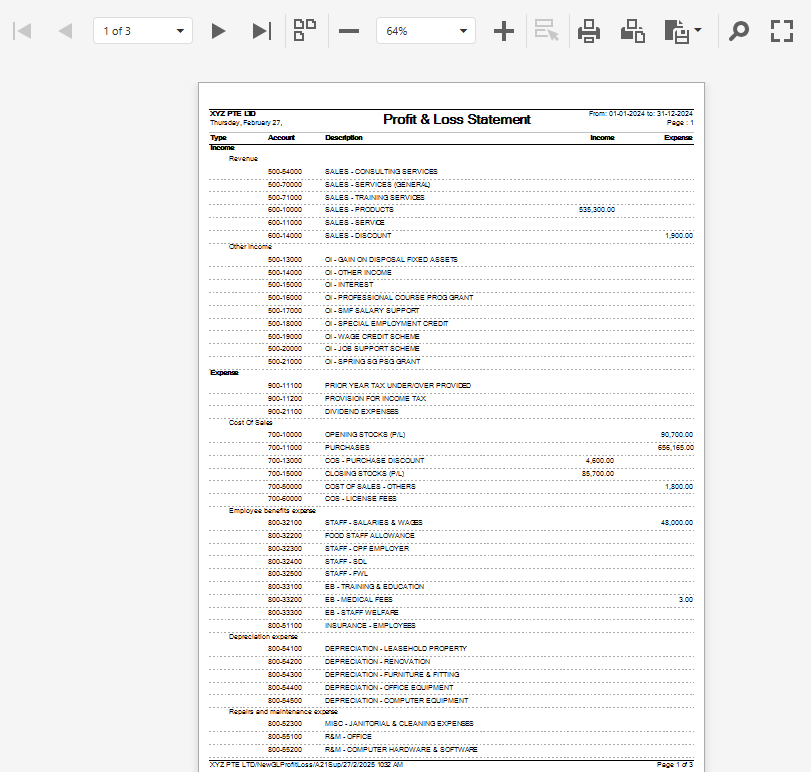
#### **SAMPLE PREVIEW PROFIT AND LOSS SUBACCOUNT TYPE**
- **TYPE -** income or expense
- **ACCOUNT -** chart of account code
- **DESCRIPTION -** chart of account
- **INCOME -** debit balance
- **EXPENSE -** credit balance
- **PAGE** - number of pages
[](https://doc.uniq365.com/uploads/images/gallery/2025-02/Da8image.png)
BALANCE SHEET
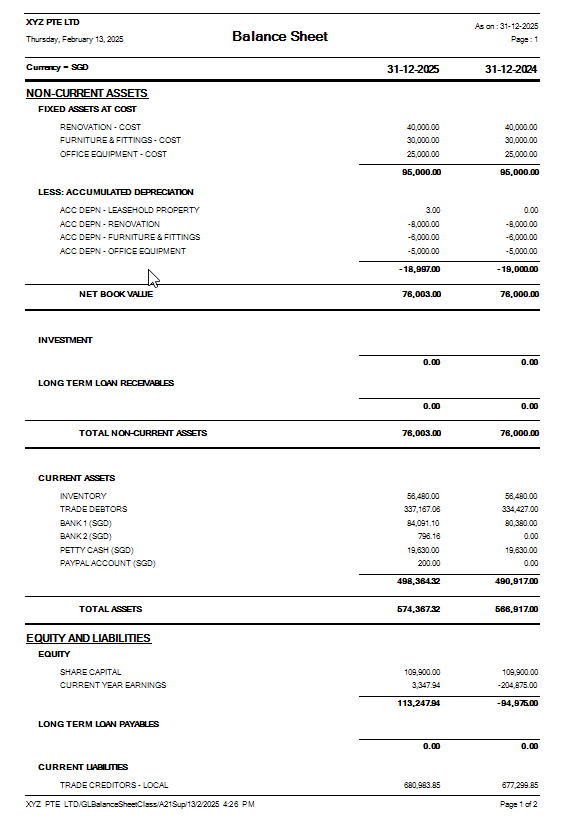
#### **BALANCE SHEET can be previewed in many ways**
- **BALANCE SHEET**
- **BALANCE SHEET SUBACCOUNT TYPE**
- **BALANCE SHEET WITH CLASSIFICATION**
**\_\_\_\_\_\_\_\_\_\_\_\_\_\_\_\_\_\_\_\_\_\_\_\_\_\_\_\_\_\_\_\_\_\_\_\_\_\_\_\_\_\_\_\_\_\_\_\_\_\_\_\_\_\_\_\_\_\_\_\_\_\_\_\_\_\_\_\_\_\_\_\_\_\_\_\_\_\_\_\_\_\_\_\_\_\_\_\_\_\_\_\_\_\_\_\_\_\_\_\_\_\_\_\_\_\_\_\_\_\_\_\_\_\_\_\_\_\_\_\_\_\_\_\_\_\_\_\_\_**
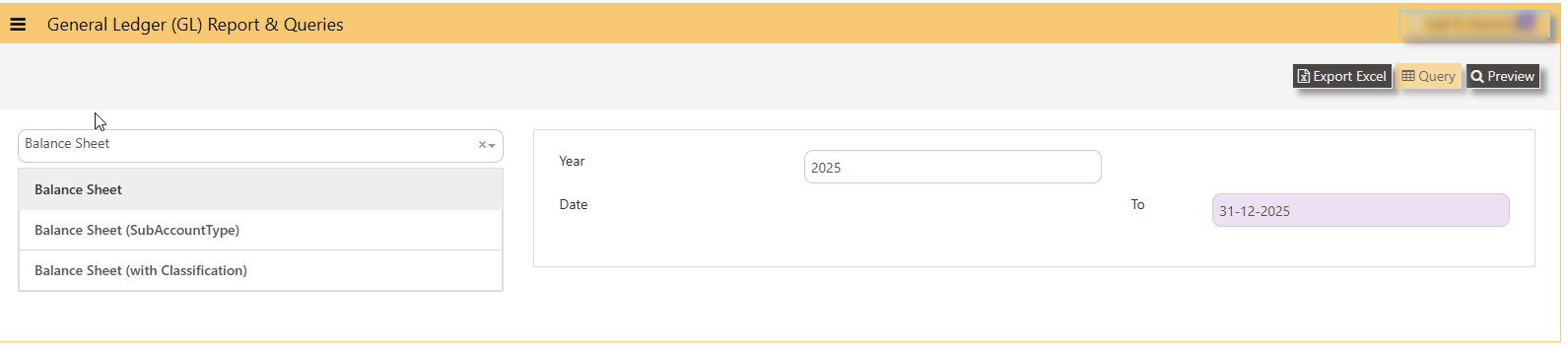
#### **HOW TO PREVIEW BALANCE SHEET?**
- **YEAR -** select
- **DATE -** select date (date is in this format DD-MM-YYYY)
- **PREVIEW** - tick
- **QUERY** - export to excel with filter capability
- **EXPORT EXCEL** - export
[](https://doc.uniq365.com/uploads/images/gallery/2025-02/yGPimage.png)
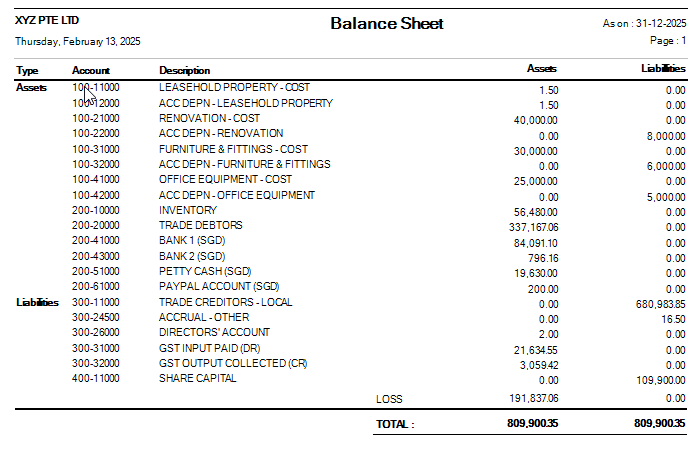
#### **BALANCE SHEET SAMPLE PREVIEW**
- **Type -** Assets or Liabilities \[wherein, in system, Equity is under Liabilities type\]
- **Account -** chart of account code
- **Description -** chart of account description
- **Assets -** column of account with debit closing values
- **Liabilities -** column of account with credit closing values
[](https://doc.uniq365.com/uploads/images/gallery/2025-02/z18image.png)
#### **BALANCE SHEET SUBACCOUNT TYPE SAMPLE PREVIEW**
[](https://doc.uniq365.com/uploads/images/gallery/2025-02/4g3image.png)
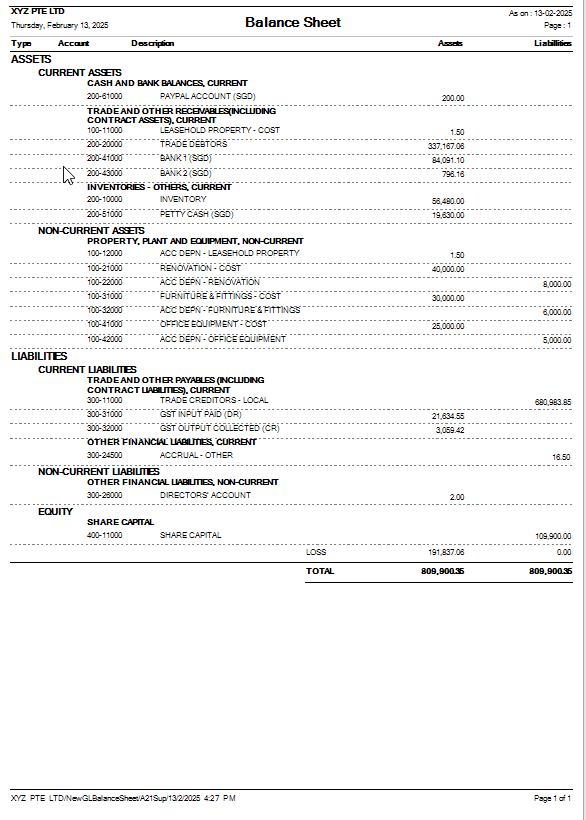
#### **BALANCE SHEET CLASSIFICATION SAMPLE PREVIEW**
[](https://doc.uniq365.com/uploads/images/gallery/2025-02/tY0image.png)
CASH FLOW STATEMENT
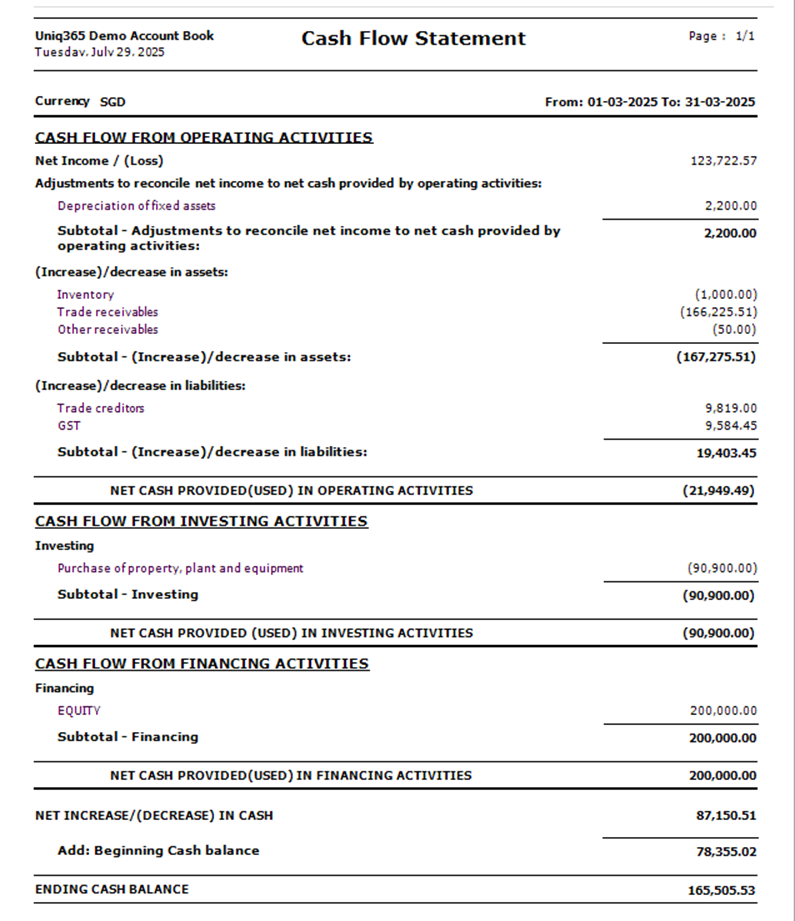
**Question : How to set and generate Cash Flow Statement?**
**Answer:**
The cash flow statement format indirect method typically consists of three main cashflows from Operating activities, Investing activities and Financing activities, in sample below:
[](https://doc.uniq365.com/uploads/images/gallery/2025-07/image.png)
**SETTING:**
In UNIQ365, To generate the CASH FLOW STATEMENT, setting must be done properly.
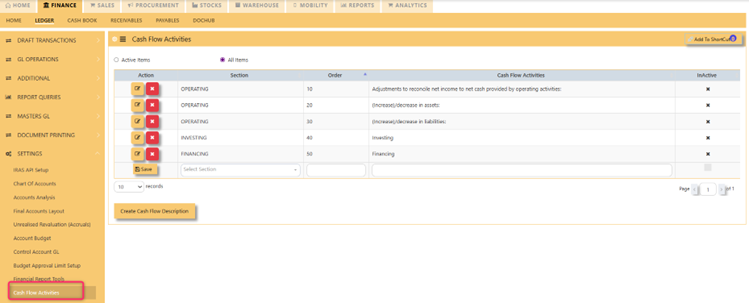
**STEP 1** – **CREATE SUB-TITLES**, in the CASH FLOW ACTIVITIES, fill the details of SECTION, ORDER and CASH FLOW ACTIVITES.
Note that the CASH FLOW ACTIVITIES and CASH FLOW DESCRIPTION may vary ‘name’ base on your creation and for purpose of this guide, we name cash flow activities as follows:
· **SECTION** – Operating, Investing and Financing as standard ‘terms’, nothing else.
· **ORDER**- Note that the report will be presented base on ORDER you set, in ascending from 10 to 50.
· **CASH FLOW ACTIVITIES** – in order ‘10’, it is advisable to assign the first SUB-TITLE name as ‘Adjustment to reconcile net income to net cash provided by operating activities’.
[](https://doc.uniq365.com/uploads/images/gallery/2025-07/Wu0image.png)
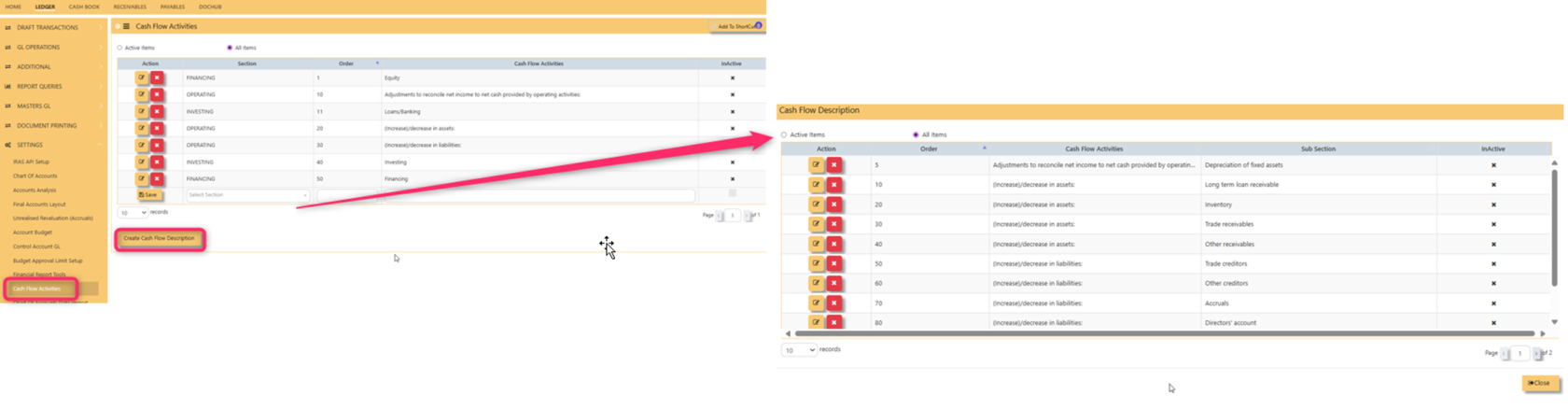
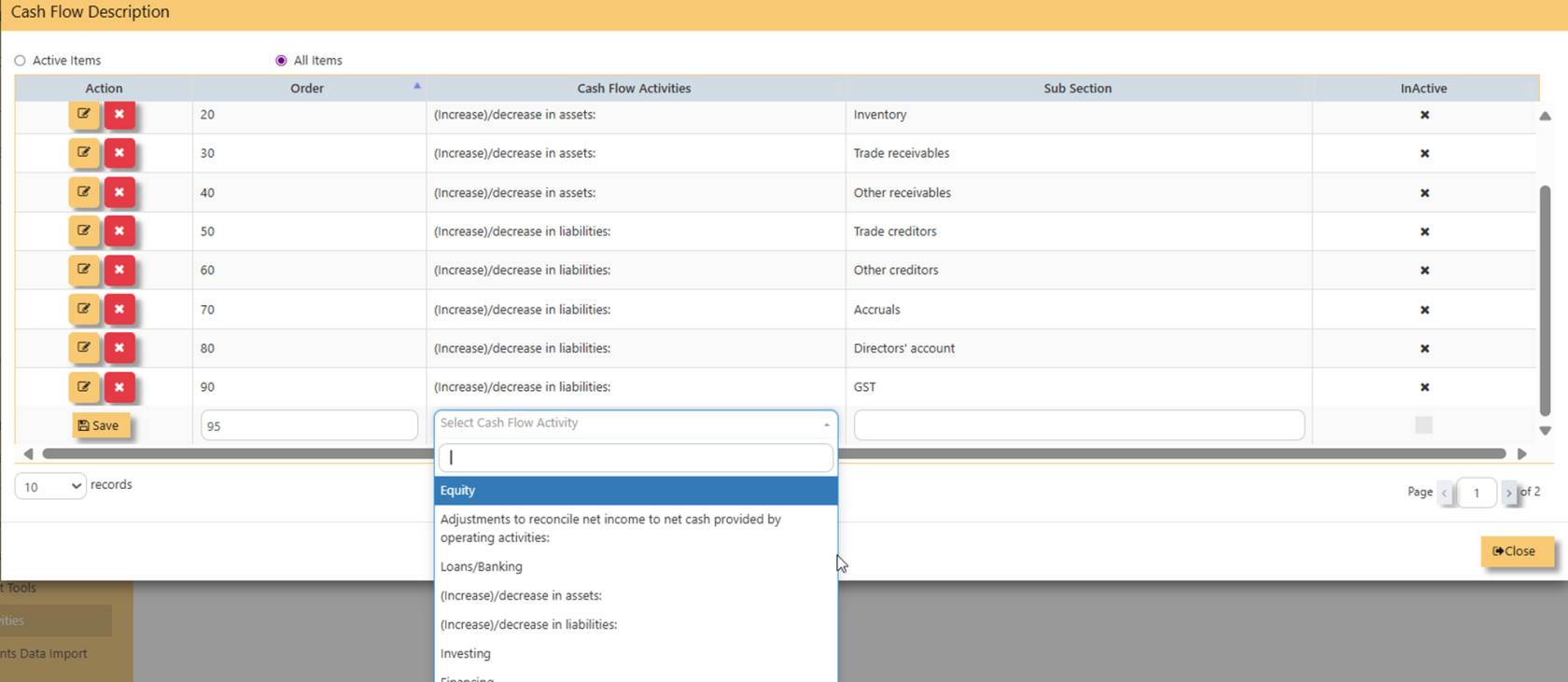
**STEP 2** – **CREATE CASH FLOW DESCRIPTION**, list CASH FLOW DESCRIPTION by add ORDER, CASH FLOW ACTIVITIES dropdown and SUB-SECTION.
[](https://doc.uniq365.com/uploads/images/gallery/2025-08/jc9image.png)
In **CASH FLOW ACTIVITIES** select from dropdown list, fill sub-section then save.
[](https://doc.uniq365.com/uploads/images/gallery/2025-08/zKtimage.png)
**STEP 3 **– **OPERATING, INVESTING AND FINANCING**, Identify the CHART OF ACCOUNT that belongs to OPERATING, INVESTING and FINANCING
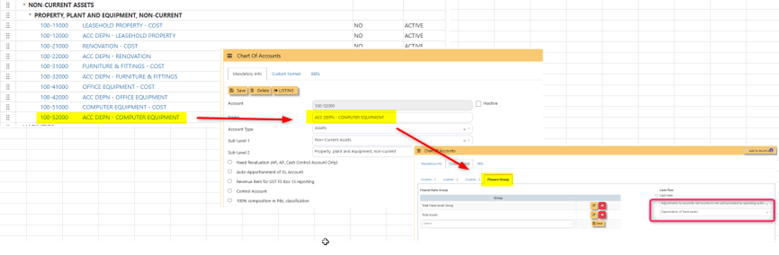
3.1 **OPERATING AND** **ACCUMULATED DEPRECIATION** – To list ‘accumulated depreciation’ under subtitle ‘operating activities’, select accumulated depreciation in CHART OF ACCOUNT>FINANCE GROUP>select 2 LEVELS:
· **SUBTITLE** as ‘Adjustment to reconcile net income..’
· **CASH FLOW DESCRIPTION** as ‘Depreciation of fixed assets’
[](https://doc.uniq365.com/uploads/images/gallery/2025-07/Uuqimage.png)
3.2 Trade receivables, inventory, other current assets, trade payables and othercurrent liabilities, same step on 3.1.
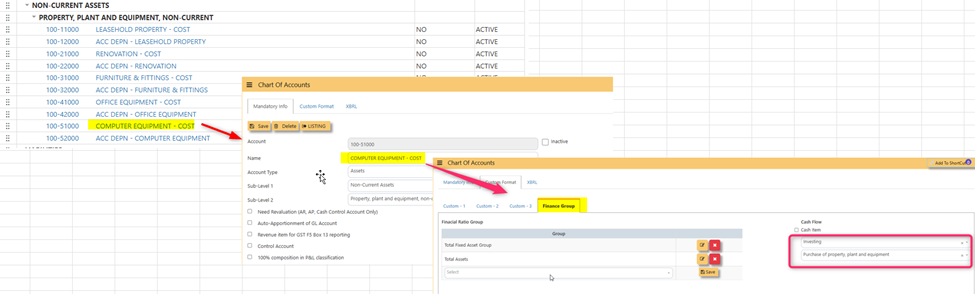
3.3 **INVESTING** To list ‘computer’ under subtitle ‘investing activities’, select ‘computer’ in CHART OF ACCOUNT>FINANCE GROUP>select 2 LEVELS:
- ** SUBTITLE** as ‘Investing’
- **CASH FLOW DESCRIPTION** as ‘Purchase of property plant and equipment’
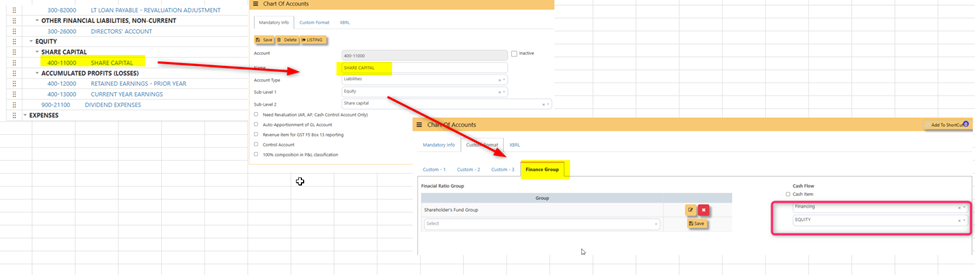
- [](https://doc.uniq365.com/uploads/images/gallery/2025-07/JVSimage.png)3.4 **FINANCING** To list ‘share capital’ under subtitle ‘financing activities’, select ‘share capital’ in CHART OF ACCOUNT>FINANCE GROUP>select 2 LEVELS:
- **SUBTITLE** as ‘Investing'
- **CASH FLOW DESCRIPTION** as ‘Equity’
[](https://doc.uniq365.com/uploads/images/gallery/2025-07/Axiimage.png)
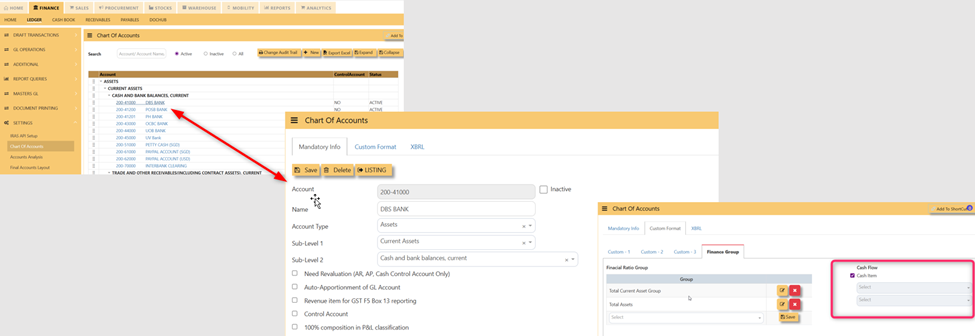
**STEP 4** – **BEGINNING CASH BALANCE**, Identify the CASH AND CASH EQUIVALENT beginning cash balance by going to chart of account – in this example, in CHART OF ACCOUNT, select DBS BANK, in FINANCE GROUP, tick ‘CASH ITEM’ then SAVE.
[](https://doc.uniq365.com/uploads/images/gallery/2025-07/8Wbimage.png)
In this preview:
[](https://doc.uniq365.com/uploads/images/gallery/2025-07/MXmimage.png)
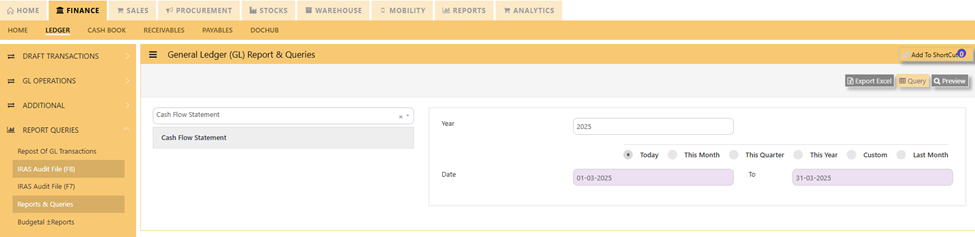
**STEP 5 –** **GENERATE THE REPORT**, in ledger, reports queries, generate the report by selecting
- CASH FLOW STATEMENT
- date range
- Preview
- [](https://doc.uniq365.com/uploads/images/gallery/2025-07/mpwimage.png)
**OTHER RELATED REPORTS OF CASH FLOW:**
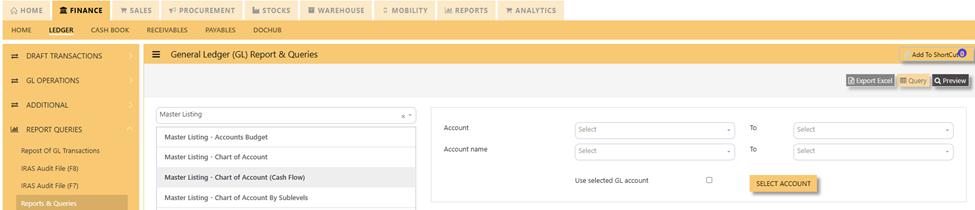
· **CHART OF ACCOUNT MASTERLISTING CASH FLOW- **in LEDGER> REPORTS QUERIES>MASTER LISTING CHART OF ACCOUNT CASH FLOW>PREVIEW.
[](https://doc.uniq365.com/uploads/images/gallery/2025-07/1gyimage.png)