# Report Queries
Report Queries
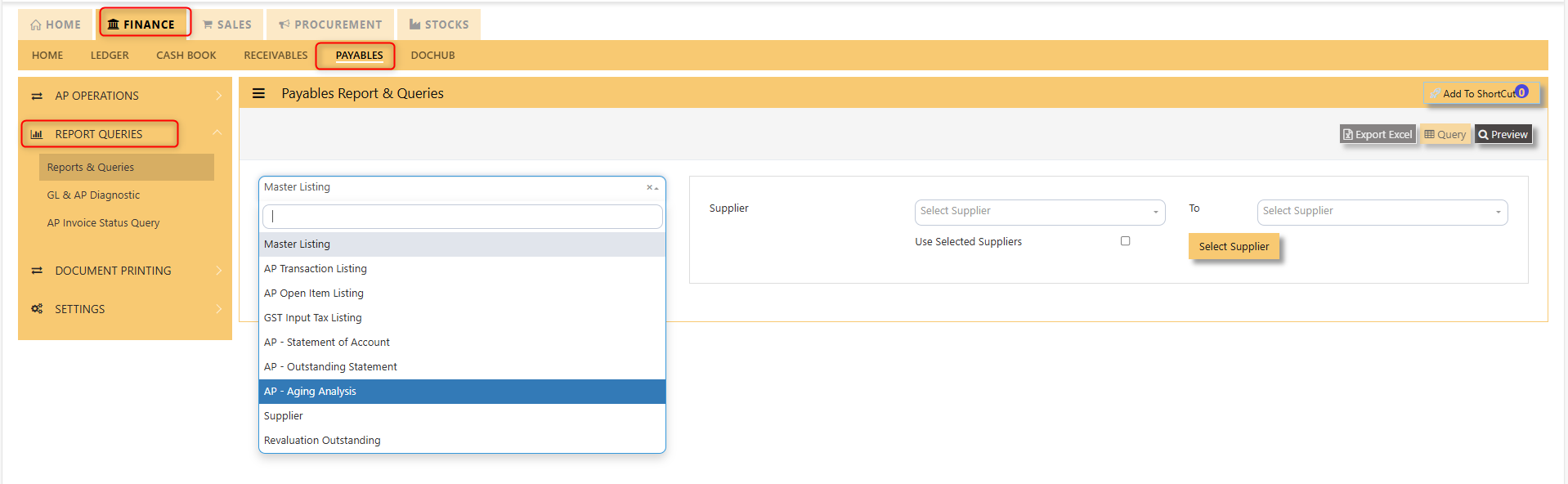
##### The reports & query screen shown here opens the options for the users to print important reports related to the payables/purchase modules.
[](https://doc.uniq365.com/uploads/images/gallery/2025-01/QYvimage.png)
The main documents are the Statement of Account, Outstanding Statement and the Aging Analysis. These reports will enable the users to see the outstanding amount due to the suppliers, the transactions made as well as the aging report of outstanding transactions.
GL & AP Diagnostic
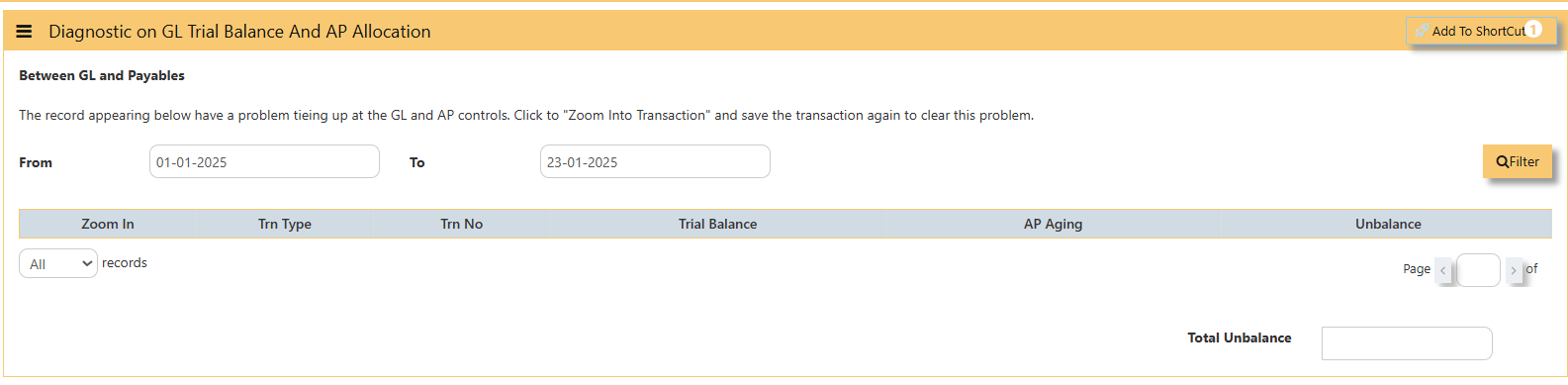
##### This screen will help you identify transactions that causes unbalanced of your GL Code and AP Accounts.
- Click on **Payables – AP Operations – Report Queries - GL & AP Diagnostic** and the following screen will appear.
[](https://doc.uniq365.com/uploads/images/gallery/2025-01/iZ2image.png)
- Must filter the **From To** Date accordingly when was the unbalanced started and click **filter** so system will show you transactions that causes your unbalance if any.
AP Invoice Status Query
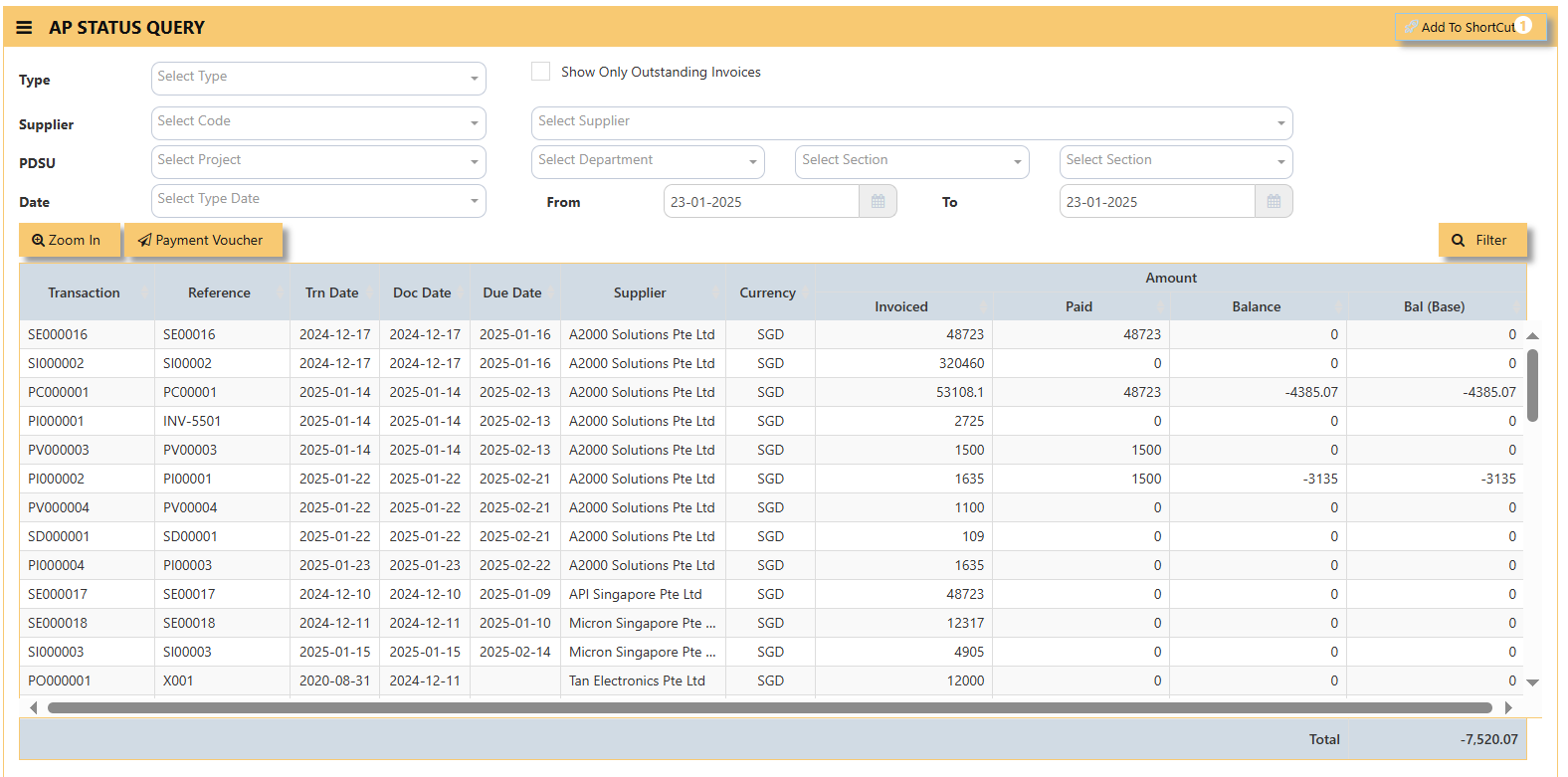
This screen will show AP Invoices such as how many were **invoiced**, **paid** and its remaining **balance.**
- Click on **Payables – AP Operations – Report Queries - AP Invoice Status Query** and the following screen will appear.
[](https://doc.uniq365.com/uploads/images/gallery/2025-01/Sw6image.png)
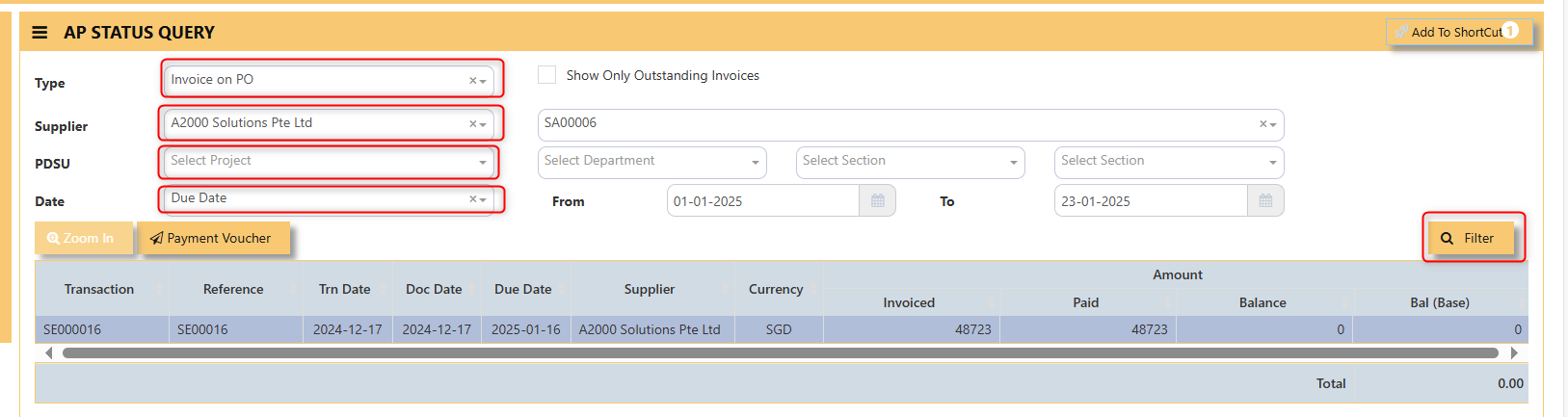
- Filter accordingly the necessaries such as **Type of transaction,** tick **show only outstanding invoices** if you want to, **Supplier, PDSU if any, Type Date and Filter.**
Below photo as a sample,
[](https://doc.uniq365.com/uploads/images/gallery/2025-01/MrVHcFimage.png)
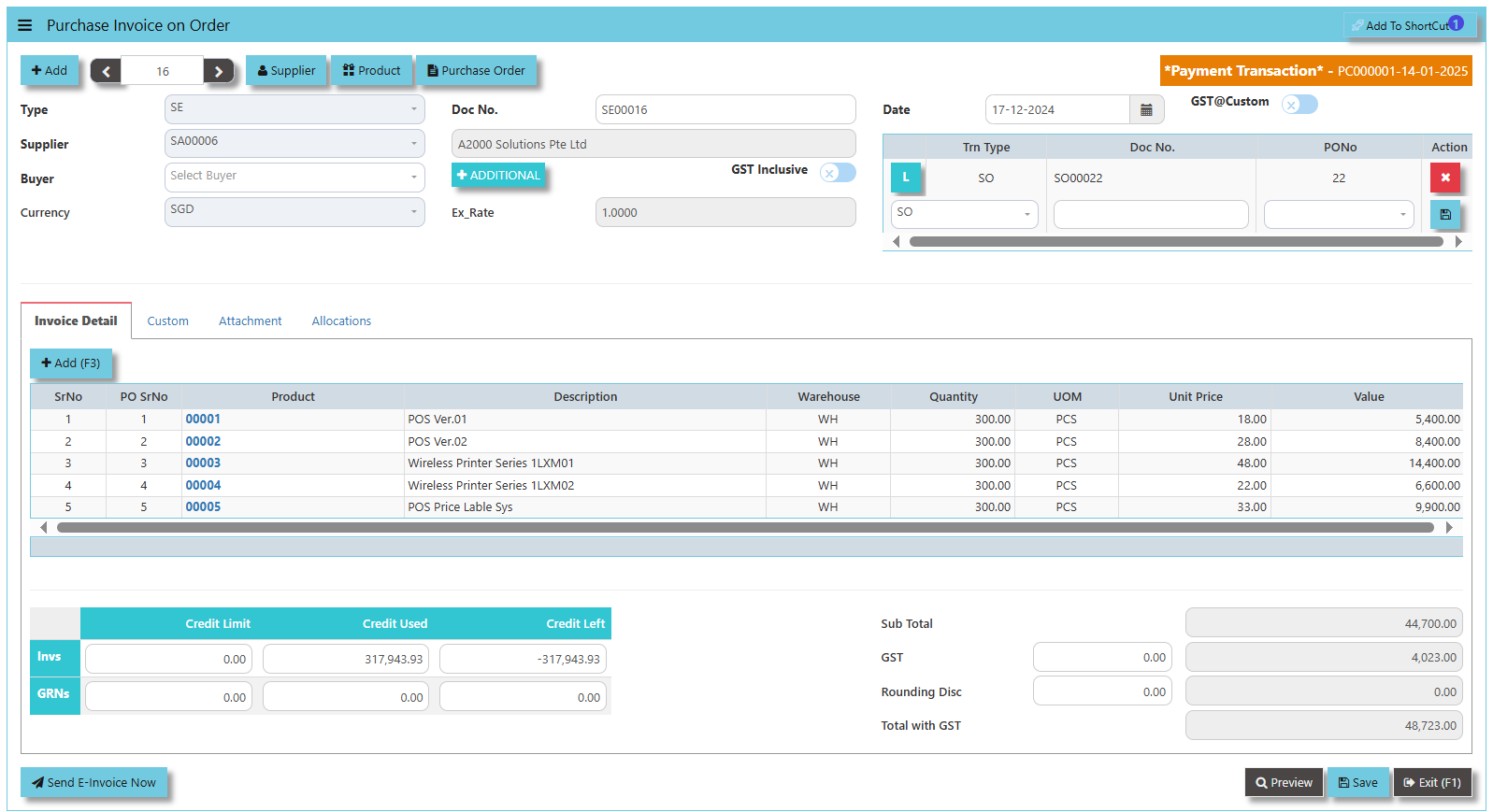
- You may click **ZOOM IN** and it will redirect you to the transaction itself.
[](https://doc.uniq365.com/uploads/images/gallery/2025-01/HWQimage.png)
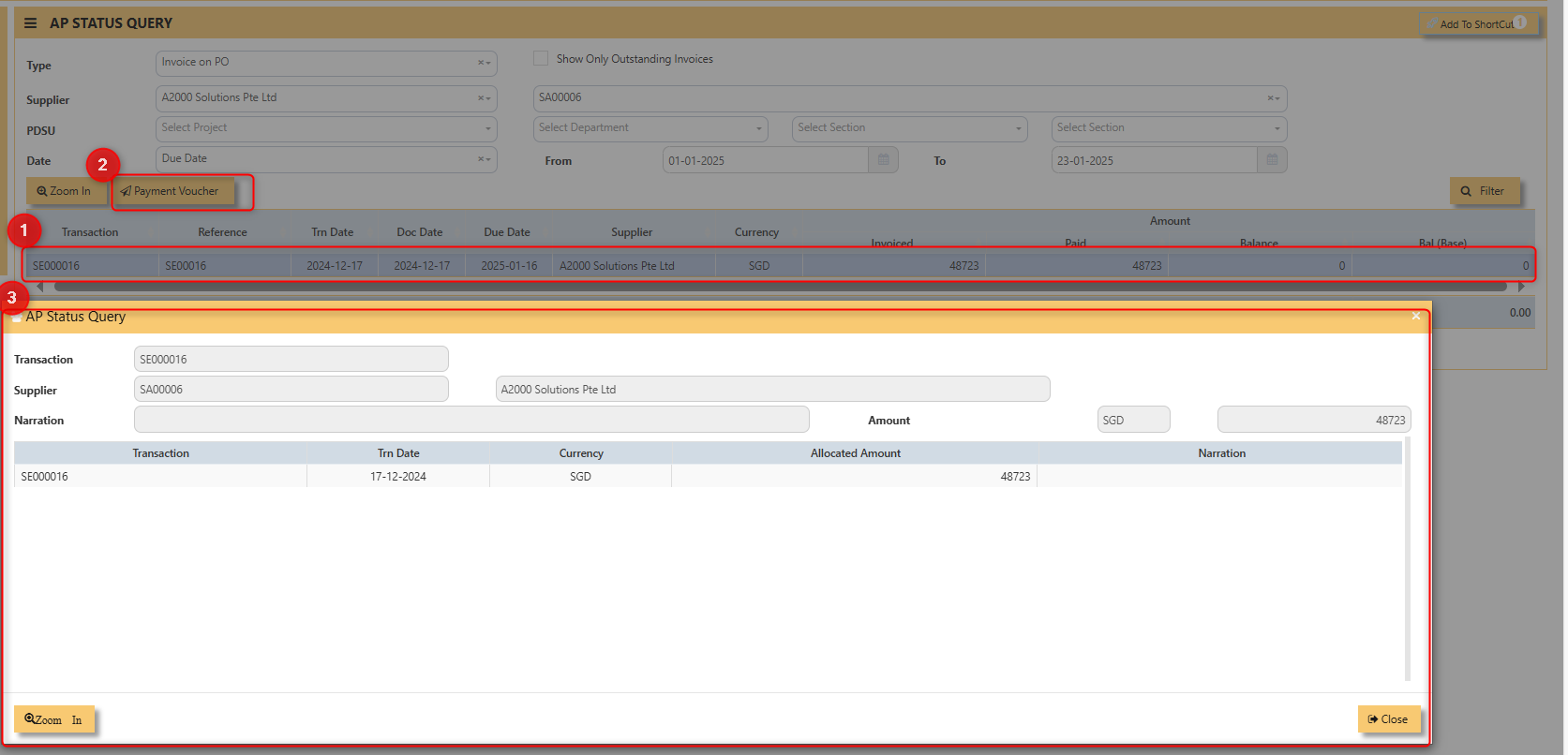
- Meanwhile, when **Payment Voucher** is click, following screen will appear.
[](https://doc.uniq365.com/uploads/images/gallery/2025-01/obfimage.png)