# Purchasing
##### In a typical setup, the user may put up a Typical Purchase Requisition (note the difference between a Purchase Requisition & a Sales Quotation. A Purchase Requisition allows you to indicate which supplier you are sending the order to). Once the requisition is confirmed, a Purchase Order can be created. Upon confirmation of all the Purchase Orders, the goods will then be delivered by the stated suppliers. You may record a Goods Received Note (GRN – Optional) for your reference and then send the supplier’s invoice to the Accounts Department. Alternatively, you can just record the Invoice straight upon receiving it from supplier.
##### Another scenario is that no Purchase Order is created, only a verbal order is placed to the suppliers. You received goods from suppliers and the invoice is sent to you later. The final scenario is where the Purchase is done simply by placing an order and you just receive the goods and invoice from suppliers, in which case the Credit/Cash Invoice will be created directly. Some Purchase transactions can be done by placing a deposit first.
\_\_\_\_\_\_\_\_\_\_\_\_\_\_\_\_\_\_\_\_\_\_\_\_\_\_\_\_\_\_\_\_\_\_\_\_\_\_\_\_\_\_\_\_\_\_\_\_\_\_\_\_\_\_\_\_\_\_\_\_\_\_\_\_\_\_\_\_\_\_\_\_\_\_\_\_\_\_\_\_\_\_\_\_\_\_\_\_\_\_\_\_\_\_\_\_\_\_\_\_\_\_\_
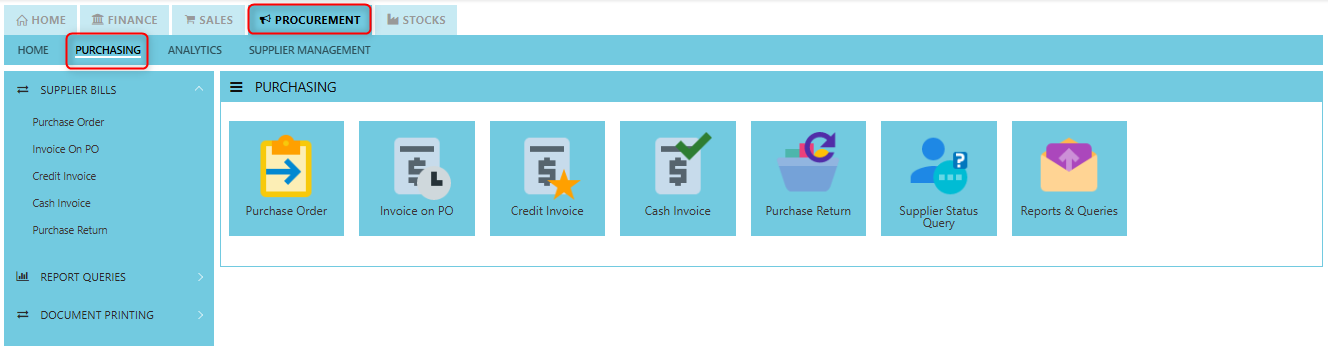
##### **How to locate Purchasing?**
- Click on PROCUREMENT – PURCHASING for the screen below.
[](https://doc.uniq365.com/uploads/images/gallery/2025-01/1Qkimage.png)
Supplier Purchase Order (SO)
##### In Uniq365, you can indicate the Supplier Delivery Mode in the Supplier Maintenance or Transactions. You can also sort or filter reports by Delivery Mode. The **Purchase Order** in the Purchase Module serves as a document to update the system that goods are on order. No ledger postings take place at this point. Purchase Order is denoted by the transaction type “SO”.
\_\_\_\_\_\_\_\_\_\_\_\_\_\_\_\_\_\_\_\_\_\_\_\_\_\_\_\_\_\_\_\_\_\_\_\_\_\_\_\_\_\_\_\_\_\_\_\_\_\_\_\_\_\_\_\_\_\_\_\_\_\_\_\_\_\_\_\_\_\_\_\_\_\_\_\_\_\_\_\_\_\_\_\_\_\_\_\_\_\_\_\_\_\_\_\_\_\_\_
##### **How to create Supplier Purchase Order?**
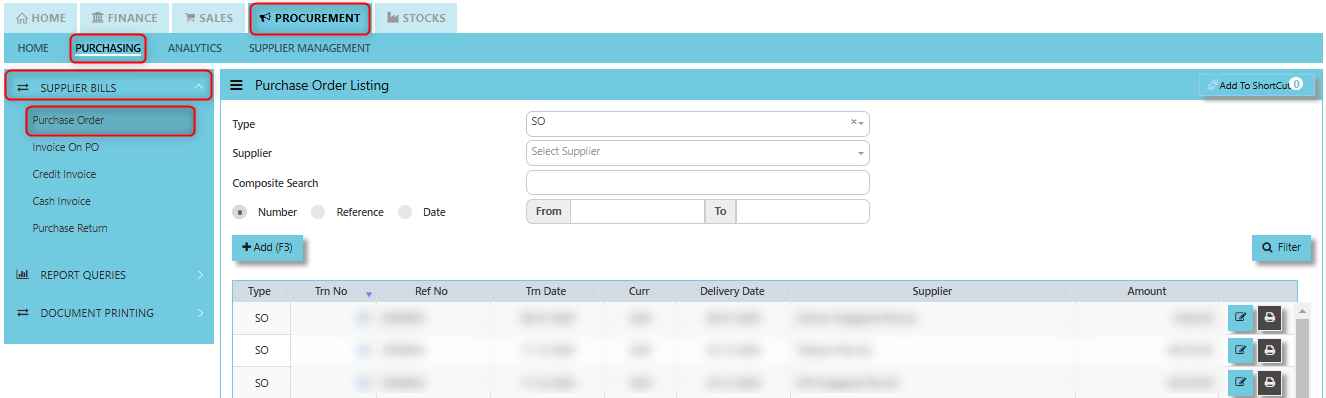
1. Click on PROCUREMENT – PURCHASING – SUPPLIER BILLS - PURCHASE ORDER for the screen below.
[](https://doc.uniq365.com/uploads/images/gallery/2025-01/DU7image.png)
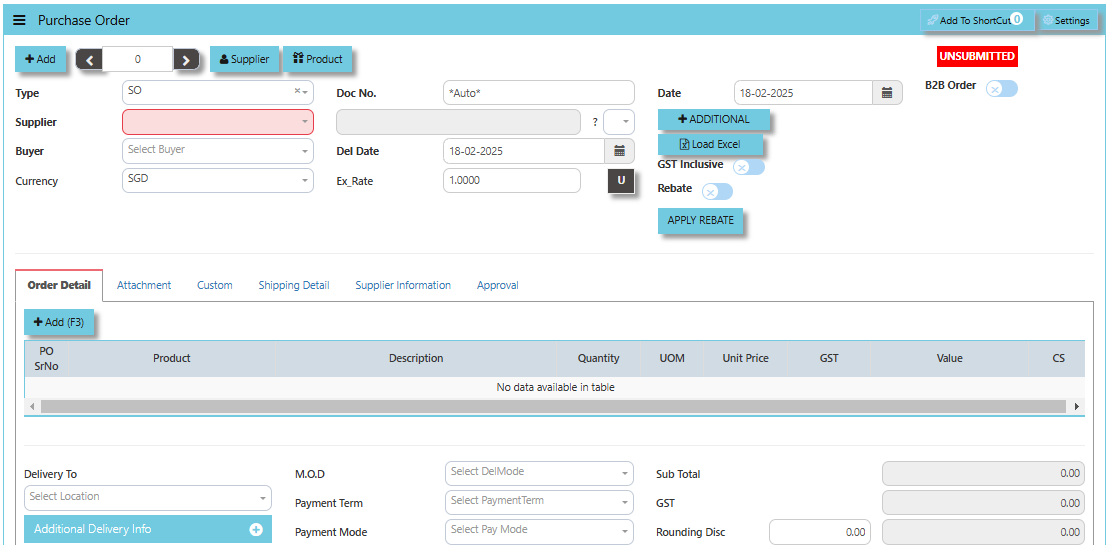
2. Click Add (F3) to create new record.
[](https://doc.uniq365.com/uploads/images/gallery/2025-02/DPeimage.png)
3. Click Type - drop-down to select transaction type – SO (Purchases Order).
4\. After transaction type selection, use the tab button to go to the Ref No., Date, and other fields.
5\. Click the Supplier - drop-down list to select Supplier Name, followed by the Buyer, PDS, Currency, Rate, Narration, Delivery Date & Lead Time if applicable.
6\. After all the header information has been entered, go to the Details section to select the Product Code and Name for that Purchase Order. Save the transaction after this is done.
\_\_\_\_\_\_\_\_\_\_\_\_\_\_\_\_\_\_\_\_\_\_\_\_\_\_\_\_\_\_\_\_\_\_\_\_\_\_\_\_\_\_\_\_\_\_\_\_\_\_\_\_\_\_\_\_\_\_\_\_\_\_\_\_\_\_\_\_\_\_\_\_\_\_\_\_\_\_\_\_\_\_\_\_\_\_\_\_\_\_\_\_\_\_\_\_\_\_\_\_\_\_\_\_\_\_\_\_\_\_\_\_\_\_\_\_\_\_\_\_\_\_\_\_\_\_\_\_\_\_\_\_\_\_\_\_\_\_\_
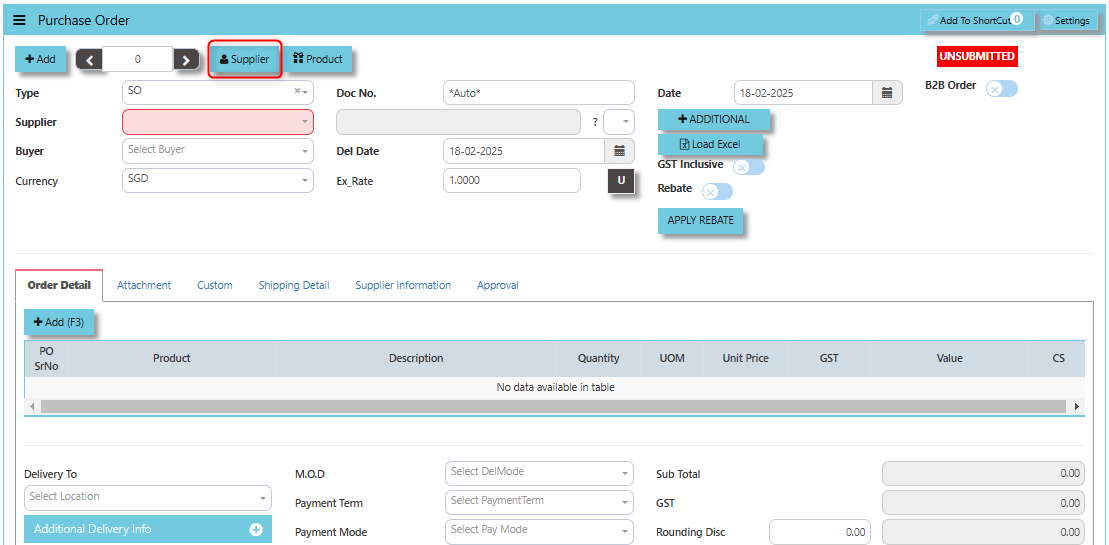
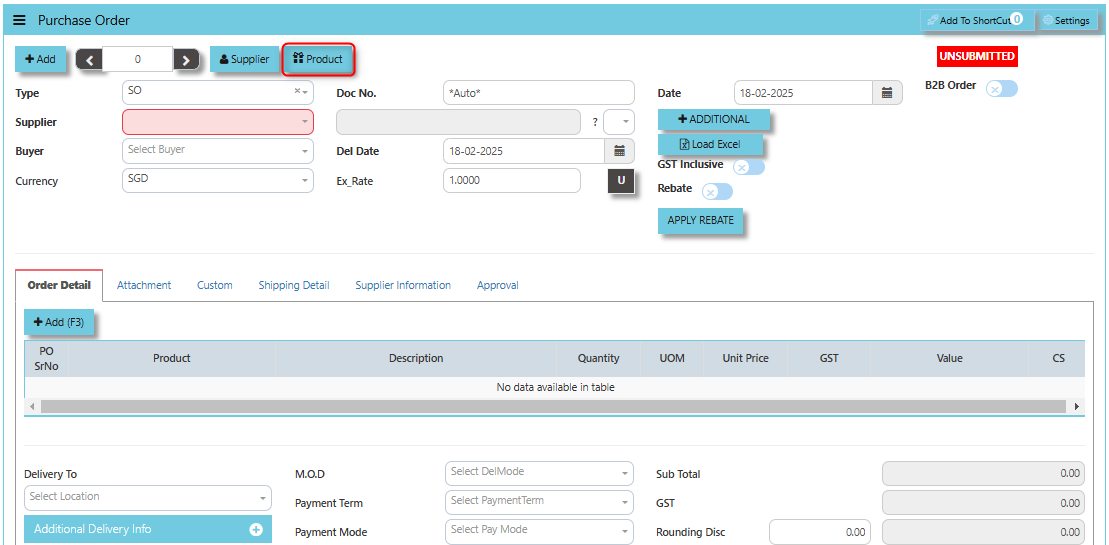
The **Supplier** button provides quick access to detailed supplier profiles under supplier maintenance.
[](https://doc.uniq365.com/uploads/images/gallery/2025-02/iBPimage.png)
The **Product** button provides quick access to product and service maintenance.
[](https://doc.uniq365.com/uploads/images/gallery/2025-02/WZLimage.png)
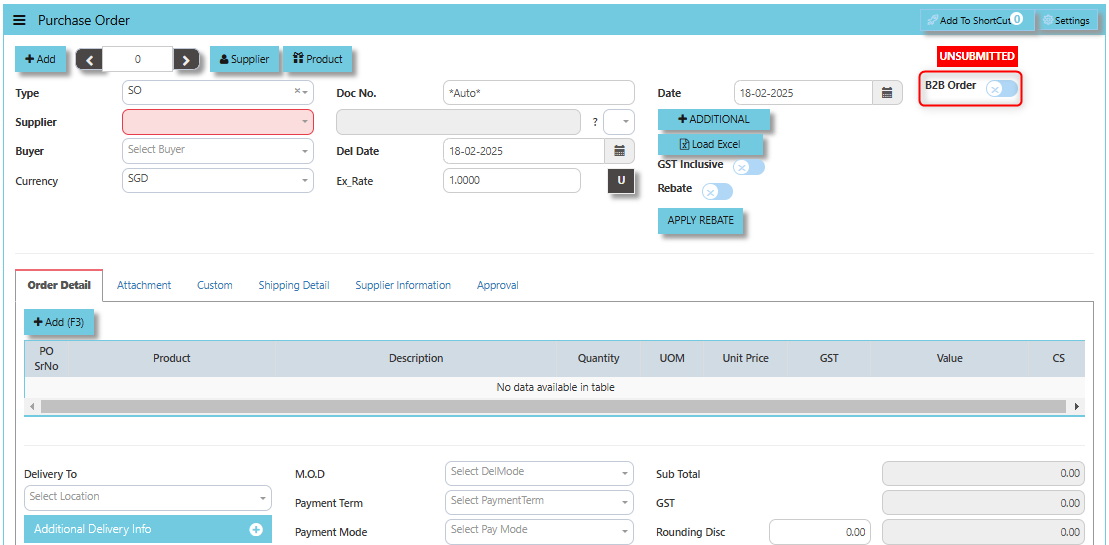
**"B2B Order"** checkbox typically indicates a special setting or status related to Business-to-Business (B2B) transactions. When this option is ticked or checked, it often triggers specific functionalities or workflows that pertain to B2B purchasing. When the "B2B Order" option is ticked, it likely signifies that the purchase order is being placed as part of a B2B transaction, meaning the order is between two businesses rather than a business and a consumer.
[](https://doc.uniq365.com/uploads/images/gallery/2025-02/fRFimage.png)
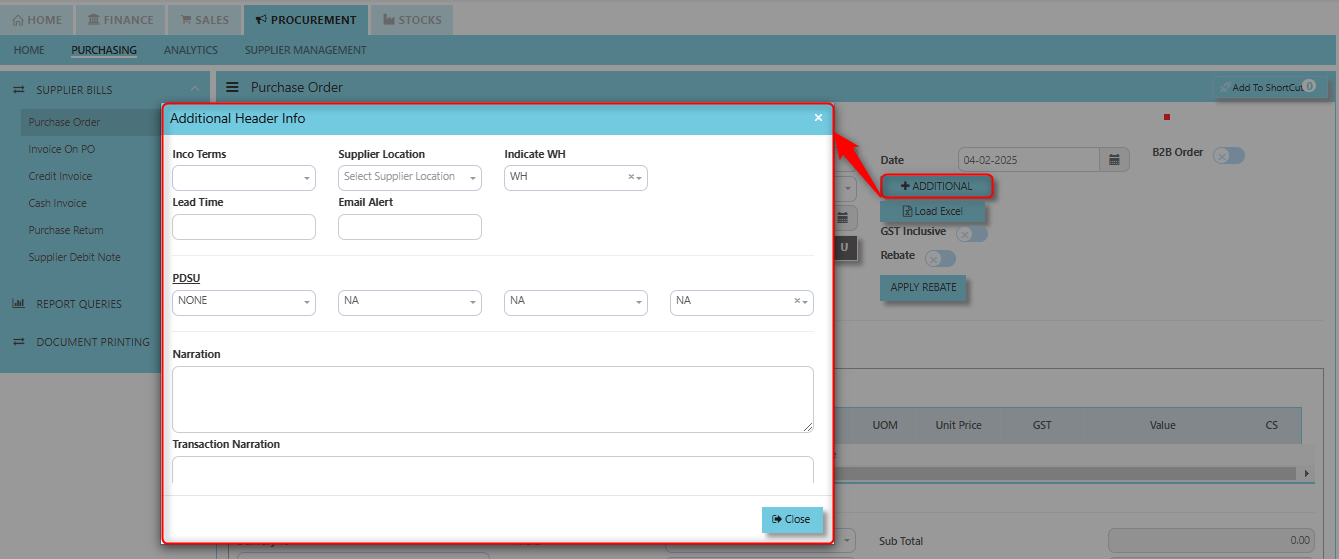
**"Additional Header Info"** button is typically used to capture and manage **a**dditional information related to the purchase order at the header level (i.e., Inco Terms, Supplier Location, Indicate WH, Lead Time, Email Alert, PDSU, Narration and Transaction Narration). This feature allows users to add extra data or notes that are relevant to the entire purchase order.
[](https://doc.uniq365.com/uploads/images/gallery/2025-02/khHimage.png)
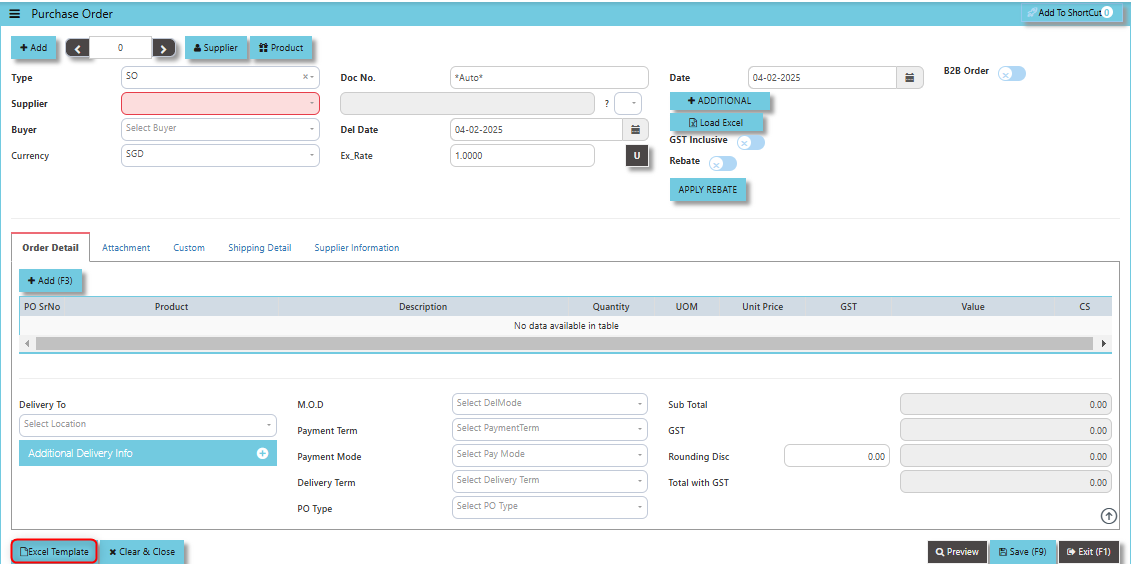
**Excel Template** - The button allows users to download a pre-configured Excel template for entering or importing data related to the purchase order. The template is usually formatted to match the system's required structure for purchase orders, ensuring consistency and data accuracy.
[](https://doc.uniq365.com/uploads/images/gallery/2025-02/uBEimage.png)
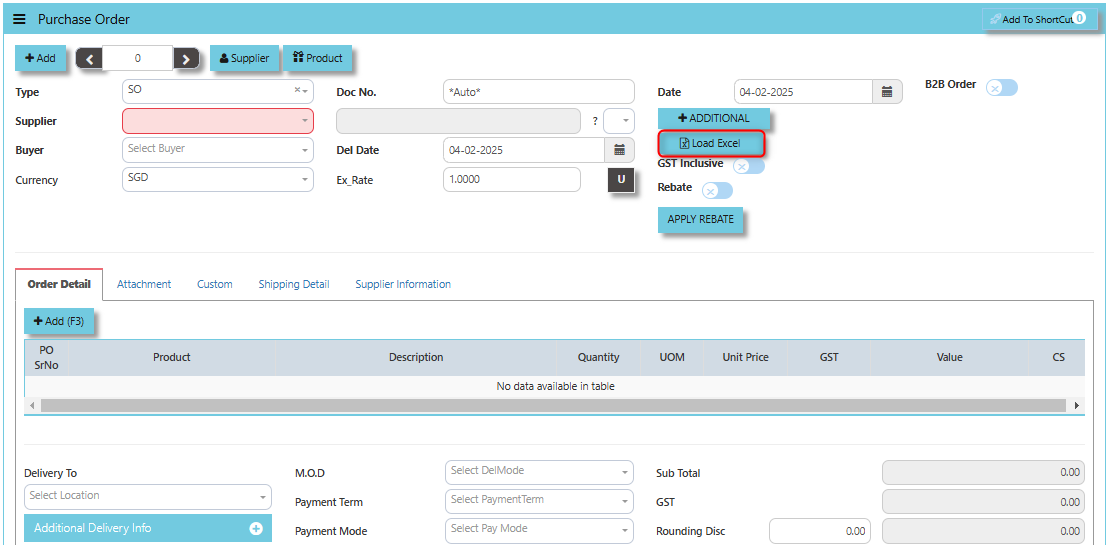
**Load Excel** - When users have an Excel file with purchase order information (such as item names, quantities, prices, supplier details, etc.), the **"Load Excel"** button allows them to upload and import this data directly into the system. This eliminates the need for manual entry of the data into the system's purchase order fields.
[](https://doc.uniq365.com/uploads/images/gallery/2025-02/rfeimage.png)
\_\_\_\_\_\_\_\_\_\_\_\_\_\_\_\_\_\_\_\_\_\_\_\_\_\_\_\_\_\_\_\_\_\_\_\_\_\_\_\_\_\_\_\_\_\_\_\_\_\_\_\_\_\_\_\_\_\_\_\_\_\_\_\_\_\_\_\_\_\_\_\_\_\_\_\_\_\_\_\_\_\_\_\_\_\_\_\_\_\_\_\_\_\_\_\_\_\_\_\_\_\_\_\_\_\_\_\_\_\_\_\_\_\_\_\_\_\_\_\_\_\_\_\_\_\_\_\_\_\_\_\_\_\_\_\_\_\_\_
##### **How to use Load Excel?**
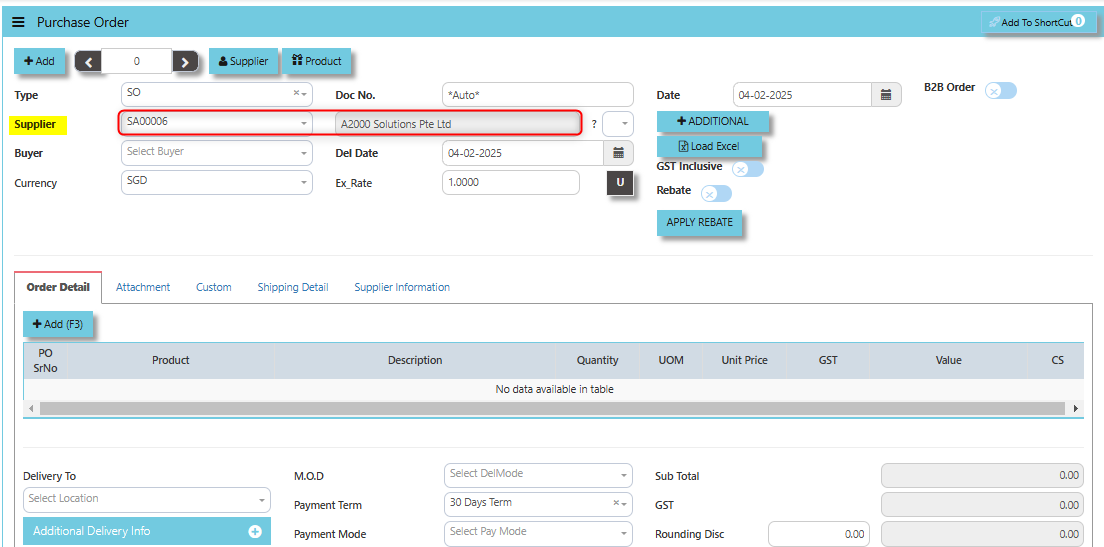
1. Click the Supplier - drop-down list to select Supplier Name.
[](https://doc.uniq365.com/uploads/images/gallery/2025-02/ojrimage.png)
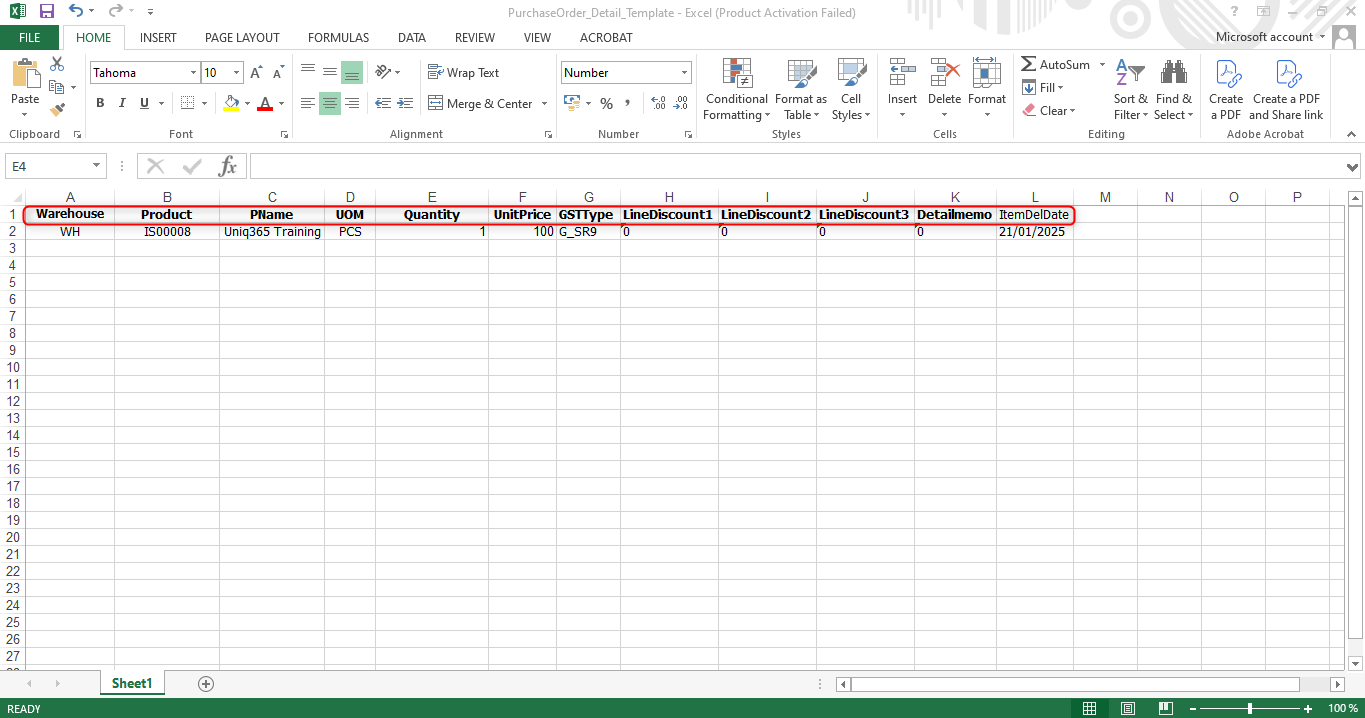
2. Download the Excel Template and ensure the Excel file you plan to upload is formatted correctly. It should contain all the necessary fields required for a purchase order, such as:
- Warehouse
- Product Code
- Product Name
- UOM
- Quantity
- Unit Price
- GST Type
- Line Discount 1, 2 & 3
- Detail Memo
- Item Delivery Date
[](https://doc.uniq365.com/uploads/images/gallery/2025-01/n3aimage.png)
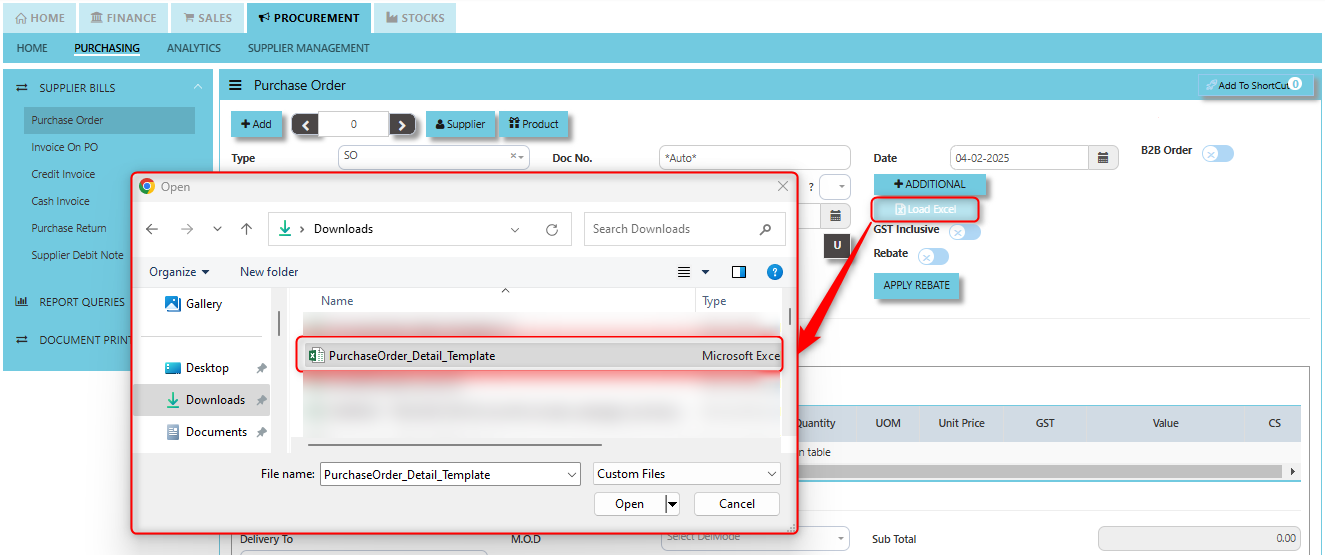
3. Click the **"Load Excel"** button to open the file upload interface. This may open a file browser or prompt you to select the Excel file you want to upload.
[](https://doc.uniq365.com/uploads/images/gallery/2025-02/Wpiimage.png)
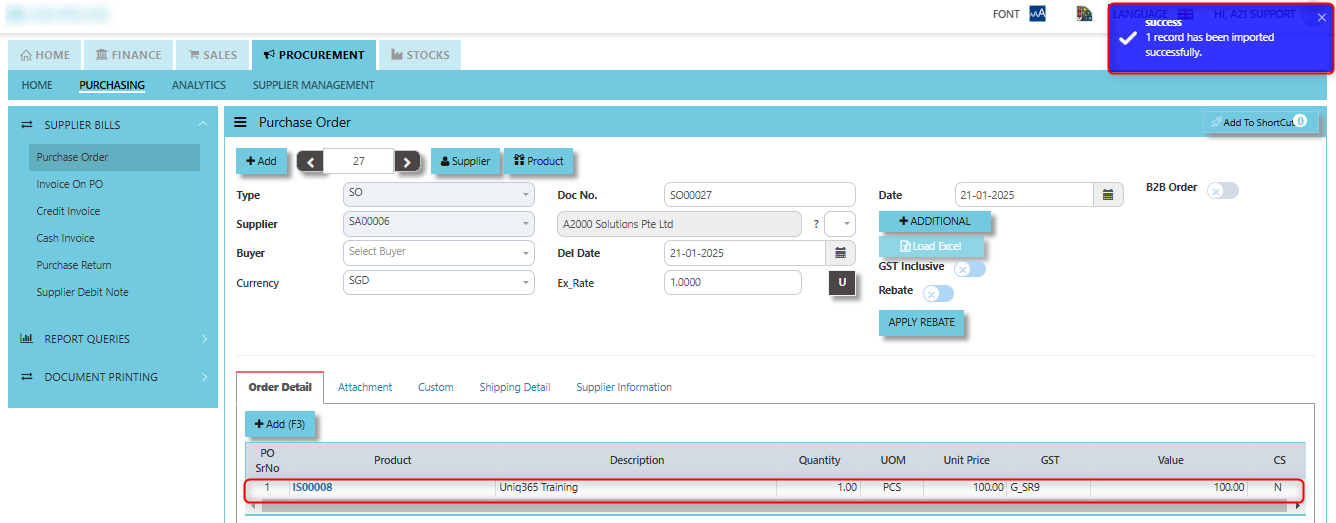
4. Once the filed uploaded, system will prompt a message that record has been imported successfully.
[](https://doc.uniq365.com/uploads/images/gallery/2025-02/wBnimage.png)
5. After the import is complete, review the imported purchase orders in the system to ensure everything has been transferred correctly. This might include checking that the order details, such as item descriptions, quantities, prices, and suppliers, are accurate.
6. Once the data is imported successfully and checking is done, you can proceed to **save** the purchase order as required by your workflow. This may involve further approvals or other processes depending on the organization's procedures.
\_\_\_\_\_\_\_\_\_\_\_\_\_\_\_\_\_\_\_\_\_\_\_\_\_\_\_\_\_\_\_\_\_\_\_\_\_\_\_\_\_\_\_\_\_\_\_\_\_\_\_\_\_\_\_\_\_\_\_\_\_\_\_\_\_\_\_\_\_\_\_\_\_\_\_\_\_\_\_\_\_\_\_\_\_\_\_\_\_\_\_\_\_\_\_\_\_\_\_\_\_\_\_\_\_\_\_\_\_\_\_\_\_\_\_\_\_\_\_\_\_\_\_\_\_\_\_\_\_\_\_\_\_\_\_\_\_\_\_
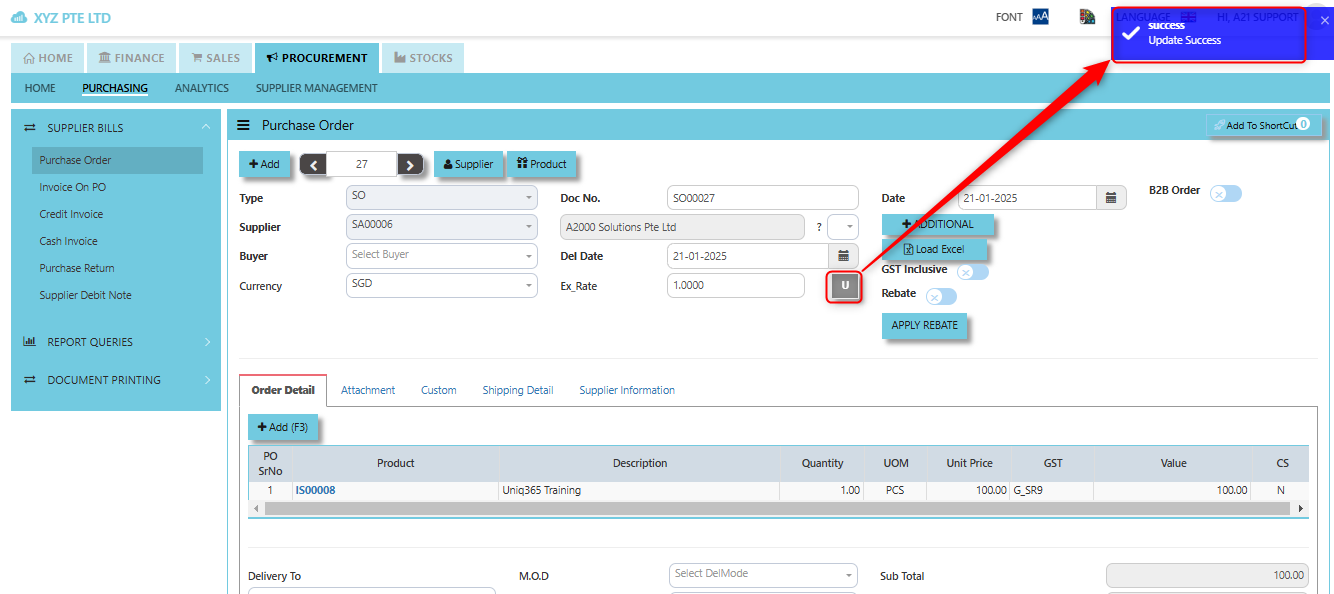
**Update (U Button)**: When you click the **U button**, It may be used to update the status of the purchase order after changes have been made.
[](https://doc.uniq365.com/uploads/images/gallery/2025-02/yQoimage.png)
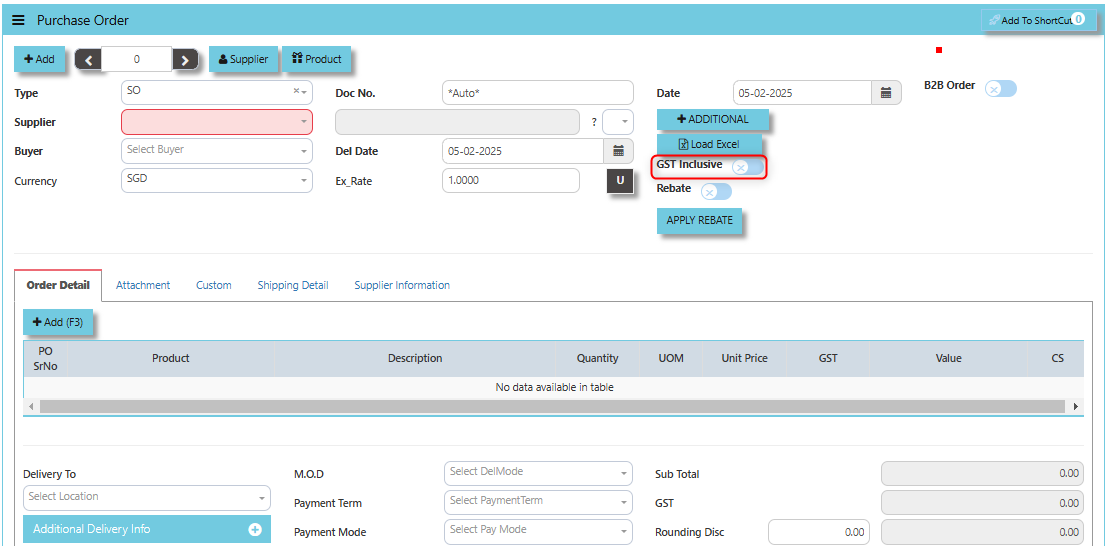
The **GST Inclusive** checkbox indicates whether the prices quoted by the supplier in the PO include **Goods and Services Tax (GST)** or not.
[](https://doc.uniq365.com/uploads/images/gallery/2025-02/FUtimage.png)
- **When ticked (GST Inclusive)**: provided in the PO already includes the applicable GST amount. The GST amount will not be calculated or displayed separately, as it's already accounted for in the quoted price.
- **When not ticked (GST Exclusive)**: The **purchase price** is considered exclusive of GST. The system will calculate and add the GST based on the applicable tax rate, and the final total will be the sum of the base price plus the GST amount.
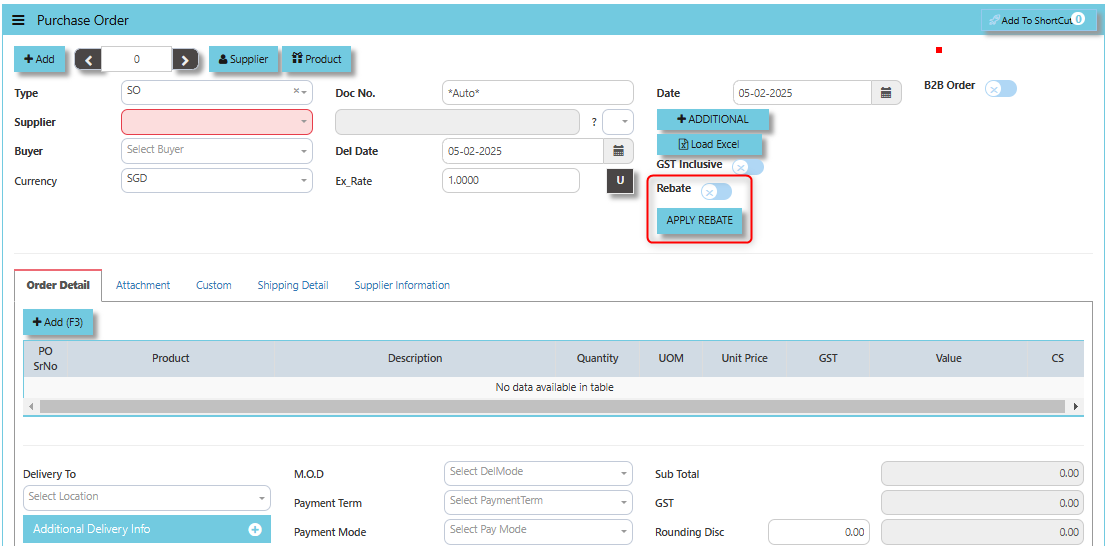
The **"Apply Rebate"** is typically used to apply any available rebates or discounts to the total order value. This button allows users to apply that rebate to reduce the overall cost of the purchase order.
[](https://doc.uniq365.com/uploads/images/gallery/2025-02/W6Rimage.png)
\_\_\_\_\_\_\_\_\_\_\_\_\_\_\_\_\_\_\_\_\_\_\_\_\_\_\_\_\_\_\_\_\_\_\_\_\_\_\_\_\_\_\_\_\_\_\_\_\_\_\_\_\_\_\_\_\_\_\_\_\_\_\_\_\_\_\_\_\_\_\_\_\_\_\_\_\_\_\_\_\_\_\_\_\_\_\_\_\_\_\_\_\_\_\_\_\_\_\_\_\_\_\_\_\_\_\_\_\_\_\_\_\_\_\_\_\_\_\_\_\_\_\_\_\_\_\_\_\_\_\_\_\_\_\_\_\_\_\_
##### **How to Apply Rebate?**
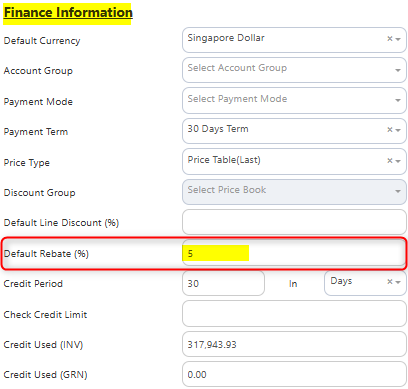
1. Under the Supplier Maintenance - Finance Information enable the Rebate Percentage Type in the percentage you want to include.
[](https://doc.uniq365.com/uploads/images/gallery/2025-01/VZhimage.png)
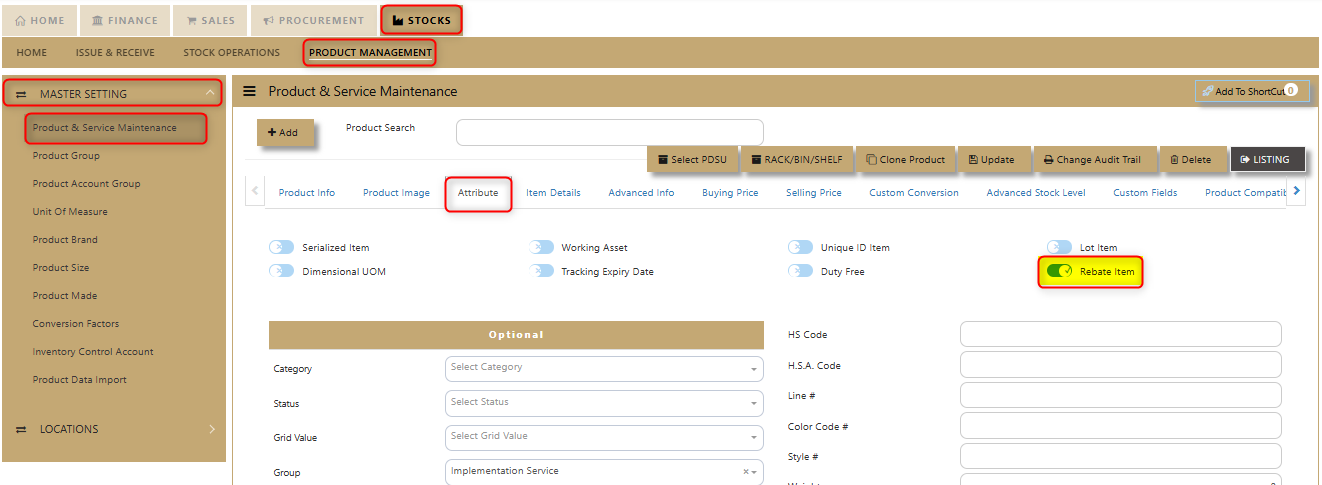
2. Enable the Rebate Item under Product Maintenance. Click on STOCKS - PRODUCT MANAGEMENT - MASTER SETTING - PRODUCT & SERVICE MAINTENANCE - ATTRIBUTE TAB
[](https://doc.uniq365.com/uploads/images/gallery/2025-01/r1zimage.png)
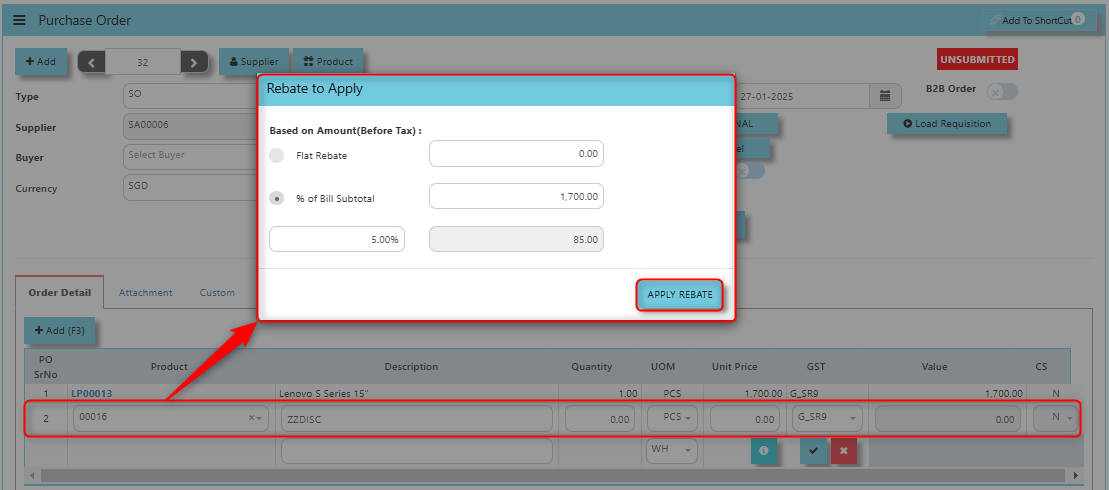
3. Encode the rebate Product/Service to calibrate the percentage discount. A dialogue box will prompt to verify the Rebate to be applied. Configure accordingly on your desired rebate percentage and Click “Apply Rebate” once done.
[](https://doc.uniq365.com/uploads/images/gallery/2025-01/5BQimage.png)
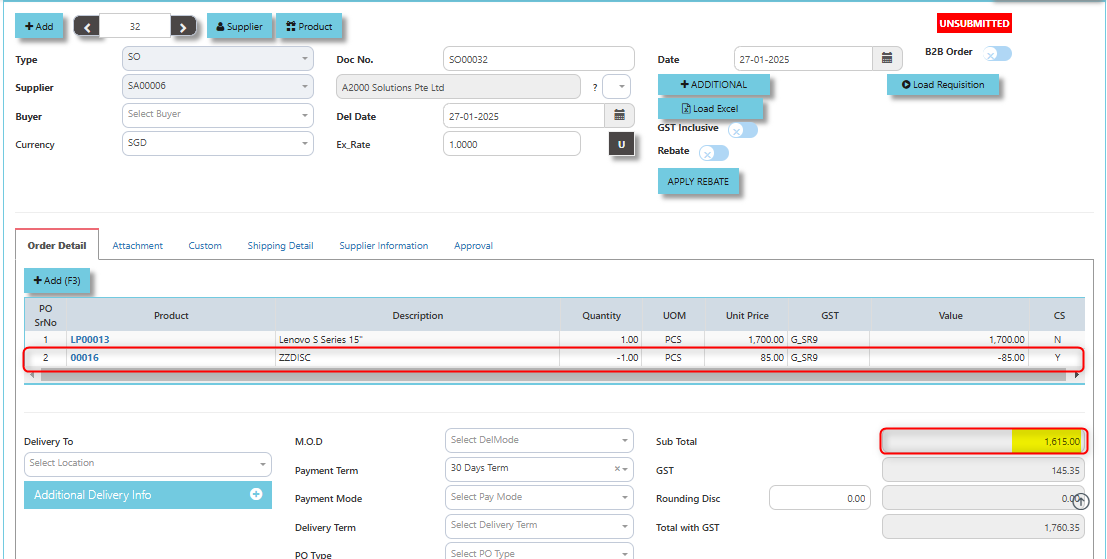
4. Upon encoding the output will go as like the below image for the computed Sub Total.
[](https://doc.uniq365.com/uploads/images/gallery/2025-01/gVdimage.png)
\_\_\_\_\_\_\_\_\_\_\_\_\_\_\_\_\_\_\_\_\_\_\_\_\_\_\_\_\_\_\_\_\_\_\_\_\_\_\_\_\_\_\_\_\_\_\_\_\_\_\_\_\_\_\_\_\_\_\_\_\_\_\_\_\_\_\_\_\_\_\_\_\_\_\_\_\_\_\_\_\_\_\_\_\_\_\_\_\_\_\_\_\_\_\_\_\_\_\_\_\_\_\_\_\_\_\_\_\_\_\_\_\_\_\_\_\_\_\_\_\_\_\_\_\_\_\_\_\_\_\_\_\_\_\_\_\_\_\_
**Add to ShortCut -** Used to create a shortcut for quick access to a specific purchase order or purchase-related functionality within the ERP system. When you click this button, the selected purchase order or screen can be added to a personalized list of shortcuts, which allows users to quickly navigate to that specific purchase order or function without having to search for it every time.
[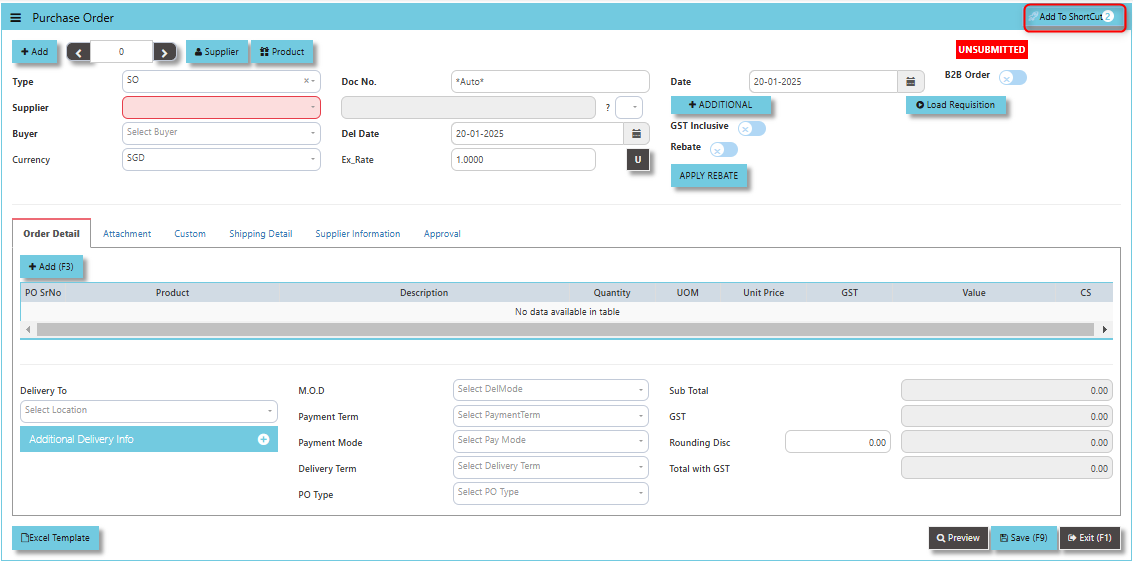](https://doc.uniq365.com/uploads/images/gallery/2025-01/jgnimage.png)
##### **How to use Add to ShortCut?**
1. Click "**Add to ShortCut"** and system will open below windows:
[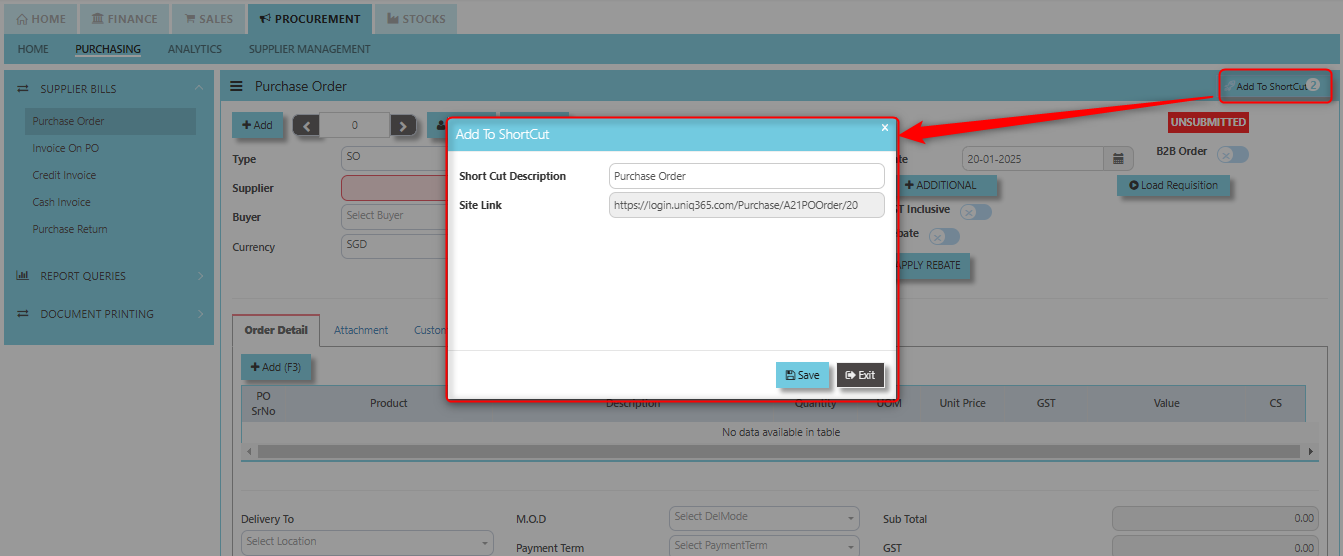](https://doc.uniq365.com/uploads/images/gallery/2025-01/4VHimage.png)
2. Enter Short Cut Description
3\. Click SAVE then click OK.
4\. User may look to the Homepage for the added function or page. Click on HOME - HOME - SHORTCUT for the screen below.
[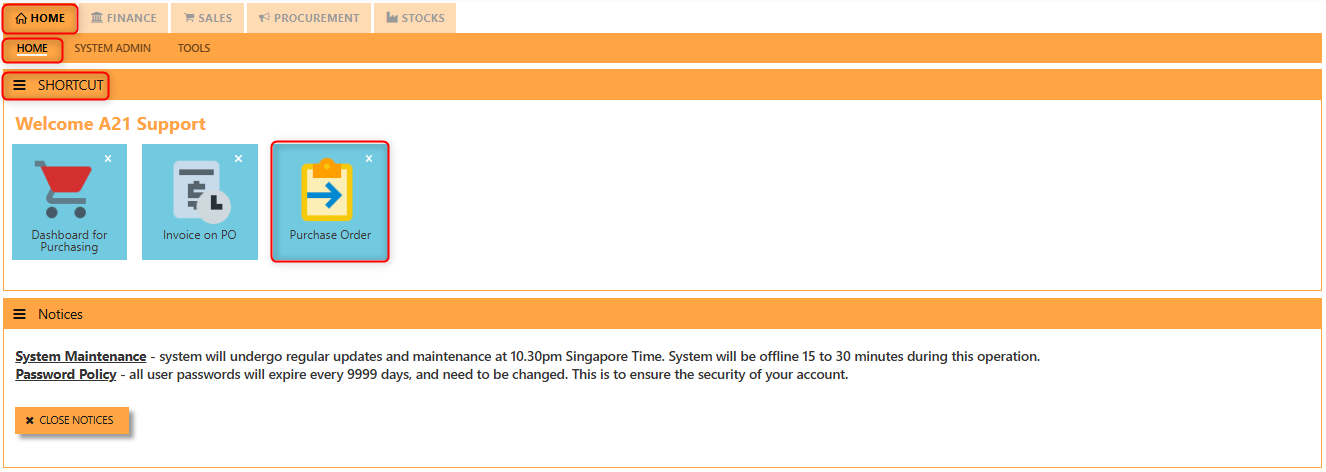](https://doc.uniq365.com/uploads/images/gallery/2025-01/gBQimage.png)
\_\_\_\_\_\_\_\_\_\_\_\_\_\_\_\_\_\_\_\_\_\_\_\_\_\_\_\_\_\_\_\_\_\_\_\_\_\_\_\_\_\_\_\_\_\_\_\_\_\_\_\_\_\_\_\_\_\_\_\_\_\_\_\_\_\_\_\_\_\_\_\_\_\_\_\_\_\_\_\_\_\_\_\_\_\_\_\_\_\_\_\_\_\_\_\_\_\_\_\_\_\_\_\_\_\_\_\_\_\_\_\_\_\_\_\_\_\_\_\_\_\_\_\_\_\_\_\_\_\_\_\_\_\_\_\_\_\_\_
**"Attachment Tab"** allows users to attach various files and documents related to the purchase order. By attaching relevant files, users ensure that all purchase-related information is kept in one place, making the procurement process smoother, more transparent, and easier to track.
##### **How to use Attachment Tab?**
1. Click on PROCUREMENT - PURCHASING - SUPER BILLS - PURCHASE ORDER - ATTACHMENT TAB for the screen below.
[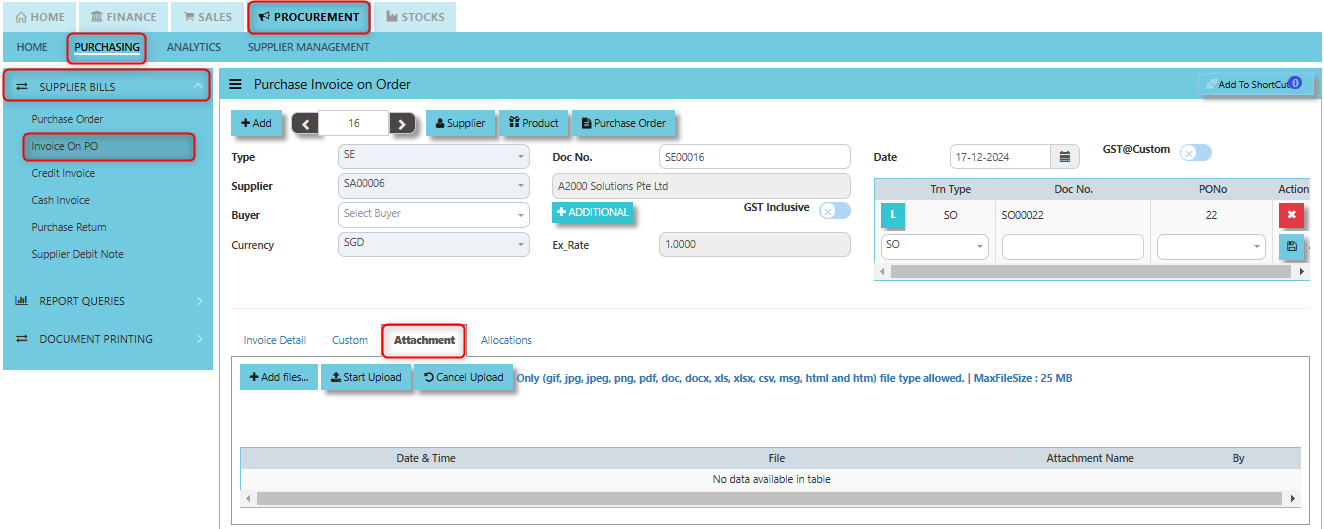](https://doc.uniq365.com/uploads/images/gallery/2025-02/nJ2image.png)
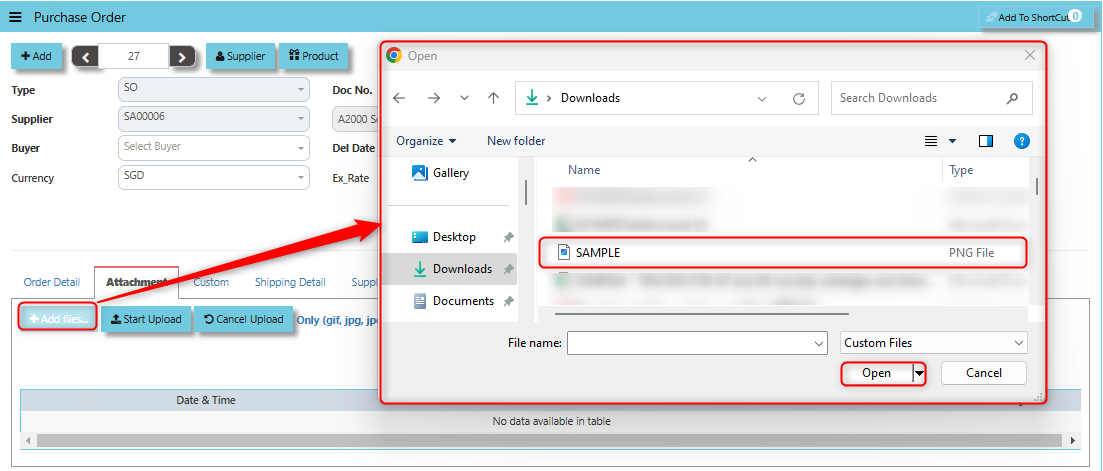
2. Click +Add files and windows will prompt then choose the file you want to upload by clicking open. Kindly take note the file types and maximum size requirements in uploading: ***Only (gif, jpg, jpeg, png, pdf, doc, docx, xls, xlsx, csv, msg, html and htm) file type allowed. | MaxFileSize : 25 MB***
[](https://doc.uniq365.com/uploads/images/gallery/2025-02/XURimage.png)
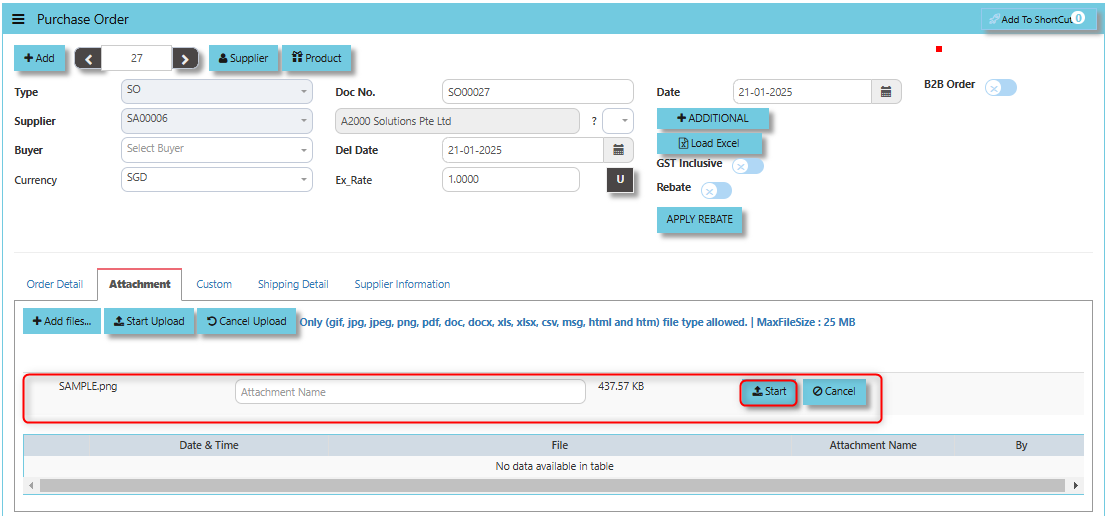
3. Key in the Attachment Name then click start to upload.
[](https://doc.uniq365.com/uploads/images/gallery/2025-02/oVPimage.png)
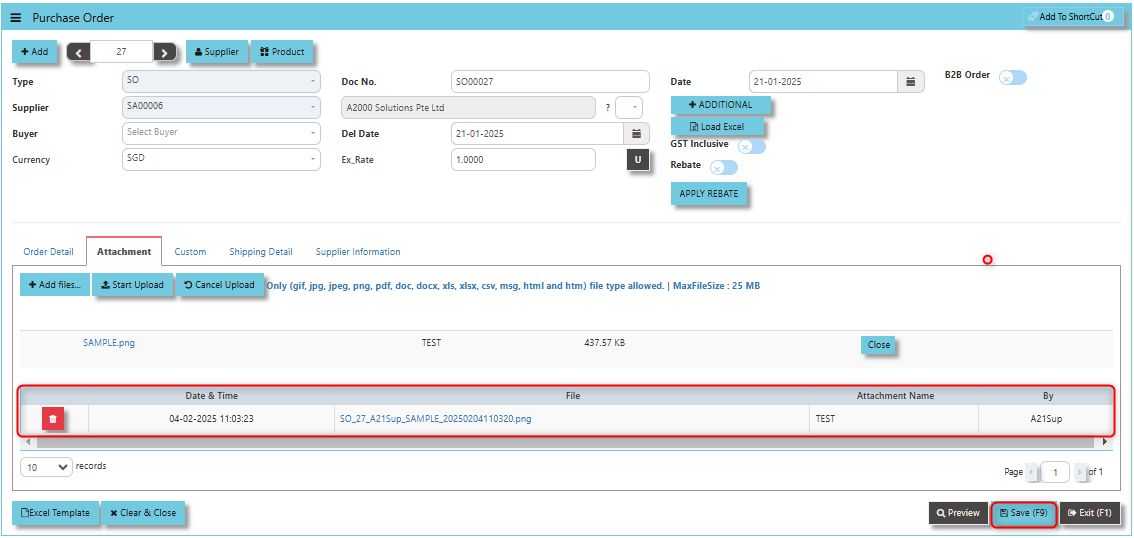
4. Once the file attached, click "SAVE" button
[](https://doc.uniq365.com/uploads/images/gallery/2025-02/CLpimage.png)
User may opt to cancel the uploading by clicking the **"Cancel Upload"** button and delete the file uploaded by clicking the **"Bin icon"** at the line detail.
\_\_\_\_\_\_\_\_\_\_\_\_\_\_\_\_\_\_\_\_\_\_\_\_\_\_\_\_\_\_\_\_\_\_\_\_\_\_\_\_\_\_\_\_\_\_\_\_\_\_\_\_\_\_\_\_\_\_\_\_\_\_\_\_\_\_\_\_\_\_\_\_\_\_\_\_\_\_\_\_\_\_\_\_\_\_\_\_\_\_\_\_\_\_\_\_\_\_\_\_\_\_\_\_\_\_\_\_\_\_\_\_\_\_\_\_\_\_\_\_\_\_\_\_\_\_\_\_\_\_\_\_\_\_\_\_\_\_\_
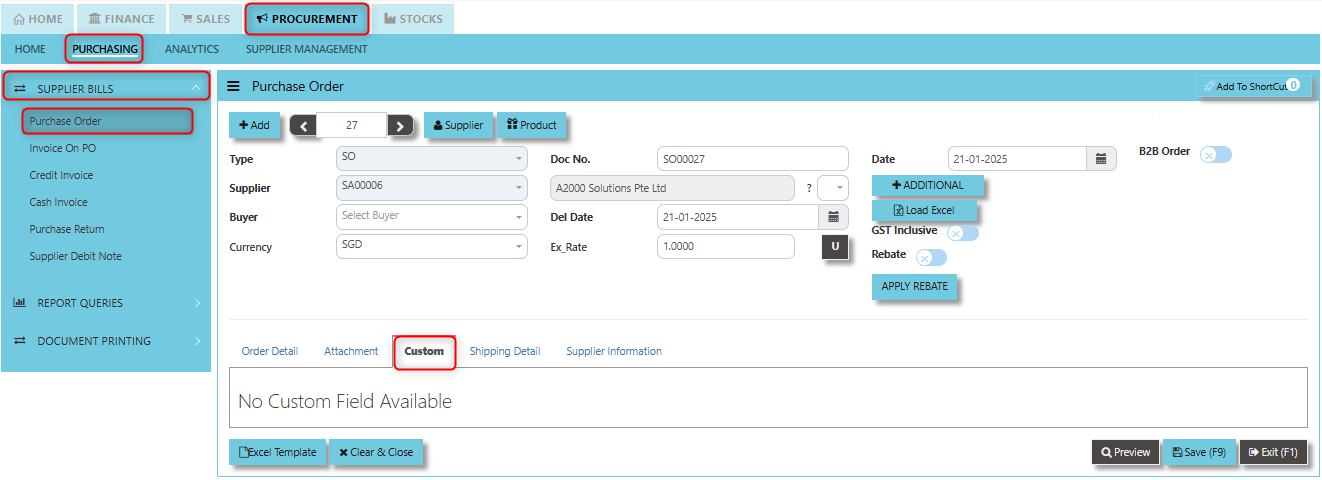
**"Custom Tab"** allows user to add custom fields or sections to a purchase order form. This feature is intended to accommodate specific business requirements or processes that are not covered by the standard fields in the system.
[](https://doc.uniq365.com/uploads/images/gallery/2025-02/uNrimage.png)
\_\_\_\_\_\_\_\_\_\_\_\_\_\_\_\_\_\_\_\_\_\_\_\_\_\_\_\_\_\_\_\_\_\_\_\_\_\_\_\_\_\_\_\_\_\_\_\_\_\_\_\_\_\_\_\_\_\_\_\_\_\_\_\_\_\_\_\_\_\_\_\_\_\_\_\_\_\_\_\_\_\_\_\_\_\_\_\_\_\_\_\_\_\_\_\_\_\_\_\_\_\_\_\_\_\_\_\_\_\_\_\_\_\_\_\_\_\_\_\_\_\_\_\_\_\_\_\_\_\_\_\_\_\_\_\_\_\_\_
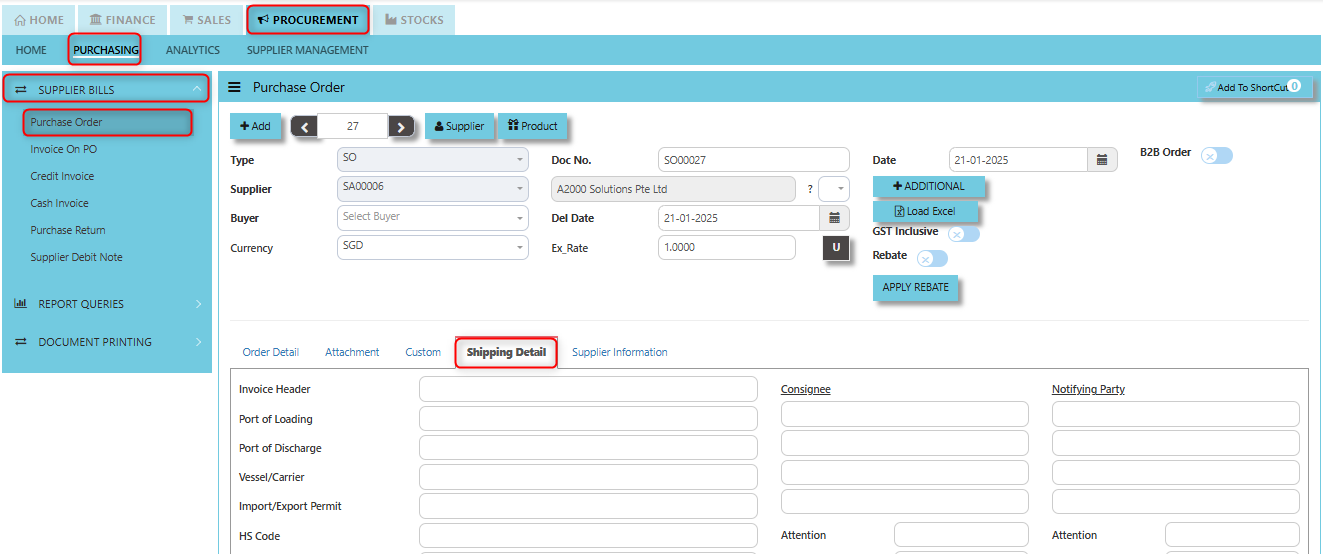
**"Shipping Detail Tab"** a section where specific shipping-related information is entered and managed for the purchased goods or services. This tab ensures that all relevant details regarding the shipment, delivery location, and delivery expectations are captured in the system to facilitate smooth and accurate order fulfillment.
##### **How to set Shipping Detail?**
1. Click on PROCUREMENT - PURCHASING - SUPPLIER BILLS -PURCHASE ORDER - SHIPPING DETAIL for the screen below.
[](https://doc.uniq365.com/uploads/images/gallery/2025-02/mYZimage.png)
2. Input the details for the below fields:
- Invoice Header
- Port of Loading
- Port of Discharge
- Vessel/Carrier
- Import/Export Permit
- HS Code
- Container/Seal No
- Other Information
- Consignee
- Attention
- Tel
- Fax
- Notifying Party
- Attention
- Tel
- Fax
- Est. Date of Delivery (ETD)
- Est. Date Sailing (ETS)
- Est. Date Arrival (ETA)
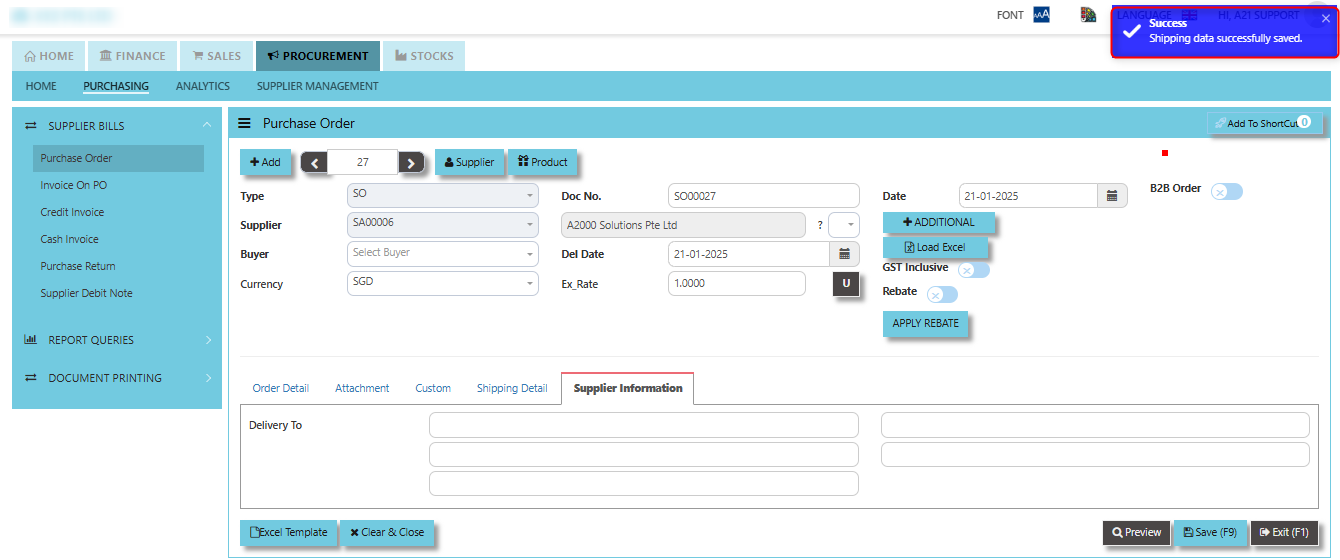
3. Once keyed in the necessary details, click the next tab and will automatically save all the information then system will prompt you a message.
[](https://doc.uniq365.com/uploads/images/gallery/2025-02/gs7image.png)
\_\_\_\_\_\_\_\_\_\_\_\_\_\_\_\_\_\_\_\_\_\_\_\_\_\_\_\_\_\_\_\_\_\_\_\_\_\_\_\_\_\_\_\_\_\_\_\_\_\_\_\_\_\_\_\_\_\_\_\_\_\_\_\_\_\_\_\_\_\_\_\_\_\_\_\_\_\_\_\_\_\_\_\_\_\_\_\_\_\_\_\_\_\_\_\_\_\_\_\_\_\_\_\_\_\_\_\_\_\_\_\_\_\_\_\_\_\_\_\_\_\_\_\_\_\_\_\_\_\_\_\_\_\_\_\_\_\_\_
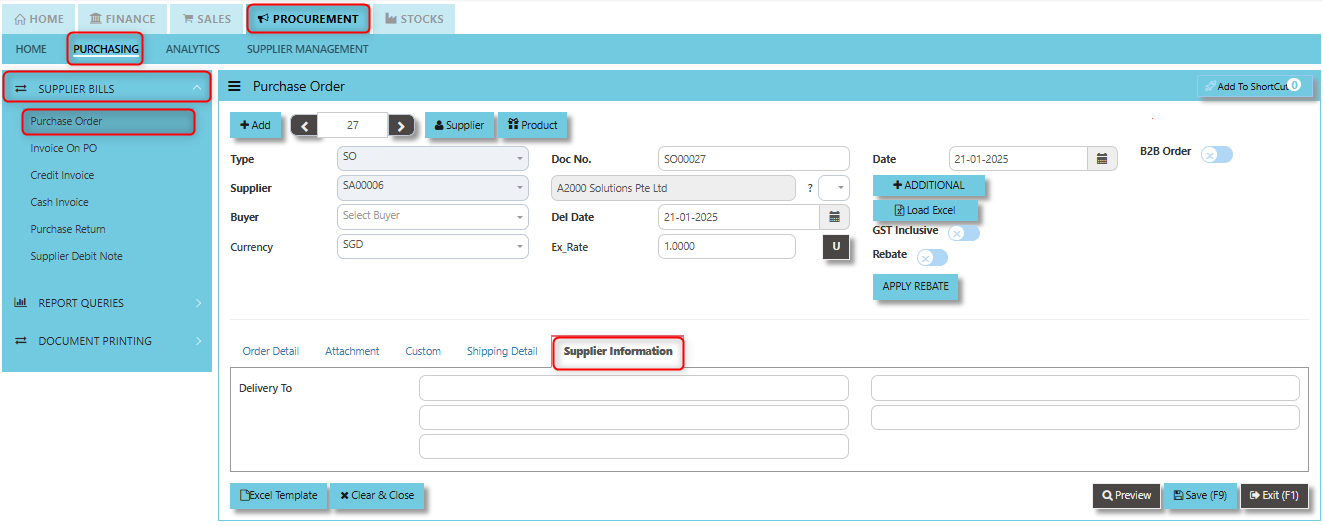
**"Supplier Information Tab"** provides essential details about the supplier or vendor responsible for fulfilling the purchase order.
##### **How to set Supplier Information?**
1. Click on PROCUREMENT - PURCHASING - SUPPLIER BILLS - PURCHASE ORDER - SUPPLIER INFORMATION for the screen below.
[](https://doc.uniq365.com/uploads/images/gallery/2025-02/ARaimage.png)
2. Key in the details of "Delivery To"
3\. Once keyed in the necessary details, click "SAVE"
\_\_\_\_\_\_\_\_\_\_\_\_\_\_\_\_\_\_\_\_\_\_\_\_\_\_\_\_\_\_\_\_\_\_\_\_\_\_\_\_\_\_\_\_\_\_\_\_\_\_\_\_\_\_\_\_\_\_\_\_\_\_\_\_\_\_\_\_\_\_\_\_\_\_\_\_\_\_\_\_\_\_\_\_\_\_\_\_\_\_\_\_\_\_\_\_\_\_\_\_\_\_\_\_\_\_\_\_\_\_\_\_\_\_\_\_\_\_\_\_\_\_\_\_\_\_\_\_\_\_\_\_\_\_\_\_\_\_\_
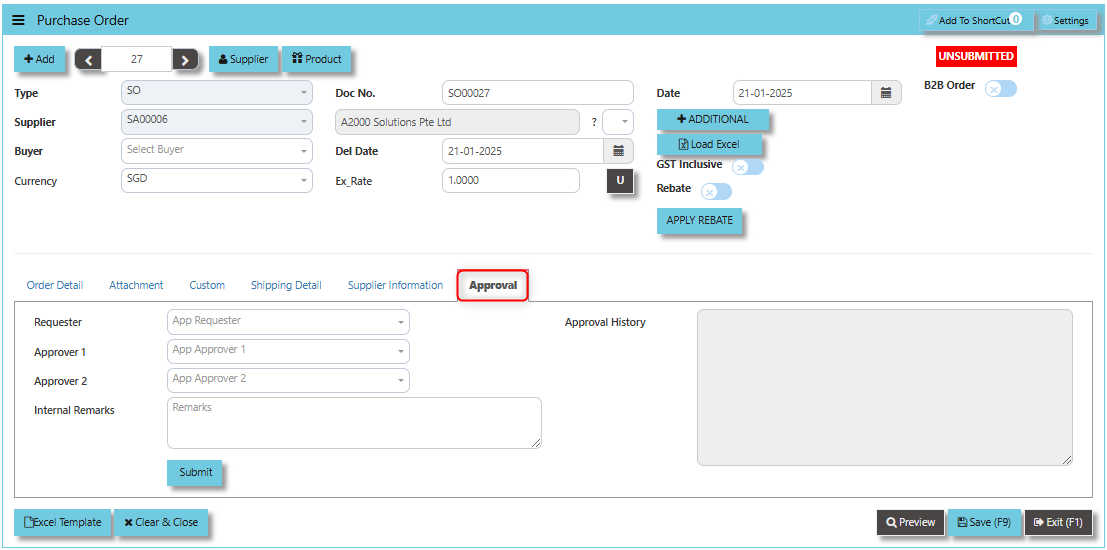
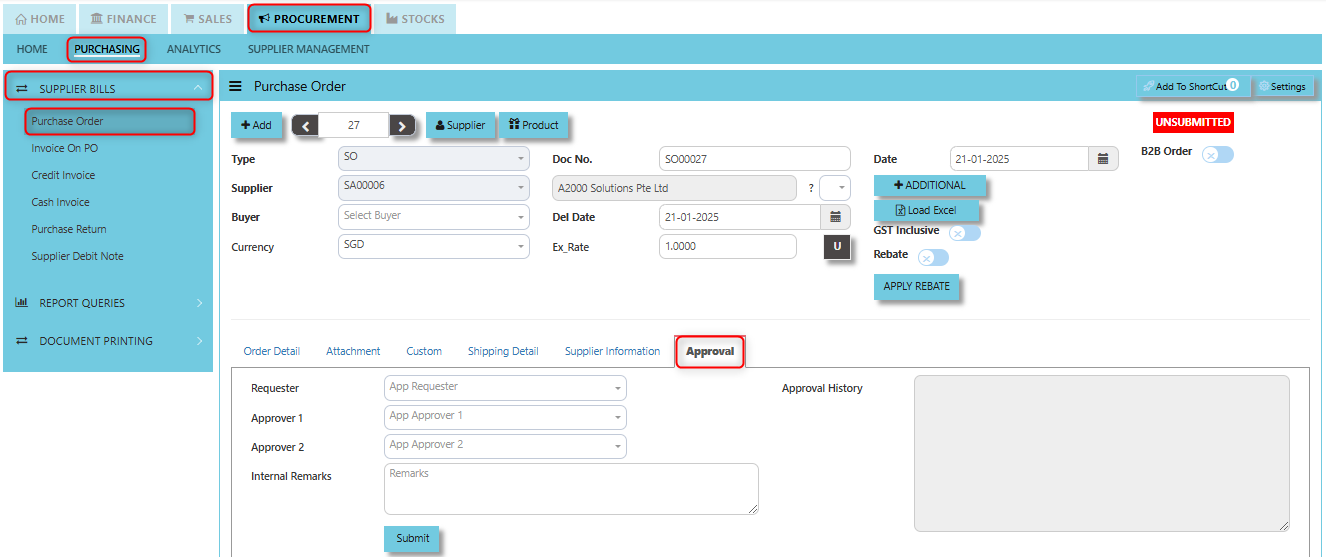
The **Approval tab** ensures that purchase orders are thoroughly reviewed and authorized in compliance with the company's purchasing policies and procedures before any procurement activity is carried out.
[](https://doc.uniq365.com/uploads/images/gallery/2025-02/mERimage.png)
##### **How to use Approval Tab?**
1. Click PROCUREMENT - PURCHASING - SUPPLIER BILLS - PURCHASE ORDER - APPROVAL TAB for the screen below.
[](https://doc.uniq365.com/uploads/images/gallery/2025-02/svXimage.png)
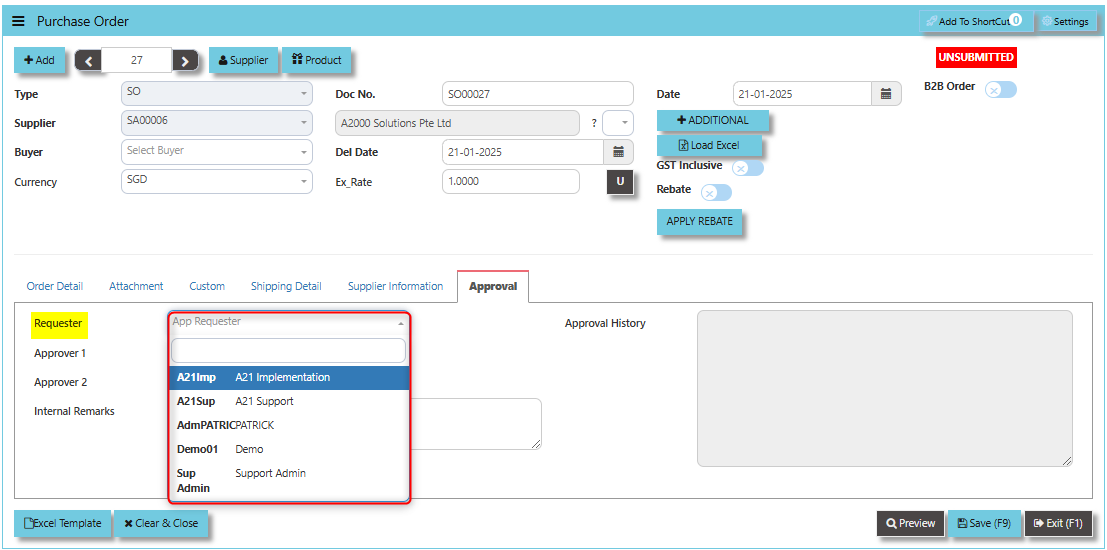
2. Select requester for the said created purchase order
[](https://doc.uniq365.com/uploads/images/gallery/2025-02/vttimage.png)
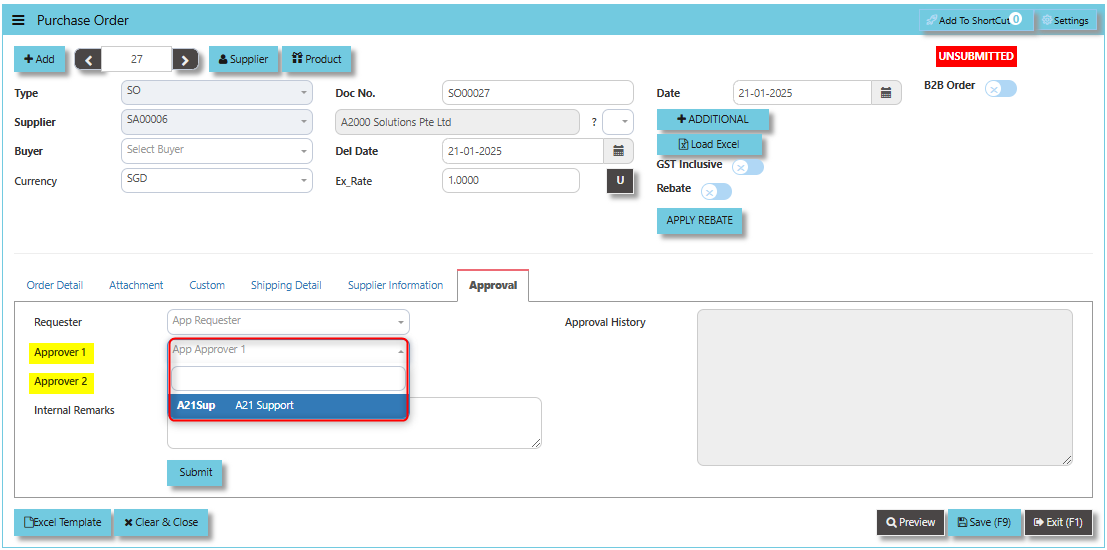
3. Select for Approval 1. If the process requires an Approval 2 user may select but should not be same approver under Approval 1.
[](https://doc.uniq365.com/uploads/images/gallery/2025-02/i99image.png)
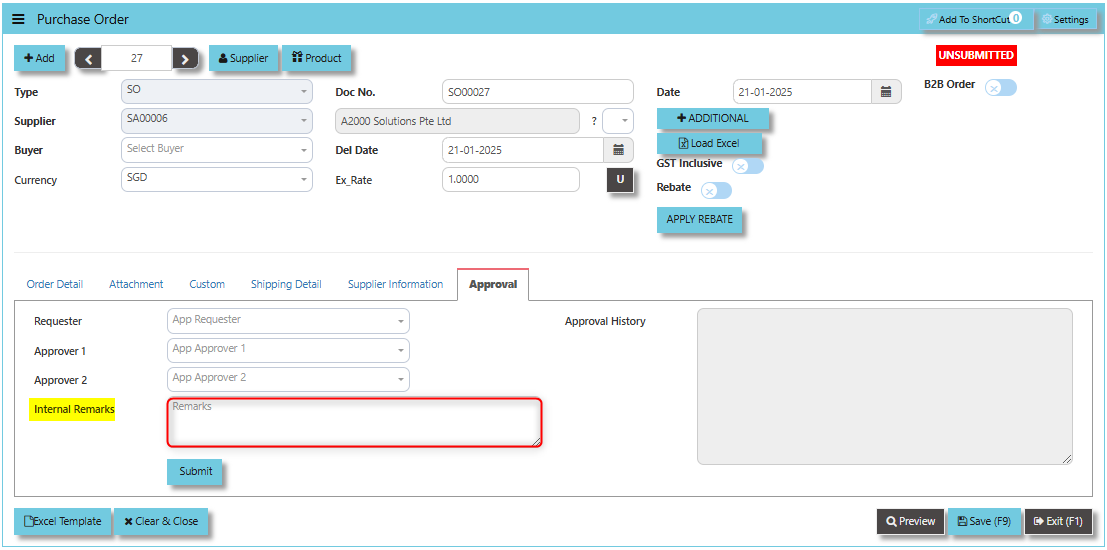
4. Input any remarks associated to the purchase order.
[](https://doc.uniq365.com/uploads/images/gallery/2025-02/GZ2image.png)
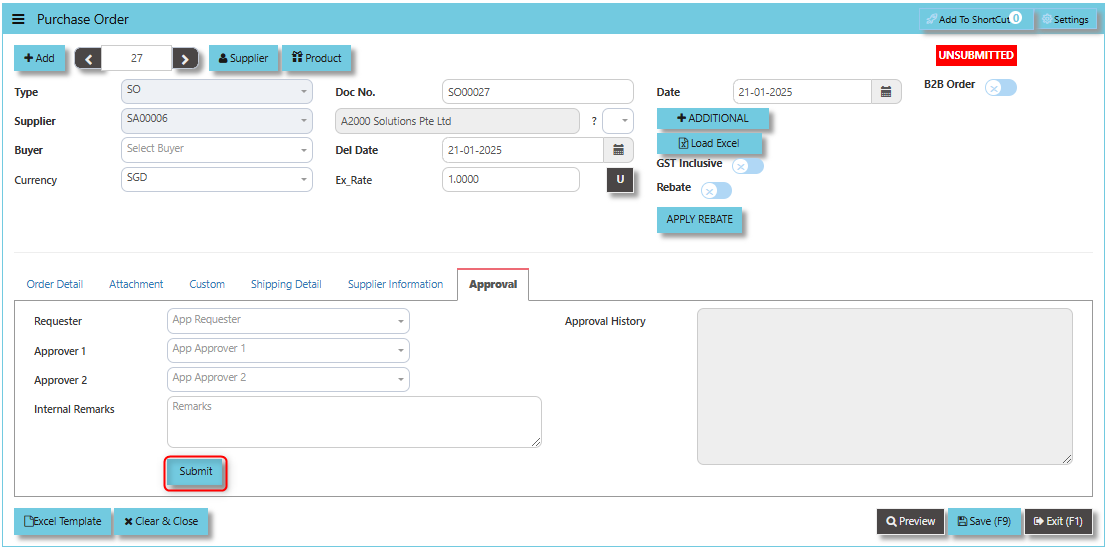
5. Click "SUBMIT" then OK and system will prompt that data has been submitted for approval.
[](https://doc.uniq365.com/uploads/images/gallery/2025-02/pRkimage.png)
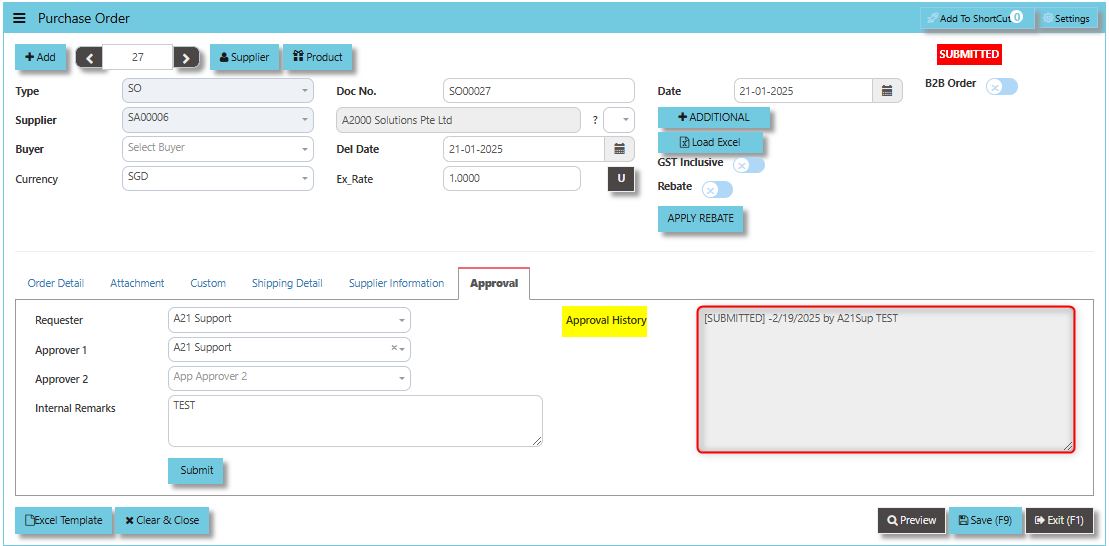
6. Transaction screen will show you the historical record under Approval History field.
[](https://doc.uniq365.com/uploads/images/gallery/2025-02/BzVimage.png)
Invoice on PO (SE)
##### Following the Purchase Operation, you will create the **Supplier Invoice on Order**. Enter the required fields before selecting the Purchase Order at the top right hand corner of the screen. The product line items must be verified and entered one by one. After entering all the item details, click on the Save button. The GL and Inventory will be updated.
\_\_\_\_\_\_\_\_\_\_\_\_\_\_\_\_\_\_\_\_\_\_\_\_\_\_\_\_\_\_\_\_\_\_\_\_\_\_\_\_\_\_\_\_\_\_\_\_\_\_\_\_\_\_\_\_\_\_\_\_\_\_\_\_\_\_\_\_\_\_\_\_\_\_\_\_\_\_\_\_\_\_\_\_\_\_\_\_\_\_\_\_\_\_\_\_\_\_\_
##### **How to create Invoice on Order?**
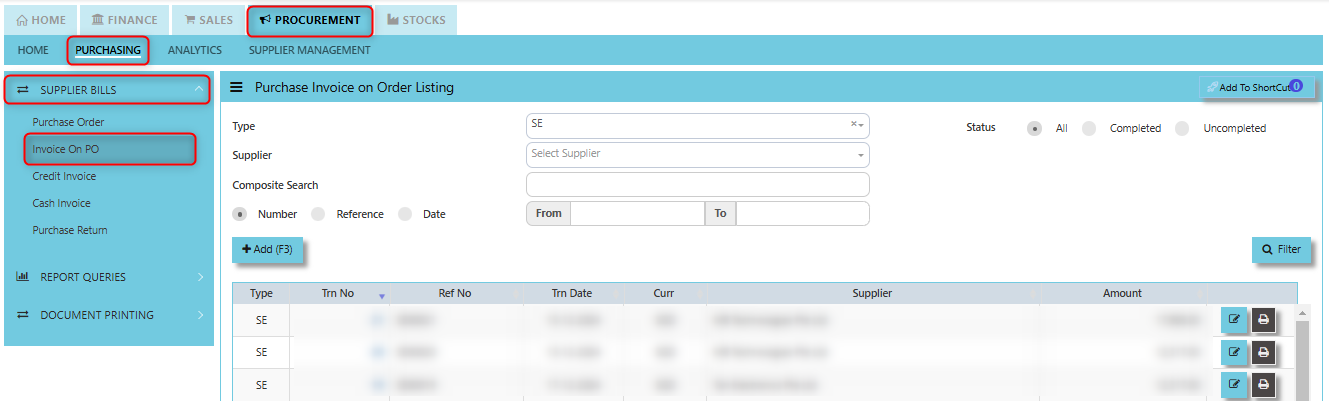
1. Click on PROCUREMENT – PURCHASING – SUPPLIER BILLS - INVOICE ON PO for the screen below.
[](https://doc.uniq365.com/uploads/images/gallery/2025-01/GIHimage.png)
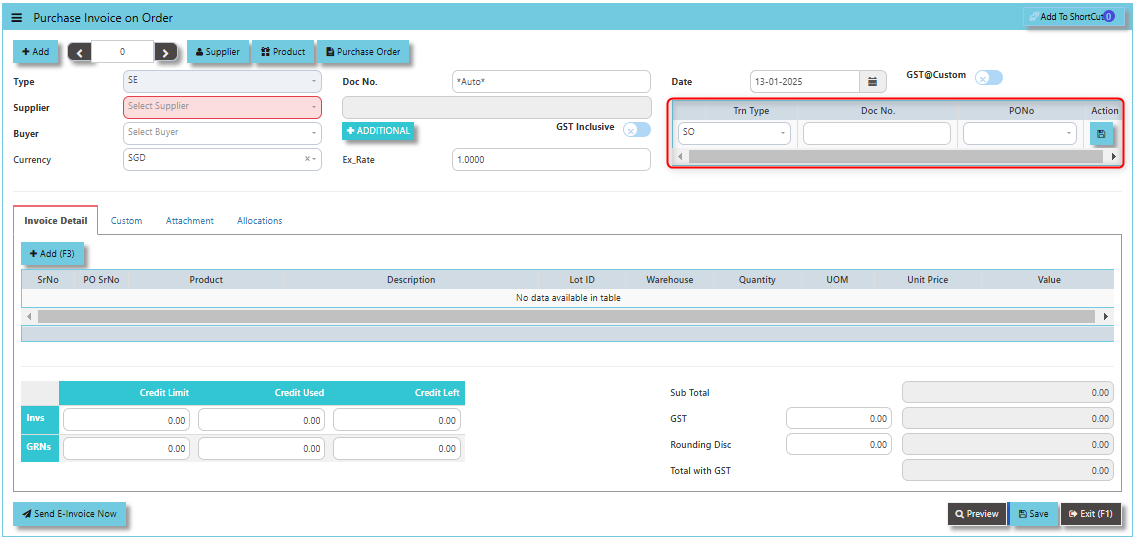
2. Click Add (F3) to create new record.
[](https://doc.uniq365.com/uploads/images/gallery/2025-01/YI7image.png)
3. Click Type - drop-down to select transaction type – SE (Invoice on Order).
4\. After transaction type selection, use the tab button to go to the Ref No., Date and other fields.
5\. Click the Supplier - drop-down list to select Supplier Name, followed by the Buyer, PDS, Currency and Exchange Rate.
6\. After the above steps are done, click on the Order No. drop- down list to select a Purchase Order (SO) (refer to the highlighted screen).
7\. After selecting the SO transaction from the Order No. column, user can use the “L” button beside the Order No. to load all the product items at one go. Alternatively, you can use the Ref column which appears at product line details, to enter the items from the Purchase Order one by one. After all the items are called out, save the transaction.
\_\_\_\_\_\_\_\_\_\_\_\_\_\_\_\_\_\_\_\_\_\_\_\_\_\_\_\_\_\_\_\_\_\_\_\_\_\_\_\_\_\_\_\_\_\_\_\_\_\_\_\_\_\_\_\_\_\_\_\_\_\_\_\_\_\_\_\_\_\_\_\_\_\_\_\_\_\_\_\_\_\_\_\_\_\_\_\_\_\_\_\_\_\_\_\_\_\_\_\_\_\_\_\_\_\_\_\_\_\_\_\_\_\_\_\_\_\_\_\_\_\_\_\_\_\_\_\_\_\_\_\_\_\_\_\_\_\_\_
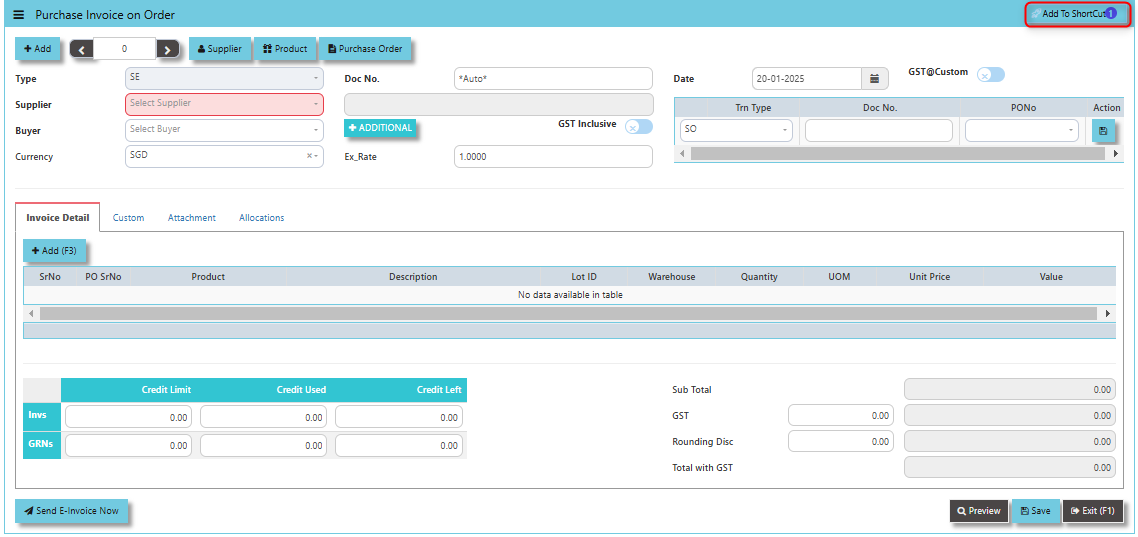
**Add to ShortCut -** Used to create a shortcut for quick access to a specific purchase invoice or purchase invoice-related functionality. By clicking this button, users can add the current purchase invoice to a list of shortcuts, allowing them to access the invoice or related functionality quickly and efficiently, without needing to search for it each time.
[](https://doc.uniq365.com/uploads/images/gallery/2025-01/1E5image.png)
##### **How to use Add to ShortCut?**
1. Click "**Add to ShortCut"** and system will open below windows:
[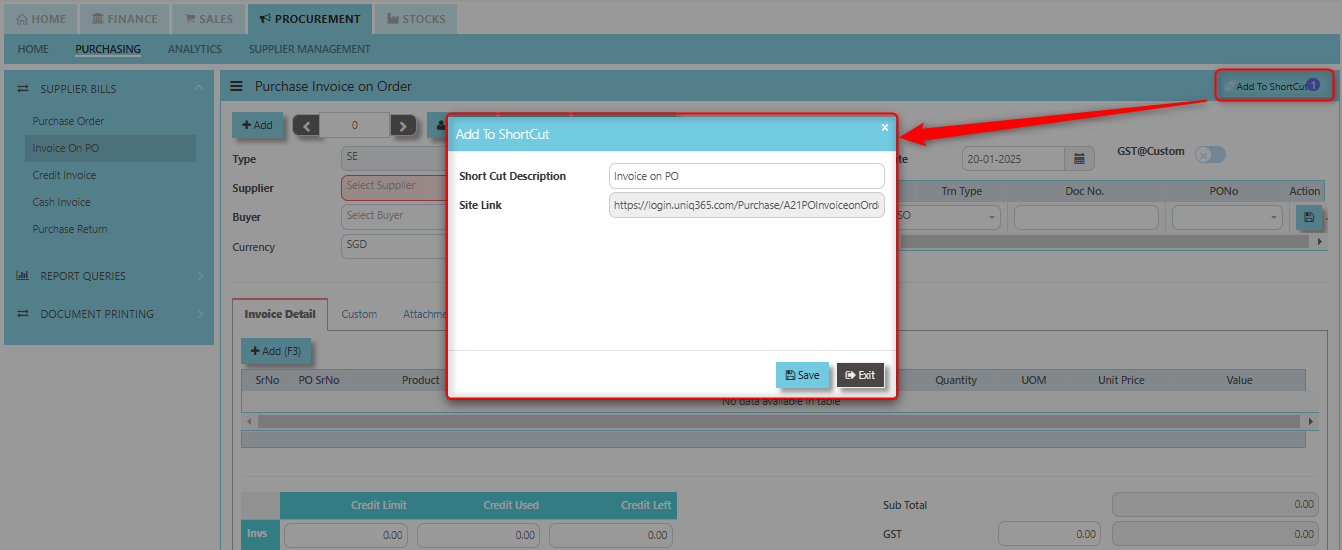](https://doc.uniq365.com/uploads/images/gallery/2025-01/ZIEimage.png)
2. Enter Short Cut Description
3\. Click SAVE then click OK.
4\. User may look to the Homepage for the added function or page. Click on HOME - HOME - SHORTCUT for the screen below.
[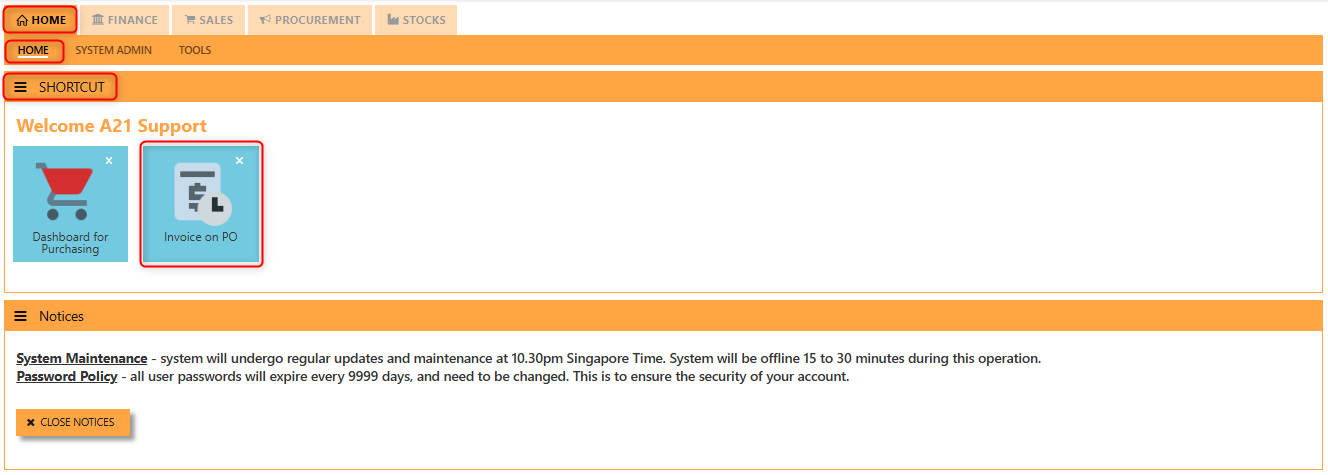](https://doc.uniq365.com/uploads/images/gallery/2025-01/0P6image.png)
\_\_\_\_\_\_\_\_\_\_\_\_\_\_\_\_\_\_\_\_\_\_\_\_\_\_\_\_\_\_\_\_\_\_\_\_\_\_\_\_\_\_\_\_\_\_\_\_\_\_\_\_\_\_\_\_\_\_\_\_\_\_\_\_\_\_\_\_\_\_\_\_\_\_\_\_\_\_\_\_\_\_\_\_\_\_\_\_\_\_\_\_\_\_\_\_\_\_\_\_\_\_\_\_\_\_\_\_\_\_\_\_\_\_\_\_\_\_\_\_\_\_\_\_\_\_\_\_\_\_\_\_\_\_\_\_\_\_\_
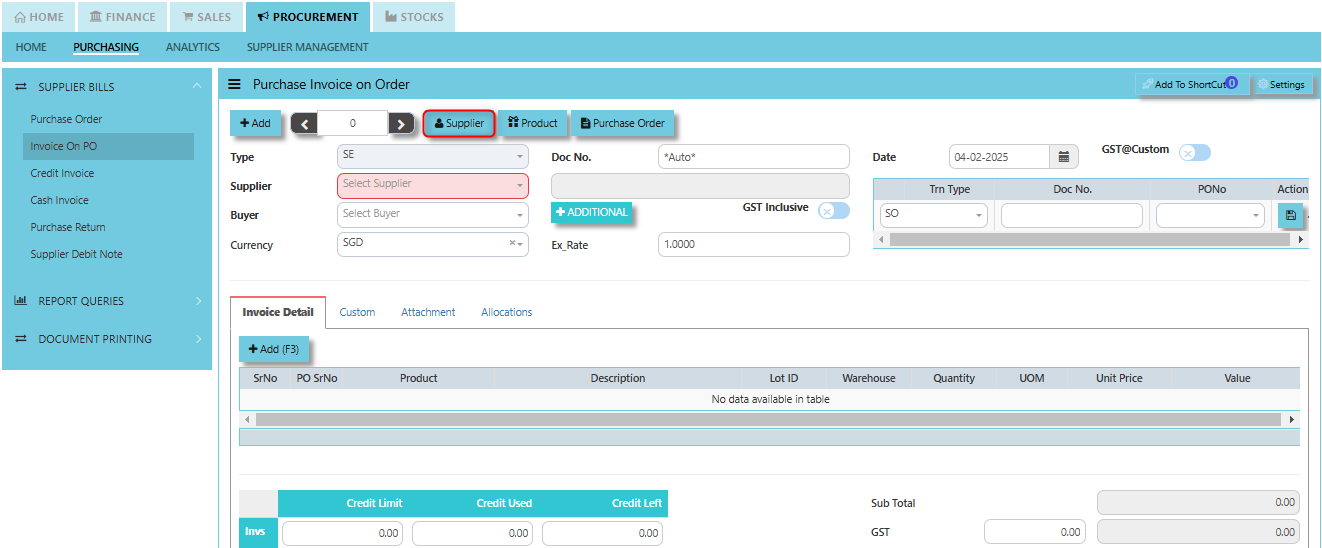
**"Supplier Button"** enables users to add specific supplier data under Supplier Maintenance.
[](https://doc.uniq365.com/uploads/images/gallery/2025-02/YRbimage.png)
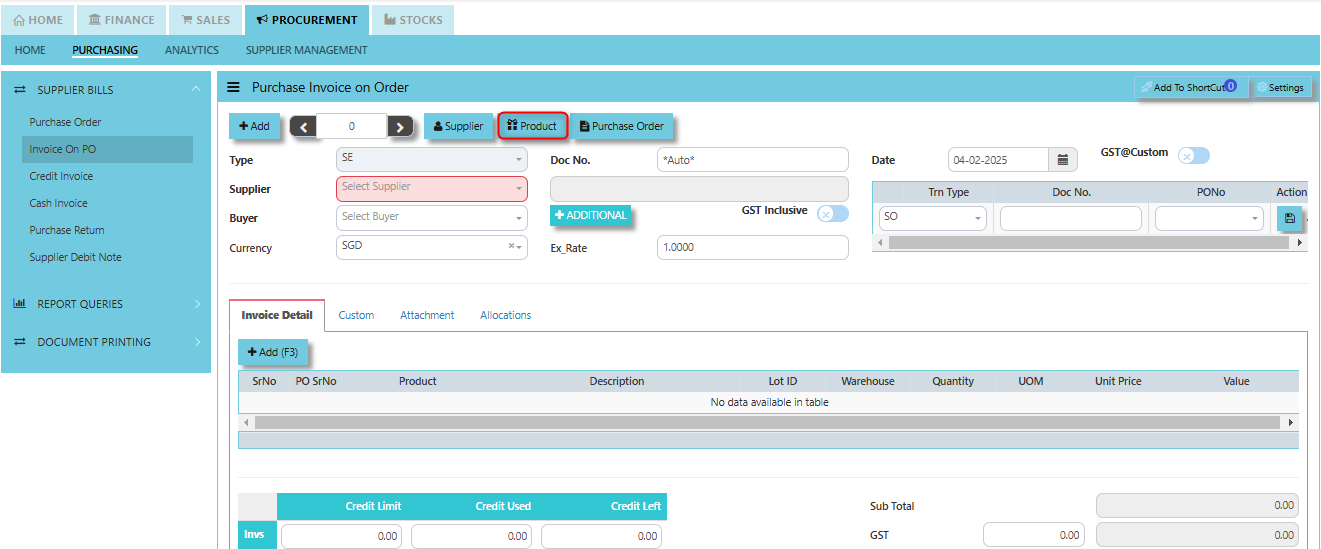
**"Product Button"** enables users to add specific products under Product & Service Maintenance.
[](https://doc.uniq365.com/uploads/images/gallery/2025-02/UfZimage.png)
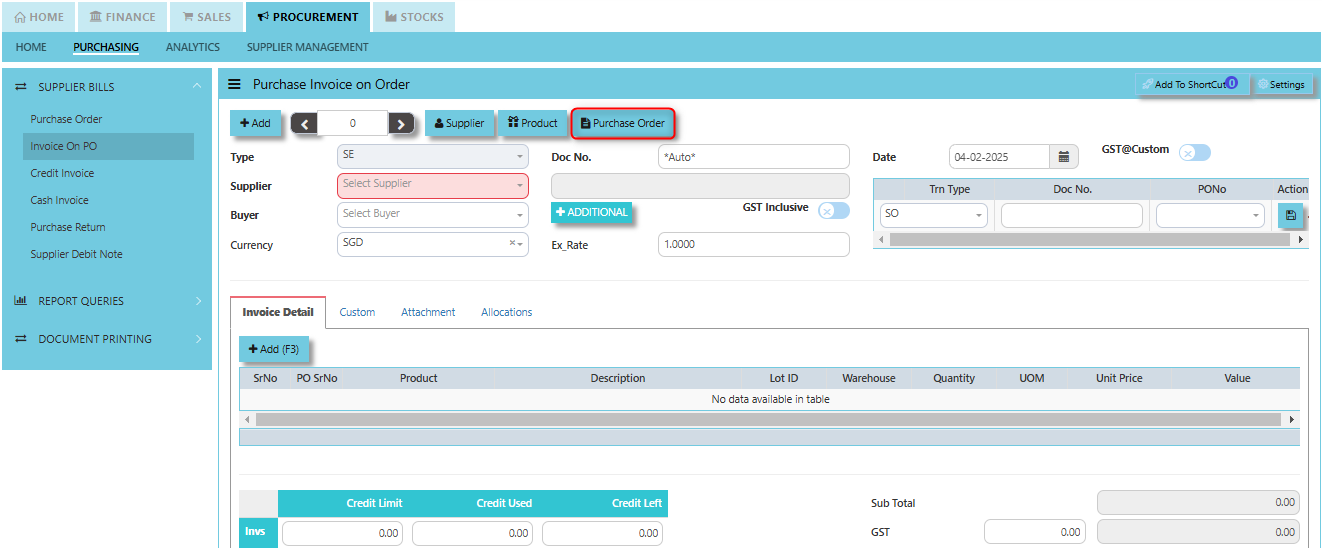
**"Purchase Order" Button** serves as a mechanism to link or reference the related purchase order to the invoice being processed.
[](https://doc.uniq365.com/uploads/images/gallery/2025-02/F19image.png)
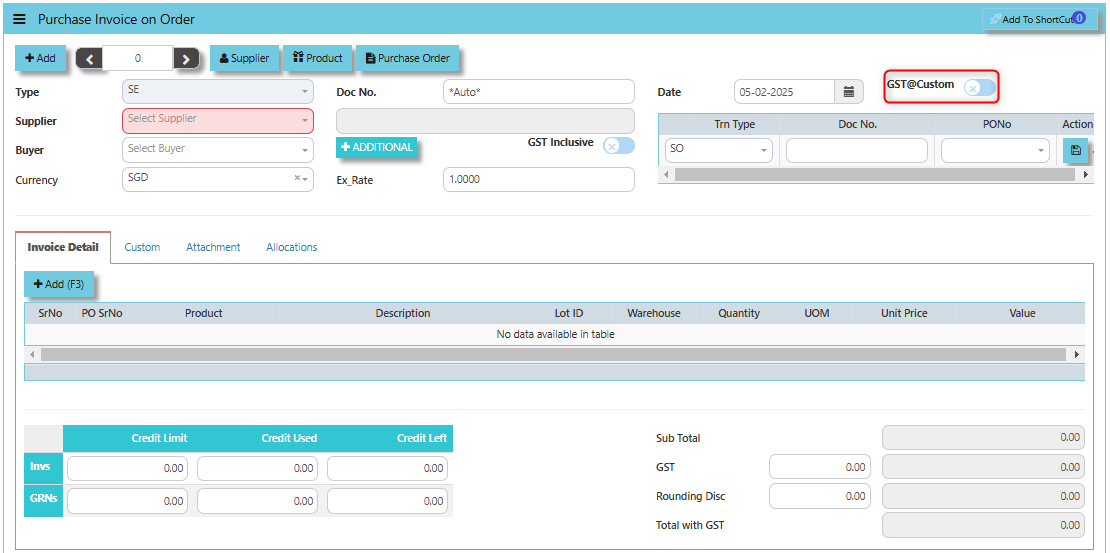
The **GST @Custom** checkbox typically used to enable custom GST rates for a specific transaction, rather than applying a standard or predefined GST rate.
- **When ticked (GST @Custom enabled)**: It allows the user to manually input a custom GST rate for the goods or services listed on the purchase invoice. Modify the tax calculation for the invoice as required, based on the custom rate.
[](https://doc.uniq365.com/uploads/images/gallery/2025-02/FU1image.png)
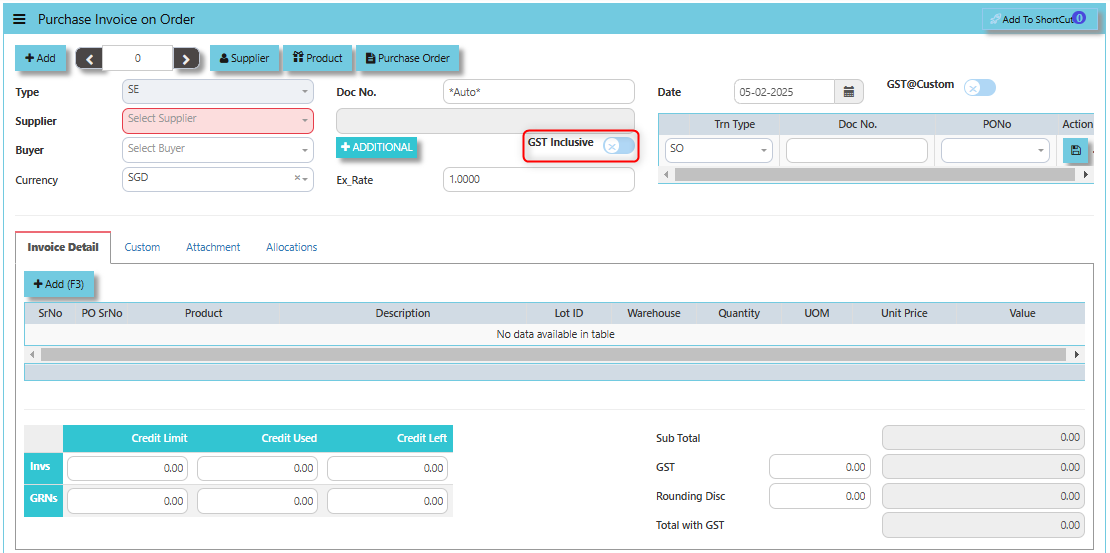
The **GST Inclusive** checkbox determines whether the GST amount is included within the total amount of the goods or services on the invoice or if it is calculated separately.
- **GST Inclusive Checkbox (When ticked):** If the GST is included in the price, the system will automatically calculate the base price (the price excluding GST) and the GST amount based on the total value.
- **When not ticked (GST Exclusive)**: The system will calculate the GST separately based on the base price of the items and add it to the total amount of the invoice.
[](https://doc.uniq365.com/uploads/images/gallery/2025-02/orLimage.png)
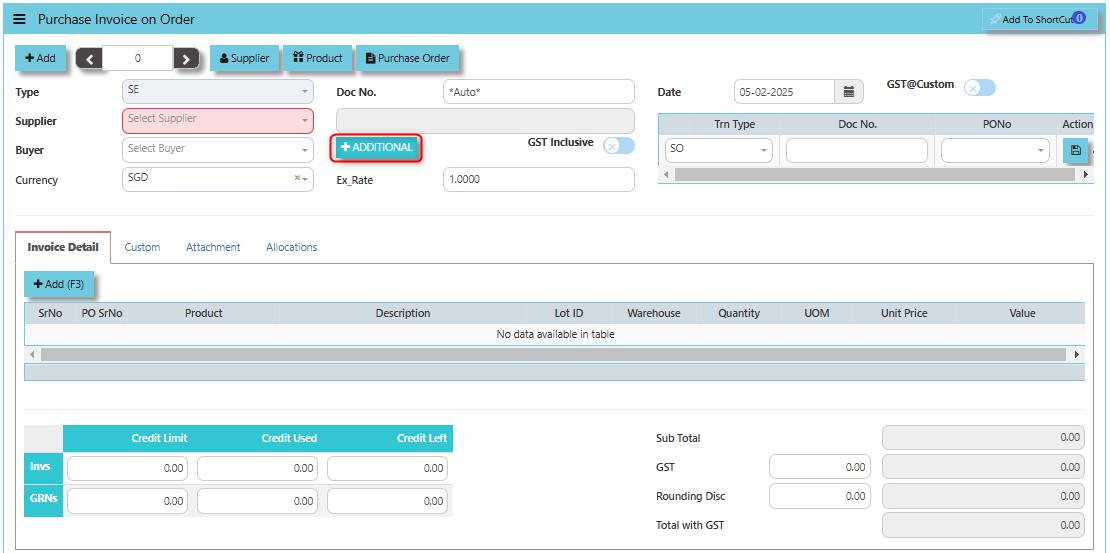
The **Additional Header Info** button allows users to enter and view additional details or supplementary information at the header level of the purchase invoice.
[](https://doc.uniq365.com/uploads/images/gallery/2025-02/WDbimage.png)
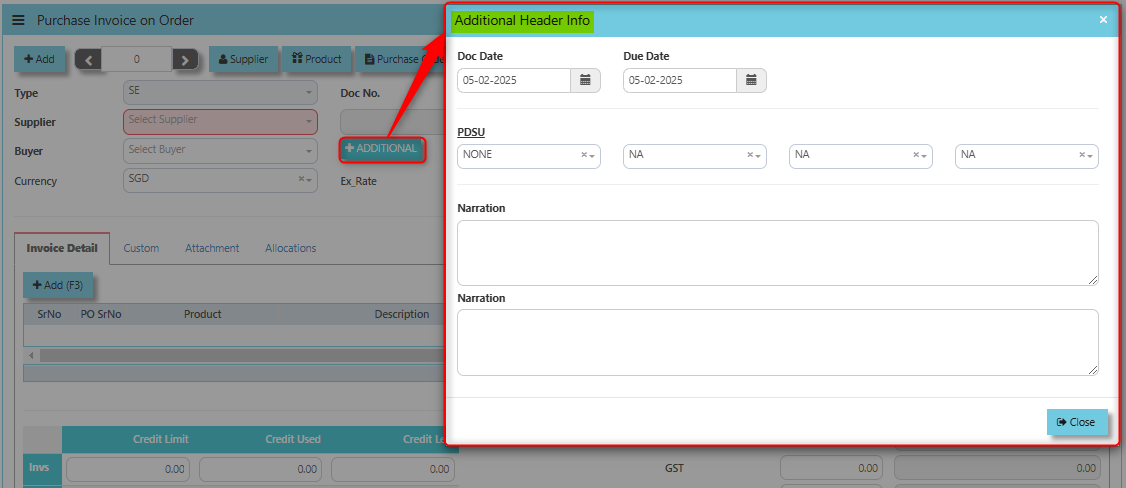
Once clicked the said button, user may input the below additional information:
- Doc Date
- Due Date
- PDSU
- Narrations
[](https://doc.uniq365.com/uploads/images/gallery/2025-02/EHgimage.png)
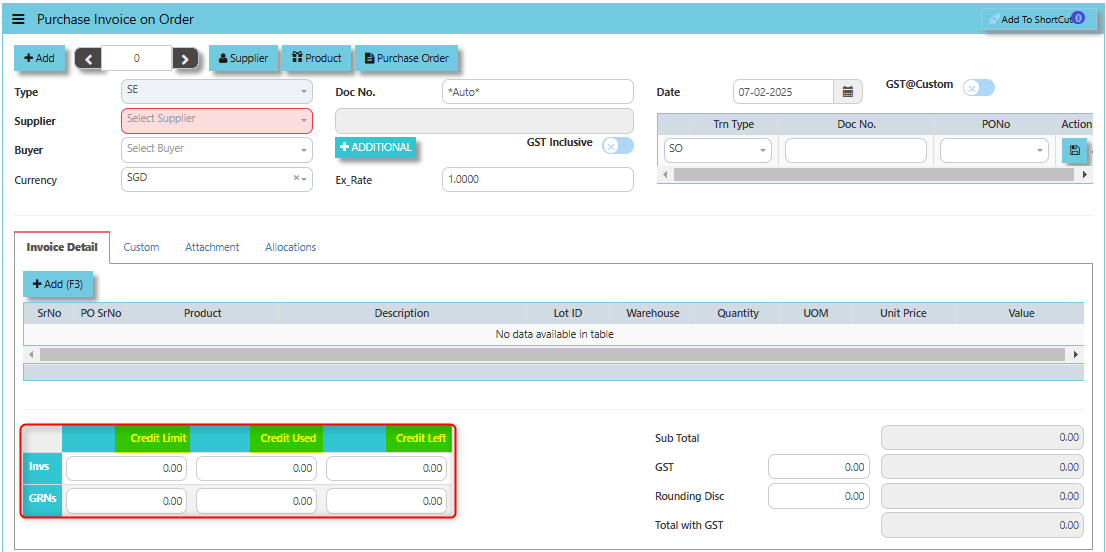
The terms **Credit Limit**, **Credit Used**, and **Credit Left** typically relate to the management of financial transactions and the control of purchasing activities. These are usually associated with the vendor or supplier accounts, and each of them plays a role in controlling and monitoring the financial aspects of procurement.
- **Credit Limit** -This is the maximum amount of credit that a vendor or supplier is willing to extend to your organization.
- **Credit** **Used** - This refers to the amount of credit that has already been used by the company on purchases from a specific vendor or supplier.
- **Credit Left** - This is the remaining amount of credit that is still available to be used with the vendor after subtracting the credit used from the total credit limit.
[](https://doc.uniq365.com/uploads/images/gallery/2025-02/qj3image.png)
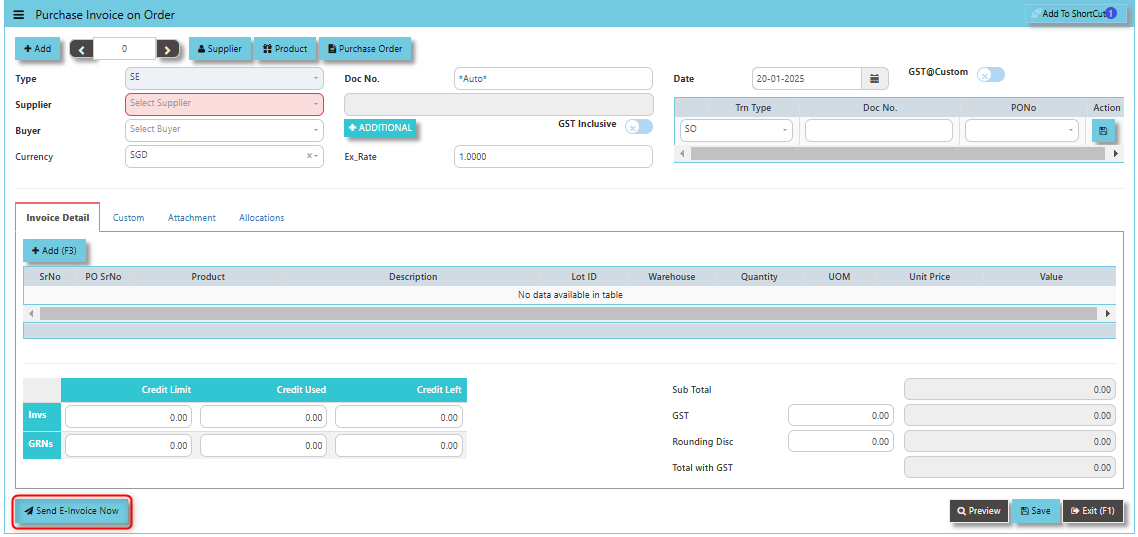
**"Send E-Invoice Now" Button**: serves the purpose of immediately sending an electronic invoice (e-invoice) to the relevant party, typically the supplier or vendor, once the purchase invoice has been generated.
[](https://doc.uniq365.com/uploads/images/gallery/2025-01/jAGimage.png)
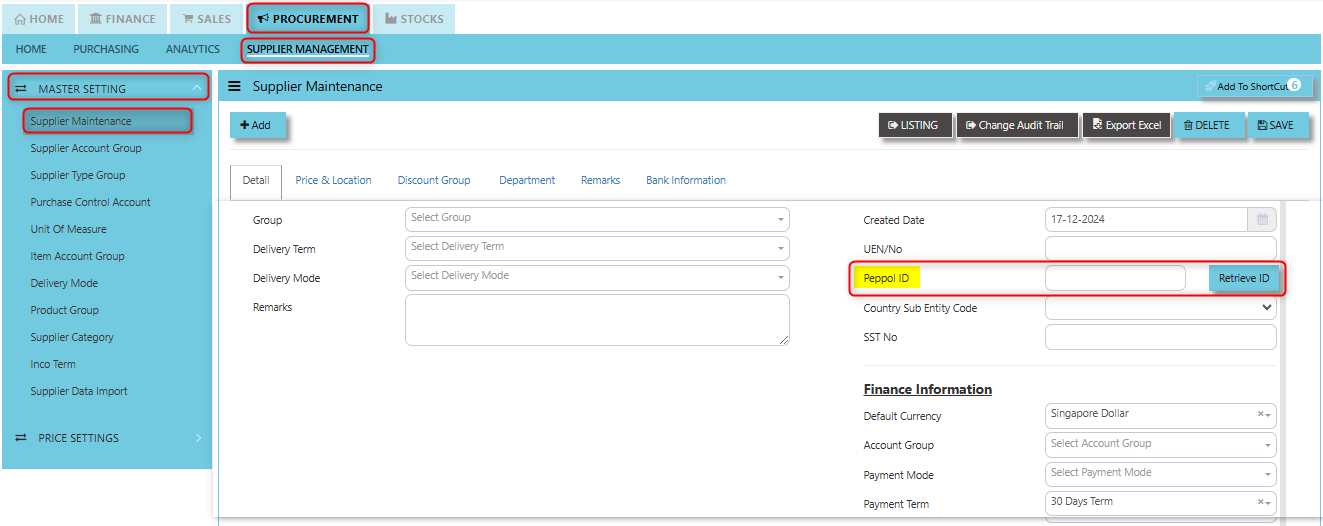
Supplier company should get **"Peppol ID"** as a pre-requisite for this function and user can maintain under supplier maintenance of the specific supplier. click on PROCUREMENT - SUPPLIER MANAGEMENT - MASTER SETTING - SUPPLIER MAINTENANCE - PEPPOL ID
[](https://doc.uniq365.com/uploads/images/gallery/2025-01/RgVimage.png)
\_\_\_\_\_\_\_\_\_\_\_\_\_\_\_\_\_\_\_\_\_\_\_\_\_\_\_\_\_\_\_\_\_\_\_\_\_\_\_\_\_\_\_\_\_\_\_\_\_\_\_\_\_\_\_\_\_\_\_\_\_\_\_\_\_\_\_\_\_\_\_\_\_\_\_\_\_\_\_\_\_\_\_\_\_\_\_\_\_\_\_\_\_\_\_\_\_\_\_\_\_\_\_\_\_\_\_\_\_\_\_\_\_\_\_\_\_\_\_\_\_\_\_\_\_\_\_\_\_\_\_\_\_\_\_\_\_\_\_
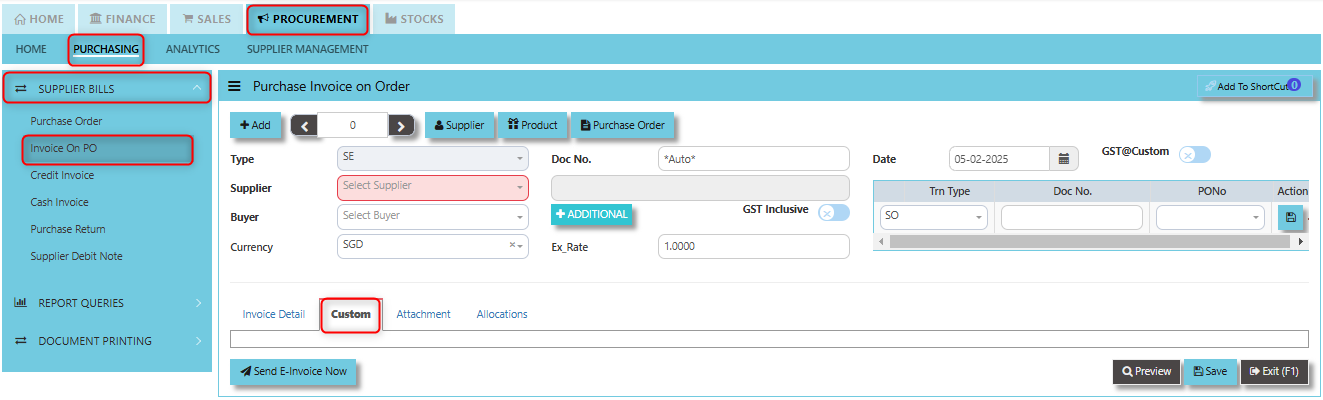
**Custom Tab** provides a space for users to input customized data or additional fields that are specific to their business processes and requirements.
- Click on PROCUREMENT - PURCHASING - SUPPLIER BILLS - INVOICE ON PO - CUSTOM TAB
[](https://doc.uniq365.com/uploads/images/gallery/2025-02/MG7image.png)
\_\_\_\_\_\_\_\_\_\_\_\_\_\_\_\_\_\_\_\_\_\_\_\_\_\_\_\_\_\_\_\_\_\_\_\_\_\_\_\_\_\_\_\_\_\_\_\_\_\_\_\_\_\_\_\_\_\_\_\_\_\_\_\_\_\_\_\_\_\_\_\_\_\_\_\_\_\_\_\_\_\_\_\_\_\_\_\_\_\_\_\_\_\_\_\_\_\_\_\_\_\_\_\_\_\_\_\_\_\_\_\_\_\_\_\_\_\_\_\_\_\_\_\_\_\_\_\_\_\_\_\_\_\_\_\_\_\_\_
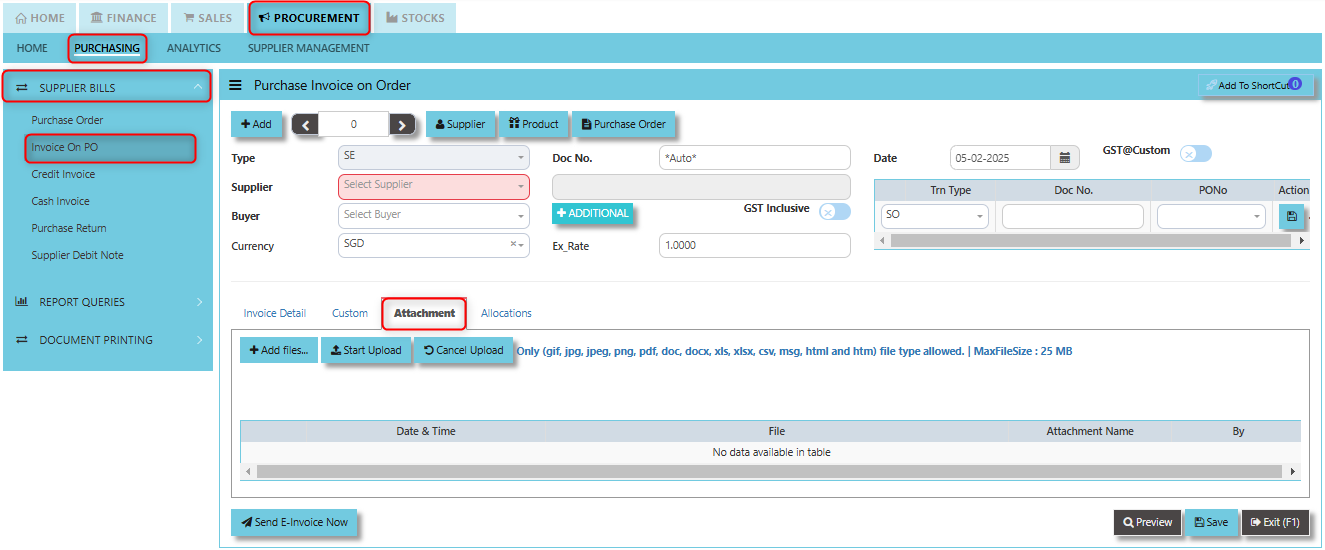
**Attachment Tab** allows users to attach and manage relevant documents or files related to a specific purchase invoice. This feature helps streamline the process by ensuring that all supporting documentation is easily accessible and linked directly to the invoice within the system.
##### **How to attach file?**
1. Click on PROCUREMENT - PURCHASING - SUPPLIER BILLS - INVOICE ON PO - ATTACHMENT TAB for the screen below.
[](https://doc.uniq365.com/uploads/images/gallery/2025-02/82himage.png)
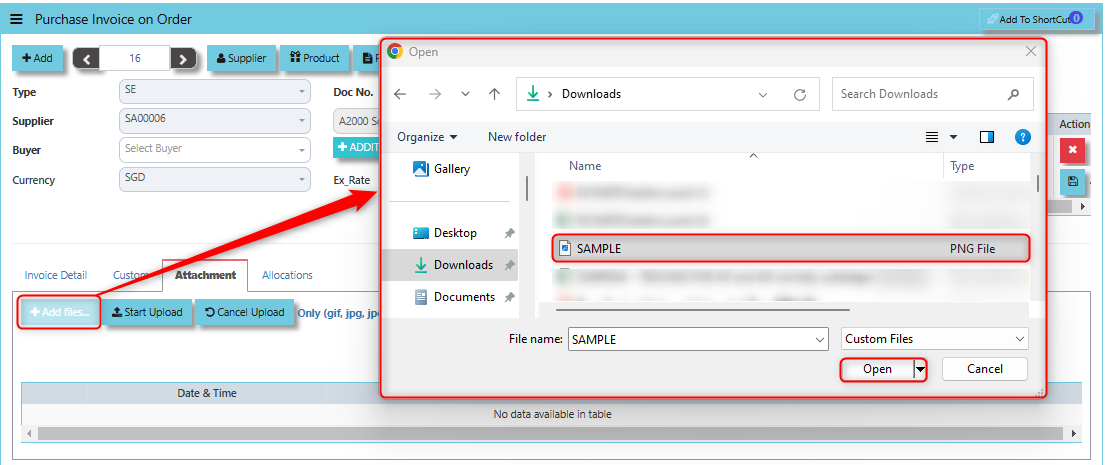
2. Click +Add files and windows will prompt then choose the file you want to upload by clicking open. Kindly take note the file types and maximum size requirements in uploading: ***Only (gif, jpg, jpeg, png, pdf, doc, docx, xls, xlsx, csv, msg, html and htm) file type allowed. | MaxFileSize : 25 MB***
[](https://doc.uniq365.com/uploads/images/gallery/2025-02/URXimage.png)
3. Key in the Attachment Name then click start to upload.
[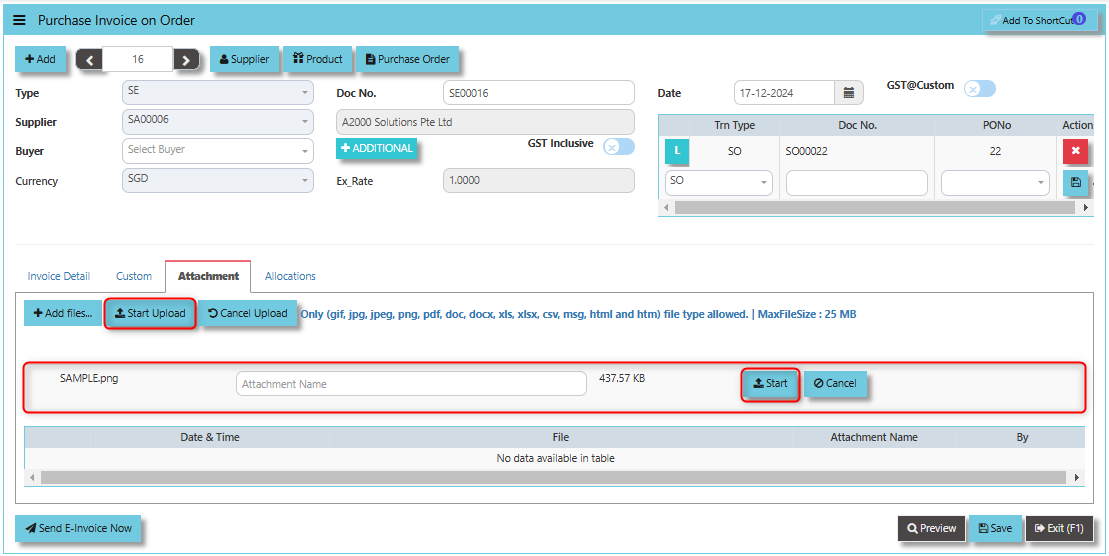](https://doc.uniq365.com/uploads/images/gallery/2025-02/mbgimage.png)
4. Once the file attached, click "SAVE" button
[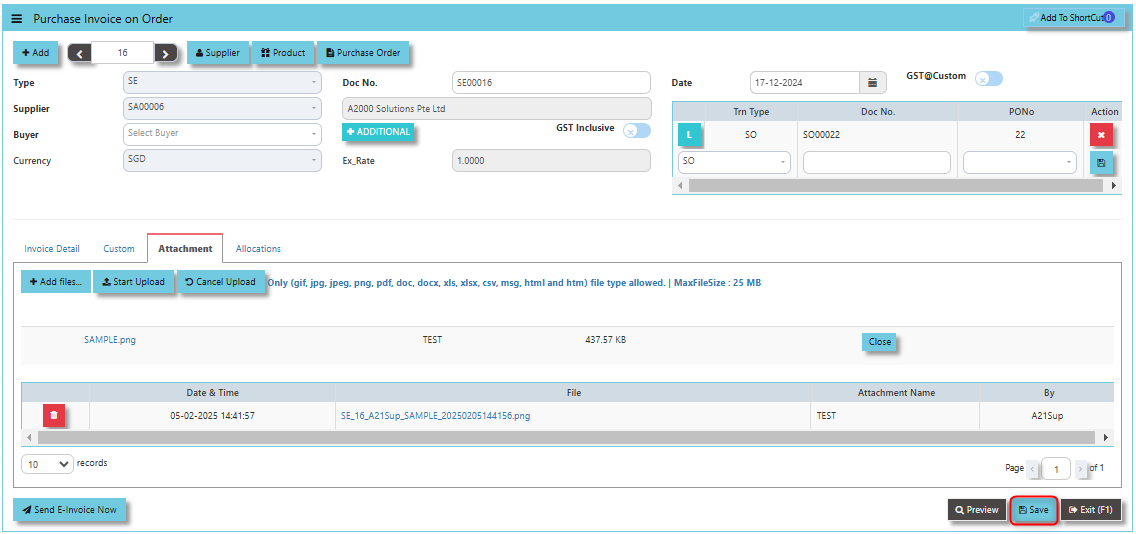](https://doc.uniq365.com/uploads/images/gallery/2025-02/at5image.png)
\_\_\_\_\_\_\_\_\_\_\_\_\_\_\_\_\_\_\_\_\_\_\_\_\_\_\_\_\_\_\_\_\_\_\_\_\_\_\_\_\_\_\_\_\_\_\_\_\_\_\_\_\_\_\_\_\_\_\_\_\_\_\_\_\_\_\_\_\_\_\_\_\_\_\_\_\_\_\_\_\_\_\_\_\_\_\_\_\_\_\_\_\_\_\_\_\_\_\_\_\_\_\_\_\_\_\_\_\_\_\_\_\_\_\_\_\_\_\_\_\_\_\_\_\_\_\_\_\_\_\_\_\_\_\_\_\_\_\_
The **Allocations Tab** is used to manage and allocate the amounts or costs associated with the purchase invoice. Click on PROCUREMENT - PURCHASING - SUPPLIER BILLS - INVOICE ON PO - ATTACHMENT TAB for the screen below.
[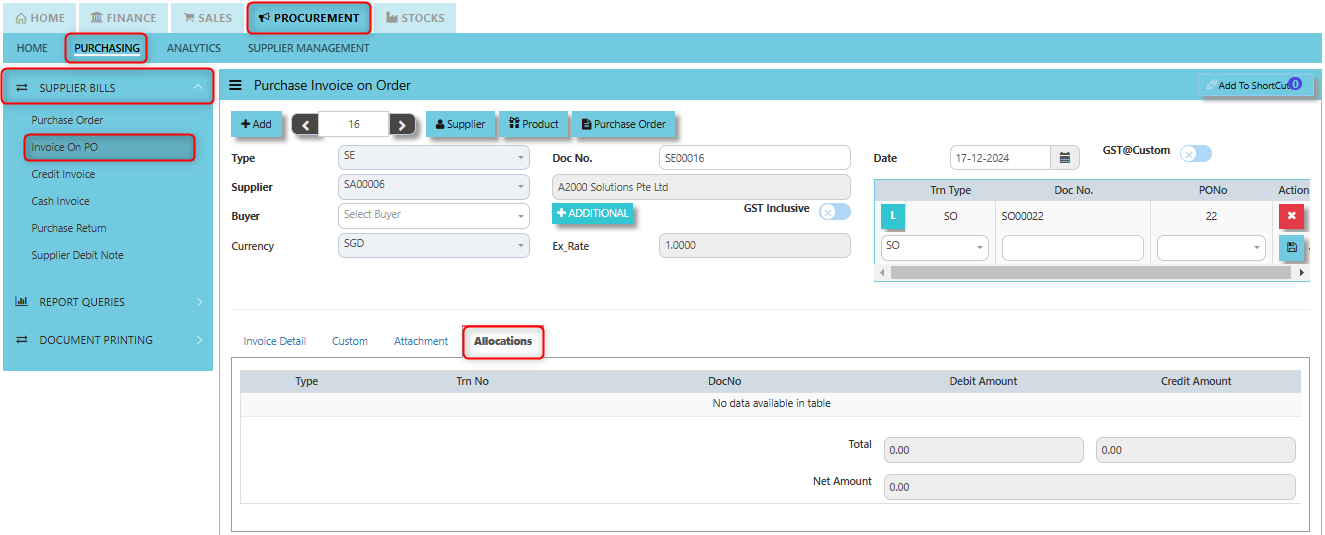](https://doc.uniq365.com/uploads/images/gallery/2025-02/9Yiimage.png)
Credit Invoice (SI)
##### A Supplier Credit Invoice directly updates the inventory status and post a direct transaction for invoicing. It will also update the Accounts Payable at the same time.
\_\_\_\_\_\_\_\_\_\_\_\_\_\_\_\_\_\_\_\_\_\_\_\_\_\_\_\_\_\_\_\_\_\_\_\_\_\_\_\_\_\_\_\_\_\_\_\_\_\_\_\_\_\_\_\_\_\_\_\_\_\_\_\_\_\_\_\_\_\_\_\_\_\_\_\_\_\_\_\_\_\_\_\_\_\_\_\_\_\_\_\_\_\_\_\_\_\_\_
##### **How to set create Credit Invoice?**
1. Click on PROCUREMENT – PURCHASING – SUPPLIER BILLS - CREDIT INVOICE for the screen below.
[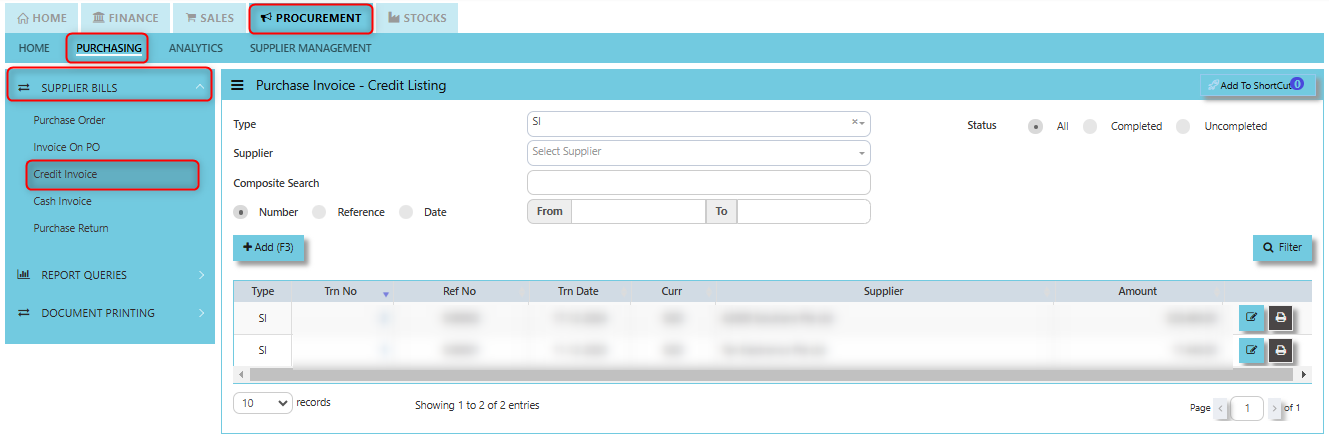](https://doc.uniq365.com/uploads/images/gallery/2025-01/fmiimage.png)
2. Click Add (F3) to create new record.
[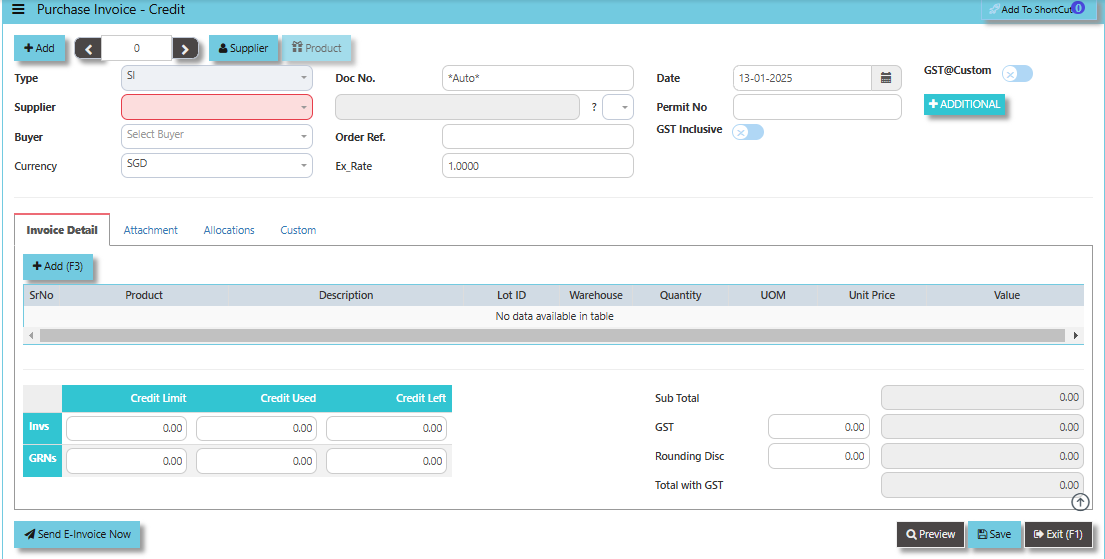](https://doc.uniq365.com/uploads/images/gallery/2025-01/dOvimage.png)
3. Click the Type - drop-down to select transaction type – SI (Credit Invoice).
4\. After selecting the transaction type, use the tab button to go to the Ref No., Date and other fields.
5\. Click the Supplier - drop-down list to select Supplier Name, followed by the Buyer, PDS, Currency, Exchange Rate, Our D/O, Order Ref No. and Narration if applicable.
6\. After completing the above steps, go to Invoice Details to enter the product code, name, quantity, and unit price. Save the transaction.
\_\_\_\_\_\_\_\_\_\_\_\_\_\_\_\_\_\_\_\_\_\_\_\_\_\_\_\_\_\_\_\_\_\_\_\_\_\_\_\_\_\_\_\_\_\_\_\_\_\_\_\_\_\_\_\_\_\_\_\_\_\_\_\_\_\_\_\_\_\_\_\_\_\_\_\_\_\_\_\_\_\_\_\_\_\_\_\_\_\_\_\_\_\_\_\_\_\_\_\_\_\_\_\_\_\_\_\_\_\_\_\_\_\_\_\_\_\_\_\_\_\_\_\_\_\_\_\_\_\_\_\_\_\_\_\_\_\_\_
**Add to ShortCut -** Serves the purpose of creating a shortcut for quick access to a specific credit note or purchase invoice credit transaction. By clicking this button, users can add the current credit note or credit invoice related to a purchase to their personalized shortcut list, allowing them to access it instantly without having to search for it repeatedly.
[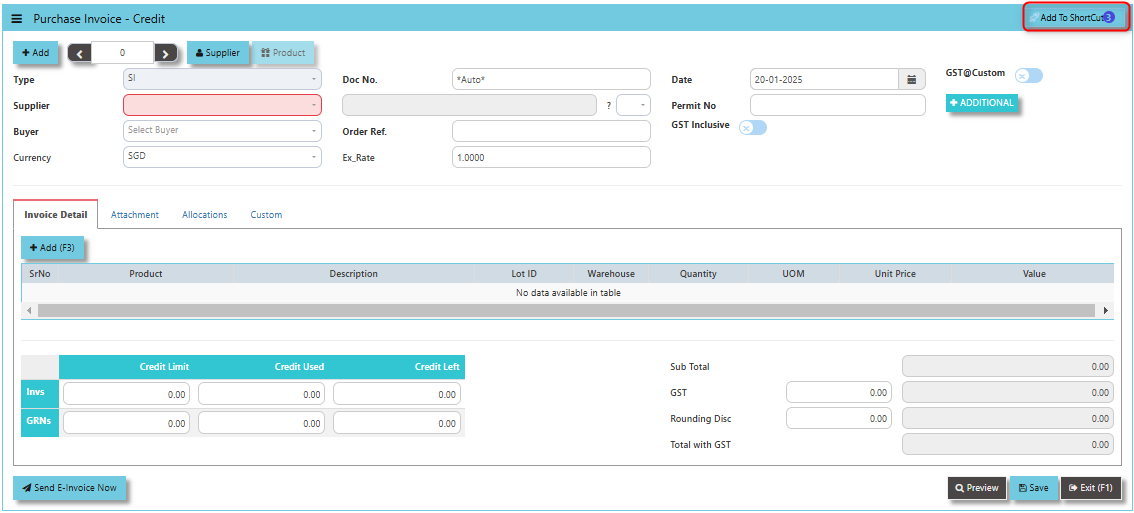](https://doc.uniq365.com/uploads/images/gallery/2025-01/pcpimage.png)
##### **How to use Add to ShortCut?**
1. Click "**Add to ShortCut"** and system will open below windows:
[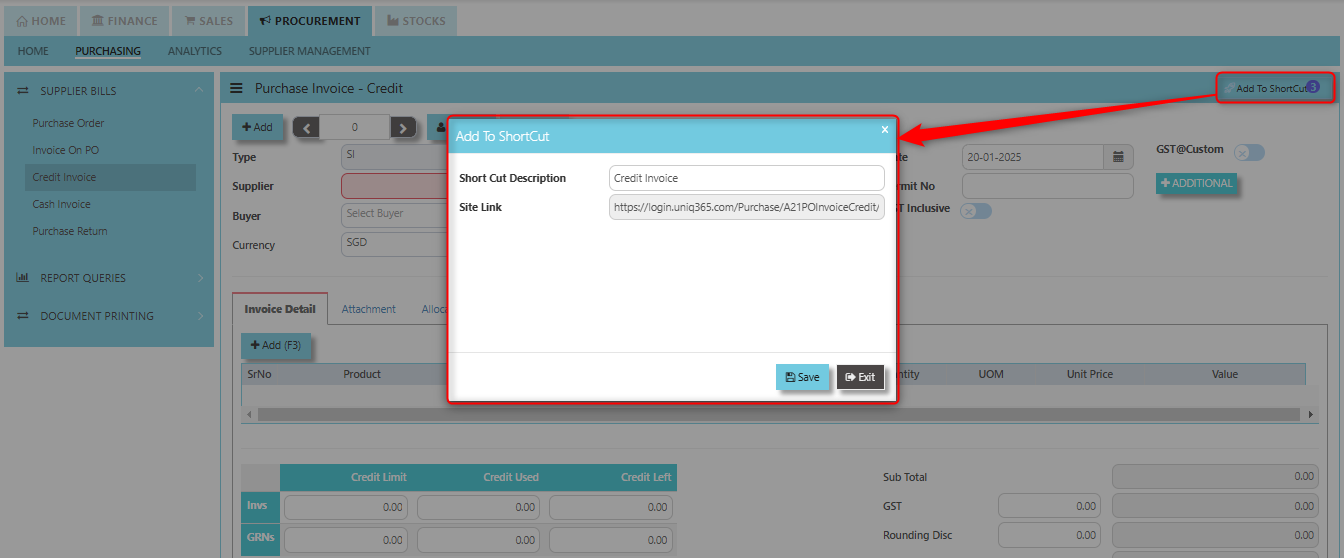](https://doc.uniq365.com/uploads/images/gallery/2025-01/oLnimage.png)
2. Enter Short Cut Description
3\. Click SAVE then click OK.
4\. User may look to the Homepage for the added function or page. Click on HOME - HOME - SHORTCUT for the screen below.
[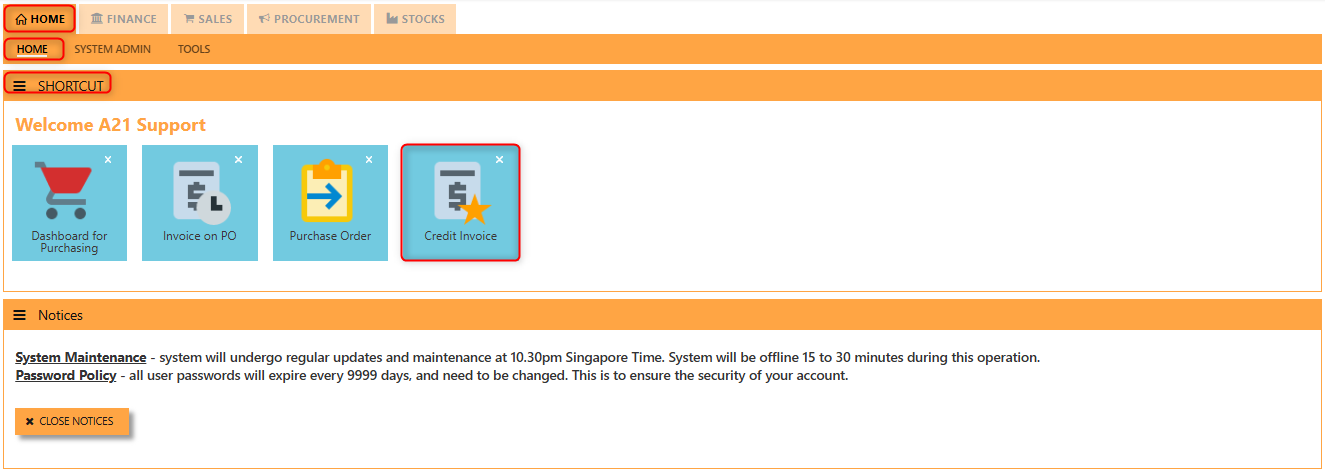](https://doc.uniq365.com/uploads/images/gallery/2025-01/v8Zimage.png)
\_\_\_\_\_\_\_\_\_\_\_\_\_\_\_\_\_\_\_\_\_\_\_\_\_\_\_\_\_\_\_\_\_\_\_\_\_\_\_\_\_\_\_\_\_\_\_\_\_\_\_\_\_\_\_\_\_\_\_\_\_\_\_\_\_\_\_\_\_\_\_\_\_\_\_\_\_\_\_\_\_\_\_\_\_\_\_\_\_\_\_\_\_\_\_\_\_\_\_\_\_\_\_\_\_\_\_\_\_\_\_\_\_\_\_\_\_\_\_\_\_\_\_\_\_\_\_\_\_\_\_\_\_\_\_\_\_\_\_
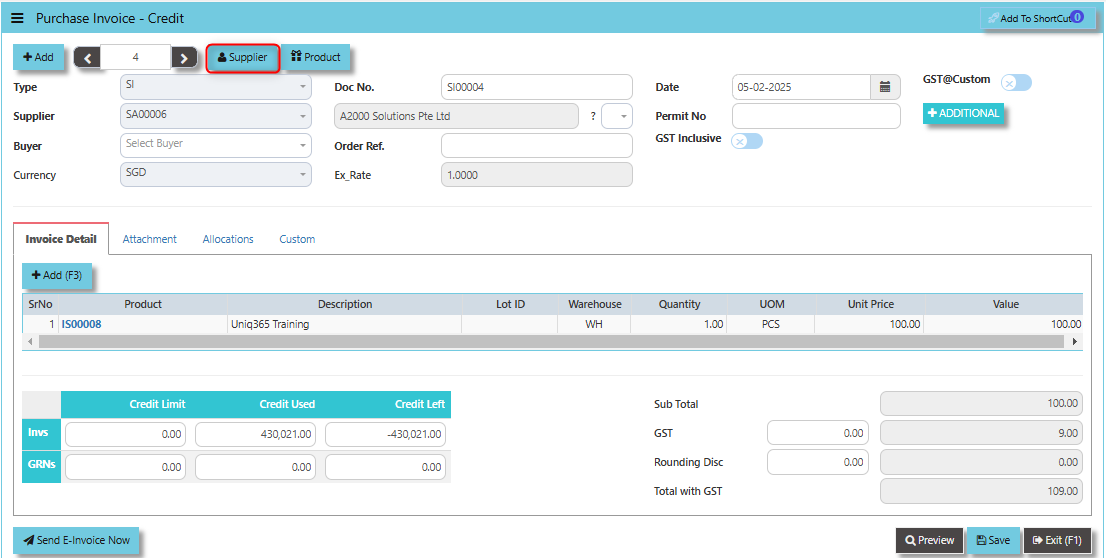
By clicking the **Supplier Button**, users can view or select the **supplier's details** (e.g., name, contact information, and payment terms) from the system's supplier database.
[](https://doc.uniq365.com/uploads/images/gallery/2025-02/2YAimage.png)
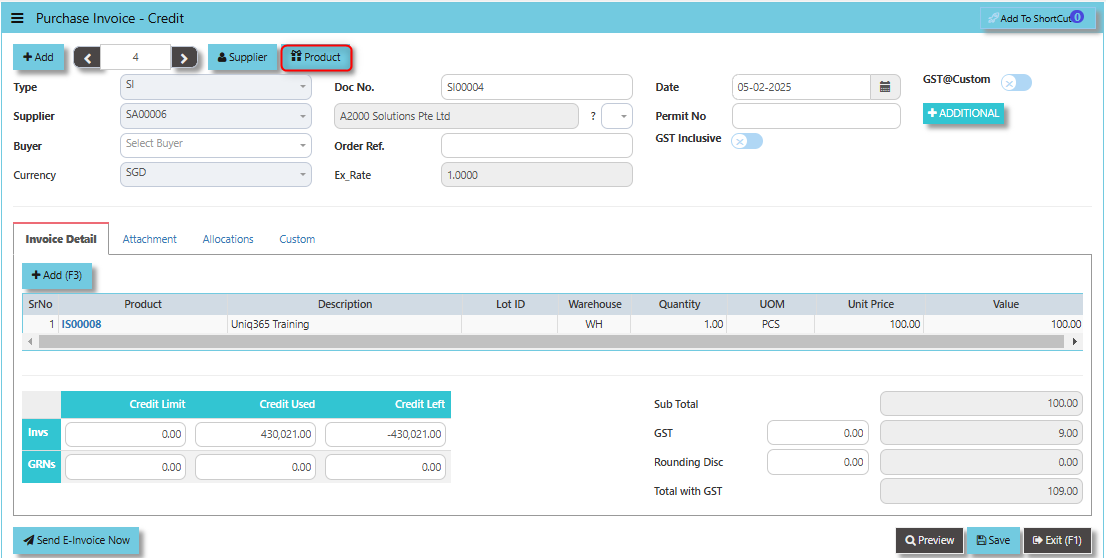
The **Product Button** It helps link and easy access to the Product and Service Maintenance for new creation of Items/Services.
[](https://doc.uniq365.com/uploads/images/gallery/2025-02/hdaimage.png)
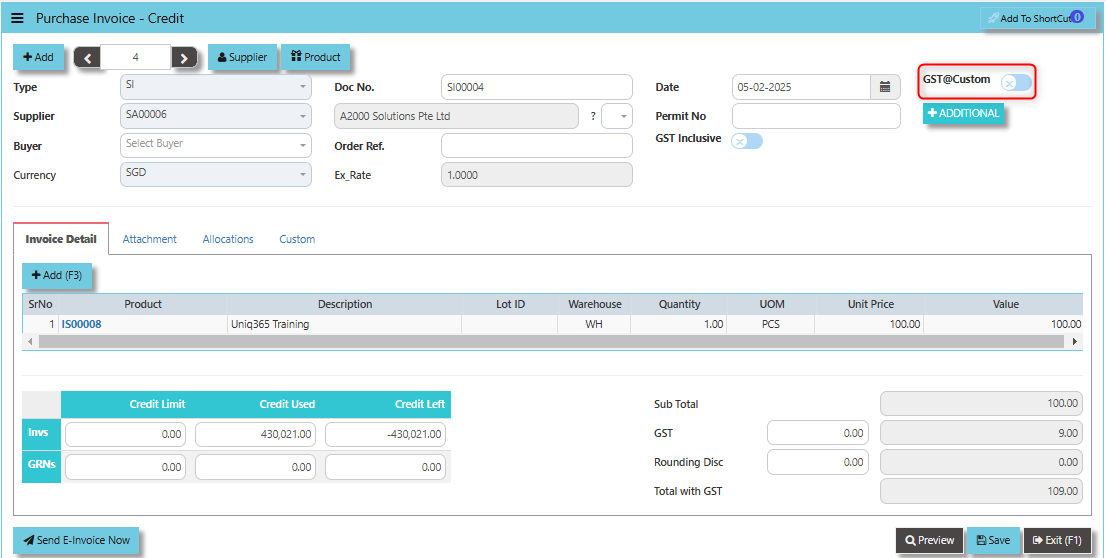
The **GST@Custom** checkbox used to manage and apply customized GST (Goods and Services Tax) rates or rules to the credit invoice, which may differ from the standard GST rates. When the GST@Custom checkbox is ticked, the system will calculate the GST based on the custom rate entered or configured for that specific transaction, rather than using the default GST rate.
[](https://doc.uniq365.com/uploads/images/gallery/2025-02/jBVimage.png)
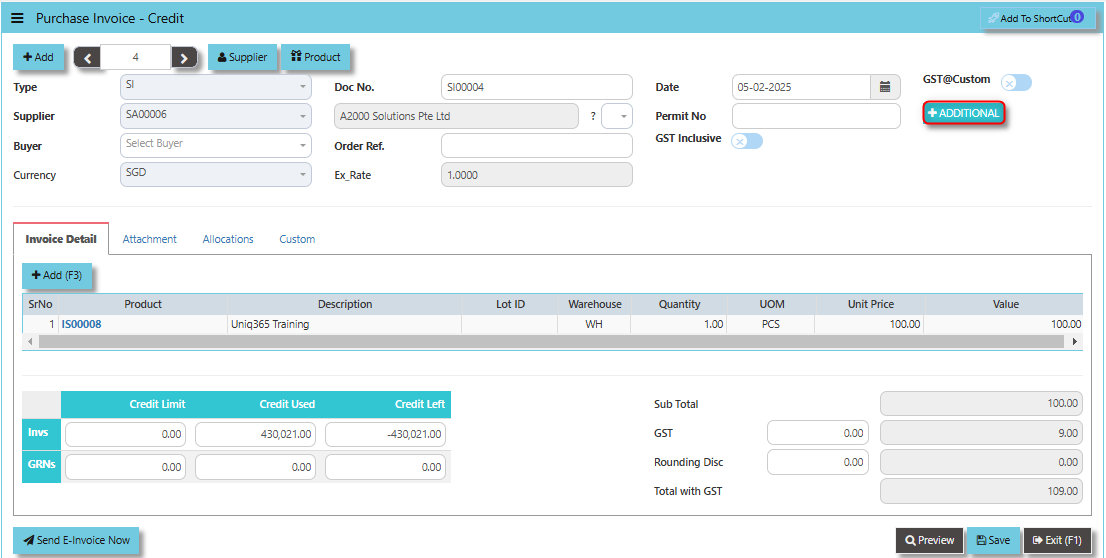
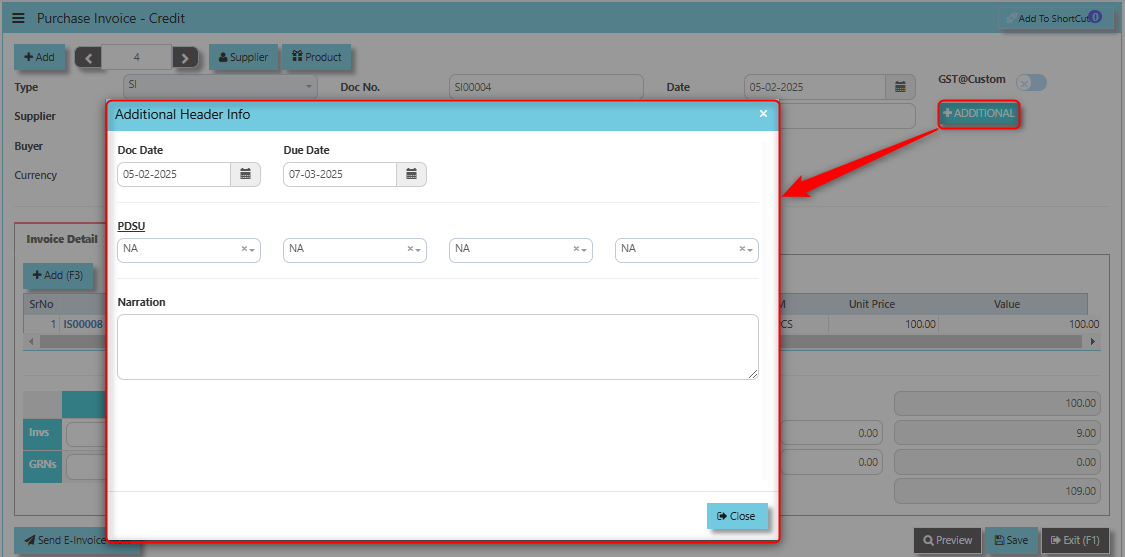
The **Additional Header Info** button allows users to enter or view extra, customizable details at the header level of the credit invoice. This button is designed to capture supplementary information that may not be included in the standard fields of the credit invoice but is important for the transaction or for internal tracking.
[](https://doc.uniq365.com/uploads/images/gallery/2025-02/tomimage.png)
Once clicked the said button, user may input the necessary details for the below fields:
- Doc Date
- Due Date
- PDSU
- Narration
[](https://doc.uniq365.com/uploads/images/gallery/2025-02/LRwimage.png)
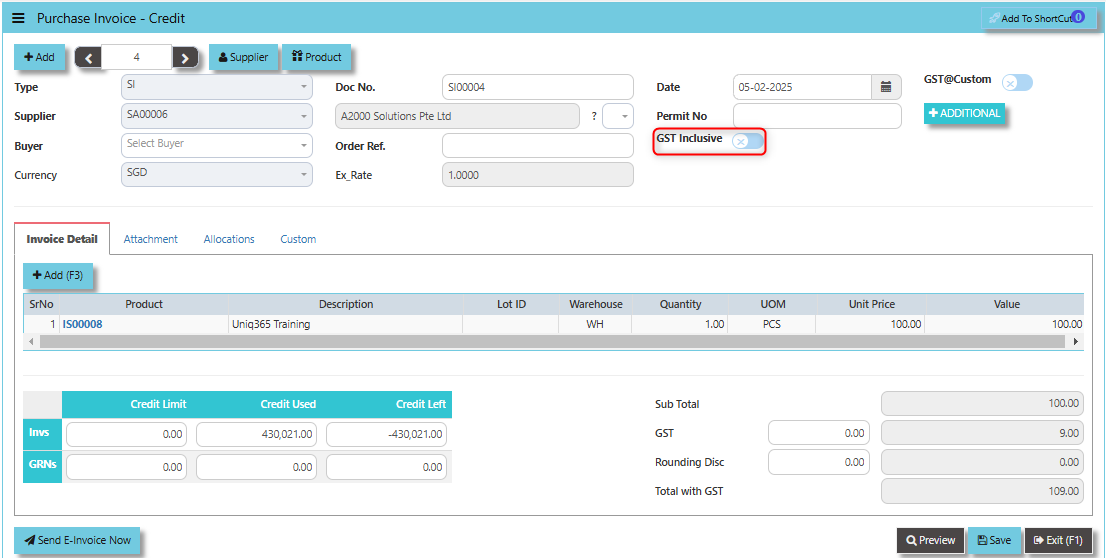
When the **GST Inclusive** checkbox is ticked, it means that the GST amount is already included in the total amount on the credit invoice. This informs the system that the value provided is the final amount including both the product or service cost and the GST.
[](https://doc.uniq365.com/uploads/images/gallery/2025-02/4Ukimage.png)
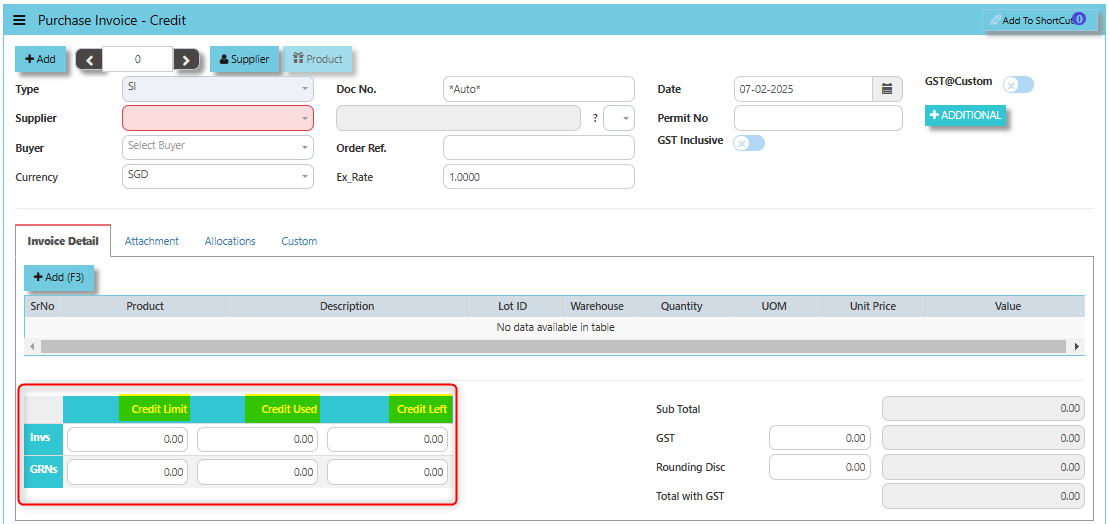
The terms **Credit Limit, Credit Used and Credit Left** play a key role in managing financials and transactions, particularly when there are adjustments or returns to be made to suppliers.
- The **Credit Limit** in the context of a credit invoice refers to the maximum amount of credit a supplier is willing to extend to the organization for refunds, adjustments, or returns.
- **Credit Used **refers to the amount of credit that has already been applied or used in credit invoices to reduce the organization's outstanding obligations to the supplier.
- The **Credit Left** refers to the remaining amount of credit available to the organization after the application of credit invoices, which can be used in future adjustments, returns, or refunds.
[](https://doc.uniq365.com/uploads/images/gallery/2025-02/Vc9image.png)
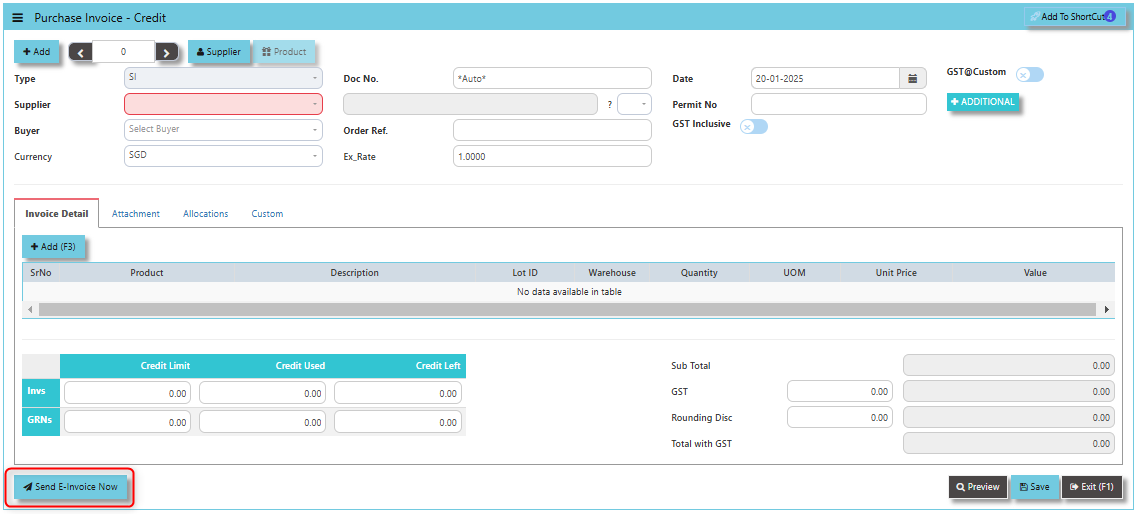
**"Send E-Invoice Now" Button**: Used to immediately send the credit note or purchase invoice credit to the supplier or vendor in an electronic format. This functionality automates the process of transmitting the credit note, making it quicker, more efficient, and ensuring compliance with e-invoicing regulations in regions where applicable.
[](https://doc.uniq365.com/uploads/images/gallery/2025-01/rafimage.png)
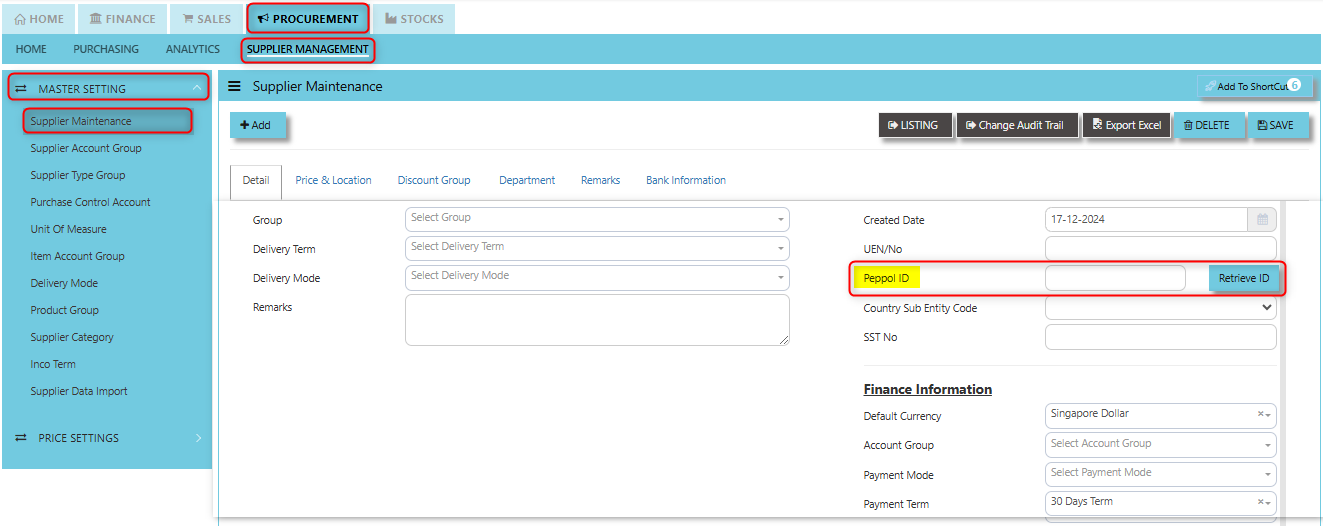
Supplier company should get **"Peppol ID"** as a pre-requisite for this function and user can maintain under supplier maintenance of the specific supplier. Click on PROCUREMENT - SUPPLIER MANAGEMENT - MASTER SETTING - SUPPLIER MAINTENANCE - PEPPOL ID
[](https://doc.uniq365.com/uploads/images/gallery/2025-01/dpfimage.png)
\_\_\_\_\_\_\_\_\_\_\_\_\_\_\_\_\_\_\_\_\_\_\_\_\_\_\_\_\_\_\_\_\_\_\_\_\_\_\_\_\_\_\_\_\_\_\_\_\_\_\_\_\_\_\_\_\_\_\_\_\_\_\_\_\_\_\_\_\_\_\_\_\_\_\_\_\_\_\_\_\_\_\_\_\_\_\_\_\_\_\_\_\_\_\_\_\_\_\_\_\_\_\_\_\_\_\_\_\_\_\_\_\_\_\_\_\_\_\_\_\_\_\_\_\_\_\_\_\_\_\_\_\_\_\_\_\_\_\_
The **Attachment Tab** allows users to attach supporting documents or files related to the credit invoice. This feature helps in storing, organizing, and referencing any relevant documents associated with the credit transaction, making the entire process more efficient and transparent.
##### **How to use Attachment Tab?**
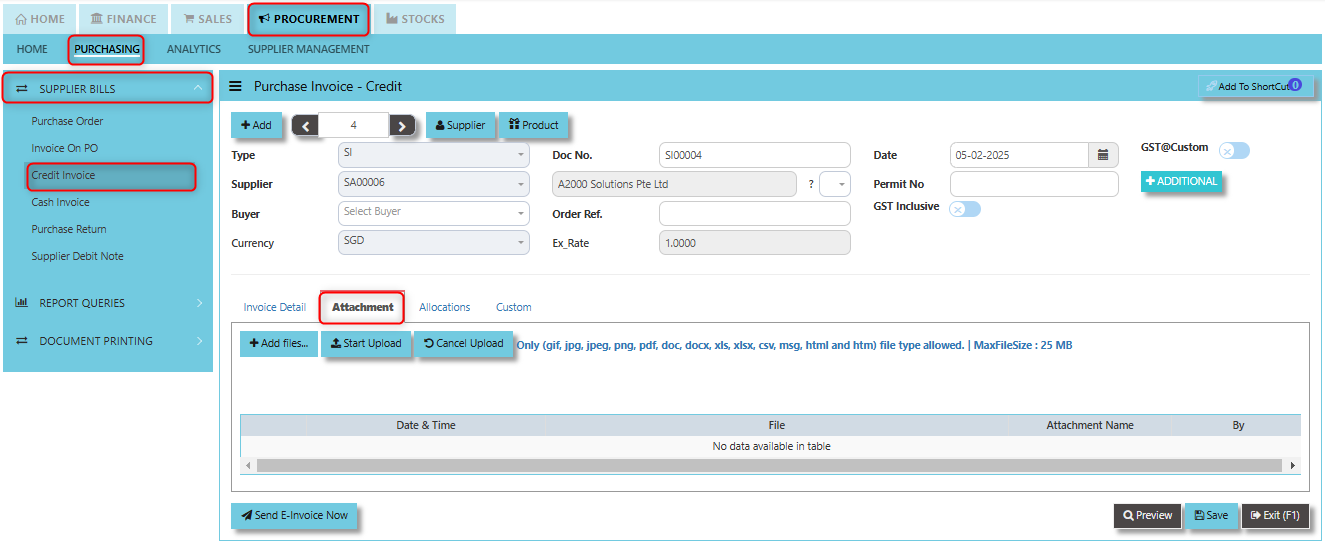
1. Click on PROCUREMENT - PURCHASING - SUPPLIER BILLS - CREDIT INVOICE - ATTACHMENT TAB for the screen below.
[](https://doc.uniq365.com/uploads/images/gallery/2025-02/A68image.png)
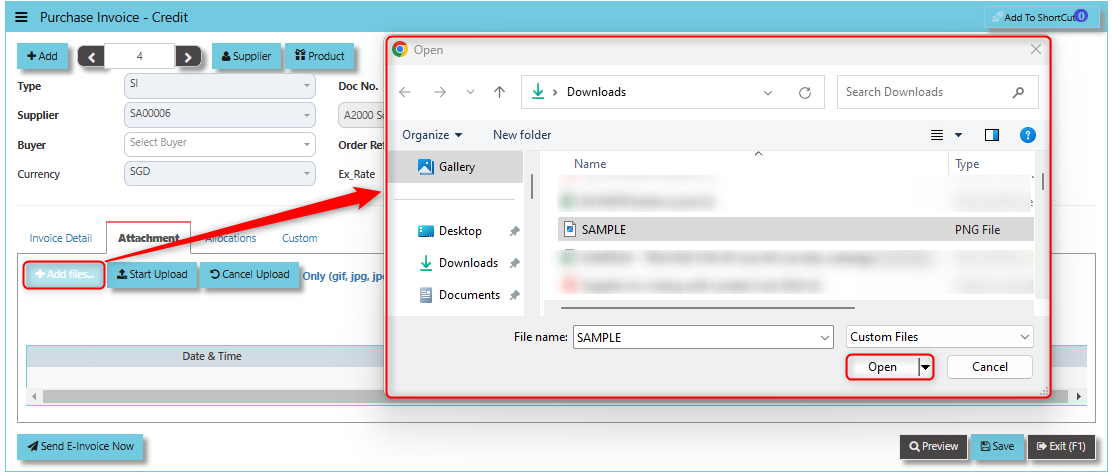
2. Click +Add files and windows will prompt then choose the file you want to upload by clicking open. Kindly take note the file types and maximum size requirements in uploading: ***Only (gif, jpg, jpeg, png, pdf, doc, docx, xls, xlsx, csv, msg, html and htm) file type allowed. | MaxFileSize : 25 MB***
[](https://doc.uniq365.com/uploads/images/gallery/2025-02/uF1image.png)
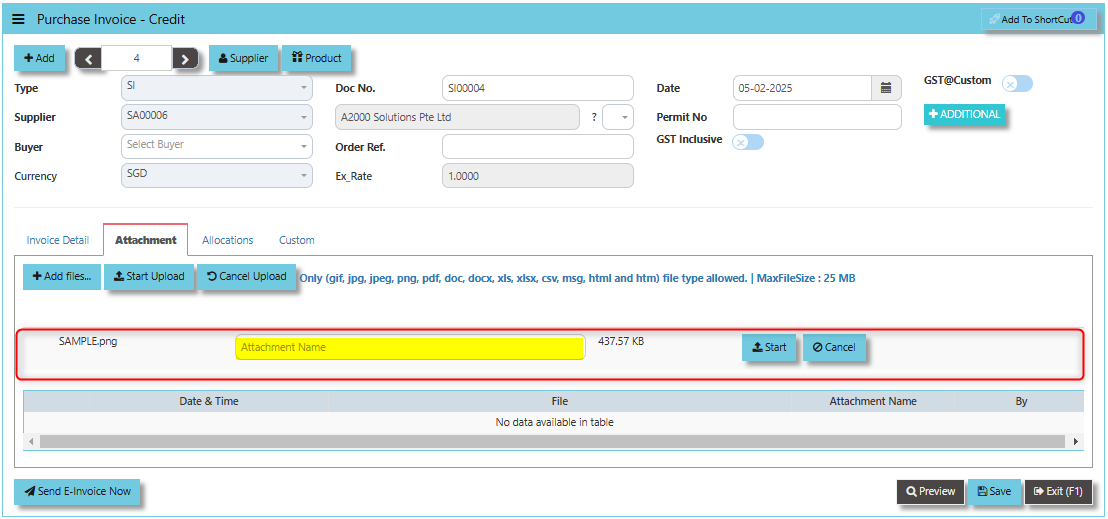
3. Key in the Attachment Name then click start to upload.
[](https://doc.uniq365.com/uploads/images/gallery/2025-02/jftimage.png)
4. Once the file attached, click "SAVE" button
[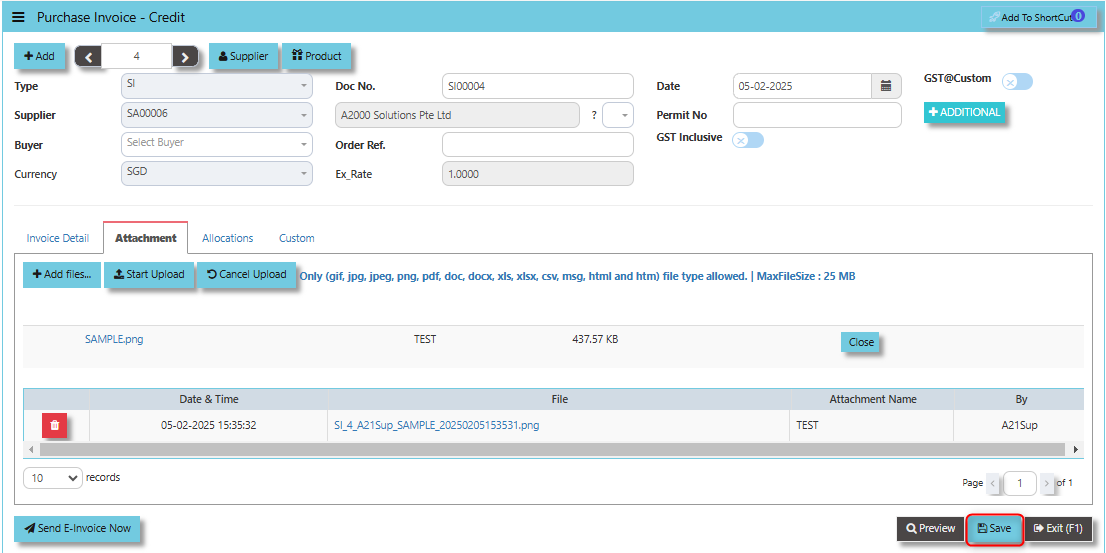](https://doc.uniq365.com/uploads/images/gallery/2025-02/8Vximage.png)
User may opt to cancel the uploading by clicking the **"Cancel Upload"** and delete the uploaded file by utilizing the **"Bin Icon"** at the left corner of line detail.
\_\_\_\_\_\_\_\_\_\_\_\_\_\_\_\_\_\_\_\_\_\_\_\_\_\_\_\_\_\_\_\_\_\_\_\_\_\_\_\_\_\_\_\_\_\_\_\_\_\_\_\_\_\_\_\_\_\_\_\_\_\_\_\_\_\_\_\_\_\_\_\_\_\_\_\_\_\_\_\_\_\_\_\_\_\_\_\_\_\_\_\_\_\_\_\_\_\_\_\_\_\_\_\_\_\_\_\_\_\_\_\_\_\_\_\_\_\_\_\_\_\_\_\_\_\_\_\_\_\_\_\_\_\_\_\_\_\_\_
The **Allocations Tab** allows users to allocate or apply the credit amount to specific purchase orders (POs) or purchase invoices. This helps in linking the credit invoice to the correct purchase transaction, ensuring that the financial records are adjusted accurately.
- Click on PROCUREMENT - PUCHASING - SUPPLIER BILLS - CREDIT INVOICE - AALLOCATIONS TAB for the screen below.
[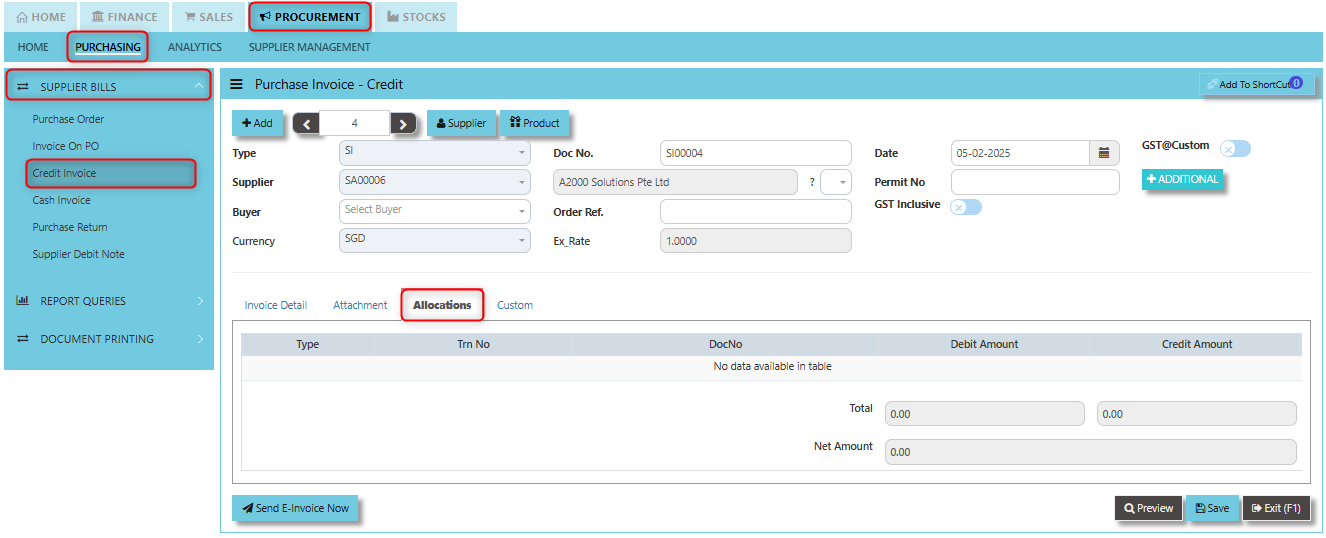](https://doc.uniq365.com/uploads/images/gallery/2025-02/ZMjimage.png)
\_\_\_\_\_\_\_\_\_\_\_\_\_\_\_\_\_\_\_\_\_\_\_\_\_\_\_\_\_\_\_\_\_\_\_\_\_\_\_\_\_\_\_\_\_\_\_\_\_\_\_\_\_\_\_\_\_\_\_\_\_\_\_\_\_\_\_\_\_\_\_\_\_\_\_\_\_\_\_\_\_\_\_\_\_\_\_\_\_\_\_\_\_\_\_\_\_\_\_\_\_\_\_\_\_\_\_\_\_\_\_\_\_\_\_\_\_\_\_\_\_\_\_\_\_\_\_\_\_\_\_\_\_\_\_\_\_\_\_
**Custom Tab** provides flexibility for users to enter additional data or modify the layout and structure of the credit invoice to accommodate special business processes, reporting, or compliance needs.
- Click on PROCUREMENT - PURCHASING - SUPPLIER BILLS - CREDIT INVOICE - CUSTOM TAB for the screen below.
[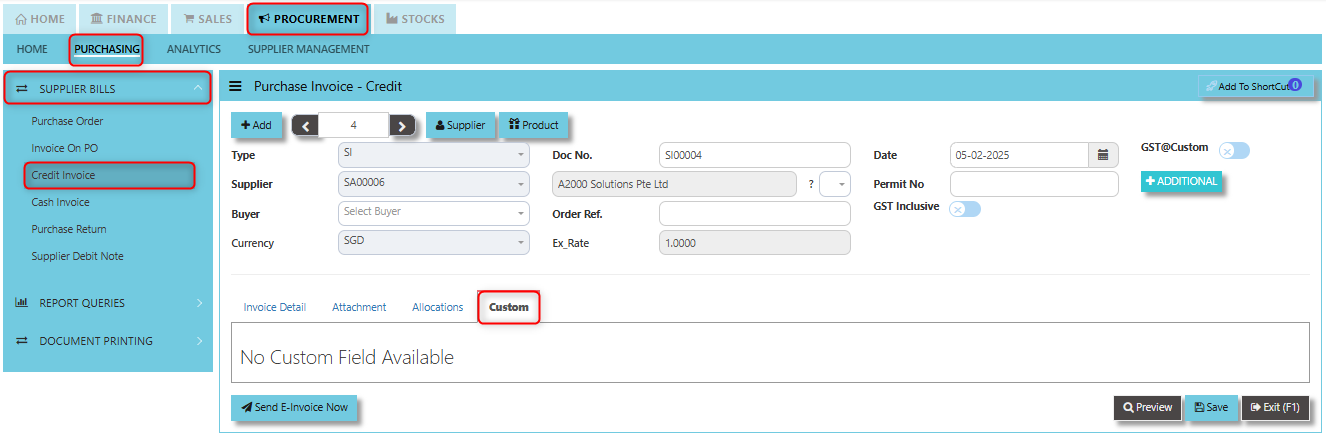](https://doc.uniq365.com/uploads/images/gallery/2025-02/R6qimage.png)
Cash Invoice (SA)
##### Unlike the Purchase Credit Invoice, the Supplier Invoice – Cash directly credit the bank as it is a direct cash transaction. This transaction updates the inventory as well as the GL. The Bank code is mandatory and must be specified before saving the transaction.
\_\_\_\_\_\_\_\_\_\_\_\_\_\_\_\_\_\_\_\_\_\_\_\_\_\_\_\_\_\_\_\_\_\_\_\_\_\_\_\_\_\_\_\_\_\_\_\_\_\_\_\_\_\_\_\_\_\_\_\_\_\_\_\_\_\_\_\_\_\_\_\_\_\_\_\_\_\_\_\_\_\_\_\_\_\_\_\_\_\_\_\_\_\_\_\_\_\_\_
##### **How to set create Cash Invoice?**
1. Click on PROCUREMENT – PURCHASING – SUPPLIER BILLS - CASH INVOICE for the screen below.
[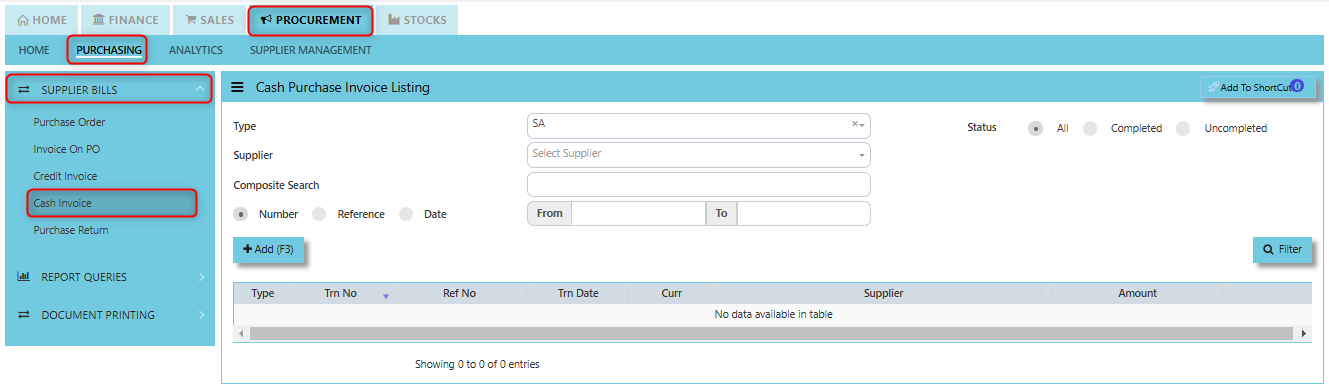](https://doc.uniq365.com/uploads/images/gallery/2025-01/mCSimage.png)
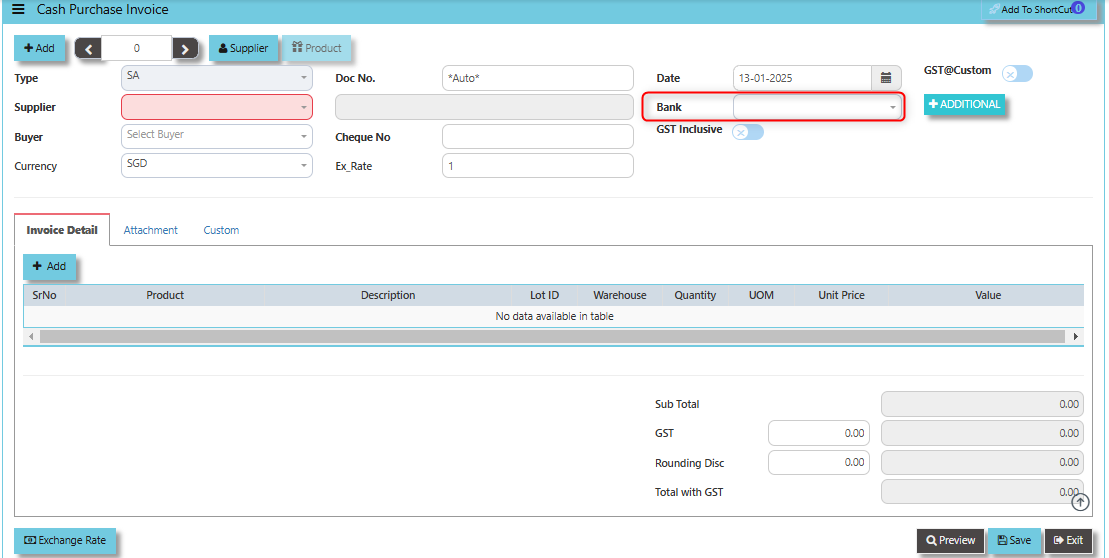
2. Click Add (F3) to create new record.
[](https://doc.uniq365.com/uploads/images/gallery/2025-01/UtMimage.png)
3. Click the Type - drop-down to select transaction type – SA (Cash Invoice).
4\. After the transaction type selection, use the tab button to go to the Ref No., Date and other fields.
5\. Click the Supplier - drop-down list to select Supplier Name, followed by the Buyer, PDS, Currency and Exchange Rate.
6\. The “Bank Code” is an important field and must be entered, followed by the Cheque Number (refer the highlighted screen).
7\. Once all the header information has been entered, go to the Details section to select the product code and name from the drop-down list. Save the transaction after this is done.
\_\_\_\_\_\_\_\_\_\_\_\_\_\_\_\_\_\_\_\_\_\_\_\_\_\_\_\_\_\_\_\_\_\_\_\_\_\_\_\_\_\_\_\_\_\_\_\_\_\_\_\_\_\_\_\_\_\_\_\_\_\_\_\_\_\_\_\_\_\_\_\_\_\_\_\_\_\_\_\_\_\_\_\_\_\_\_\_\_\_\_\_\_\_\_\_\_\_\_\_\_\_\_\_\_\_\_\_\_\_\_\_\_\_\_\_\_\_\_\_\_\_\_\_\_\_\_\_\_\_\_\_\_\_\_\_\_\_\_
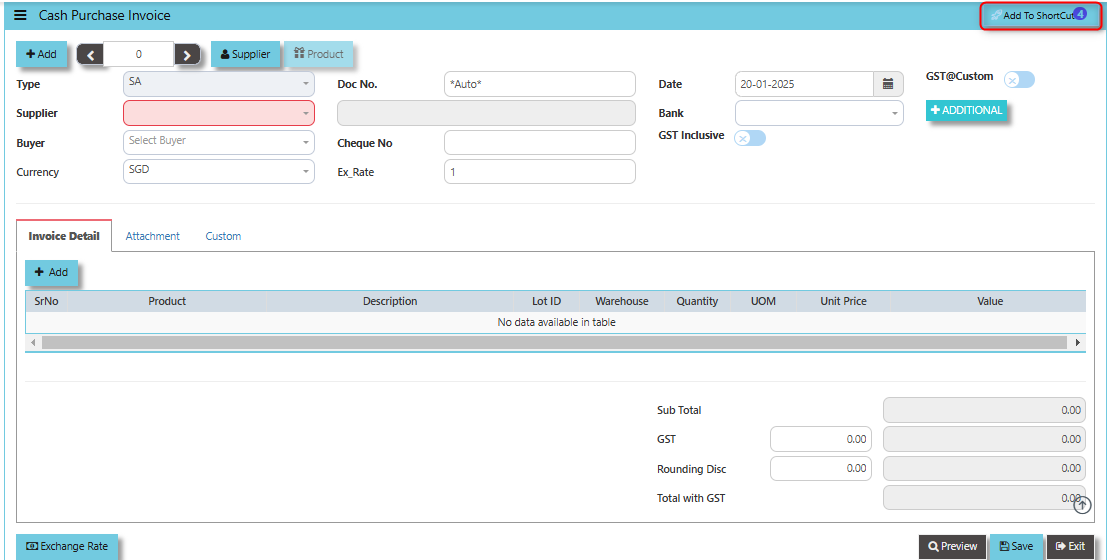
**Add to ShortCut -** By clicking the "Add to Shortcut" button, the cash purchase invoice or related feature (such as the specific purchase transaction or screen) is saved to the user's personalized shortcut list. This allows for faster navigation in the future, eliminating the need to go through multiple menus to access the same page or function.
[](https://doc.uniq365.com/uploads/images/gallery/2025-01/Fbeimage.png)
##### **How to use Add to ShortCut?**
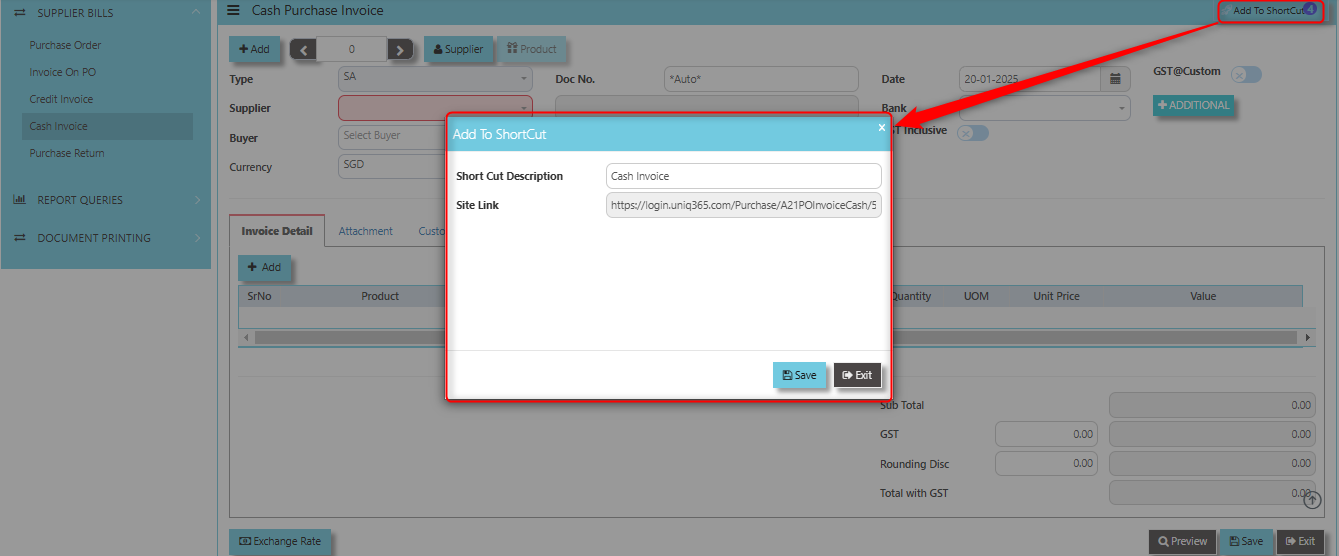
1. Click "**Add to ShortCut"** and system will open below windows:
[](https://doc.uniq365.com/uploads/images/gallery/2025-01/cW7image.png)
2. Enter Short Cut Description
3\. Click SAVE then click OK.
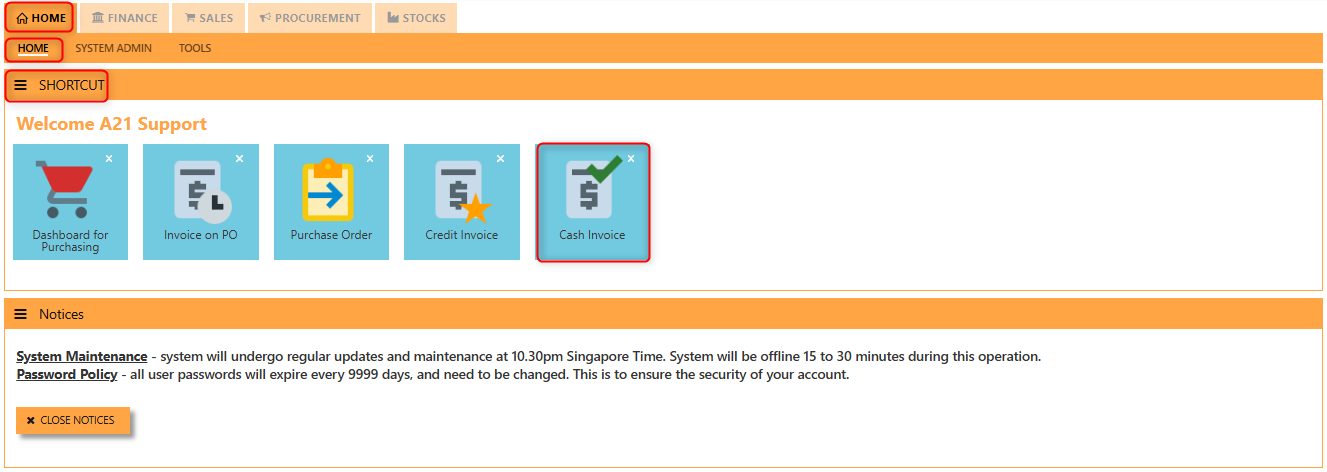
4\. User may look to the Homepage for the added function or page. Click on HOME - HOME - SHORTCUT for the screen below.
[](https://doc.uniq365.com/uploads/images/gallery/2025-01/nD4image.png)
\_\_\_\_\_\_\_\_\_\_\_\_\_\_\_\_\_\_\_\_\_\_\_\_\_\_\_\_\_\_\_\_\_\_\_\_\_\_\_\_\_\_\_\_\_\_\_\_\_\_\_\_\_\_\_\_\_\_\_\_\_\_\_\_\_\_\_\_\_\_\_\_\_\_\_\_\_\_\_\_\_\_\_\_\_\_\_\_\_\_\_\_\_\_\_\_\_\_\_\_\_\_\_\_\_\_\_\_\_\_\_\_\_\_\_\_\_\_\_\_\_\_\_\_\_\_\_\_\_\_\_\_\_\_\_\_\_\_\_
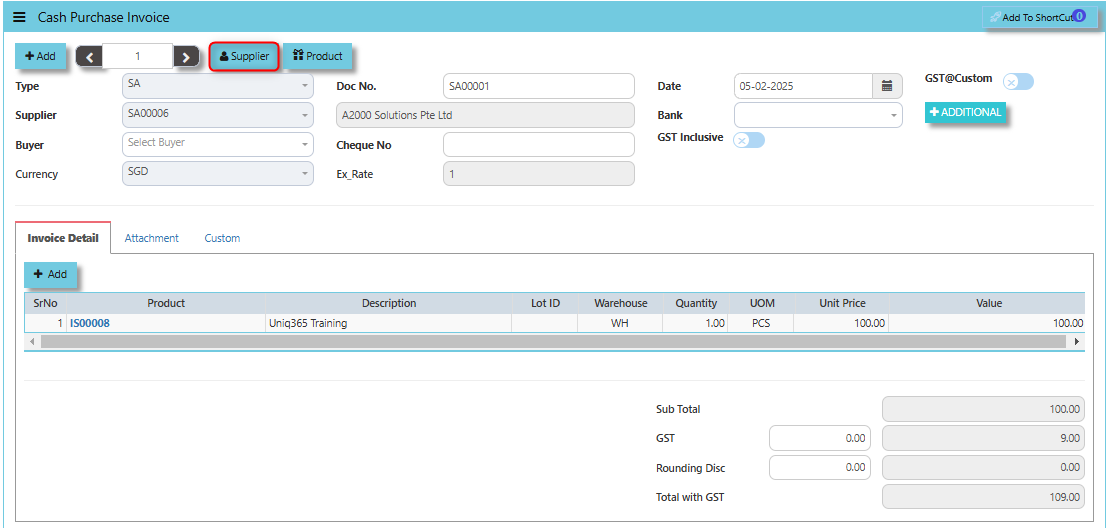
By clicking the **Supplier Button**, users can view or select the **supplier's details** (e.g., name, contact information, and payment terms) from the system's supplier database.
[](https://doc.uniq365.com/uploads/images/gallery/2025-02/lqCimage.png)
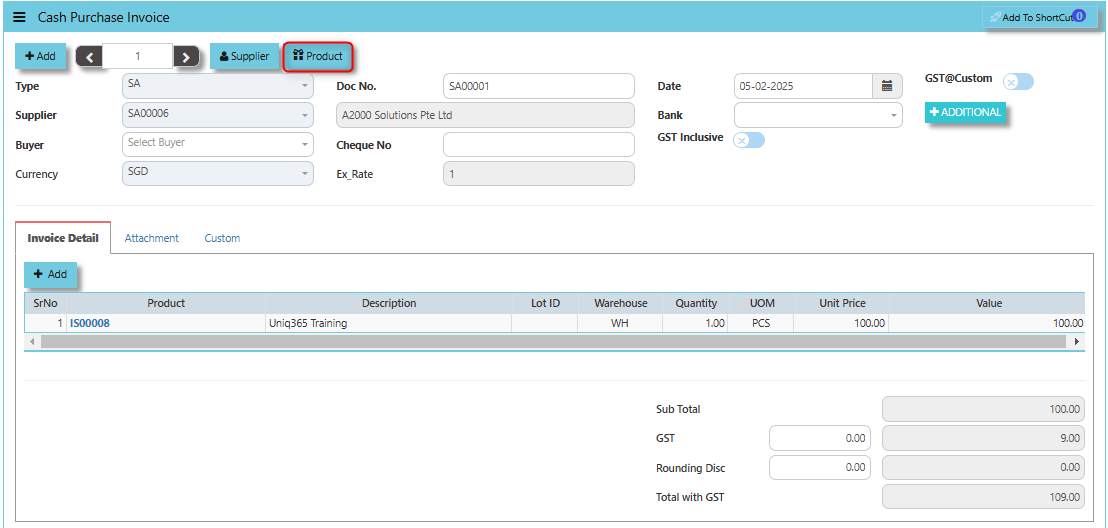
The **Product Button** It helps link and easy access to the Product and Service Maintenance for new creation of Items/Services.
[](https://doc.uniq365.com/uploads/images/gallery/2025-02/lk5image.png)
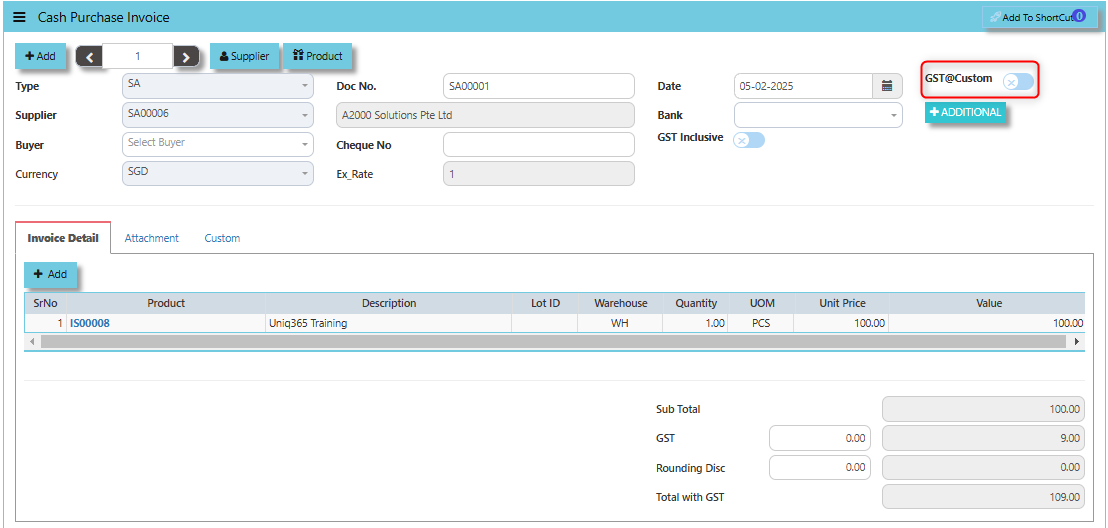
The **GST@Custom** checkbox typically used to manage the application of custom GST rates or tax treatment for specific purchases made with cash. This feature allows users to handle scenarios where the standard GST rates do not apply, or where there is a need to apply a special GST rate for a particular transaction.
[](https://doc.uniq365.com/uploads/images/gallery/2025-02/I4iimage.png)
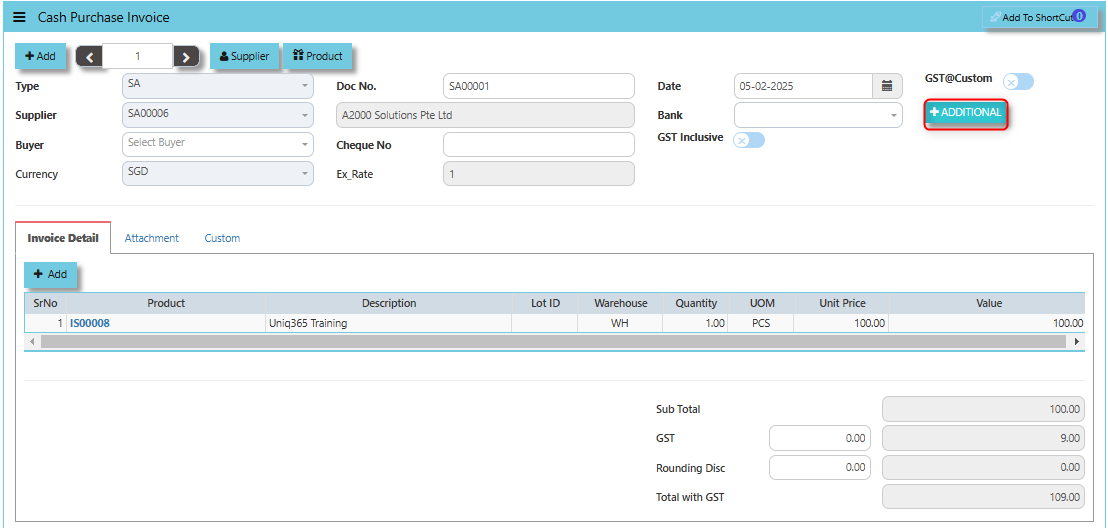
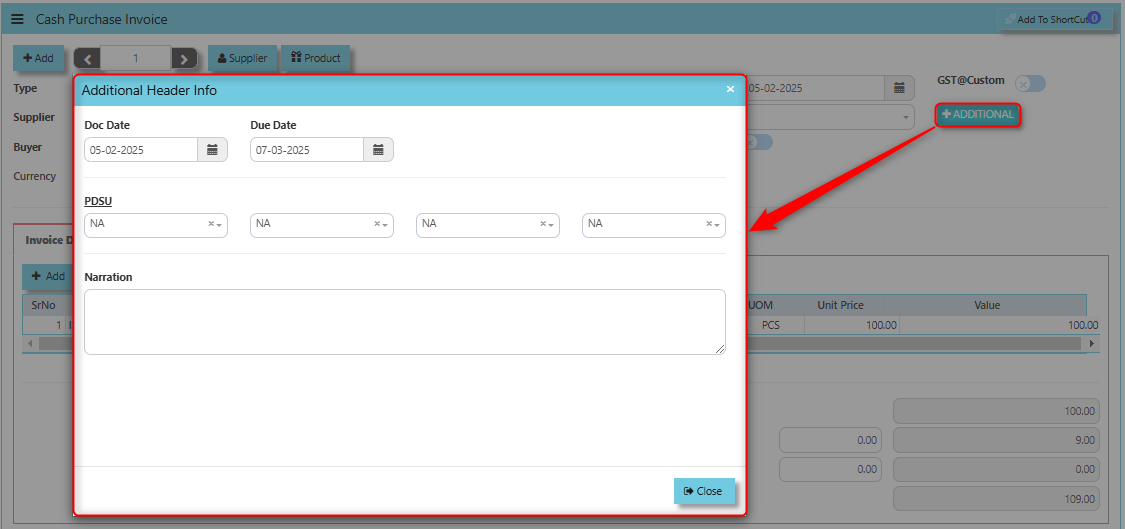
The **Additional Header Info** button allows users to add or view additional information or custom fields related to the purchase invoice at the header level. This button typically provides a way to capture supplementary details that are relevant to the overall transaction, which may not be included in the standard fields of the invoice.
[](https://doc.uniq365.com/uploads/images/gallery/2025-02/8Lsimage.png)
Once clicked the Additional Button, user may input the necessary details for the below fields:
- Doc Date
- Due Date
- PDSU
- Narration
[](https://doc.uniq365.com/uploads/images/gallery/2025-02/3imimage.png)
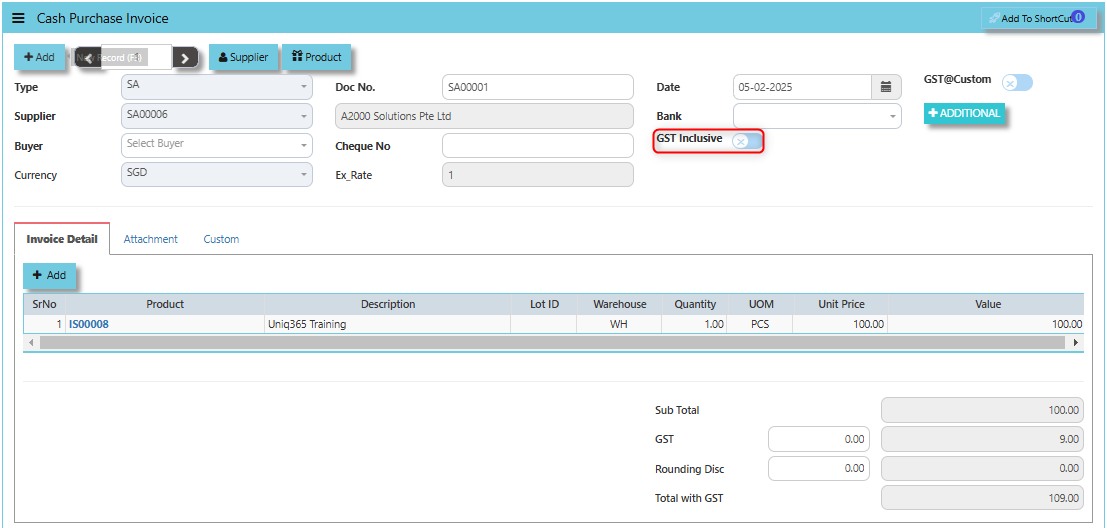
When the **GST Inclusive** checkbox is ticked, it means that the purchase price provided by the supplier already includes GST. In other words, the GST amount has already been factored into the total price of the items or services being purchased.
[](https://doc.uniq365.com/uploads/images/gallery/2025-02/XDLimage.png)
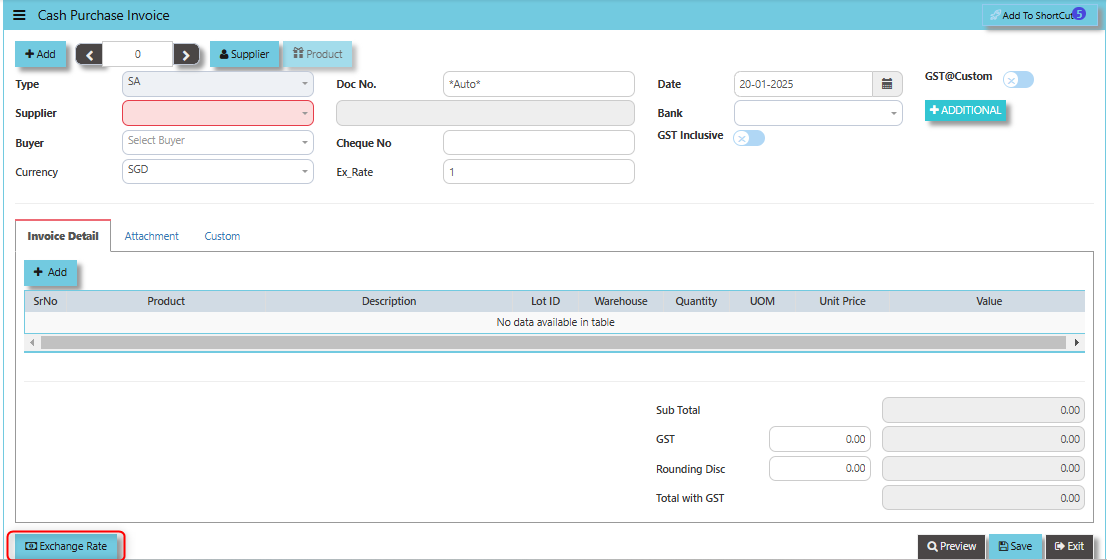
**"Exchange Rate" button** - Used to define or update the exchange rate when the invoice involves foreign currency transactions. This feature allows users to accurately convert the purchase invoice amount from the foreign currency into the company’s base currency, based on the prevailing exchange rate at the time of the transaction.
[](https://doc.uniq365.com/uploads/images/gallery/2025-01/bApimage.png)
\_\_\_\_\_\_\_\_\_\_\_\_\_\_\_\_\_\_\_\_\_\_\_\_\_\_\_\_\_\_\_\_\_\_\_\_\_\_\_\_\_\_\_\_\_\_\_\_\_\_\_\_\_\_\_\_\_\_\_\_\_\_\_\_\_\_\_\_\_\_\_\_\_\_\_\_\_\_\_\_\_\_\_\_\_\_\_\_\_\_\_\_\_\_\_\_\_\_\_\_\_\_\_\_\_\_\_\_\_\_\_\_\_\_\_\_\_\_\_\_\_\_\_\_\_\_\_\_\_\_\_\_\_\_\_\_\_\_\_
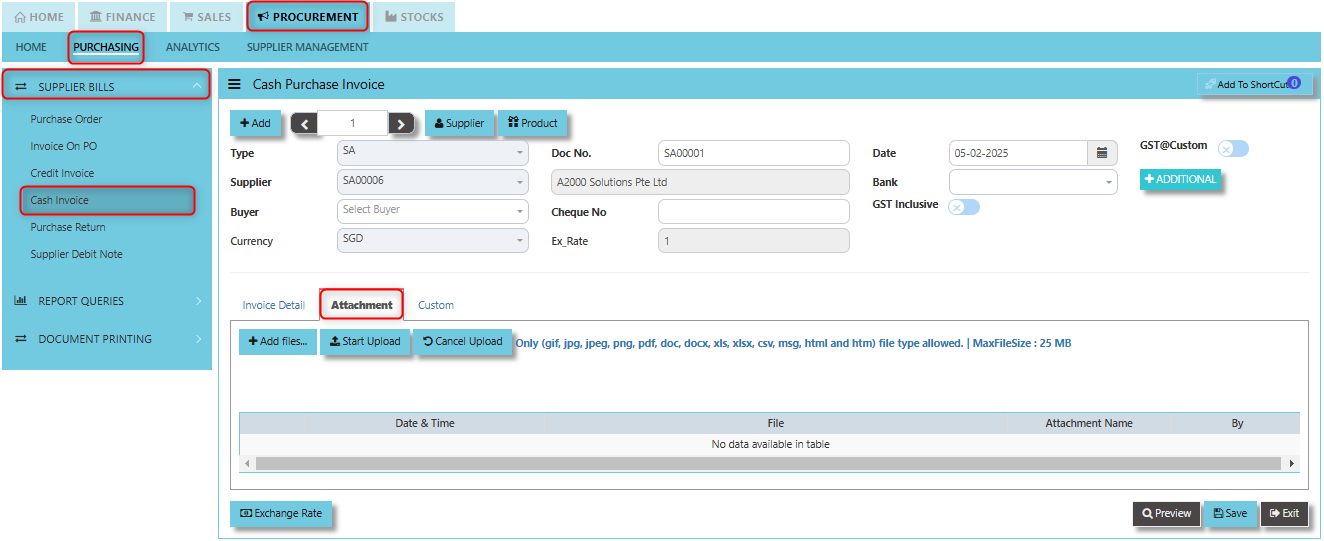
The **Attachment Tab** is used to manage and store digital attachments related to the purchase invoice. This feature allows users to link and upload various types of files, documents, or supporting materials that are associated with a particular cash purchase transaction.
##### **How to use Attachment Tab?**
1. Click on PROCUREMENT - PURCHASING - SUPPLIER BILLS - CASH INVOICE - ATTACHMENT TAB for the screen below.
[](https://doc.uniq365.com/uploads/images/gallery/2025-02/8Miimage.png)
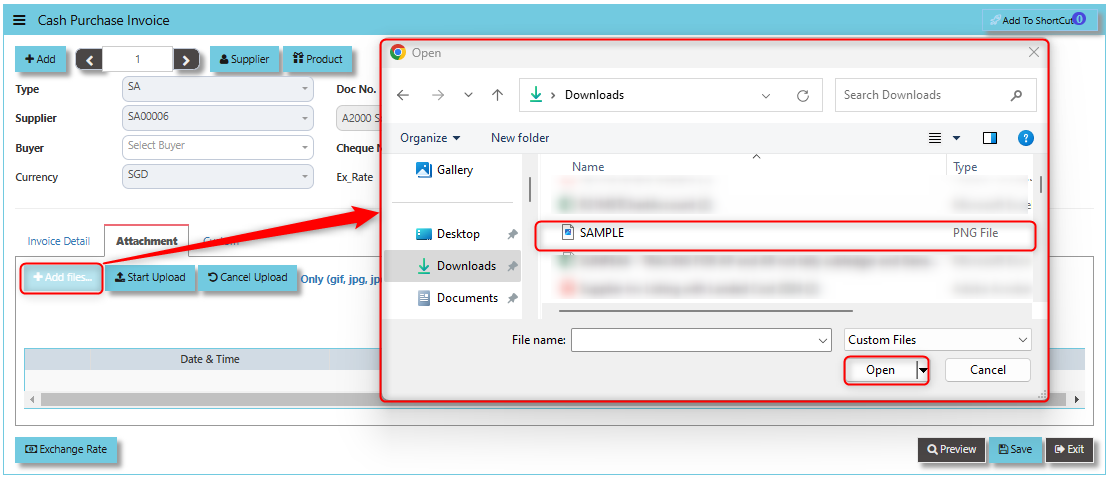
2. Click +Add files and windows will prompt then choose the file you want to upload by clicking open. Kindly take note the file types and maximum size requirements in uploading: ***Only (gif, jpg, jpeg, png, pdf, doc, docx, xls, xlsx, csv, msg, html and htm) file type allowed. | MaxFileSize : 25 MB***
[](https://doc.uniq365.com/uploads/images/gallery/2025-02/iqFimage.png)
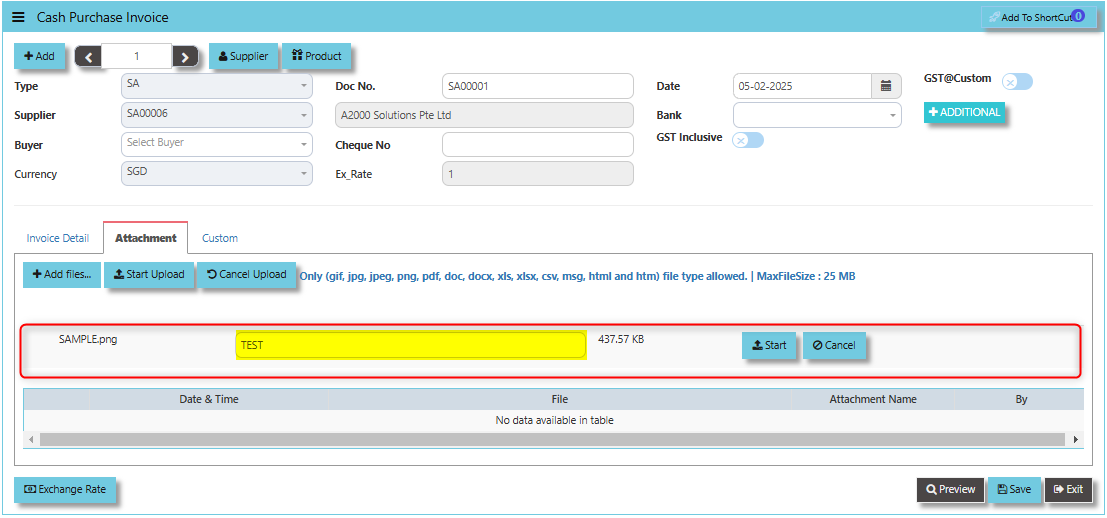
3. Key in the Attachment Name then click start to upload.
[](https://doc.uniq365.com/uploads/images/gallery/2025-02/JJDimage.png)
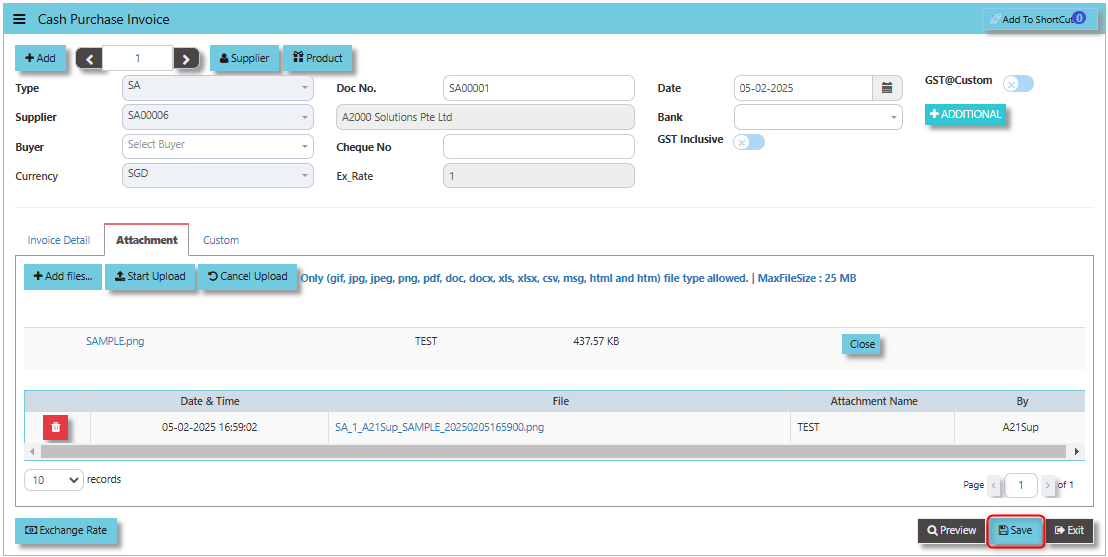
4. Once the file attached, click "SAVE" button
[](https://doc.uniq365.com/uploads/images/gallery/2025-02/JRsimage.png)
User may opt to cancel the uploading by clicking the **"Cancel Upload"** and delete the uploaded file by utilizing the **"Bin Icon"** at the left corner of line detail.
\_\_\_\_\_\_\_\_\_\_\_\_\_\_\_\_\_\_\_\_\_\_\_\_\_\_\_\_\_\_\_\_\_\_\_\_\_\_\_\_\_\_\_\_\_\_\_\_\_\_\_\_\_\_\_\_\_\_\_\_\_\_\_\_\_\_\_\_\_\_\_\_\_\_\_\_\_\_\_\_\_\_\_\_\_\_\_\_\_\_\_\_\_\_\_\_\_\_\_\_\_\_\_\_\_\_\_\_\_\_\_\_\_\_\_\_\_\_\_\_\_\_\_\_\_\_\_\_\_\_\_\_\_\_\_\_\_\_\_
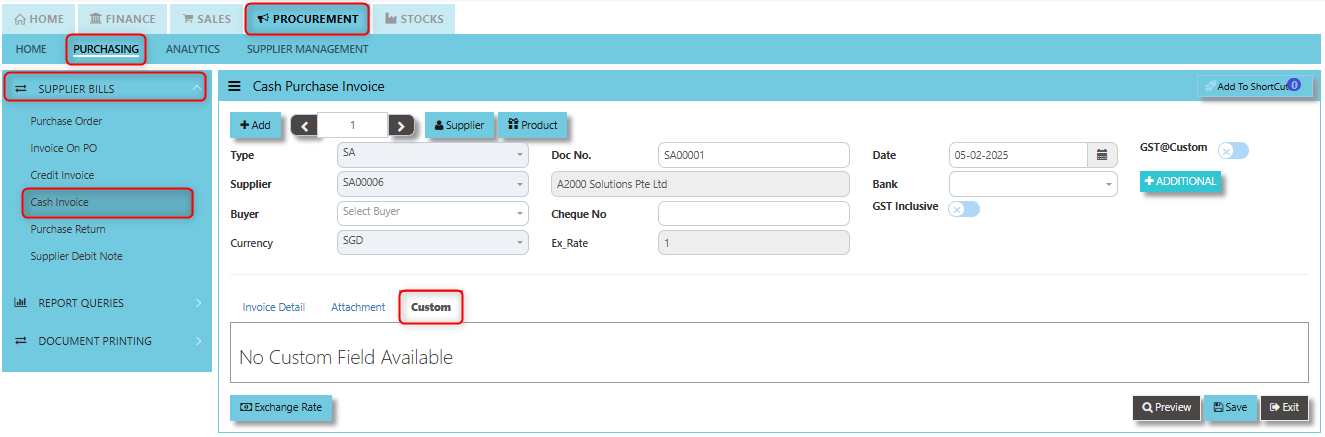
**"Custom Tab"** typically used for customizable fields that allow businesses to capture specific information relevant to their unique processes. This tab provides flexibility for users to add or store additional data or custom attributes that are not part of the default structure of the cash purchase invoice.
- Click on PROCUREMENT - PURCHASING - SUPPLIER BILLS - CASH INVOICE - CUSTOM TAB for the screen below.
[](https://doc.uniq365.com/uploads/images/gallery/2025-02/FCXimage.png)
Purchase Return (SC)
##### This is used to create a Credit Note to suppliers when Goods are returned. This will update the GL and the stock status.
\_\_\_\_\_\_\_\_\_\_\_\_\_\_\_\_\_\_\_\_\_\_\_\_\_\_\_\_\_\_\_\_\_\_\_\_\_\_\_\_\_\_\_\_\_\_\_\_\_\_\_\_\_\_\_\_\_\_\_\_\_\_\_\_\_\_\_\_\_\_\_\_\_\_\_\_\_\_\_\_\_\_\_\_\_\_\_\_\_\_\_\_\_\_\_\_\_\_\_
##### **How to set create Purchase Return?**
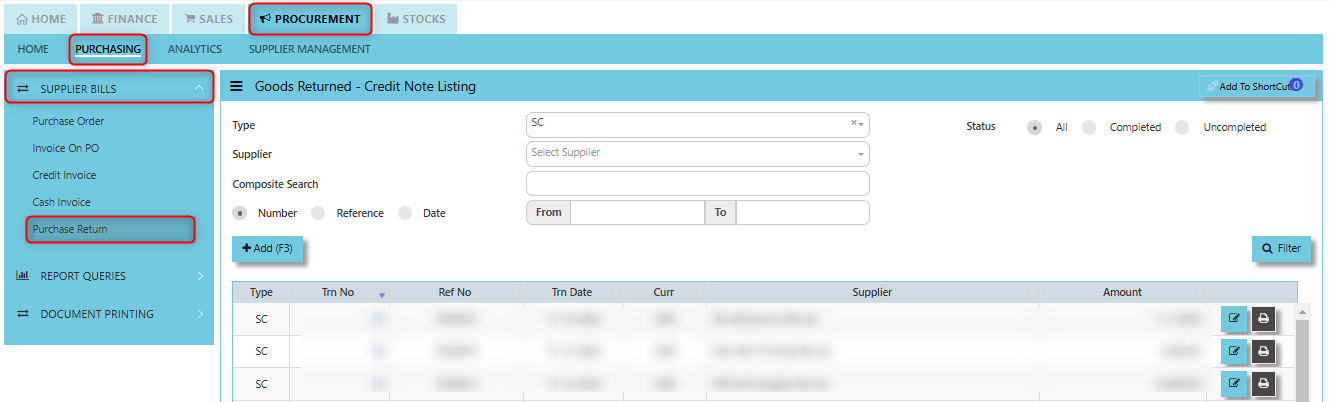
1. Click on PROCUREMENT – PURCHASING – SUPPLIER BILLS - PURCHASE RETURN for the screen below.
[](https://doc.uniq365.com/uploads/images/gallery/2025-01/9LOimage.png)
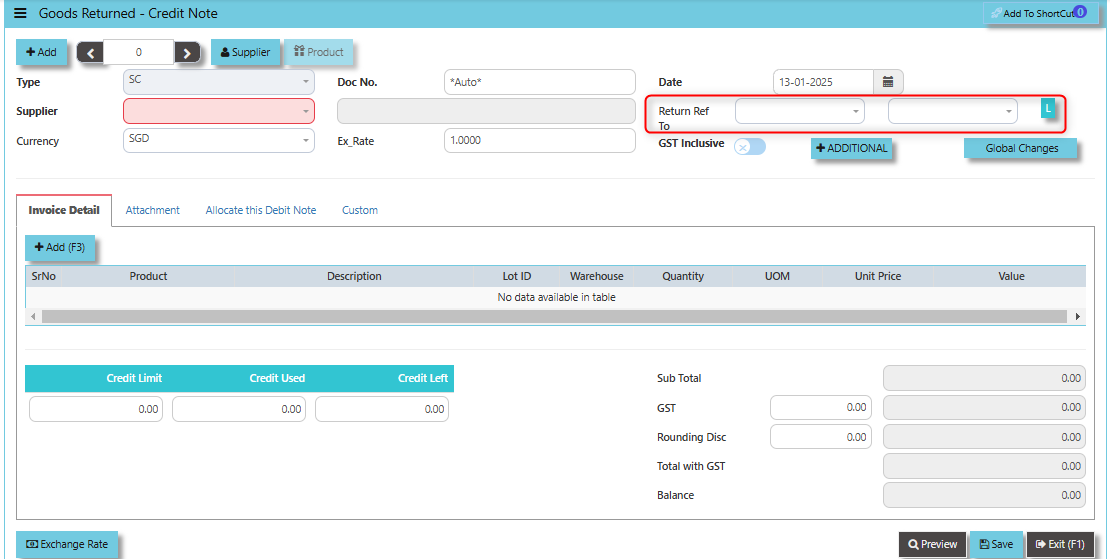
2. Click Add (F3) to create new record.
[](https://doc.uniq365.com/uploads/images/gallery/2025-01/U3Nimage.png)
3. Click Type - drop-down to select transaction type – SC (Goods Returned – Credit Note).
4\. After transaction type selection, use the tab button to go to the Ref No., Date, and other fields.
5\. Click the Supplier - drop-down list to select Supplier Name, followed by the Buyer, PDS, Currency, Exchange Rate, RMA Ref and Narration if applicable.
\_\_\_\_\_\_\_\_\_\_\_\_\_\_\_\_\_\_\_\_\_\_\_\_\_\_\_\_\_\_\_\_\_\_\_\_\_\_\_\_\_\_\_\_\_\_\_\_\_\_\_\_\_\_\_\_\_\_\_\_\_\_\_\_\_\_\_\_\_\_\_\_\_\_\_\_\_\_\_\_\_\_\_\_\_\_\_\_\_\_\_\_\_\_\_\_\_\_\_\_\_\_\_\_\_\_\_\_\_\_\_\_\_\_\_\_\_\_\_\_\_\_\_\_\_\_\_\_\_\_\_\_\_\_\_\_\_\_\_
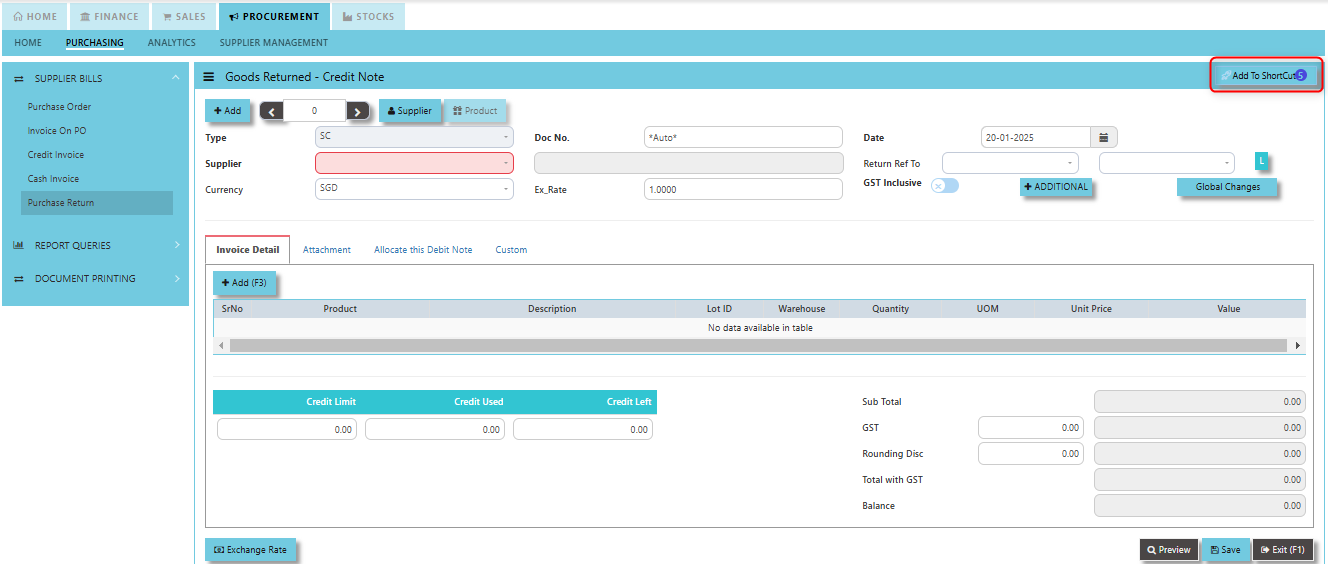
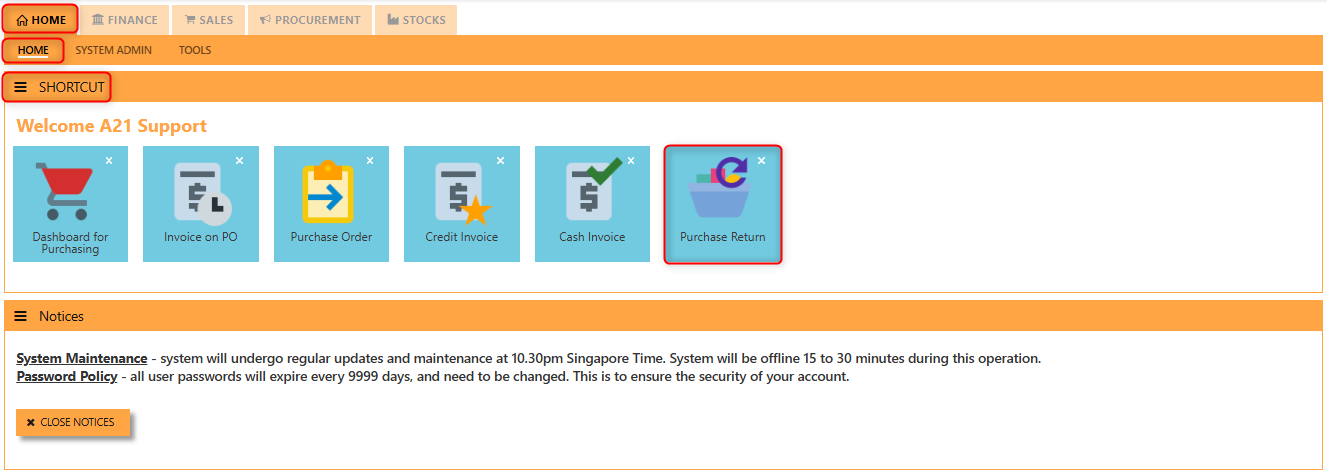
**Add to ShortCut -** Clicking this button allows users to add a specific supplier's profile or page to a **shortcut list**. Once added, this shortcut enables the user to quickly navigate to the supplier’s details directly from a dashboard or main menu, without having to search for the supplier each time.
[](https://doc.uniq365.com/uploads/images/gallery/2025-01/ouUimage.png)
##### **How to use Add to ShortCut?**
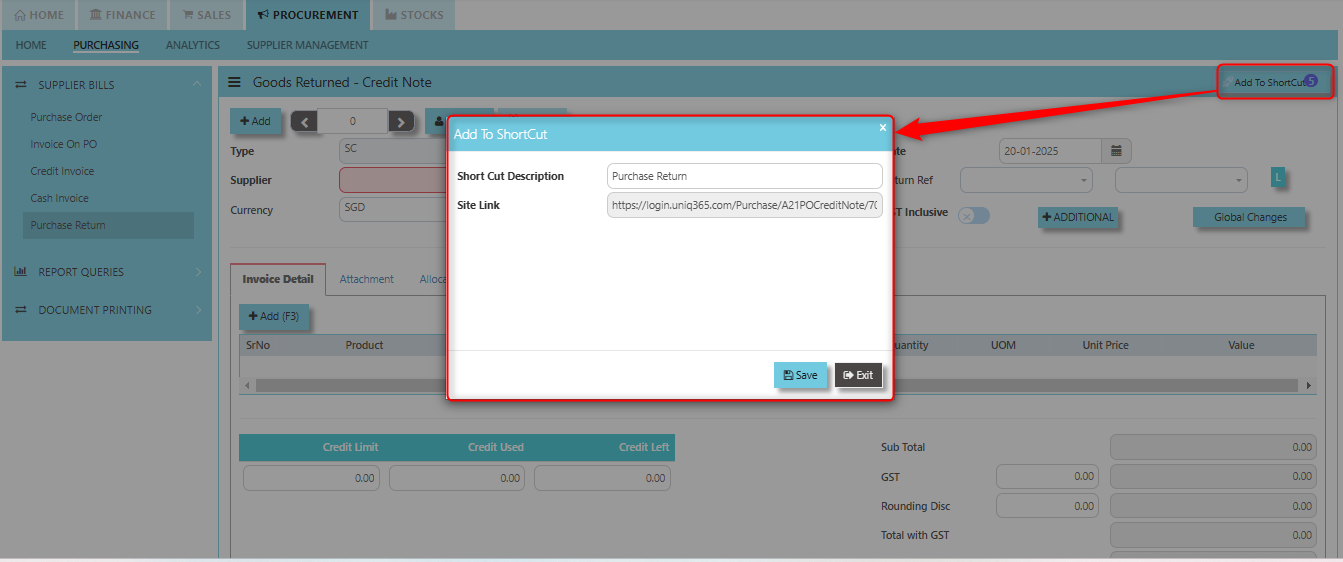
1. Click "**Add to ShortCut"** and system will open below windows:
[](https://doc.uniq365.com/uploads/images/gallery/2025-01/QLdimage.png)
2. Enter Short Cut Description
3\. Click SAVE then click OK.
4\. User may look to the Homepage for the added function or page. Click on HOME - HOME - SHORTCUT for the screen below.
[](https://doc.uniq365.com/uploads/images/gallery/2025-01/6gwimage.png)
\_\_\_\_\_\_\_\_\_\_\_\_\_\_\_\_\_\_\_\_\_\_\_\_\_\_\_\_\_\_\_\_\_\_\_\_\_\_\_\_\_\_\_\_\_\_\_\_\_\_\_\_\_\_\_\_\_\_\_\_\_\_\_\_\_\_\_\_\_\_\_\_\_\_\_\_\_\_\_\_\_\_\_\_\_\_\_\_\_\_\_\_\_\_\_\_\_\_\_\_\_\_\_\_\_\_\_\_\_\_\_\_\_\_\_\_\_\_\_\_\_\_\_\_\_\_\_\_\_\_\_\_\_\_\_\_\_\_\_
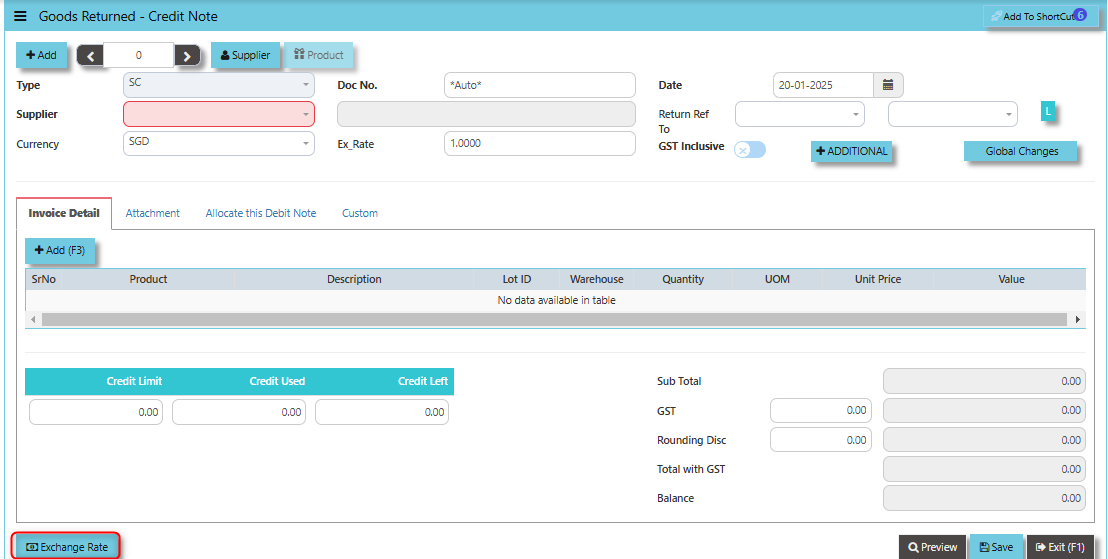
**"Exchange Rate"** **Button** - used to define or update the exchange rate when a goods return or credit note transaction involves foreign currency. This allows users to convert the value of the returned goods or the credit amount from the supplier’s currency into the company’s base or local currency based on the applicable exchange rate.
[](https://doc.uniq365.com/uploads/images/gallery/2025-01/TRRimage.png)
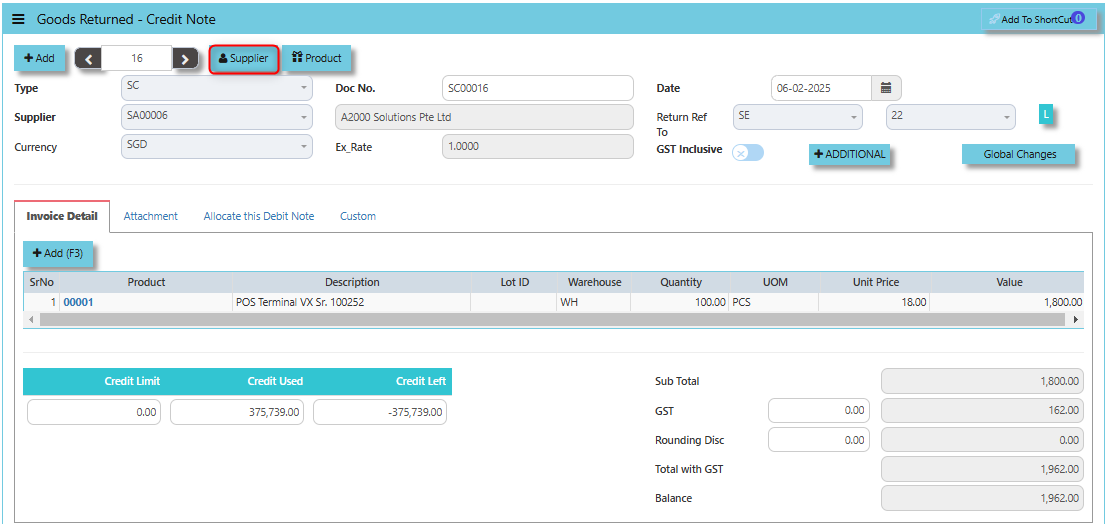
**"Supplier Button"** provides users with a quick and efficient way to manage and update supplier information when processing goods returns and credit notes. Clicking the Supplier button allows users to directly access the **Supplier Maintenance** screen or module.
[](https://doc.uniq365.com/uploads/images/gallery/2025-02/icCimage.png)
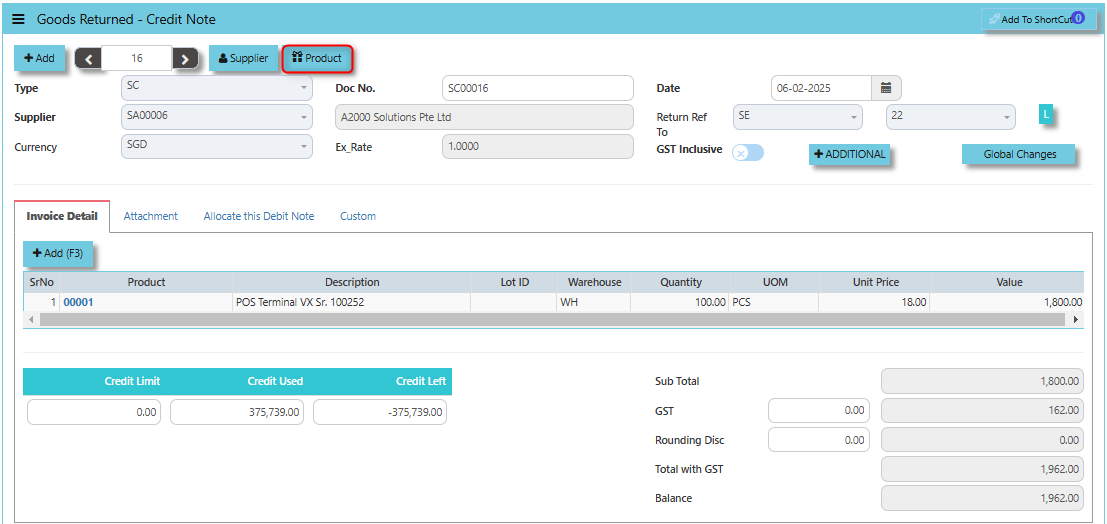
By clicking the **Product button**, users can quickly access the **Product & Service Maintenance** module. This allows them to add new item, review and manage product details related to the returned items, such as product descriptions, quantities, and pricing. This is especially useful when dealing with returns for specific products.
[](https://doc.uniq365.com/uploads/images/gallery/2025-02/3aJimage.png)
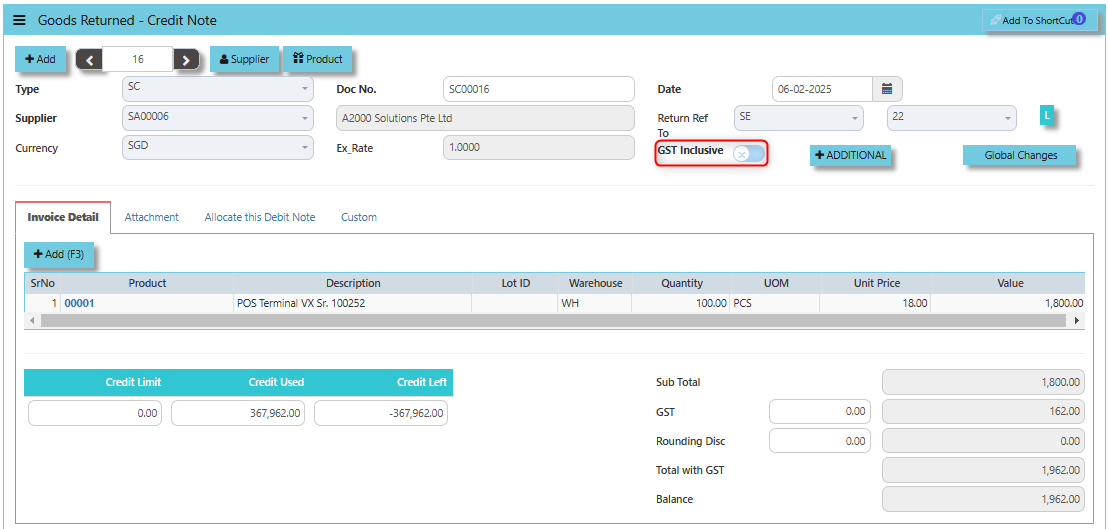
When the **GST Inclusive checkbox** is ticked, the system assumes that the GST is already included in the original price of the goods being returned. This means the total amount for the returned goods (including GST) is treated as a single value, and there is no separate GST calculation for the return. The system will consider the entire amount (including GST) when processing the credit note.
[](https://doc.uniq365.com/uploads/images/gallery/2025-02/45limage.png)
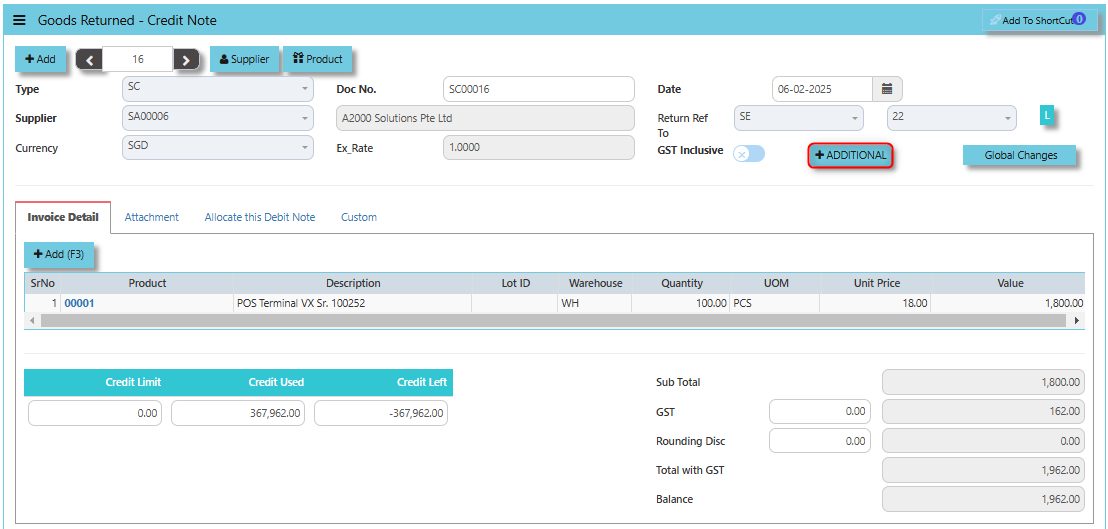
The **Additional Header Info button** provides users with the ability to add extra, customizable information to the header of the credit note document. This feature enhances the flexibility and detail of the credit note process.
[](https://doc.uniq365.com/uploads/images/gallery/2025-02/Qwoimage.png)
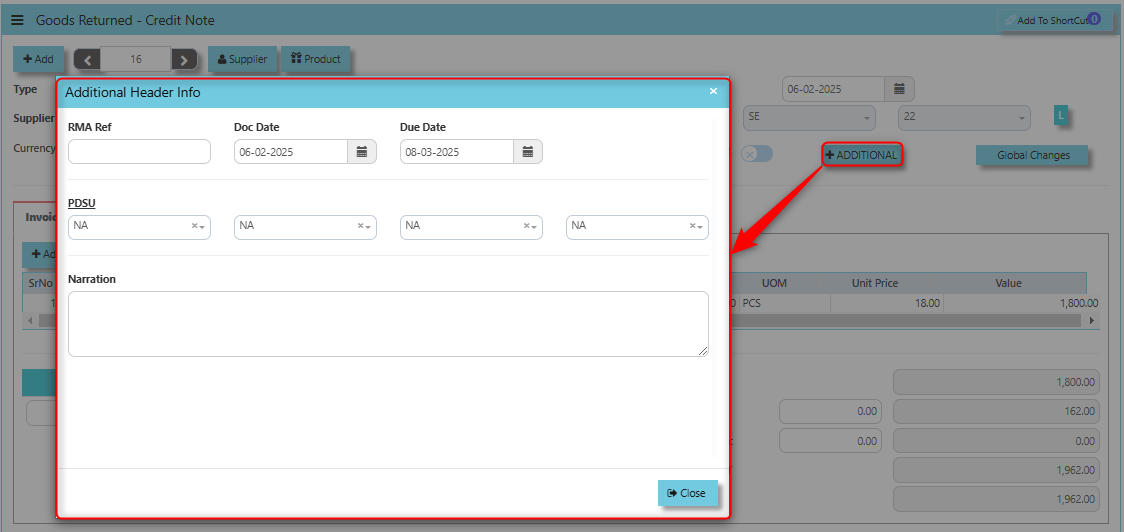
Once clicked, there is a window will prompt and user may input the necessary details for the below fields.
- RMA Ref
- Doc Date
- Due Date
- PDSU
- Narration
[](https://doc.uniq365.com/uploads/images/gallery/2025-02/yOVimage.png)
\_\_\_\_\_\_\_\_\_\_\_\_\_\_\_\_\_\_\_\_\_\_\_\_\_\_\_\_\_\_\_\_\_\_\_\_\_\_\_\_\_\_\_\_\_\_\_\_\_\_\_\_\_\_\_\_\_\_\_\_\_\_\_\_\_\_\_\_\_\_\_\_\_\_\_\_\_\_\_\_\_\_\_\_\_\_\_\_\_\_\_\_\_\_\_\_\_\_\_\_\_\_\_\_\_\_\_\_\_\_\_\_\_\_\_\_\_\_\_\_\_\_\_\_\_\_\_\_\_\_\_\_\_\_\_\_\_\_\_
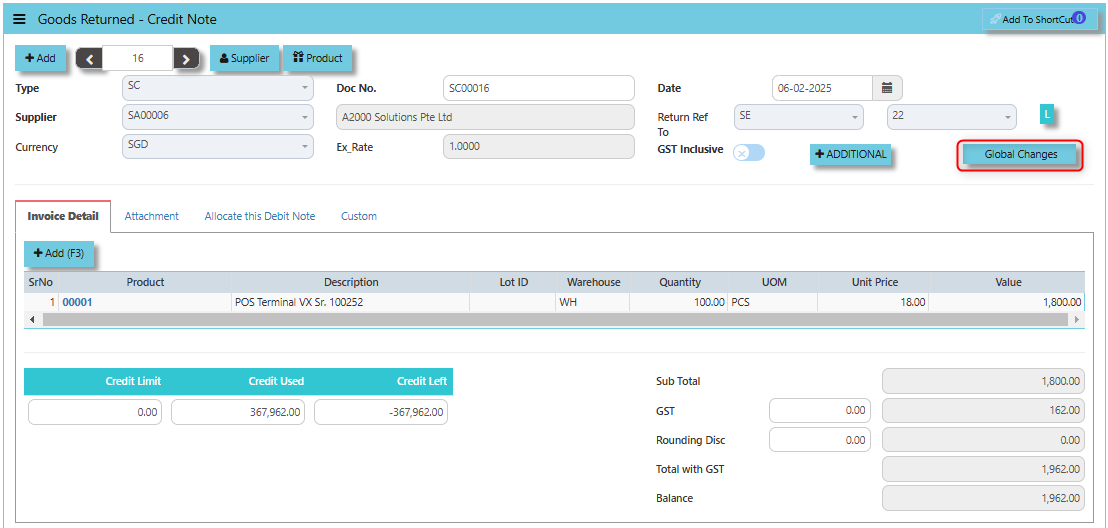
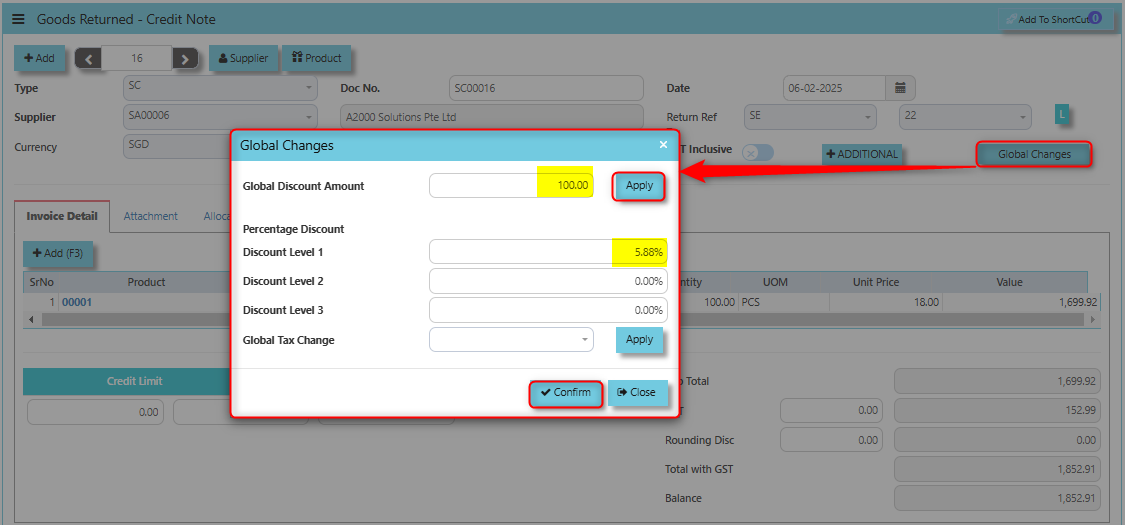
**Global Changes Button** allows users to efficiently apply or modify discounts across multiple returned items in a credit note.
[](https://doc.uniq365.com/uploads/images/gallery/2025-02/6Heimage.png)
##### **How to use Global Changes Button?**
1. Click Global Changes button and a dialogue box will prompt to verify the Global Discount to be applied. Configure accordingly on your desired discount amount then click "Apply" and will auto fill the percentage discount level field. User may opt to add Global Tax change to be applied then click "Confirm" once done.
[](https://doc.uniq365.com/uploads/images/gallery/2025-02/bxYimage.png)
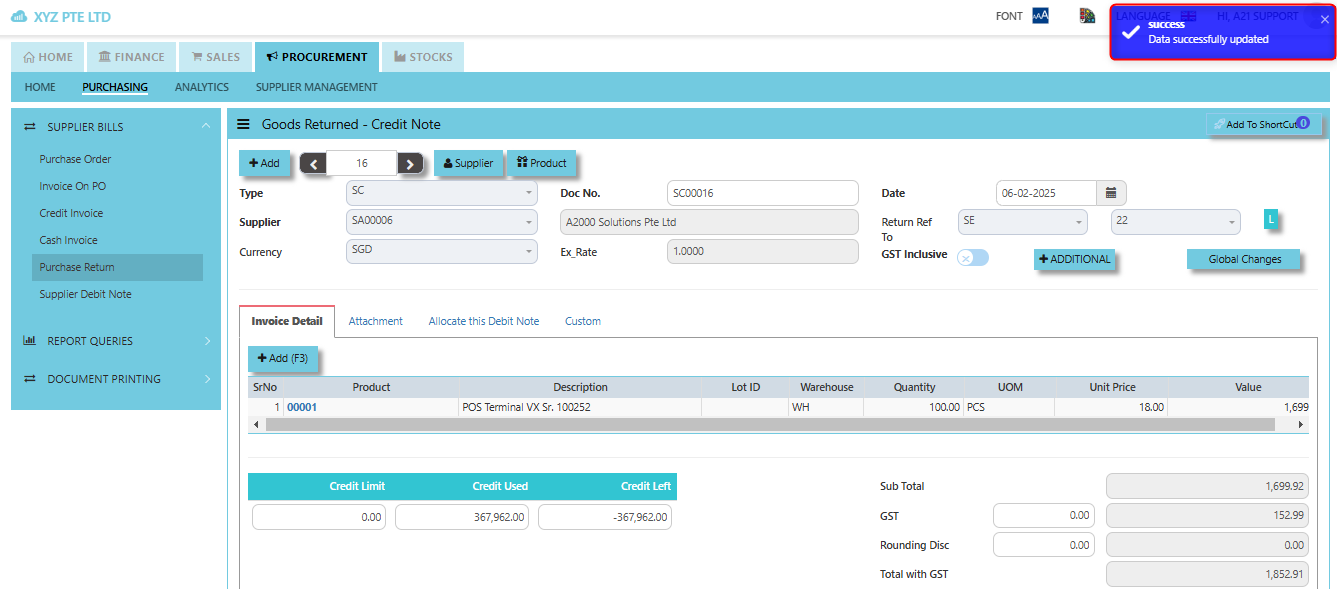
2. Once clicked "Confirm", system will prompt a message that data has been successfully saved.
[](https://doc.uniq365.com/uploads/images/gallery/2025-02/OdZimage.png)
\_\_\_\_\_\_\_\_\_\_\_\_\_\_\_\_\_\_\_\_\_\_\_\_\_\_\_\_\_\_\_\_\_\_\_\_\_\_\_\_\_\_\_\_\_\_\_\_\_\_\_\_\_\_\_\_\_\_\_\_\_\_\_\_\_\_\_\_\_\_\_\_\_\_\_\_\_\_\_\_\_\_\_\_\_\_\_\_\_\_\_\_\_\_\_\_\_\_\_\_\_\_\_\_\_\_\_\_\_\_\_\_\_\_\_\_\_\_\_\_\_\_\_\_\_\_\_\_\_\_\_\_\_\_\_\_\_\_\_
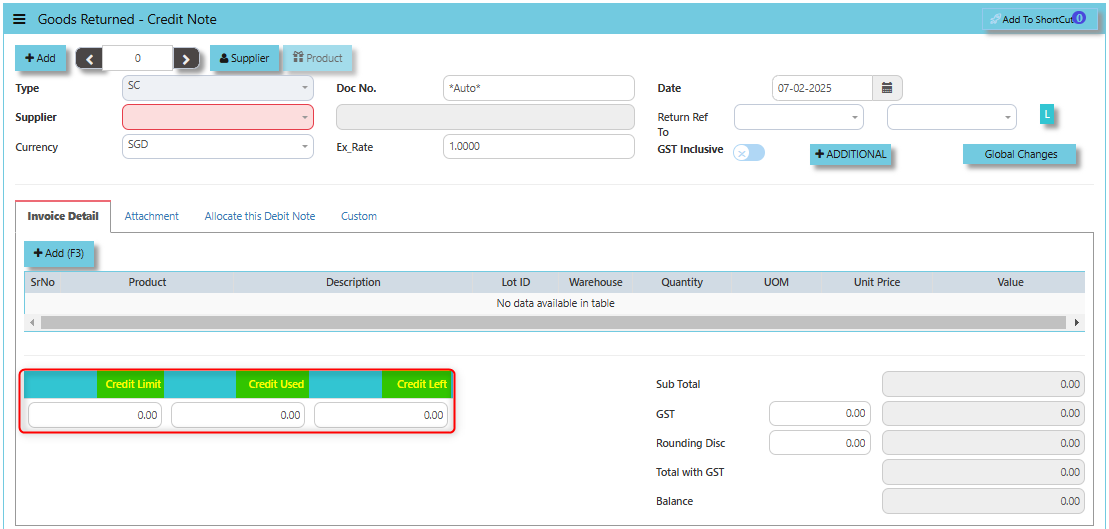
The **Credit Limit**, **Credit Used**, and **Credit Left** in the context of a Purchase Return (when goods are returned to the supplier) are important for managing financial adjustments and maintaining control over supplier accounts.
- The **Credit Limit** refers to the maximum amount of credit that a supplier is willing to extend to the organization for returns or exchanges of purchased goods.
- The **Credit Used** refers to the total value of returns (or credits) that have already been processed and applied to the organization's account with the supplier.
- The **Credit Left** is the amount of credit that remains available to be used for future purchase returns or exchanges. It is calculated by subtracting the **Credit Used** from the **Credit Limit**.
[](https://doc.uniq365.com/uploads/images/gallery/2025-02/iSRimage.png)
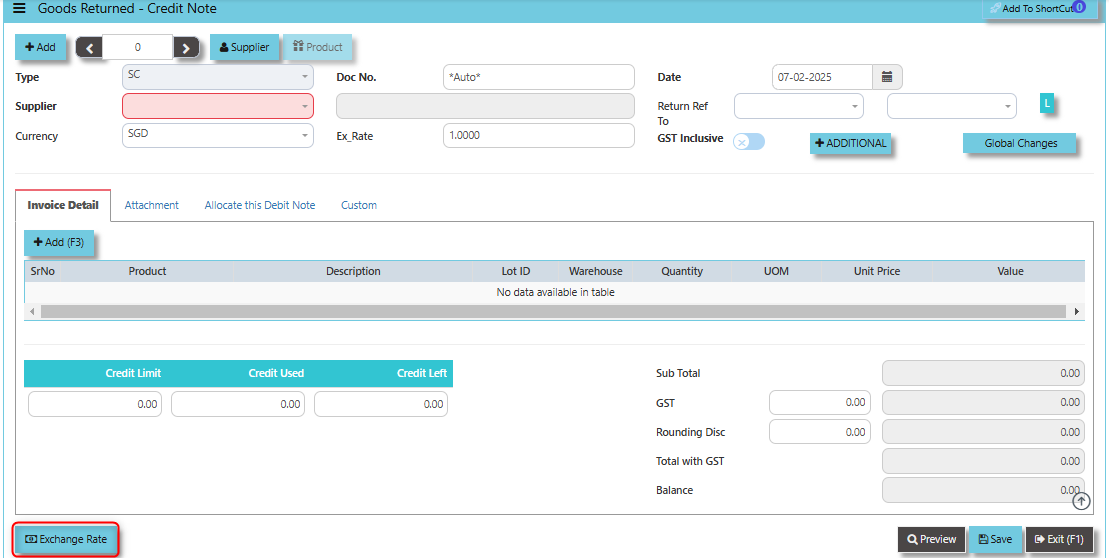
The **Exchange Rate button** allows users to manage the currency exchange rates for transactions when returning goods purchased from international suppliers. Its main function is to ensure that the return is properly accounted for when the original purchase and the return are in different currencies or the exchange rate has changed between the purchase date and the return date.
[](https://doc.uniq365.com/uploads/images/gallery/2025-02/3Raimage.png)
\_\_\_\_\_\_\_\_\_\_\_\_\_\_\_\_\_\_\_\_\_\_\_\_\_\_\_\_\_\_\_\_\_\_\_\_\_\_\_\_\_\_\_\_\_\_\_\_\_\_\_\_\_\_\_\_\_\_\_\_\_\_\_\_\_\_\_\_\_\_\_\_\_\_\_\_\_\_\_\_\_\_\_\_\_\_\_\_\_\_\_\_\_\_\_\_\_\_\_\_\_\_\_\_\_\_\_\_\_\_\_\_\_\_\_\_\_\_\_\_\_\_\_\_\_\_\_\_\_\_\_\_\_\_\_\_\_\_\_
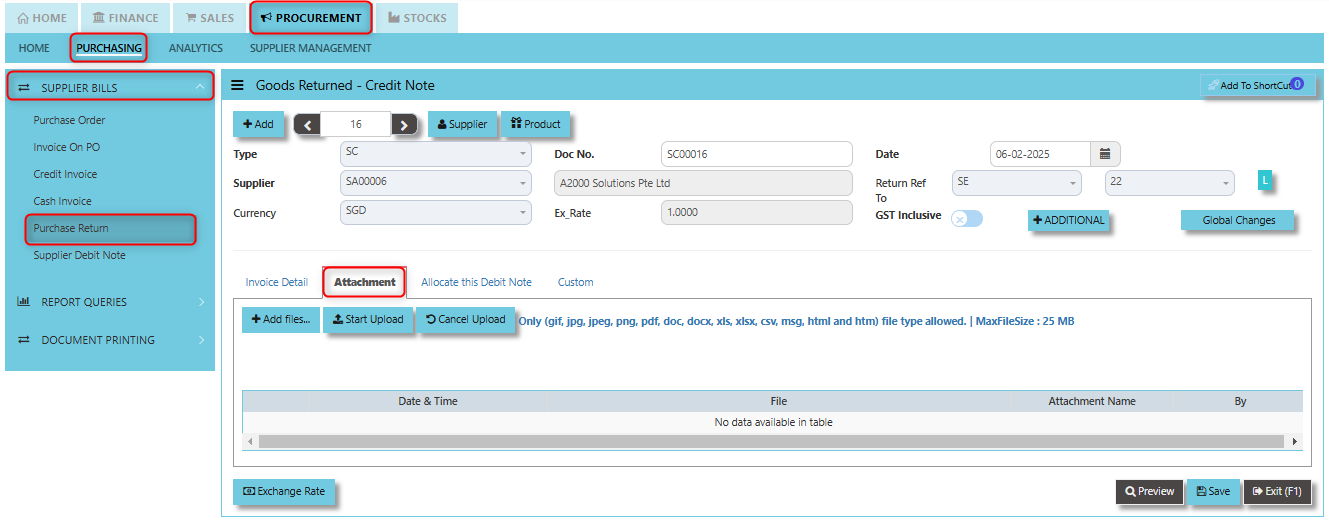
The **Attachment Tab** allows users to attach and store relevant documents or files that are associated with the credit note for returned goods. This function helps in maintaining a comprehensive and organized record of all supporting materials related to the return process.
##### **How to use Attachment Tab?**
1. Click on PROCUREMENT - PURCHASING - SUPPLIER BILLS - PURCHASE RETURN - ATTACHMENT TAB for the screen below.
[](https://doc.uniq365.com/uploads/images/gallery/2025-02/4T0image.png)
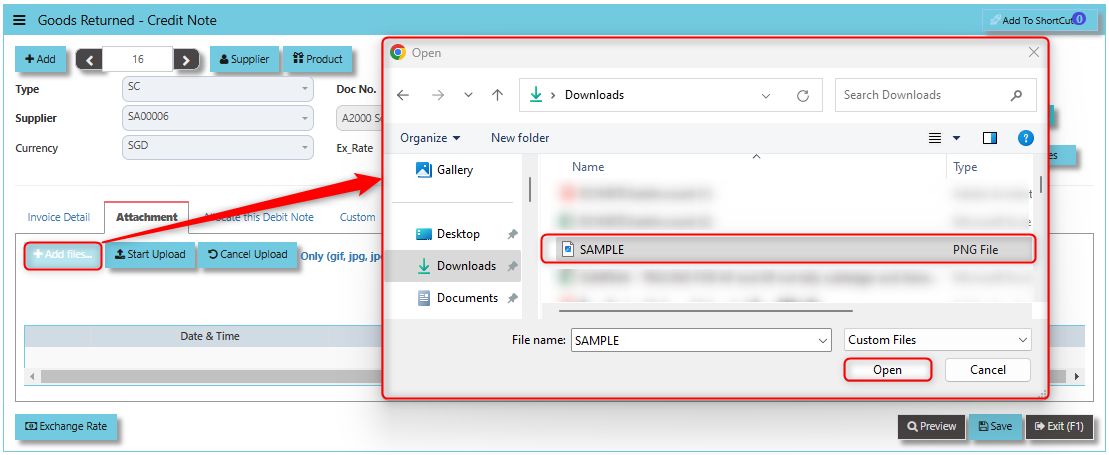
2. Click +Add files and windows will prompt then choose the file you want to upload by clicking open. Kindly take note the file types and maximum size requirements in uploading: ***Only (gif, jpg, jpeg, png, pdf, doc, docx, xls, xlsx, csv, msg, html and htm) file type allowed. | MaxFileSize : 25 MB***
[](https://doc.uniq365.com/uploads/images/gallery/2025-02/NSJimage.png)
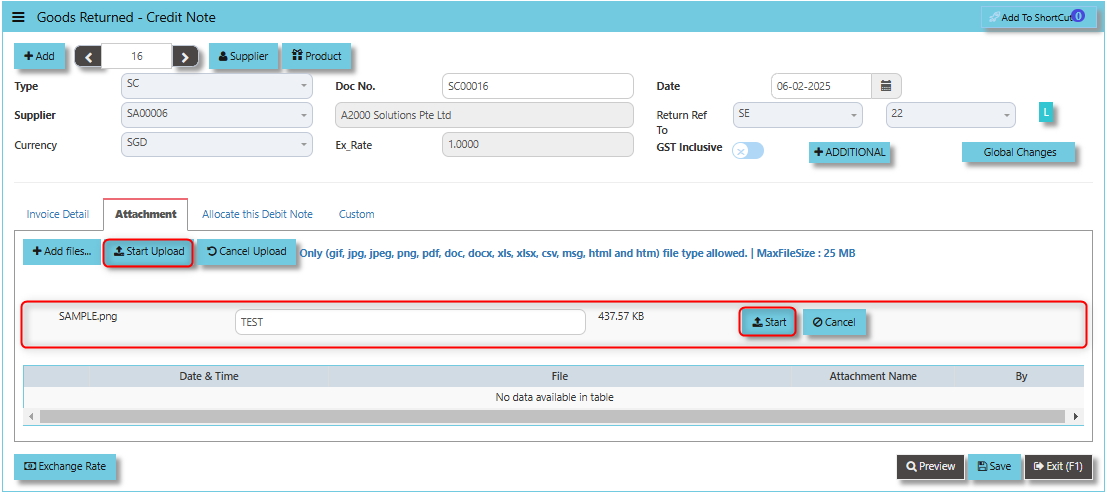
3. Key in the Attachment Name then click start to upload.
[](https://doc.uniq365.com/uploads/images/gallery/2025-02/qKJimage.png)
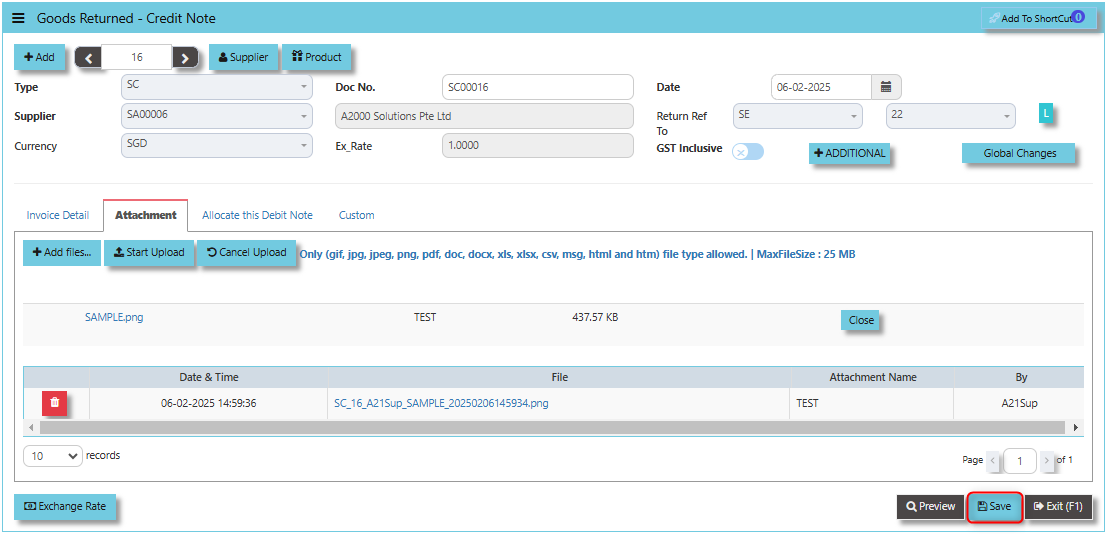
4. Once the file attached, click "SAVE" button
[](https://doc.uniq365.com/uploads/images/gallery/2025-02/cbMimage.png)
User may opt to cancel the uploading by clicking the **"Cancel Upload"** and delete the uploaded file by utilizing the **"Bin Icon"** at the left corner of line detail.
\_\_\_\_\_\_\_\_\_\_\_\_\_\_\_\_\_\_\_\_\_\_\_\_\_\_\_\_\_\_\_\_\_\_\_\_\_\_\_\_\_\_\_\_\_\_\_\_\_\_\_\_\_\_\_\_\_\_\_\_\_\_\_\_\_\_\_\_\_\_\_\_\_\_\_\_\_\_\_\_\_\_\_\_\_\_\_\_\_\_\_\_\_\_\_\_\_\_\_\_\_\_\_\_\_\_\_\_\_\_\_\_\_\_\_\_\_\_\_\_\_\_\_\_\_\_\_\_\_\_\_\_\_\_\_\_\_\_\_
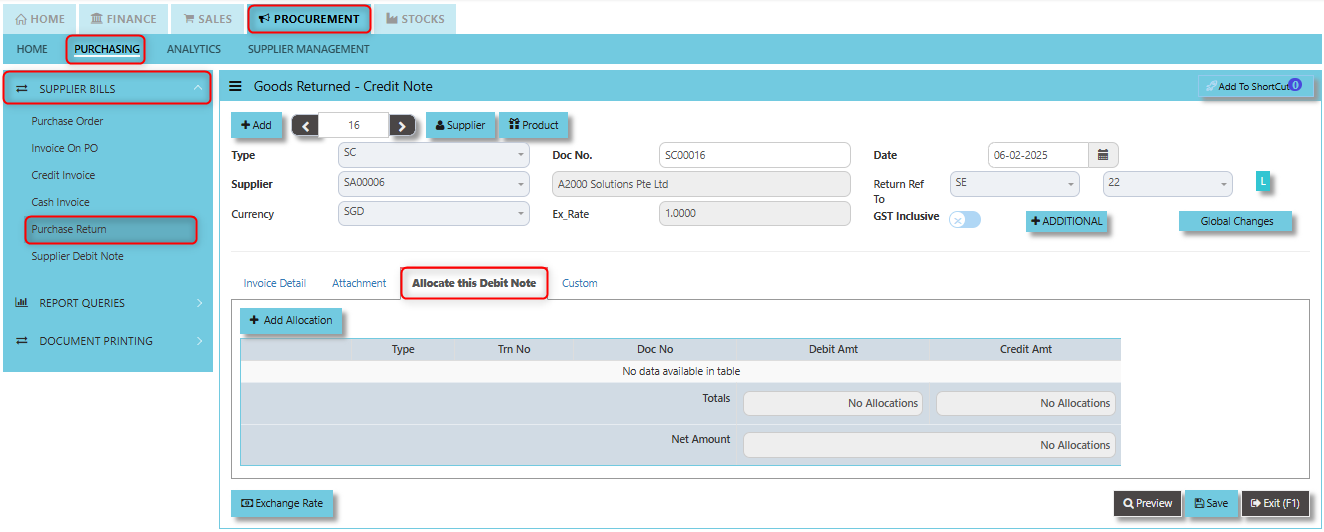
**Allocation Tab** used to manage and allocate the financial impact of the goods return and the associated credit note. It helps users properly match and allocate the returned goods to the correct transaction types like PC, PD, PI, PV, SD, SE and SI.
##### **How to use Allocation Tab?**
1. Click on PROCUREMENT - PURCHASING - SUPPLIER BILLS - PURCHASE RETURN - ALLOCATION TAB for the screen below.
[](https://doc.uniq365.com/uploads/images/gallery/2025-02/lu4image.png)
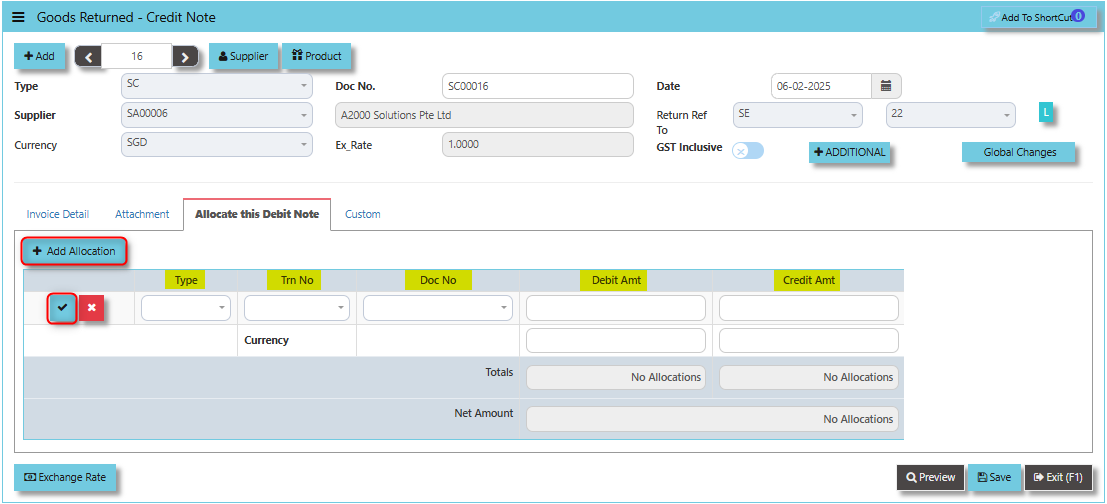
2. Click +Add Allocation button. Select the Trn Type, Trn Number, Doc Number associated to the Credit Note input the Debit and Credit Amount then click the "Check" button to save the line detail.
[](https://doc.uniq365.com/uploads/images/gallery/2025-02/iSuimage.png)
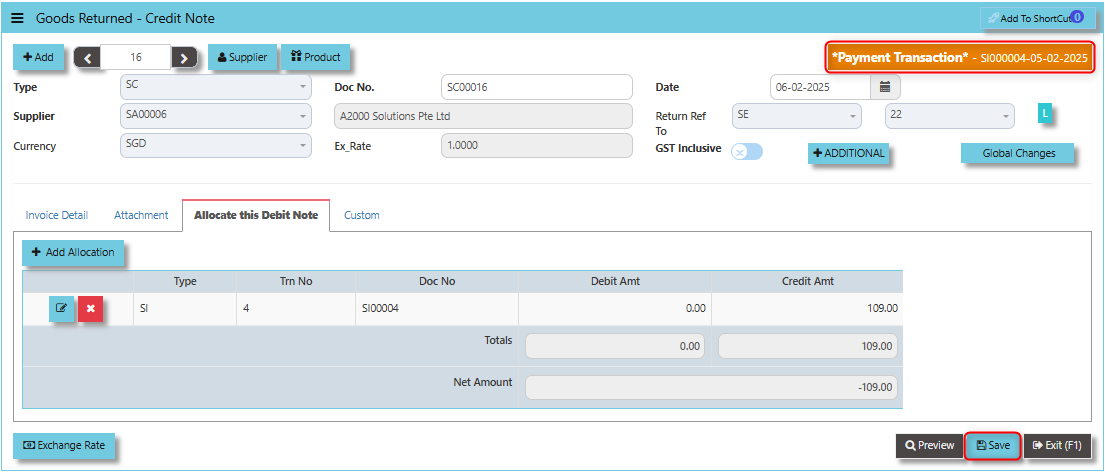
3. Click "SAVE" and user may look into the upper right note of trn screen where specific transaction that credit note is associated.
[](https://doc.uniq365.com/uploads/images/gallery/2025-02/Pvcimage.png)
\_\_\_\_\_\_\_\_\_\_\_\_\_\_\_\_\_\_\_\_\_\_\_\_\_\_\_\_\_\_\_\_\_\_\_\_\_\_\_\_\_\_\_\_\_\_\_\_\_\_\_\_\_\_\_\_\_\_\_\_\_\_\_\_\_\_\_\_\_\_\_\_\_\_\_\_\_\_\_\_\_\_\_\_\_\_\_\_\_\_\_\_\_\_\_\_\_\_\_\_\_\_\_\_\_\_\_\_\_\_\_\_\_\_\_\_\_\_\_\_\_\_\_\_\_\_\_\_\_\_\_\_\_\_\_\_\_\_\_
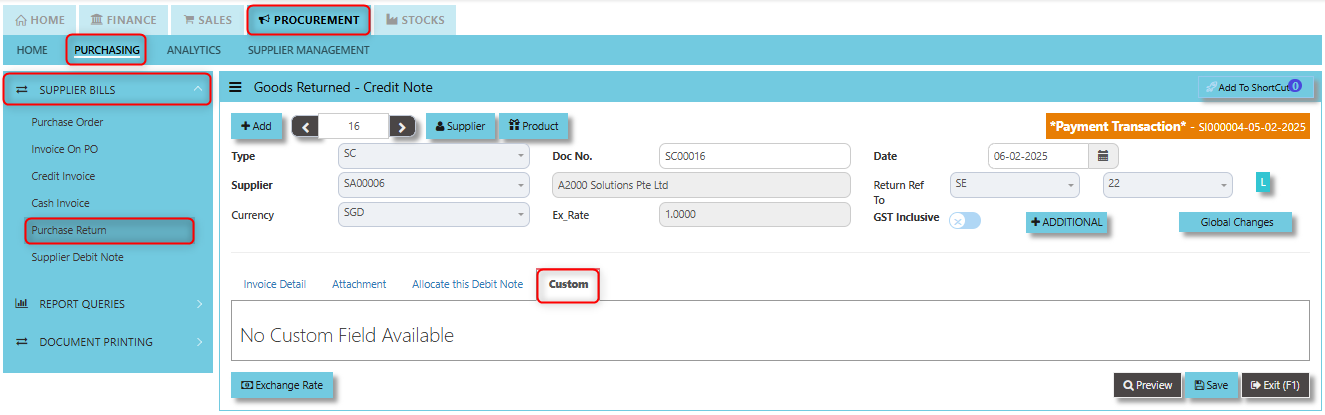
The **Custom Tab** provides users with the ability to add custom fields or personalized data related to the goods return and credit note transaction. Click on PROCUREMENT - PURCHASING - SUPPLIER BILLS - PURCHASE RETURN - CUSTOM TAB for the screen below.
[](https://doc.uniq365.com/uploads/images/gallery/2025-02/SIMimage.png)
Supplier Debit Note (SD)
##### This is a direct Debit Note which sells product directly to suppliers. Its updates the GL and Inventory status.
\_\_\_\_\_\_\_\_\_\_\_\_\_\_\_\_\_\_\_\_\_\_\_\_\_\_\_\_\_\_\_\_\_\_\_\_\_\_\_\_\_\_\_\_\_\_\_\_\_\_\_\_\_\_\_\_\_\_\_\_\_\_\_\_\_\_\_\_\_\_\_\_\_\_\_\_\_\_\_\_\_\_\_\_\_\_\_\_\_\_\_\_\_\_\_\_\_\_\_
#### **How to set create Supplier Debit Note?**
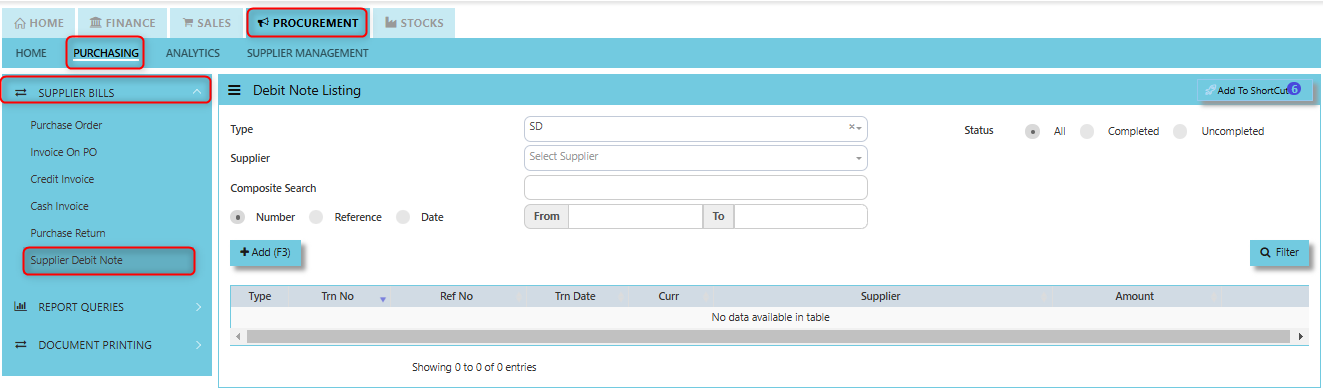
1. Click on PROCUREMENT – PURCHASING – SUPPLIER BILLS - SUPPLIER DEBIT NOTE for the screen below.
[](https://doc.uniq365.com/uploads/images/gallery/2025-01/WHEimage.png)
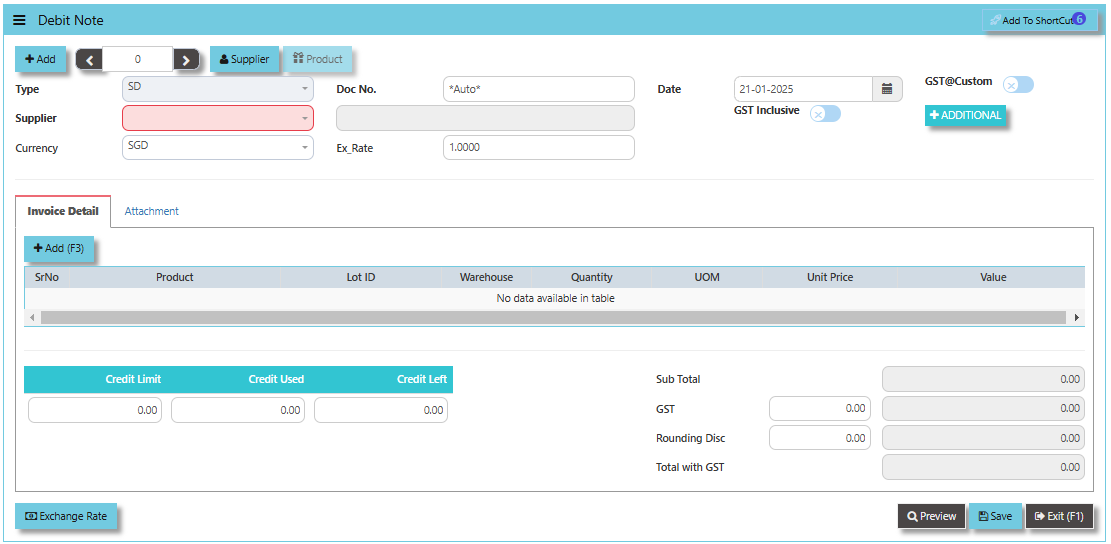
2. Click Add (F3) to create new record.
[](https://doc.uniq365.com/uploads/images/gallery/2025-01/jlqimage.png)
3. Click Type - drop-down to select transaction type – SD (Debit Note).
4\. After transaction type selection, use the tab button to go to the Ref No., Date, and other fields.
5\. Click the Supplier drop-down list to select Supplier Name, followed by the Buyer, PDS, Currency, Exchange Rate and Narration if applicable.
6\. After updating the header information, go to Details section to enter the product items. Save the transaction after this is done.
\_\_\_\_\_\_\_\_\_\_\_\_\_\_\_\_\_\_\_\_\_\_\_\_\_\_\_\_\_\_\_\_\_\_\_\_\_\_\_\_\_\_\_\_\_\_\_\_\_\_\_\_\_\_\_\_\_\_\_\_\_\_\_\_\_\_\_\_\_\_\_\_\_\_\_\_\_\_\_\_\_\_\_\_\_\_\_\_\_\_\_\_\_\_\_\_\_\_\_\_\_\_\_\_\_\_\_\_\_\_\_\_\_\_\_\_\_\_\_\_\_\_\_\_\_\_\_\_\_\_\_\_\_\_\_\_\_\_\_
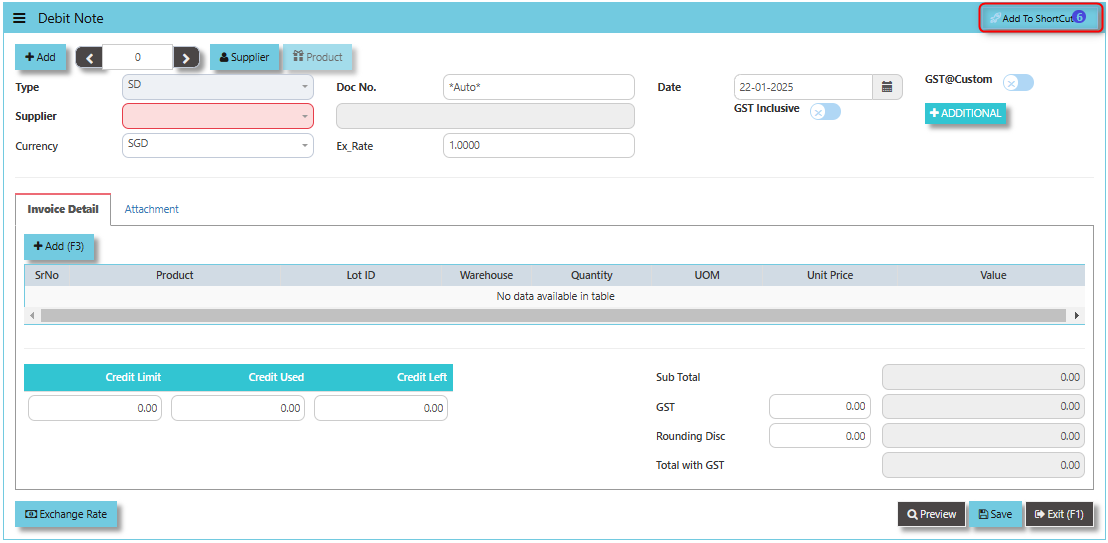
The **Add to Shortcut** functionality provides a personalized experience, allowing users to tailor their Uniq365 dashboard or menu system to their specific roles and tasks. For users who regularly process or review Supplier Debit Notes, having a shortcut can save time by enabling direct access to the document or screen. This can speed up repetitive tasks, such as updating or adjusting debit notes, reviewing supplier credits, or verifying supplier transactions.
[](https://doc.uniq365.com/uploads/images/gallery/2025-01/ux0image.png)
##### **How to use Add to ShortCut?**
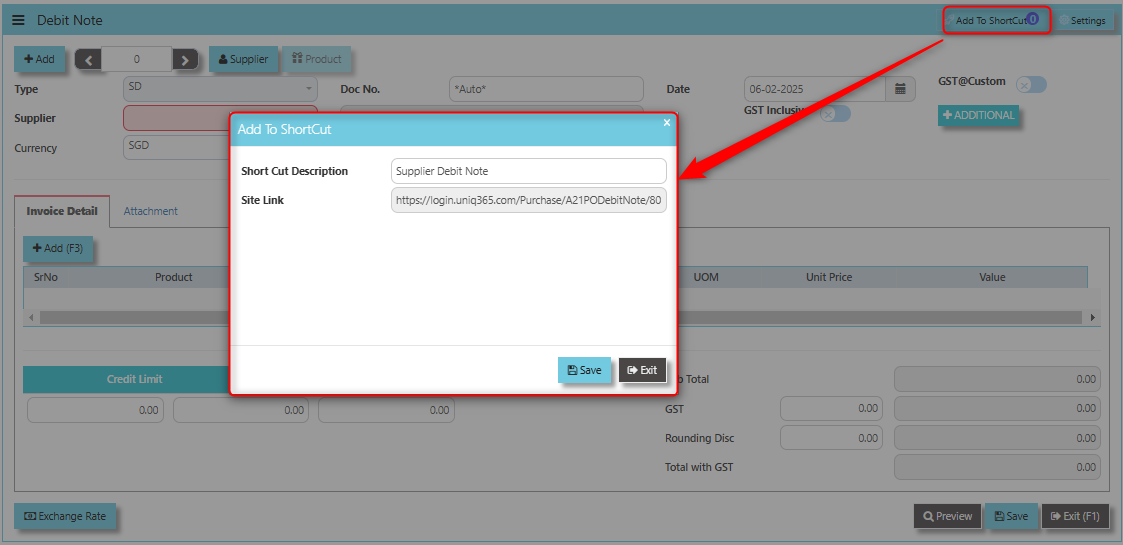
1. Click "**Add to ShortCut"** and system will open below windows:
[](https://doc.uniq365.com/uploads/images/gallery/2025-02/cdiimage.png)
2. Enter Short Cut Description
3\. Click SAVE then click OK.
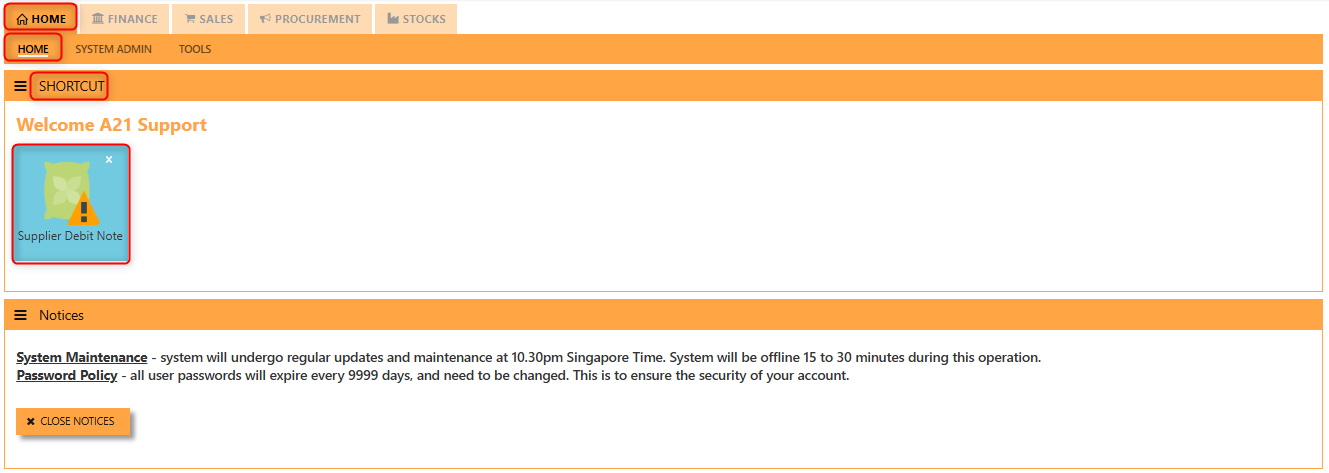
4\. User may look to the Homepage for the added function or page. Click on HOME - HOME - SHORTCUT for the screen below.
[](https://doc.uniq365.com/uploads/images/gallery/2025-02/2VBimage.png)
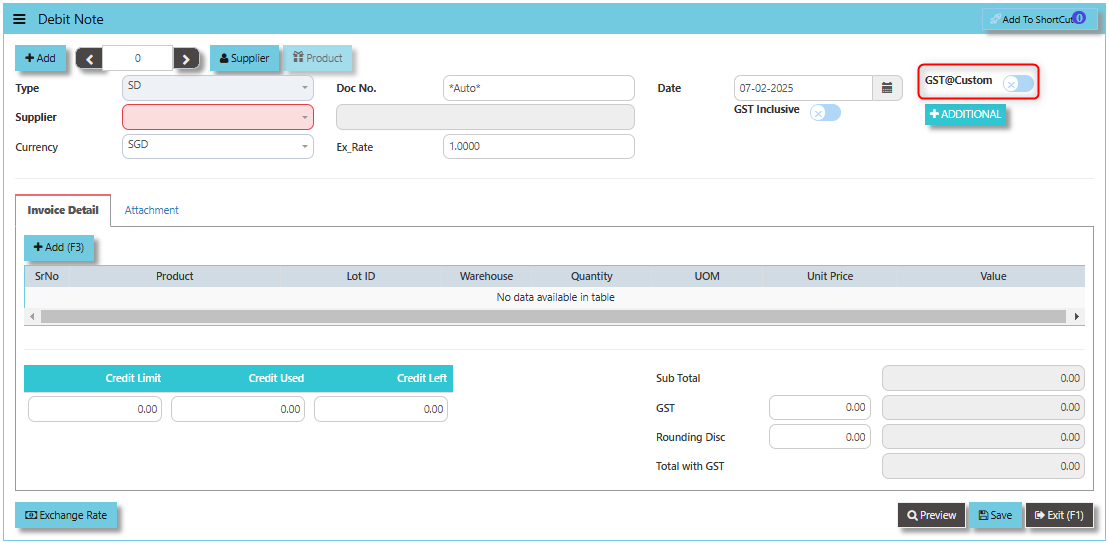
The **GST@Custom** checkbox allows users to apply a custom GST rate for the debit note transaction, which might differ from the standard GST rate.
[](https://doc.uniq365.com/uploads/images/gallery/2025-02/jOpimage.png)
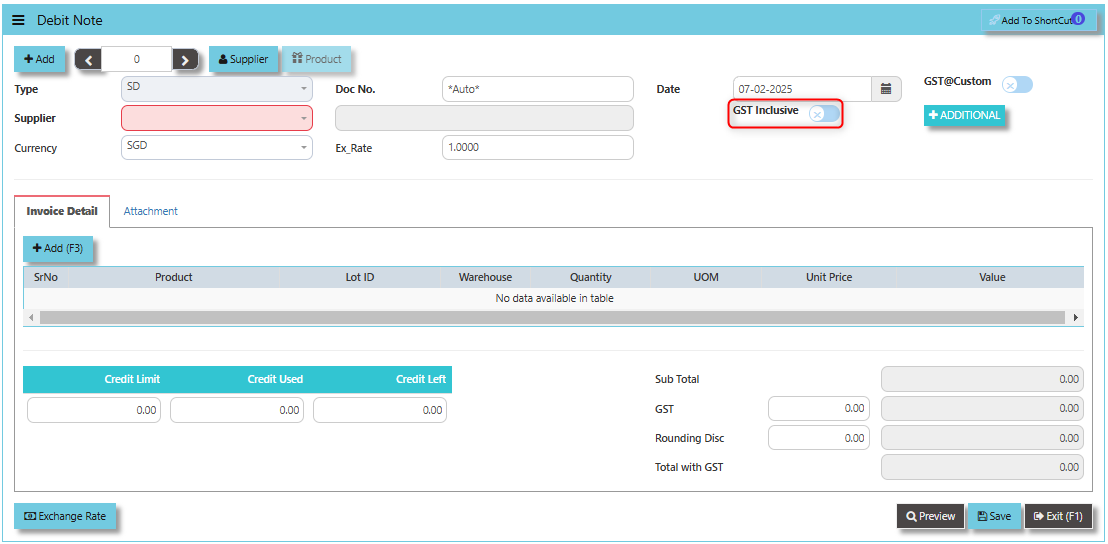
The **GST Inclusive** checkbox plays a crucial role in determining how GST is handled in the debit note process:
- **When ticked**, it indicates that the GST is already included in the amount, and the system will decompose the total value to calculate the net amount and GST portion.
- **When not ticked**, the system treats the provided amount as exclusive of GST and will calculate and add the GST separately on the net value.
[](https://doc.uniq365.com/uploads/images/gallery/2025-02/Croimage.png)
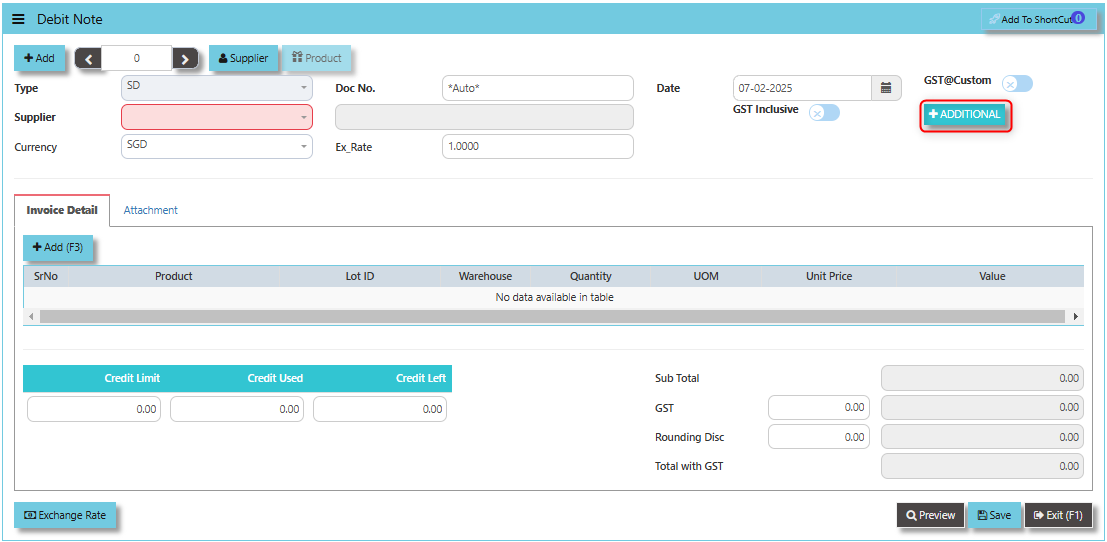
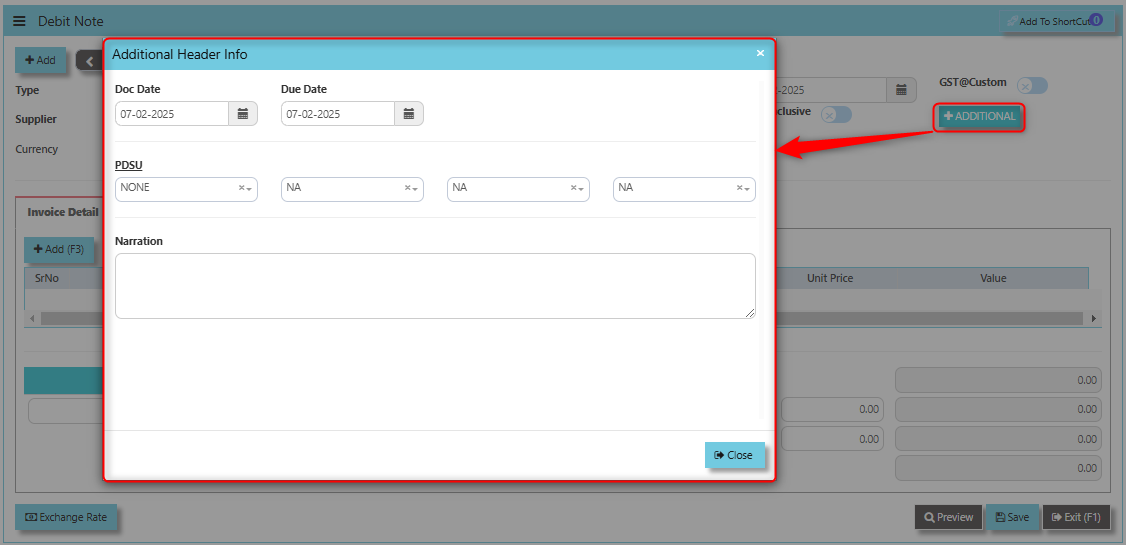
The **Additional Header Info Button** typically serves to provide users with the ability to add or view additional information that is relevant to the debit note transaction.
[](https://doc.uniq365.com/uploads/images/gallery/2025-02/REHimage.png)
Once clicked, a dialogue box will prompt and user may fille the details as follows:
[](https://doc.uniq365.com/uploads/images/gallery/2025-02/Hphimage.png)
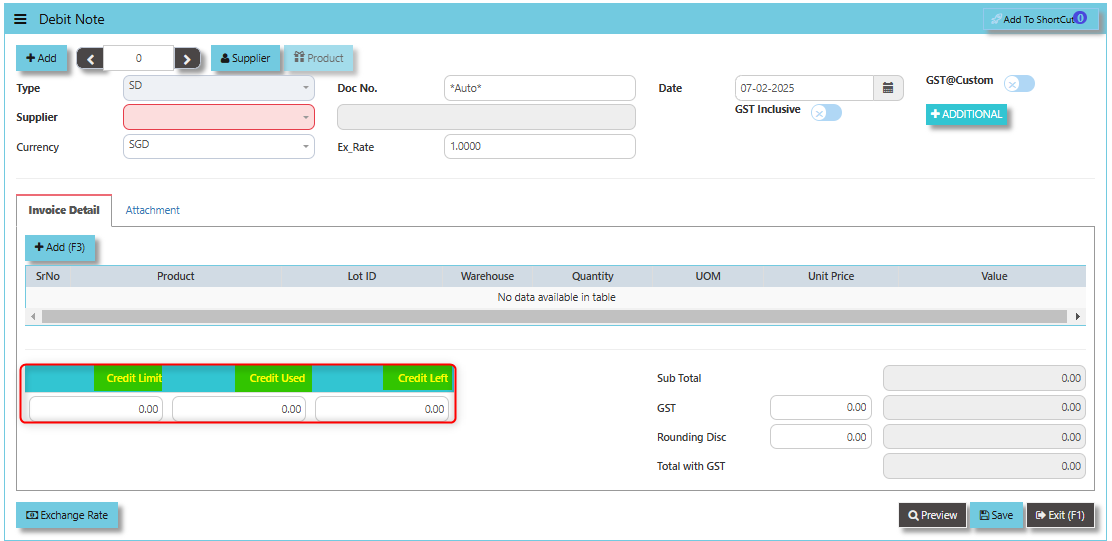
The **Credit Limit**, **Credit Used**, and **Credit Left** fields play a critical role in managing the credit terms between the company and its suppliers.
- **Credit Limit**: The maximum amount of credit extended by the supplier to the company.
- **Credit Used**: The total amount of credit the company has consumed from the supplier, including purchases and adjustments like debit notes.
- **Credit Left**: The remaining available credit, calculated by subtracting the **Credit Used** from the **Credit Limit**.
[](https://doc.uniq365.com/uploads/images/gallery/2025-02/BL9image.png)
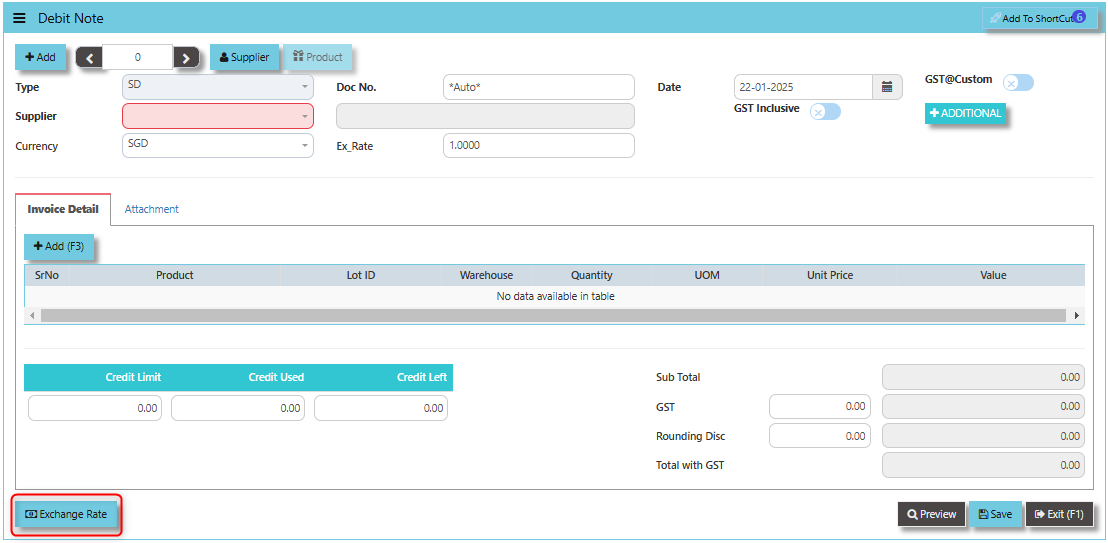
The **Exchange Rate** button allows for the conversion of the Debit Note value from the supplier's currency to your company's base currency. It ensures that the debit is accurately recorded in your accounts payable or other financial records.
[](https://doc.uniq365.com/uploads/images/gallery/2025-01/OdVimage.png)
\_\_\_\_\_\_\_\_\_\_\_\_\_\_\_\_\_\_\_\_\_\_\_\_\_\_\_\_\_\_\_\_\_\_\_\_\_\_\_\_\_\_\_\_\_\_\_\_\_\_\_\_\_\_\_\_\_\_\_\_\_\_\_\_\_\_\_\_\_\_\_\_\_\_\_\_\_\_\_\_\_\_\_\_\_\_\_\_\_\_\_\_\_\_\_\_\_\_\_\_\_\_\_\_\_\_\_\_\_\_\_\_\_\_\_\_\_\_\_\_\_\_\_\_\_\_\_\_\_\_\_\_\_\_\_\_\_\_\_
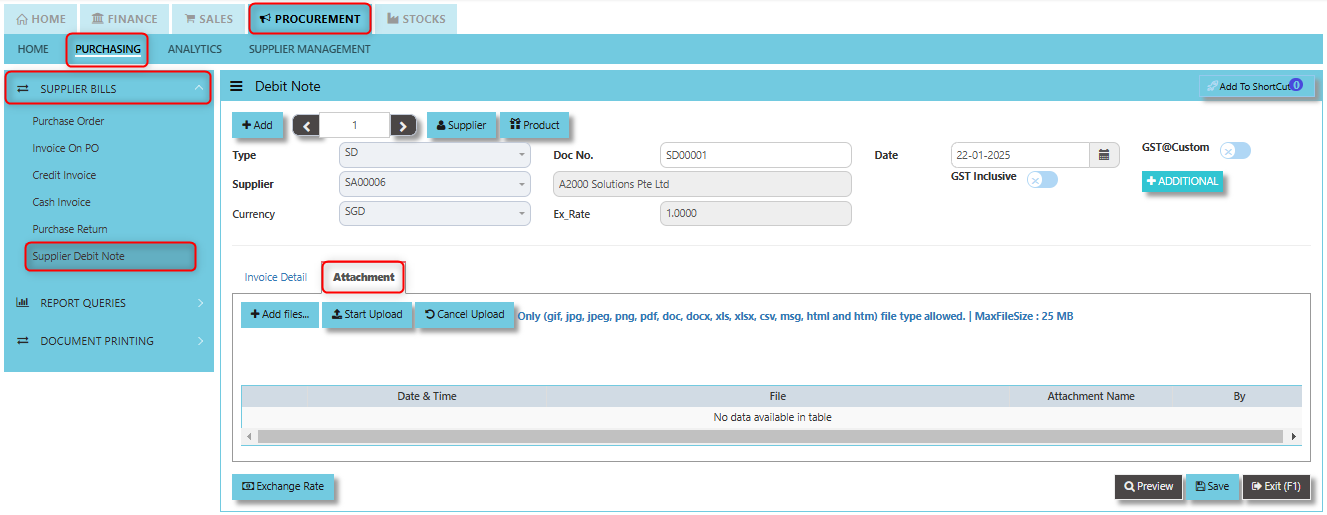
The **Attachment Tab** designed to store and manage relevant documents and files associated with the Supplier Debit Note transaction.
##### **How to use Attachment Tab?**
1. Click on PROCUREMENT - PURCHASING - SUPPLIER BILLS - SUPPLIER DEBIT NOTE - ATTACHMENT TAB for the screen below.
[](https://doc.uniq365.com/uploads/images/gallery/2025-02/p2Uimage.png)
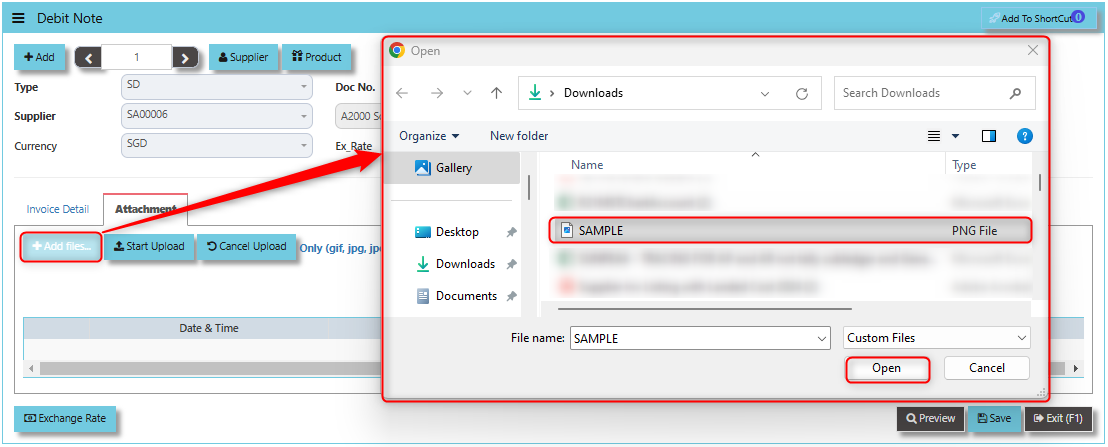
2. Click +Add files and windows will prompt then choose the file you want to upload by clicking open. Kindly take note the file types and maximum size requirements in uploading: ***Only (gif, jpg, jpeg, png, pdf, doc, docx, xls, xlsx, csv, msg, html and htm) file type allowed. | MaxFileSize : 25 MB***
[](https://doc.uniq365.com/uploads/images/gallery/2025-02/rmKimage.png)
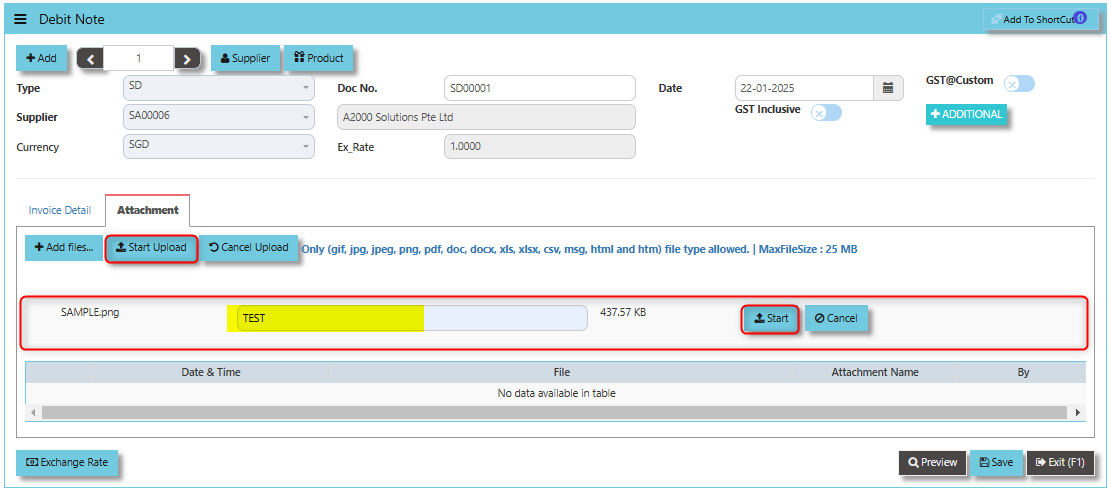
3. Key in the Attachment Name then click start to upload.
[](https://doc.uniq365.com/uploads/images/gallery/2025-02/UZhimage.png)
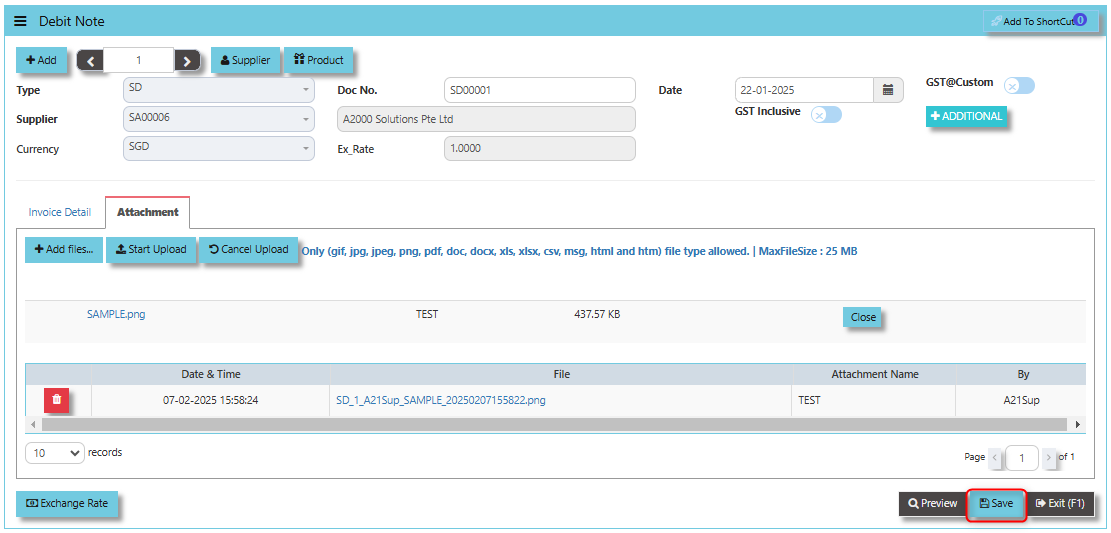
4. Once the file attached, click "SAVE" button
[](https://doc.uniq365.com/uploads/images/gallery/2025-02/2ONimage.png)