# Opening Stocks

##### Uniq365 represent **Opening Stocks** as the value of stock at the beginning of the financial year. This value is automatically reflected based on the account posting settings configured in the account book, ensuring accurate alignment with the company’s financial records and inventory management at the start of the period.

##### This is the screen to enter or edit the stock balances as on the starting date of actual implementation of UNIQ365 Accounting. This does not perform on-line posting. 

\_\_\_\_\_\_\_\_\_\_\_\_\_\_\_\_\_\_\_\_\_\_\_\_\_\_\_\_\_\_\_\_\_\_\_\_\_\_\_\_\_\_\_\_\_\_\_\_\_\_\_\_\_\_\_\_\_\_\_\_\_\_\_\_\_\_\_\_\_\_\_\_\_\_\_\_\_\_\_\_\_\_\_\_\_\_\_\_\_\_\_\_\_\_\_\_\_\_\_\_\_\_\_\_\_\_\_\_\_\_\_\_\_\_\_\_\_\_\_\_\_\_\_\_\_\_\_\_\_\_\_\_\_\_\_\_\_\_\_\_\_\_\_\_

##### **How to create Opening Stocks?**

1\. Click on **Stocks – Stock Operations – Opening Stocks** icon for following screen.

[![image.png](https://doc.uniq365.com/uploads/images/gallery/2025-02/scaled-1680-/Yb6image.png)](https://doc.uniq365.com/uploads/images/gallery/2025-02/Yb6image.png)
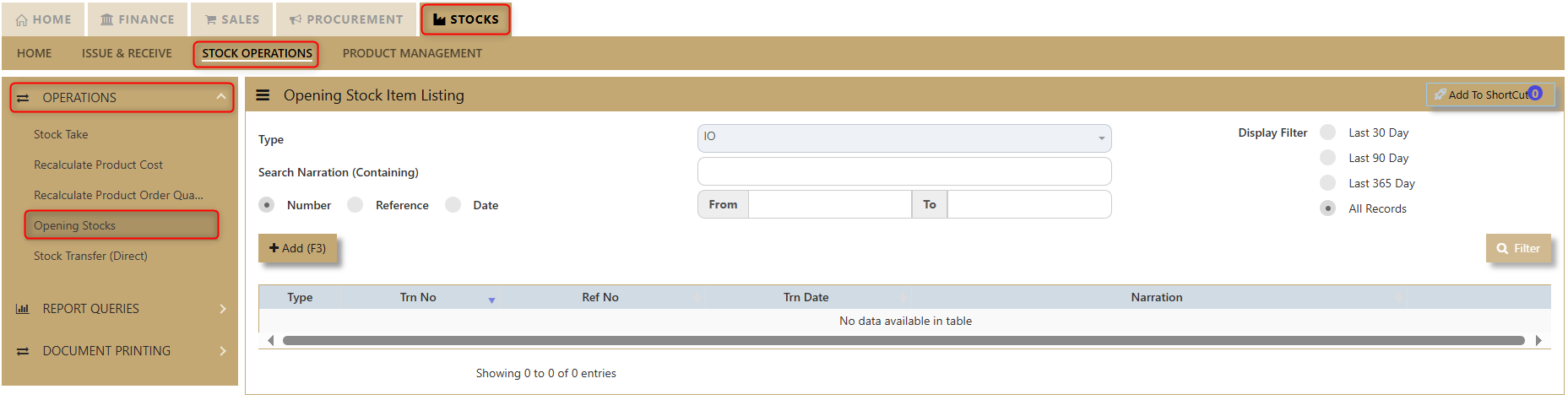
2\. Click on Add (F3) button to create new transaction.

3\. Add the line details of the product that the user needs to open balance with.

- In each Opening Stock transaction, only 1 line is allowed per stock item per warehouse. You may enter as many lines as you like so long as the product codes and/or warehouses are different.

[![image.png](https://doc.uniq365.com/uploads/images/gallery/2025-02/scaled-1680-/1dsimage.png)](https://doc.uniq365.com/uploads/images/gallery/2025-02/1dsimage.png)
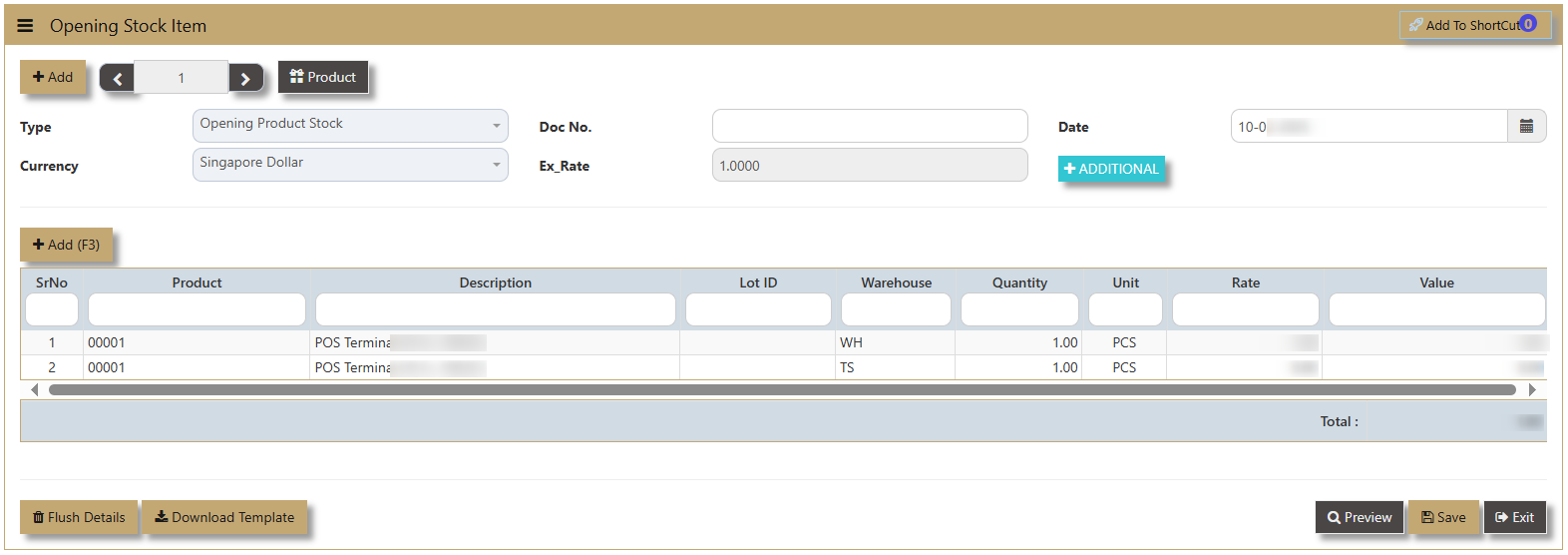
- If there are a few prices for a single item (like different costing for a product under FIFO pricing) to be keyed in, use multiple voucher numbers to effect these entries.
- The total amount of stocks entered in the Opening Stock screen must be equal to the Balance Sheet stock that was entered in the GL – Opening Balances. This is to ensure that the stock ledger ties to the GL stock control account.

[![image.png](https://doc.uniq365.com/uploads/images/gallery/2025-02/scaled-1680-/sc041Ximage.png)](https://doc.uniq365.com/uploads/images/gallery/2025-02/sc041Ximage.png)
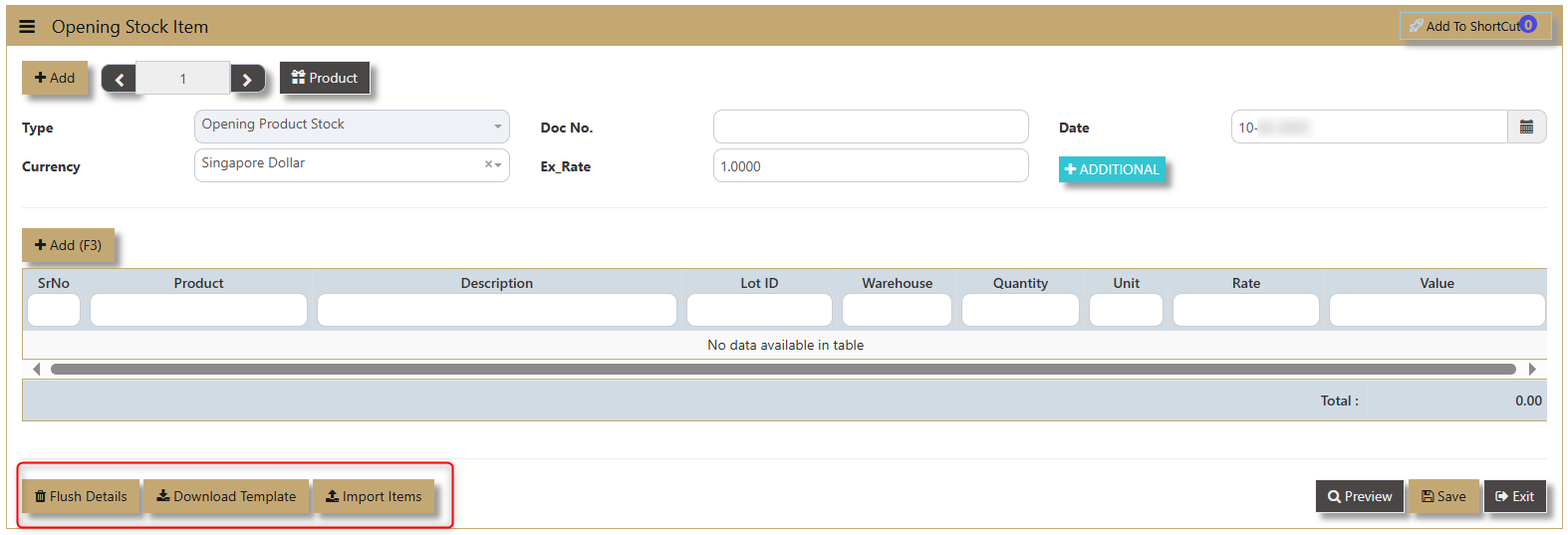
<div class="flex-1 overflow-hidden @container/thread translate-y-[1.5rem] -mt-[1.5rem] pb-[1.5rem]" id="bkmrk--3"></div><div class="markdown prose w-full break-words dark:prose-invert light" id="bkmrk-flush-details%C2%A0button">**Flush Details** button allows the user to delete the line detail.  
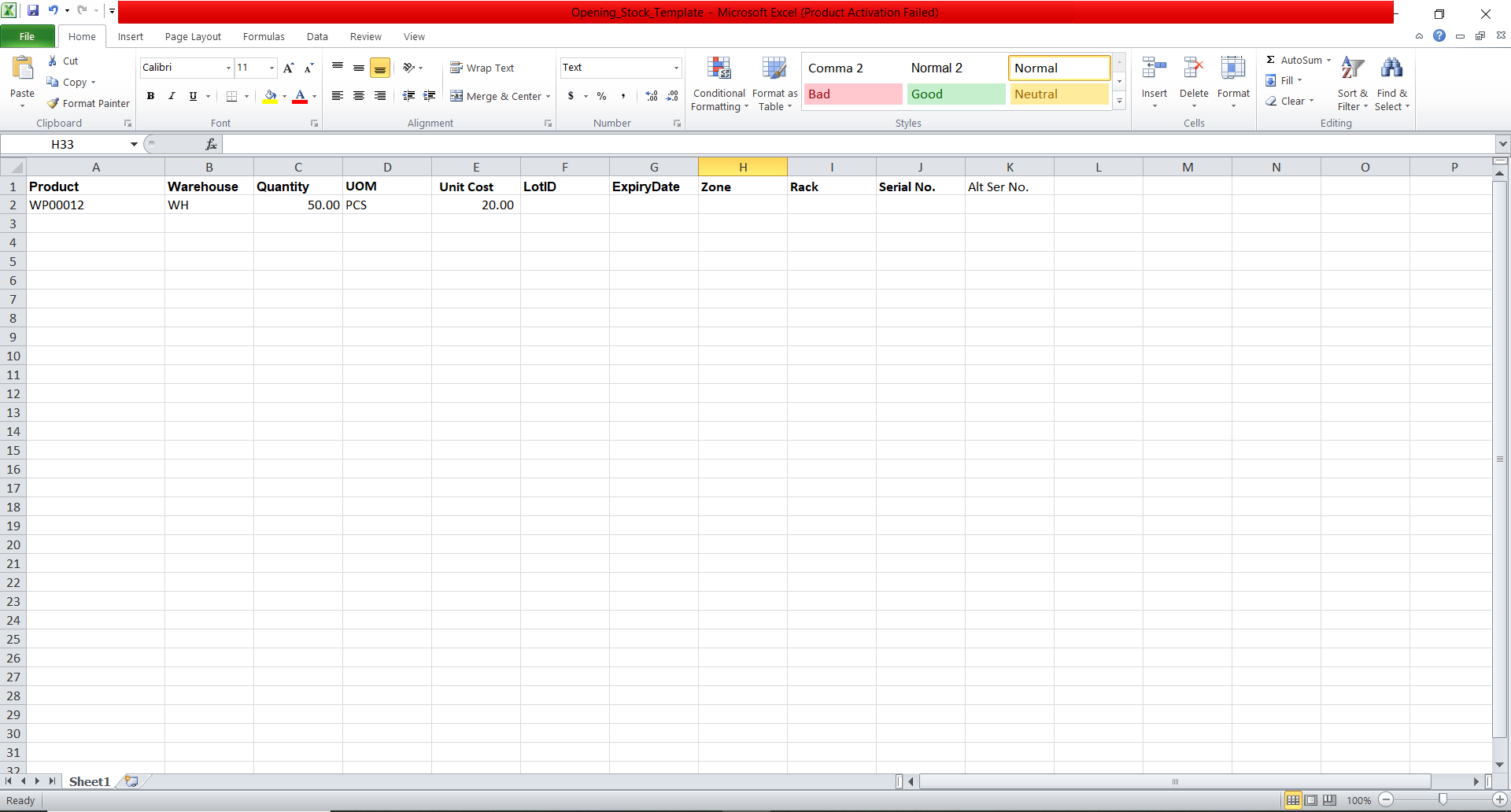
</div><div class="markdown prose w-full break-words dark:prose-invert light" id="bkmrk-download-template-al">**Download Template** allows the user to have an excel format to simply upload and the system will capture the transaction.</div><div class="markdown prose w-full break-words dark:prose-invert light" id="bkmrk-excel-format-sample%3A" style="padding-left: 40px;">Excel format sample:</div>[![image.png](https://doc.uniq365.com/uploads/images/gallery/2025-02/scaled-1680-/dOaimage.png)](https://doc.uniq365.com/uploads/images/gallery/2025-02/dOaimage.png)

<div class="flex-1 overflow-hidden @container/thread translate-y-[1.5rem] -mt-[1.5rem] pb-[1.5rem]" id="bkmrk-import-items%C2%A0enable-"><div class="h-full"><div class="react-scroll-to-bottom--css-fskbf-79elbk h-full"><div class="react-scroll-to-bottom--css-fskbf-1n7m0yu"><div class="flex flex-col text-sm"><article class="w-full text-token-text-primary focus-visible:outline-2 focus-visible:outline-offset-[-4px]" data-scroll-anchor="true" data-testid="conversation-turn-43" dir="auto"><div class="m-auto text-base py-[18px] px-6"><div class="mx-auto flex flex-1 gap-4 text-base md:gap-5 lg:gap-6 md:max-w-3xl"><div class="group/conversation-turn relative flex w-full min-w-0 flex-col agent-turn @xs/thread:px-0 @sm/thread:px-1.5 @md/thread:px-4"><div class="flex-col gap-1 md:gap-3"><div class="pr-2 lg:pr-0">**Import Items** enable the user to import the data from the excel format and reflect it on the system.  
</div><div class="mt-3 w-full empty:hidden"><div class="text-center">  
</div></div></div></div></div></div>[![image.png](https://doc.uniq365.com/uploads/images/gallery/2025-02/scaled-1680-/A5Jimage.png)](https://doc.uniq365.com/uploads/images/gallery/2025-02/A5Jimage.png)

<div class="m-auto text-base py-[18px] px-6"><div class="mx-auto flex flex-1 gap-4 text-base md:gap-5 lg:gap-6 md:max-w-3xl"><div class="group/conversation-turn relative flex w-full min-w-0 flex-col agent-turn @xs/thread:px-0 @sm/thread:px-1.5 @md/thread:px-4"><div class="flex-col gap-1 md:gap-3"><div class="mt-3 w-full empty:hidden"><div class="text-center align-left">4. Click 'Save' to record the transaction.</div></div></div></div></div></div></article></div></div></div></div></div><div class="text-center align-left" id="bkmrk--5">  
</div><div class="text-center align-left" id="bkmrk-user-can-made-use-of">User can made use of the Stock Ledger to check the entries made.</div><div class="text-center align-left" id="bkmrk--6"></div>[![image.png](https://doc.uniq365.com/uploads/images/gallery/2025-02/scaled-1680-/Pvwimage.png)](https://doc.uniq365.com/uploads/images/gallery/2025-02/Pvwimage.png)