# Cash Bank Setup
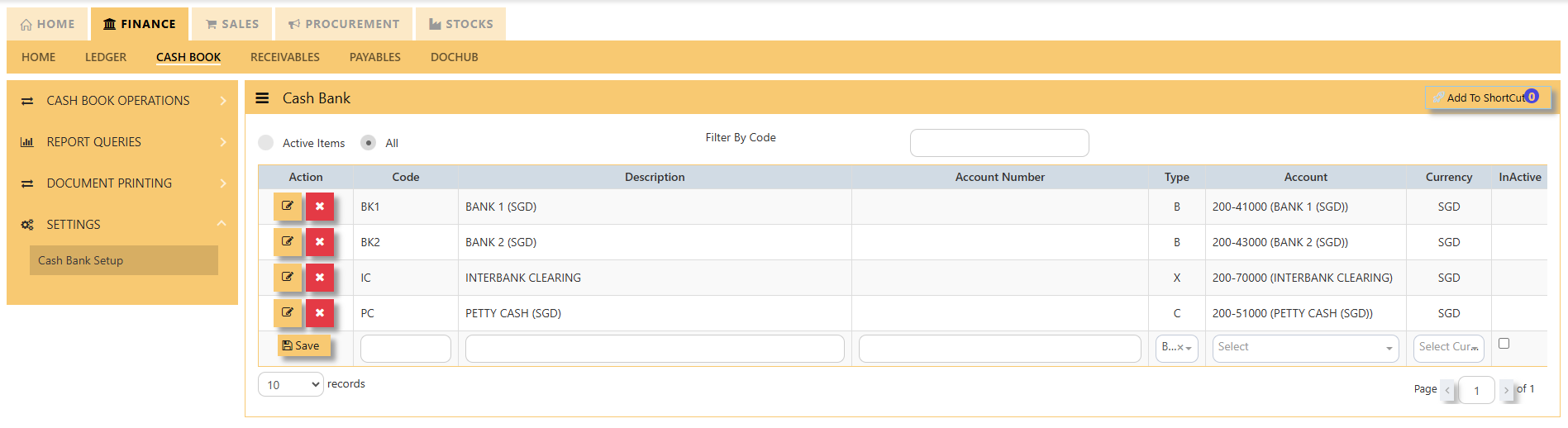
##### The **Cash Bank** stores all the cash and bank information. The Cash Bank code created will be used to represent all the transactions related to that Cash Bank.
[](https://doc.uniq365.com/uploads/images/gallery/2025-02/XjLimage.png)
##### [](https://doc.uniq365.com/uploads/images/gallery/2025-02/Clwimage.png)
##### **How to add a new bank code in Cash Bank Set up?**
[](https://doc.uniq365.com/uploads/images/gallery/2025-02/lRWimage.png)
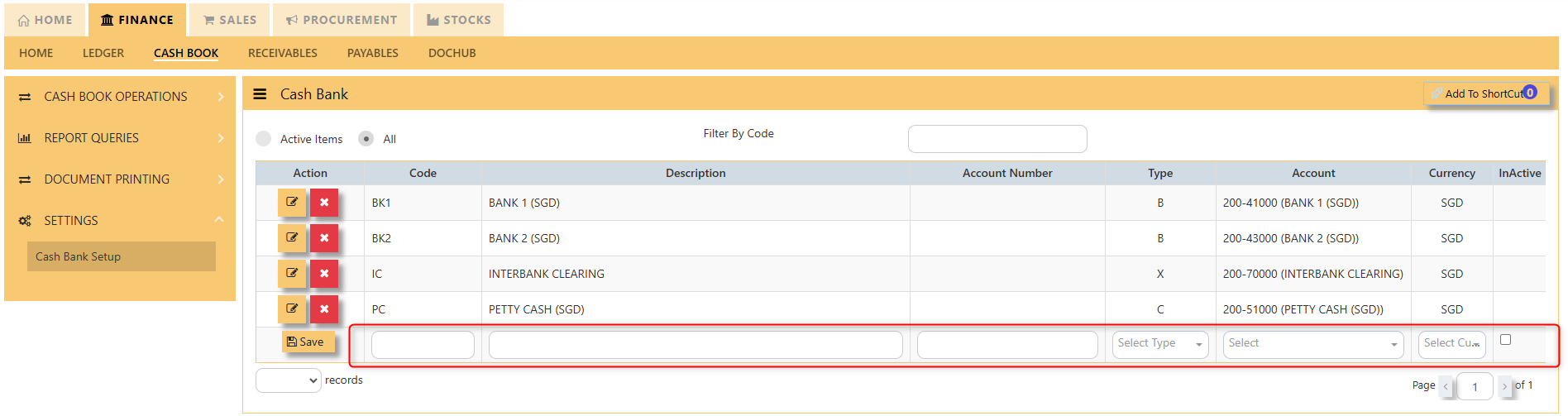
**Step 1:** Fill in the **bank code**, **description**, **account number**, **type**, **account,** and **currency**.
**Code** - Enter the code for the Bank or Cash. The **maximum is 4** alphanumeric characters.
**Description** - Enter the description of the bank or cash. The **maximum is 50 characters**.
**Type** - Select **B** for **bank**, **C** for **cash**, and **X** for **contra**.
**Account -** Click to select accounts that have been created under Ledger – Maintenance – Chart of Account.
**Currency** - Select the local currency of the cash or bank code.
**Step 2:** Once details for the following information is finalized hit, "**SAVE**"
##### **How to edit existing bank code in Cash Bank Set up?**
[](https://doc.uniq365.com/uploads/images/gallery/2025-02/pDrimage.png)
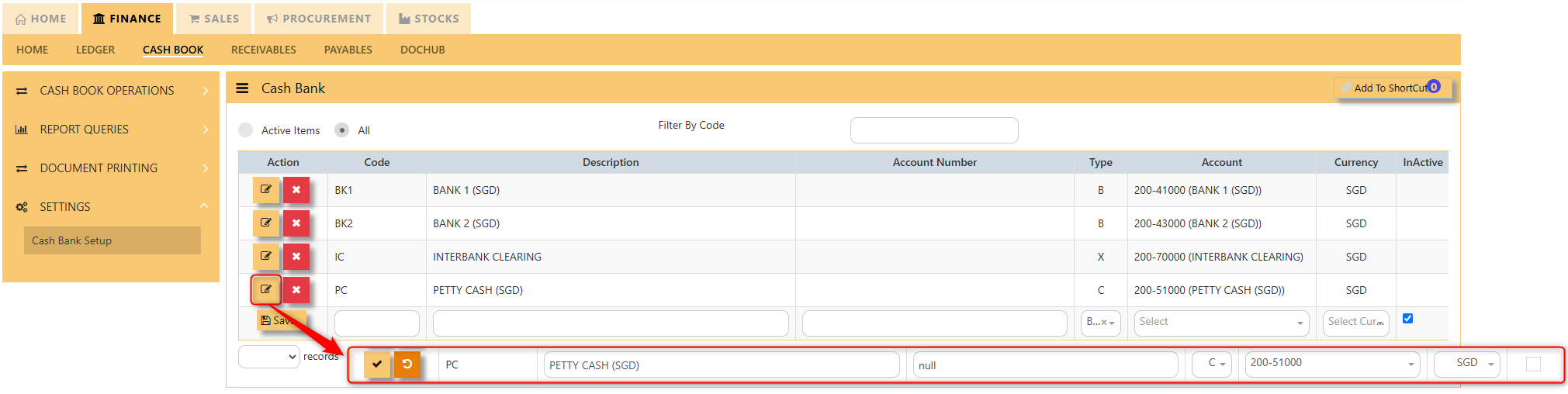
1. Click "**Edit**" row.
2. Edit the information for the bank code as necessary.
3. If you also wish to set the bank code as **Inactive**, just tick the last column.
4. Once changes have been made, click the "**check box**".