# Bank Reconciliation
### **Bank Reconciliation**
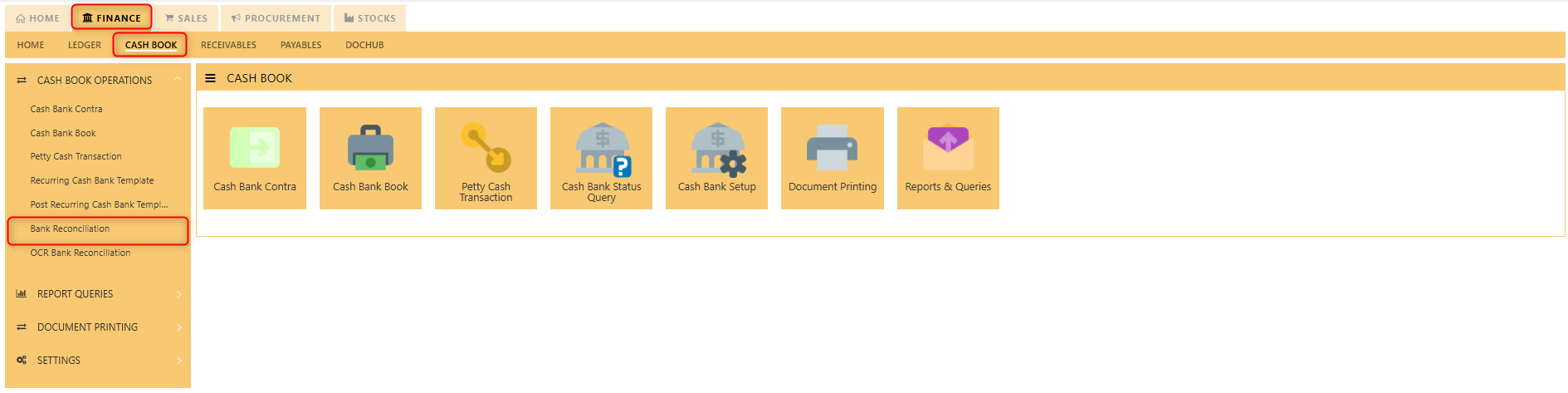
##### The **Bank Reconciliation** in a **Uniq365** streamlines the process of matching a company’s **bank transactions** with its **accounting records**, ensuring accuracy and consistency in financial data. This feature automates the import of bank statements, automatically matches transactions, and identifies discrepancies like missing or unmatched entries. It allows users to adjust records, post corrections, and generate detailed reports on the reconciliation process. With real-time updates, audit trails, and multi-currency support, the feature improves efficiency, reduces errors, and enhances cash flow management, providing businesses with a clear, up-to-date financial overview.
[](https://doc.uniq365.com/uploads/images/gallery/2025-01/mlpimage.png)
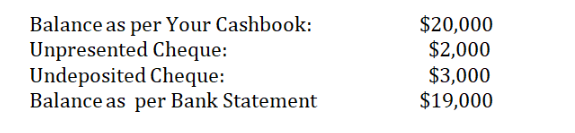
When you start a new company database, one of the figures you enter as an opening balance is the bank balance. This is not the balance as per the bank statement (unless there are no outstanding items) but is the balance per your books. The difference between the two is usually unpresented cheques or deposits i.e. transactions that have been recorded by you but have not hit the bank statement.
Let’s use an example to illustrate the way to treat Unpresented Cheques or deposits when you start using UNIQ365:
[](https://doc.uniq365.com/uploads/images/gallery/2025-01/ssWimage.png)
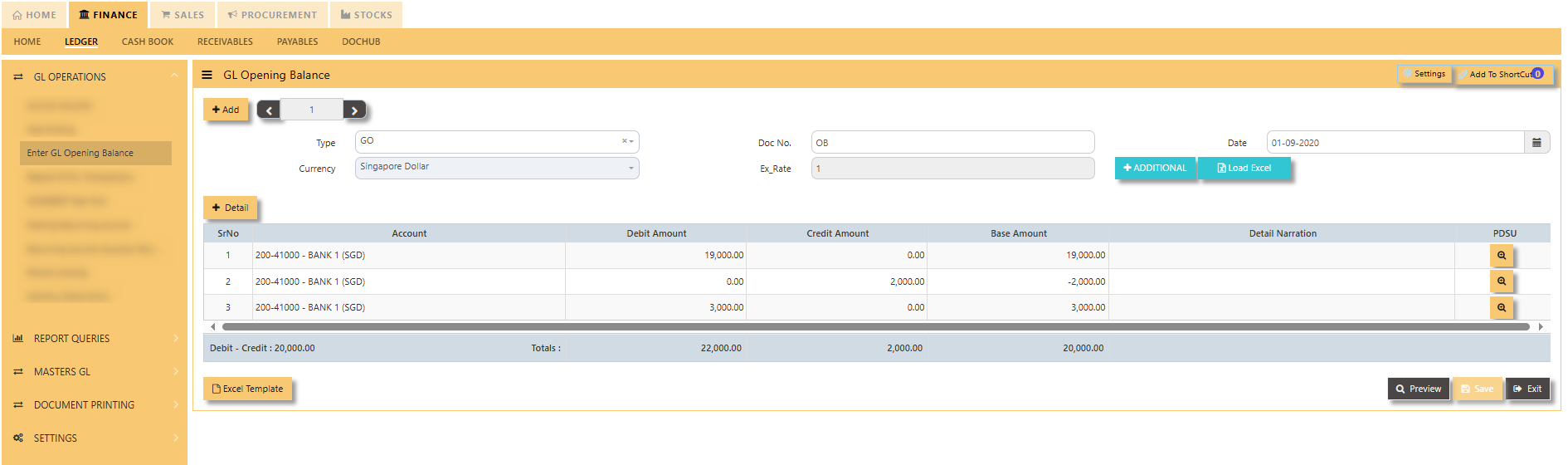
Go to GL Opening Balance option, enter your opening balances (i.e. Assets and Liabilities) as per normal but take note of the transaction for your bank. Instead of entering $20,000, you should enter the Bank opening as shown in the screen below:
[](https://doc.uniq365.com/uploads/images/gallery/2025-01/Keiimage.png)
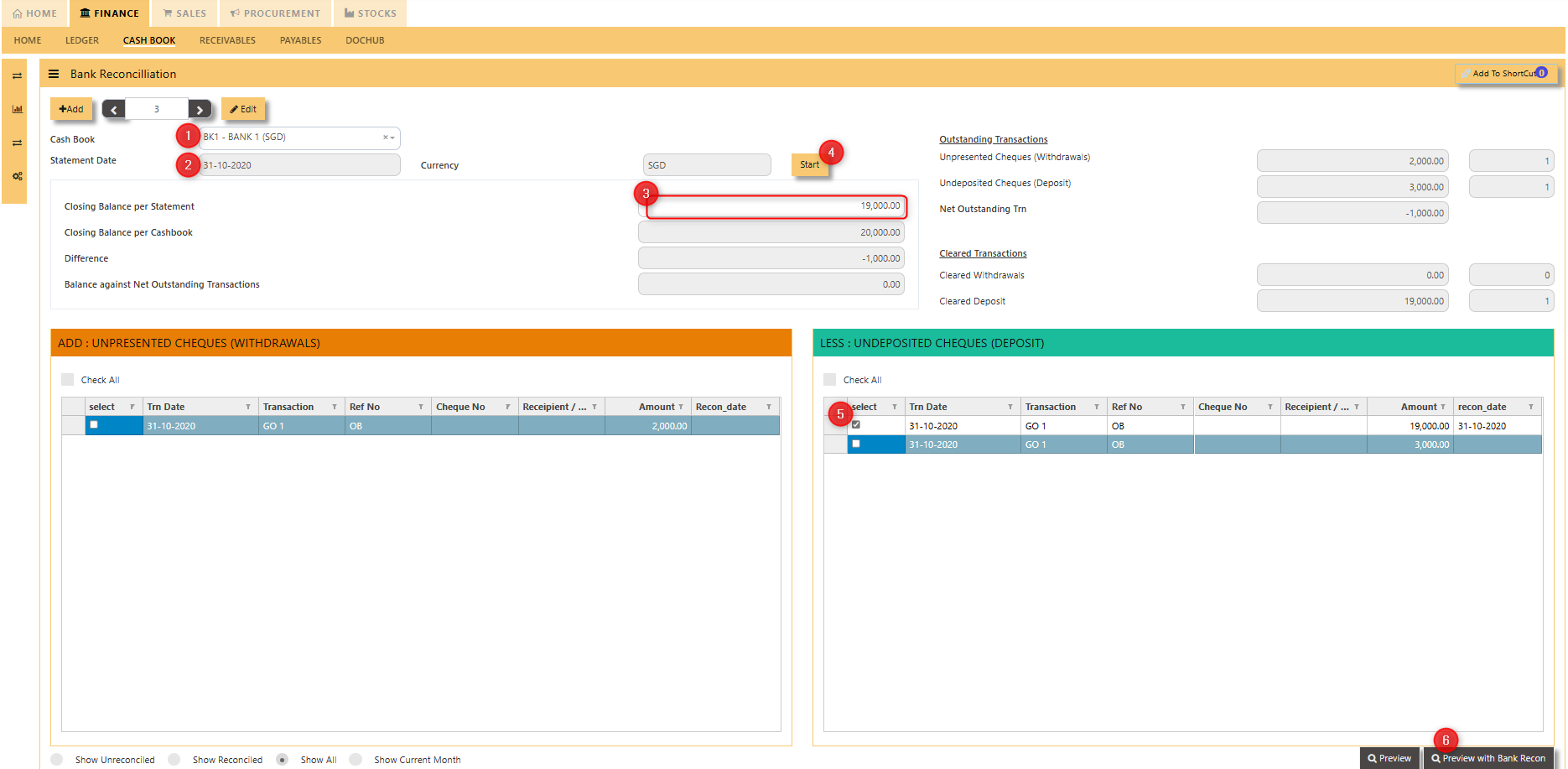
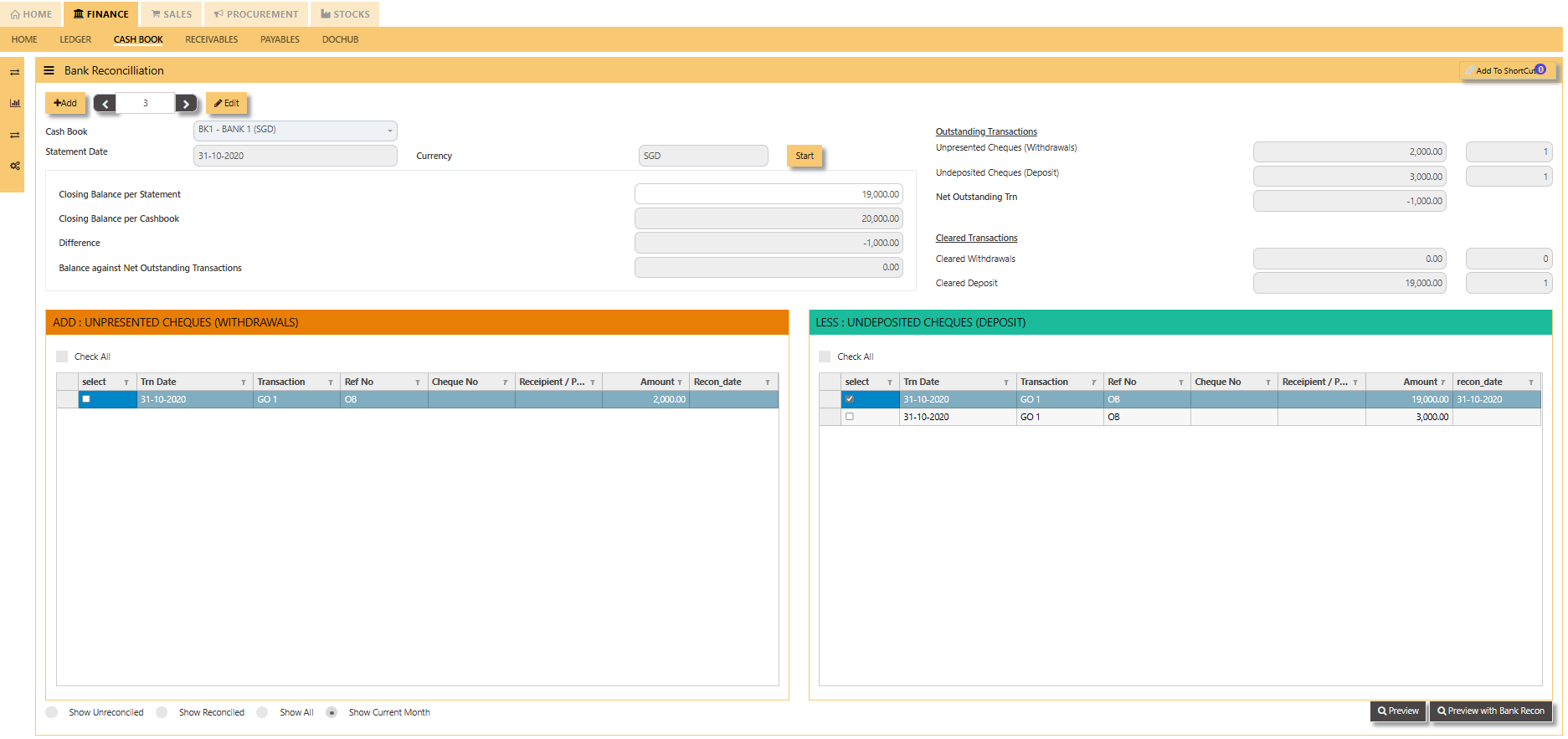
Hence, the eventual balance of your cashbook is still $20,000. Also, you will be able to see the unpresented cheques or deposits in the Bank Reconciliation screen as shown below:
[](https://doc.uniq365.com/uploads/images/gallery/2025-01/MoRimage.png)
1. Select the bank code.
2. Choose the year and period for the reconciliation.
3. Key in the Closing Balance per Statement
4. Click on "Start"
5. Tick the line with amount as per the balance of your bank statement.
6. Then, you will see the Bank Reconciliation report as follow:
[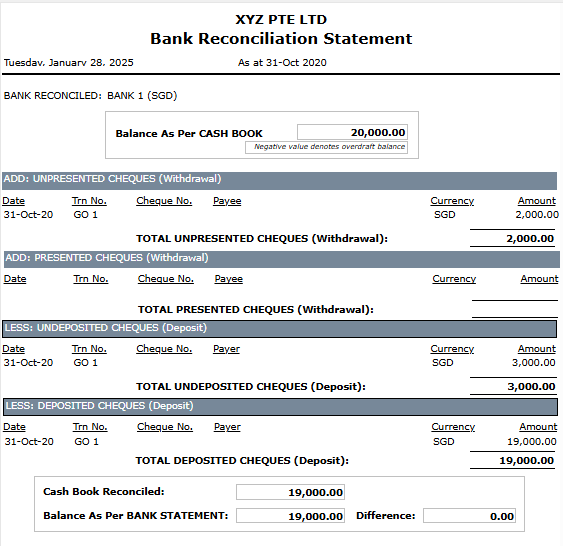](https://doc.uniq365.com/uploads/images/gallery/2025-01/8l4image.png)
#### TRANSACTIONS TO BE RECONCILED CAN BE VIEWED BY THE FOLLOWING FILTER:
- **Show unreconciled** - this filter will show all the unreconciled transactions.
[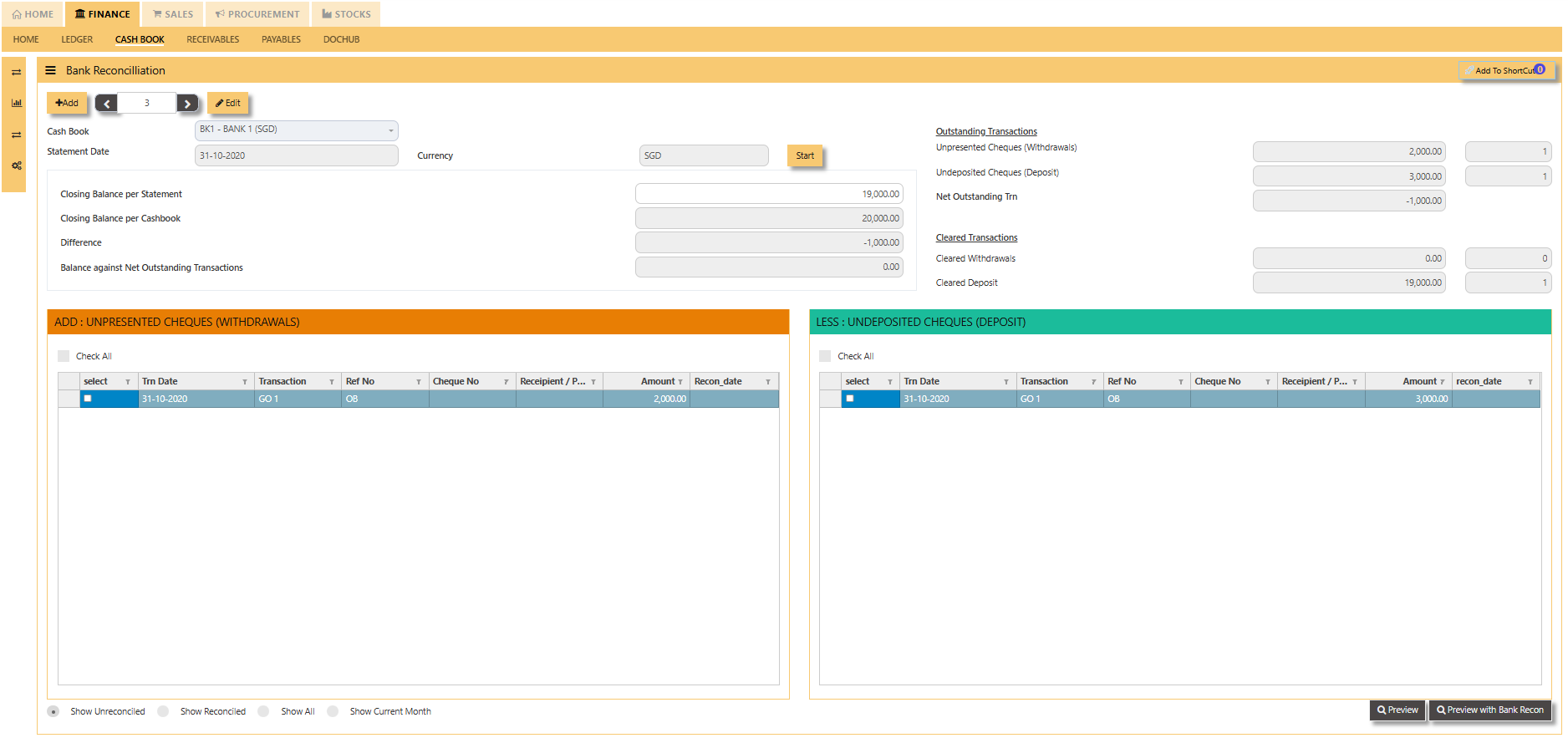](https://doc.uniq365.com/uploads/images/gallery/2025-02/PZEimage.png)
- **Show Reconciled** - this filter will show all the reconciled transactions.
[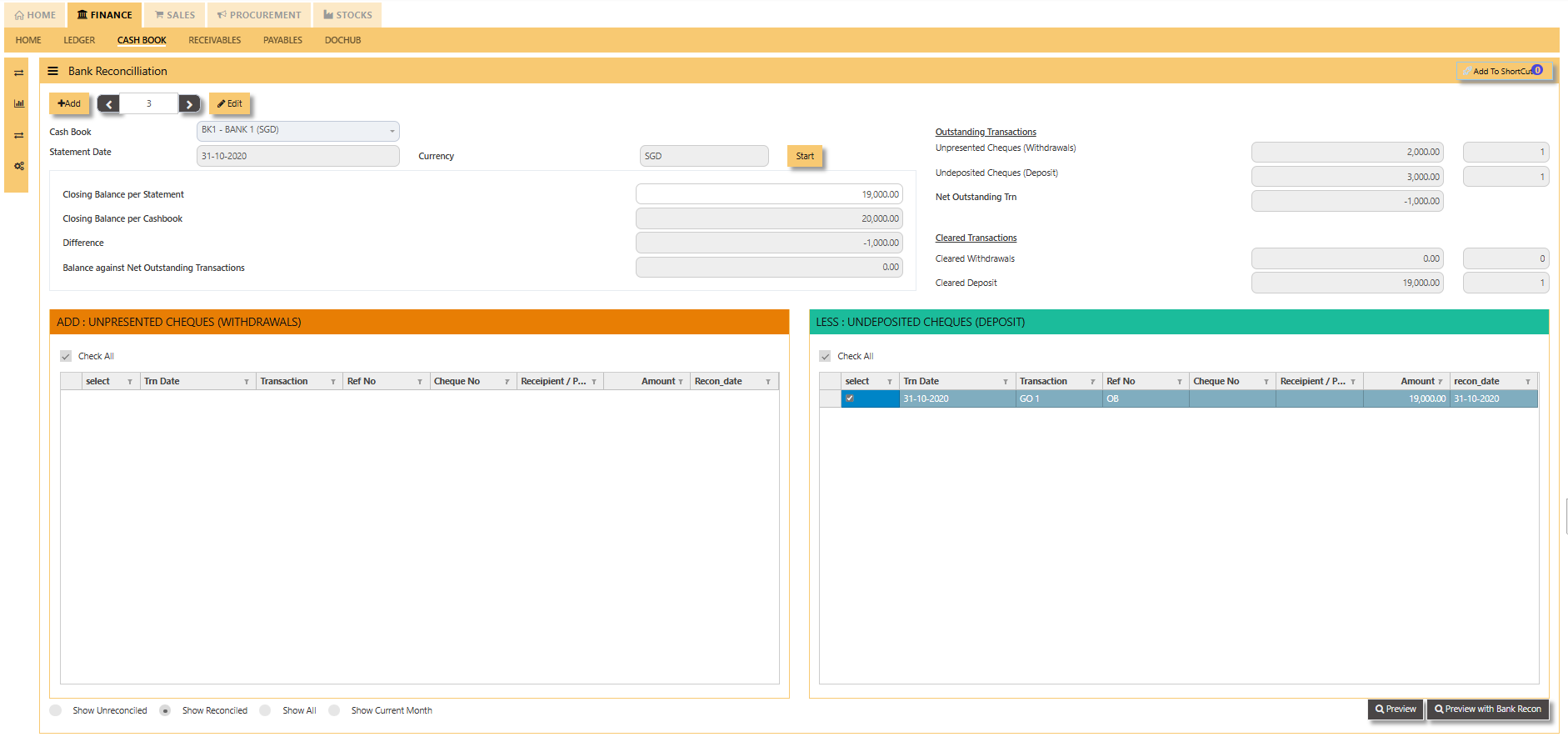](https://doc.uniq365.com/uploads/images/gallery/2025-02/84bimage.png)
- **Show All **- this filter will show all transactions that are to be reconciled.
[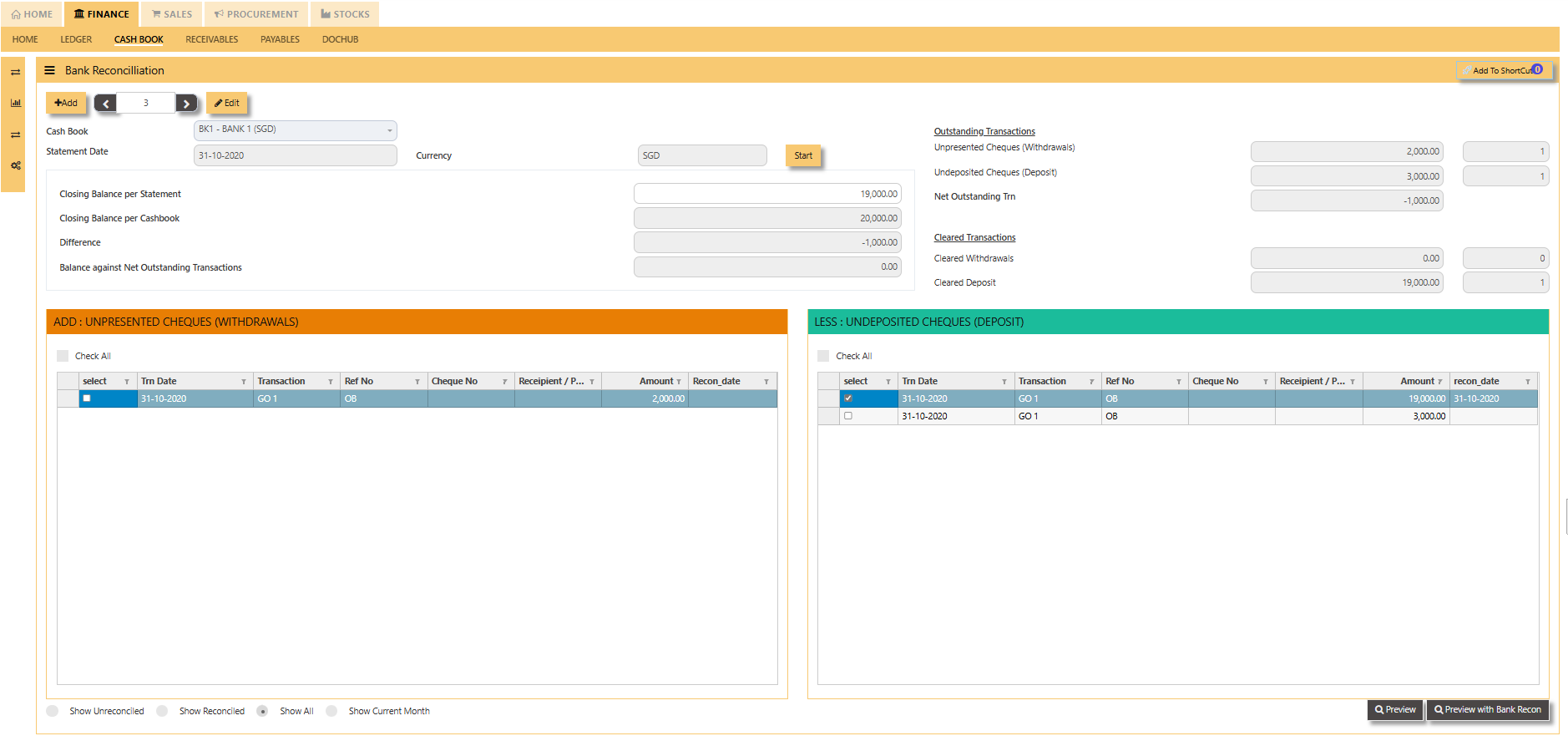](https://doc.uniq365.com/uploads/images/gallery/2025-02/SfPimage.png)
- **Show Current Month** - this filter will show all transactions for the current month.
[](https://doc.uniq365.com/uploads/images/gallery/2025-02/xFrimage.png)