Sales Module
Overview - Sales Module
The SALES Module is the Operation Module of UNIQ365. The Sales Module in UNIQ365 is the place where all the Sales transactions take place. Uniq 365 is able to handle the various Sales methods to cater to all the needs of the organization. In this section, we will explore the different types of entries made and how these entries affect the ledger as well as the inventory accounts.
_______________________________________________________________________________________________________
MENU NAVIGATION
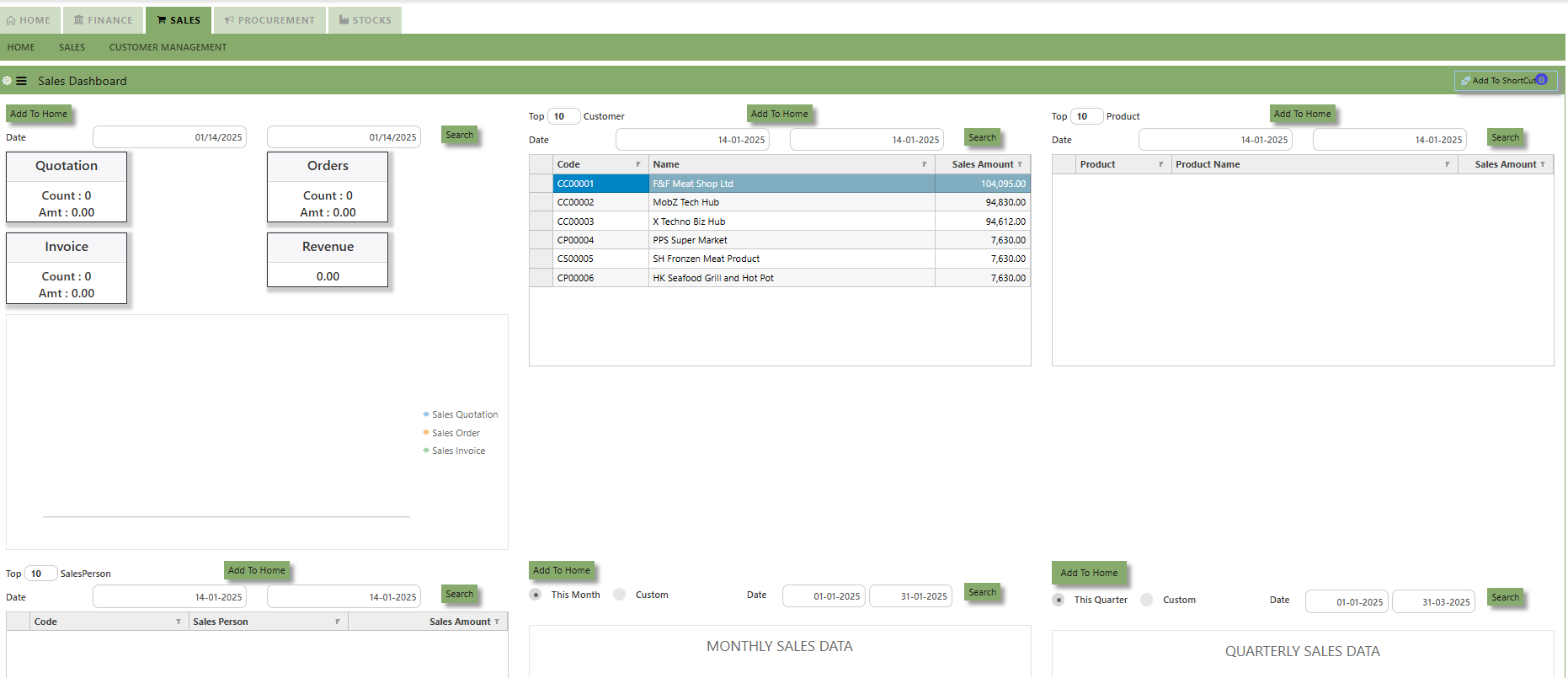
The SALES Module has 3 tabs, as above is showing as Home, Sales, and Customer Management.
- Home is the Sales Dashboard visual representation of key sales metrics and performance indicators. It provides real-time insights.
- Sales are where transactions are entered, like Customer Quotation, Customer Sales Order, Delivery Order, Customer
Invoice, Goods Return Credit Note & Debit Note etc. - Customer Management is where all the masters and main settings for Sales module are create.
Customer Management
The Customer Management comprises the following options that are crucial to setting up and using the SALES Module:
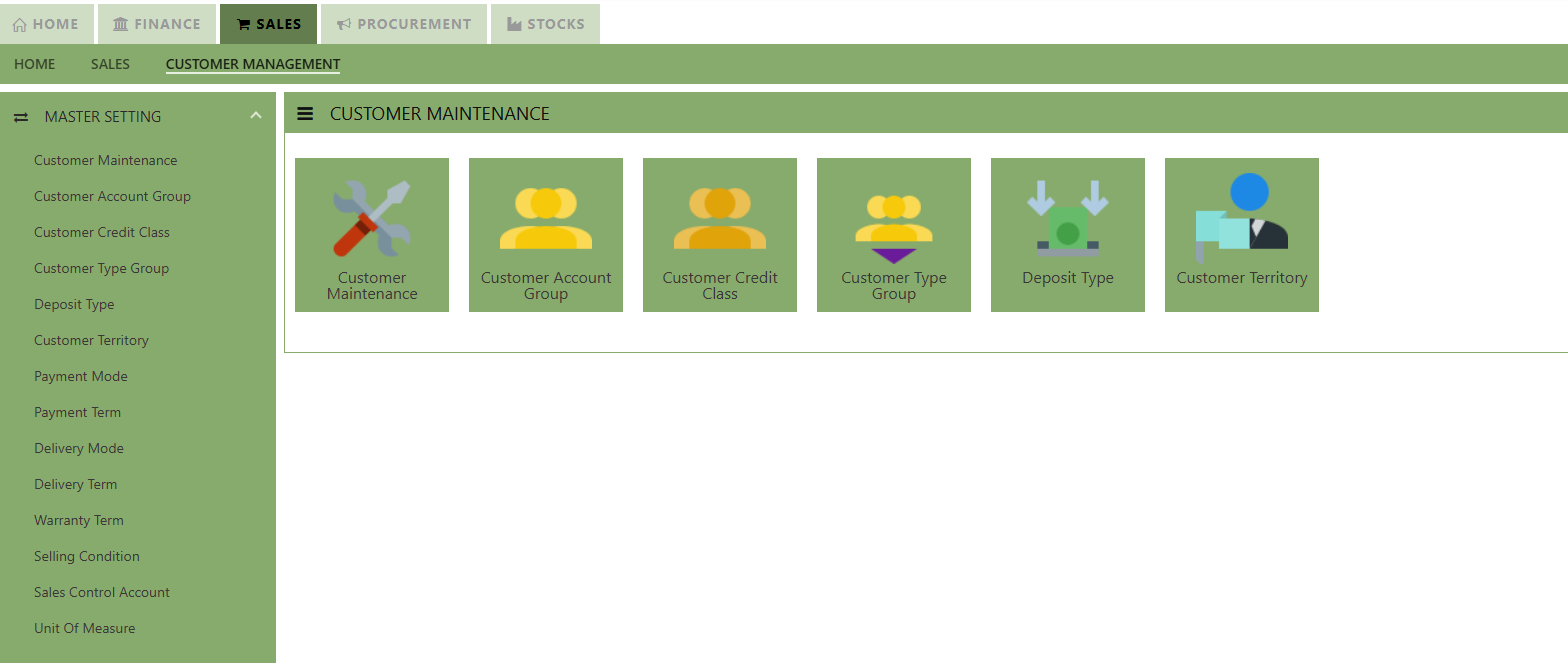
- Customer Maintenance
- Customer Account Group
- Customer/Product Account Group
- Customer Credit Class
- Customer Type Group
- Deposit Type
- Customer Territory
- Payment Mode
- Payment term
- Delivery Mode
- Delivery Term
- Warranty Term (please check)
- Selling Condition (Please check)
- Sales Control Account
- Unit of Measure (please check)
Customer Maintenance
The Customer Maintenance is the screen which stores all the Customer information. The customer code created in the Customer Maintenance is used to present all the transactions related to that individual Customer.
How to Create New Customer?
- Click on Sales – Customer Management – Master Setting – Customer Maintenance icon for the following screen.

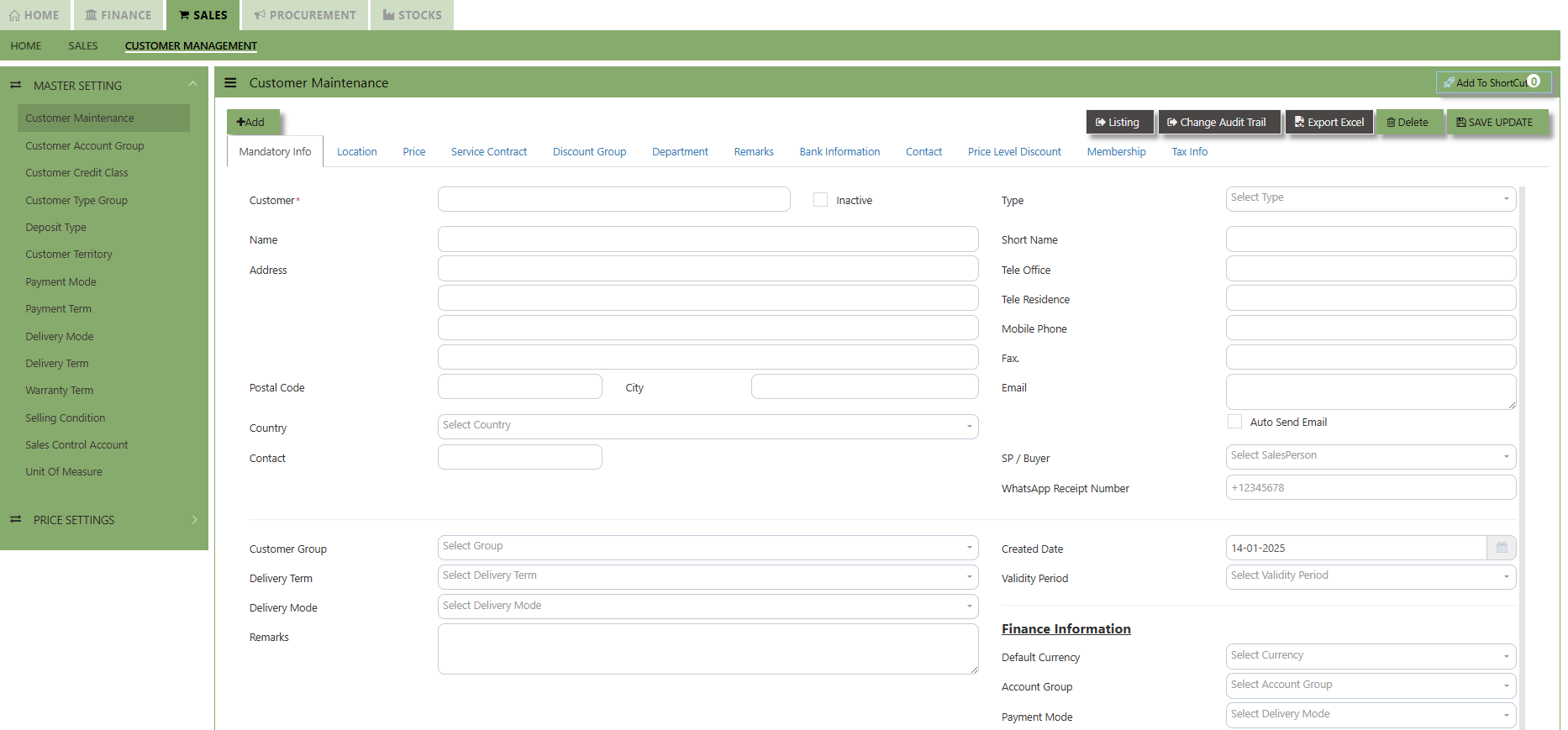
This is the place where you add new Customer or edit existing Customer. Some of the fields are mandatory, such
as the following :
- Customer - Enter the code for the new Customer. The maximum is 10 alphanumeric characters.
- Name - Enter the name of Customer. The maximum is 50 characters
- Key in the necessary Information, such as Address, Telephone, Fax, E-mail & etc.
- Type - Select C for Customer or B for both Customer & Supplier
- SP - Click to select the Salesperson defined under System Manager – System Utilities - Employee
- Credit Class - Click to select the credit class defined under Sales – Maintenance – Credit Class. This setting is for the reports under Receivable \ Aging Analysis by credit class (Transaction date / due Date)
- User - Click to select the user defined under System Manager – System Utilities - User Maintenance
This setting is to prevent a user from accessing customers and their information which belong to other users. - Territory - Click to select the credit class defined under Sales – Customer Management – Customer Territory
This setting is for the reports under Sales Module \ Sales Analysis Report \ Customer Territory Sales Analysis. - Price Type - You may decide on a pricing method for each and every Customer
A. Price Table (Sales/Last) - Every time a transaction is created for this Customer, the system will call out the selling price from the Customer Maintenance Price Table.
User may look and maintain the price under "Price" tab. Click on SALES - CUSTOMER MANAGEMENT - MASTER SETTING - CUSTOMER MAINTENANCE - PRICE TAB for the screen below.
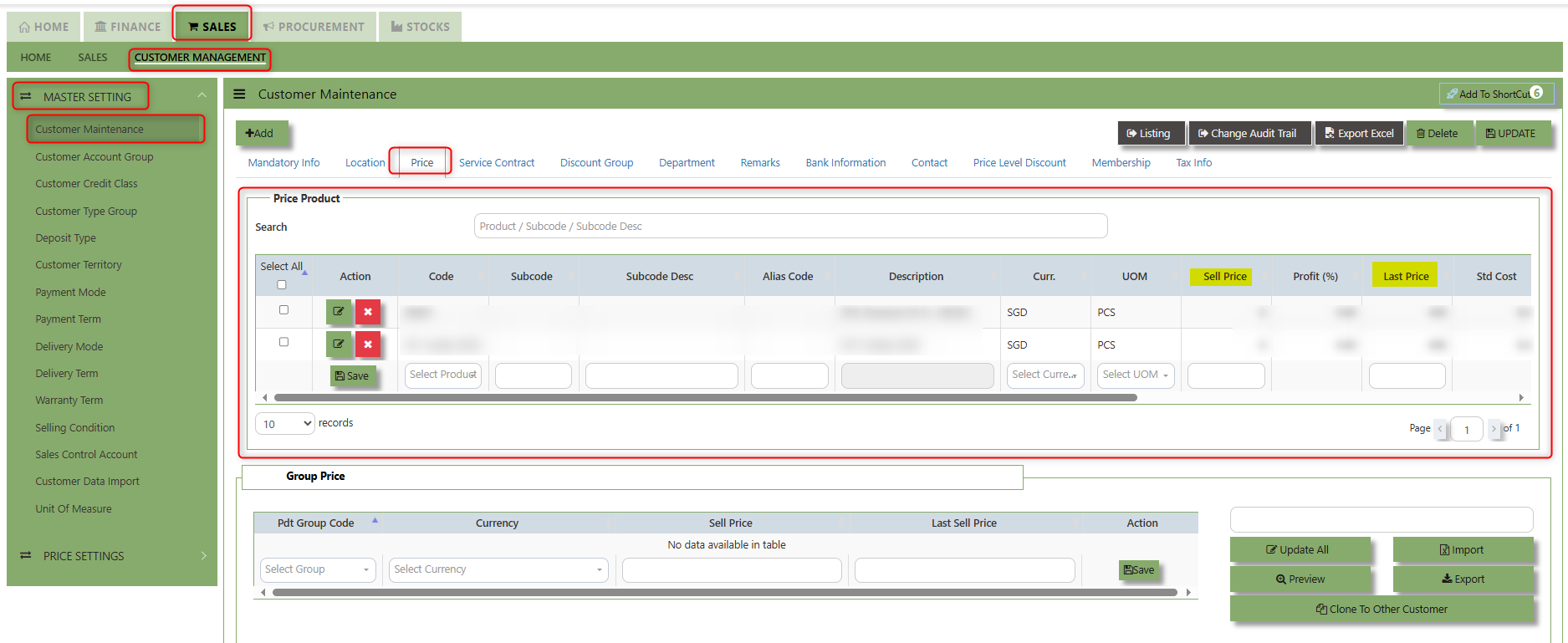
B. Group Table (Last) - Every time an invoice is created for this Customer, the system will call out the selling price
from the Customer Maintenance Group Table (that is defined under Sales – Customer Management – Master Setting –Customer Type Group). This group assumes that all items in the group carry the same selling price.
User may look and maintain the price under "Price" tab. Click on SALES - CUSTOMER MANAGEMENT - MASTER SETTING - CUSTOMER MAINTENANCE - PRICE TAB for the screen below.
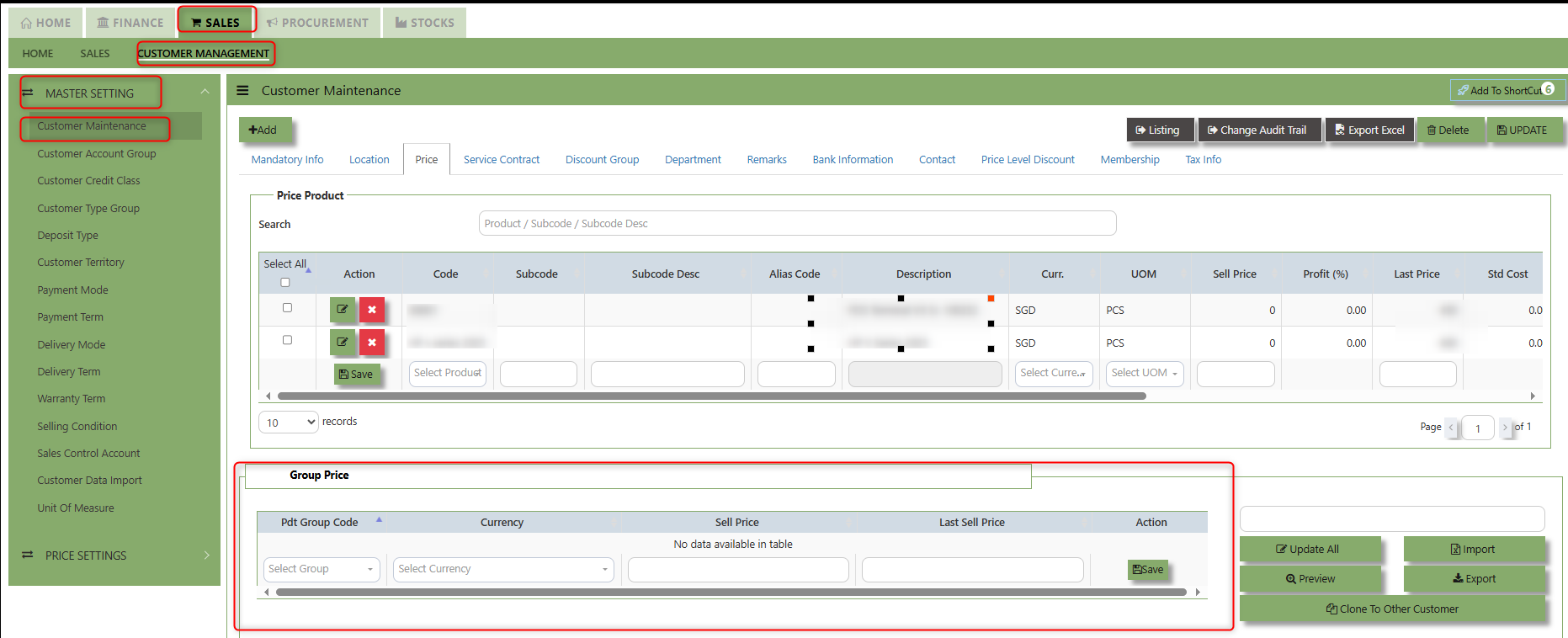
C. Multi-tier Trade Discount
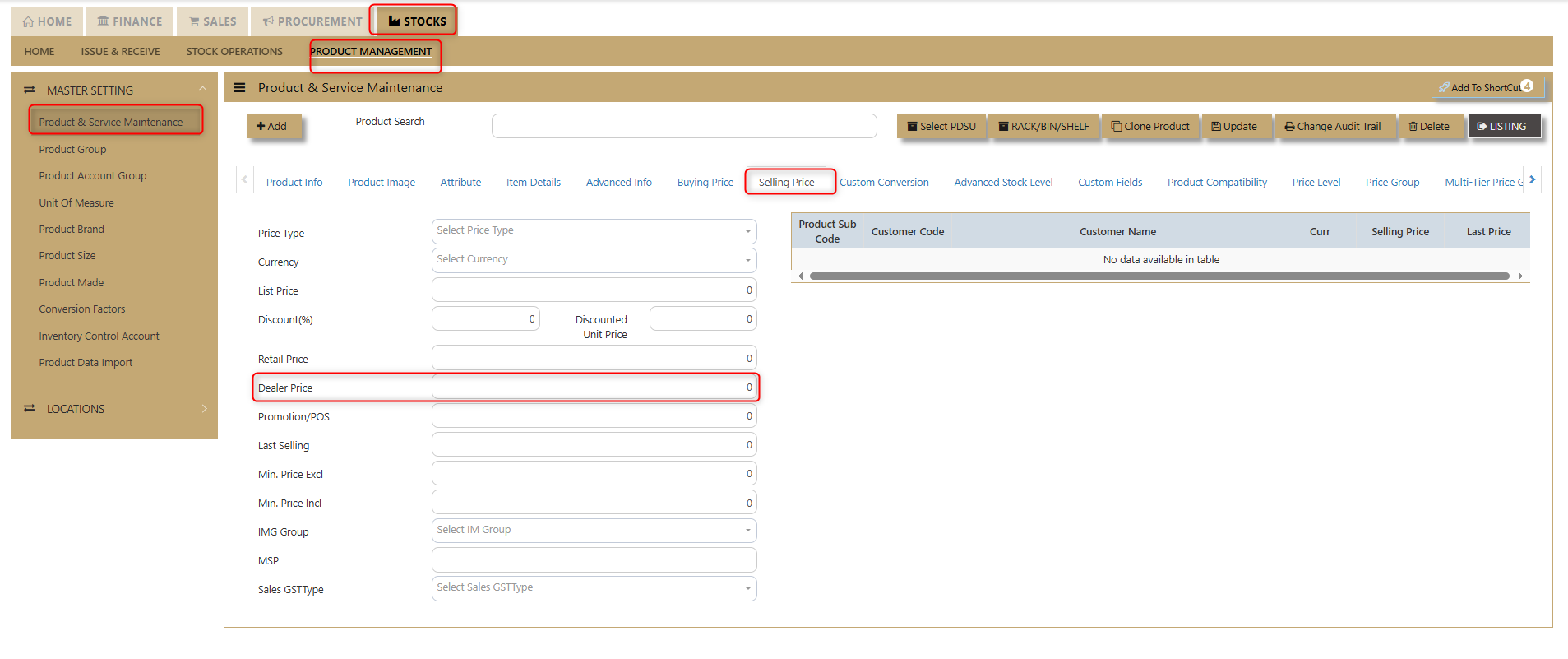
D. Dealer -
E. Last Price
F. Price Book
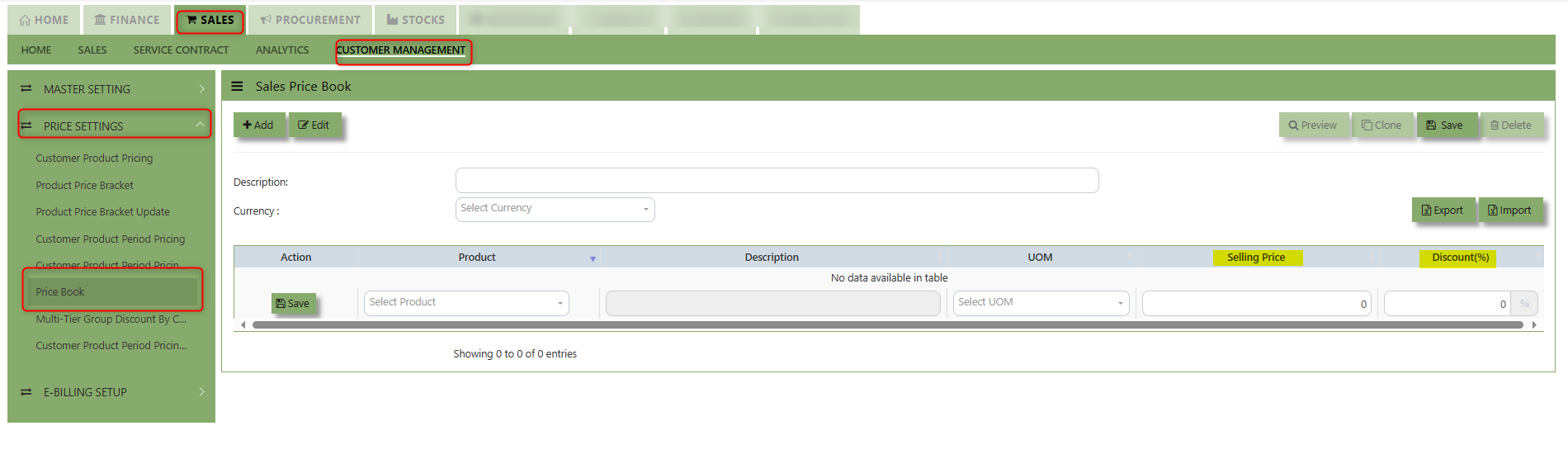
G. Group table Sales
H. Price Level
I. BTB Indent Mark up price
j. Price Group
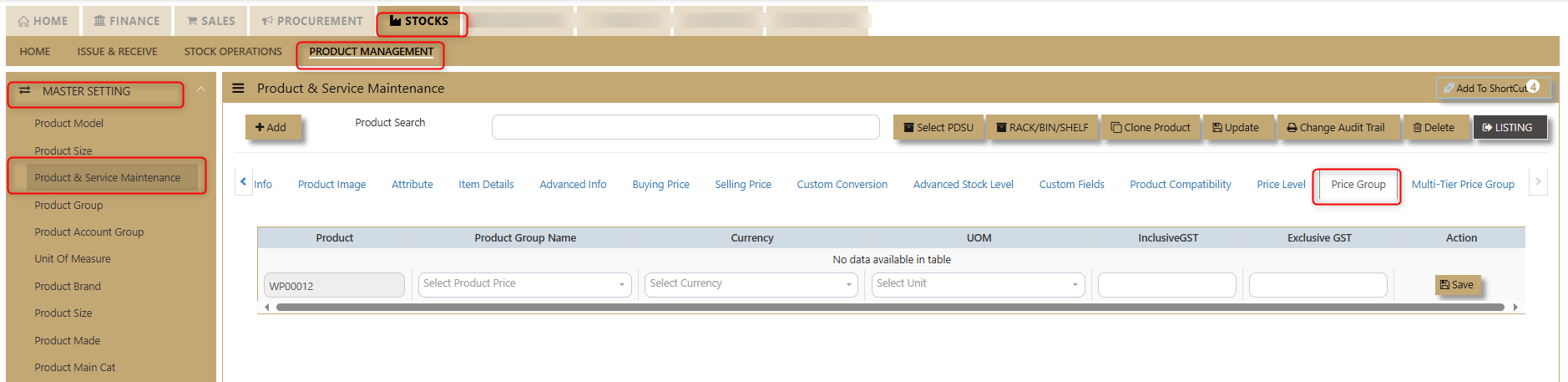
K. Multi-tier Price Group Bracket
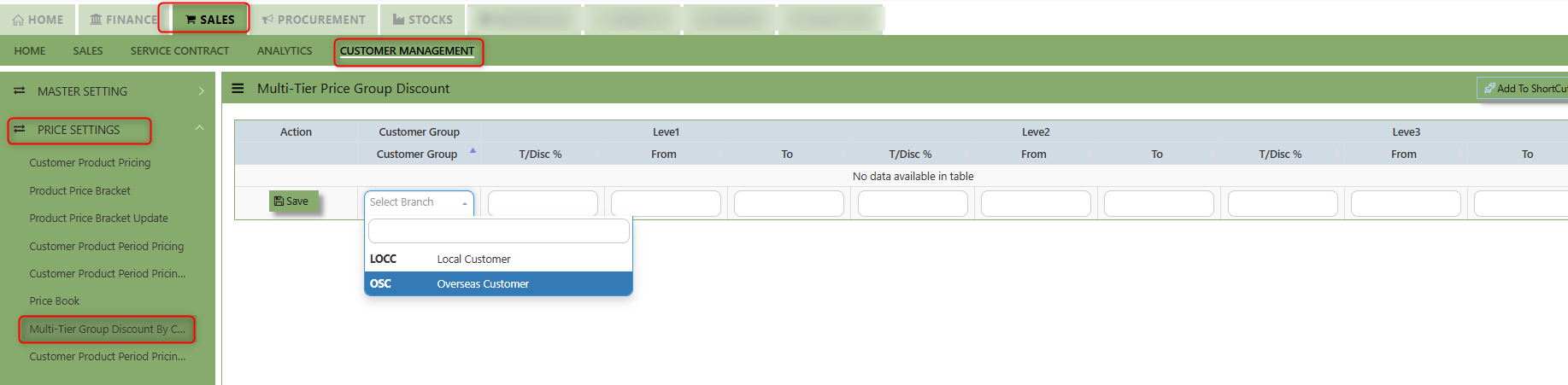
l. List price
M. Bracket Price - a pricing structure where the price of goods or services is determined based on predefined "brackets" or ranges.
N. Period Price
O. Product Setting - Every time an invoice is created for this Customer, the system will display the selling price from the Product & Service Maintenance (Depends on the Price Type selected)
User may look and maintain the price depends on the "Price Type" selected under " Selling Price" Tab of Product & Service Maintenance. Below are the types selection:
-
-
- L List Price - is the official price recommended by the manufacturer or supplier for a product. It serves as a baseline price
- R Retail Price - Retail price refers to the final price at which a product or service is sold to customers
- D Dealer Price - Also known as wholesale price, is the price at which a product is sold by a manufacturer or distributor
- P Promotion Price - A promotional price is a temporary discounted price offered
- A Last Selling Price - refers to the most recent price at which a product or Service was sold
- M Minimum Price -
-
List Price/Sales Promotion/Dealer/Retail - Every time a transaction is created for this Customer, the system will
display the selling price from the Product & Service Maintenance.
- Deliver Term - Click to select the Delivery Term defined under Sales – Customer Management – Delivery Term
Example: FOB - Free On Board
CIF - Carriage, Insurance & Freight - Delivery Mode - Click to select the Delivery Mode defined under Sales – Customer Management – Delivery Mode
Example: Truck, Flight, Self Collection - Payment Term - Click to select the Payment Mode defined under Sales – Customer Management – Payment Terms
Example: 30 Days, 60Days, COD (Cash on delivery) - Group - Click to select the Group defined under Sales – Customer Management – Customer Type Group
The group here is for the reports under Sales\Sales Analysis Reports\Customer Group wise Sales Analysis - Account Group - If the auto account posting is by Customer, then click to select the relevant Account Group defined under Sales – Customer Management – Customer Account Group
- Default Currency - Select the currency that this Customer normally transacts in.
Location - Create different delivery locations for this Customer
Price - Records the history of selling prices for this Customer if the price type (price table) is selected
Location - Create different delivery locations for this Customer.
Price - Records the history of selling price for this Customer if Price Table is selected for the Price Type.
The Price and Location Tab serves as a key area for managing the pricing information and logistical details related to customers.
How to set Location?
- Click on SALES - CUSTOMER MANAGEMENT - MASTER SETTING - CUSTOMER MAINTENANCE - LOCATION TAB for the screen below.
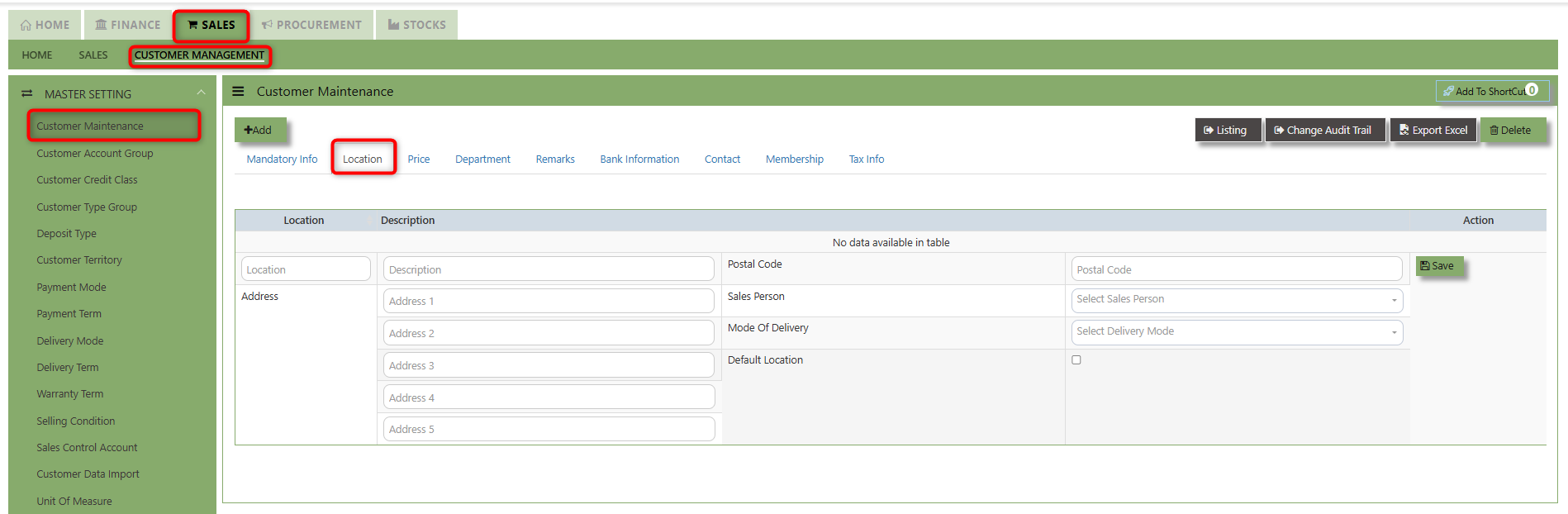
1. Input the necessary details such as Address, Postal Code, Sales Person and Mode of Delivery. When the "Default Location" checkbox is ticked for a supplier, the system automatically associates that location with the customer's transactions.
2. Key in the details of the below fields for Locations then click SAVE button of each line.
How to set Price?
Click on SALES - CUSTOMER MANAGEMENT - MASTER SETTING - CUSTOMER MAINTENANCE - PRICE TAB for the screen below.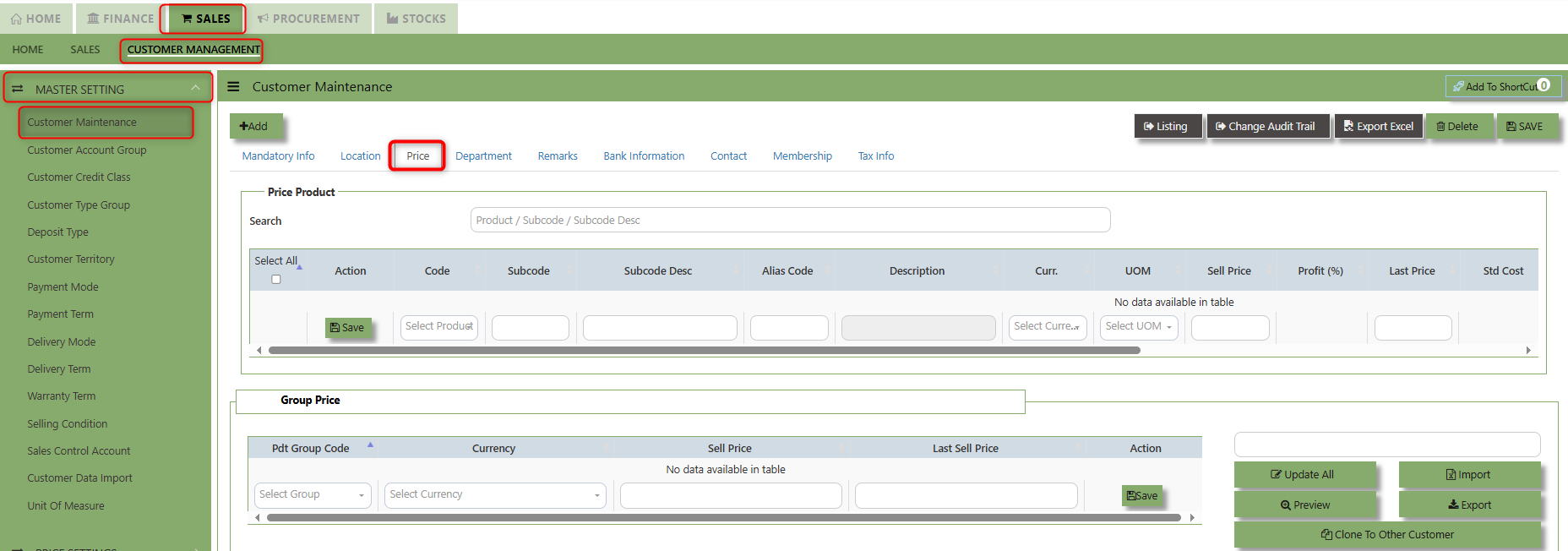
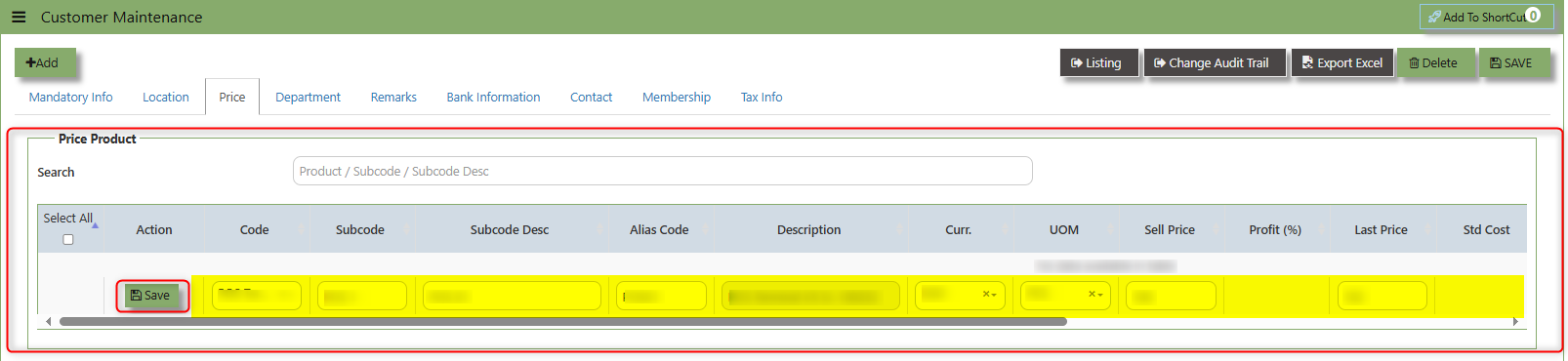
- For Price Product input the necessary details such as Code, Subcode, Alias code, Description, Currency, UOM, Sell Price, Profit (%), Last Price, Standard Cost, Sell Discount, Date of Update, Date of Update, Dealer Price, Retail Price, List price and Promotional Price .
- Key in the details of the below fields for Pricing then click SAVE button of each line.
How to set Department?
- Click on SALES - CUSTOMER MANAGEMENT - MASTER SETTING - CUSTOMER MAINTENANCE - DEPARTMENT TAB for the screen below.
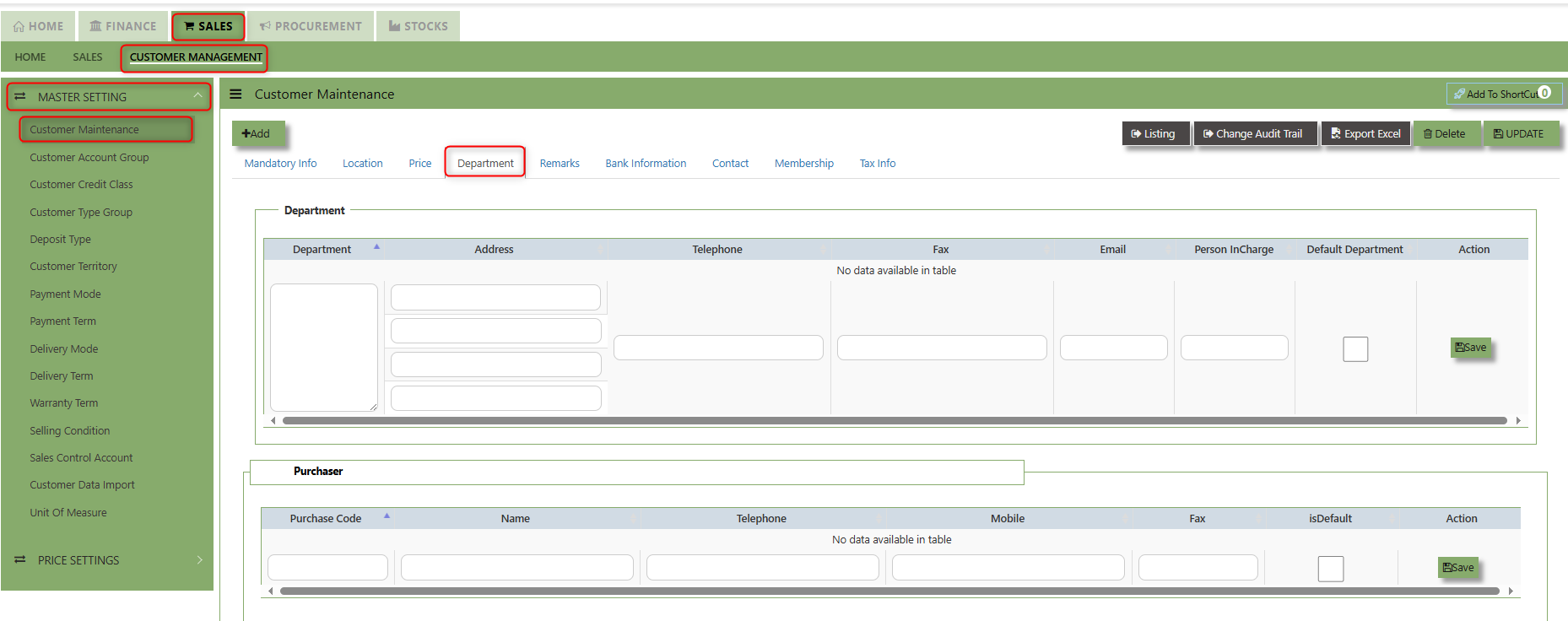
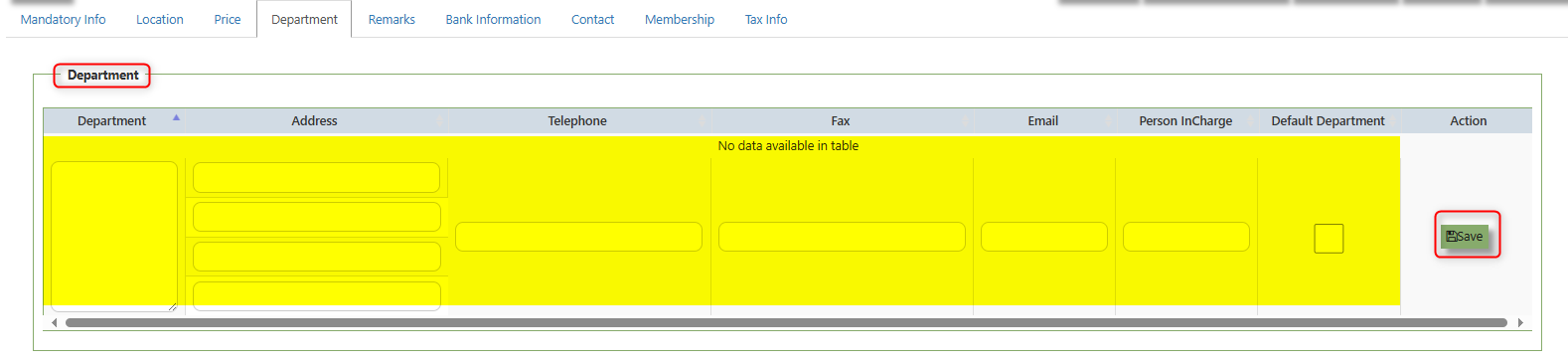
- Enter the details for the below fields for Department:
- Department
- Address
- Telephone
- Fax
- Person InCharge
- Default Department - Serves to automatically assign a specific department within the organization to a customer during sales activities once enabled.
- After keyed in the above necessary details, click SAVE to maintain the line detail.
- Click SAVE in upper right corner of the screen.
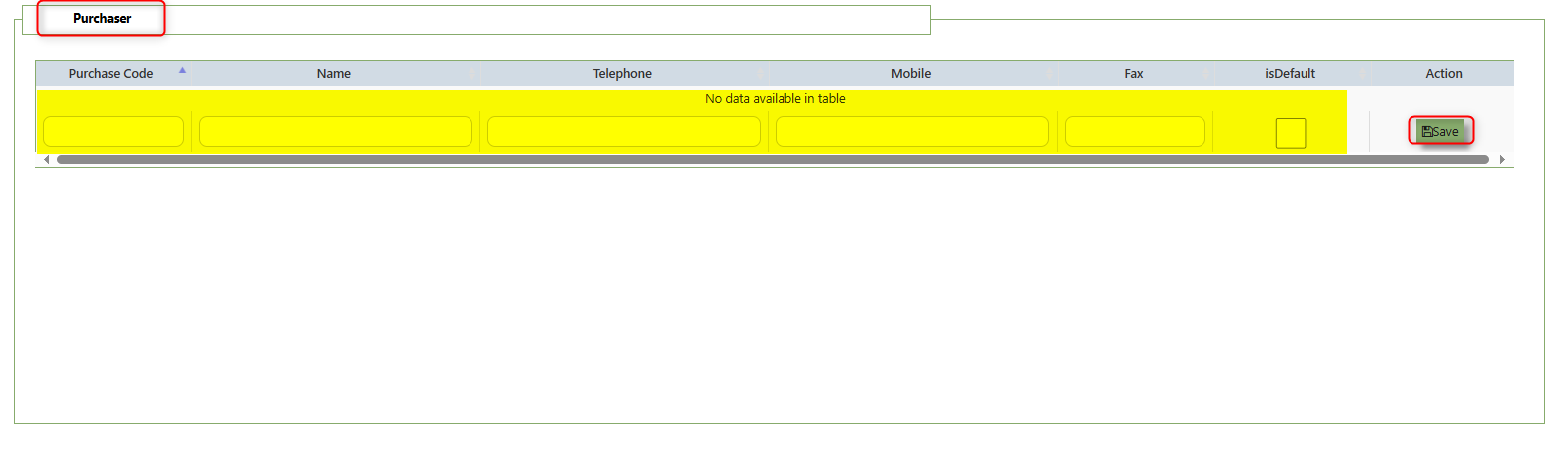
- Enter the details for the below fields for Purchaser:
- Purchase code
- Name
- Telephone
- mobile
- Fax
- Default Department - Serves to automatically assign a specific department within the organization to a supplier during procurement activities once enabled.
- After keyed in the above necessary details, click SAVE to maintain the line detail.
- Click SAVE in upper right corner of the screen.
Important: Our system does not allow duplicate customer codes in Customer Maintenance, so before creating the coding for Customer Maintenance, please double check and make sure that there are no duplicates. As guidance for creating Customer codes, one example is “CA0001” for A2000 Pte Ltd.; “C” stands for Customer and “A” is the starting alphabet for the Customer name.
Customer Groups
This option lets you indicate the Customer Group if you intend to use reports that sort or filter by Customer Group (Optional).
How to Setup Customer Type Group?
- Click on Sales – Customer Management – Customer Type Group icon for the following screen
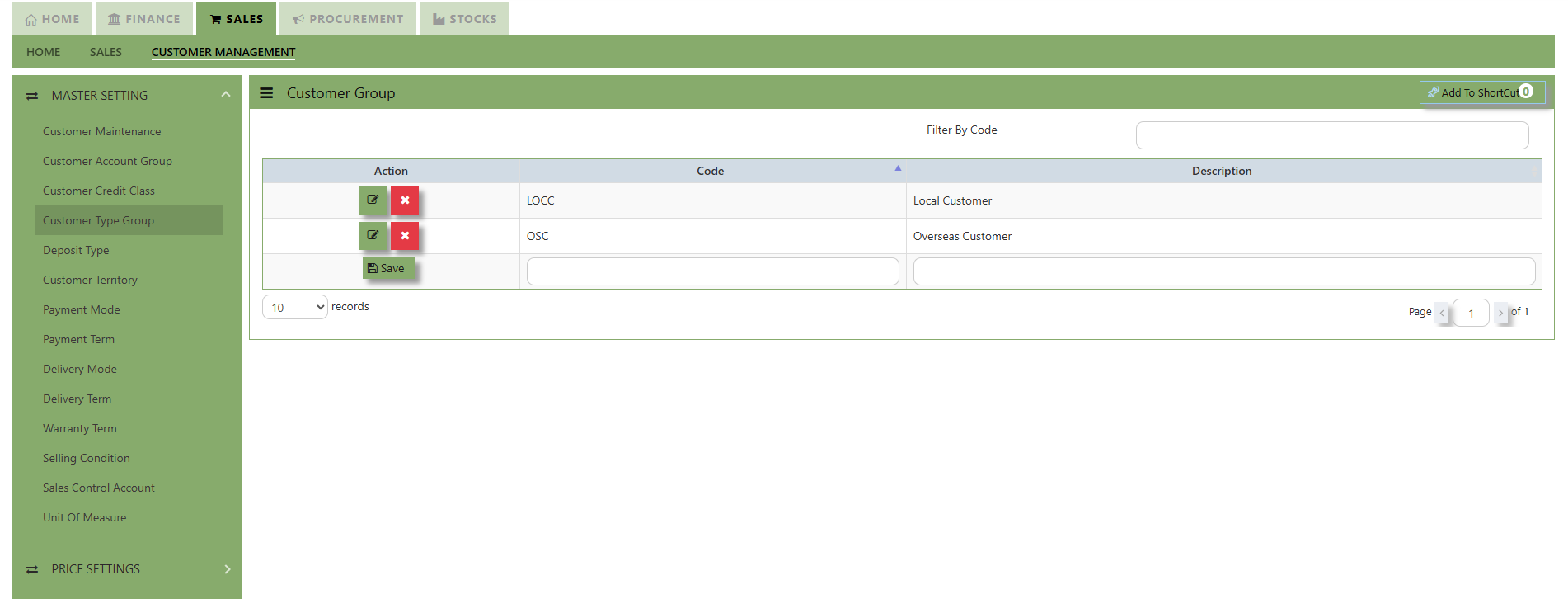
- Enter Customer Groups as shown in above example.
Note: If you did not use this grouping method for reporting, please ignore the options.
Customer Account Groups
The Customer Account Group is used for auto posting function when the user creates Sales Transaction. Unlike other systems that are hard-coded, A2000 WEB ERP allows the accounts posting to be organized according to the users’ requirements through their own Customer Account Groups.
You can create different groups and set the account posting to be by
“Customer Group” if you need:
Exp: Trade Debtor A/C by Customer
Sales A/C by Customer
Discount A/C by Customer
Cost of Sales A/C by Customer
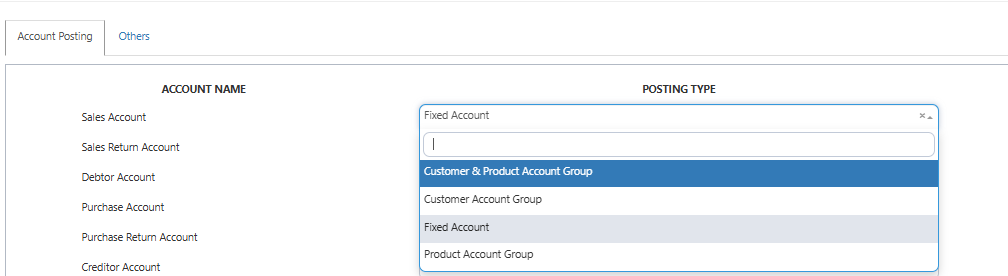
How to Setup Customer A/C Group?
- Click on Sales – Customer Management – Customer Account Group icon for the following screen.
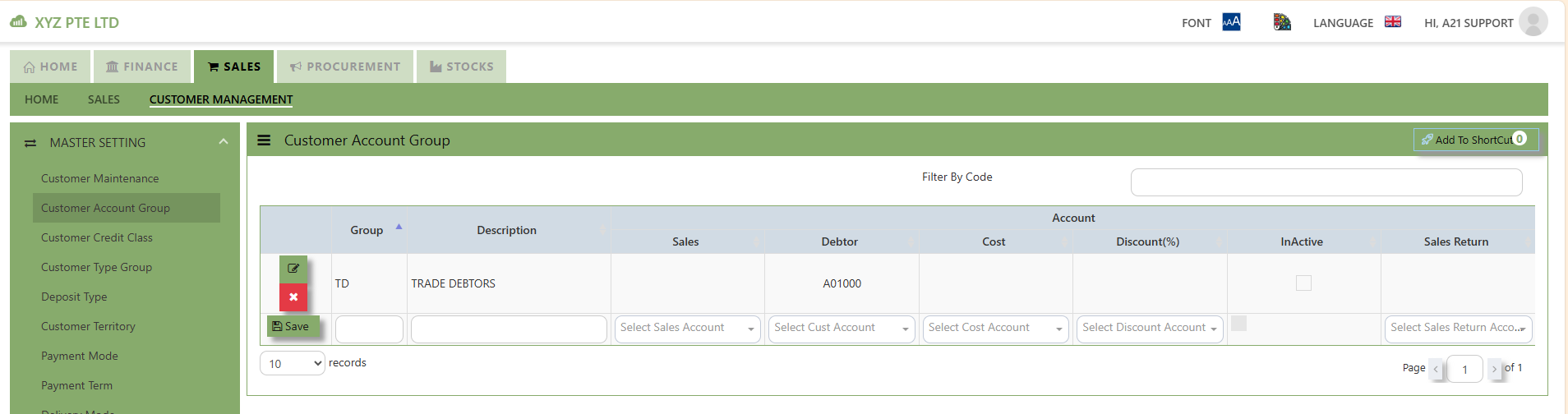
- Enter the Code & Description Name for Customer Account Group. After setting the codes and names, the user can map the GL Chart of Account code for “Trade Debtor A/C”, “Sales A/C”, “Discount A/C” & “Cost A/C”.
Note: If you did not use for this posting method, please ignore the options.
Payment Terms
This is where you indicate the Customer Payment Terms for Customers and Suppliers. The payment terms set for individual customers and suppliers are for the buckets in the Statement of Account & Aging reports.
How to add Payment Terms?
- Click on Sales – Customer Management – Payment Terms icon for the following screen.
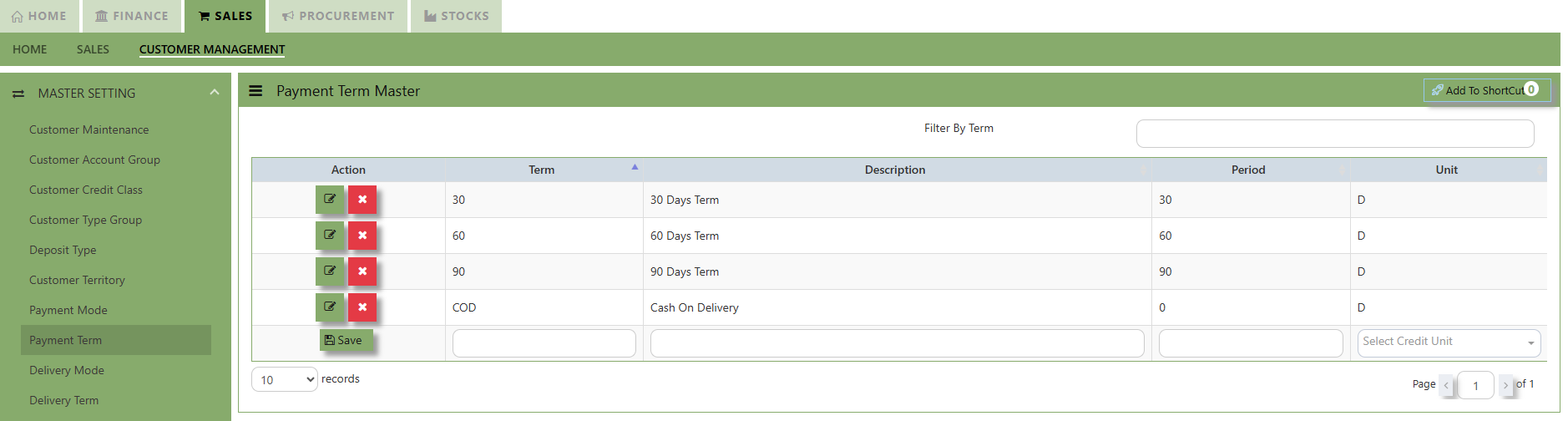
- Enter the above Terms of Payment as shown above. For more flexible settings, user can indicate the Payment Terms according to the report needed.
Exp: Add 7 Days, 45 days or 120 days…etc.
Note: If you did not set the payment terms, you can not select the terms for individual customers and the system
will be unable to generate accurate Statement of Account & Aging reports.
Payment Modes
This is where you indicate the Customer Payment Mode at Customer Maintenance for information purpose (Optional).
How to Create Payment Mode?
- Click on Sales – Customer Management – Payment Mode icon for the following screen.

- Enter the Modes of Payment as shown in the example above. For more flexible settings, it will be part of the Advanced Training.
Note: If you do not use this information for, please ignore the options.
Territory
This is where you create the Customer Territories if you intend to use reports that sort or filter by Customer Territories (Optional).
How to Create Territories?
- Click on Sales – Customer Management – Customer Territory icon for the following screen.

- Enter the Customer Territories as shown in the example above. For more flexible settings, user can indicate the Customer Territories according to the report needed. It will be part of the Advanced Training.

Note: If you did not use the grouping method for report sorting, please ignore the options.
Delivery Mode
This is where you indicate the Customer Delivery Mode in the Customer Maintenance or Transactions for information purpose if you intend to use reports that sort or filter by Delivery Mode.
How to Create Delivery Mode?
- Click on Sales – Customer Management – Delivery Mode icon for the following screen.
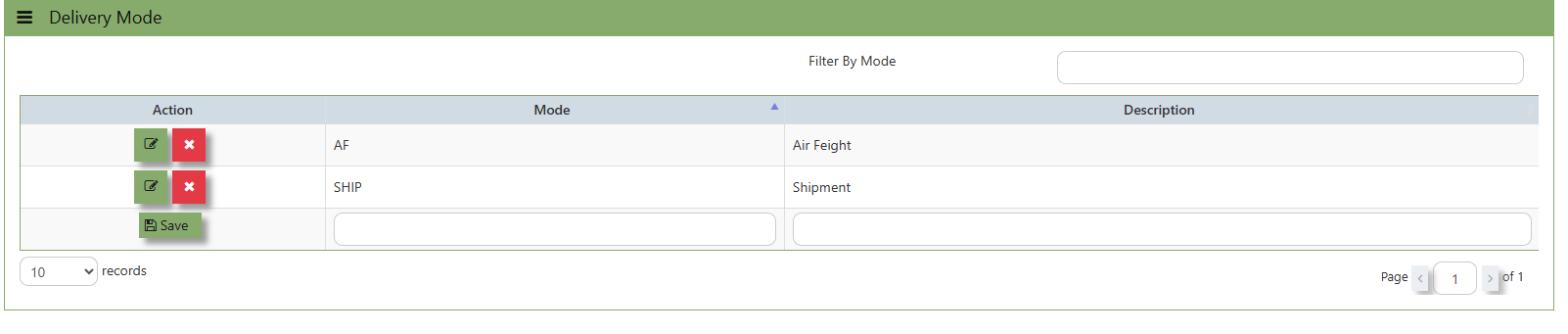
- Enter the above Modes of Delivery as shown above. For more flexible settings, user can indicate the Delivery Mode according to the information needed.
- Exp: Lorry Numbers or Driver Names…etc.
- Exp: Lorry Numbers or Driver Names…etc.
Note: If you do not use the entire information for transaction info and report sorting, please ignore the options.
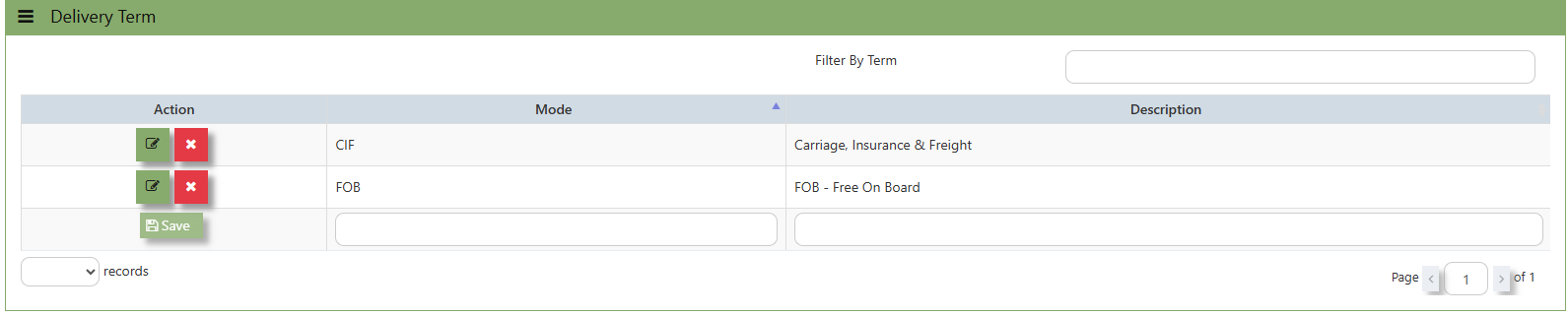
Delivery Term
This is where you indicate the Customer Delivery Term in the Customer Maintenance or Transactions for information purpose to define the conditions and responsibilities for shipping goods.
How to Create Delivery Term?
- Click to select the Delivery Term defined under Sales – Customer Management – Delivery Term

- Enter the above Term of Delivery as shown above. For more flexible settings, user can indicate the Delivery Term according to the information needed.
- Example: FOB - Free On Board
CIF - Carriage, Insurance & Freight
- Example: FOB - Free On Board
Warranty Term
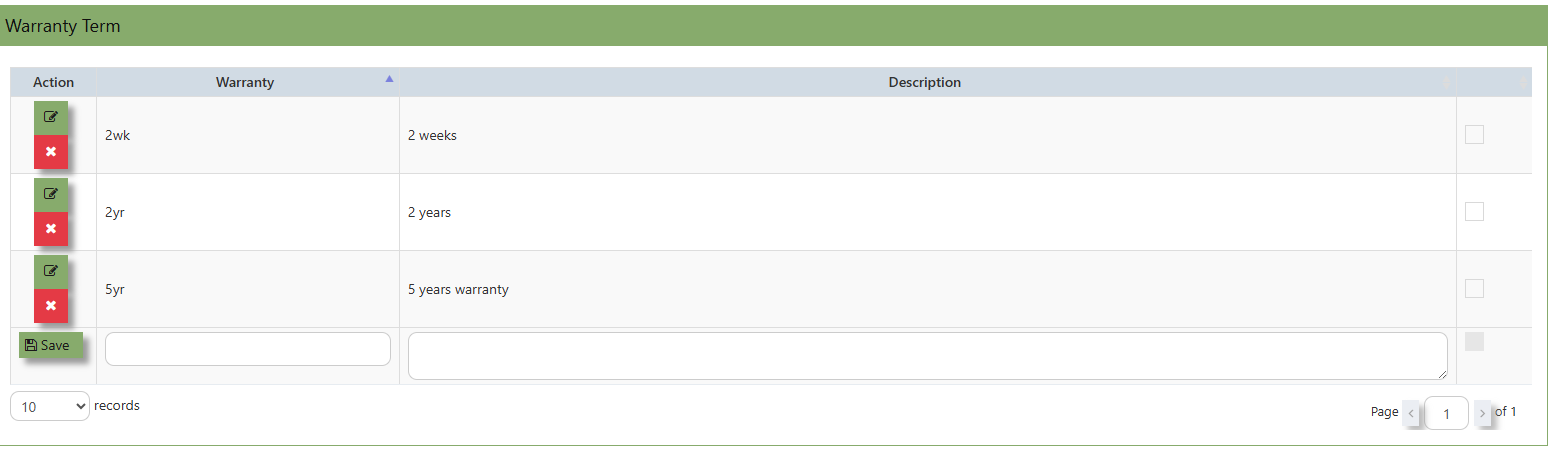
In Uniq 365, this is the place where you indicate the Customer Warranty Terms if you intend to use it in Customer Sales Invoice (Optional)

How to Create Warranty Terms?
- Click on Sales – Customer Management – Warranty Terms icon for the following screen.

- Enter the Warranty Terms as shown in the above example. For more flexible settings, user can enter the Warranty Code & Description according to what their company can identify with.
Note: If you did not use the entire work flow for Sales Operations, please ignore the Options.
Selling Condition
In Uniq 365, this is the place where you indicate the Selling Condition if you intend to use it in Customer Sales Invoice as below:-(Optional)
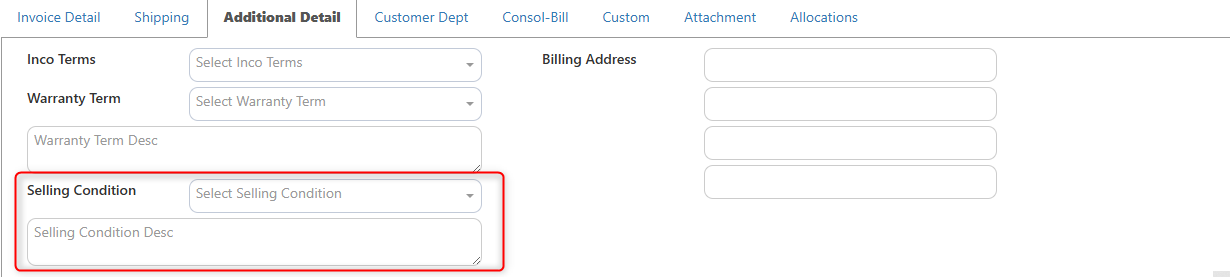
How to Create Selling Condition?
- Click on Sales – Customer Management – Selling Condition icon for the following screen.
Sales Operations
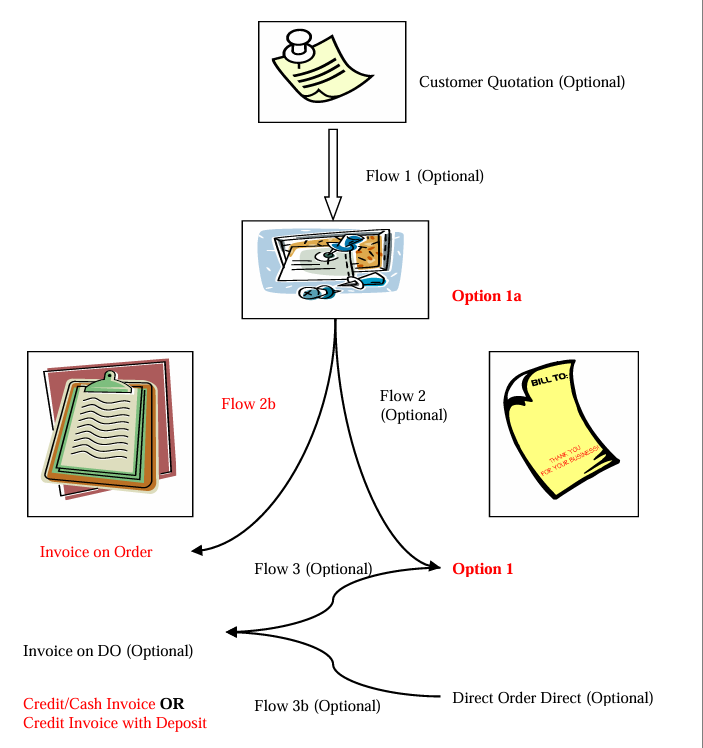
The Sales Operation involves several steps, which may vary depending on the organization's requirements. The following flows outline the typical sales process:
Flow 1: Sales Quotation to Sales Order (Optional)
1. Create a Sales Quotation for a customer.
2. Confirm the quotation.
3. Create a Sales Order.
Flow 2: Sales Order to Delivery Order (Optional)
1. Confirm the Sales Order.
2. Create a Delivery Order (DO) for the customer.
Flow 2b: Sales Order to Invoice (Optional)
1. Confirm the Sales Order.
2. Create an Invoice for the customer.
Flow 3: Verbal Order to Invoice (Optional)
1. Receive a verbal order from the customer.
2. Deliver the goods to the customer.
3. Create an Invoice for the customer.
Flow 3b: Direct Sales to Invoice
1. Receive an order from the customer.
2. Deliver the goods to the customer.
3. Create a Credit/Cash Invoice for the customer.
Deposit-Based Sales (Optional)
1. Receive a deposit from the customer.
2. Deliver the goods to the customer.
3. Create an Invoice for the customer.
Note: These flows are optional and may vary depending on the organization's specific requirements and sales processes.
________________________________________________________________________________________________________________________________________________
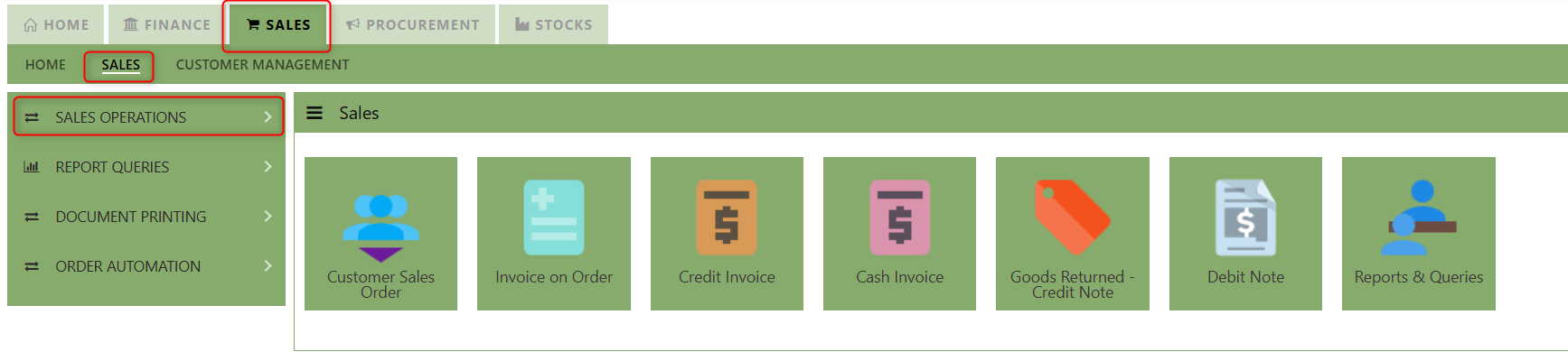
How to locate Sales Operations?
- Click on SALES – SALES - SALES OPERATION for the screen below.
Sales Order
The Sales Order at the Sales Operation Module screen will open the Sales Order screen as seen below. The Sales Order main function is to prepare a document to update the system that goods are on placement. No ledger postings will be made at this moment. Sales Order is denoted by transaction type “CO”.
___________________________________________________________________________________________________________________________________________
How to set Customer Sales Order?
1.Click on SALES – SALES OPERATIONS – CUSTOMER SALES ORDER for the screen below.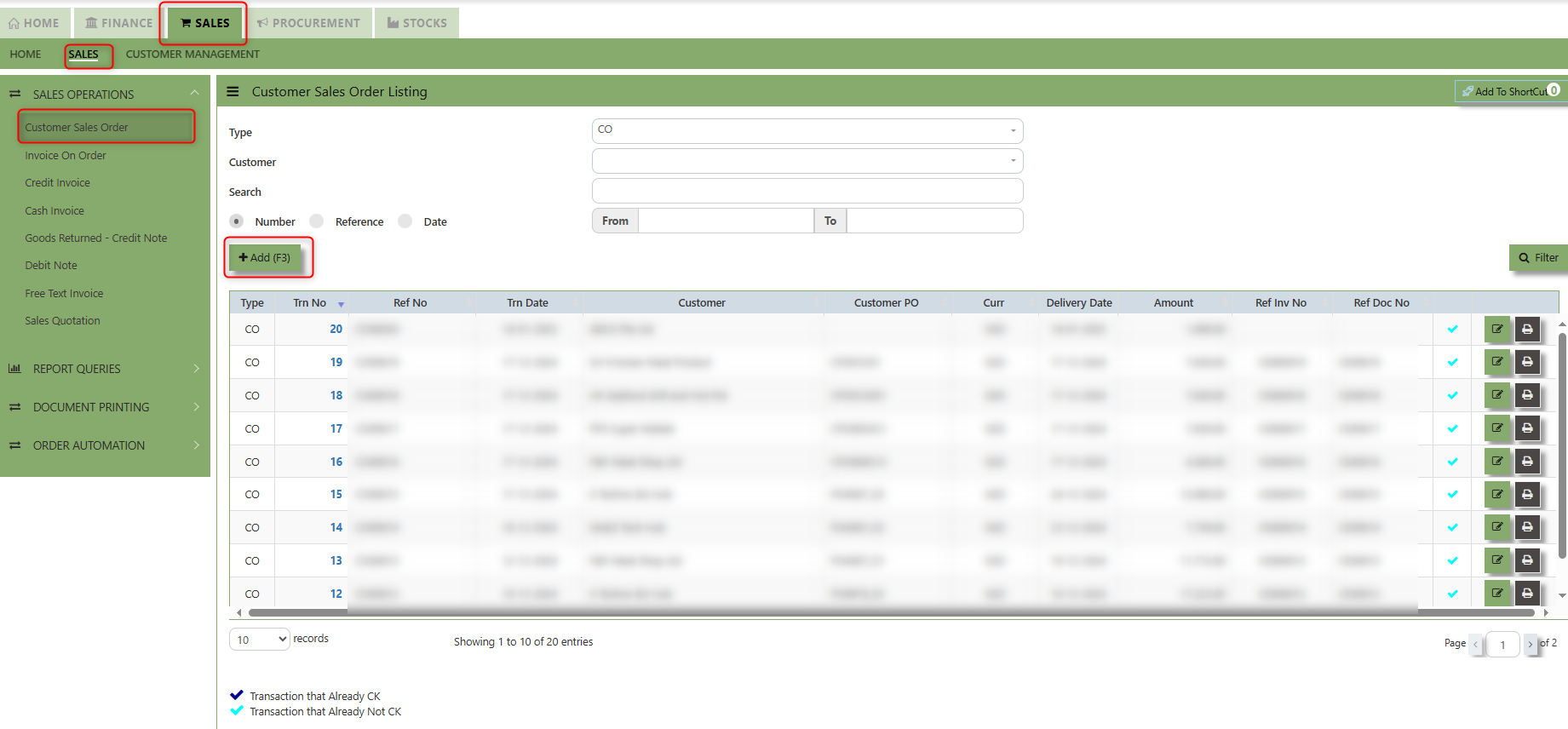
2. Click on Add button or press F3 to create a new transaction.
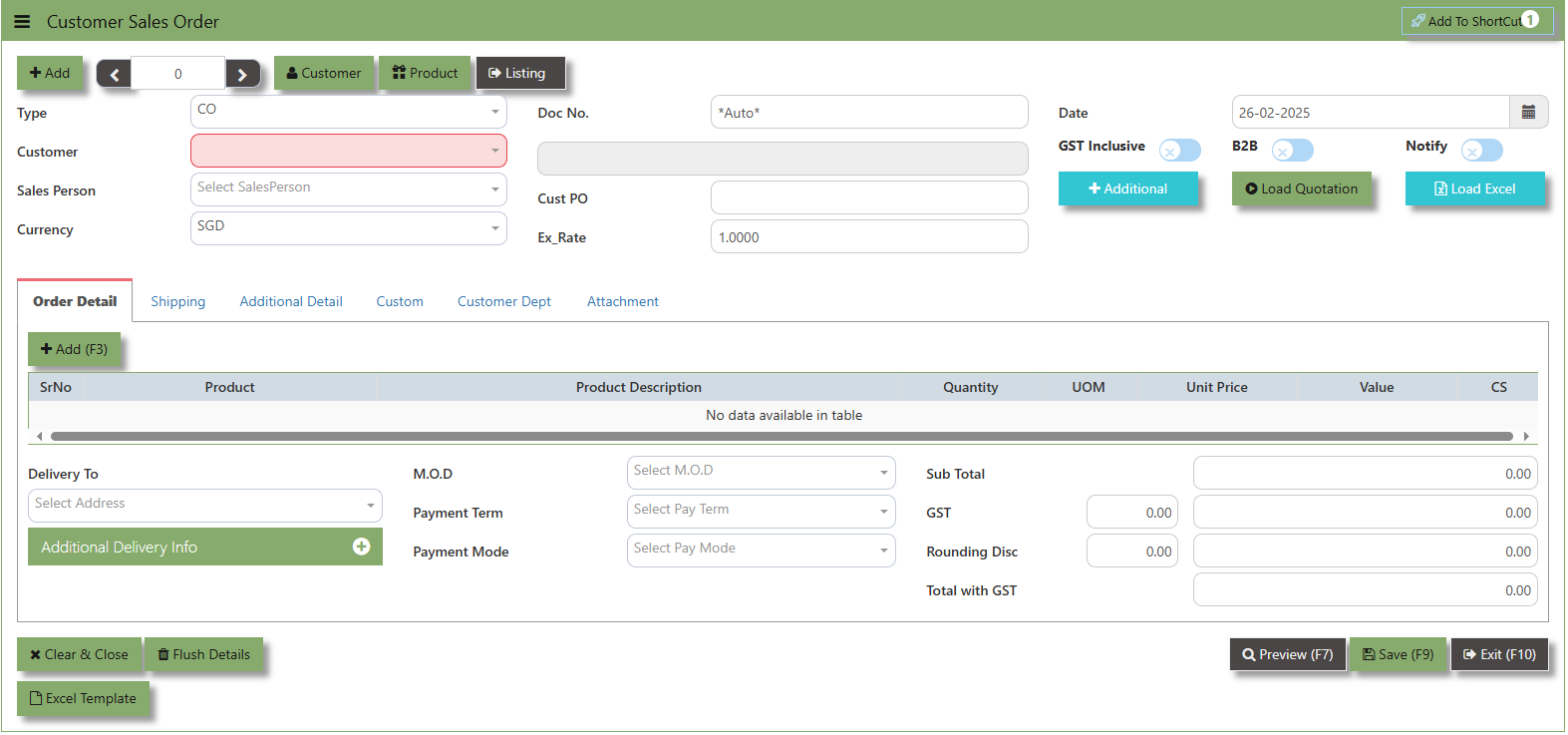
3. Click the Type - drop-down to select transaction type – CO (Sales Order).
4. After the transaction type selection, you can use the tab button to go to the Ref No. column & Date fields.
5.Click Customer - drop-down to select Customer Name, followed by the Sales Person, PDS, Currency, Rate, Customer PO, Quotation, Delivery Date & Lead Time if applicable.
6.After all the header information has been entered, the user can go to the Order Detail section and select the product items for that transaction. Save the Sales Order transaction after it is completed.
___________________________________________________________________________________________________________________________________________
Add to Shortcut - Used to create a shortcut for quick access to a specific Sales Transaction . By clicking this button, users can add the current Sales Order to a list of shortcuts, allowing them to access the invoice or related functionality quickly and efficiently, without needing to search for it each time.
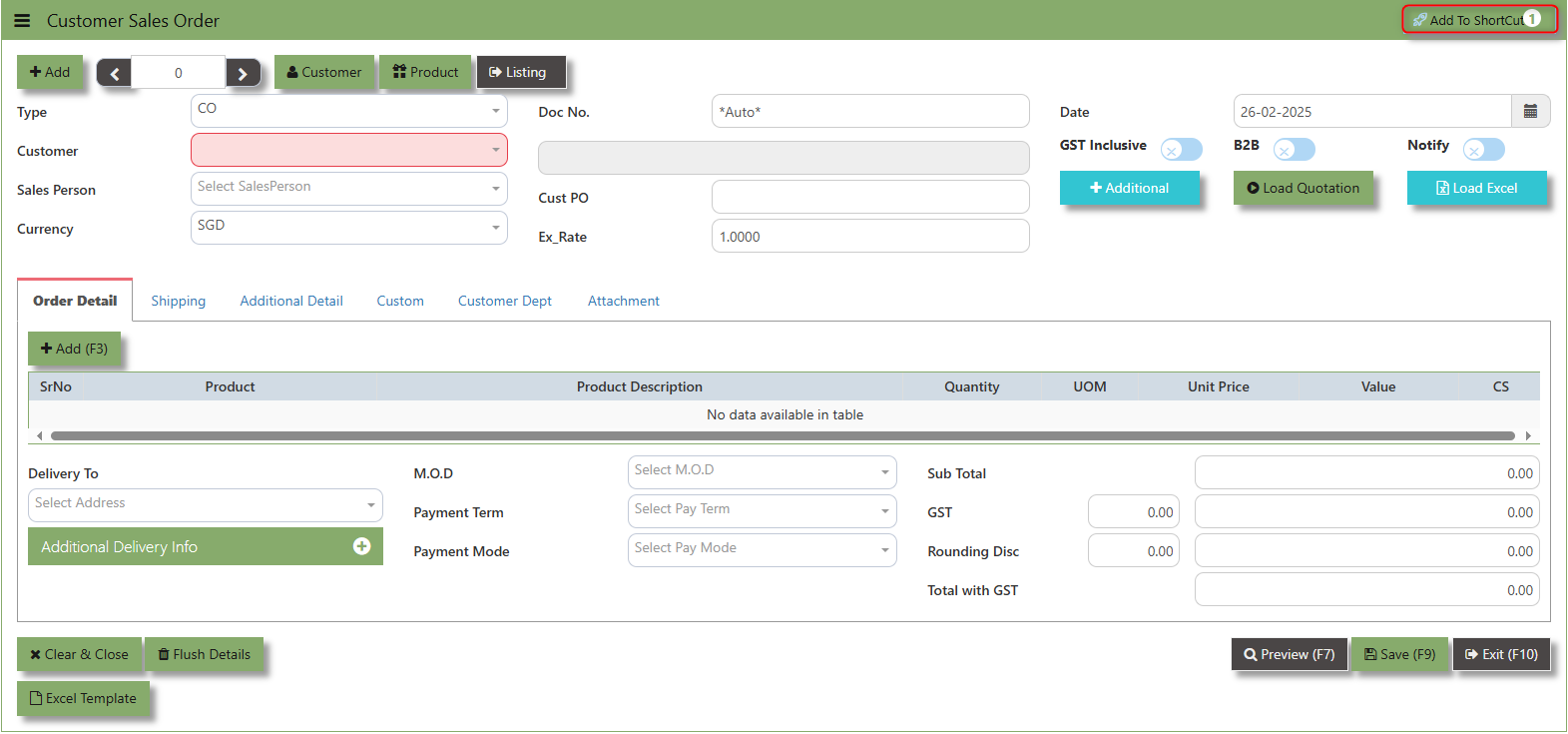
How to use Add to ShortCut?
1. Click "Add to ShortCut" and system will open below windows:
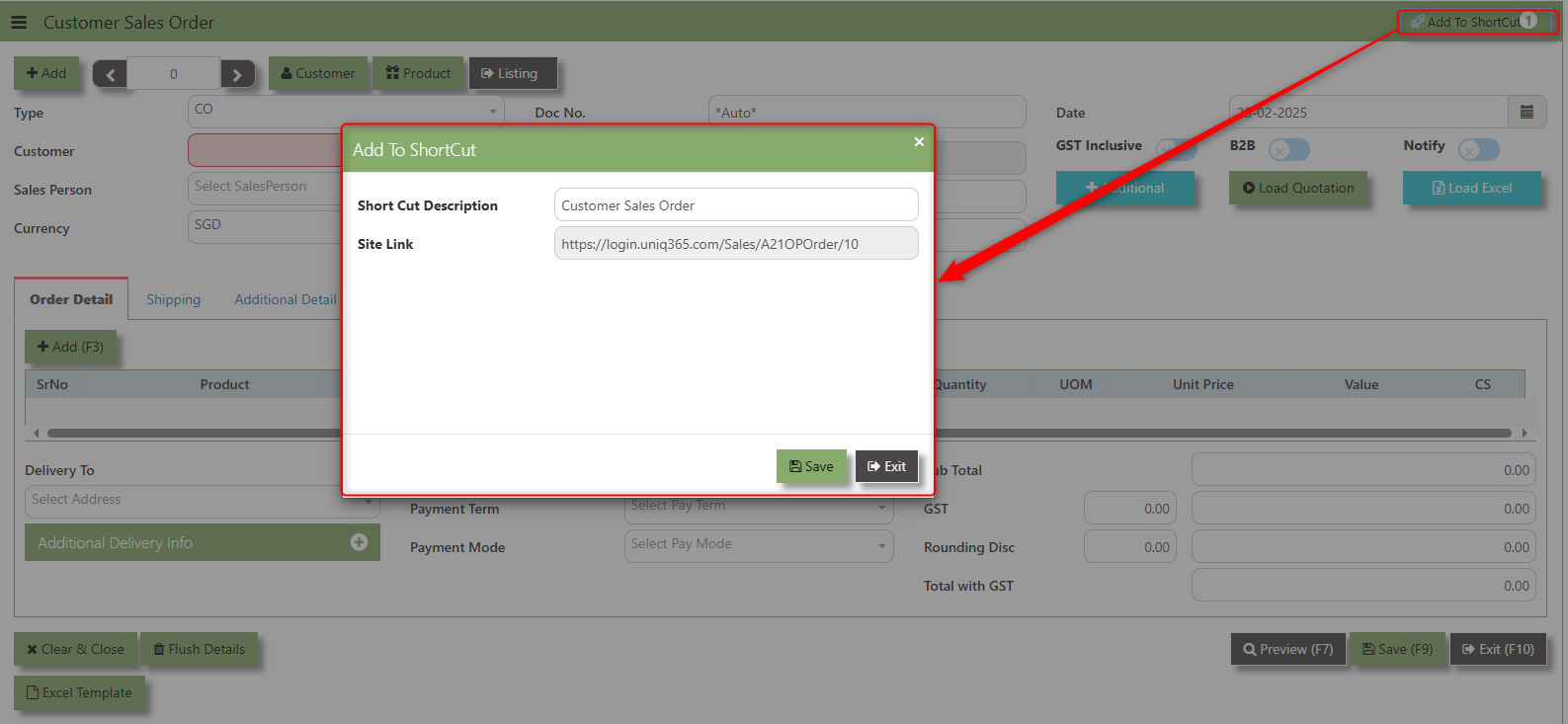
2. Enter Short Cut Description
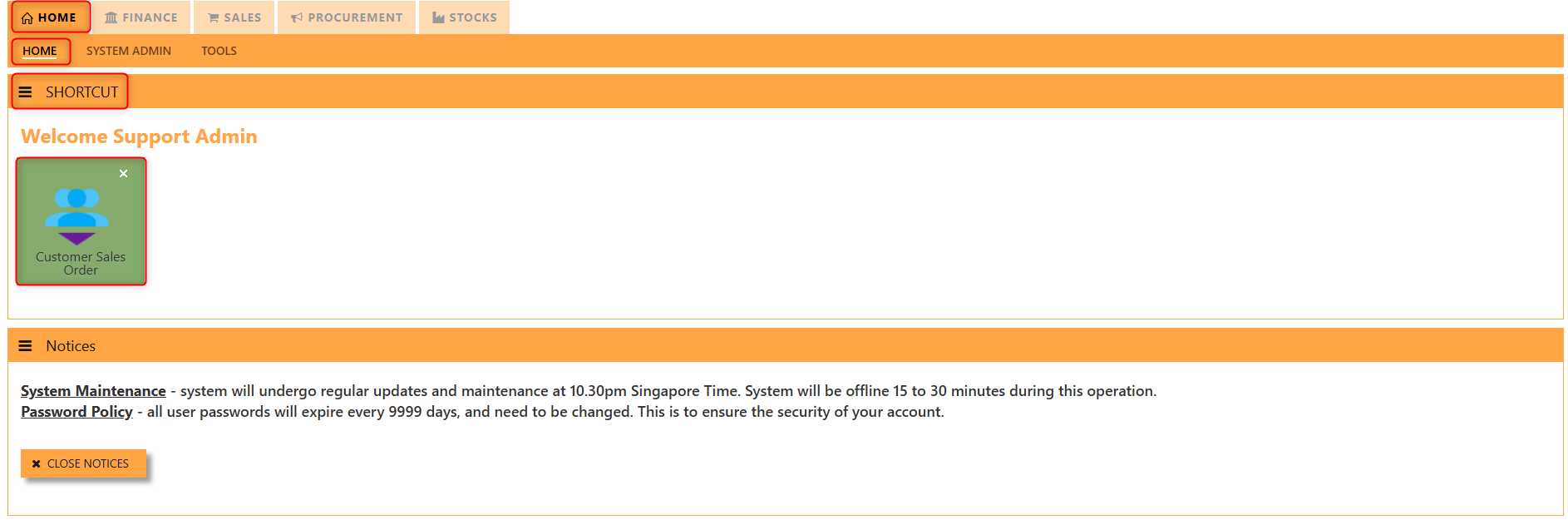
3. Click SAVE then click OK.
4. User may look to the Homepage for the added function or page. Click on HOME - HOME - SHORTCUT for the screen below.
___________________________________________________________________________________________________________________________________________
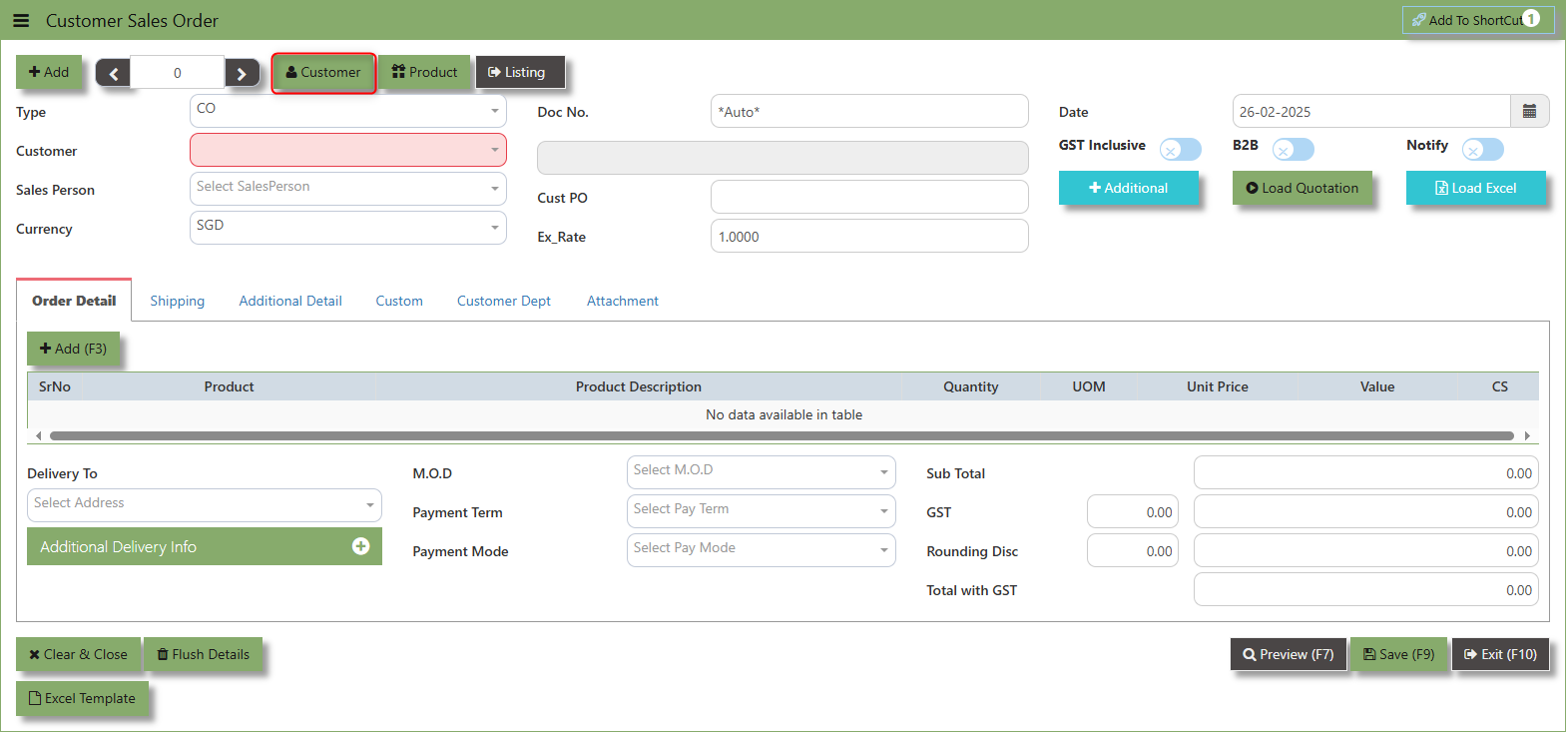
The Customer button provides quick access to detailed supplier profiles under Customer maintenance.
The Product button provides quick access to product and service maintenance.
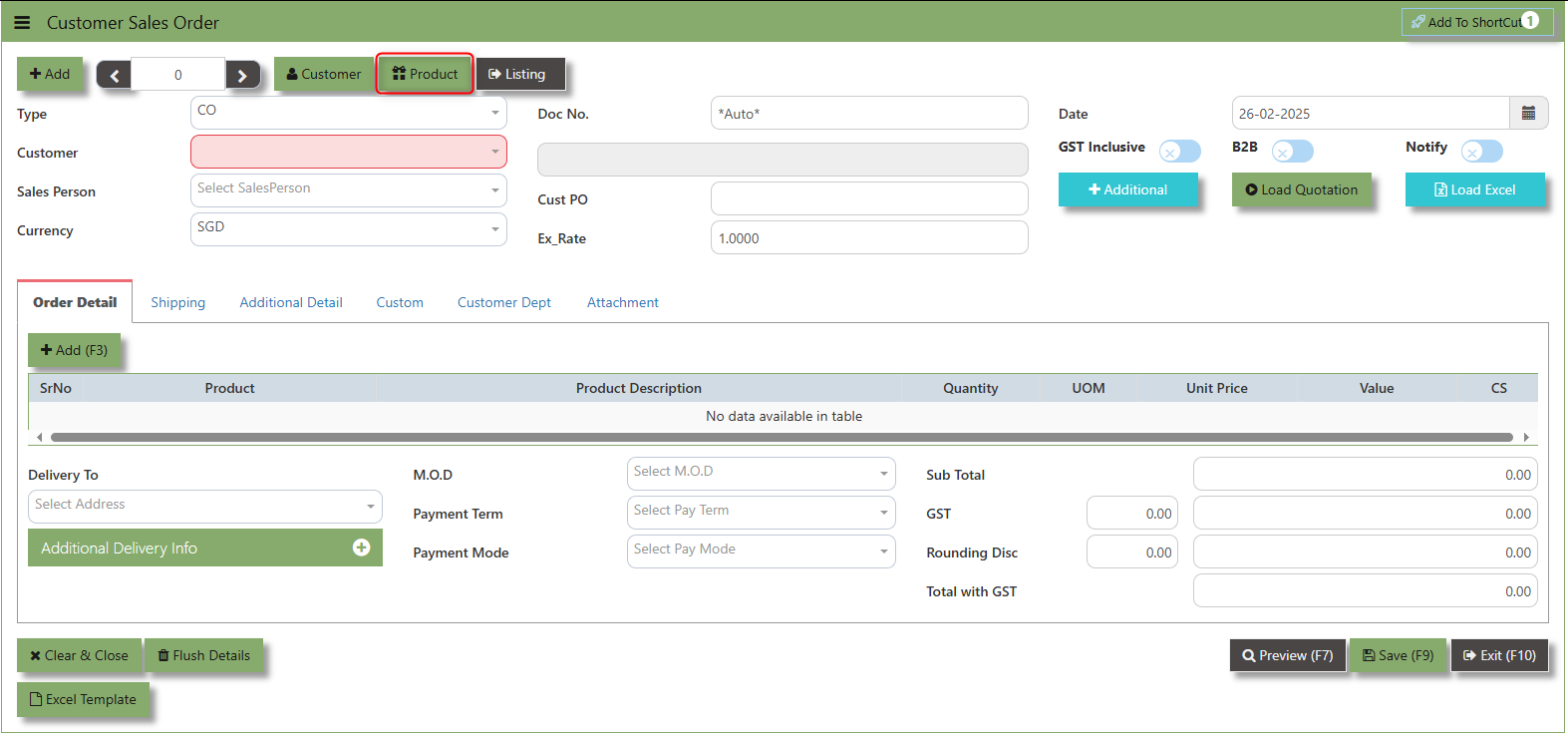
The GST Inclusive checkbox indicates whether the unit price in the CO include Goods and Services Tax (GST) or not.
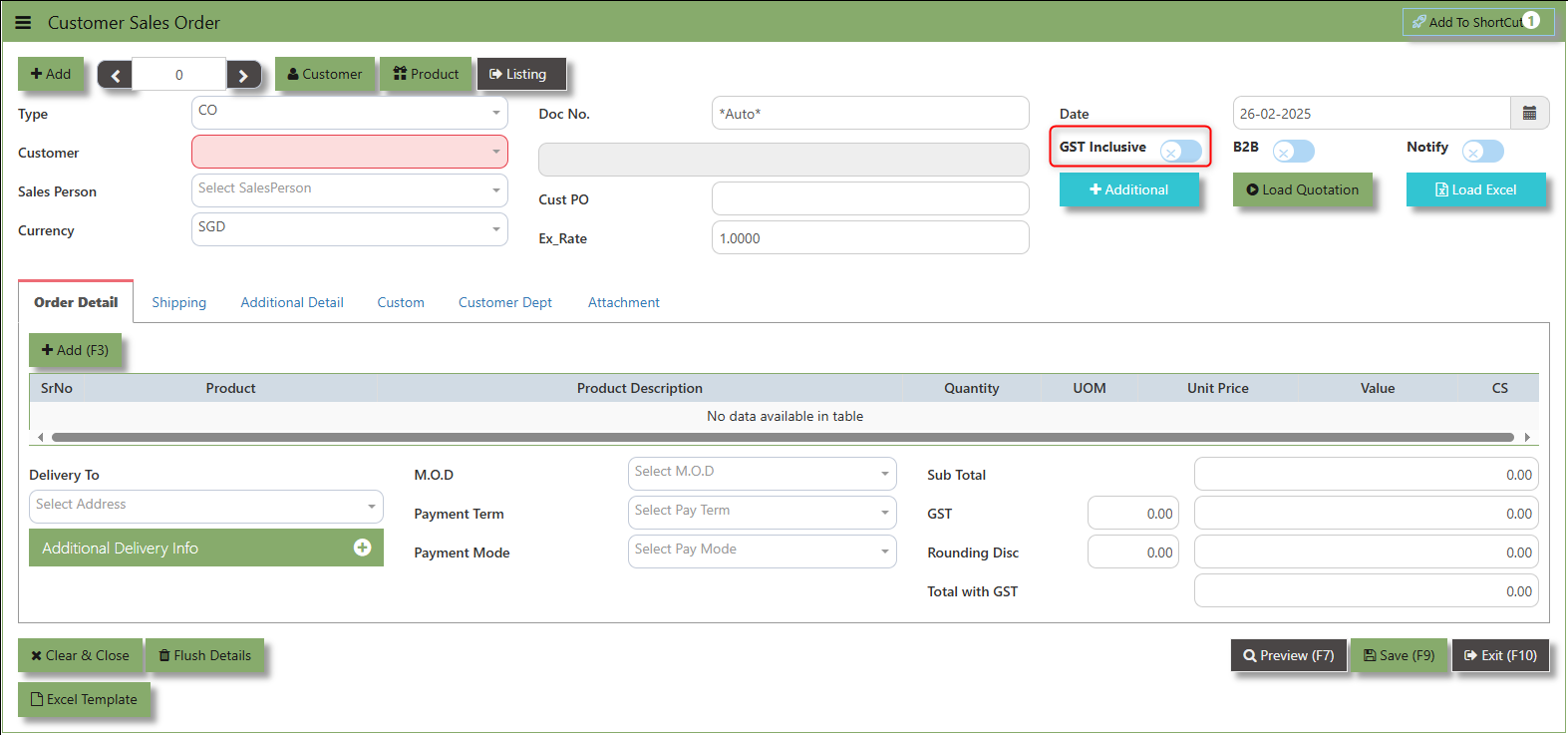
- When ticked (GST Inclusive): provided in the Sales Order already includes the applicable GST amount. The GST amount will not be calculated or displayed separately, as it's already accounted for in the quoted price.
- When not ticked (GST Exclusive): The unit price is considered exclusive of GST. The system will calculate and add the GST based on the applicable tax rate, and the final total will be the sum of the base price plus the GST amount.
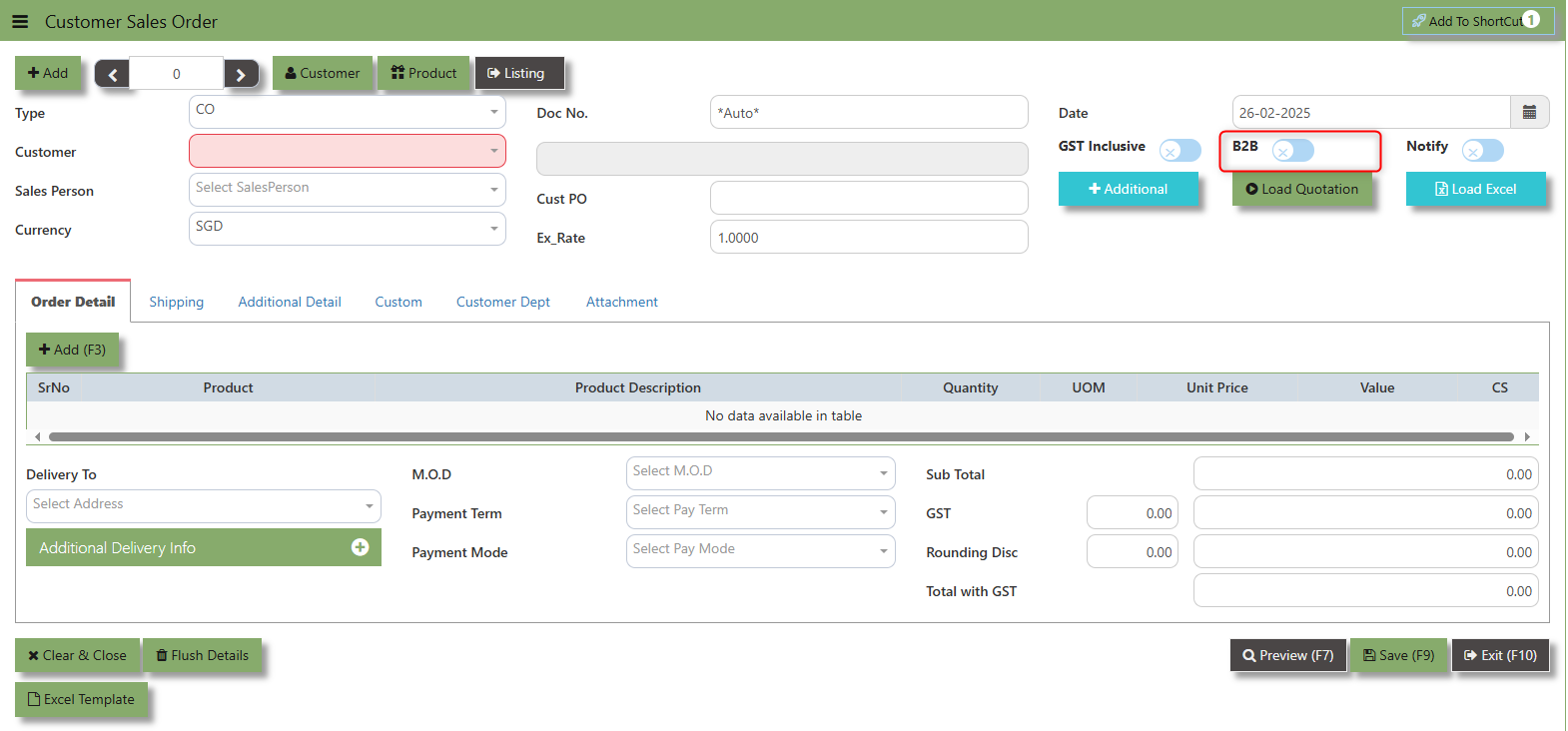
The "B2B order" is which specific sales order demand triggers supply creation and a link is established between the sales order and the supply.
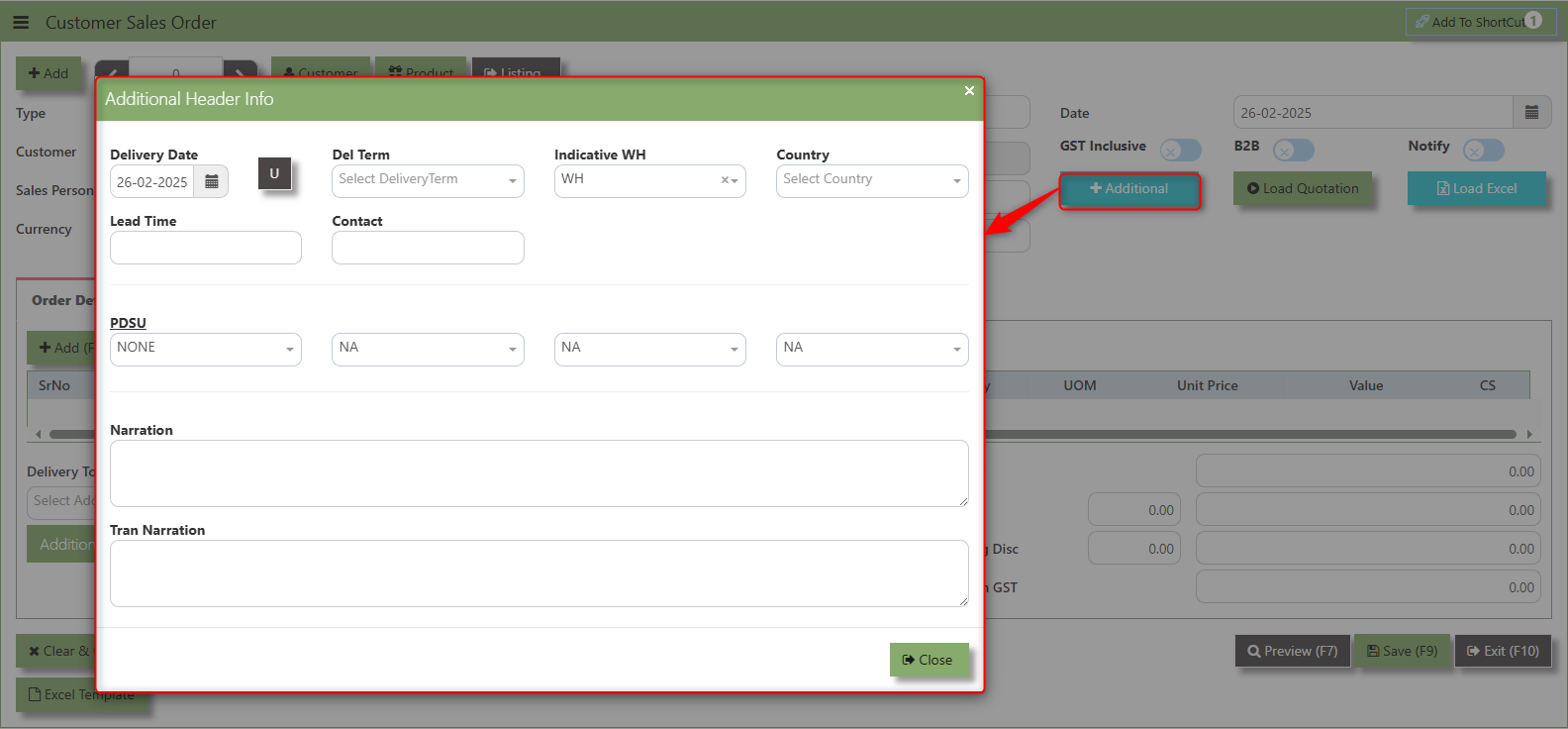
Additional Header Info button is typically used to capture and manage additional information related to the sales order at the header level (i.e., Delivery date, Del Term , Indicative WH , Country, Lead Time, Contact, PDSU, Narration and Transaction Narration). This feature allows users to add extra data or notes that are relevant to the entire sales order.
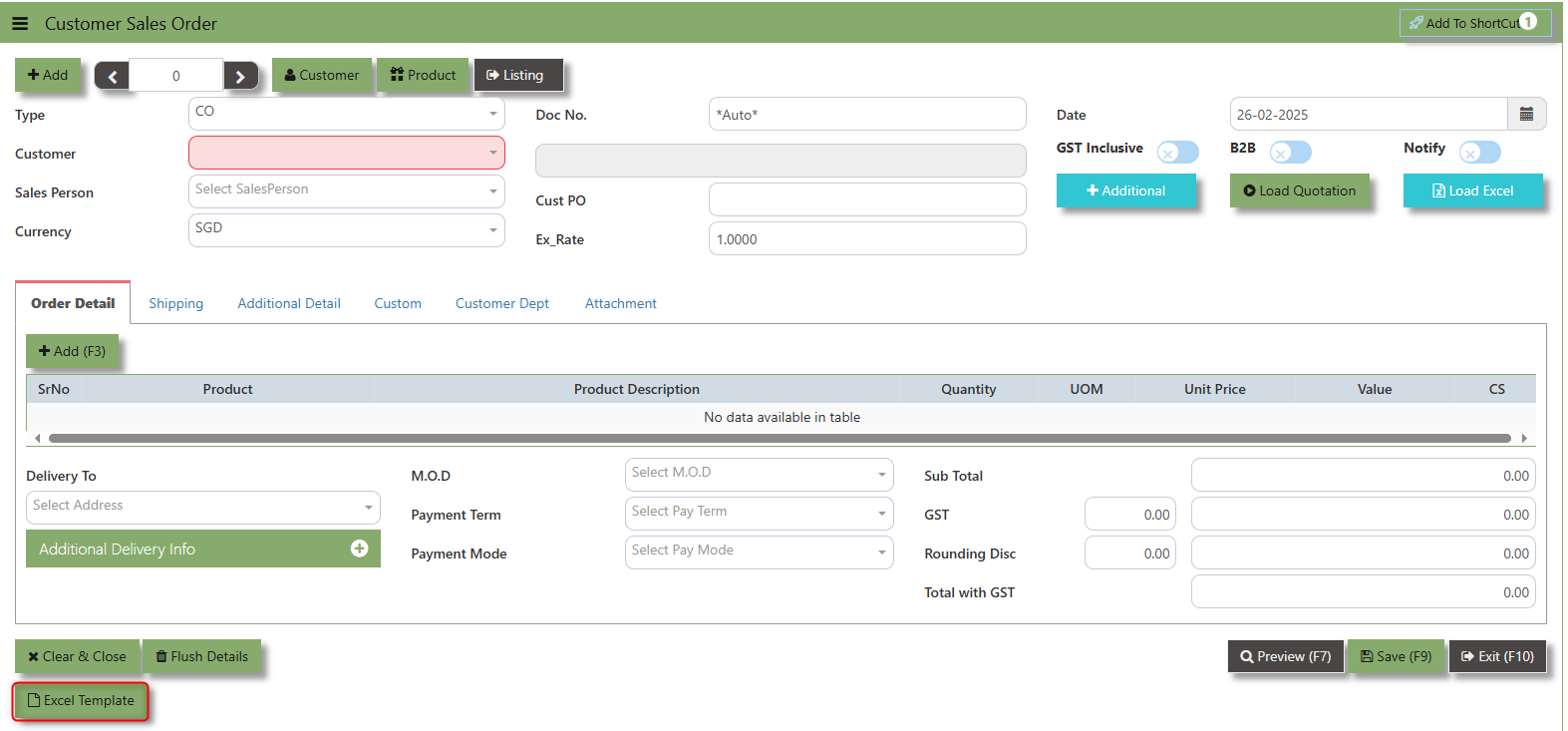
Excel Template - The button allows users to download a pre-configured Excel template for entering or importing data related to the sales order. The template is usually formatted to match the system's required structure for Sales orders, ensuring consistency and data accuracy.
Load Excel - When users have an Excel file from Excel Template with Sales order information (ie Warehouse, Product, Pname, UOM, Quantity, Unit Price, GST type, Line Discount, Detail Memo) the "Load Excel" button allows them to upload and import this data directly into the system. This eliminates the need for manual entry of the data into the system's Sales order fields.
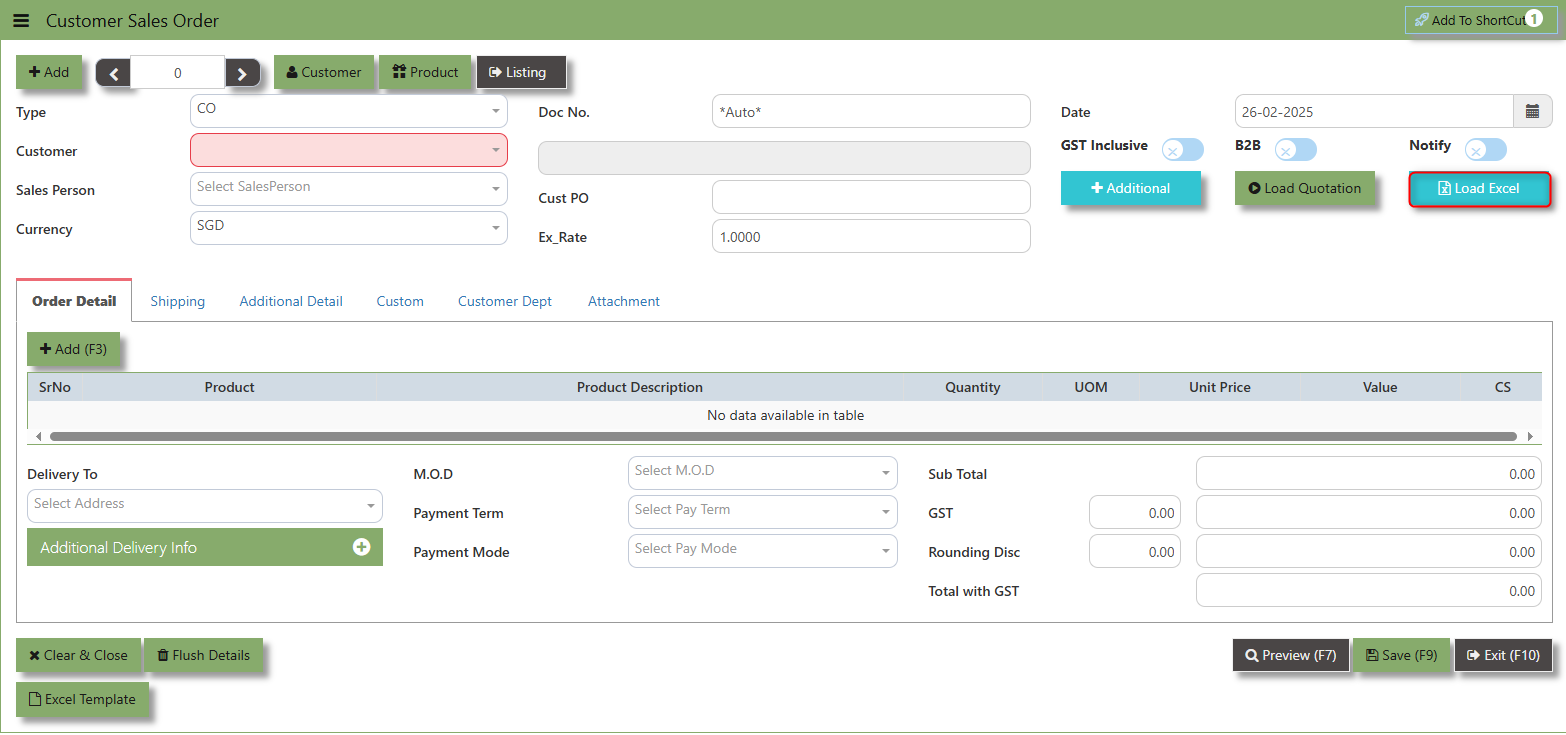
How to use Load Excel?
1. Click the Customer - drop-down list to select Customer Name
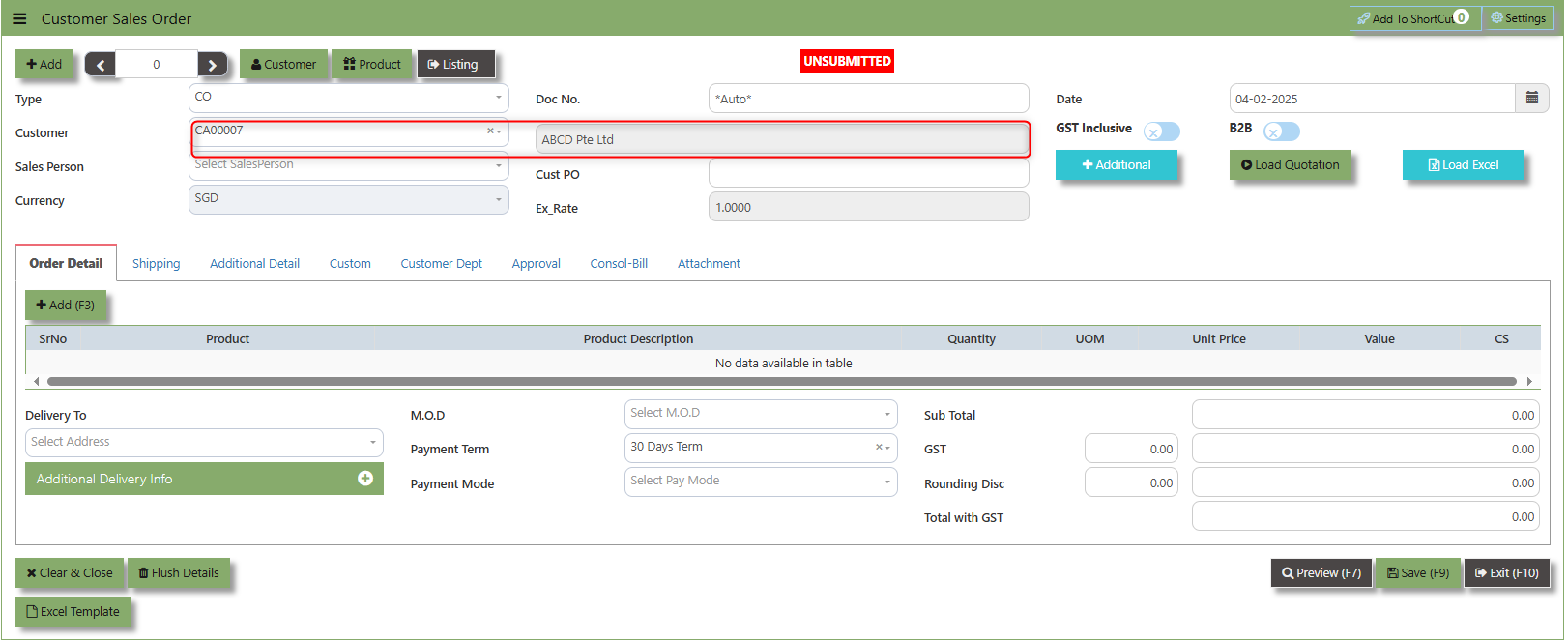
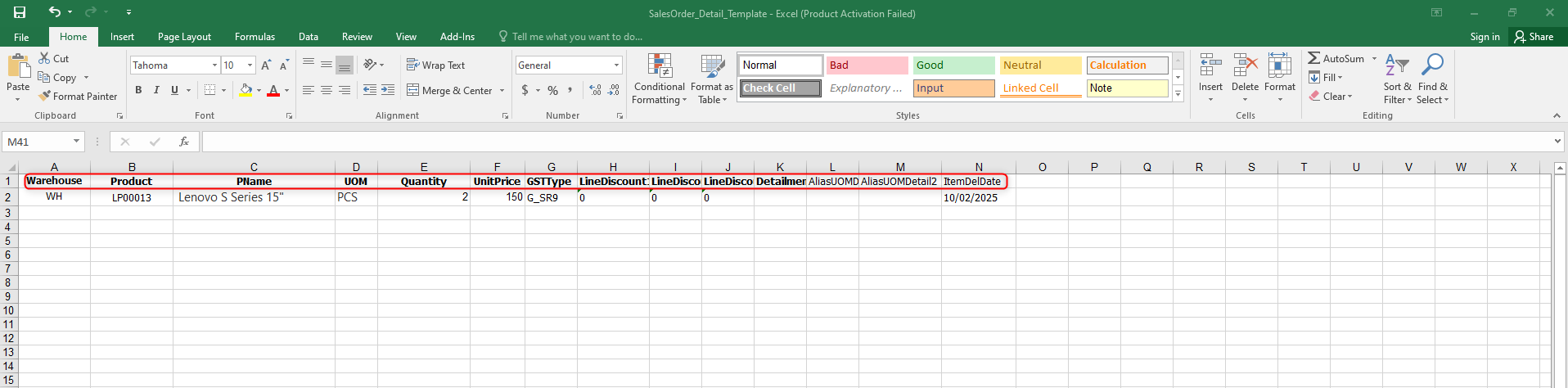
2. Download the Excel Template and ensure the Excel file you plan to upload is formatted correctly. It should contain all the necessary fields required for sales order, such as:
- Warehouse
- Product Code
- Product Name
- UOM
- Quantity
- Unit Price
- GST Type
- Line Discount 1, 2 & 3
- Detail Memo
- Item Delivery Date
- Alias UOM Detail 1 & 2
- Item Delivery Date
3. Click the Load Excel button to open the file upload interface. This may open a file browser or prompt you to select the Excel file you want to upload.
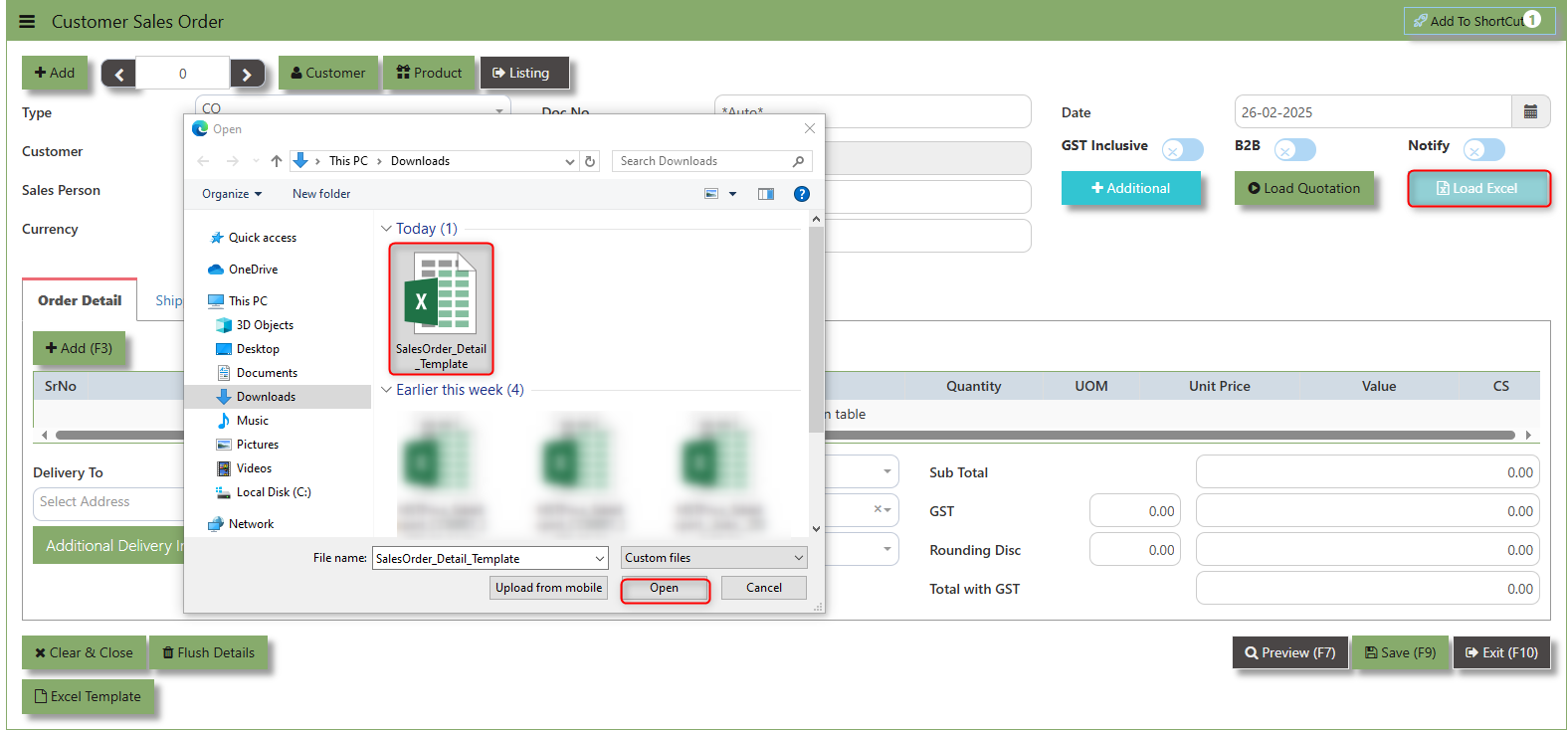
4. Once the filed uploaded, system will prompt a message that record has been imported successfully
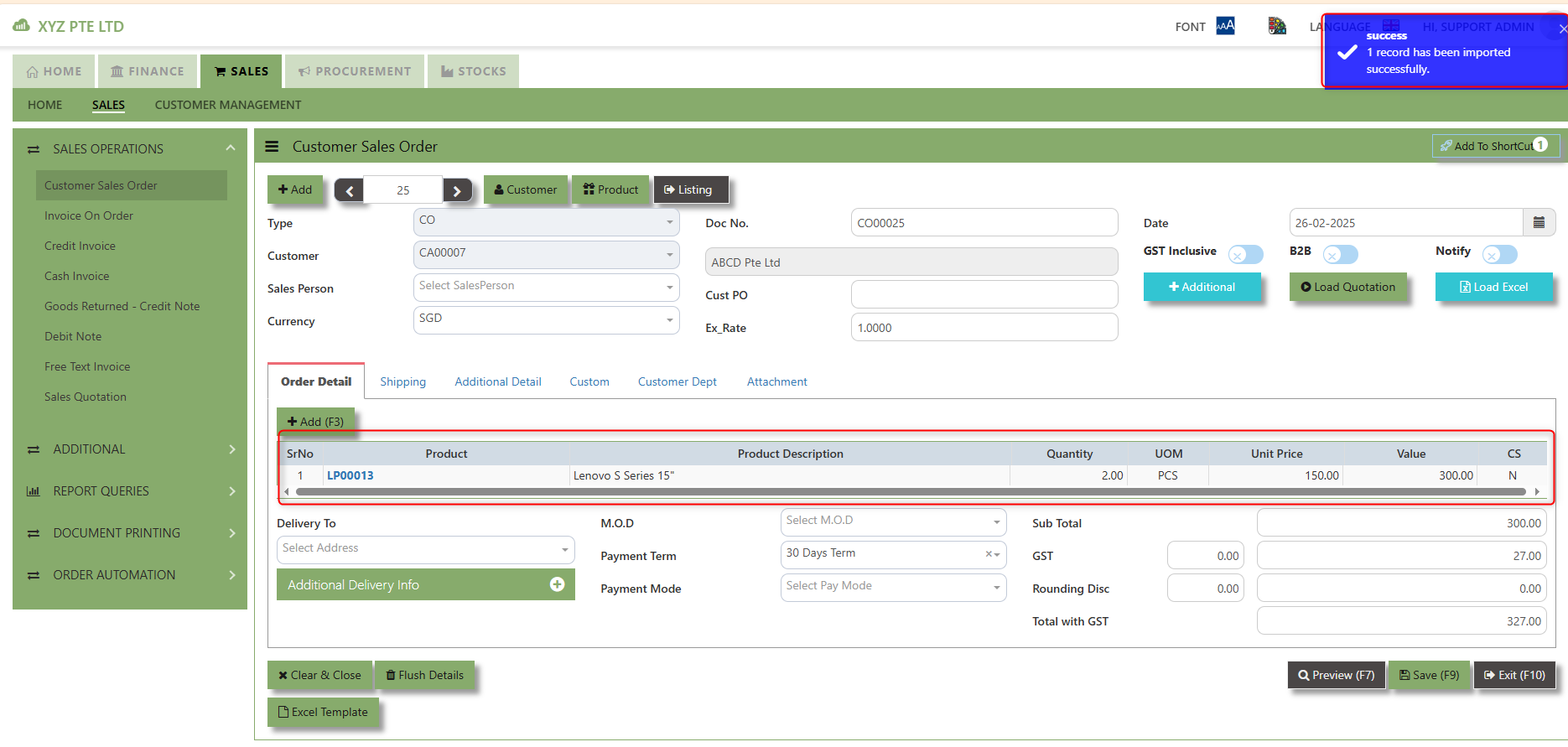
5. After the import is complete, review the imported sales order in the system to ensure everything has been transferred correctly. This might include checking that the order details, such as item descriptions, quantities, prices, and suppliers, are accurate.
6. Once the data is imported successfully and checking is done, you can proceed to save the sales order as required by your workflow. This may involve further approvals or other processes depending on the organization's procedures.
___________________________________________________________________________________________________________________________________________
Load Quotation - When users already done Sales Quotation the "Load Quotation" button allows them to load the sales quotation directly into the Sales order. This eliminates the need for manual entry of the data into the system's Sales order fields.
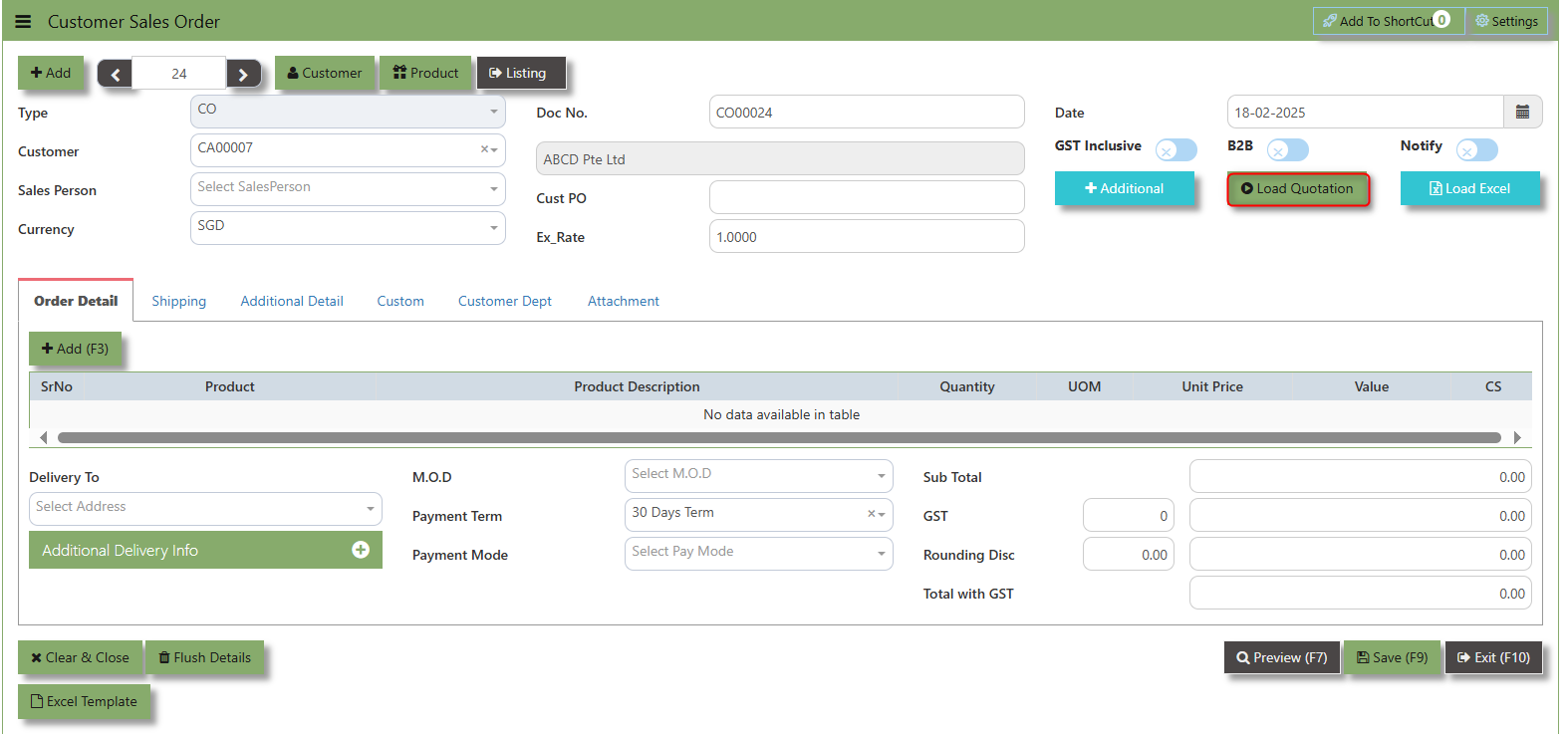
How to use Load Quotation?
1.Click the Supplier - drop-down list to select Customer Name
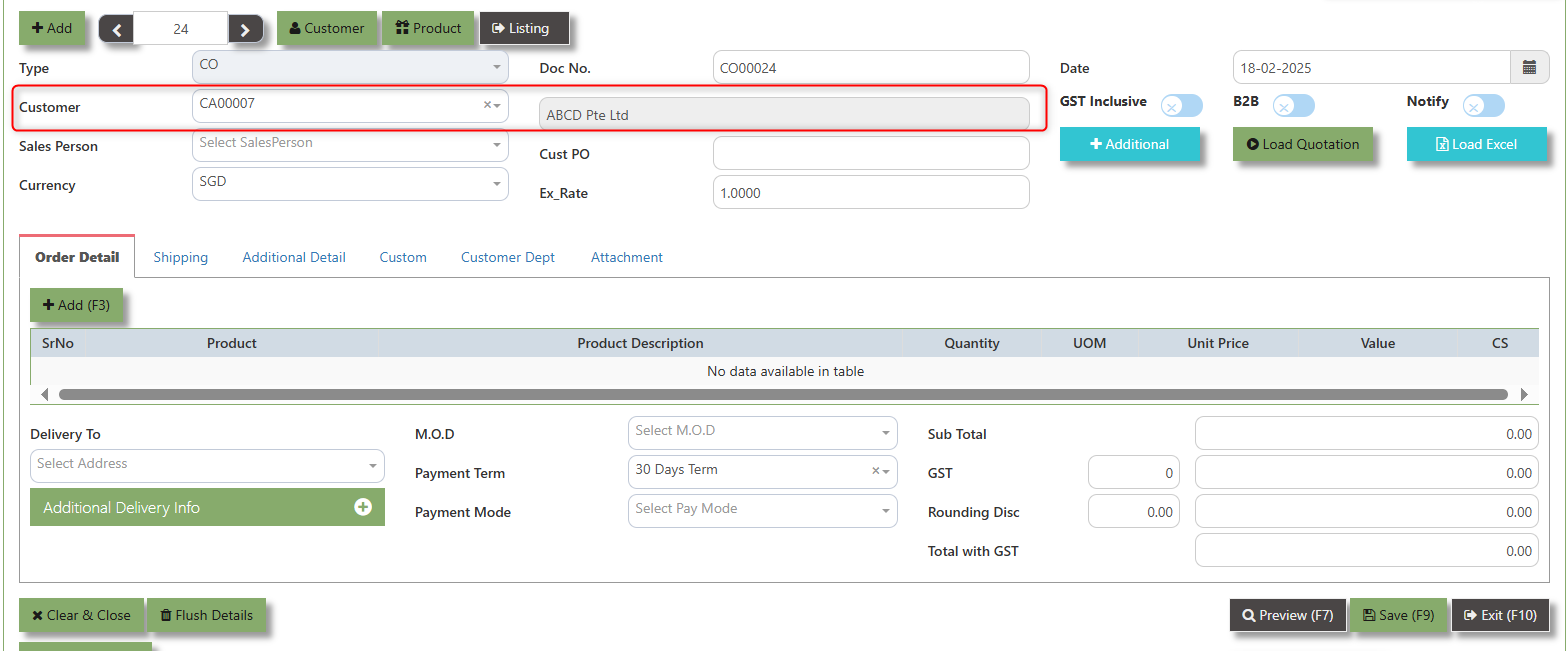
2. Click the Load Quotation Button, select the Type and the Trn No of the sales quotation and click the diskette icon.
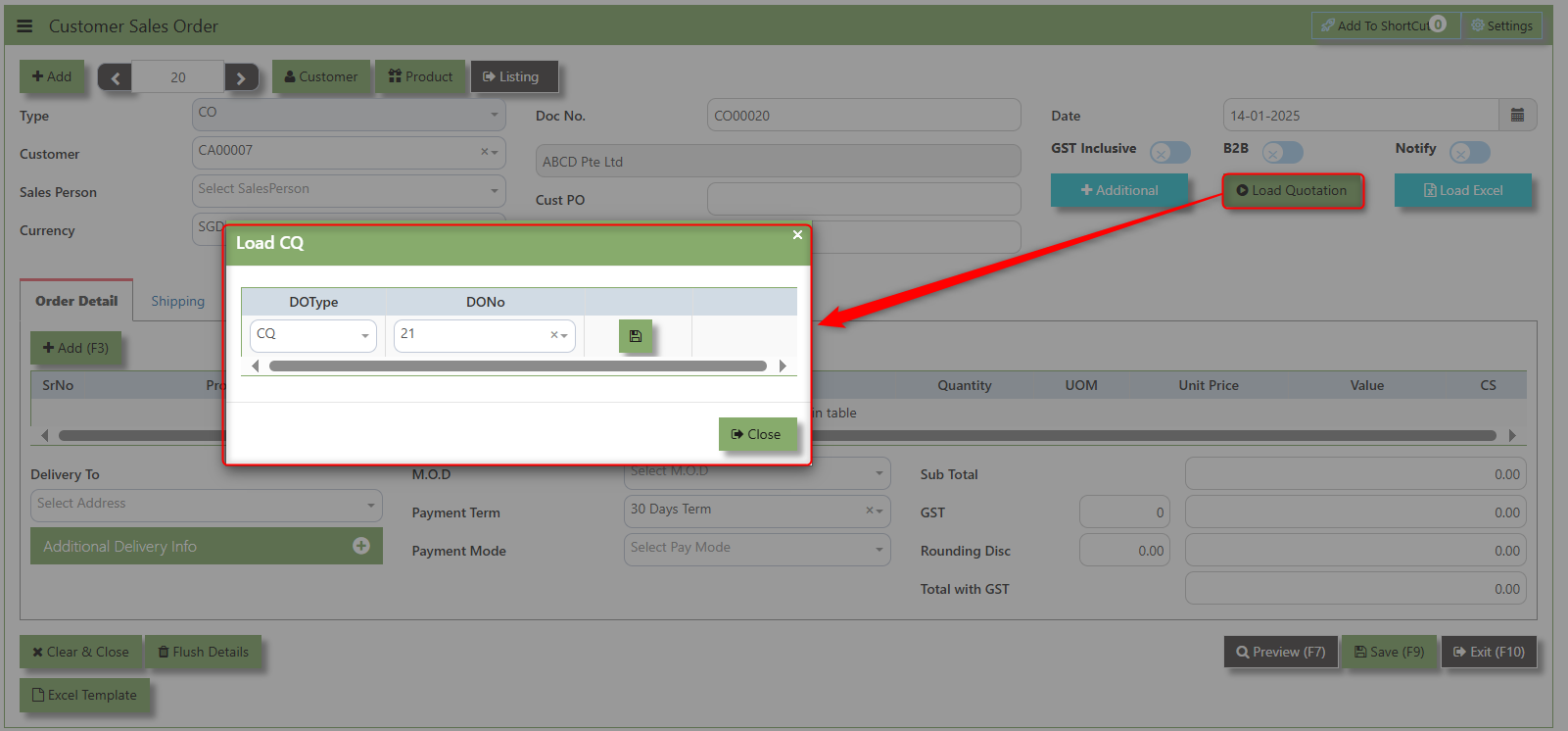
2. Click the L Icon button to load the Transactions details of the Sales Quotation
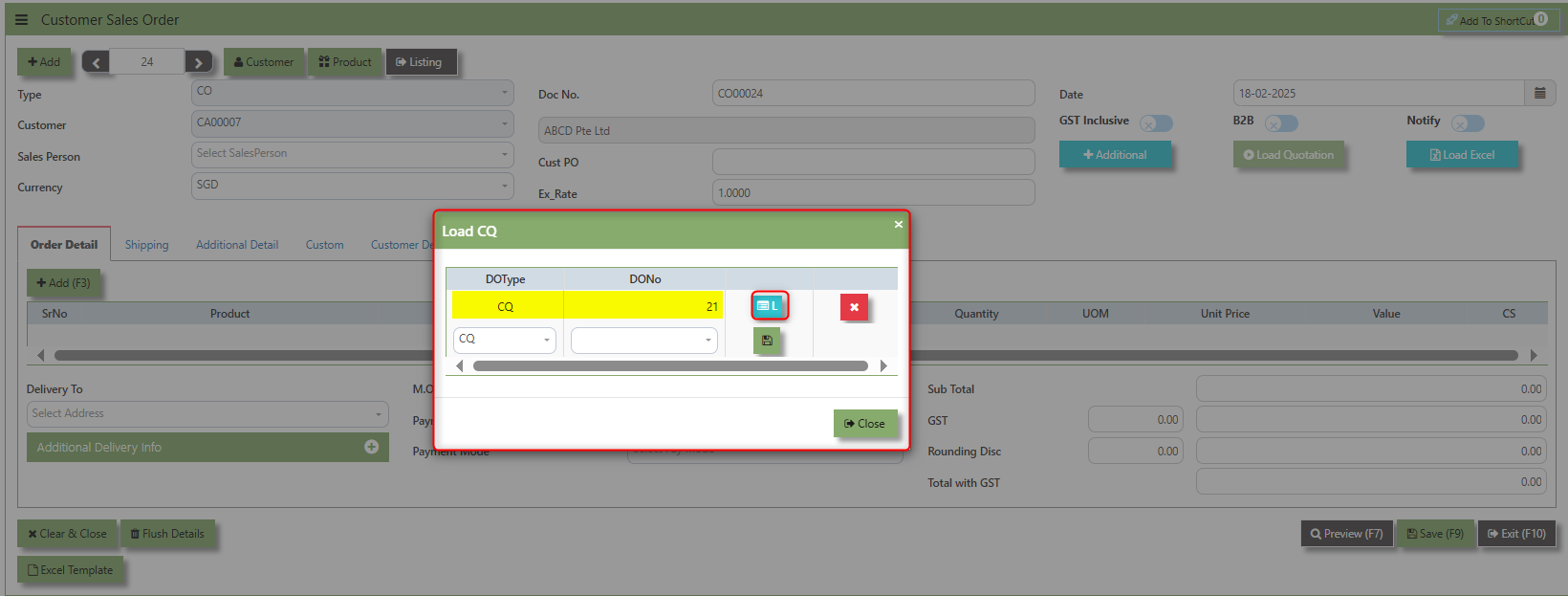
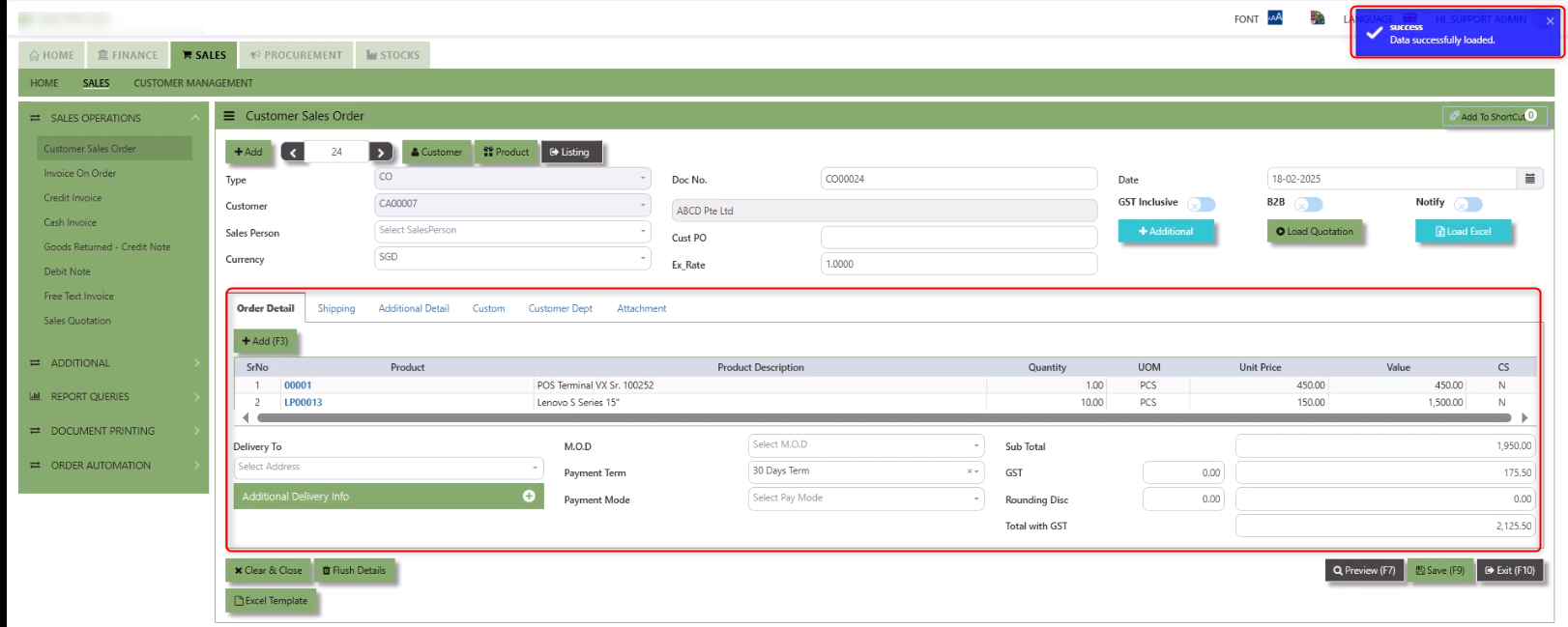
3.Once the Sales Quotation is loaded, system will prompt a message that the Data successfully loaded.
___________________________________________________________________________________________________________________________________________
Shipping Tab a section where specific shipping-related information is entered and managed for the sold goods or services. This tab ensures that all relevant details regarding the shipment, delivery location, and delivery expectations are captured in the system to facilitate smooth and accurate order fulfillment.
How to set Shipping Info?
1. Click on SALES – SALES OPERATIONS – CUSTOMER SALES ORDER - SHIPPING TAB for the screen below.
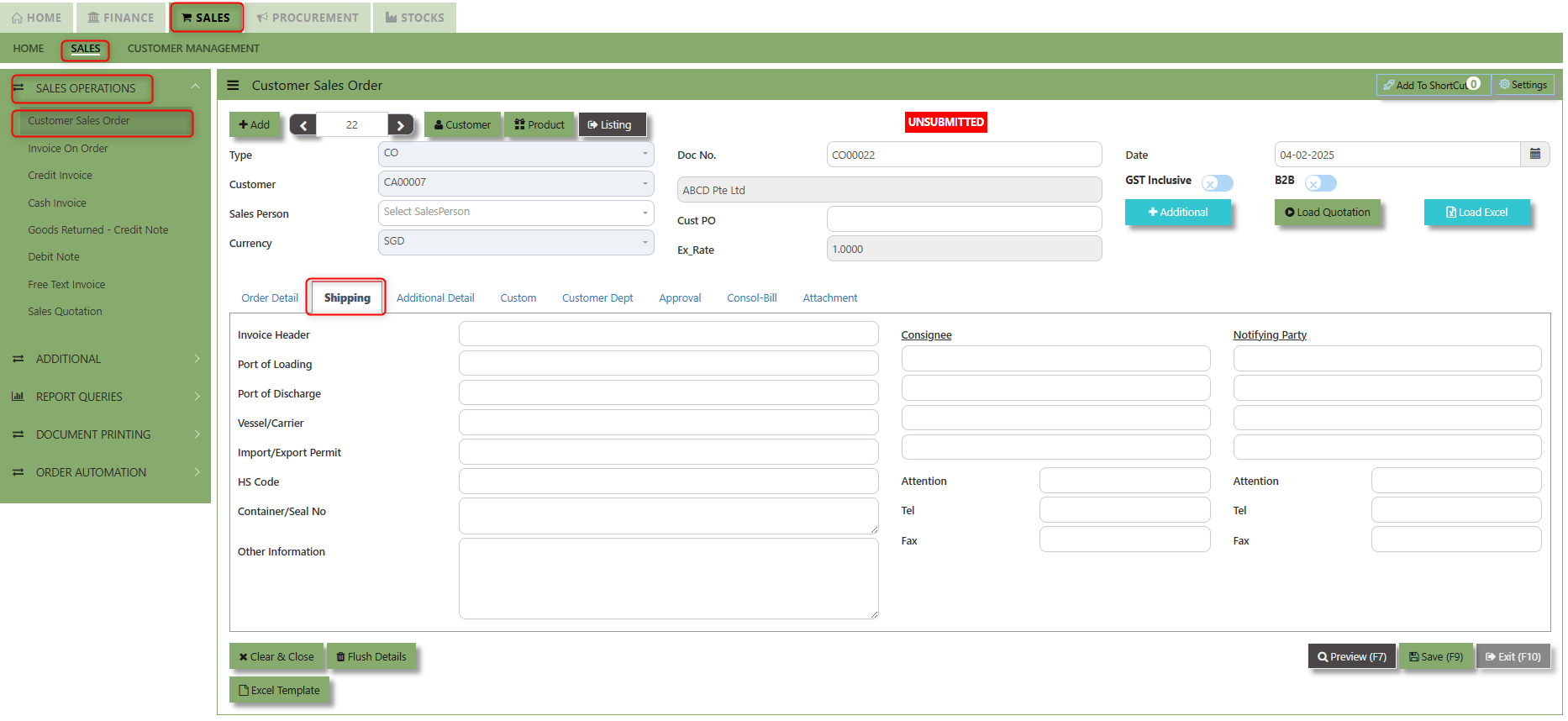
2. Input the below details for the below fields:
-
- Invoice Header
- Port of Loading
- Port of Discharge
- Vessel/Carrier
- Import/Export Permit
- HS Code
- Container/Seal No
- Other Information
- Consignee
- Attention
- Tel
- Fax
- Notifying Party
- Attention
- Tel
- Fax
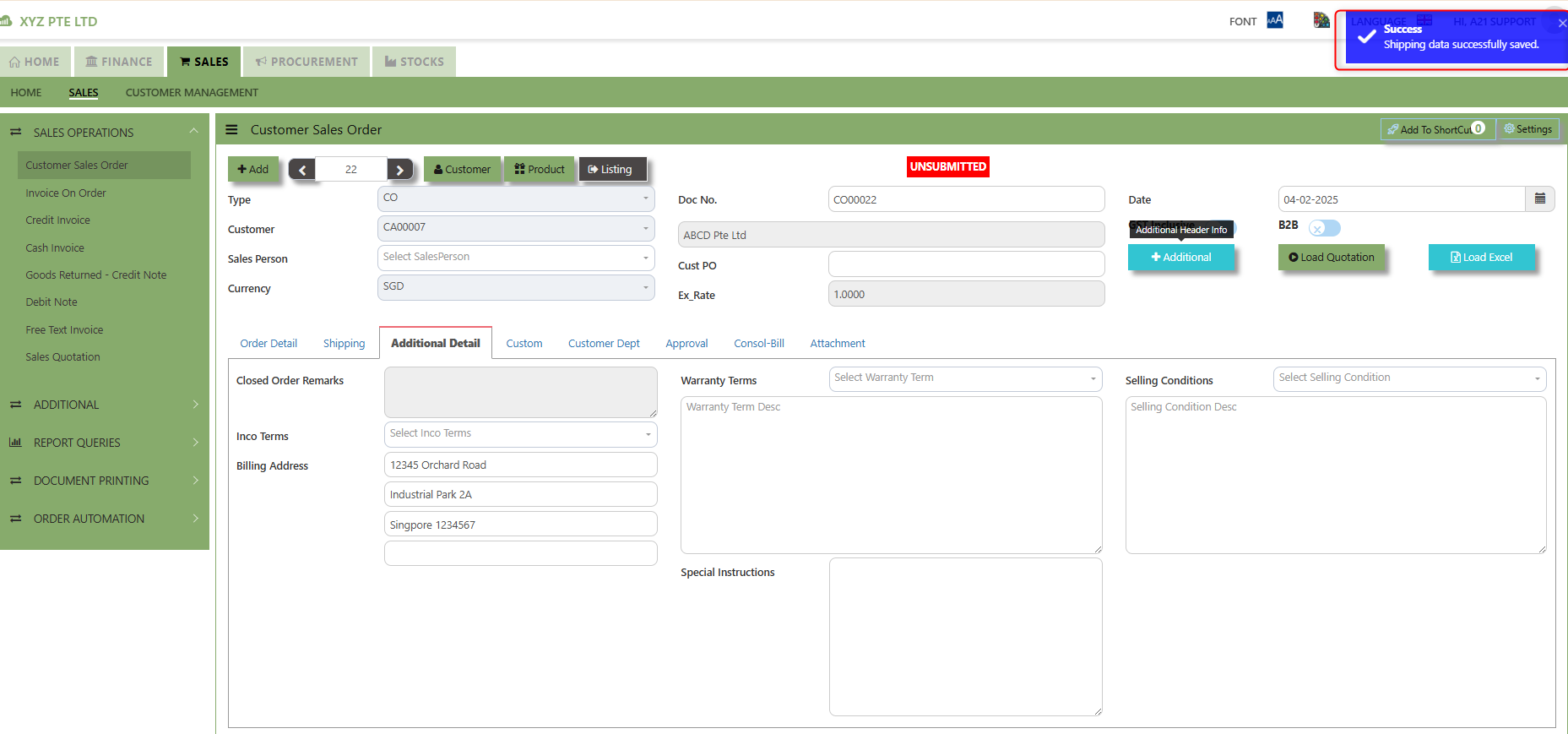
3. Once keyed in the necessary details, click the next tab and will automatically save all the information then system will prompt you a message.
___________________________________________________________________________________________________________________________________________
Additional Detail Tab a section where the additional information is entered and managed for the sold goods or services. This tab ensures that all relevant details regarding the Closed order remarks, Inco Terms , billing address warranty terms Selling conditions , and special instruction are captured in the system to facilitate smooth and accurate order fulfillment.
How to set Additional Detail?
1. Click on SALES – SALES OPERATIONS – CUSTOMER SALES ORDER - ADDITIONAL DETAIL TAB for the screen below.
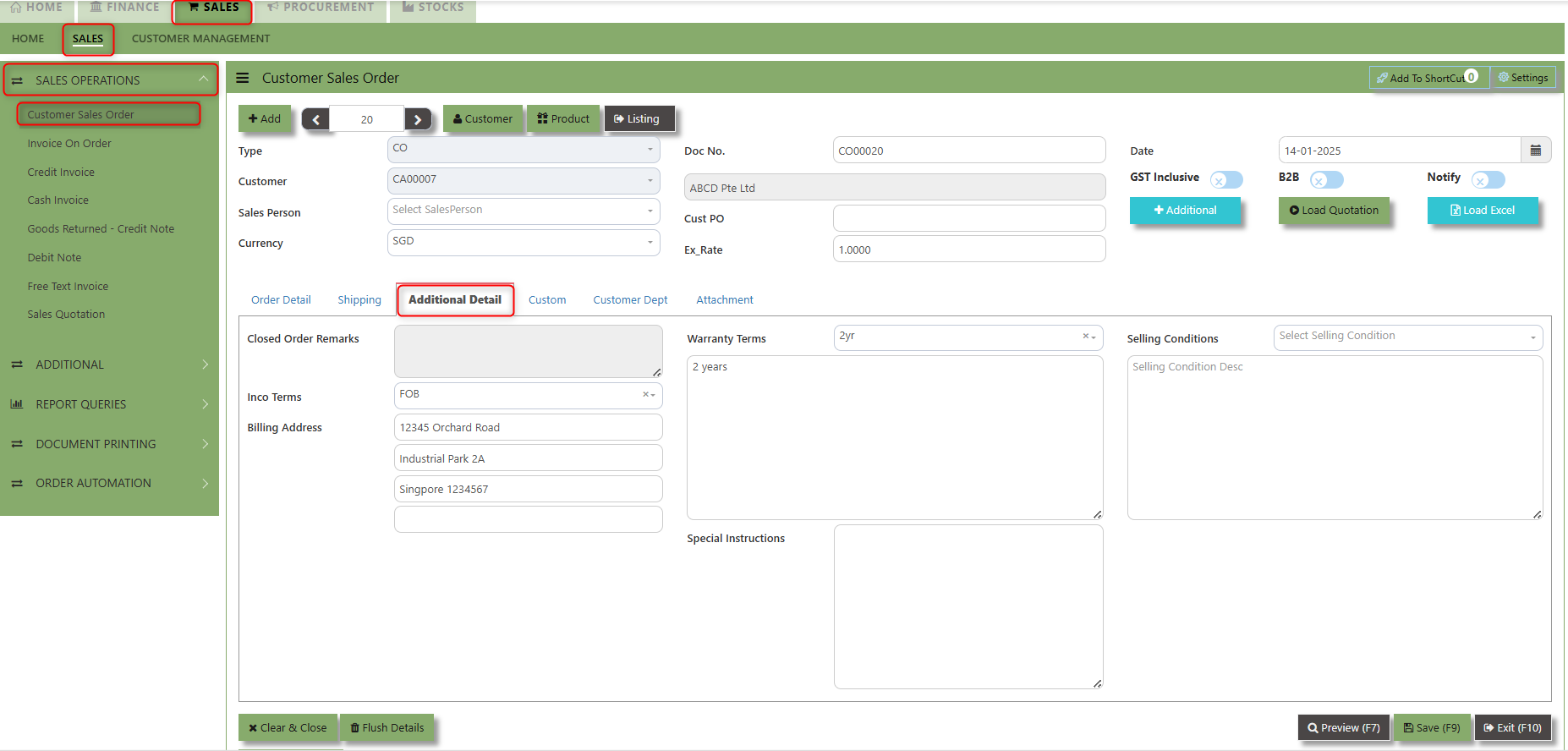
2. Input the below details for the below fields:
-
- Inco terms
- Billing Address
- Warranty Terms
- Selling conditions
- Special instruction
3. Once keyed in the necessary details, click the next tab and will automatically save all the information
___________________________________________________________________________________________________________________________________________
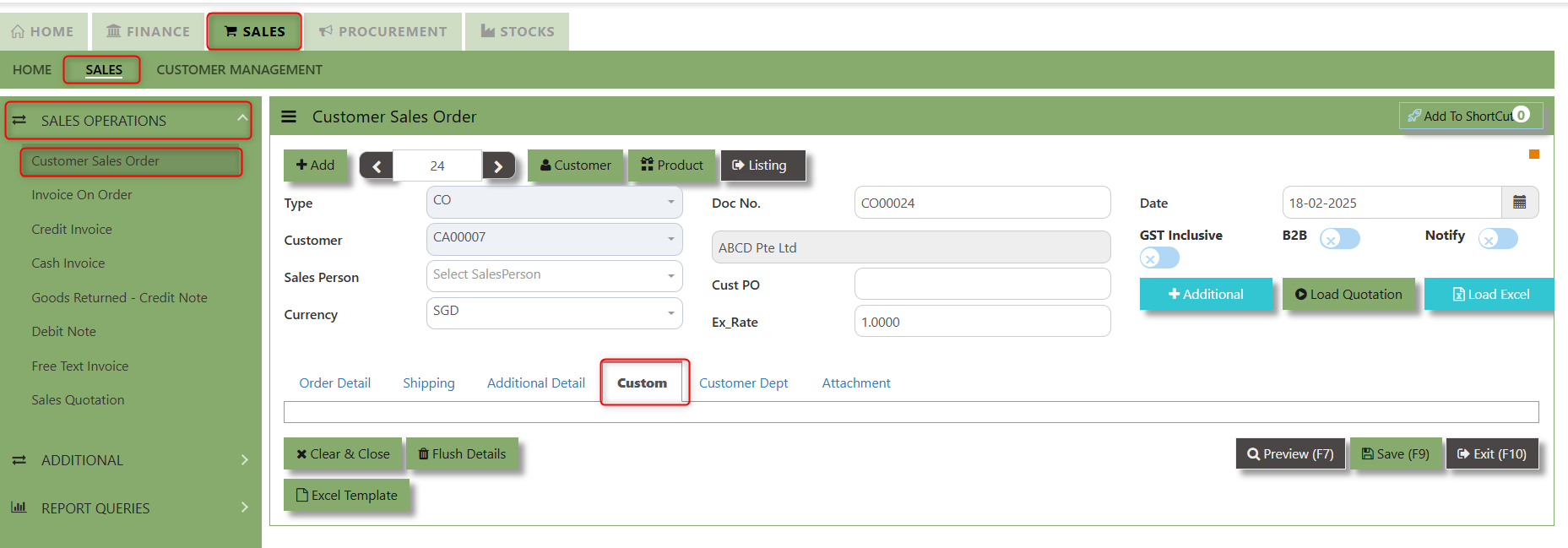
"Custom Tab" provides a space for users to input customized data or additional fields that are specific to their business processes and requirements.
- Click on SALES – SALES OPERATIONS – CUSTOMER SALES ORDER - CUSTOM TAB for the screen below.
___________________________________________________________________________________________________________________________________________
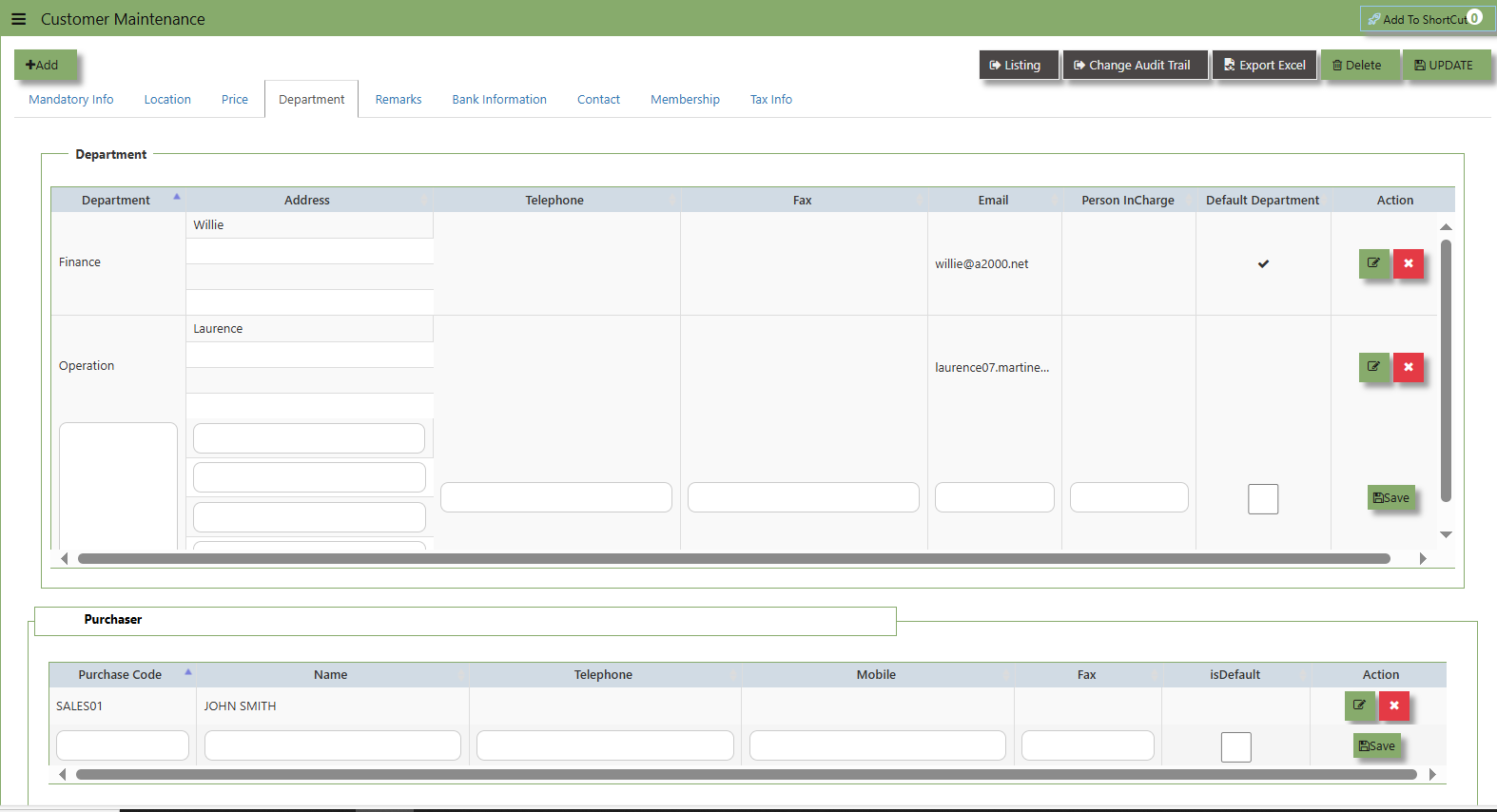
"Customer Dept Tab" section where the Customer Department information is entered. This tab ensures that all relevant details regarding Customer Department details which is linked to the Customer Maintenance under Department Tab
- Click on SALES – SALES OPERATIONS – CUSTOMER SALES ORDER - CUSTOMER DEPT TAB for the screen below.
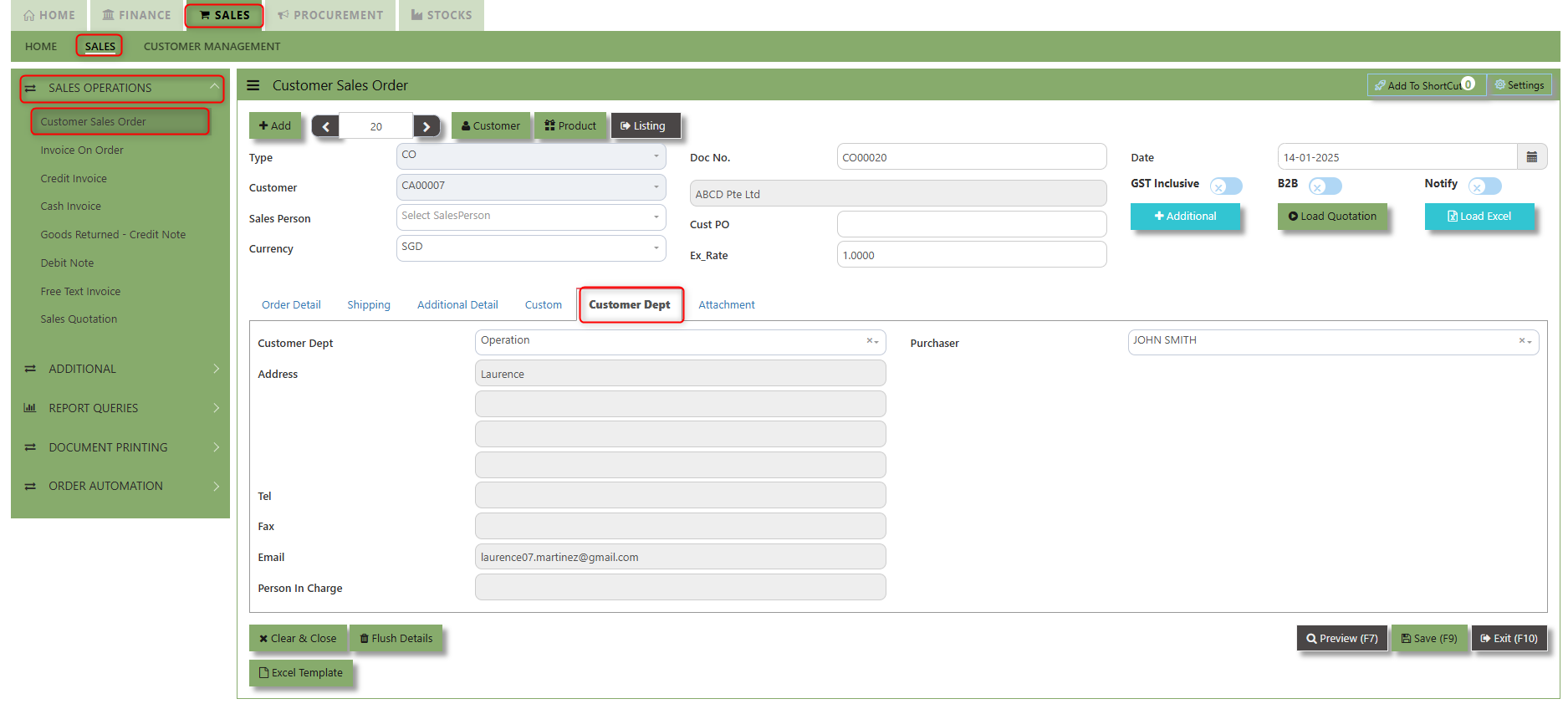
The drop down selection for Customer Dept and Purchaser is maintained in Customer Maintenance under Department Tab
__________________________________________________________________________________________________________________________________________
"Attachment Tab" allows users to attach various files and documents related to the sales order. By attaching relevant files, users ensure that all purchase-related information is kept in one place, making the sales process smoother, more transparent, and easier to track.
How to use Attachment Tab?
1. Click on SALES – SALES OPERATIONS – CUSTOMER SALES ORDER – ATTACHEMENT TAB for the screen below.
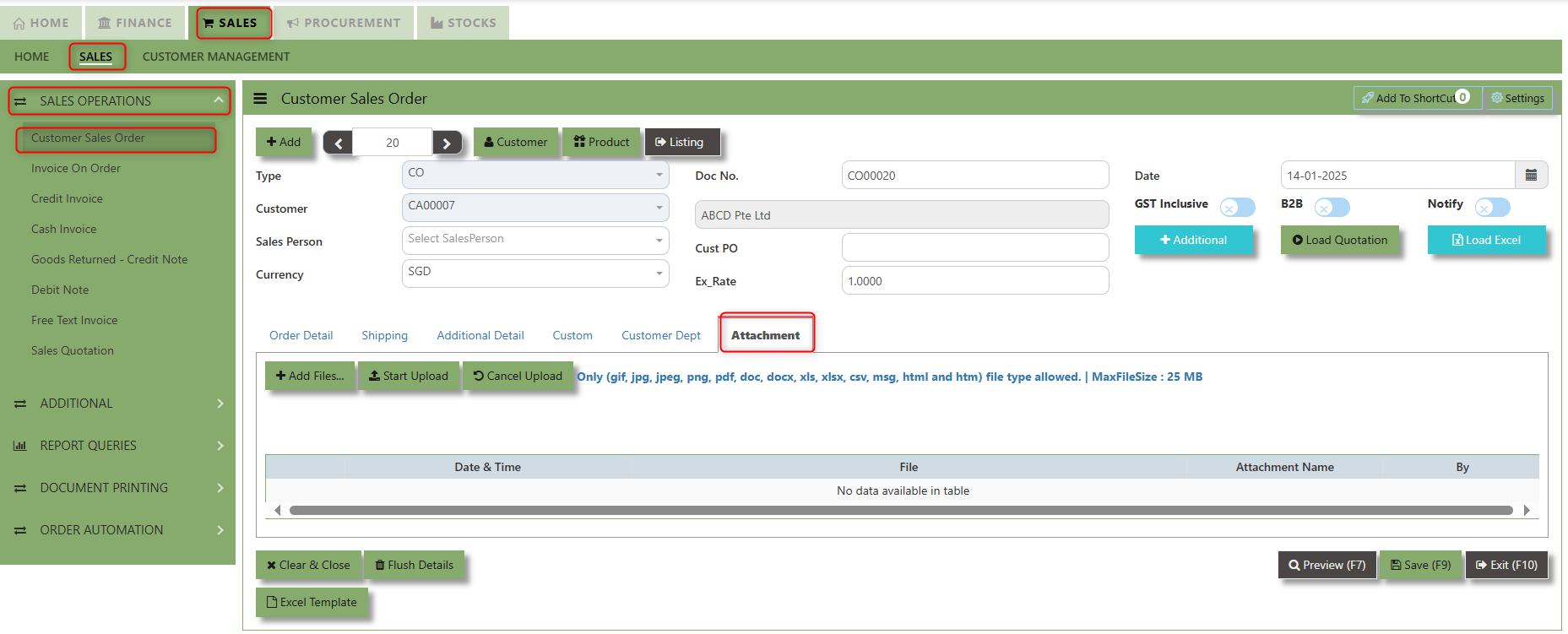
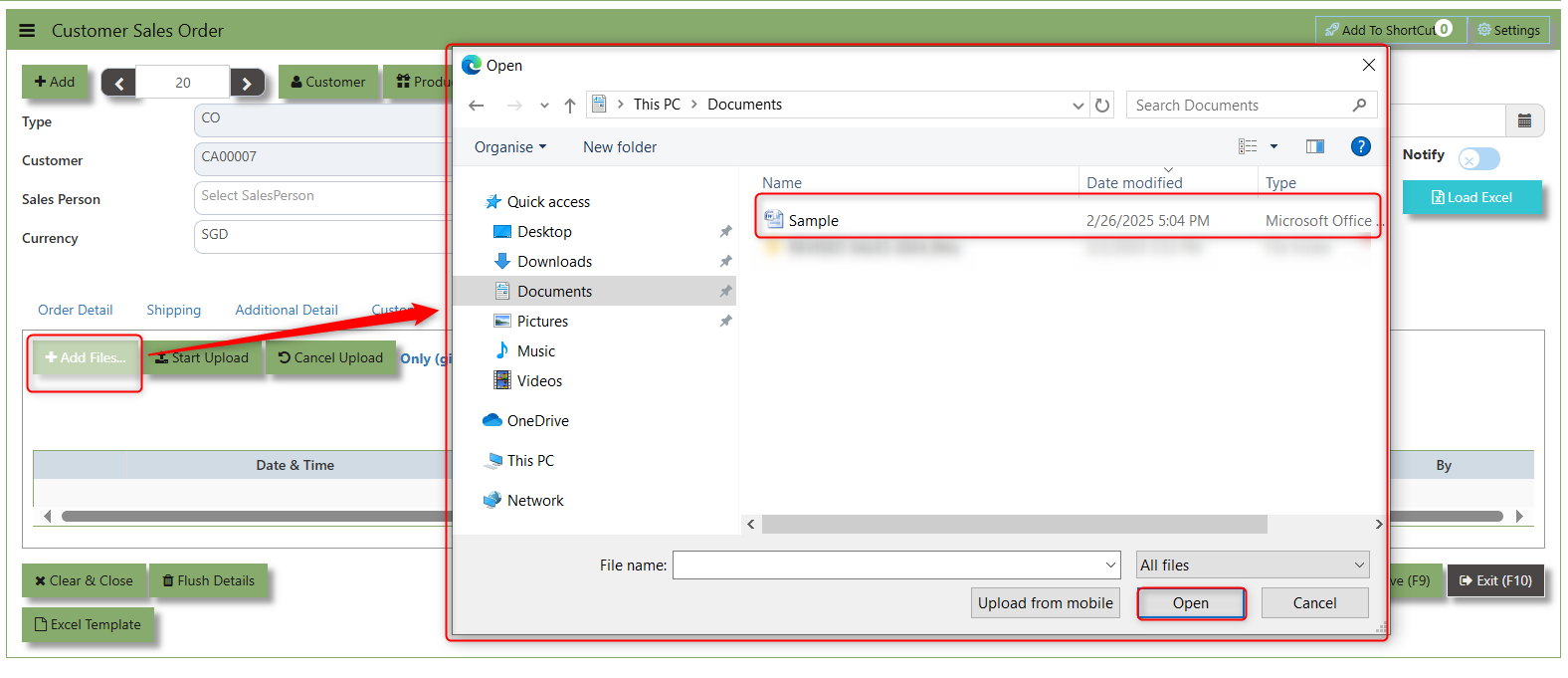
2. Click +Add files and windows will prompt then choose the file you want to upload by clicking open. Kindly take note the file types and maximum size requirements in uploading: Only (gif, jpg, jpeg, png, pdf, doc, docx, xls, xlsx, csv, msg, html and htm) file type allowed. | MaxFileSize : 25 MB
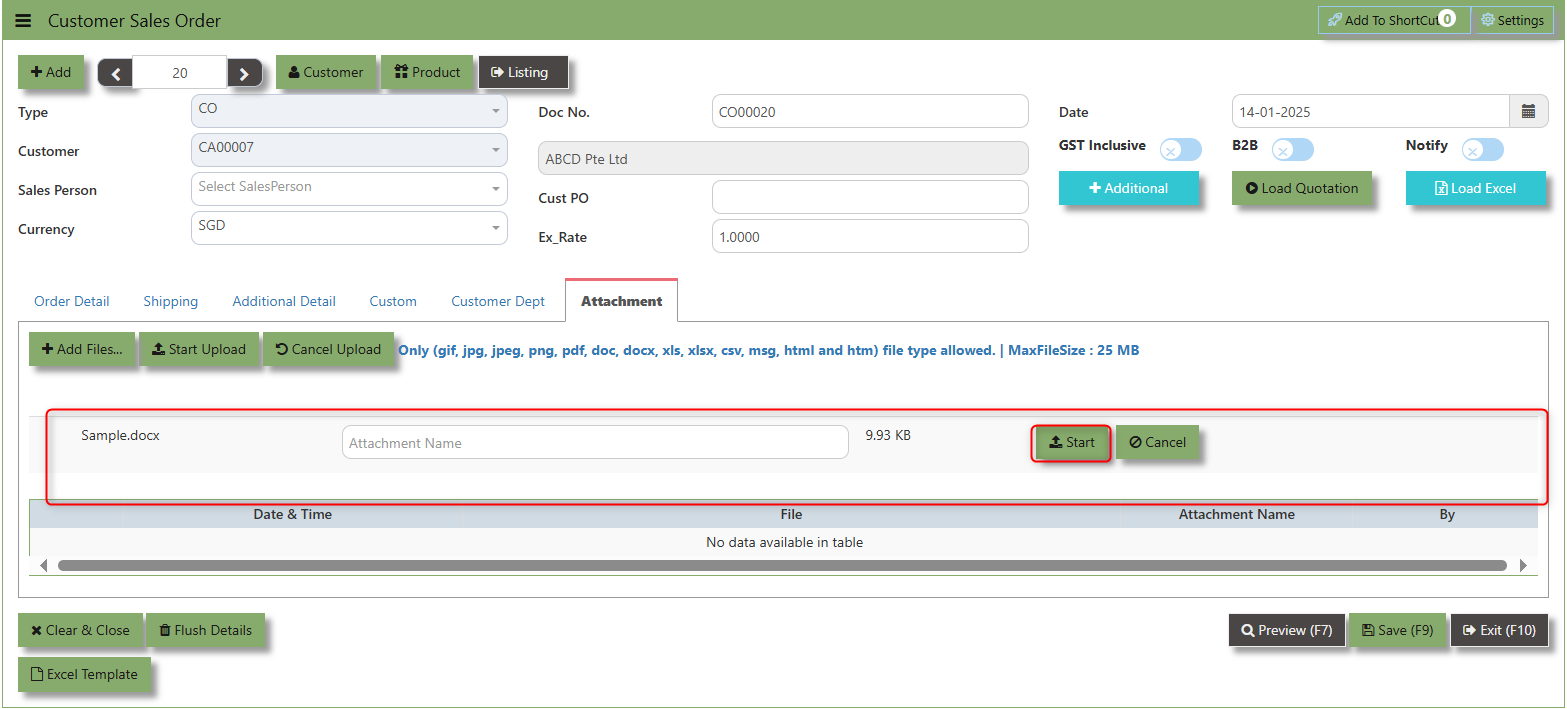
3. Key in the Attachment Name then click start to upload.
4.Once the file attached, click "SAVE" button
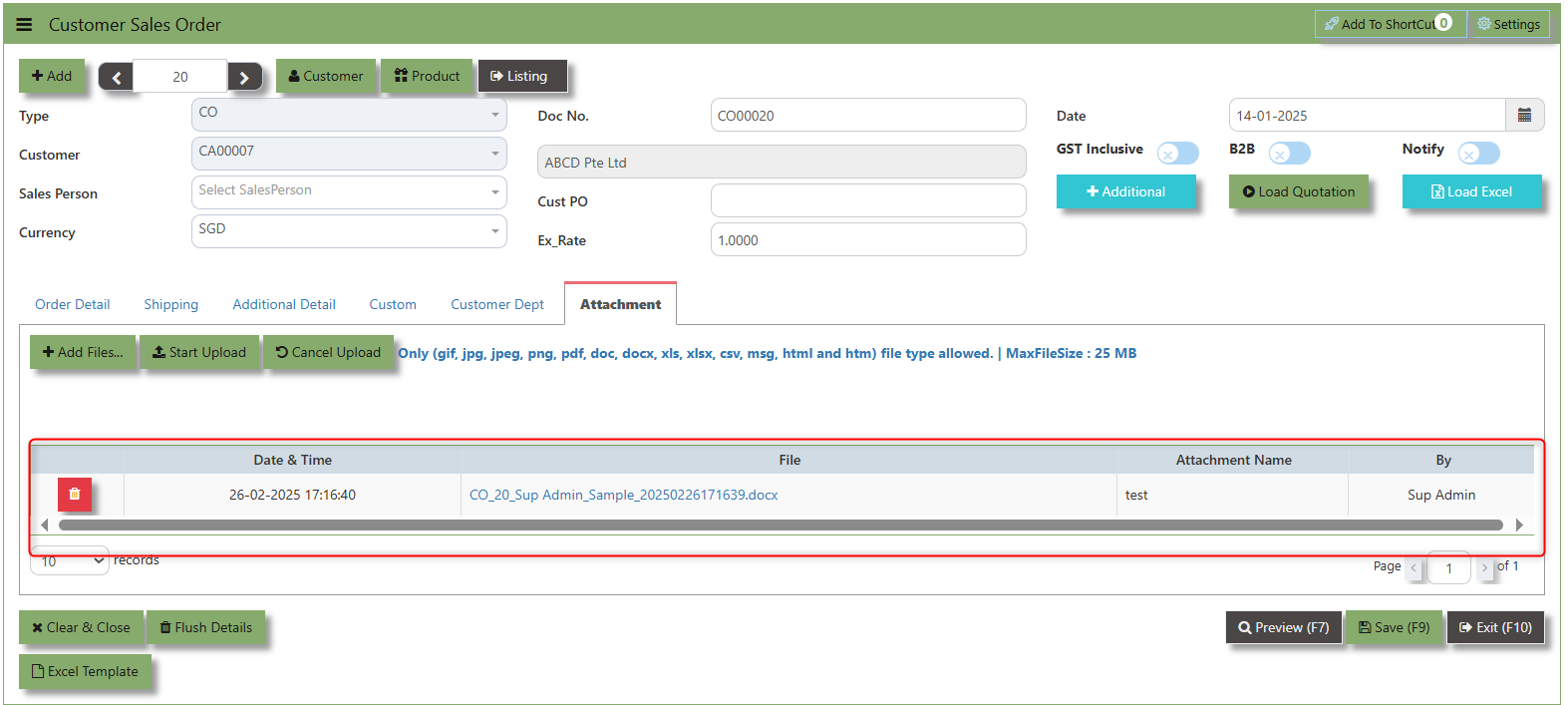
User may opt to cancel the uploading by clicking the "Cancel Upload" button and delete the file uploaded by clicking the "Bin icon" at the line detail.
Invoice on Order
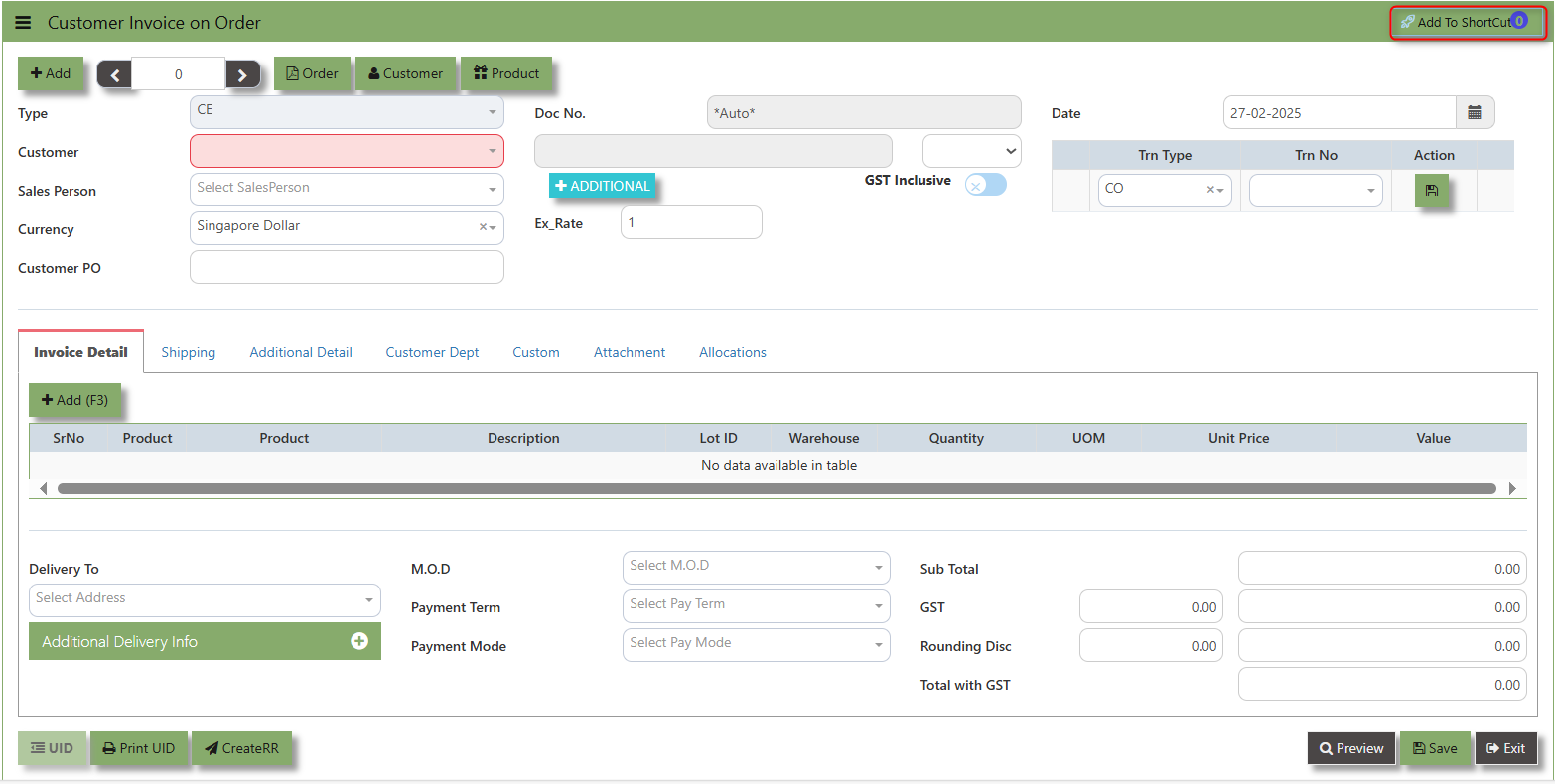
After the Sales Order (Flow 2b), you will create Customer Invoice on Order. Enter the required fields such as the transaction type and customer for that invoice, before specifying the CO number at the top right hand corner of the screen. The line items from the sales order have to be verified and added in accordingly at the line detail level into the CE. After verifying all the details, click on the Save button to save the transaction. Postings are automatically carried out and the GL and Inventory status will be updated.
___________________________________________________________________________________________________________________________________________
How to Create Invoice on Order?
1.Click on SALES – SALES – SALES OPERATIONS – INVOICE ON ORDER for the screen below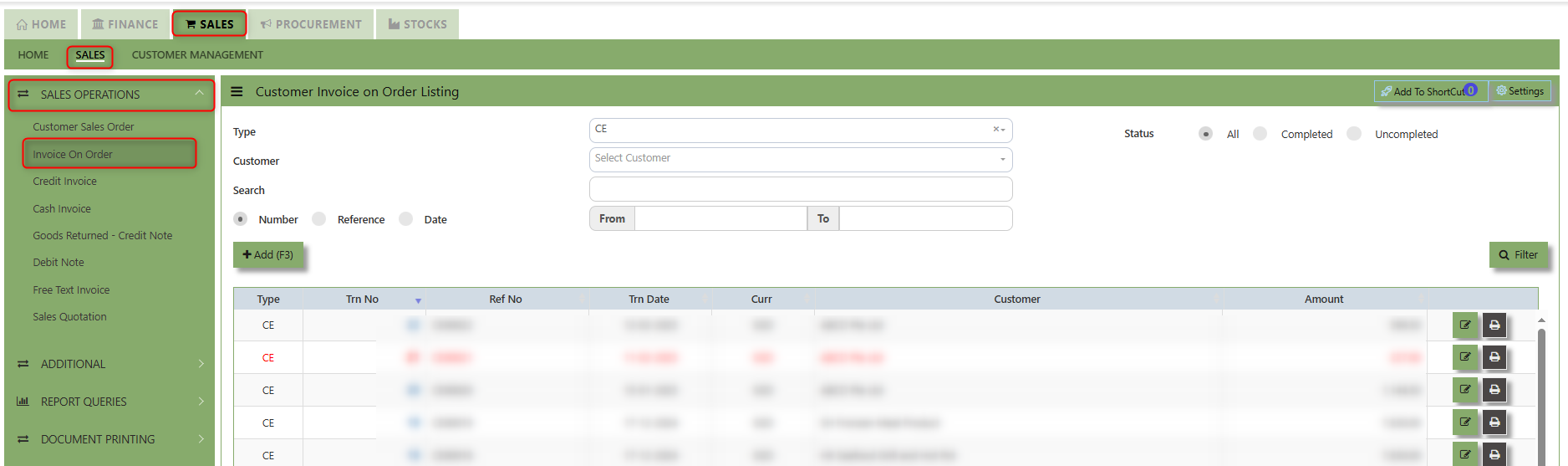
2. Click on Add button or press F3 to create a new transaction.

3. After the transaction type selection, you can use the tab button to go to the Ref No. and Date fields to fill up the information.
4. Click the Customer - drop-down to select Customer Name, followed by the Sales Person, PDS, Currency, Rate, Our DO and Order Ref No. if applicable.
5. After completing the above steps, click the Order No. drop down list to select the Sales Order to be invoiced (refer to the highlighted screen).
6. After selecting the Sales Order transaction from the Order No. column, user can use the “L” button to load all the product items. Alternatively, you can use the Ref column in the detail section to call out the product items one by one. Save the CE transaction after this is done.
___________________________________________________________________________________________________________________________________________
Add to ShortCut - Used to create a shortcut for quick access to a specific sales invoice or sales-related functionality. By clicking this button, users can add the current sales invoice on order to a list of shortcuts, allowing them to access the invoice or related functionality quickly and efficiently, without needing to search for it each time.
How to use Add to ShortCut?
1. Click "Add to ShortCut" and system will open below windows:
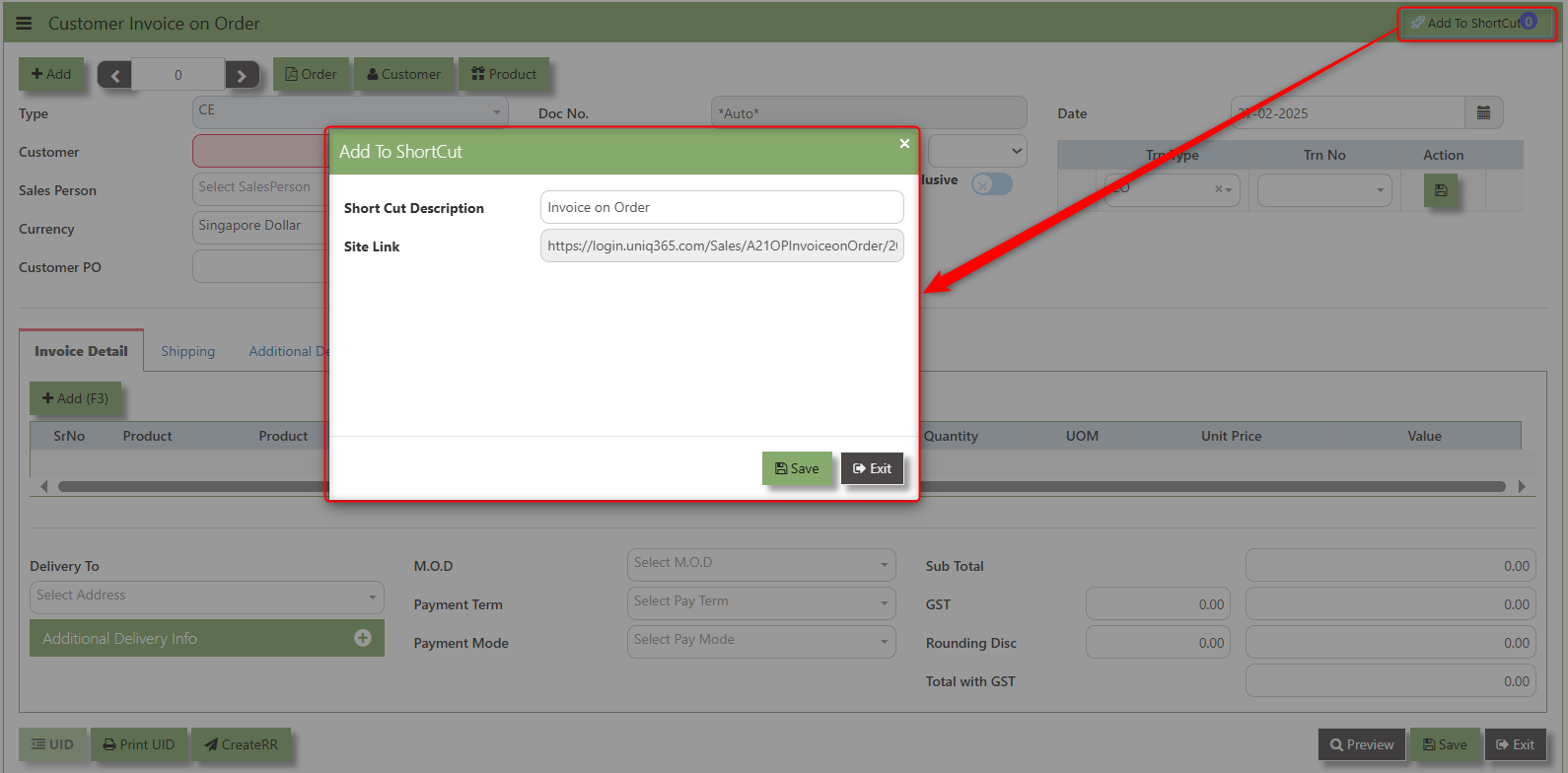
2. Enter Short Cut Description
3. Click SAVE then click OK.
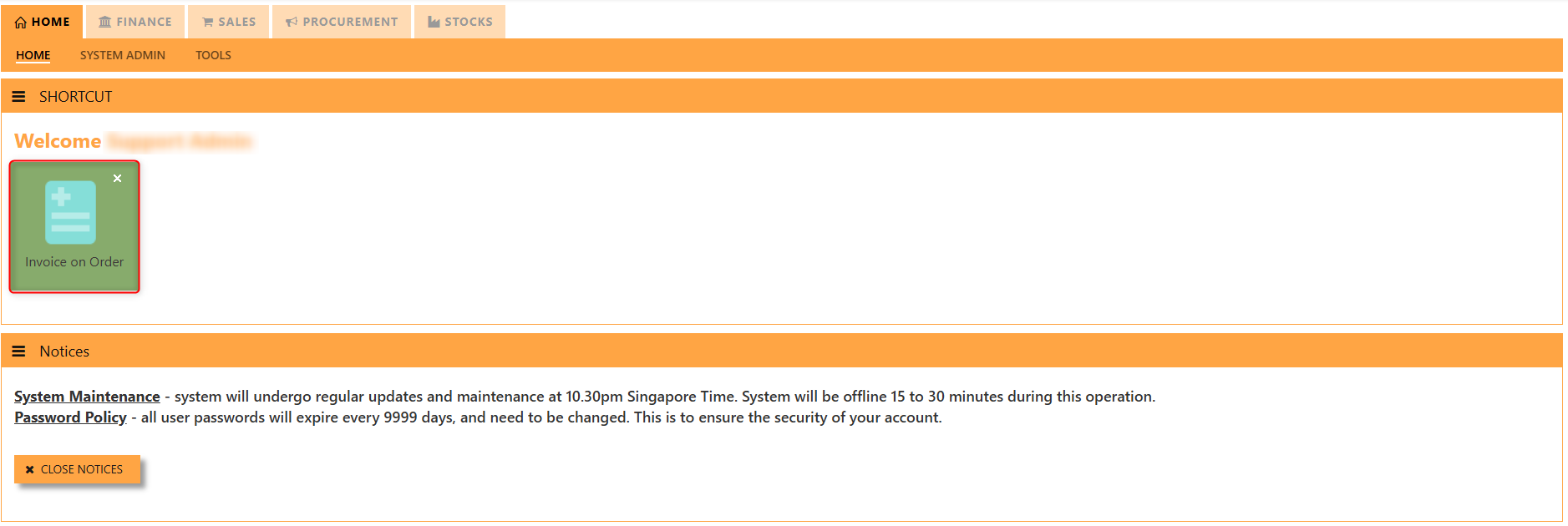
4. User may look to the Homepage for the added function or page. Click on HOME - HOME - SHORTCUT for the screen below.
___________________________________________________________________________________________________________________________________________
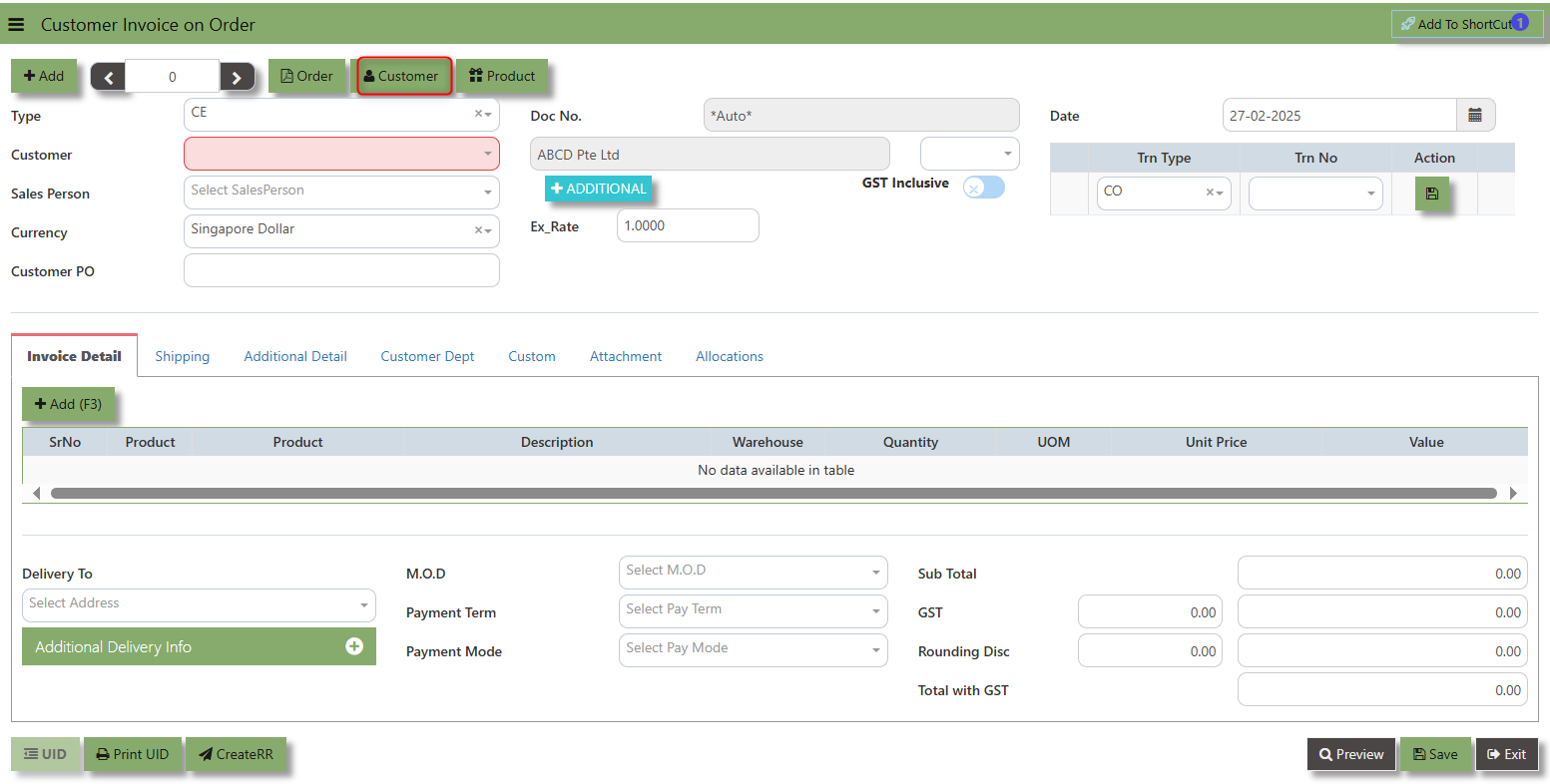
The Customer button provides quick access to detailed supplier profiles under Customer maintenance.
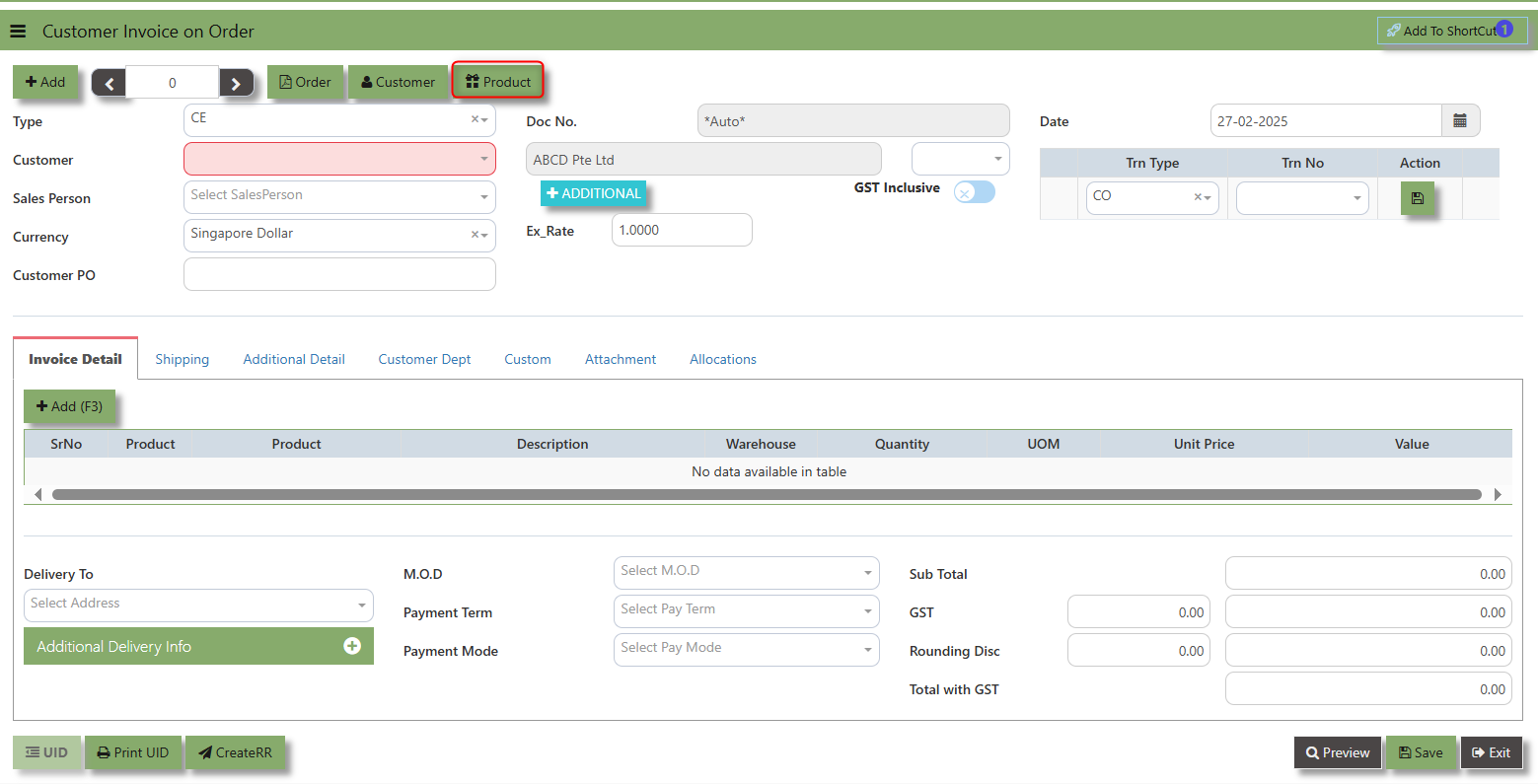
The Product button provides quick access to product and service maintenance.
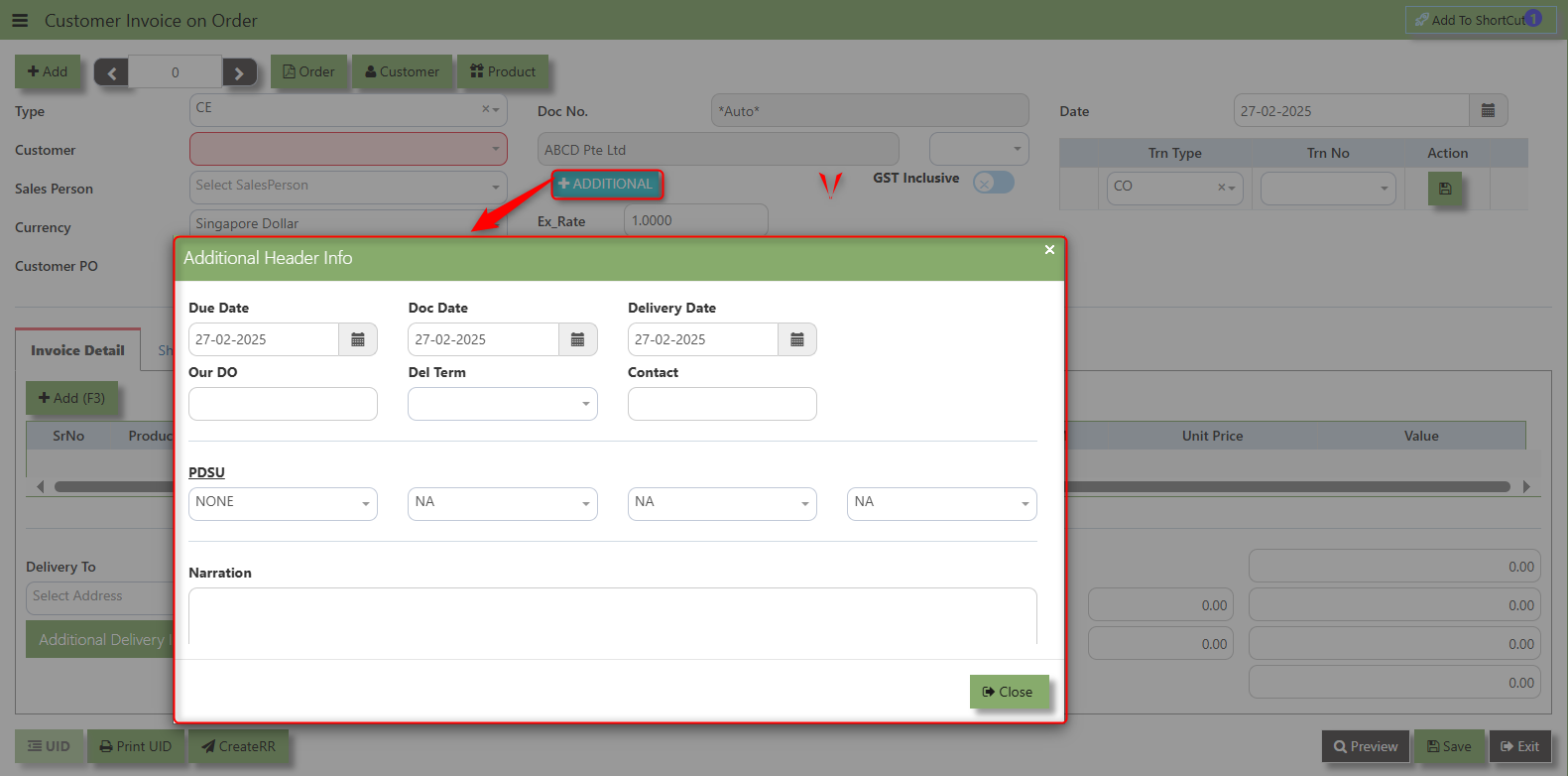
Additional Header Info button is typically used to capture and manage additional information related to the sales Invoice on order at the header level (i.e., Delivery date, Del Term , Indicative WH , Country, Lead Time, Contact, PDSU, Narration and Transaction Narration). This feature allows users to add extra data or notes that are relevant to the entire sales invoice on order.
The GST Inclusive checkbox indicates whether the unit price in the CR include Goods and Services Tax (GST) or not.
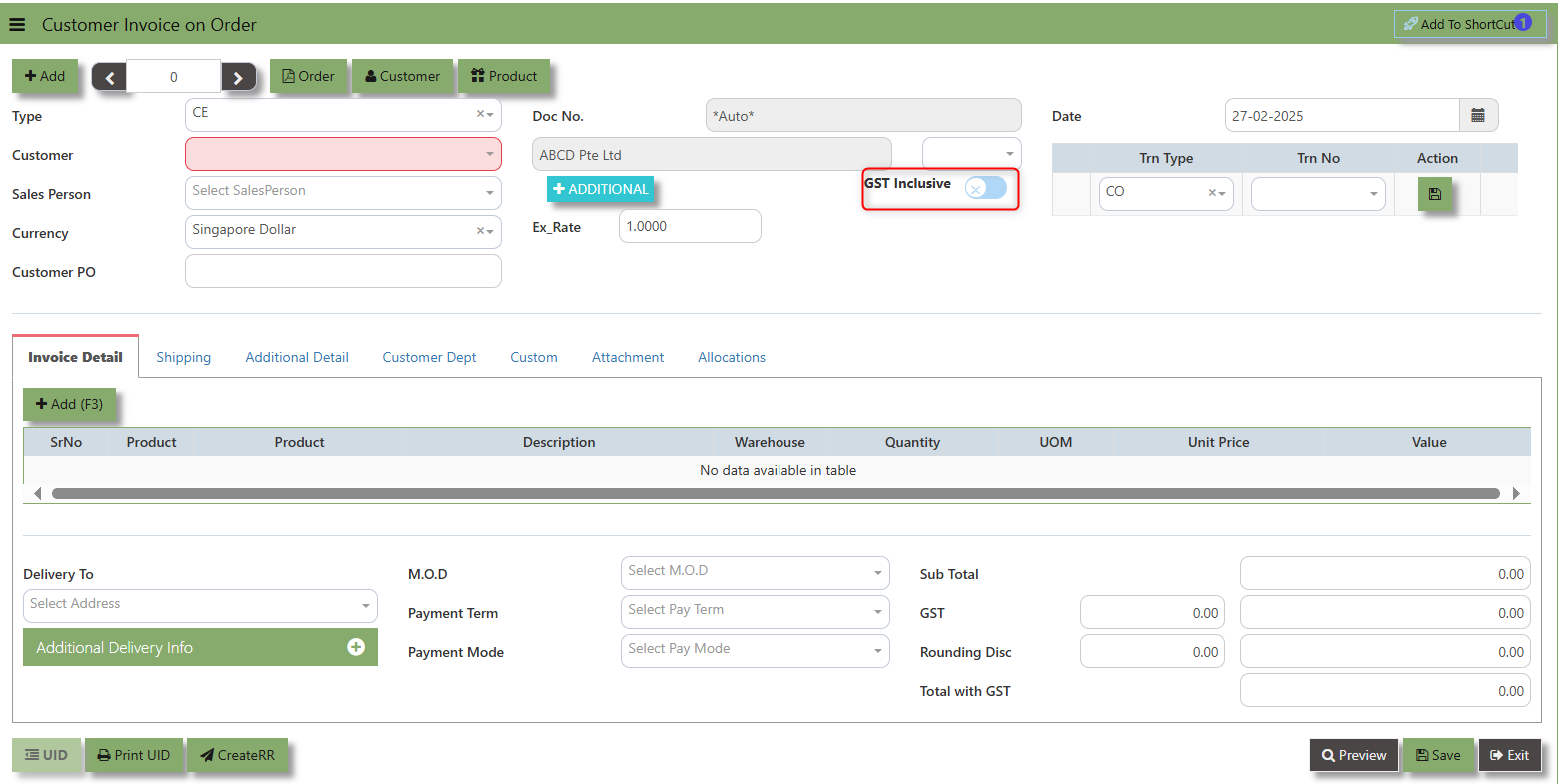
- When ticked (GST Inclusive): provided in the Sales Order already includes the applicable GST amount. The GST amount will not be calculated or displayed separately, as it's already accounted for in the quoted price.
- When not ticked (GST Exclusive): The unit price is considered exclusive of GST. The system will calculate and add the GST based on the applicable tax rate, and the final total will be the sum of the base price plus the GST amount.
___________________________________________________________________________________________________________________________________________
Shipping Tab a section where specific shipping-related information is entered and managed for the sold goods or services. This tab ensures that all relevant details regarding the shipment, delivery location, and delivery expectations are captured in the system to facilitate smooth and accurate order fulfillment.
How to set Shipping Info?
1. Click on SALES – SALES OPERATIONS – SALES INVOICE ON ORDER - SHIPPING TAB for the screen below.
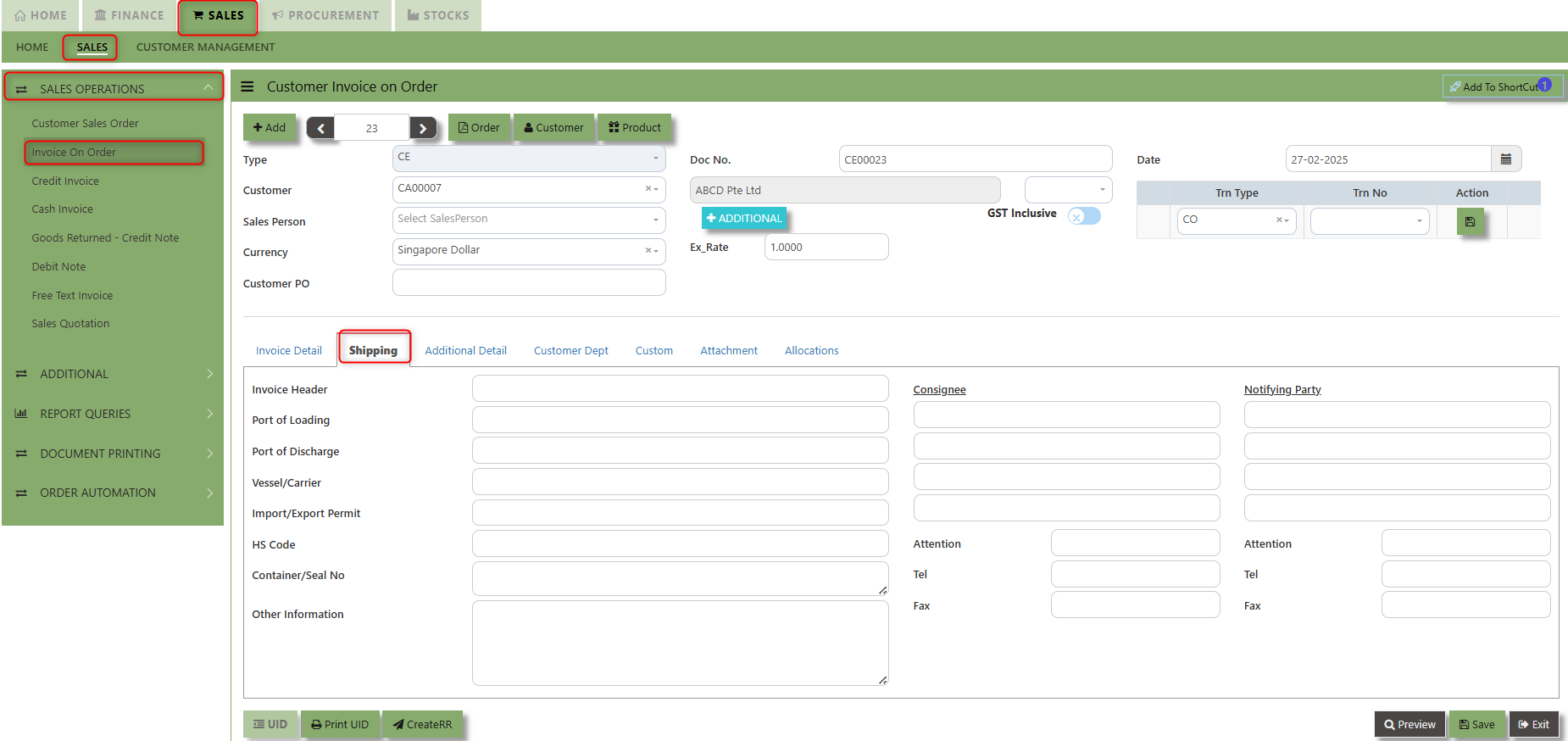
2. Input the below details for the below fields:
-
- Invoice Header
- Port of Loading
- Port of Discharge
- Vessel/Carrier
- Import/Export Permit
- HS Code
- Container/Seal No
- Other Information
- Consignee
- Attention
- Tel
- Fax
- Notifying Party
- Attention
- Tel
- Fax
3. Once keyed in the necessary details, click the next tab and will automatically save all the information then system will prompt you a message.
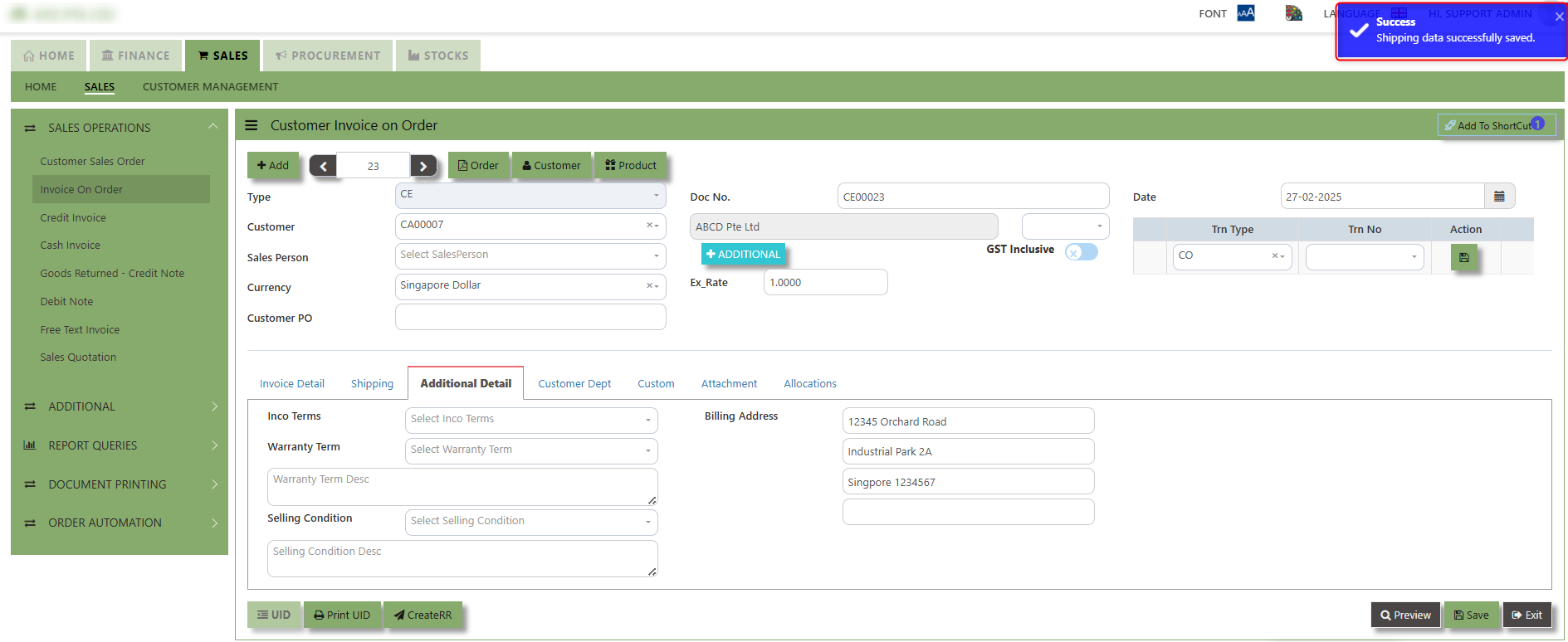
___________________________________________________________________________________________________________________________________________
Additional Detail Tab a section where the additional information is entered and managed for the sold goods or services. This tab ensures that all relevant details regarding the Closed order remarks, Inco Terms , billing address warranty terms Selling conditions , and special instruction are captured in the system to facilitate smooth and accurate order fulfillment.
How to set Additional Detail?
1. Click on SALES – SALES OPERATIONS – SALES INVOICE ON ORDER- ADDITIONAL DETAIL TAB for the screen below.
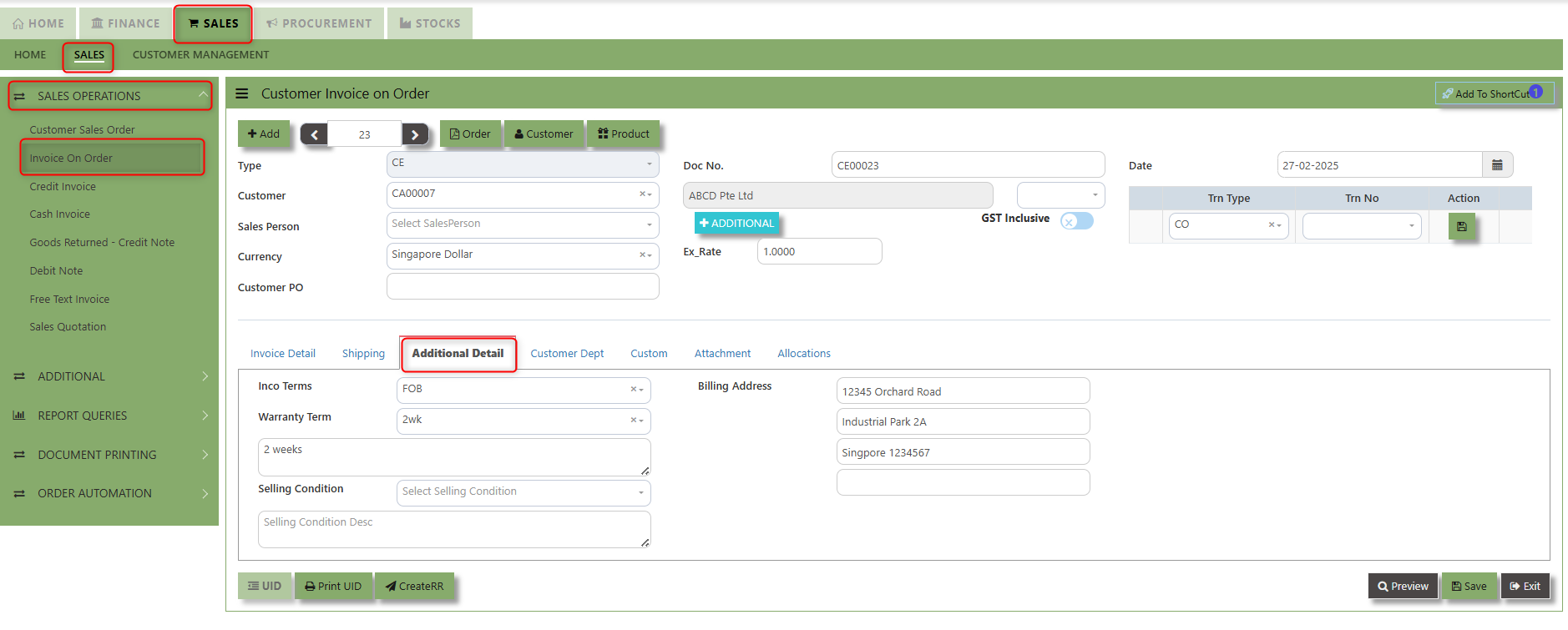
2. Input the below details for the below fields:
-
- Inco terms
- Billing Address
- Warranty Terms
- Selling conditions
- Special instruction
3. Once keyed in the necessary details, click the next tab and will automatically save all the information
___________________________________________________________________________________________________________________________________________
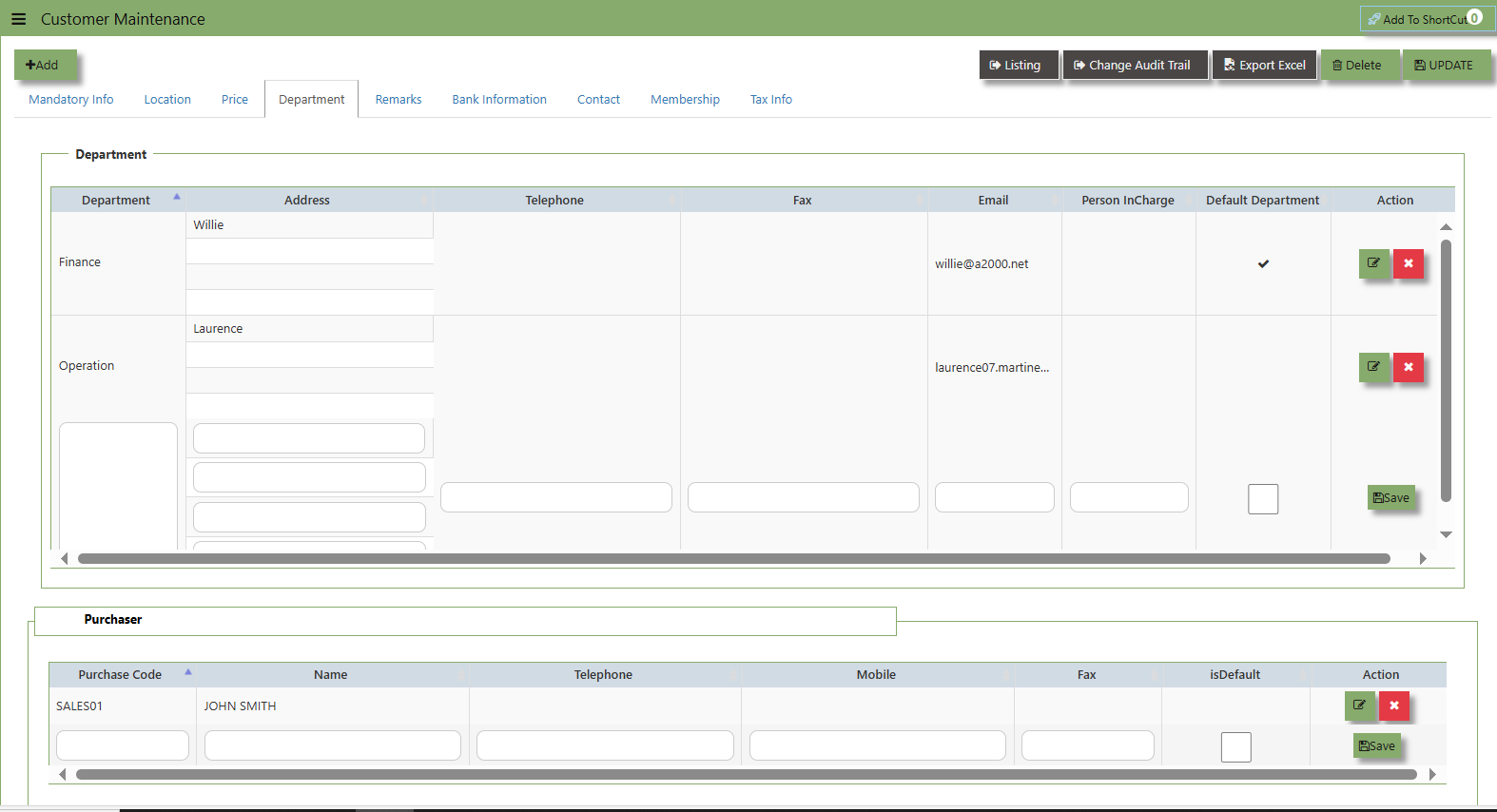
"Customer Dept Tab" section where the Customer Department information is entered. This tab ensures that all relevant details regarding Customer Department details which is linked to the Customer Maintenance under Department Tab
- Click on SALES – SALES OPERATIONS – SALES INVOICE ON ORDER - CUSTOMER DEBT TAB for the screen below.
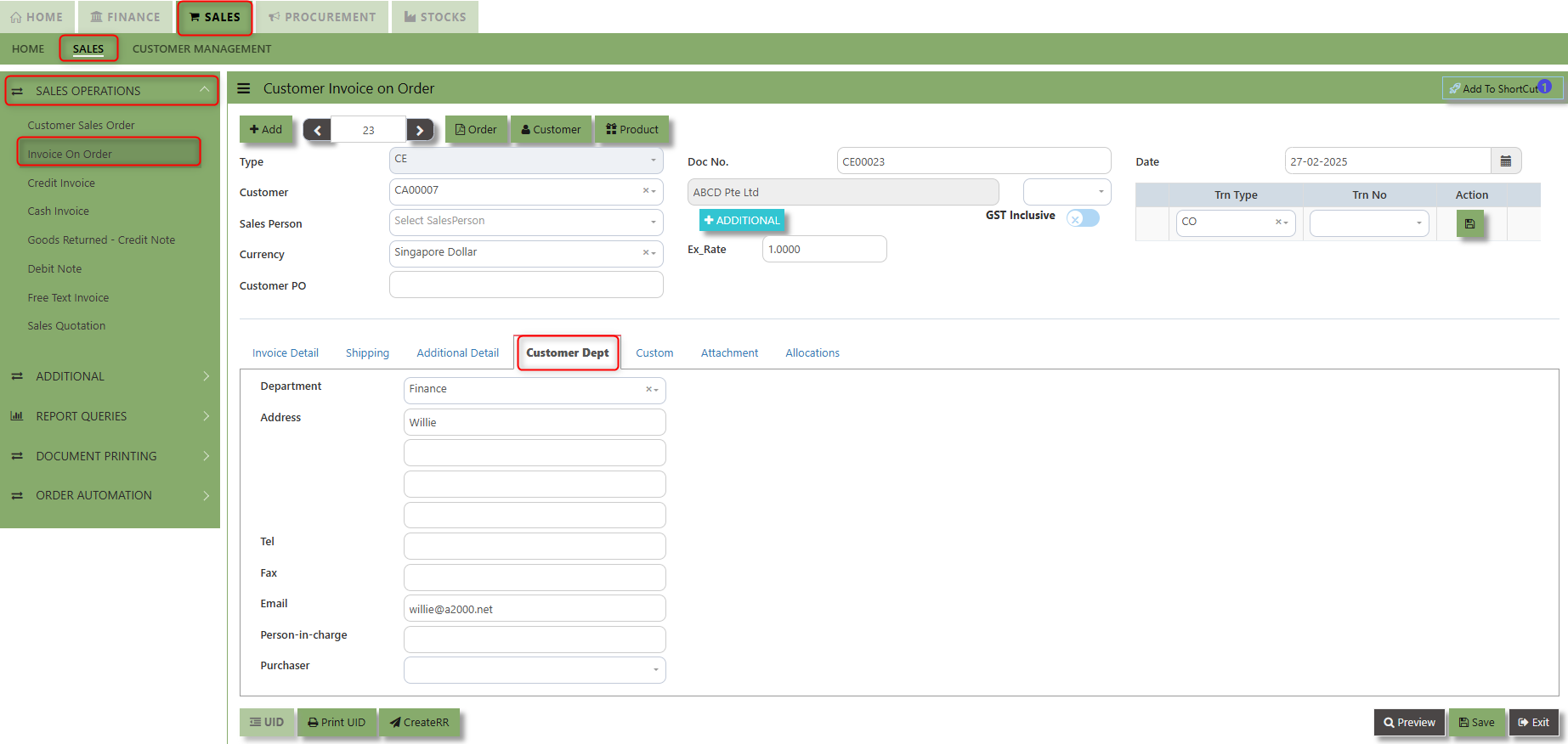
The drop down selection for Customer Dept and Purchaser is maintained in Customer Maintenance under Department Tab
___________________________________________________________________________________________________________________________________________
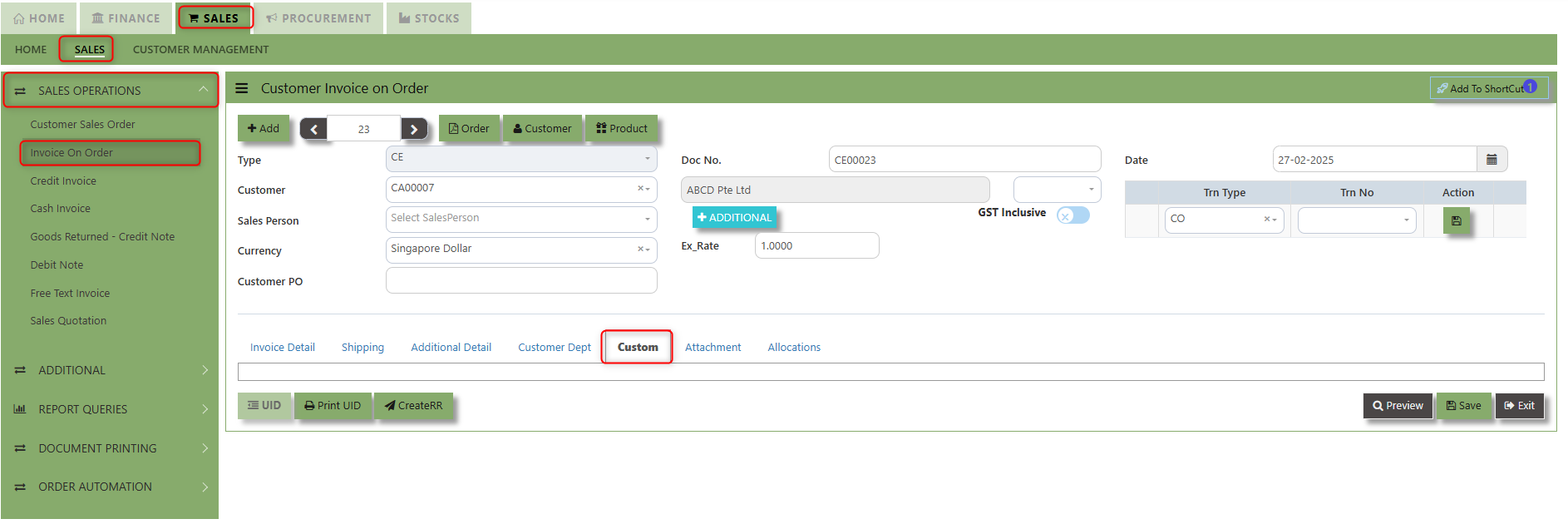
"Custom Tab" provides a space for users to input customized data or additional fields that are specific to their business processes and requirements.
- Click on SALES – SALES OPERATIONS – SALES INVOICE ON ORDER - CUSTOM TAB for the screen below.
___________________________________________________________________________________________________________________________________________
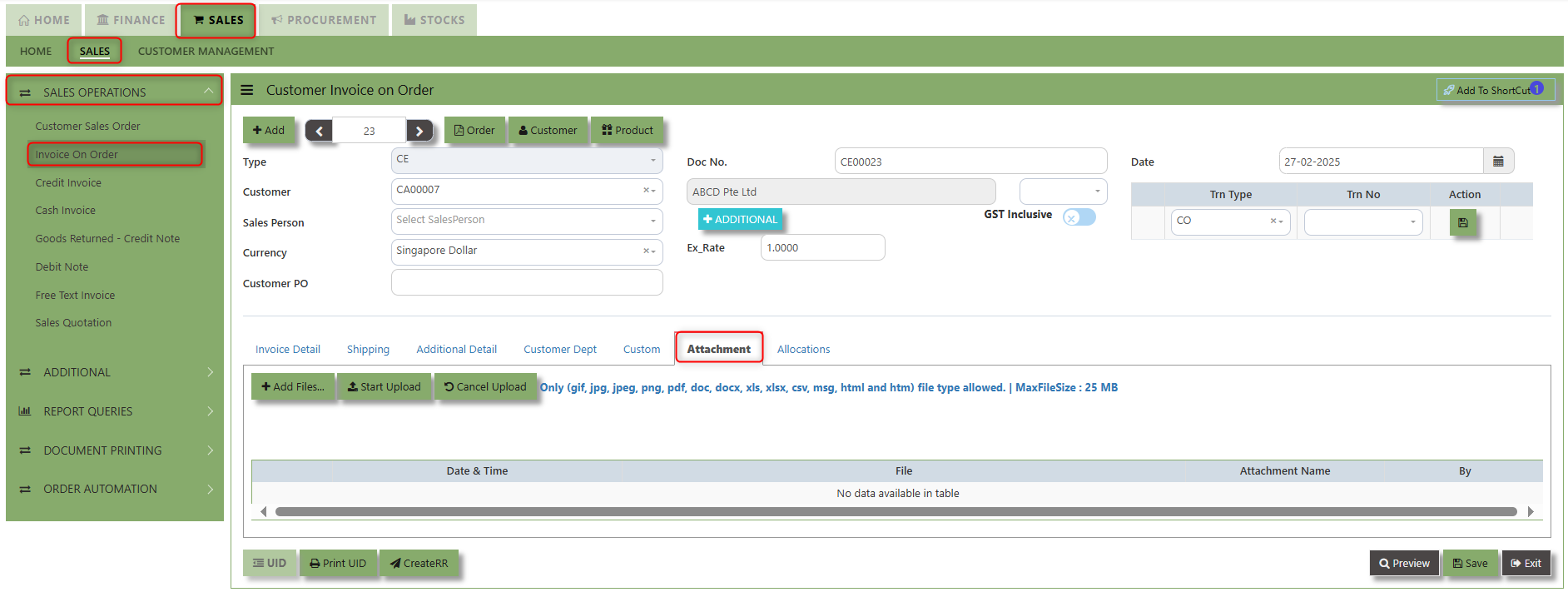
"Attachment Tab" allows users to attach various files and documents related to the sales order. By attaching relevant files, users ensure that all purchase-related information is kept in one place, making the sales process smoother, more transparent, and easier to track.
How to use Attachment Tab?
1. Click on SALES – SALES OPERATIONS – SALES INVOICE ON ORDER – ATTACHEMENT TAB for the screen below.
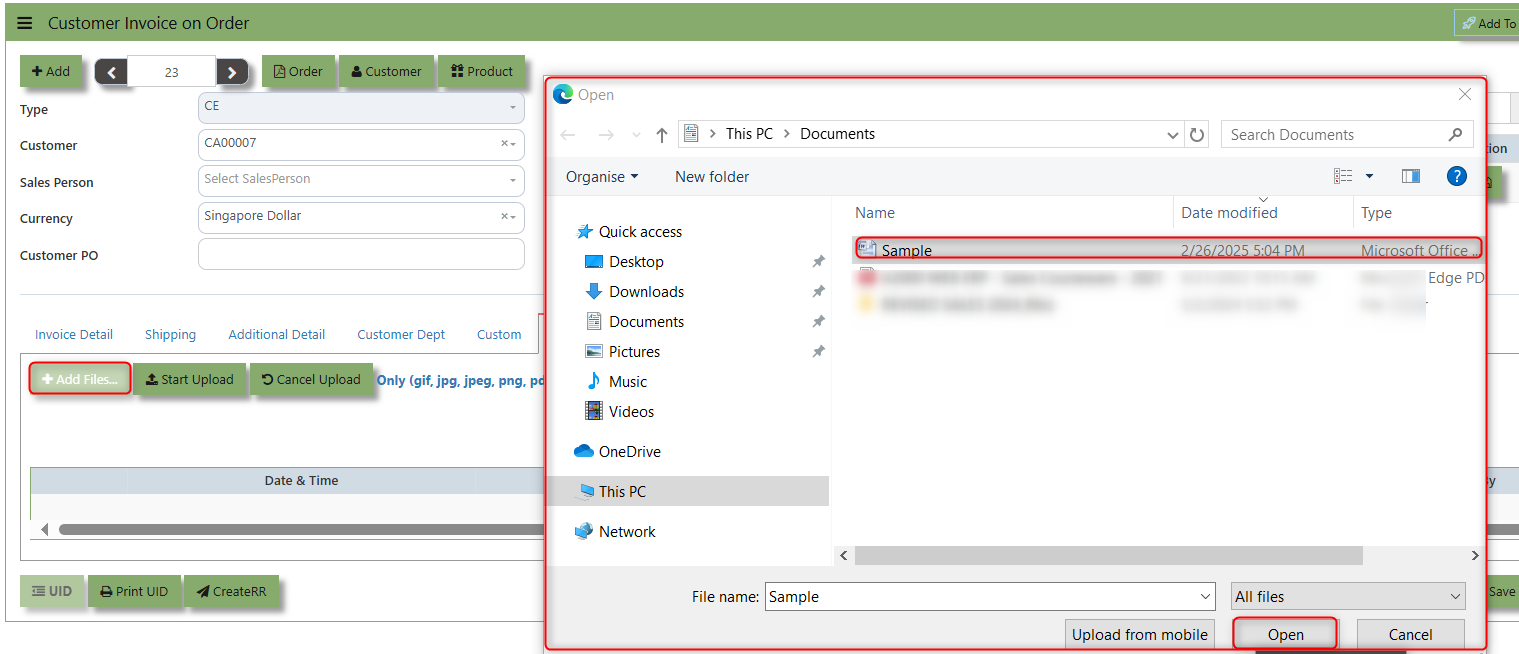
2. Click +Add files and windows will prompt then choose the file you want to upload by clicking open. Kindly take note the file types and maximum size requirements in uploading: Only (gif, jpg, jpeg, png, pdf, doc, docx, xls, xlsx, csv, msg, html and htm) file type allowed. | MaxFileSize : 25 MB
3. Key in the Attachment Name then click start to upload.
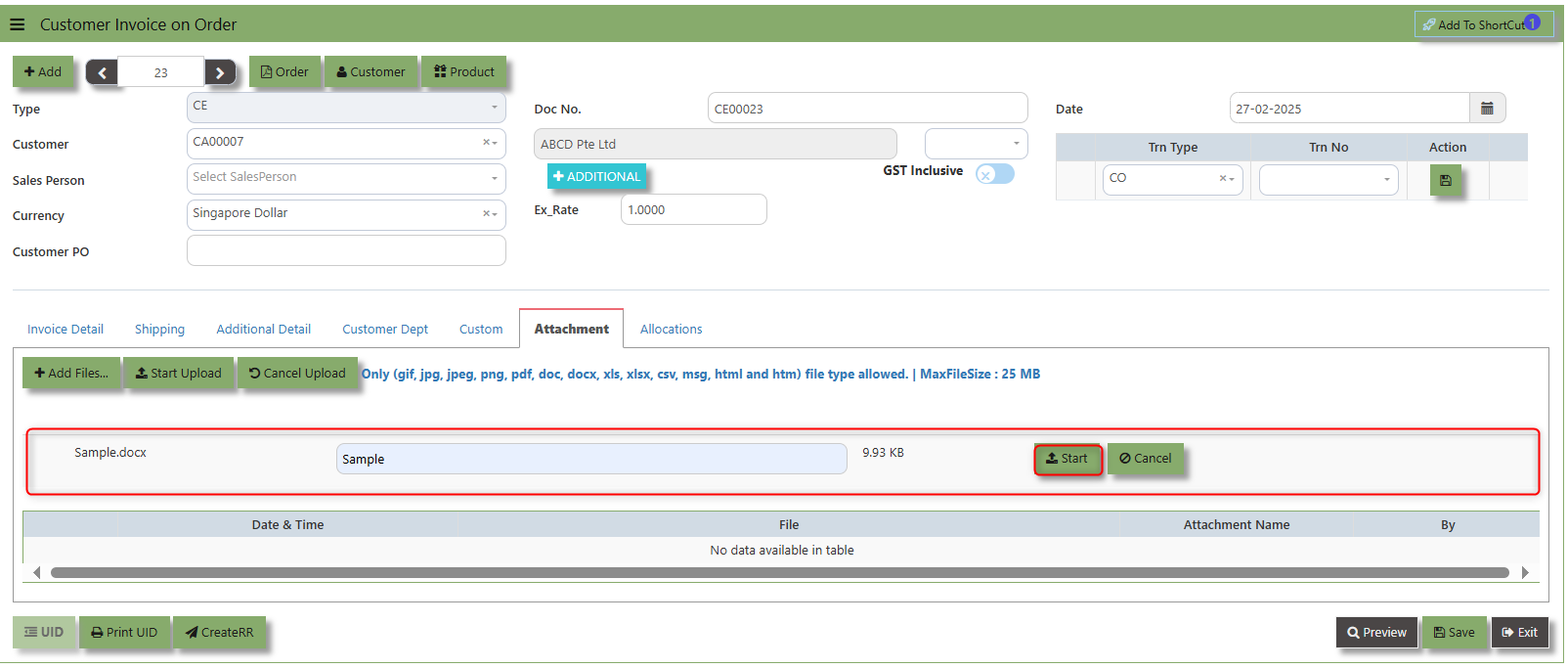
4. Once the file attached, click "SAVE" button
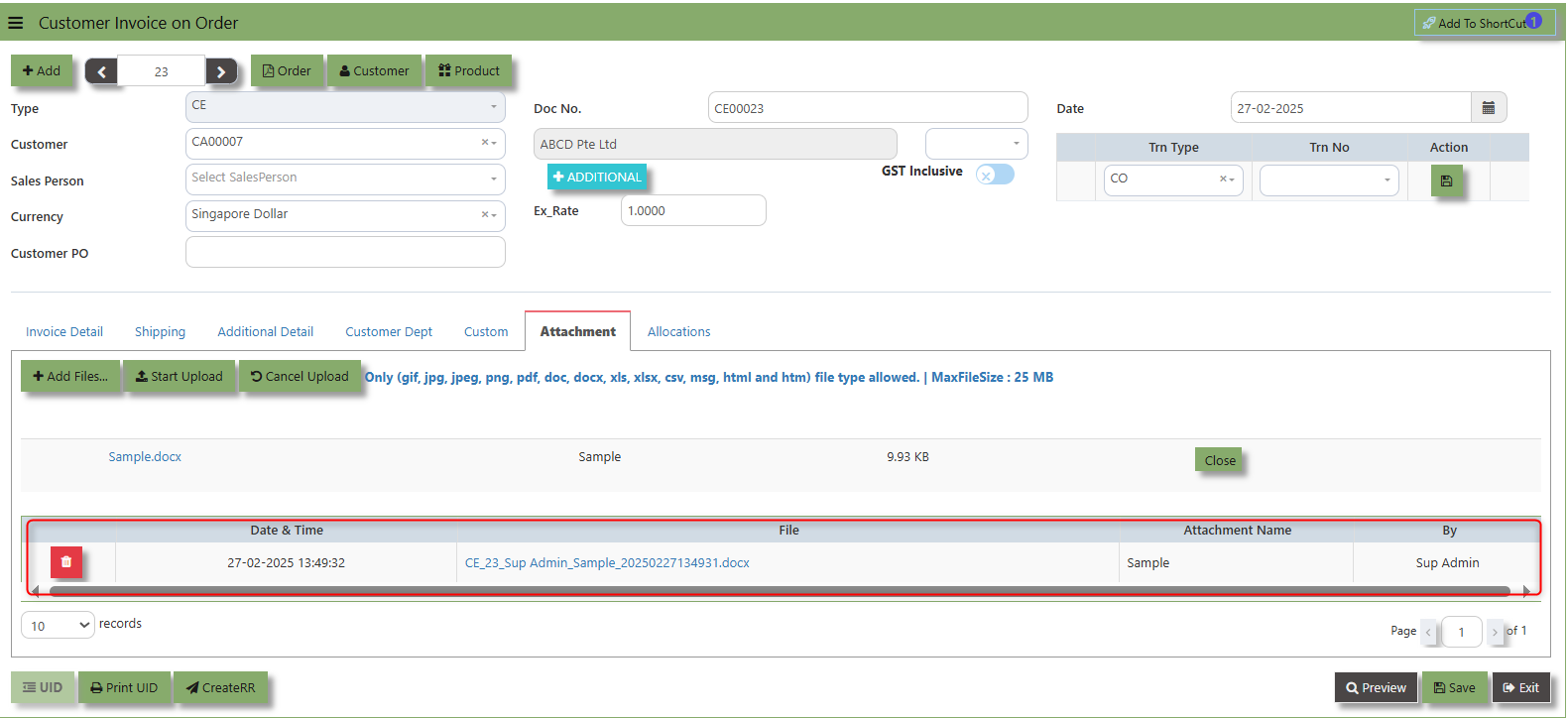
User may opt to cancel the uploading by clicking the "Cancel Upload" button and delete the file uploaded by clicking the "Bin icon" at the line detail.
___________________________________________________________________________________________________________________________________________
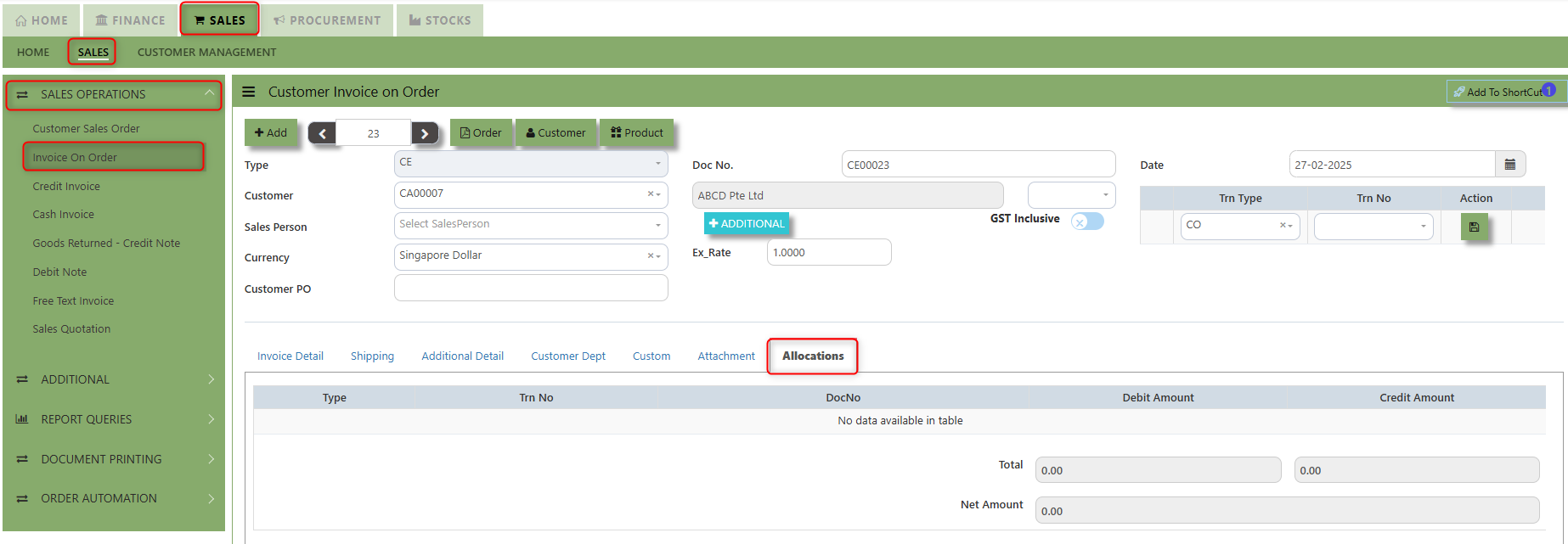
The Allocations Tab is used to manage and allocate the amounts or costs associated with the Customer Invoice on order. Click on SALES – SALES OPERATIONS – SALES INVOICE ON ORDER - ATTACHMENT TAB for the screen below.
Credit Invoice
A Customer Credit Invoice directly updates the inventory status and represents a direct transaction for invoicing. It will also update the Accounts Receivables at the same time.
How to Create Credit Invoice?
1. Click on SALES – SALES – SALES OPERATIONS – CREDIT INVOICE for the screen below.
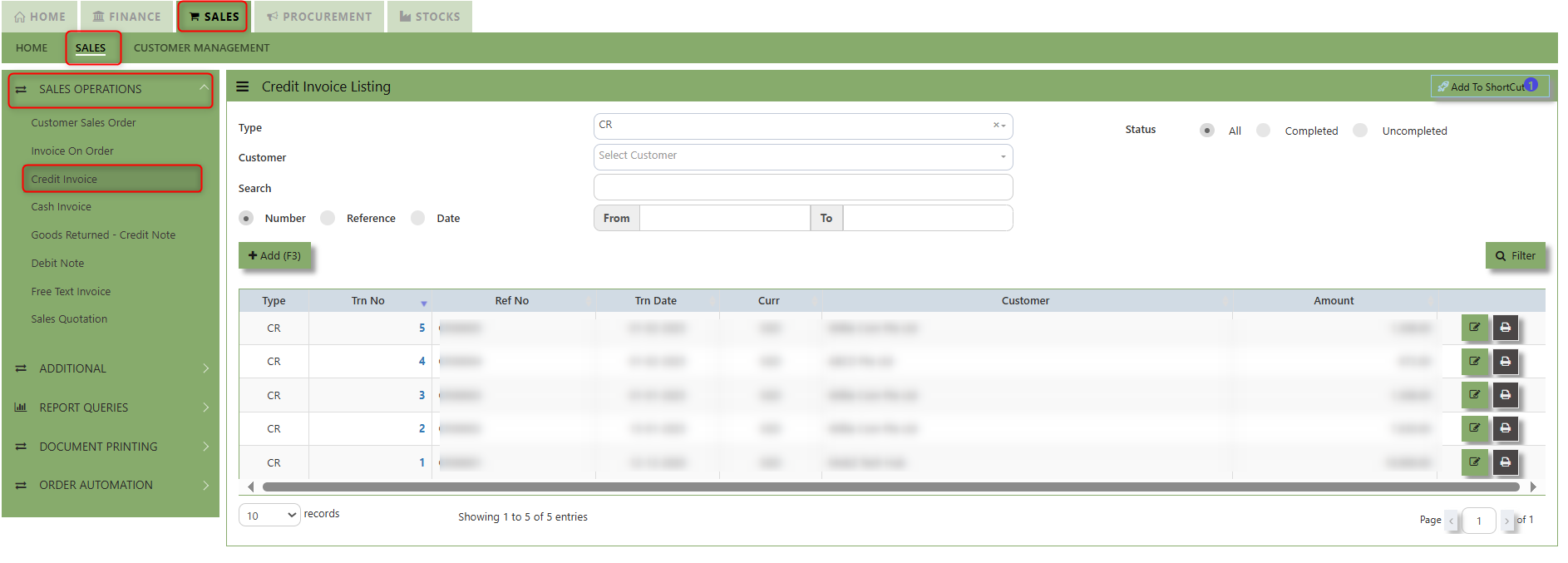
2. Click on Add button or press F3 to create a new transaction.
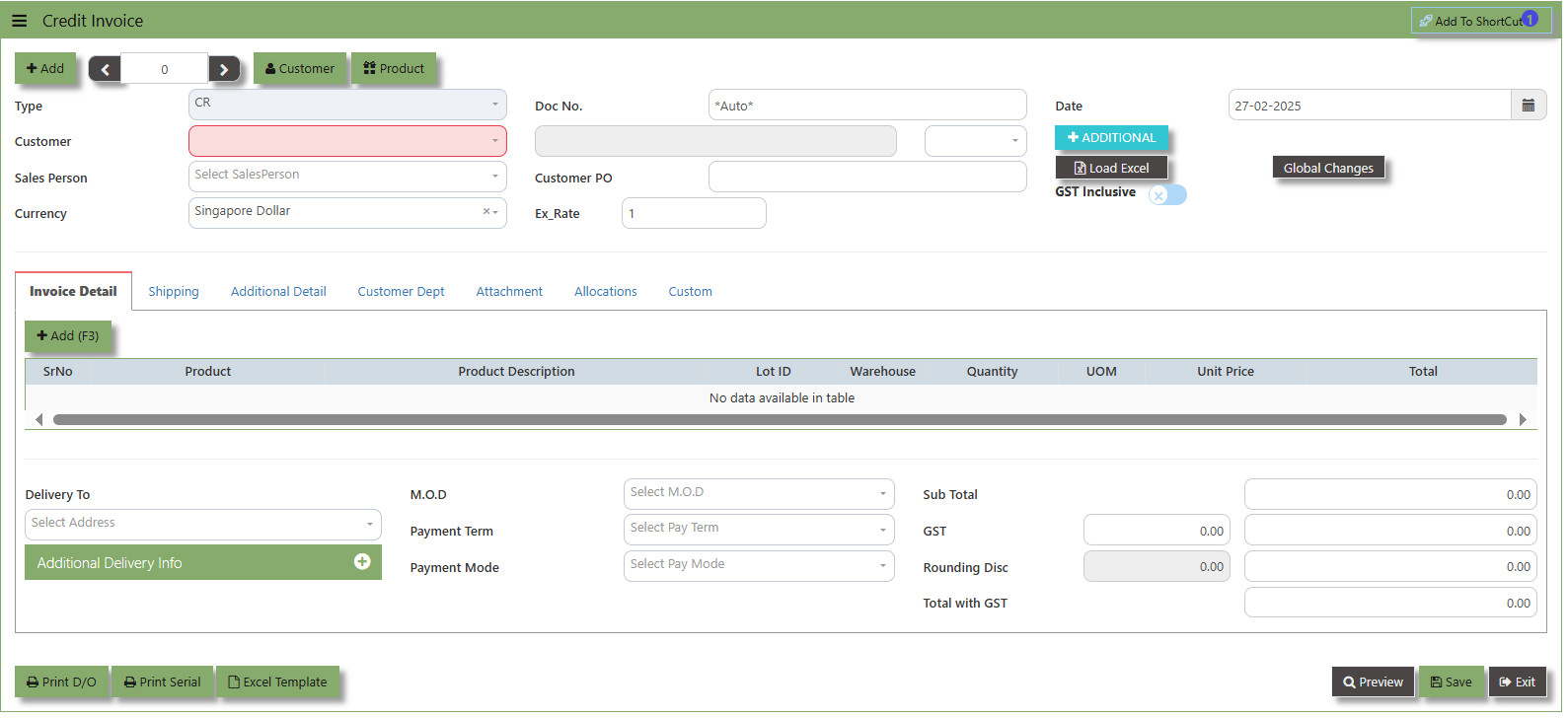
3. Click the Type - drop-down to select transaction type – CR (Credit Invoice).
4. After selecting the transaction type, you can use the tab button go to the Ref No. and Date fields to fill up the information.
5. Click the Customer - drop-down list to select the Customer for this invoice, followed by the Salesperson, PDS, Currency, Rate, Our D/O, Order Ref No. and Order Ref. Date if applicable.
6. After completing the above steps, you can go to the Details section to select the product items from the product drop
down list, as well as to specify the quantity and unit price. Save the transaction after this is done.
___________________________________________________________________________________________________________________________________________
Add to ShortCut - Used to create a shortcut for quick access to a specific sales transaction. By clicking this button, users can add the current sales invoice on order to a list of shortcuts, allowing them to access the invoice or related functionality quickly and efficiently, without needing to search for it each time.
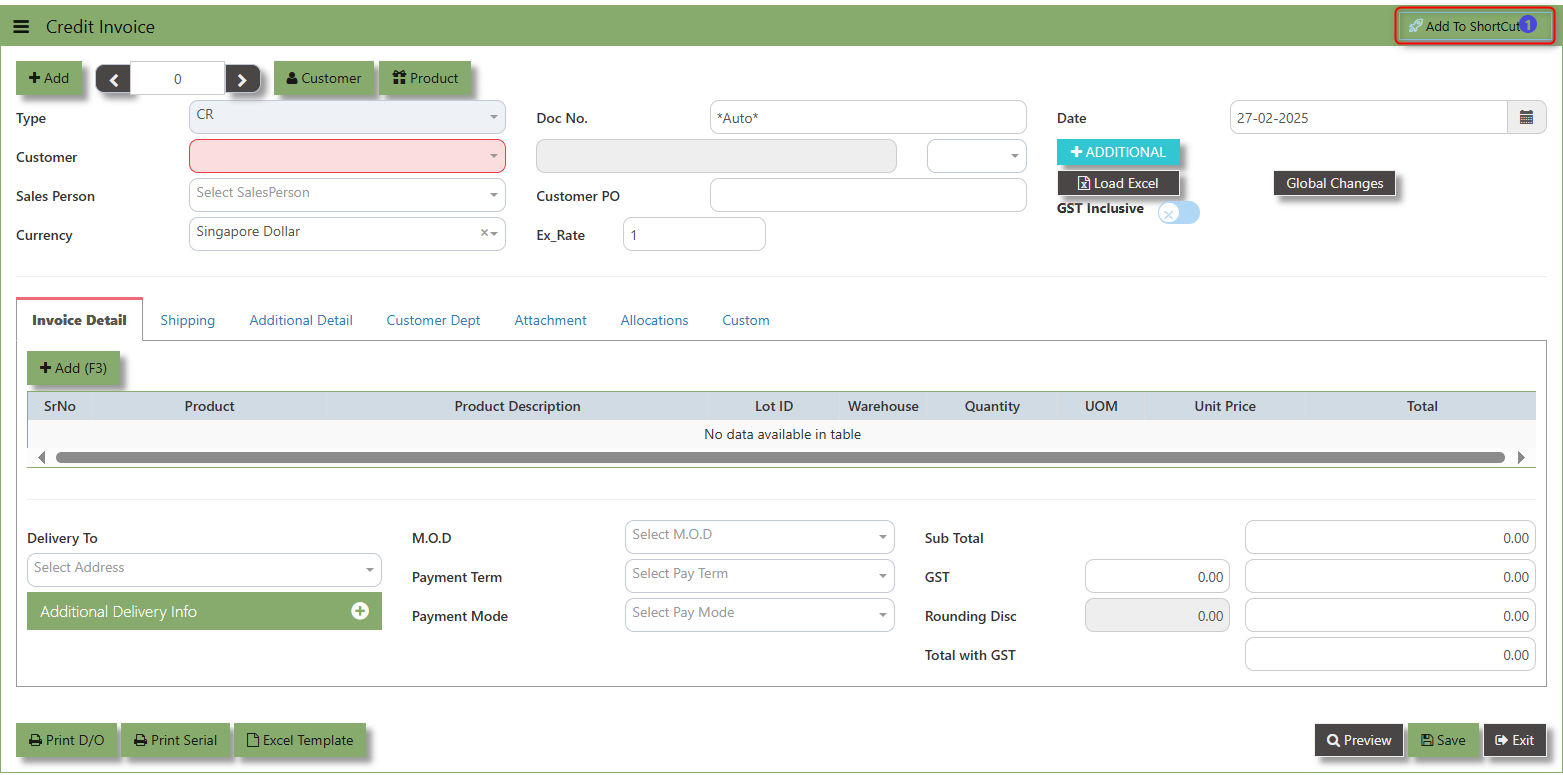
How to use Add to ShortCut?
1. Click "Add to ShortCut" and system will open below windows:
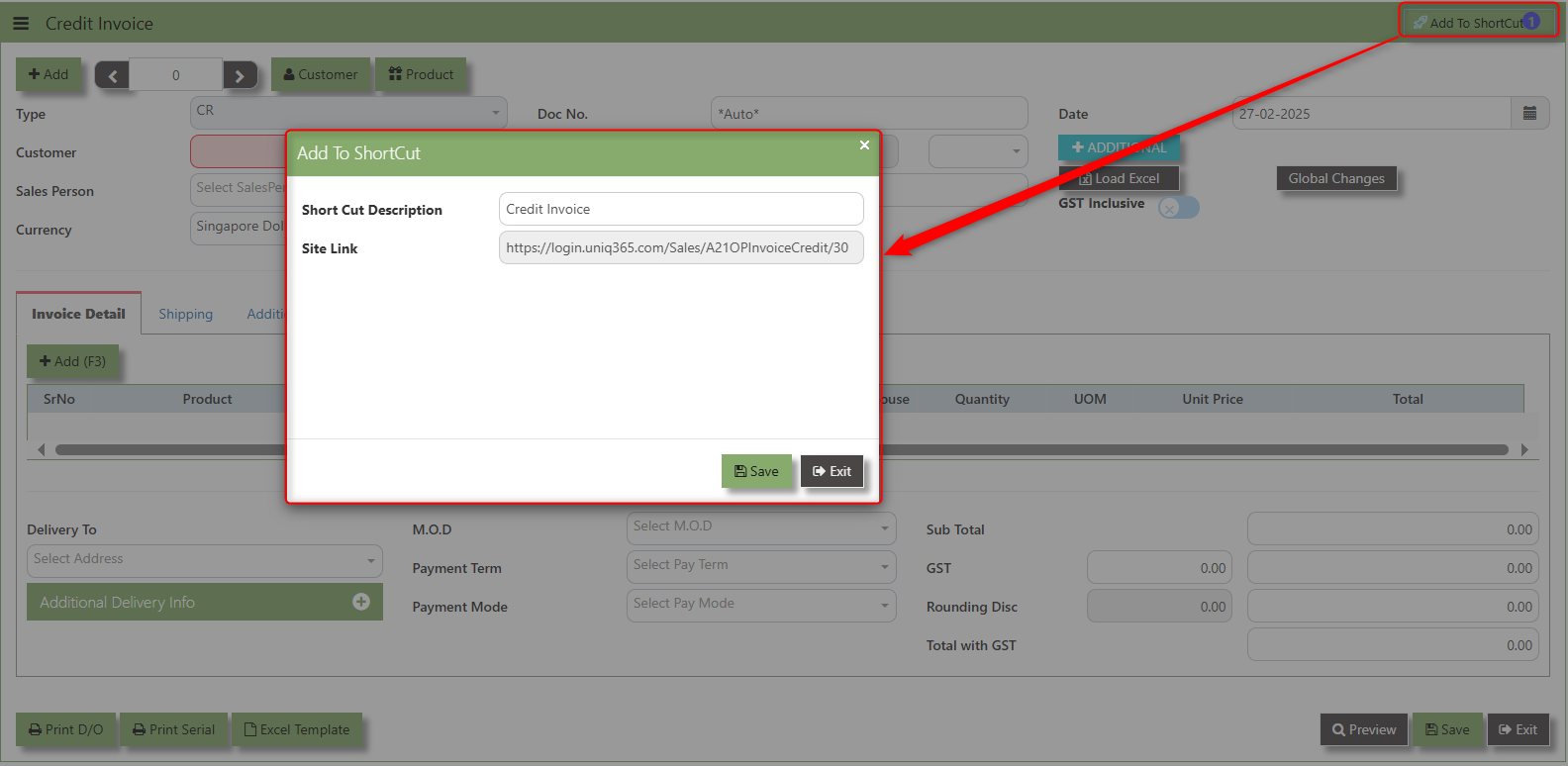
2. Enter Short Cut Description
3. Click SAVE then click OK.
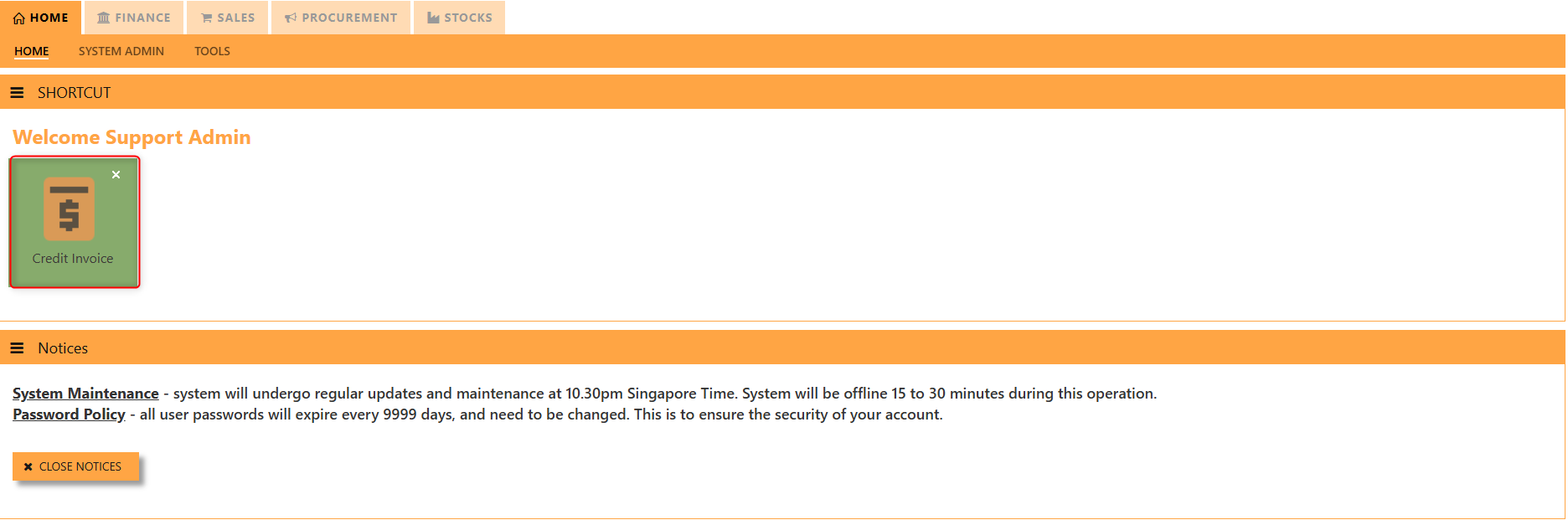
4. User may look to the Homepage for the added function or page. Click on HOME - HOME - SHORTCUT for the screen below.
___________________________________________________________________________________________________________________________________________
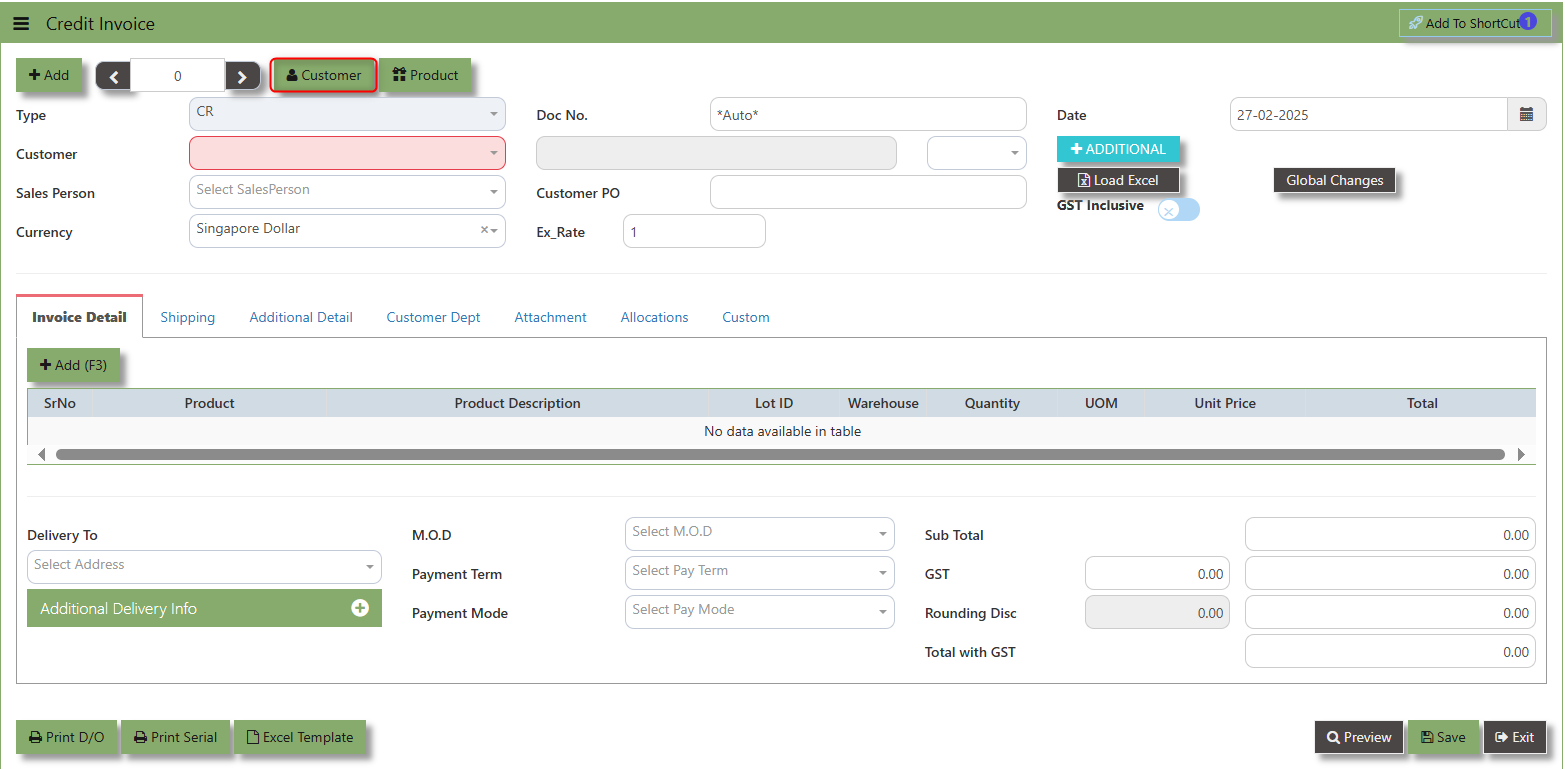
The Customer button provides quick access to detailed supplier profiles under Customer maintenance.
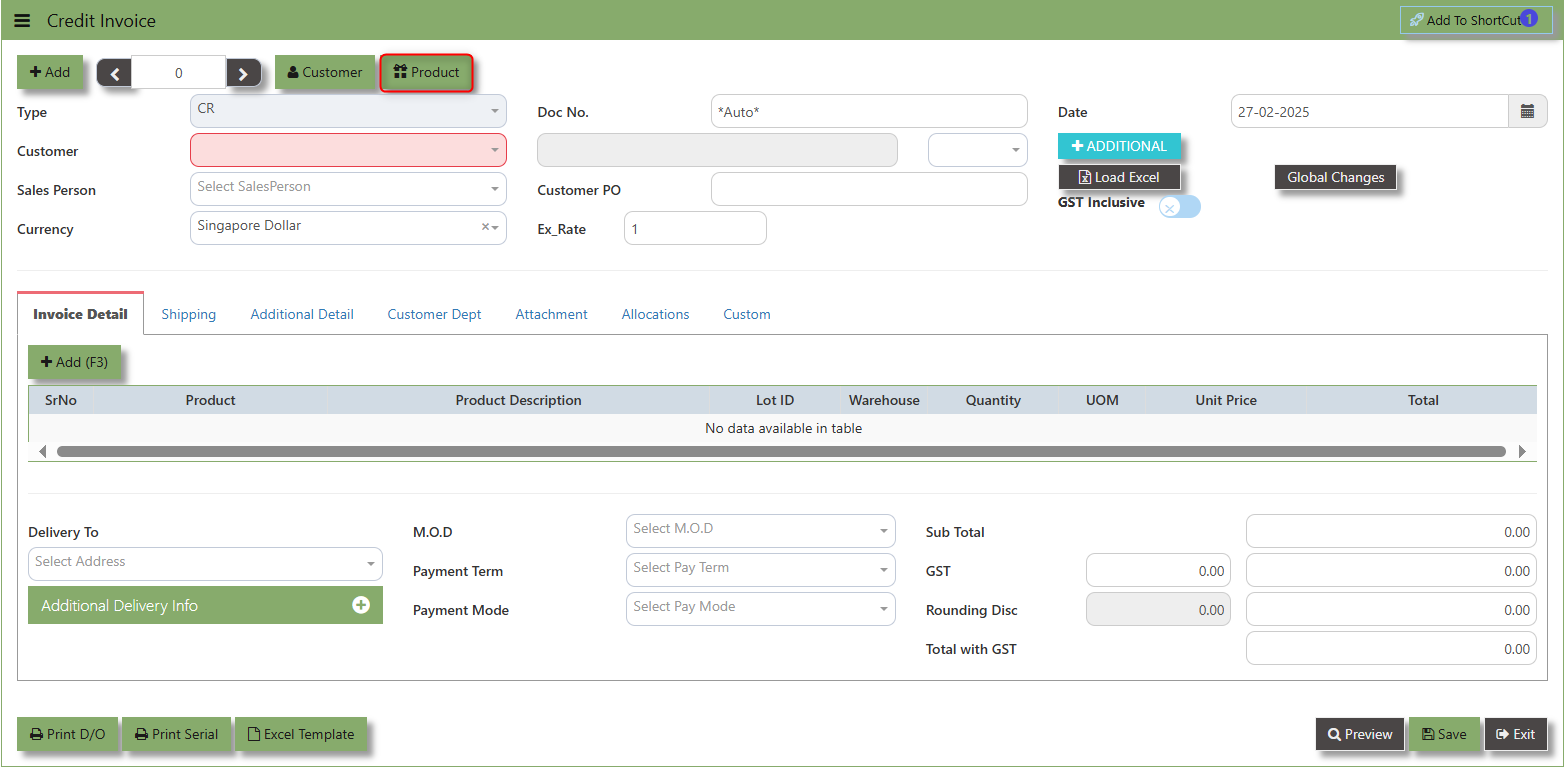
The Product button provides quick access to product and service maintenance
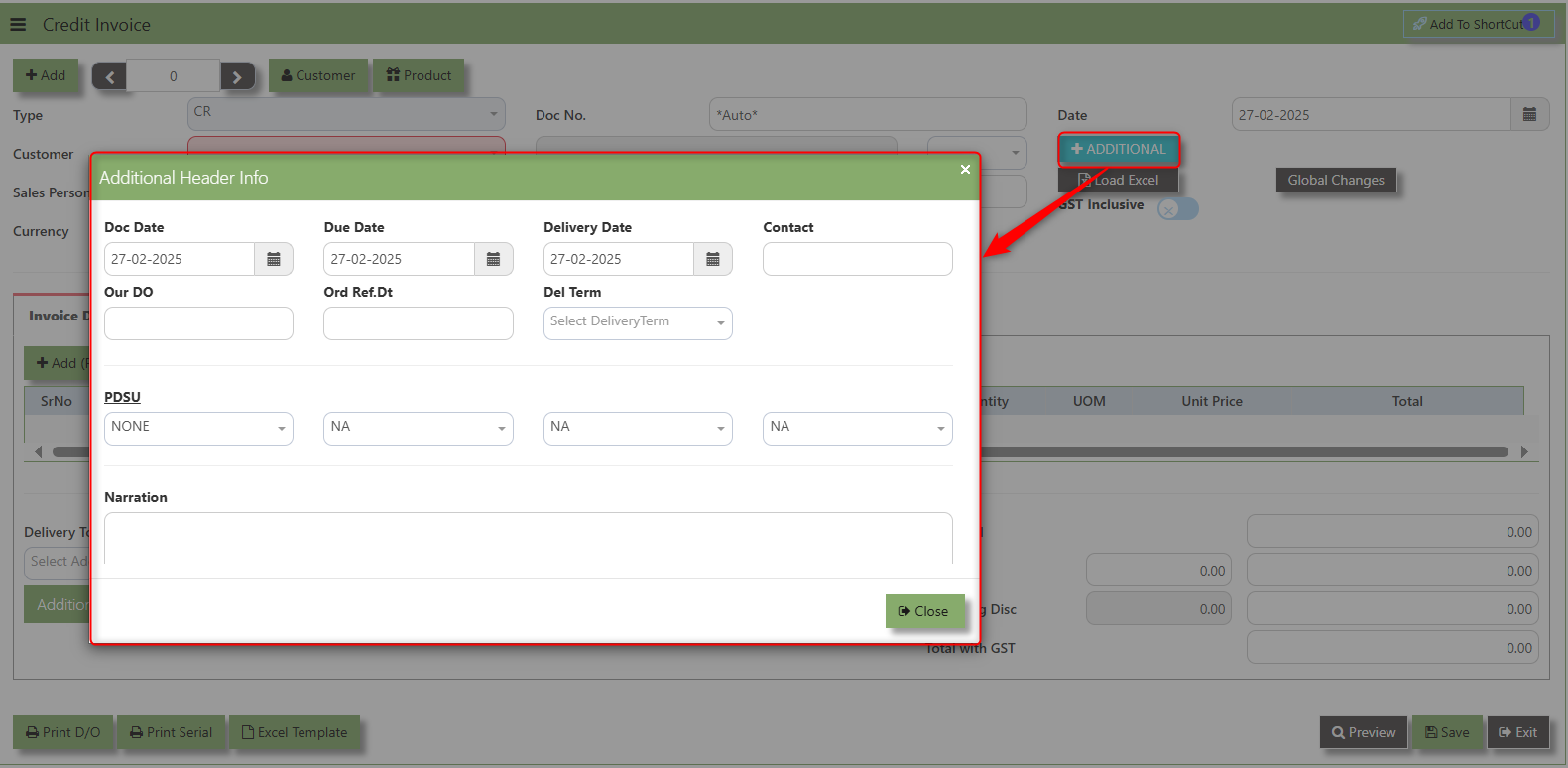
Additional Header Info button is typically used to capture and manage additional information related to the Sales Credit Invoice at the header level (i.e., Delivery date, Del Term , Indicative WH , Country, Lead Time, Contact, PDSU, Narration and Transaction Narration). This feature allows users to add extra data or notes that are relevant to the entire sales invoice on order.
The GST Inclusive checkbox indicates whether the unit price in the CE include Goods and Services Tax (GST) or not.
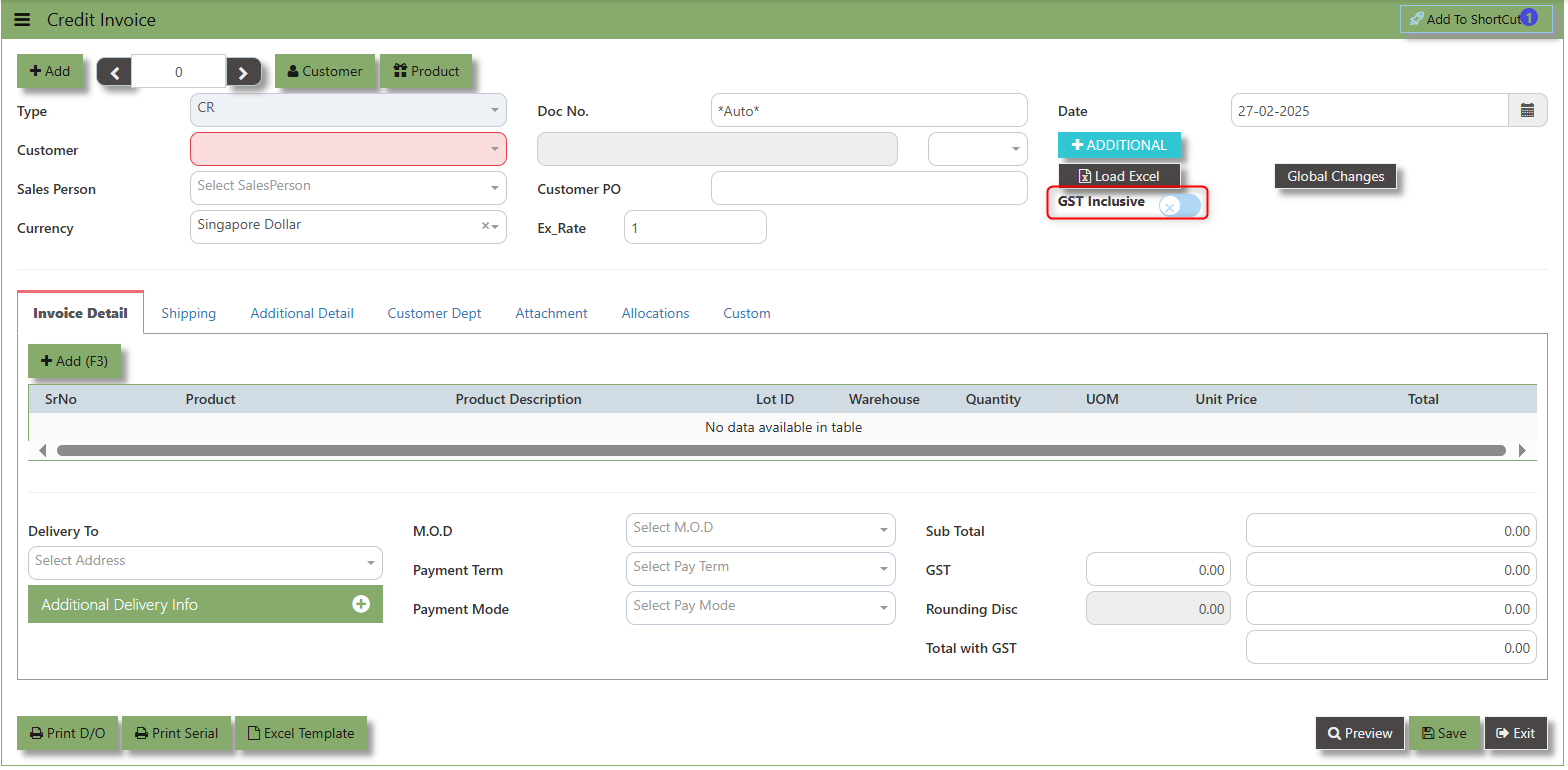
- When ticked (GST Inclusive): provided in the Sales Order already includes the applicable GST amount. The GST amount will not be calculated or displayed separately, as it's already accounted for in the quoted price.
- When not ticked (GST Exclusive): The unit price is considered exclusive of GST. The system will calculate and add the GST based on the applicable tax rate, and the final total will be the sum of the base price plus the GST amount.
Global Changes Button allows users to efficiently apply or modify discounts across multiple items in a credit note.
How to use Global Changes?
1.Click "Global Changes" and system will open below windows:
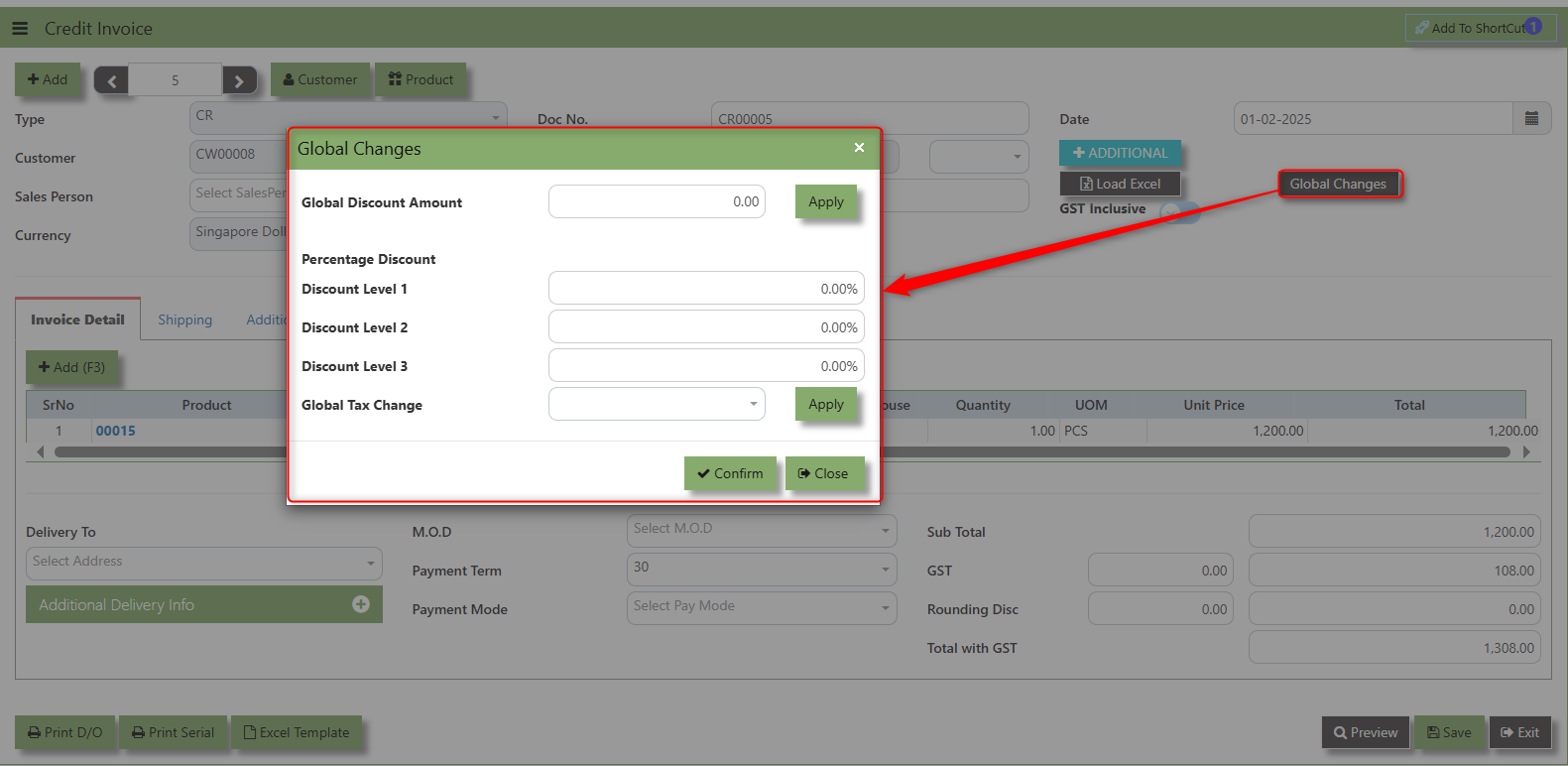
2. Add a Discount to the transaction if its Global Discount Amount or Percentage Discount.
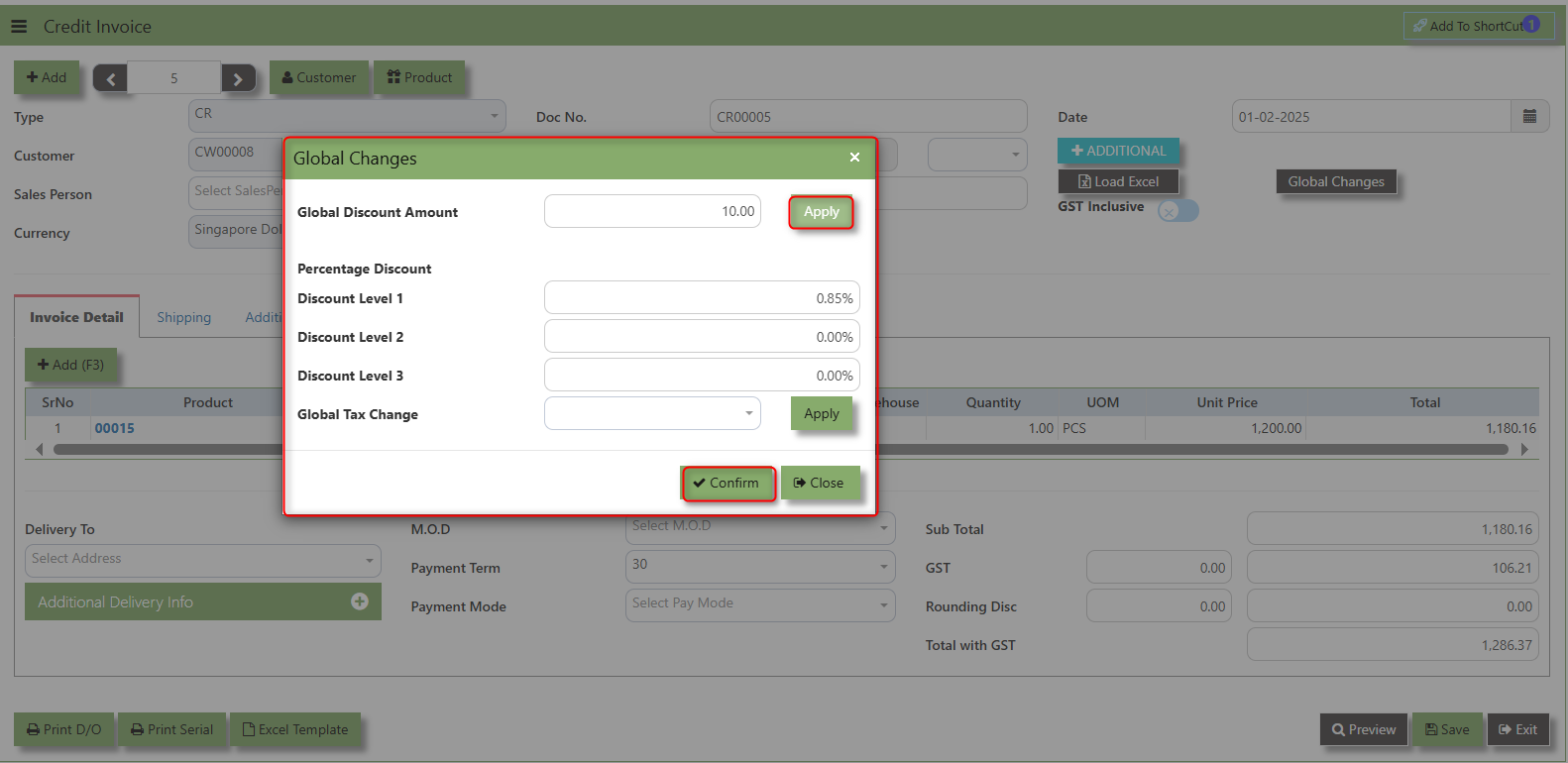
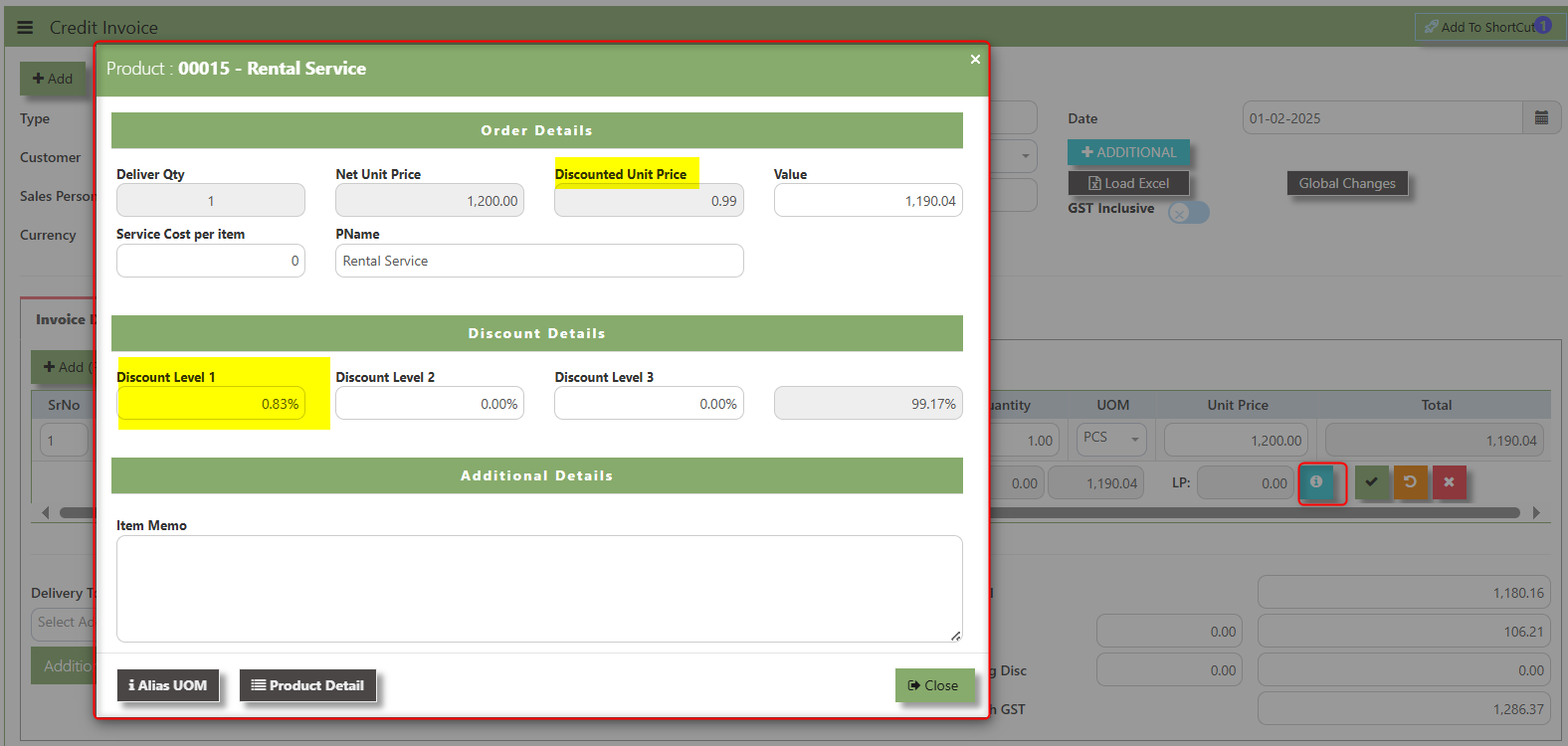
3. Click Apply and Confirm button, the discount will be automatically captured in the line item and in the transaction.
Load Excel - When users have an Excel file from Excel Template with Credit Invoice information (ie Warehouse, Product, Pname, UOM, Quantity, Unit Price, GST type, Line Discount, Detail Memo) the "Load Excel" button allows them to upload and import this data directly into the system. This eliminates the need for manual entry of the data into the system's Credit Invoice fields.
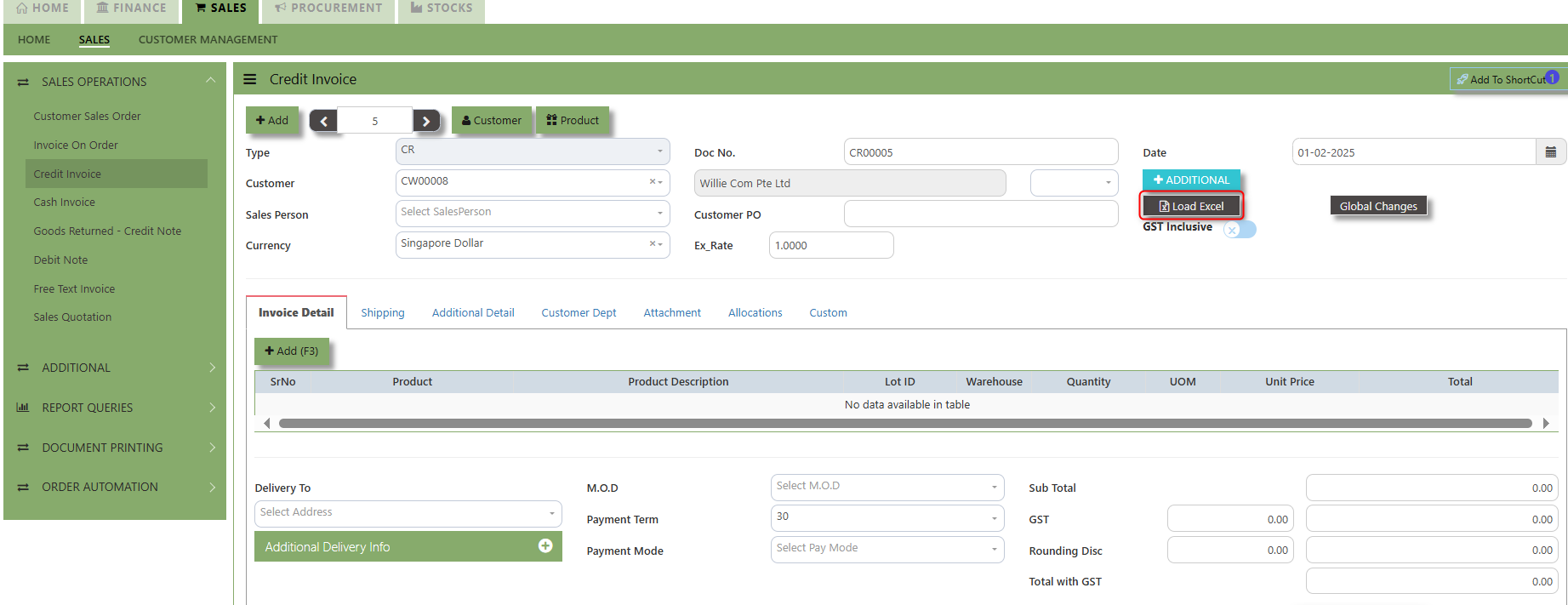
How to use Load Excel?
1. Click the Customer - drop-down list to select Customer Name
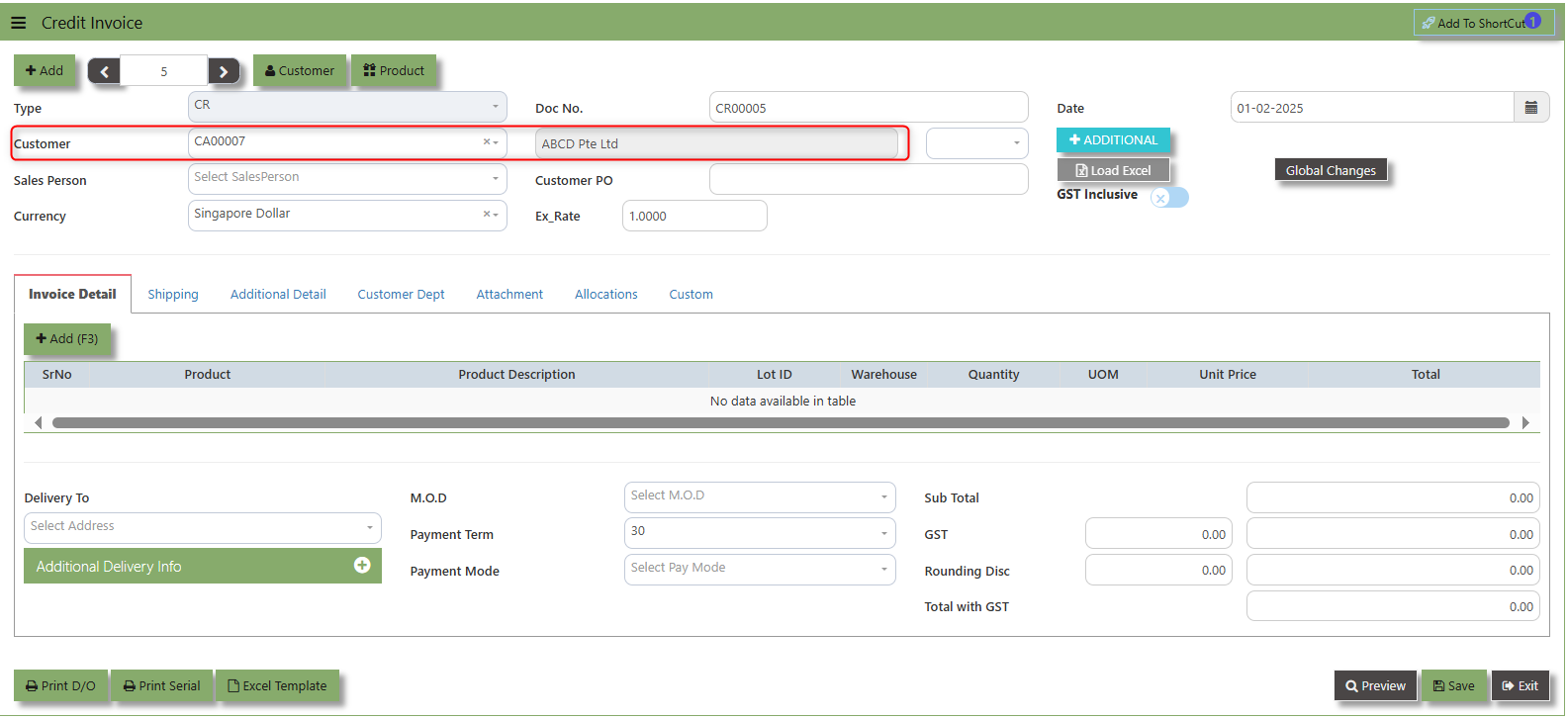
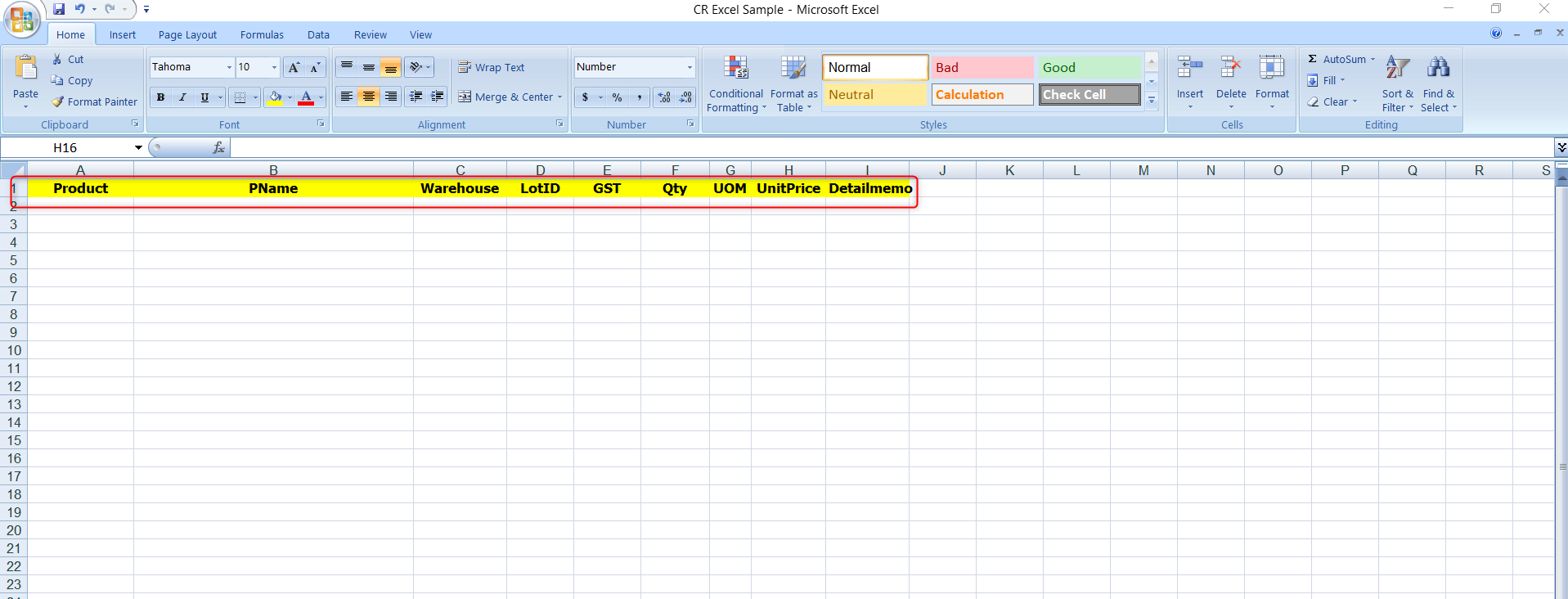
2. Download the Excel Template and ensure the Excel file you plan to upload is formatted correctly. It should contain all the necessary fields required for credit invoice, such as:
- Warehouse
- Product Code
- Product Name
- LotID
- GST Type
- Quantity
- UOM
- Unit Price
- Detail Memo
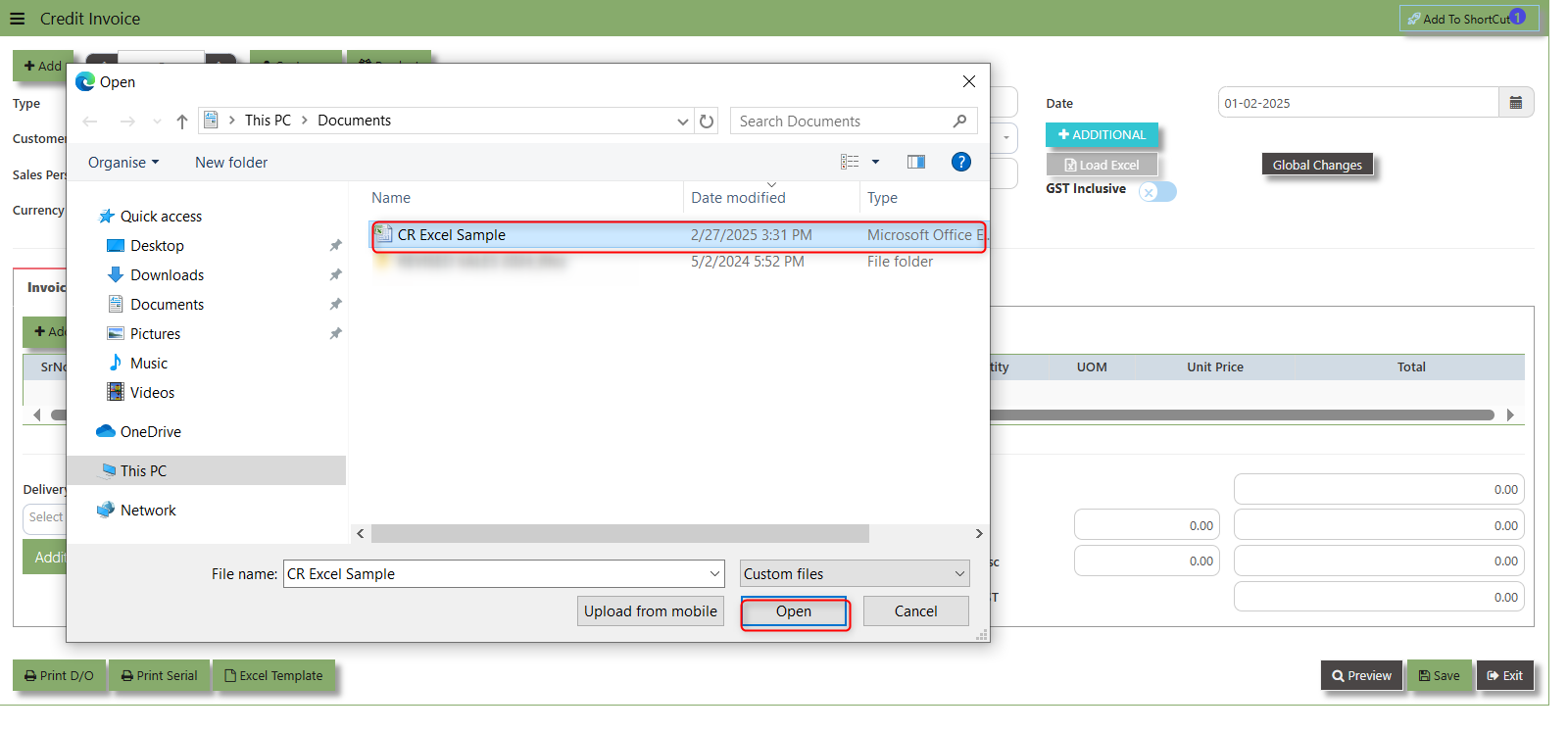
3. Click the Load Excel button to open the file upload interface. This may open a file browser or prompt you to select the Excel file you want to upload.
4. Once the filed uploaded, system will prompt a message that record has been imported successfully.
5. After the import is complete, review the imported credit invoice in the system to ensure everything has been transferred correctly. This might include checking that the order details, such as item descriptions, quantities, prices, and customers, are accurate.
6. Once the data is imported successfully and checking is done, you can proceed to save the sales order as required by your workflow. This may involve further approvals or other processes depending on the organization's procedures.
___________________________________________________________________________________________________________________________________________
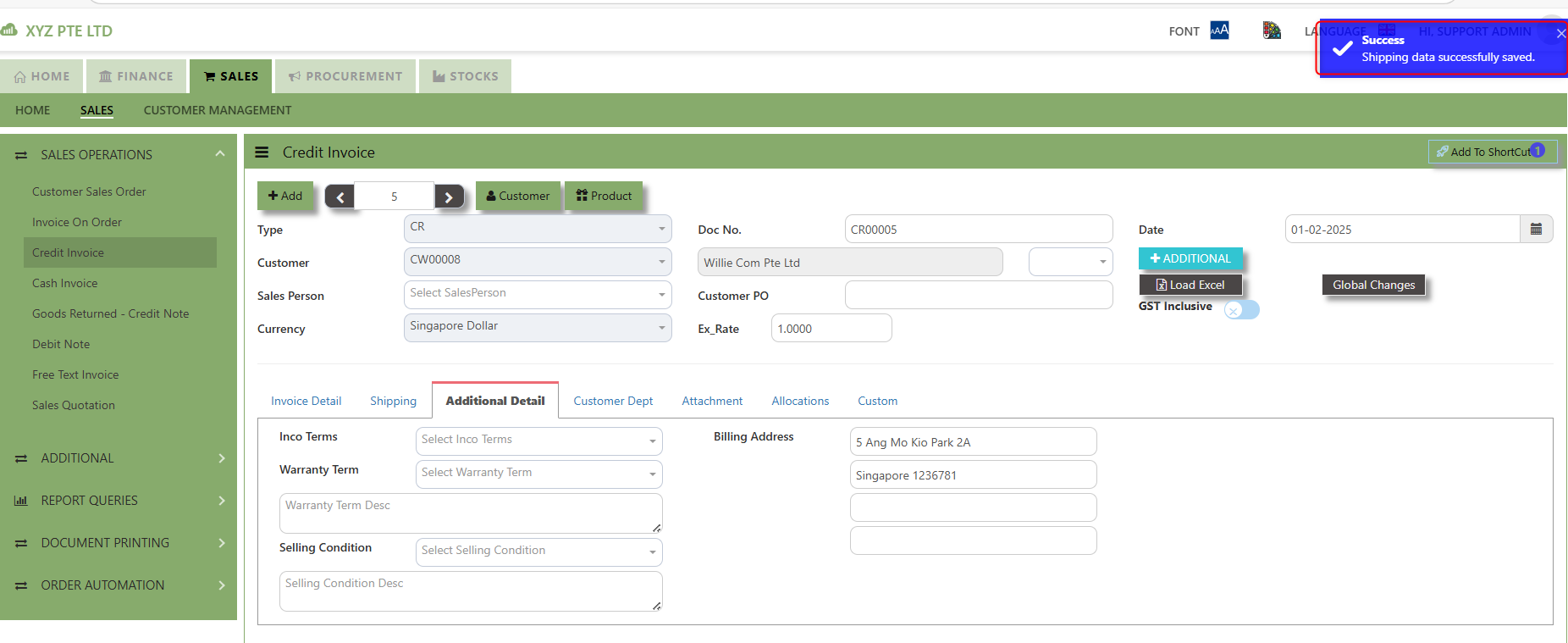
Shipping Tab a section where specific shipping-related information is entered and managed for the sold goods or services. This tab ensures that all relevant details regarding the shipment, delivery location, and delivery expectations are captured in the system to facilitate smooth and accurate order fulfillment.
How to set Shipping Info?
1. Click on SALES – SALES OPERATIONS – CREDIT INVOICE - SHIPPING TAB for the screen below.
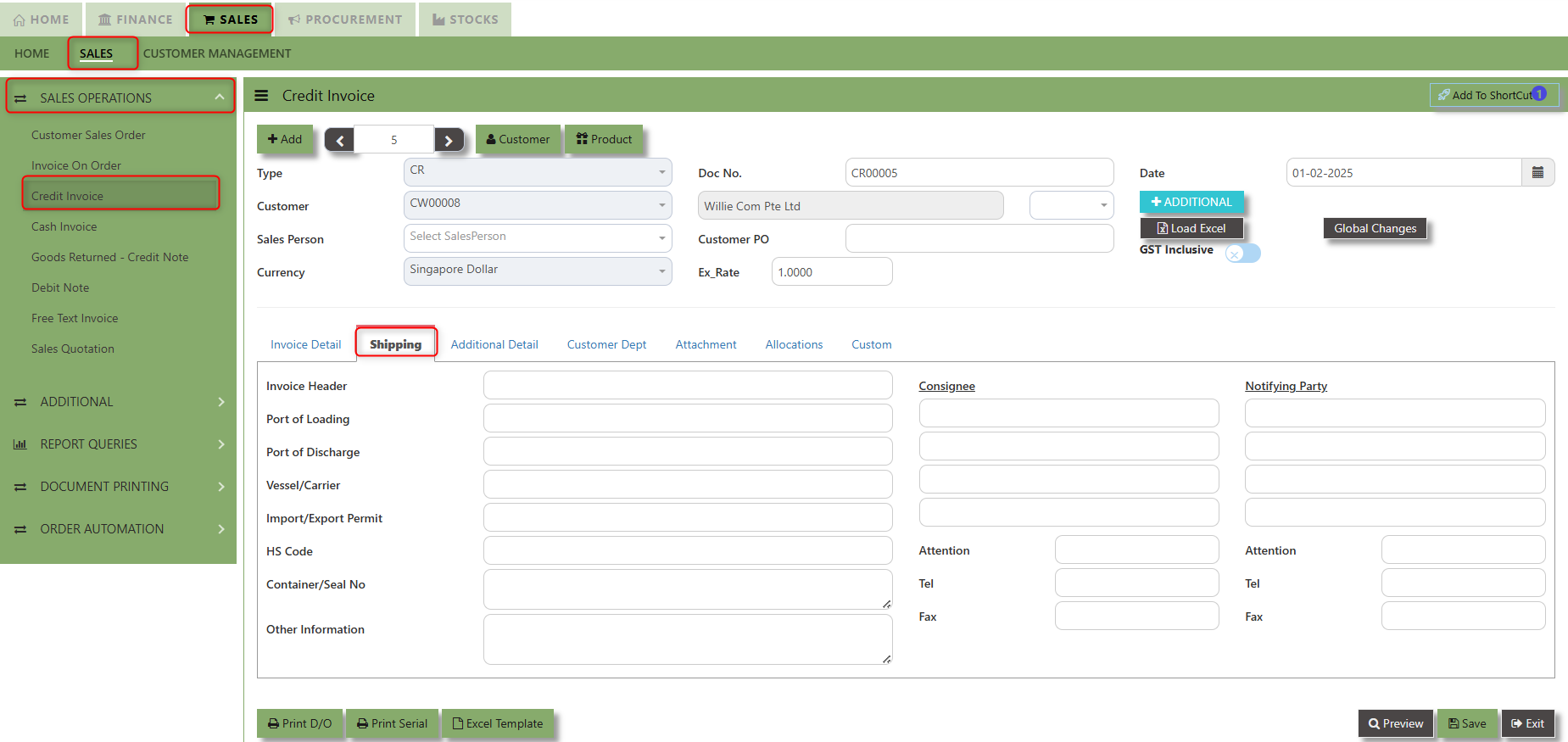
2. Input the below details for the below fields:
-
- Invoice Header
- Port of Loading
- Port of Discharge
- Vessel/Carrier
- Import/Export Permit
- HS Code
- Container/Seal No
- Other Information
- Consignee
- Attention
- Tel
- Fax
- Notifying Party
- Attention
- Tel
- Fax
3. Once keyed in the necessary details, click the next tab and will automatically save all the information then system will prompt you a message.
___________________________________________________________________________________________________________________________________________
Additional Detail Tab a section where the additional information is entered . This tab ensures that all relevant details regarding the Narration, Inco Terms , billing address warranty terms Selling conditions , and special instruction are captured in the system to facilitate smooth and accurate sales quotation.
How to set Additional Detail?
1. Click on SALES – SALES OPERATIONS –CREDIT INVOICE - ADDITIONAL DETAILS TAB for the screen below.
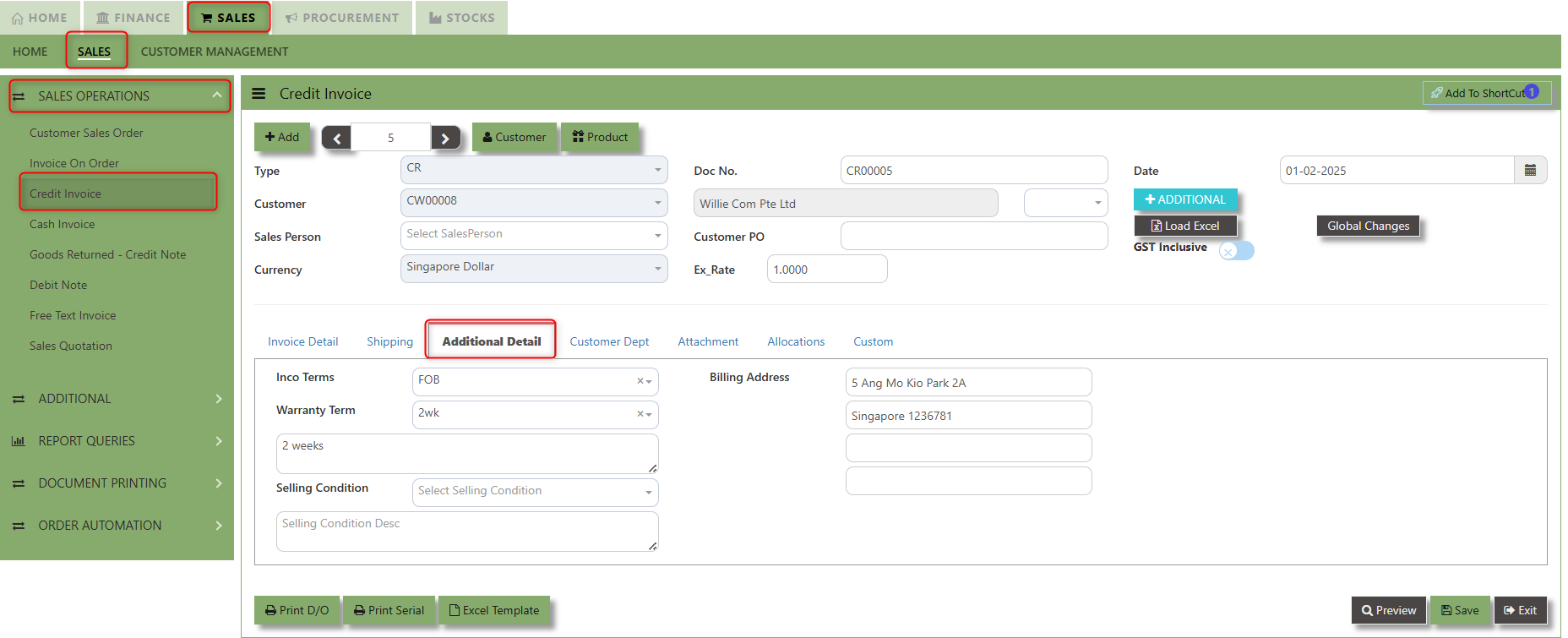
2. Input the below details for the below fields:
-
- Narration
- Billing Address
- Inco Terms
- Warranty Terms
- Selling Condition
- Inquiry Received Date
- Quotation Sent Date
3. Once keyed in the necessary details, click the next tab and will automatically save all the information.
___________________________________________________________________________________________________________________________________________
"Customer Dept Tab" section where the Customer Department information is entered. This tab ensures that all relevant details regarding Customer Department details which is linked to the Customer Maintenance under Department Tab
- Click on SALES – SALES OPERATIONS – CREDIT INVOICE - CUSTOMER DEPT TAB for the screen below.
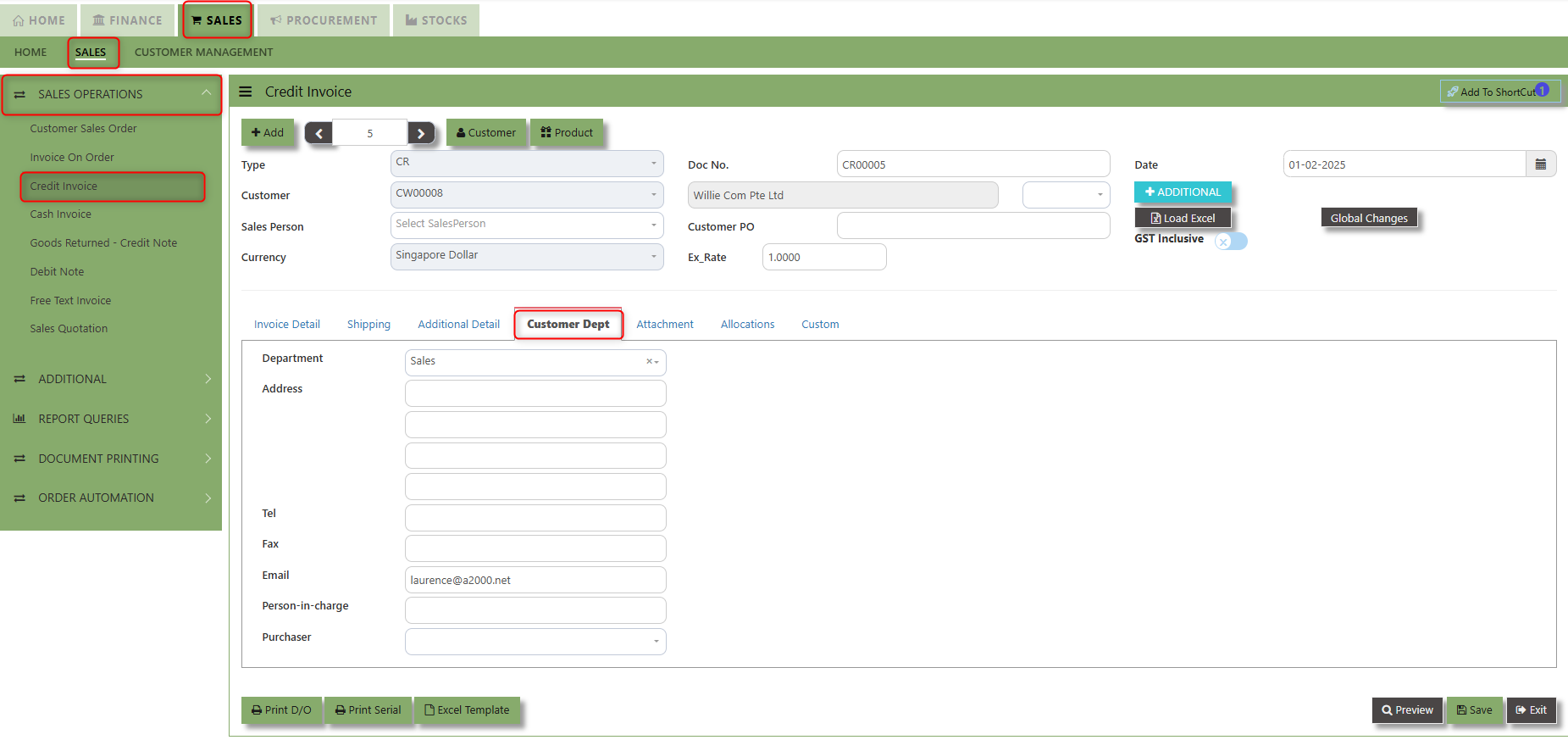
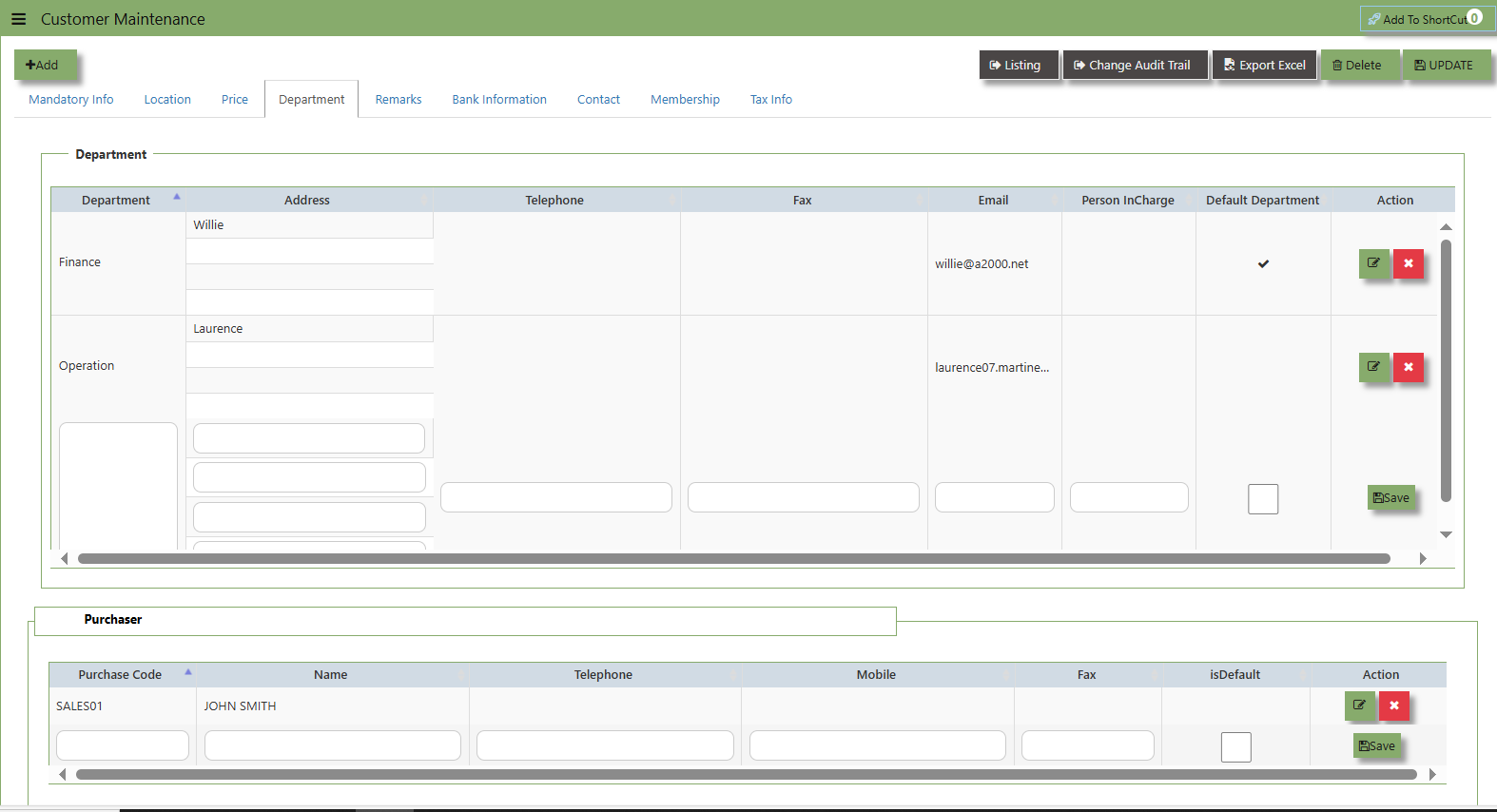
The drop down selection for Customer Dept and Purchaser is maintained in Customer Maintenance under Department Tab
__________________________________________________________________________________________________________________________________________
"Attachment Tab" allows users to attach various files and documents related to the sales order. By attaching relevant files, users ensure that all purchase-related information is kept in one place, making the sales process smoother, more transparent, and easier to track.
How to use Attachment Tab?
1. Click on SALES – SALES OPERATIONS – CREDIT INVOICE – ATTACHEMENT TAB for the screen below.
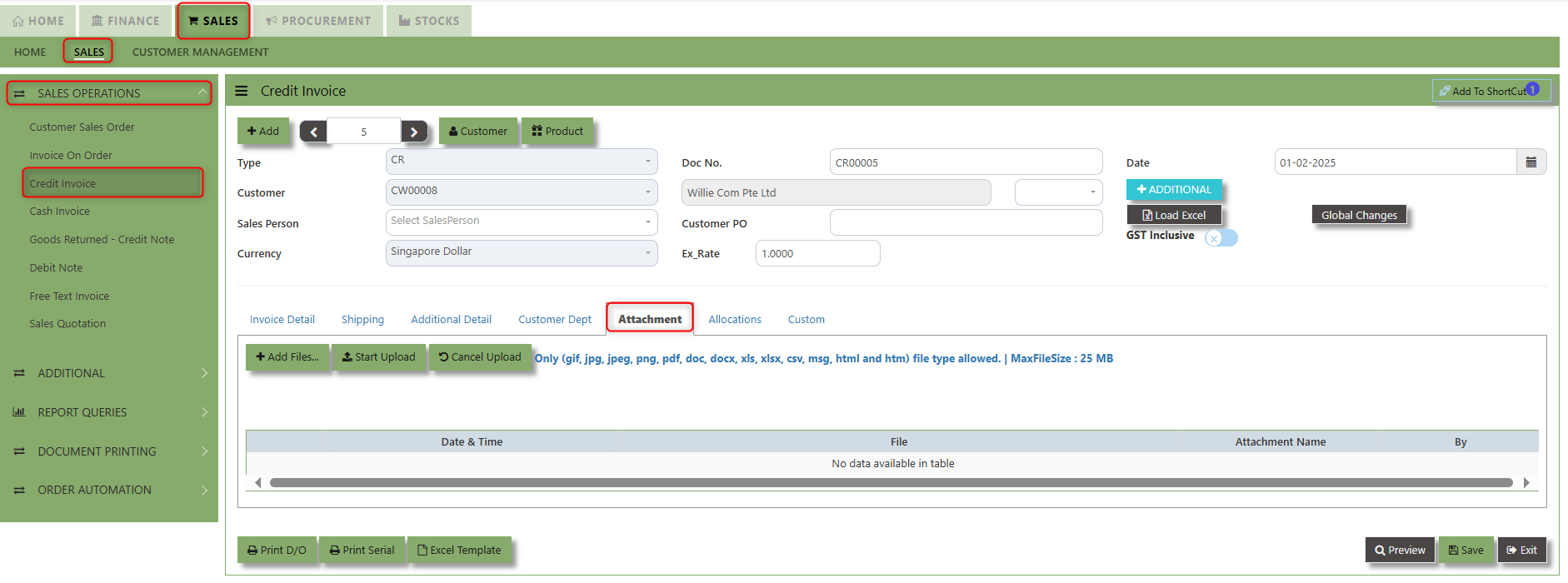
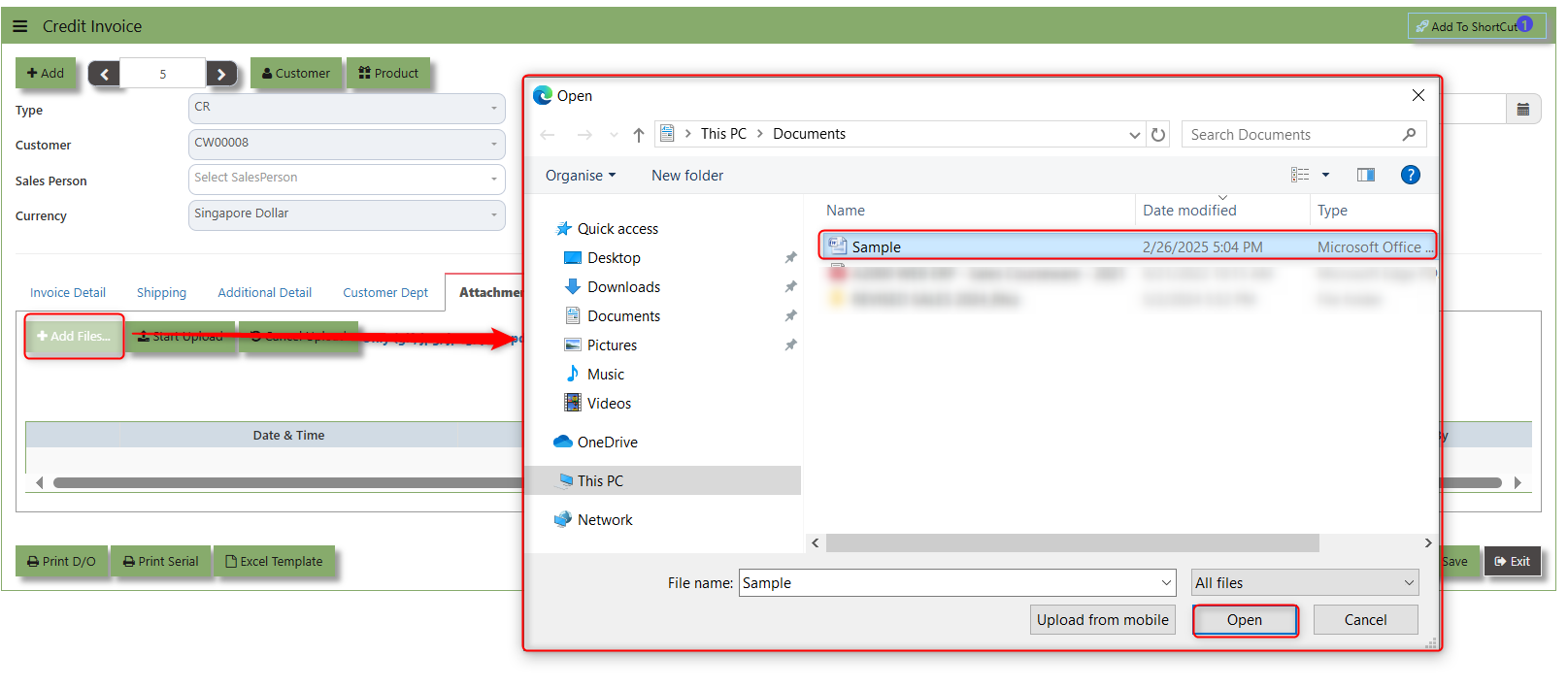
2. Click +Add files and windows will prompt then choose the file you want to upload by clicking open. Kindly take note the file types and maximum size requirements in uploading: Only (gif, jpg, jpeg, png, pdf, doc, docx, xls, xlsx, csv, msg, html and htm) file type allowed. | MaxFileSize : 25 MB
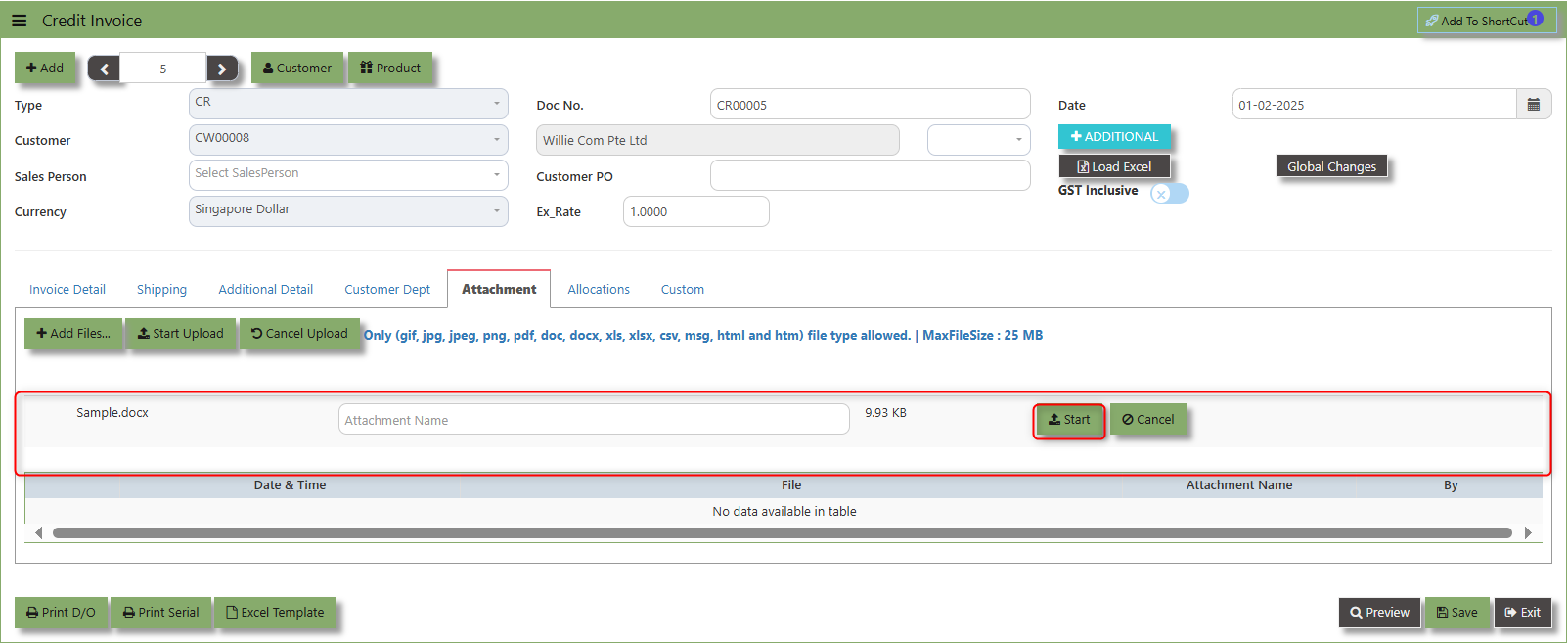
3. Key in the Attachment Name then click start to upload.
4.Once the file attached, click "SAVE" button
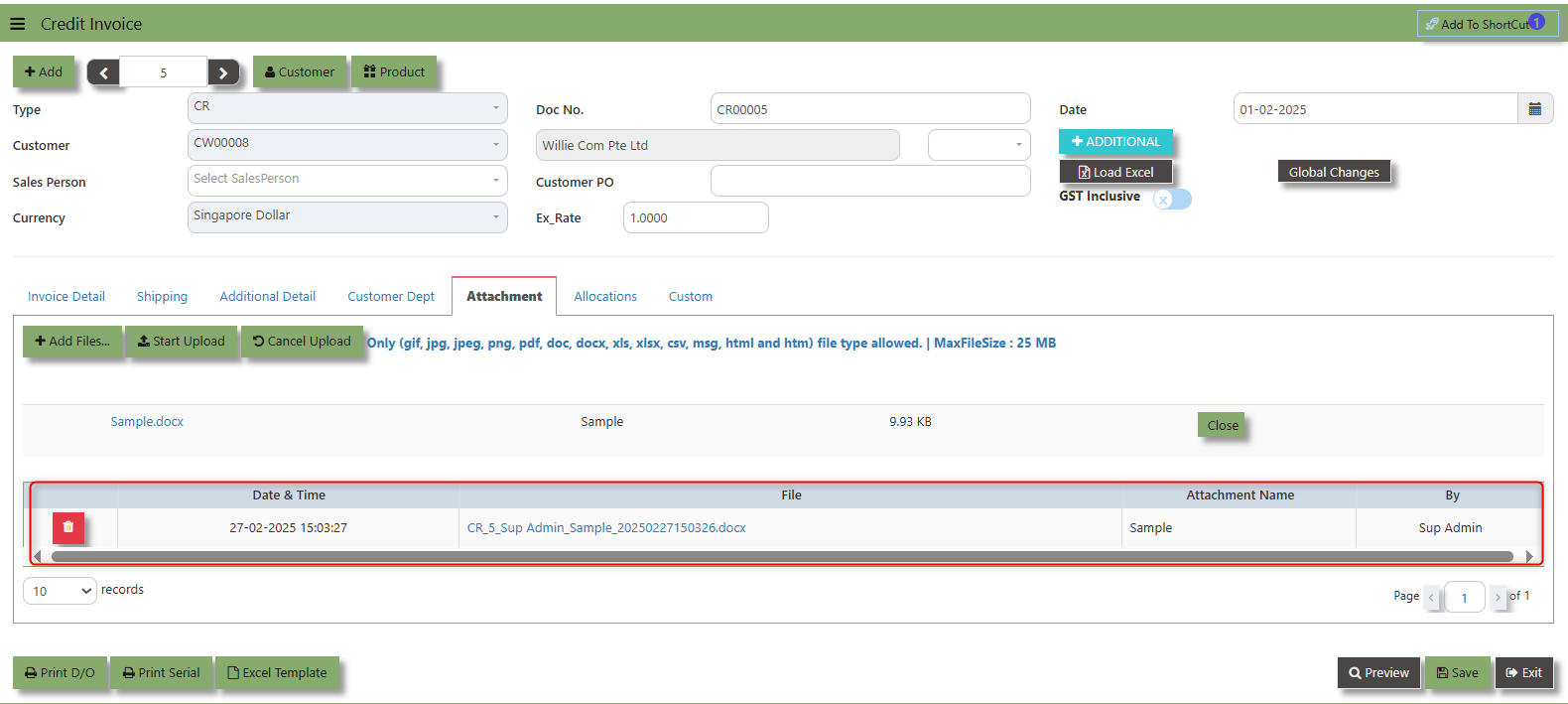
User may opt to cancel the uploading by clicking the "Cancel Upload" button and delete the file uploaded by clicking the "Bin icon" at the line detail.
___________________________________________________________________________________________________________________________________________
The Allocations Tab is used to manage and allocate the amounts or costs associated with the purchase invoice. Click on SALES – SALES OPERATIONS – CREDIT INVOICE - ATTACHMENT TAB for the screen below.
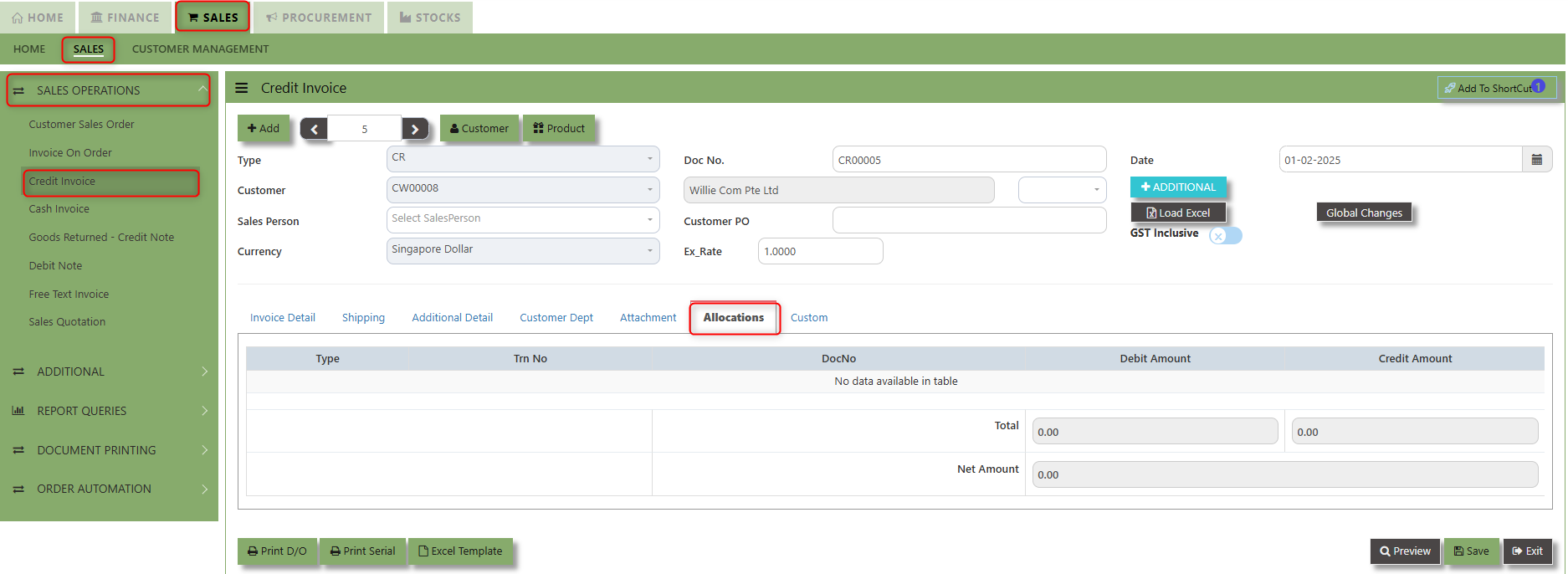
___________________________________________________________________________________________________________________________________________
The Allocations Tab is used to manage and allocate the amounts or costs associated with the purchase invoice. Click on SALES – SALES OPERATIONS – CREDIT INVOICE - ATTACHMENT TAB for the screen below.
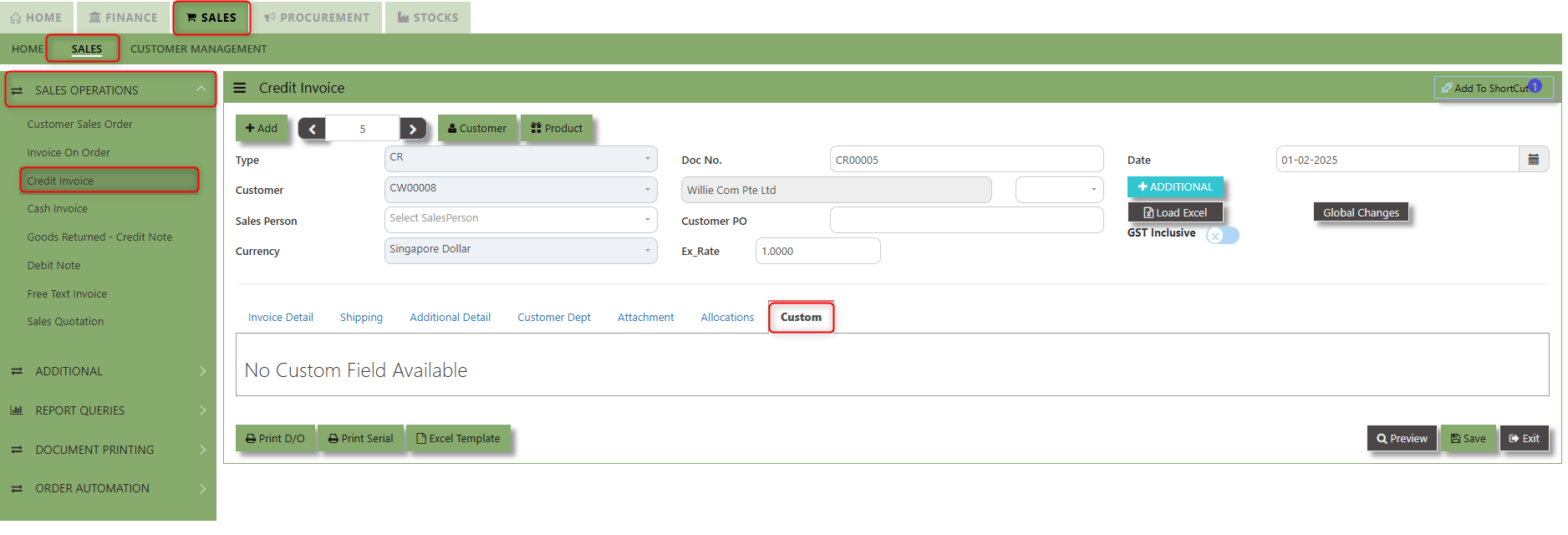
Cash Invoice
Unlike the Credit Sales Invoice, the Customer Invoice – Cash directly debits the bank as it is a direct cash transaction. This transaction updates the inventory as well as the GL. The Bank code has to be selected when saving the transaction.
How to Create Cash Invoice?
1. Click on SALES – SALES – SALES OPERATIONS – CASH INVOICE for the screen below.
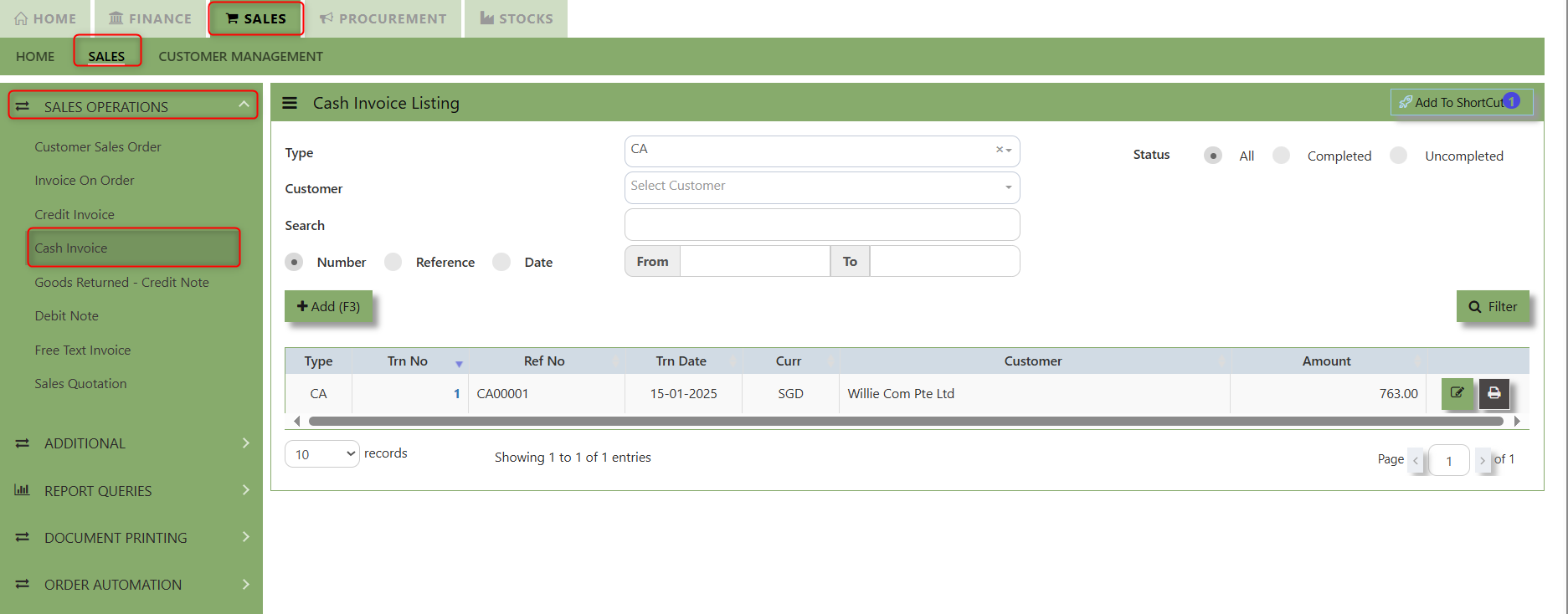
2. Click on Add button or press F3 to create a new transaction
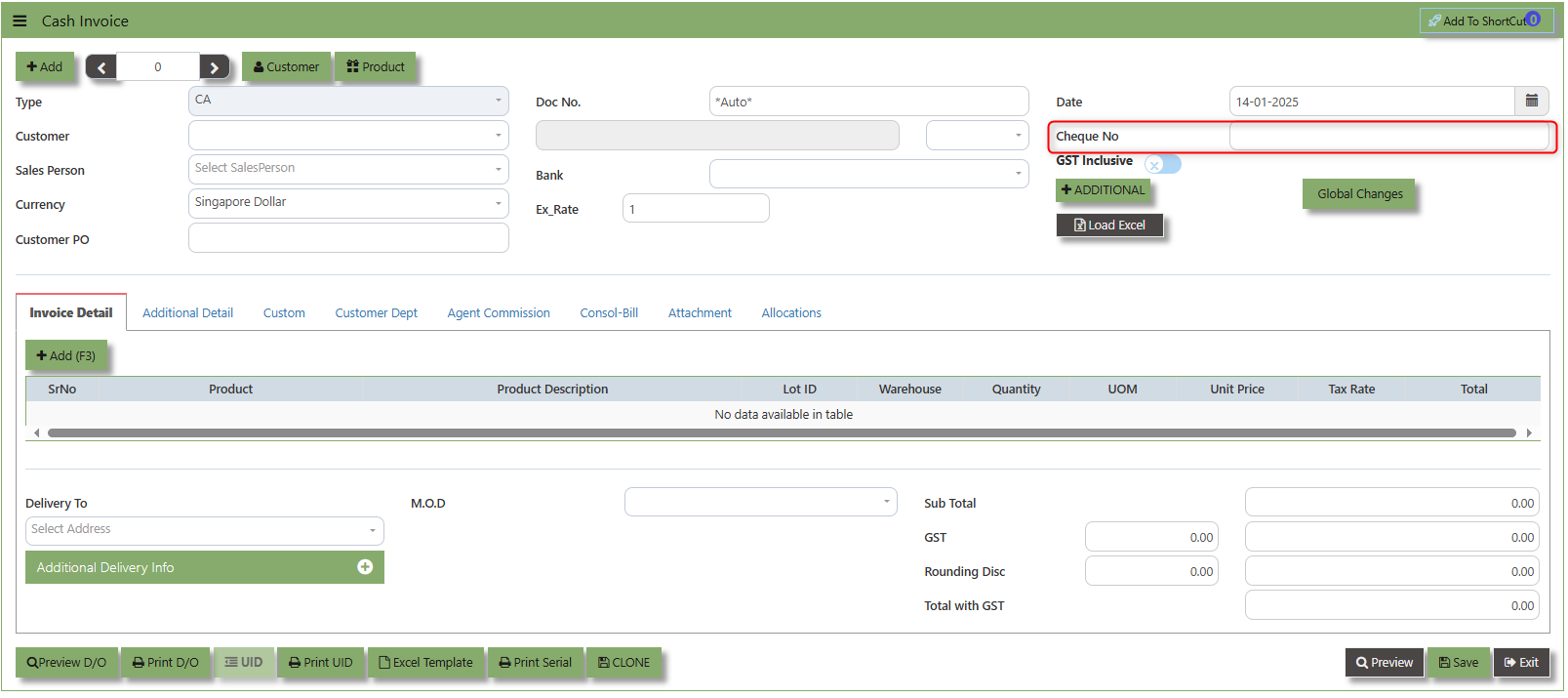
3. Click the Type - drop-down to select transaction type – CA(Cash Invoice).
4. After selecting the transaction type, you can use the tab button to go to the Ref No. and Date fields to enter the information.
5. Click the Customer - drop-down list to select the Customer, followed by the Sales Person, PDS, Currency and Rate.
6. The “Cheque Number” is an important field which must be specified (refer to the highlighted screen)
7. After the Bank code is selected, user can enter the information for Our D/O, Order Ref. No and Order Ref Date if applicable.
8. Once all the header information has been entered, the user can proceed to the Details section to select the product items from the product drop down list, before specifying the warehouse, quantity and unit price. Save the transaction after this is done.
___________________________________________________________________________________________________________________________________________
Add to ShortCut - Used to create a shortcut for quick access to a specific sales transaction. By clicking this button, users can add the current sales invoice on order to a list of shortcuts, allowing them to access the invoice or related functionality quickly and efficiently, without needing to search for it each time.
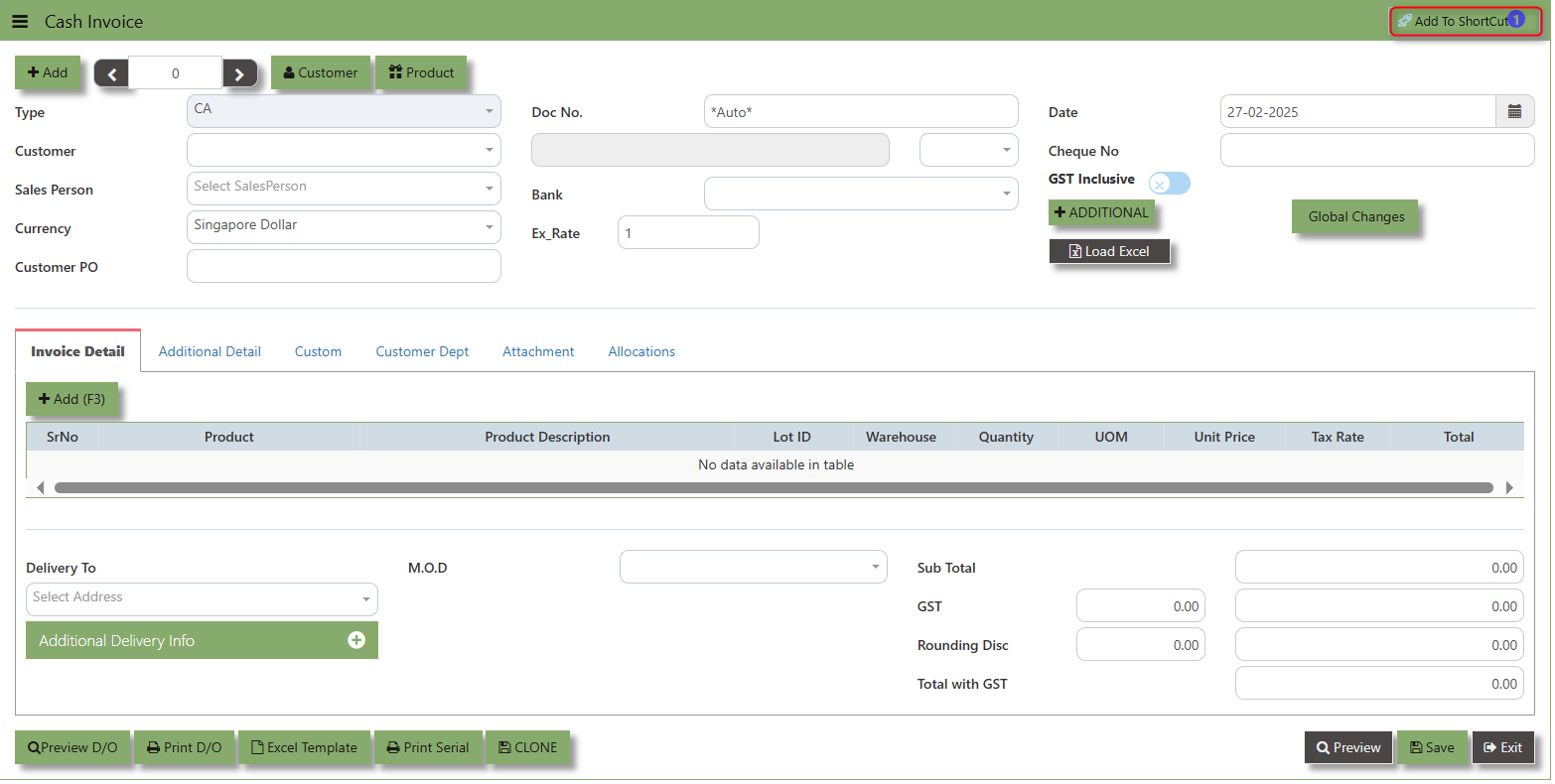
How to use Add to ShortCut?
1. Click "Add to ShortCut" and system will open below windows:
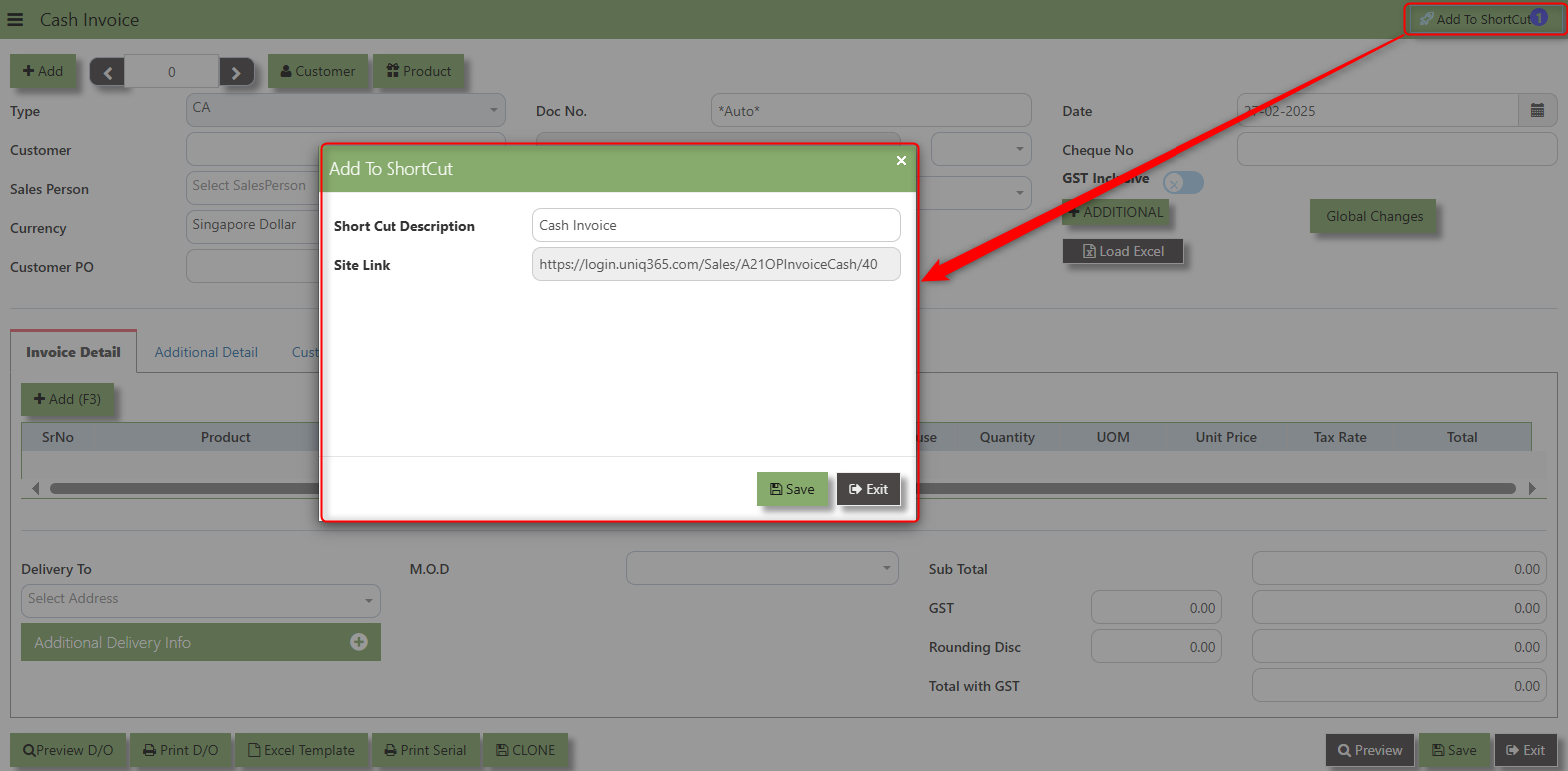
2. Enter Short Cut Description
3. Click SAVE then click OK.
4. User may look to the Homepage for the added function or page. Click on HOME - HOME - SHORTCUT for the screen below.
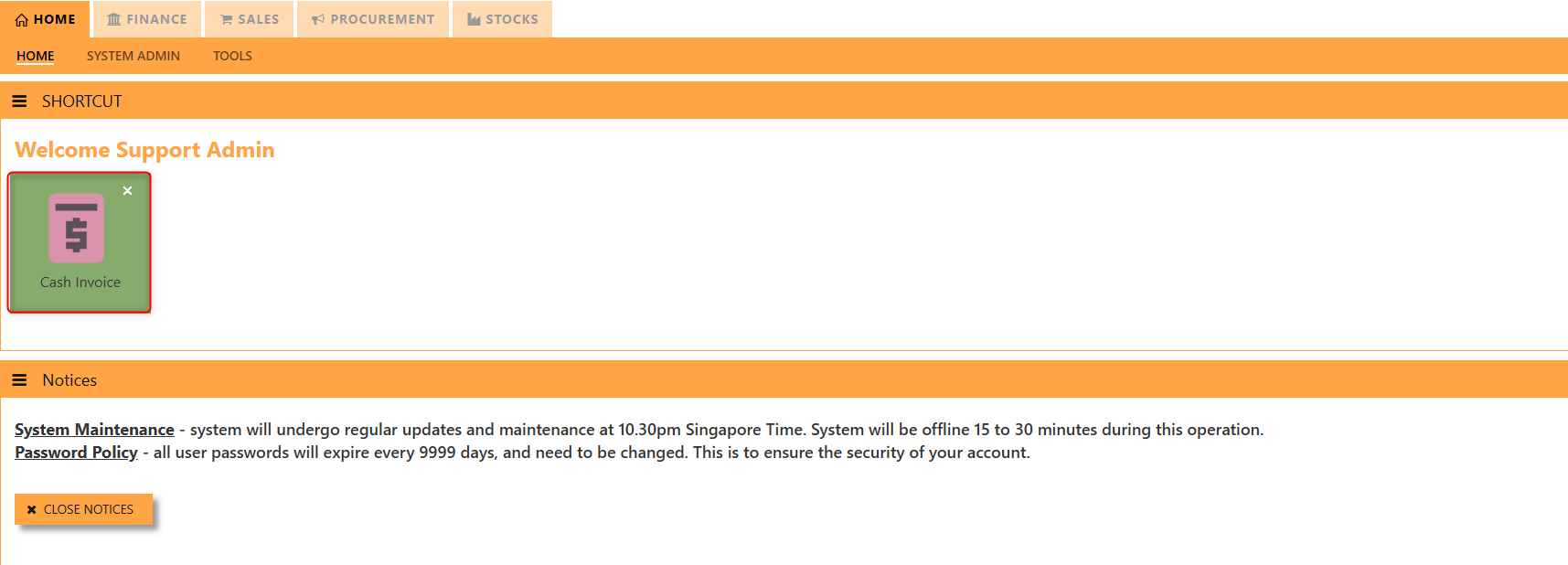
___________________________________________________________________________________________________________________________________________
The Customer button provides quick access to detailed supplier profiles under Customer maintenance.
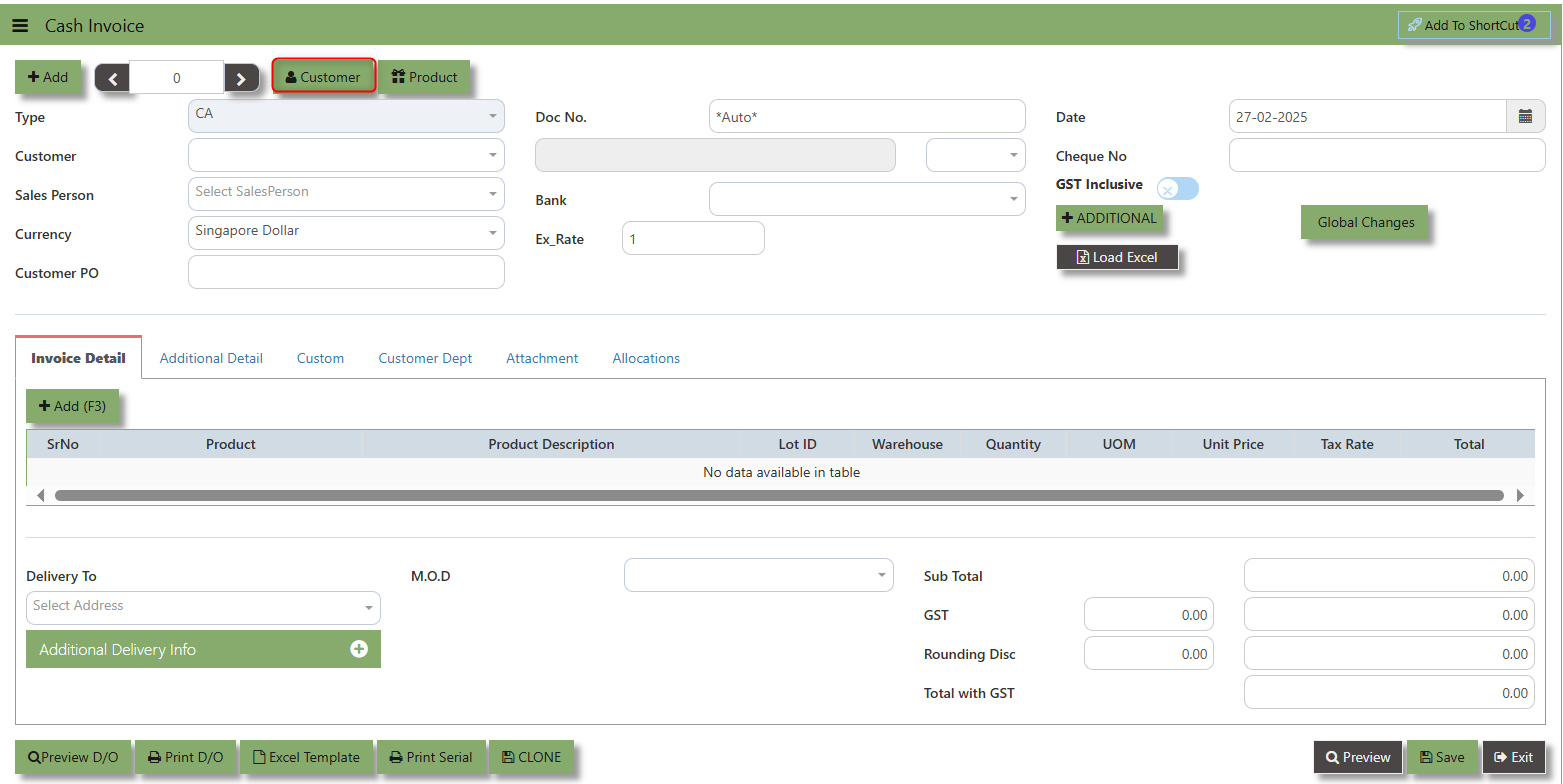
The Product button provides quick access to product and service maintenance
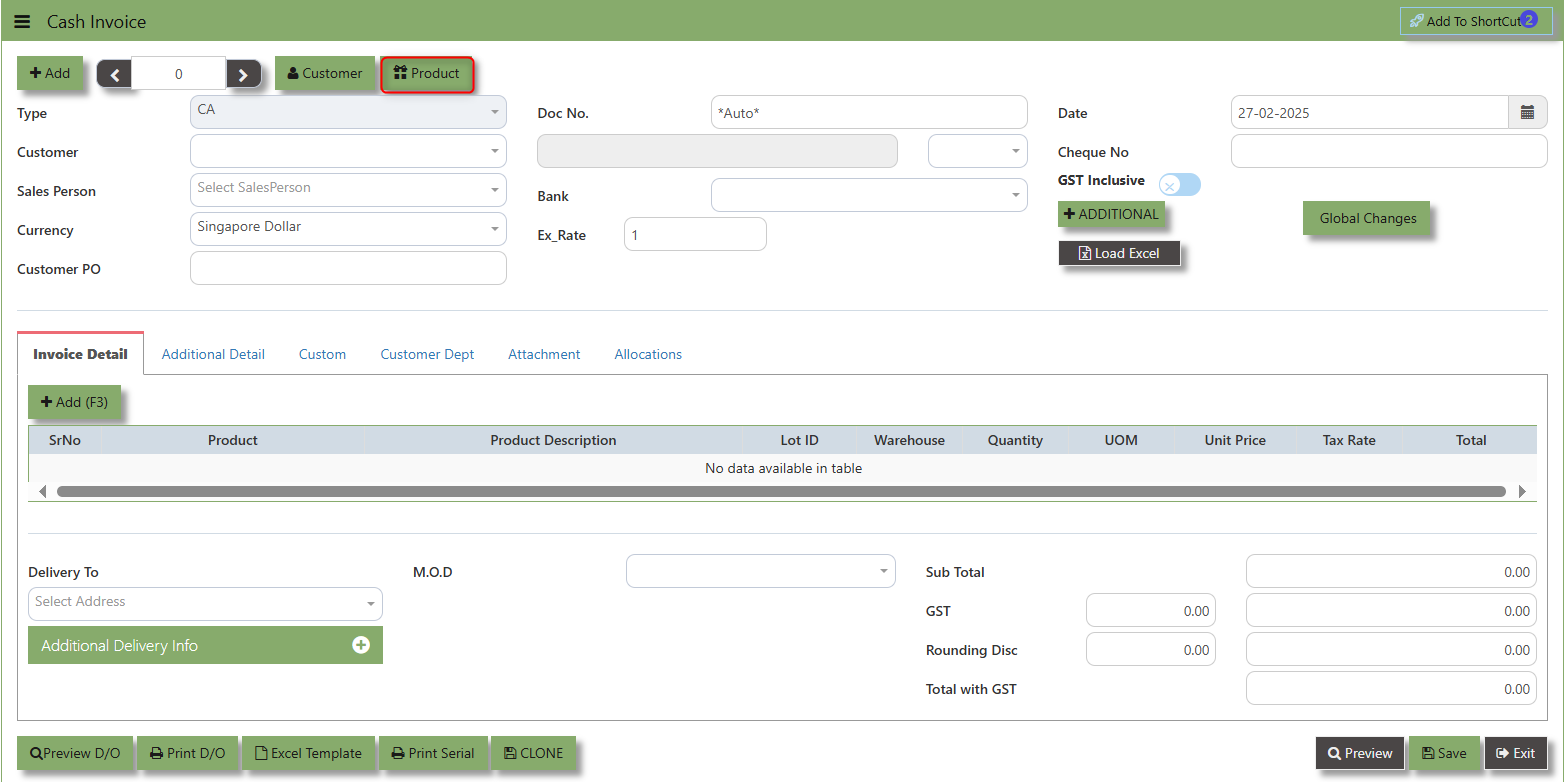
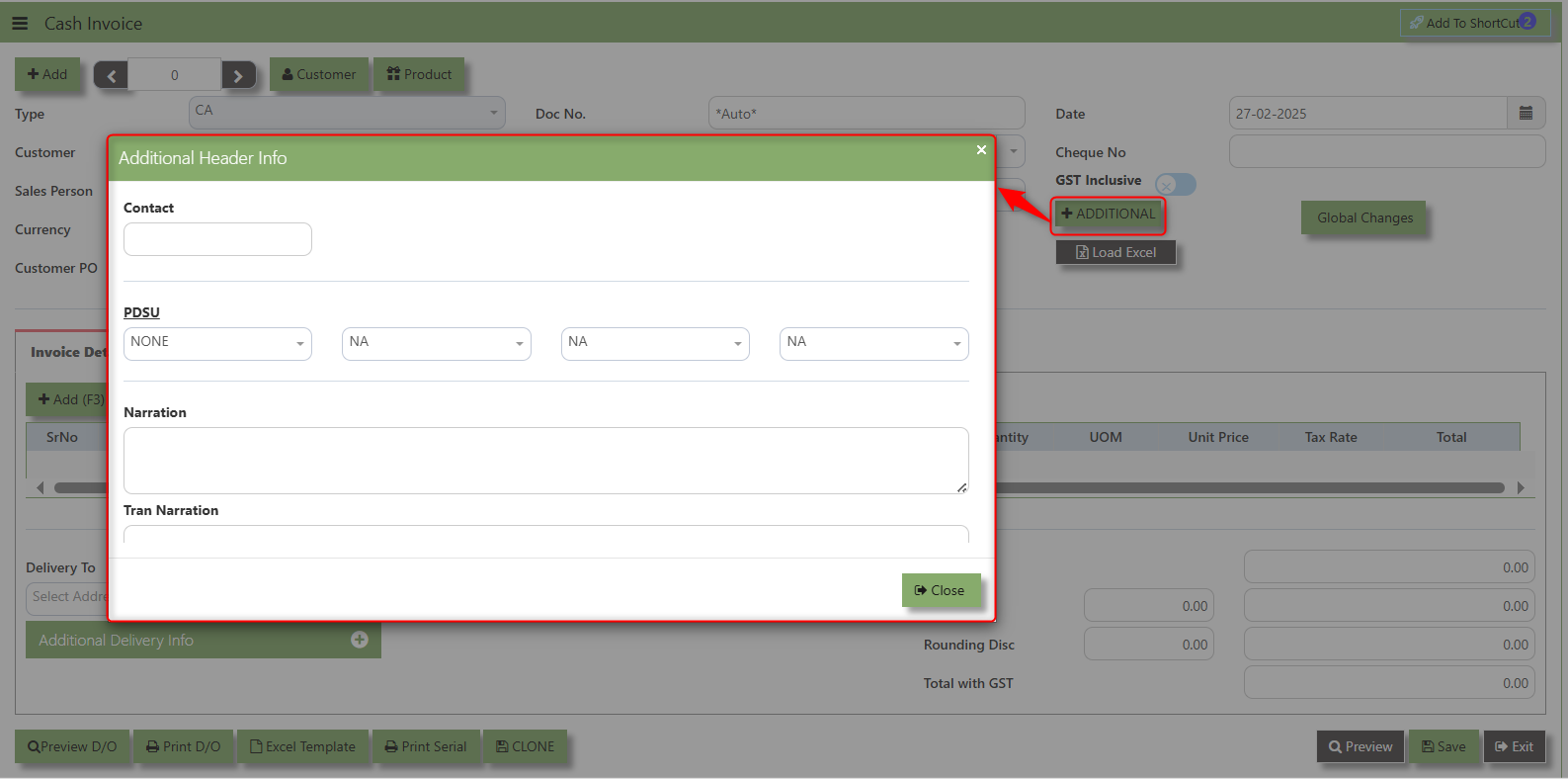
Additional Header Info button is typically used to capture and manage additional information related to the Sales Credit Invoice at the header level (i.e., Delivery date, Del Term , Indicative WH , Country, Lead Time, Contact, PDSU, Narration and Transaction Narration). This feature allows users to add extra data or notes that are relevant to the entire sales invoice on order.
The GST Inclusive checkbox indicates whether the unit price in the CA include Goods and Services Tax (GST) or not.
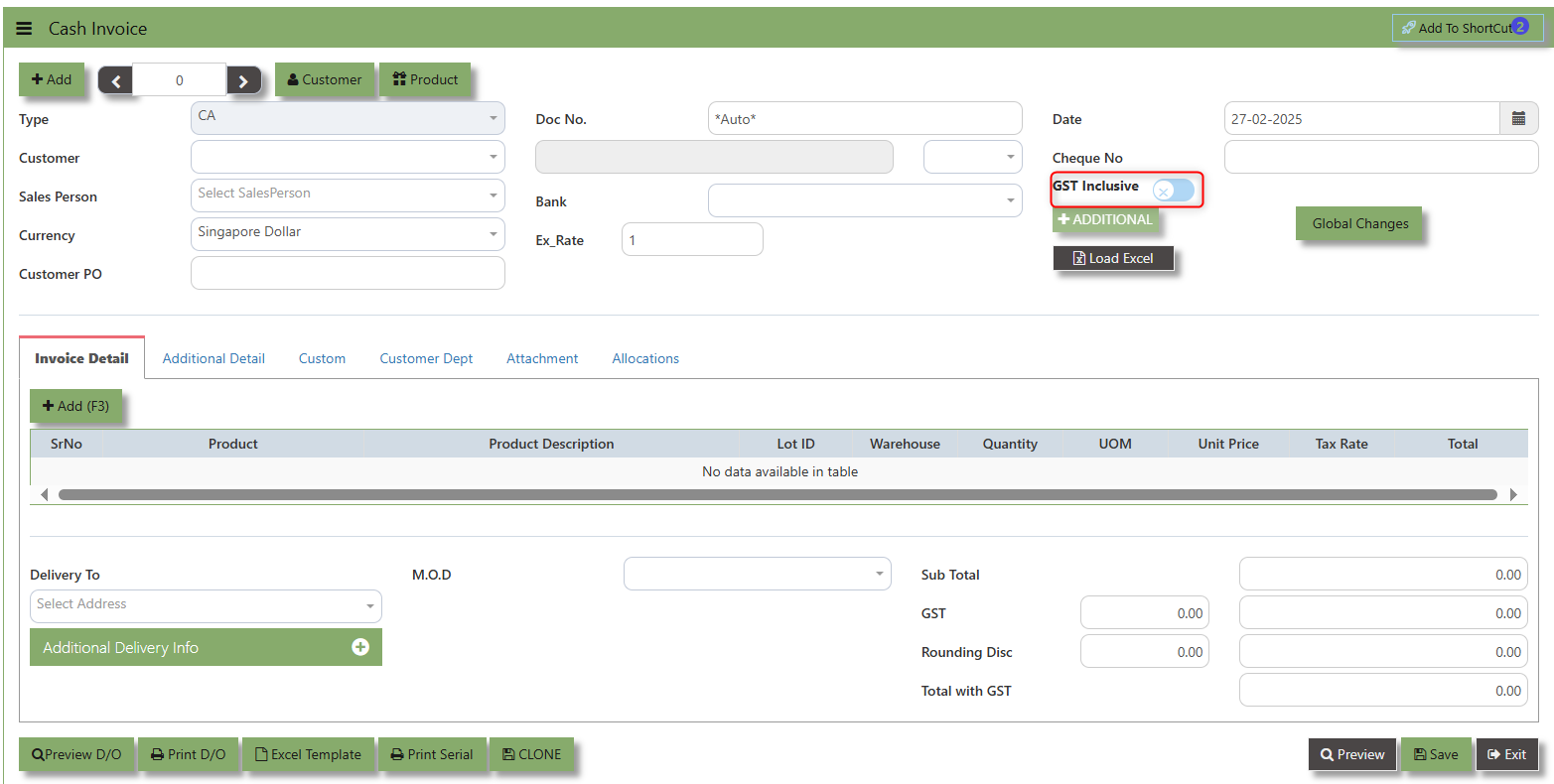
- When ticked (GST Inclusive): provided in the Sales Order already includes the applicable GST amount. The GST amount will not be calculated or displayed separately, as it's already accounted for in the quoted price.
- When not ticked (GST Exclusive): The unit price is considered exclusive of GST. The system will calculate and add the GST based on the applicable tax rate, and the final total will be the sum of the base price plus the GST amount
The Global Changes Button provides access on the Discount menu in the Sales Cash Invoice . By clicking this button, users can add the current Cash Invoice discount using Global Discount Amount, or Percentage Discount.
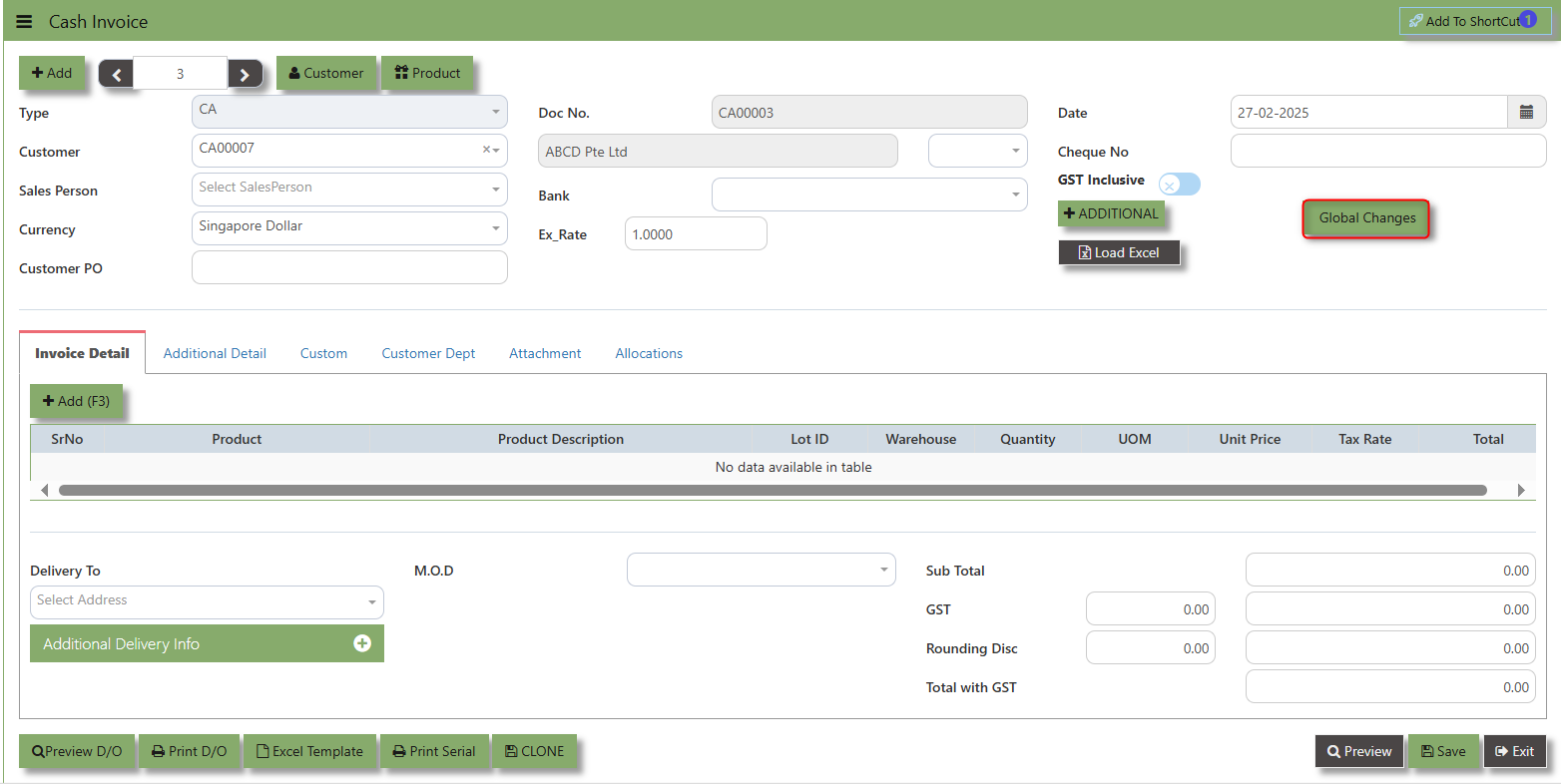
How to use Global Changes?
1.Click "Global Changes" and system will open below windows:
2. Add a Discount to the transaction if its Global Discount Amount or Percentage Discount.
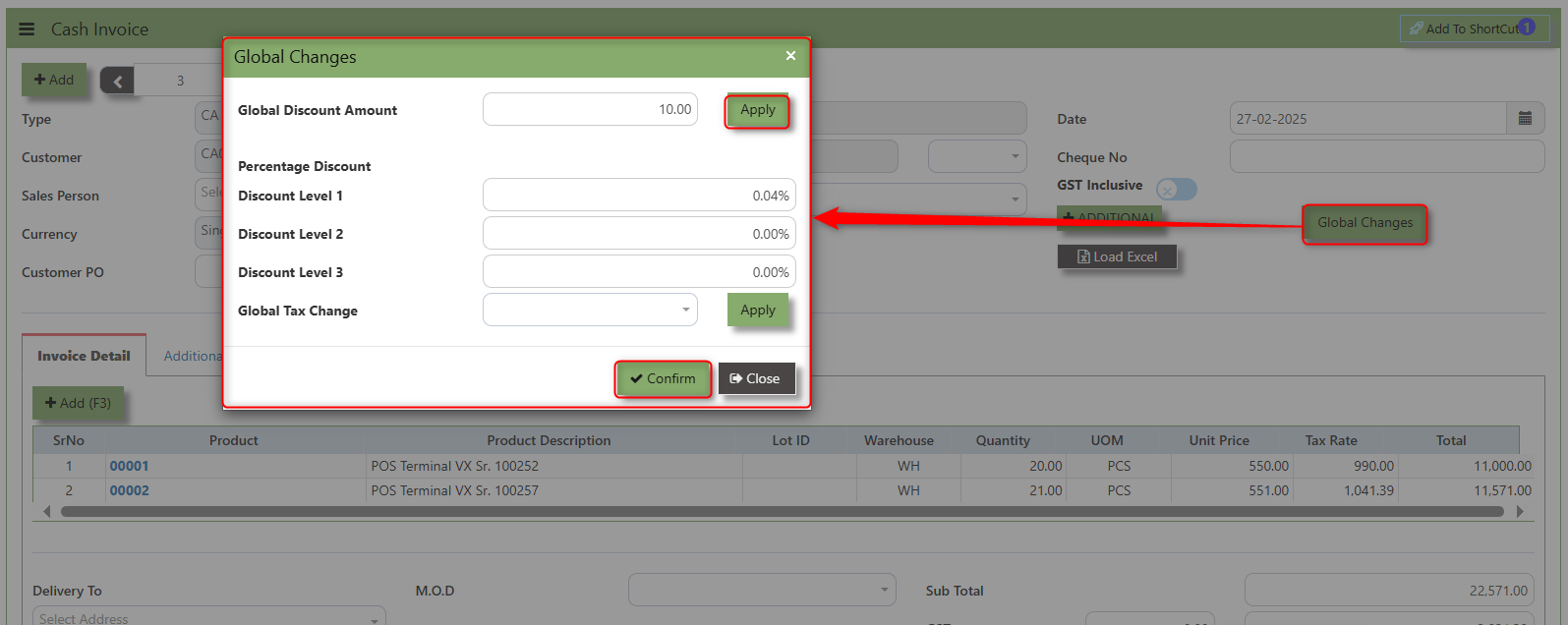
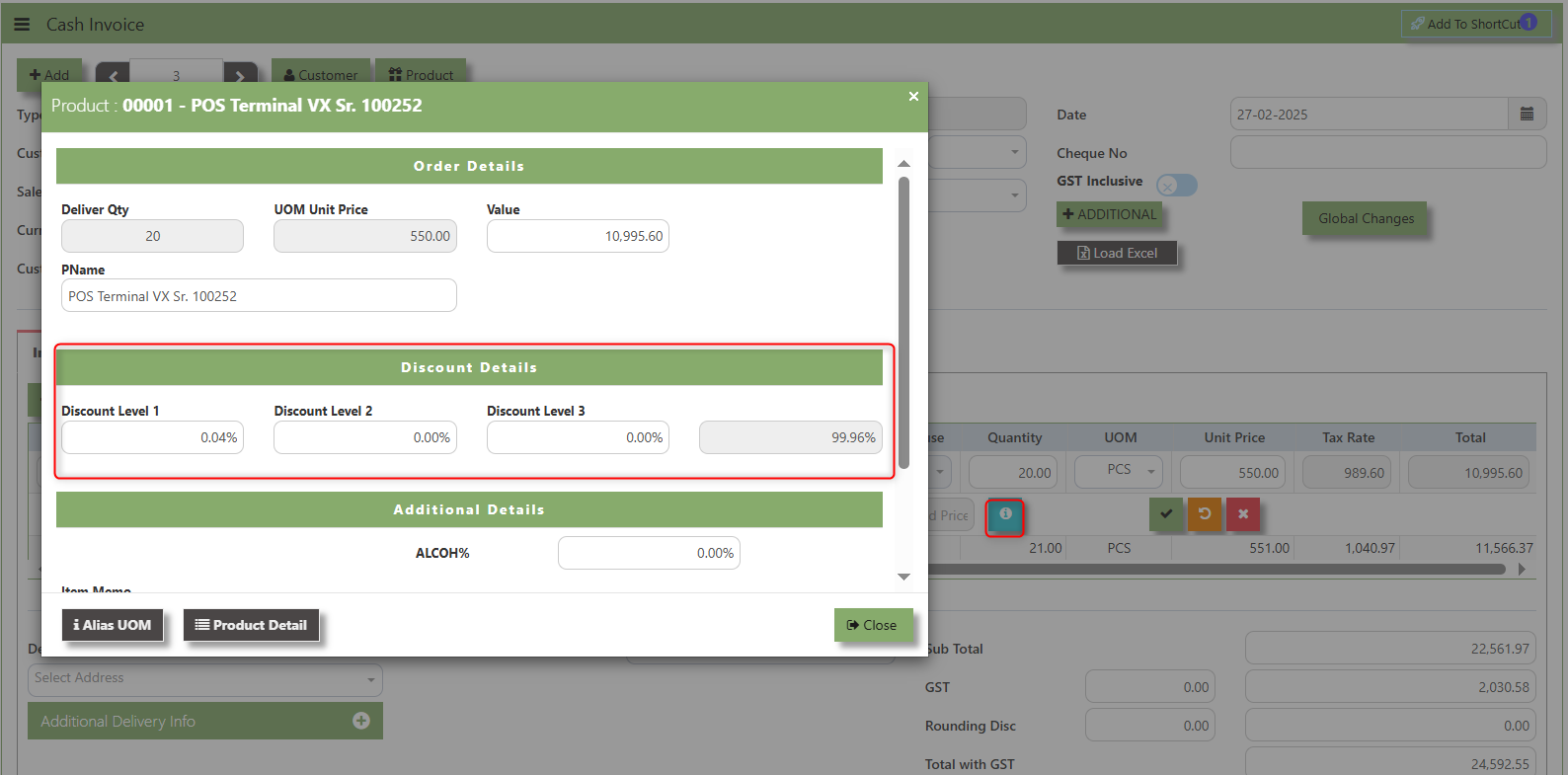
3. Click Apply and Confirm button, the discount will be automatically captured in the line item and in the transaction.
Load Excel - When users have an Excel file from Excel Template with Cash invoice information (ie Warehouse, Product, Pname, UOM, Quantity, Unit Price, GST type, Detail Memo) the "Load Excel" button allows them to upload and import this data directly into the system. This eliminates the need for manual entry of the data into the system's Cash Invoice fields.
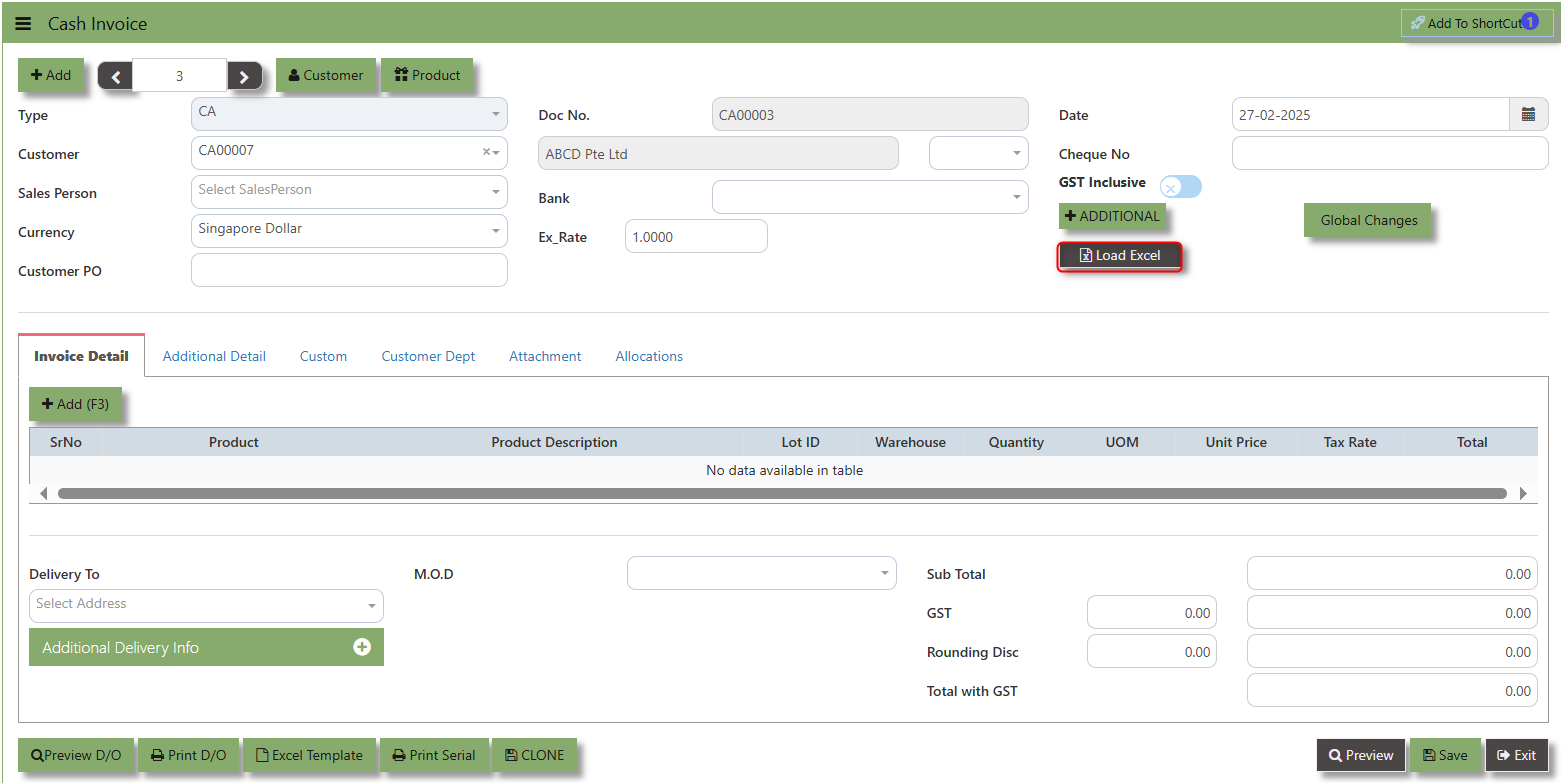
How to use Load Excel?
1. Click the Customer - drop-down list to select Customer Name
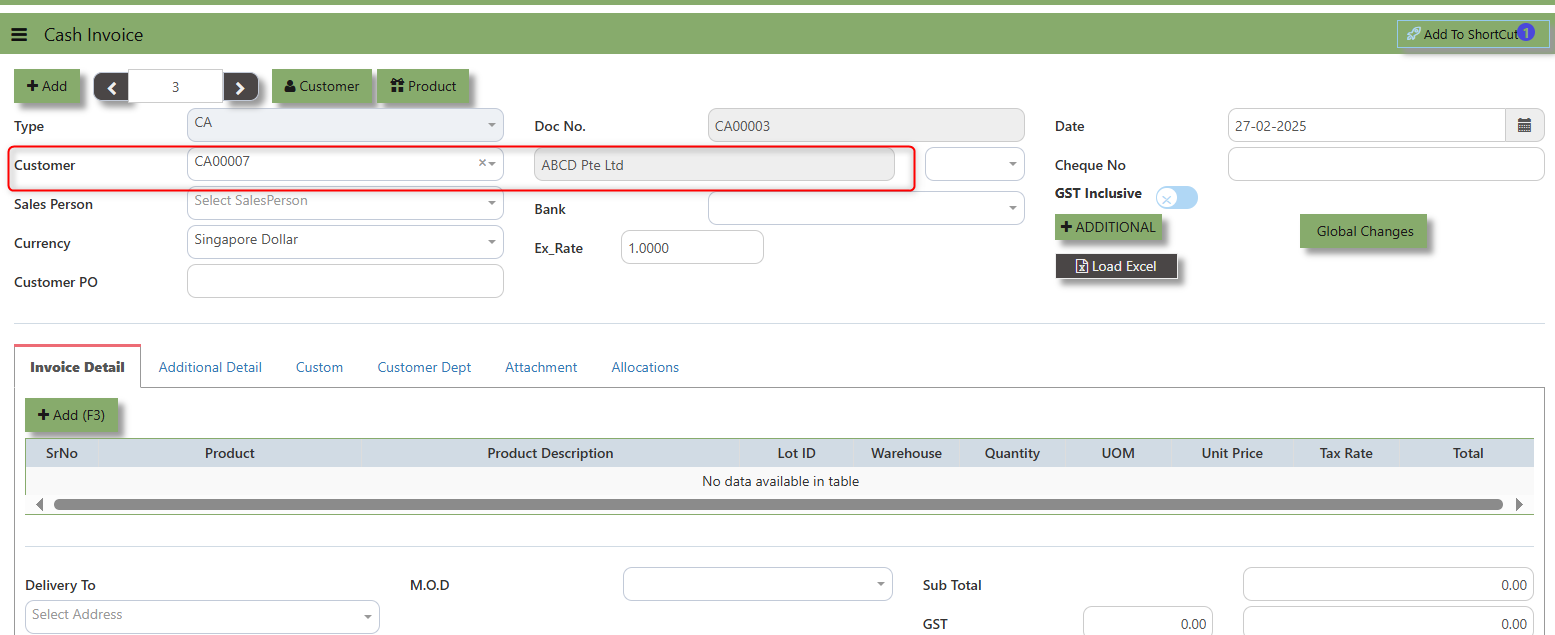
2. Download the Excel Template and ensure the Excel file you plan to upload is formatted correctly. It should contain all the necessary fields required for sales order, such as:
- Warehouse
- Product Code
- Product Name
- LotID
- GST Type
- Quantity
- UOM
- Unit Price
- Detail Memo
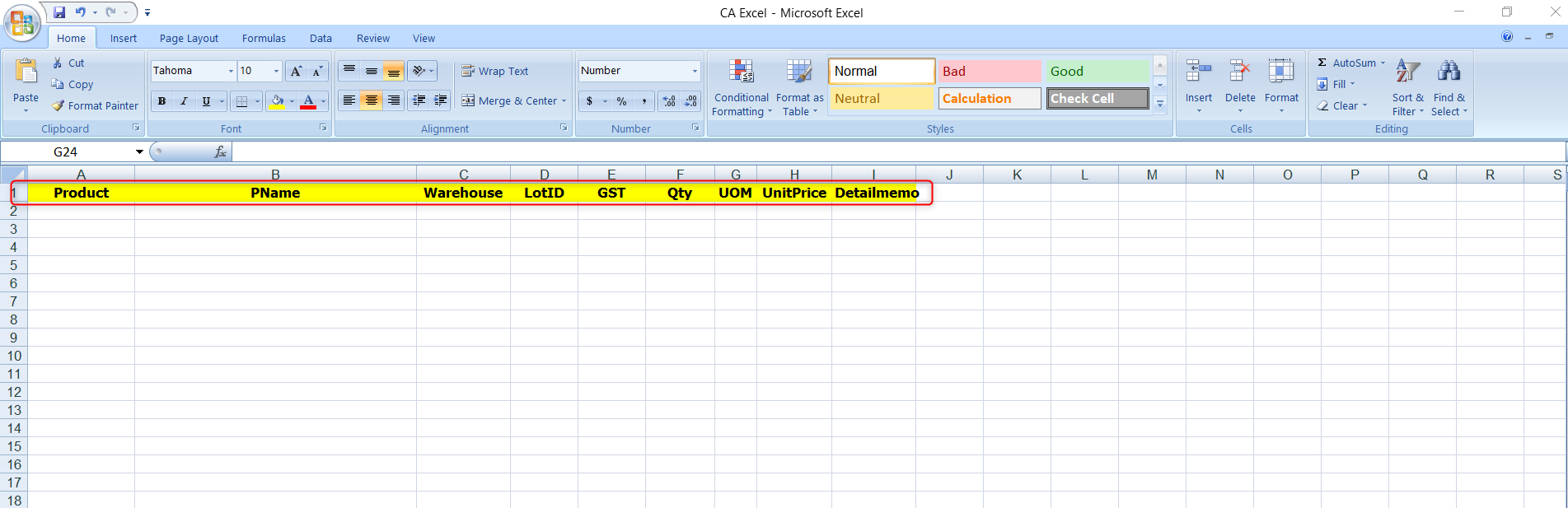
3. Click the Load Excel button to open the file upload interface. This may open a file browser or prompt you to select the Excel file you want to upload.
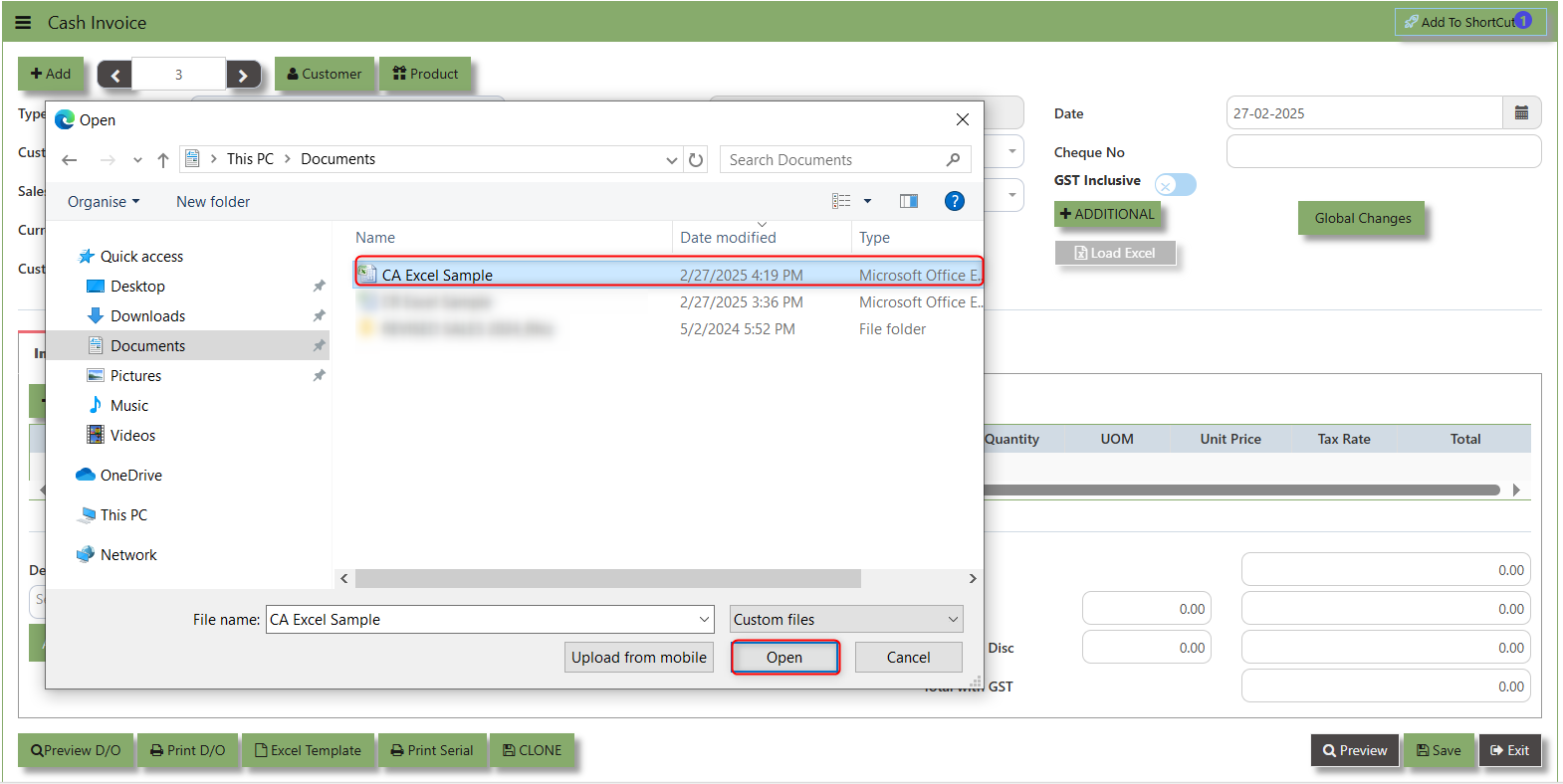
4. Once the filed uploaded, system will prompt a message that record has been imported successfully.
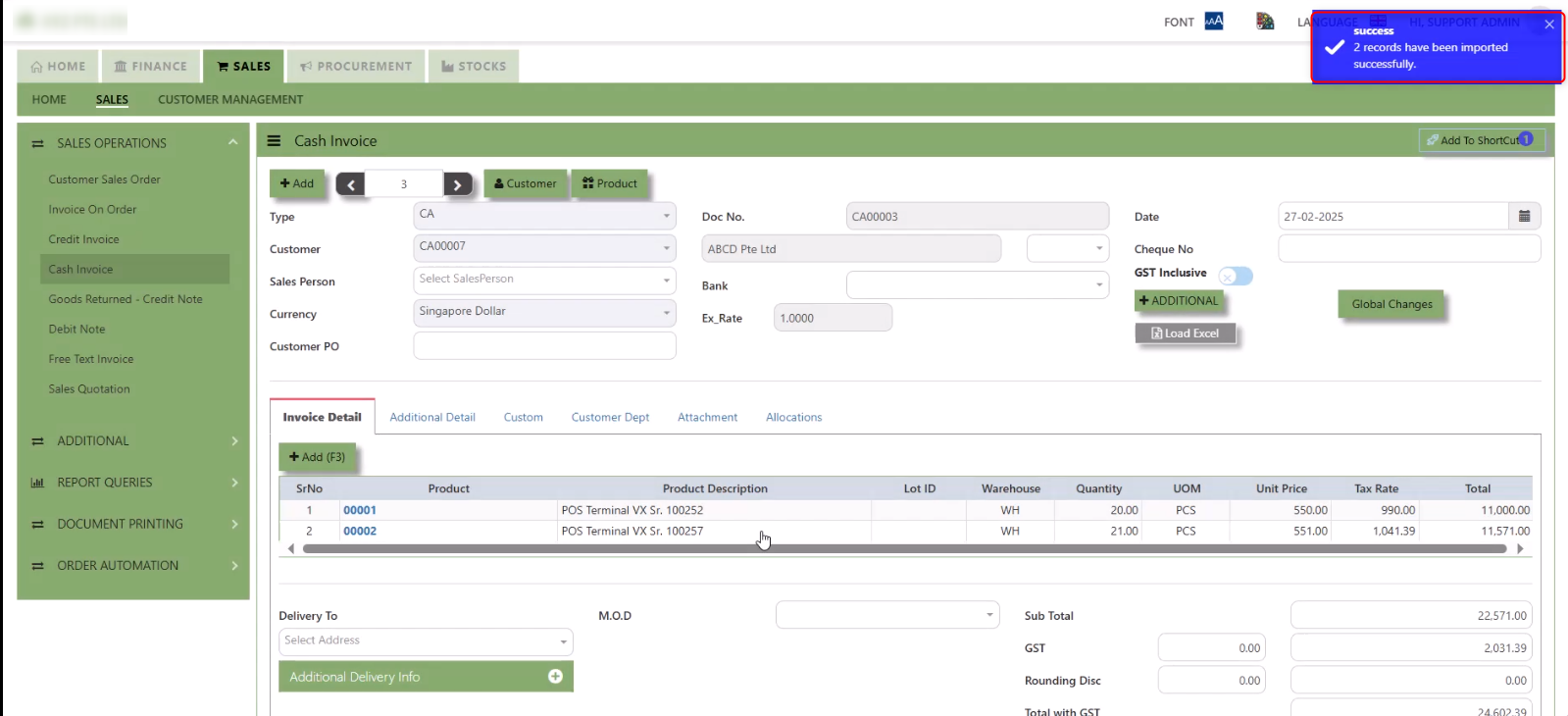
5. After the import is complete, review the imported credit invoice in the system to ensure everything has been transferred correctly. This might include checking that the order details, such as item descriptions, quantities, prices, and customers, are accurate.
6. Once the data is imported successfully and checking is done, you can proceed to save the sales order as required by your workflow. This may involve further approvals or other processes depending on the organization's procedures.
___________________________________________________________________________________________________________________________________________
Additional Detail Tab a section where the additional information is entered . This tab ensures that all relevant details regarding the Narration, Inco Terms , billing address warranty terms Selling conditions , and special instruction are captured in the system to facilitate smooth and accurate.
How to set Additional Detail?
1. Click on SALES – SALES OPERATIONS – CASH INVOICE- ADDITIONAL DETAILS TAB for the screen below.
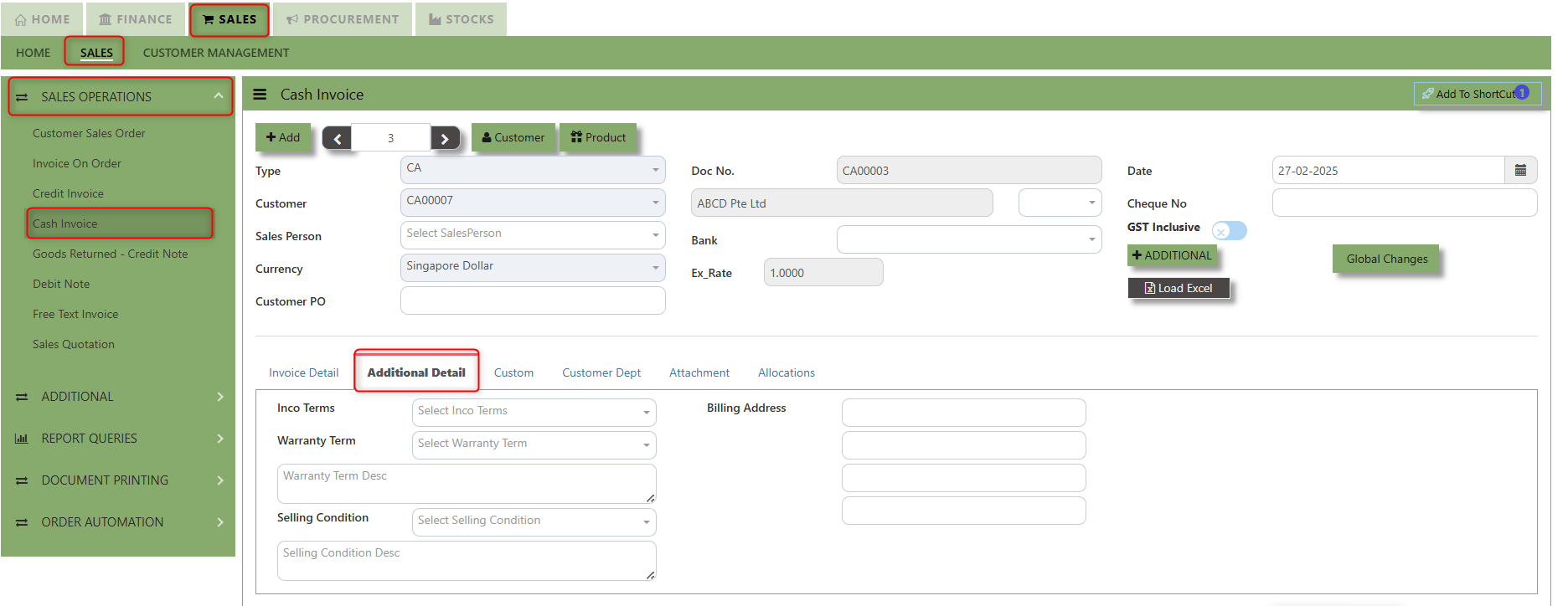
2. Input the below details for the below fields:
-
- Narration
- Billing Address
- Inco Terms
- Warranty Terms
- Selling Condition
- Inquiry Received Date
- Quotation Sent Date
3. Once keyed in the necessary details, click the next tab and will automatically save all the information.
___________________________________________________________________________________________________________________________________________
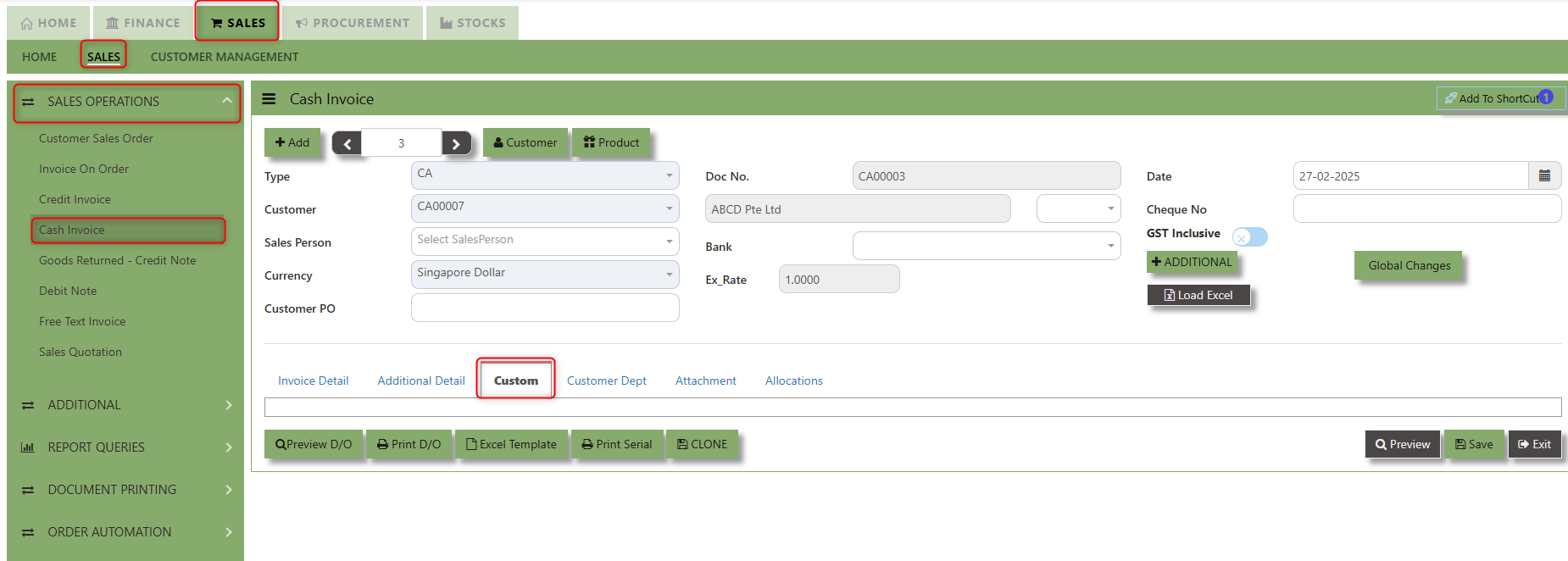
"Custom Tab" provides a space for users to input customized data or additional fields that are specific to their business processes and requirements.
- Click on SALES – SALES OPERATIONS – CASH INVOICE - CUSTOM TAB for the screen below.
___________________________________________________________________________________________________________________________________________
"Customer Dept Tab" section where the Customer Department information is entered. This tab ensures that all relevant details regarding Customer Department details which is linked to the Customer Maintenance under Department Tab
- Click on SALES – SALES OPERATIONS – CASH INVOICE - CUSTOMER DEPT TAB for the screen below.
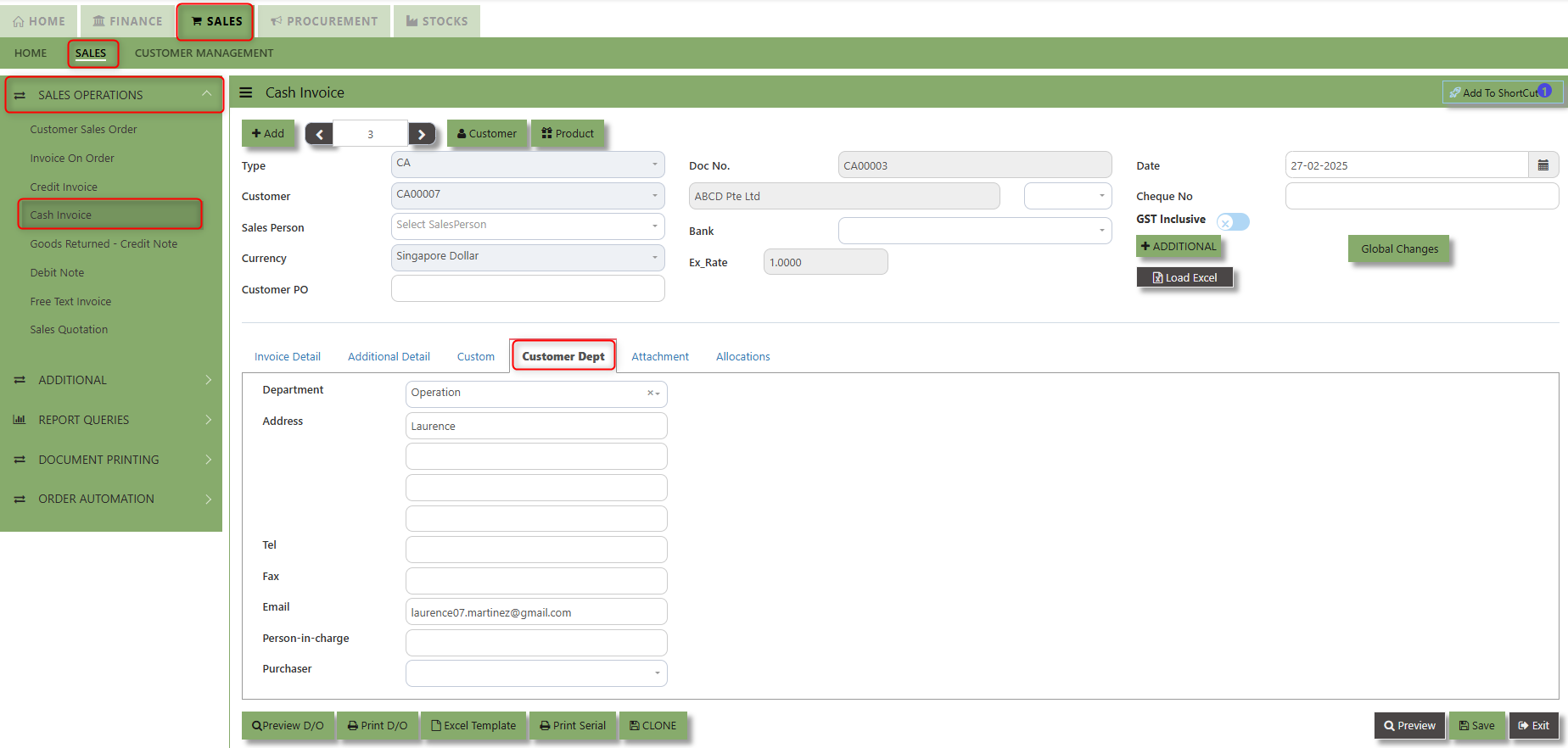
The drop down selection for Customer Dept and Purchaser is maintained in Customer Maintenance under Department Tab
__________________________________________________________________________________________________________________________________________
"Attachment Tab" allows users to attach various files and documents related to the Cash Invoice. By attaching relevant files, users ensure that all purchase-related information is kept in one place, making the sales process smoother, more transparent, and easier to track.
How to use Attachment Tab?
1. Click on SALES – SALES OPERATIONS – CASH INVOICE – ATTACHEMENT TAB for the screen below.
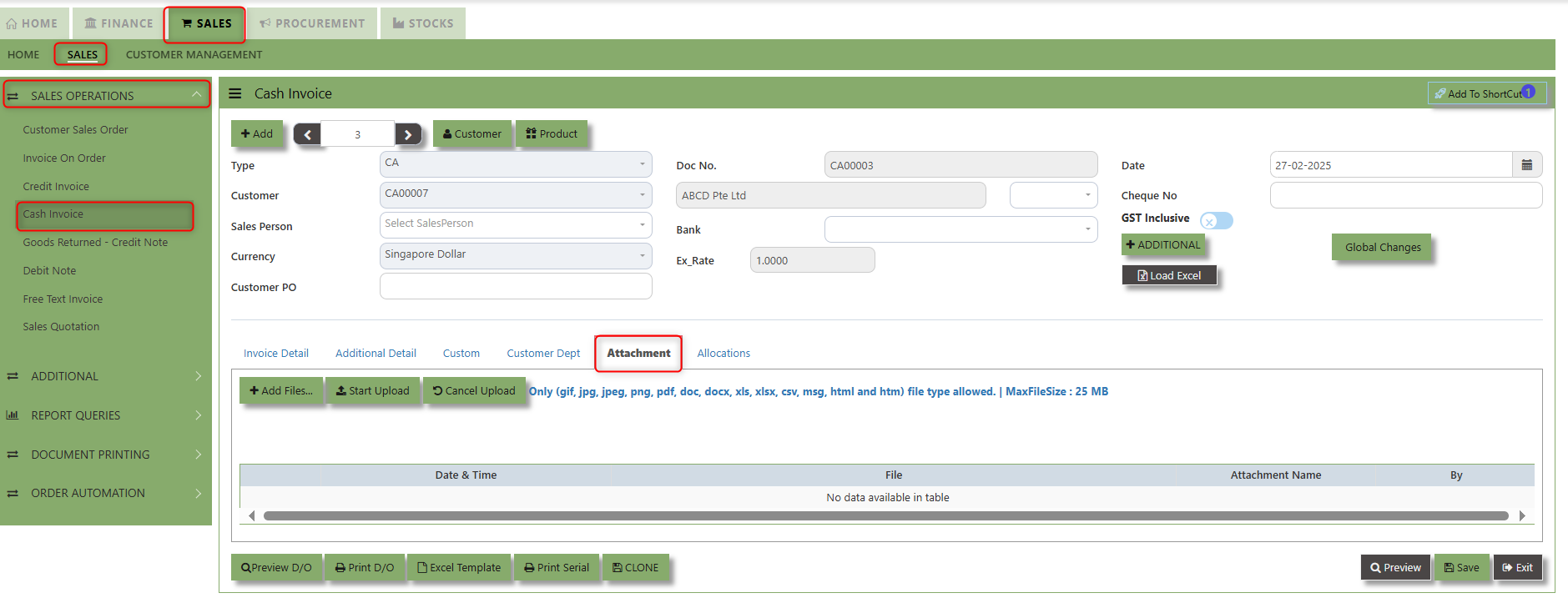
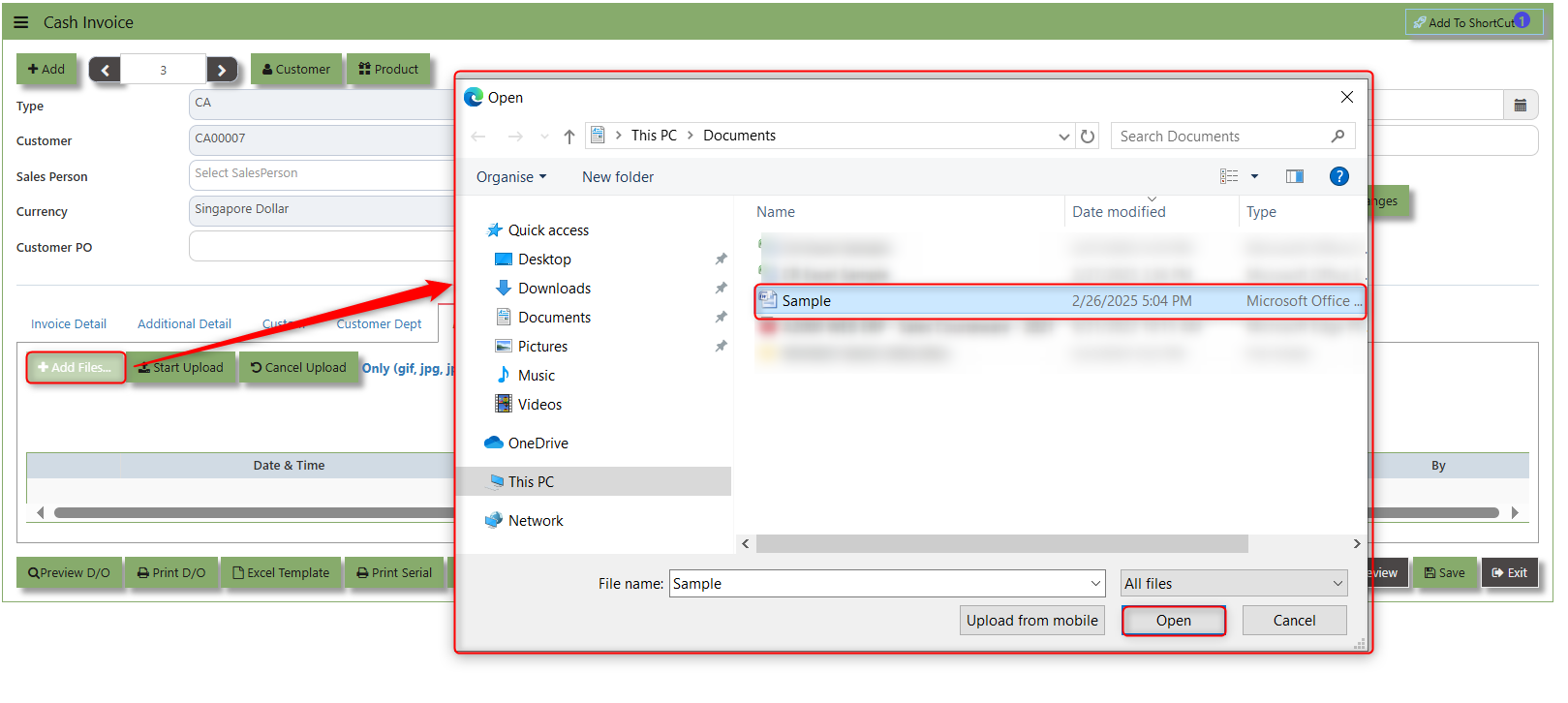
2. Click +Add files and windows will prompt then choose the file you want to upload by clicking open. Kindly take note the file types and maximum size requirements in uploading: Only (gif, jpg, jpeg, png, pdf, doc, docx, xls, xlsx, csv, msg, html and htm) file type allowed. | MaxFileSize : 25 MB
3. Key in the Attachment Name then click start to upload
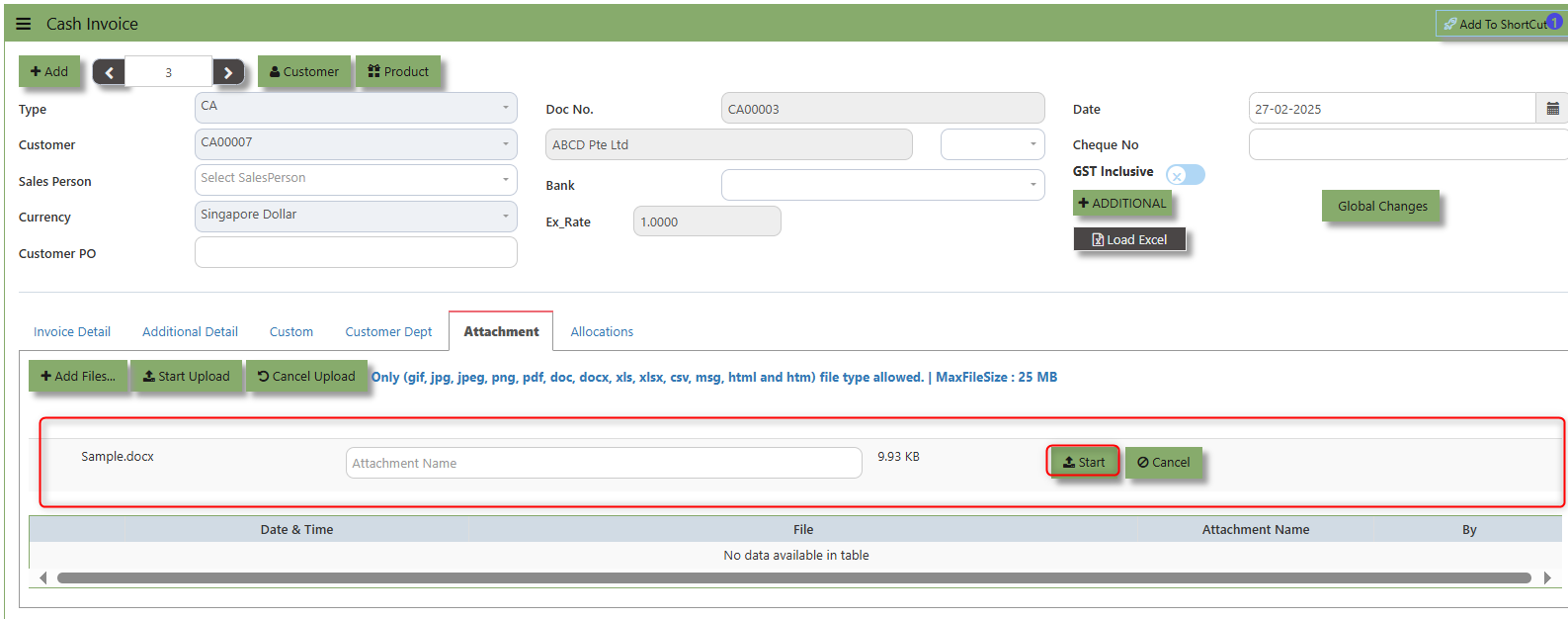
4.Once the file attached, click "SAVE" button
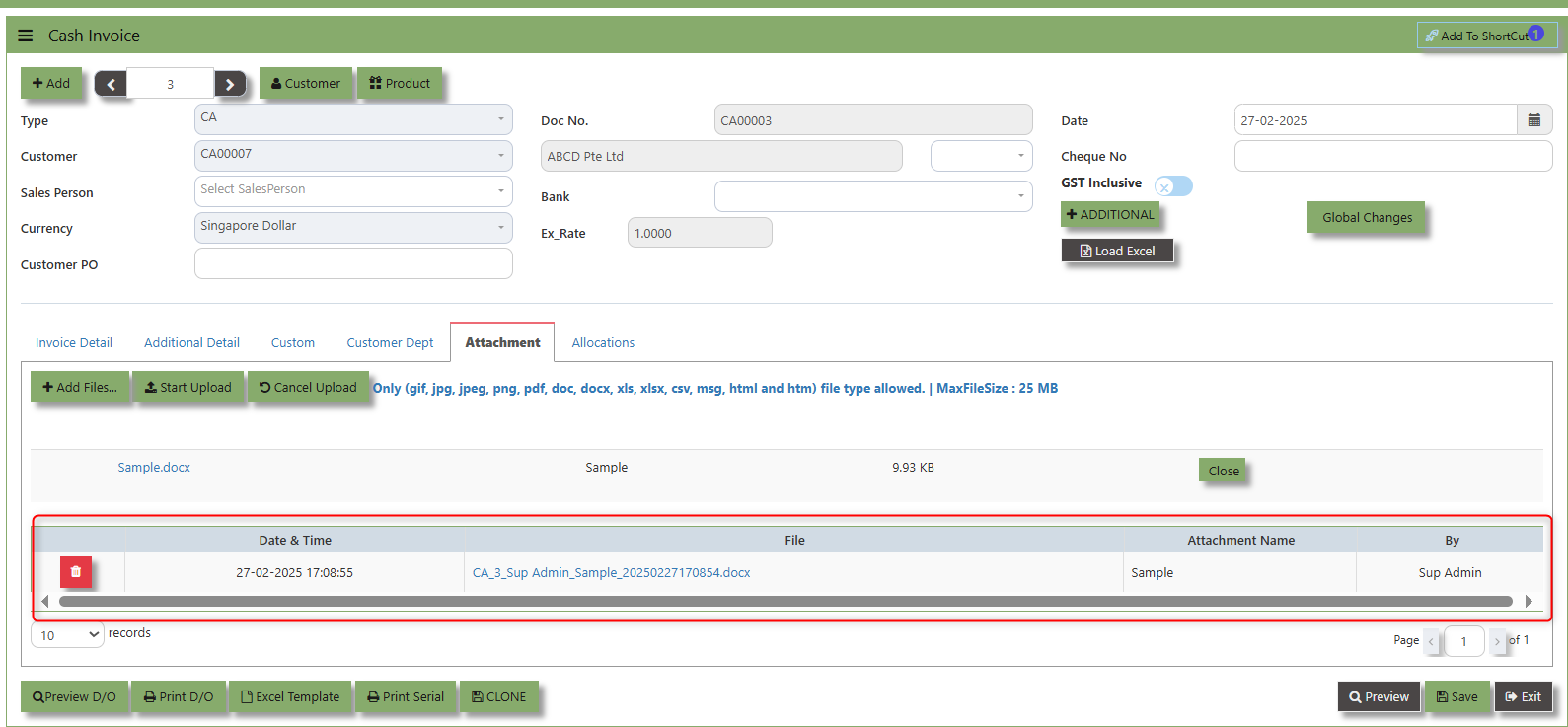
User may opt to cancel the uploading by clicking the "Cancel Upload" button and delete the file uploaded by clicking the "Bin icon" at the line detail.
___________________________________________________________________________________________________________________________________________
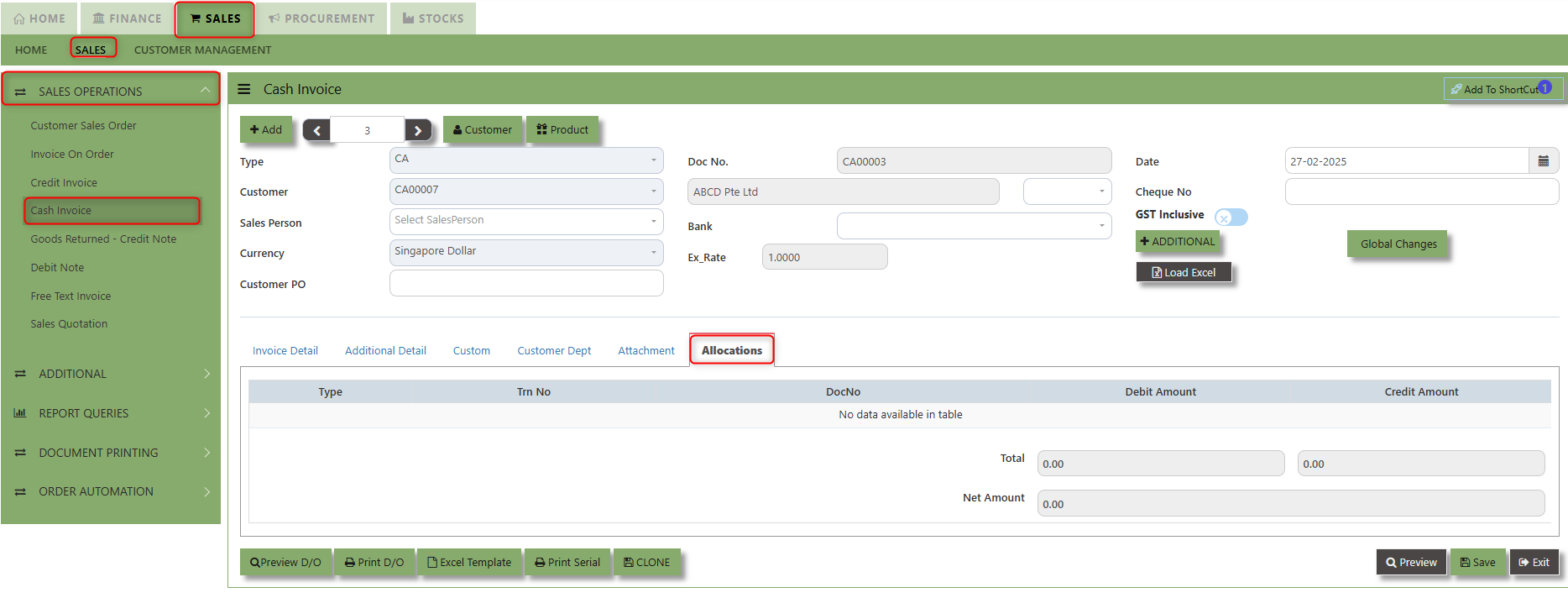
The Allocations Tab is used to manage and allocate the amounts or costs associated with the purchase invoice. Click on SALES – SALES OPERATIONS – CASH INVOICE - ATTACHMENT TAB for the screen below.
Goods Returned Return (Credit Note)
This is used to create a Credit Note to Customers when goods are returned. This will update the GL and the stock status. If you have noticed, the credit note can also be used to knock off previous invoices. (By clicking on the batch allocation button)
___________________________________________________________________________________________________________________________________________
How to Create Goods Returned – Credit Note?
1.Click on SALES – SALES – SALES OPERATIONS – GOODS RETURN CREDIT NOTE for the screen below.
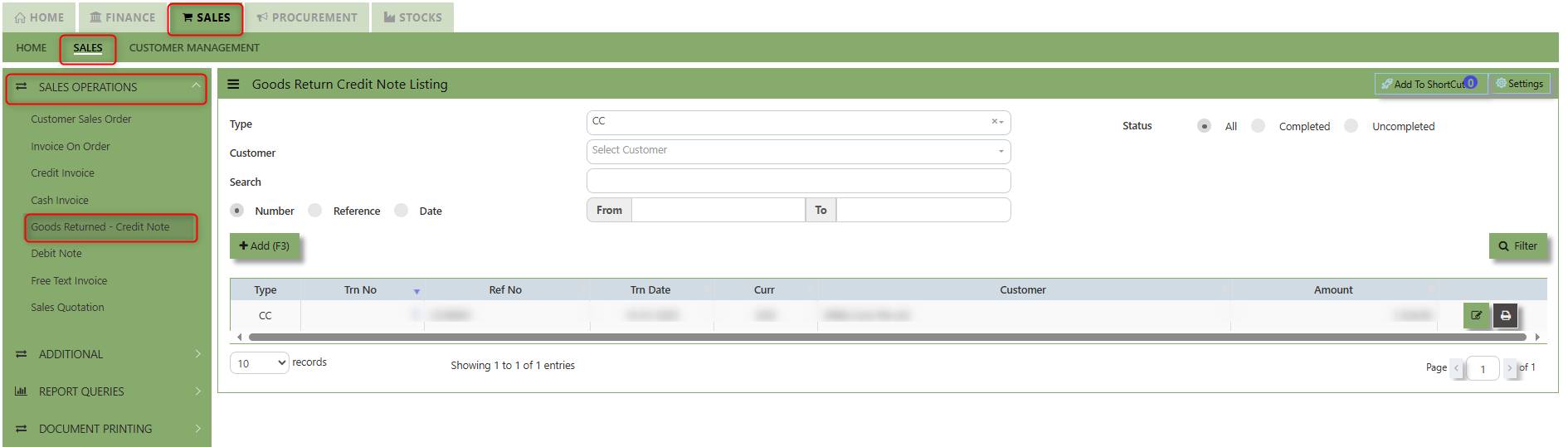
2. Click on Add button or press F3 to create a new transaction.
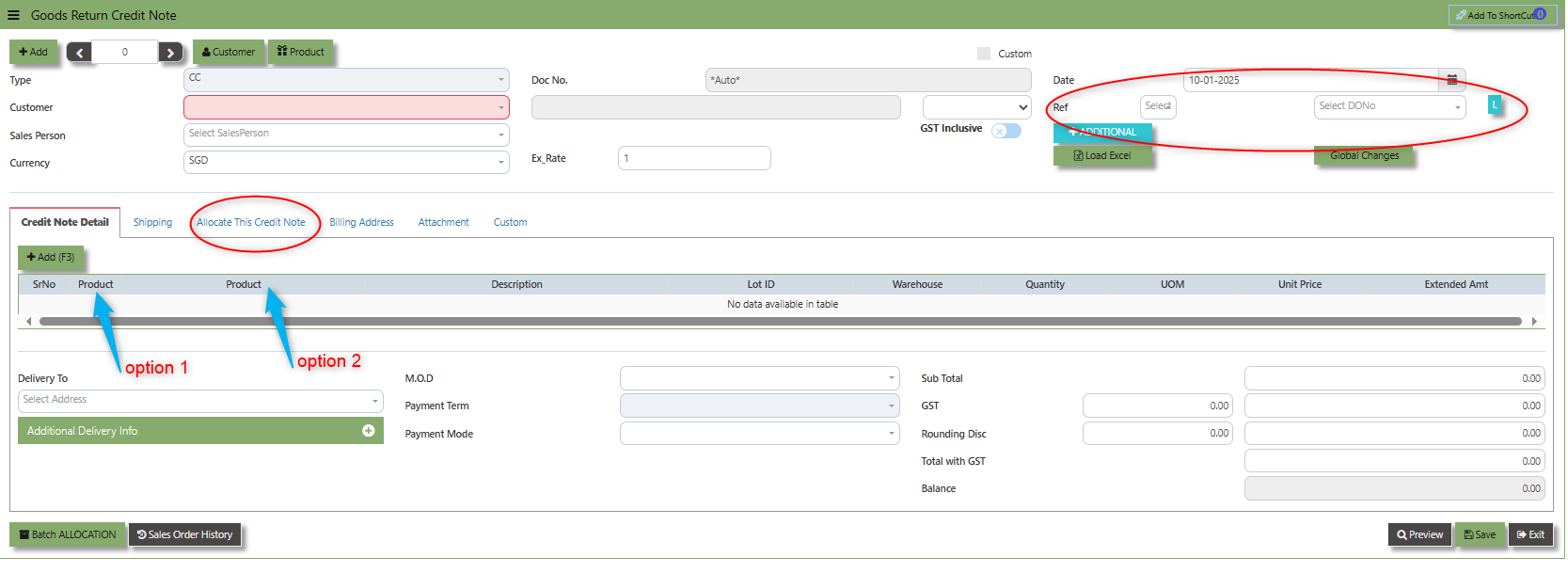
- Click the Type - drop-down to select transaction type – CC (Goods Returned – Credit Note).
- After the transaction type selection, use the tab button to go to the Doc No. and Date fields.
- Click the Customer - drop-down list to select Customer Name, followed by the Sales Person, PDS, Currency, Rate, RMA Ref and Narration if applicable.
- For this transaction type, the system has two options with regard to selecting the line items in the Details section (refer to highlighting Option 1,1a & Option 2 on print screen)
- Option 1: Select the Transaction Code & Number from the Delivery Ref column, before going to the “Option 1a” drop-down to select the items which will come from the transaction in the Delivery Ref.
- Option 2: Ignore the Option 1 function and use the Product drop-down list to select the items to be
returned. For this option, user should take note of the return cost calculated by the system and where necessary, you can amend the value of the return cost for the individual item.
- After completing the above steps for sales return, user can use the “Batch Allocation” button to allocate the outstanding invoice amount.
___________________________________________________________________________________________________________________________________________
Add to Shortcut - By clicking this button, users can add the current Sales Transaction in the shortcut menu in the main page.
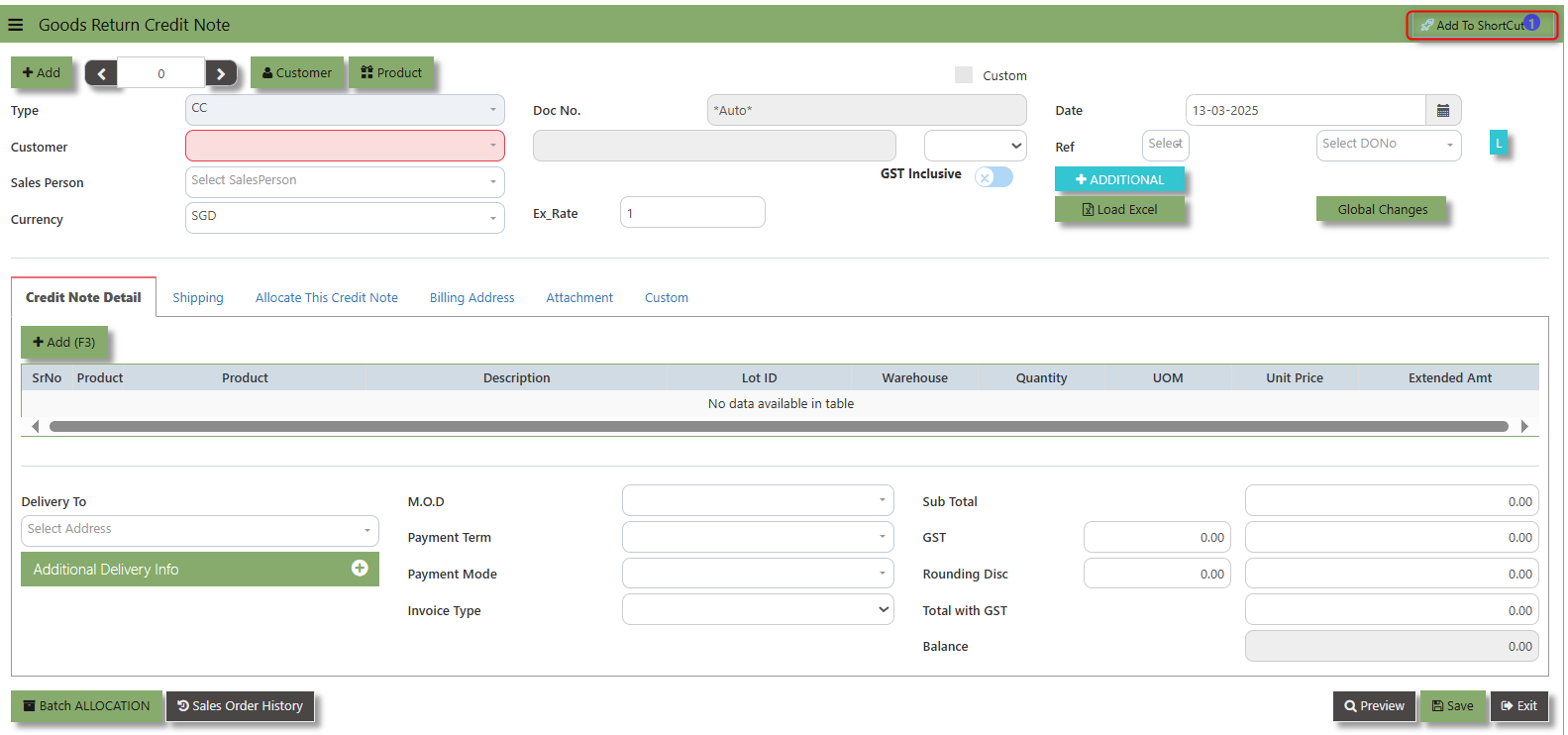
How to use Add to ShortCut?
1. Click "Add to ShortCut" and system will open below windows:
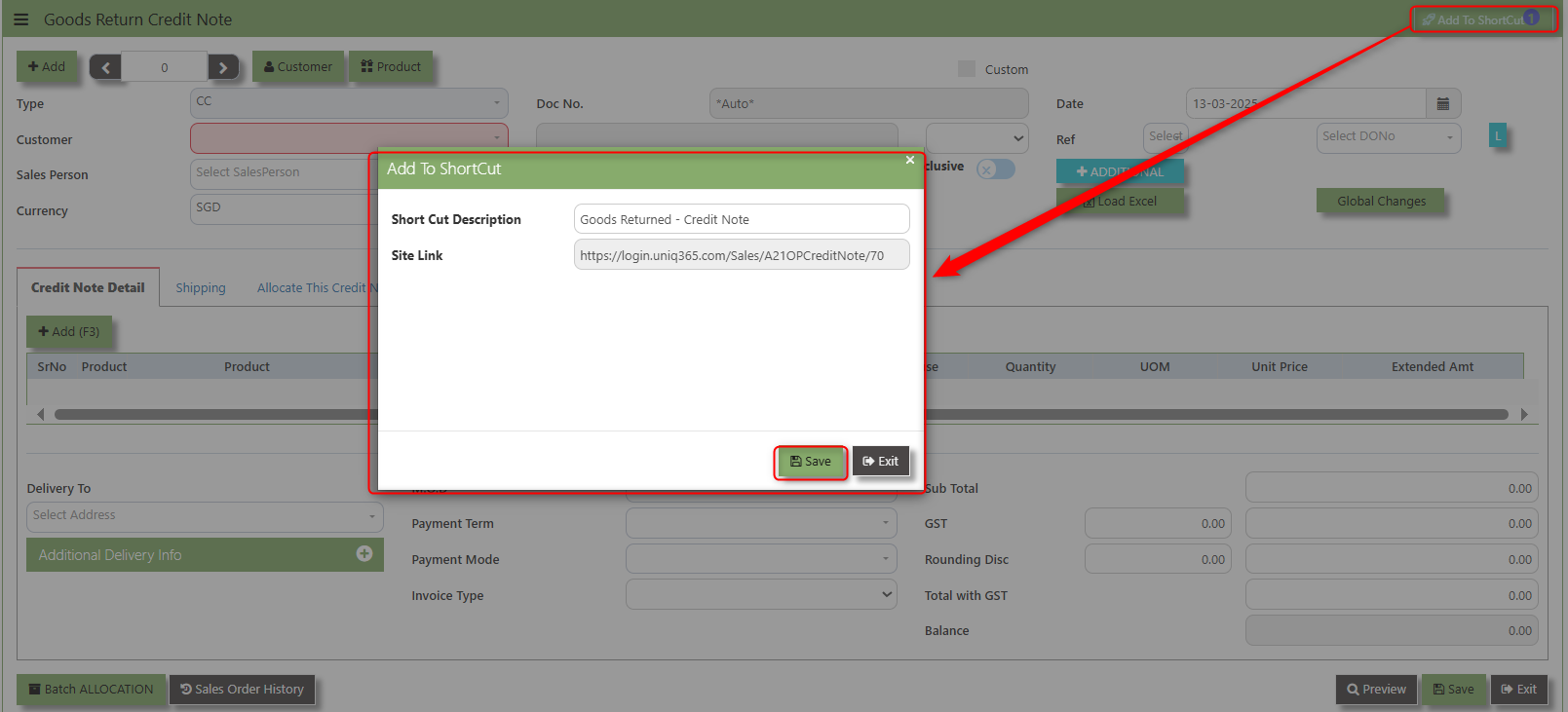
2. Enter Short Cut Description
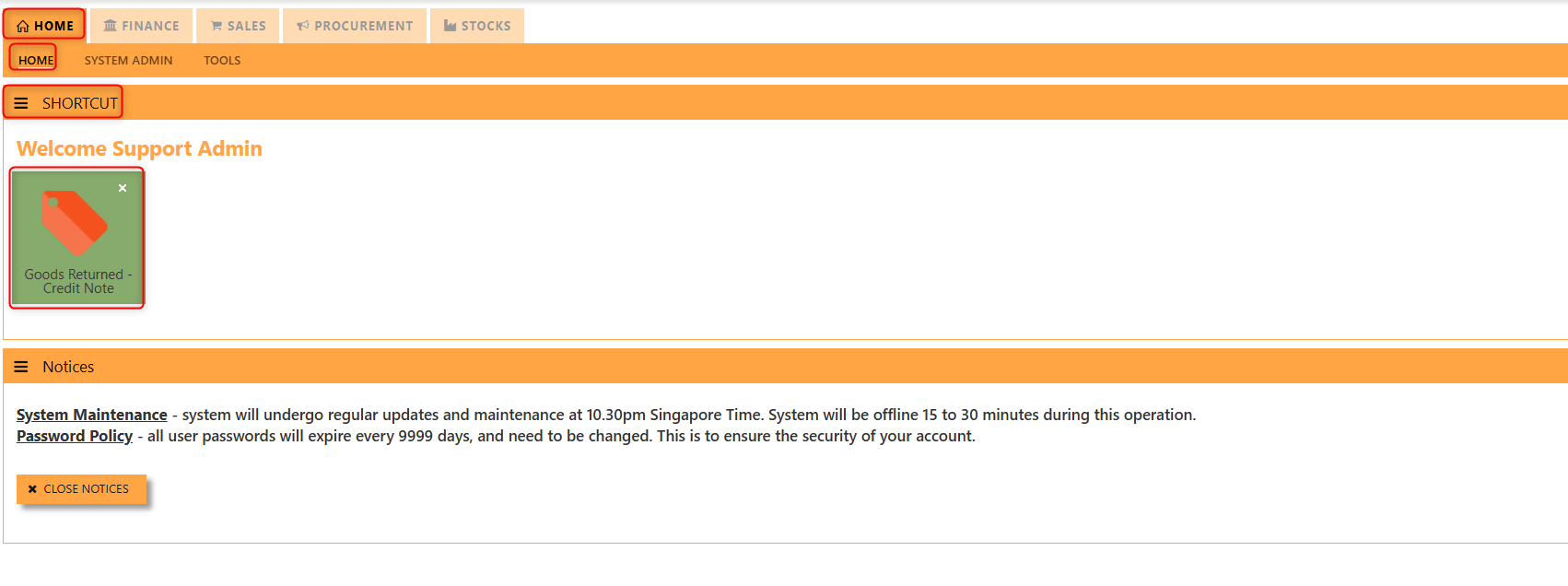
3. Click SAVE then click OK.
4. User may look to the Homepage for the added function or page. Click on HOME - HOME - SHORTCUT for the screen below.
___________________________________________________________________________________________________________________________________________
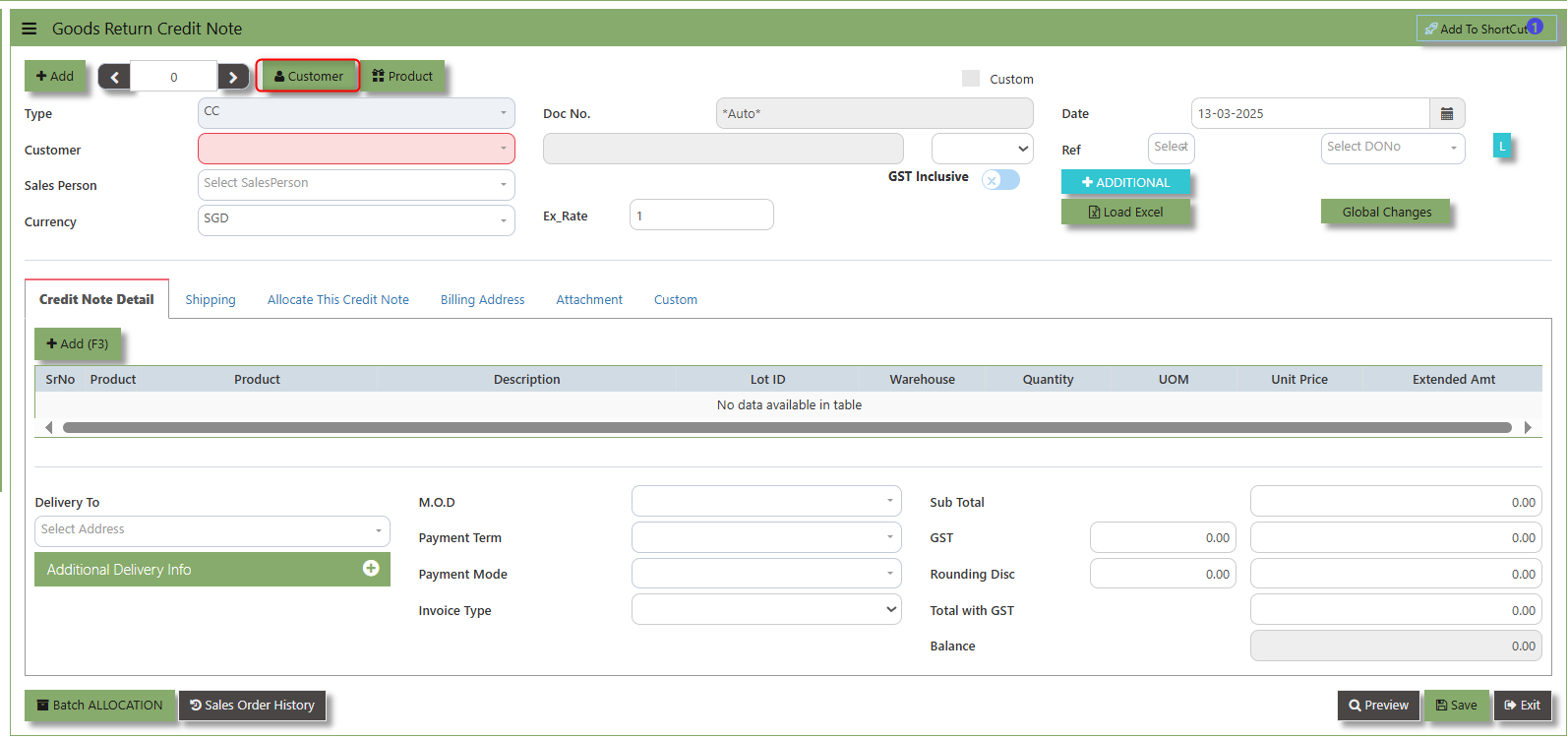
The Customer button provides quick access to detailed supplier profiles under Customer maintenance.
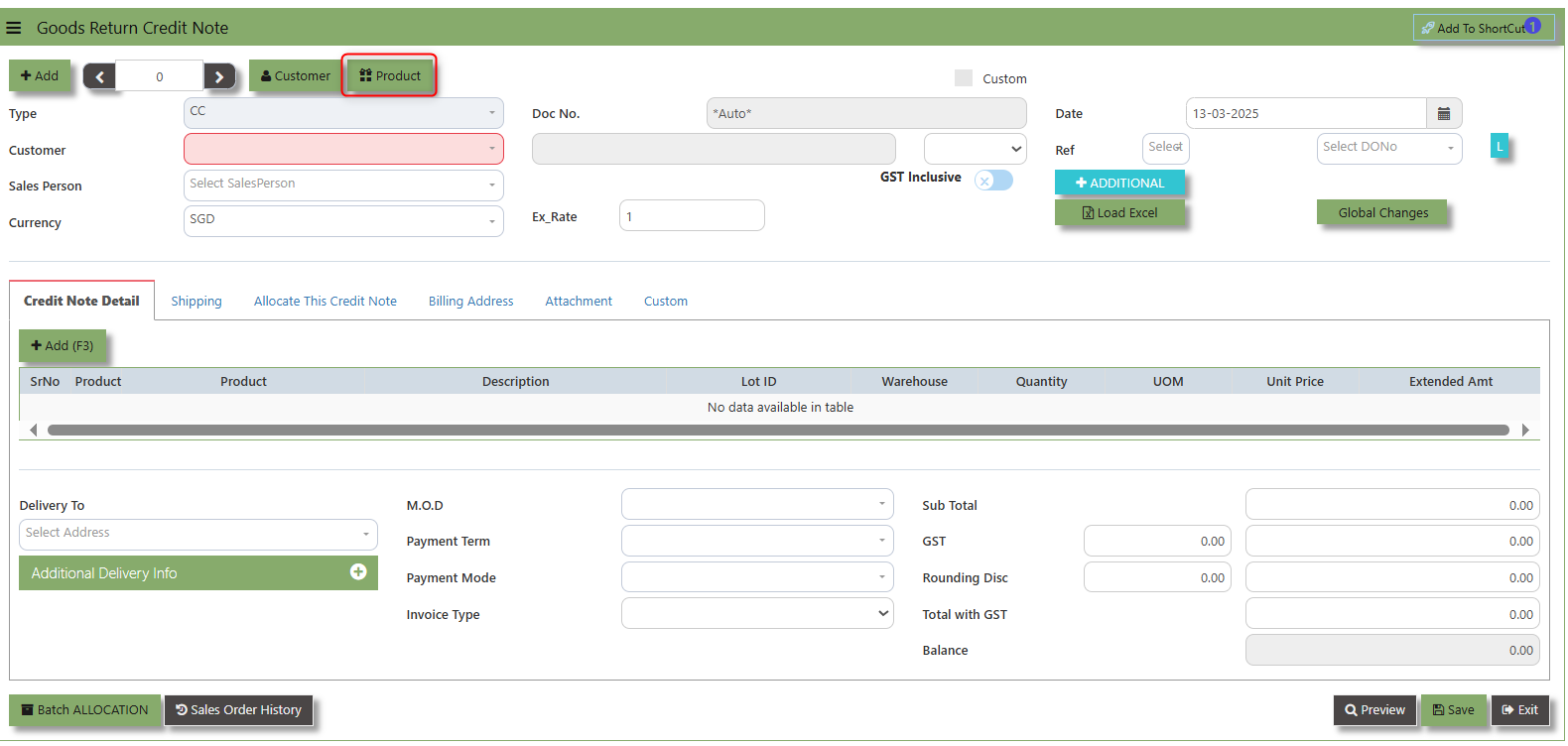
The Product button provides quick access to product and service maintenance.
The GST Inclusive checkbox indicates whether the unit price in the CC include Goods and Services Tax (GST) or not.
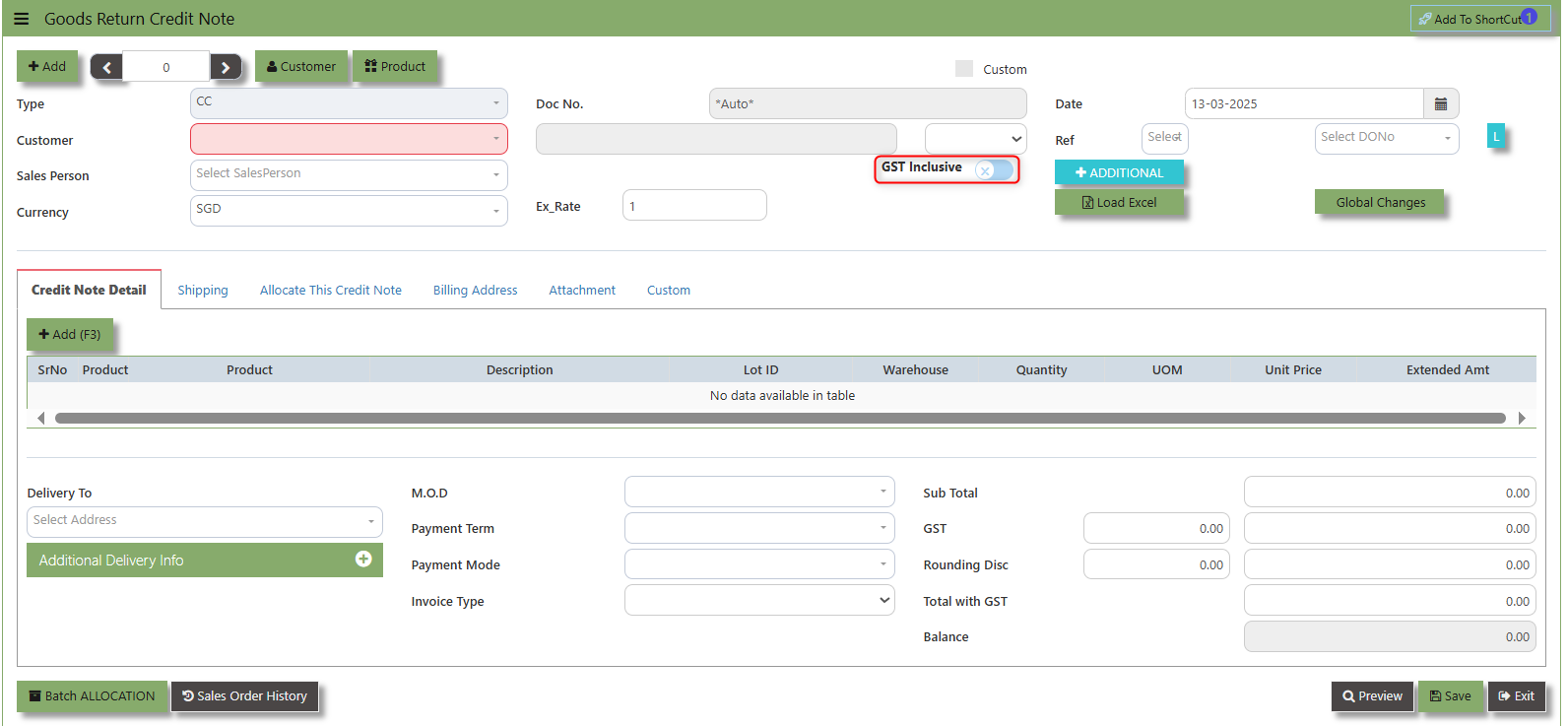
- GST Inclusive Checkbox (When ticked): If the GST is included in the price, the system will automatically calculate the base price (the price excluding GST) and the GST amount based on the total value.
- When not ticked (GST Exclusive): The system will calculate the GST separately based on the base price of the items and add it to the total amount of the invoice.
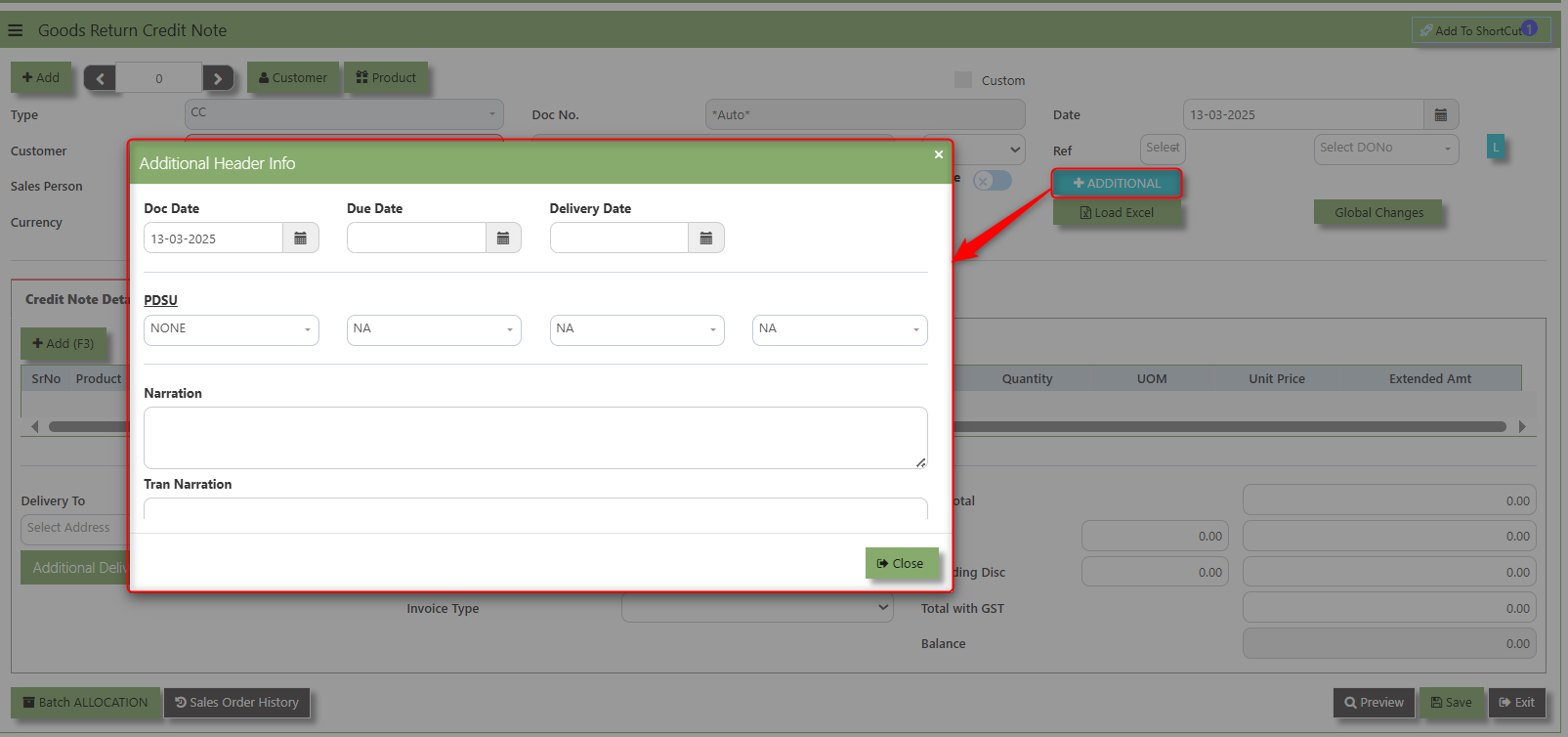
Additional Header Info button is typically used to capture and manage additional information related to the sales order at the header level (i.e., Delivery date, Del Term , Indicative WH , Country, Lead Time, Contact, PDSU, Narration and Transaction Narration). This feature allows users to add extra data or notes that are relevant to the entire sales order.
Debit Note
This is a direct Debit Note and involves selling product directly to Customers. It updates the GL and Inventory status. Please note that you can also use this debit note to knock off any credit notes raised.
How to Create Debit Note?
1.Click on SALES – SALES OPERATIONS – DEBIT NOTE for the screen below..
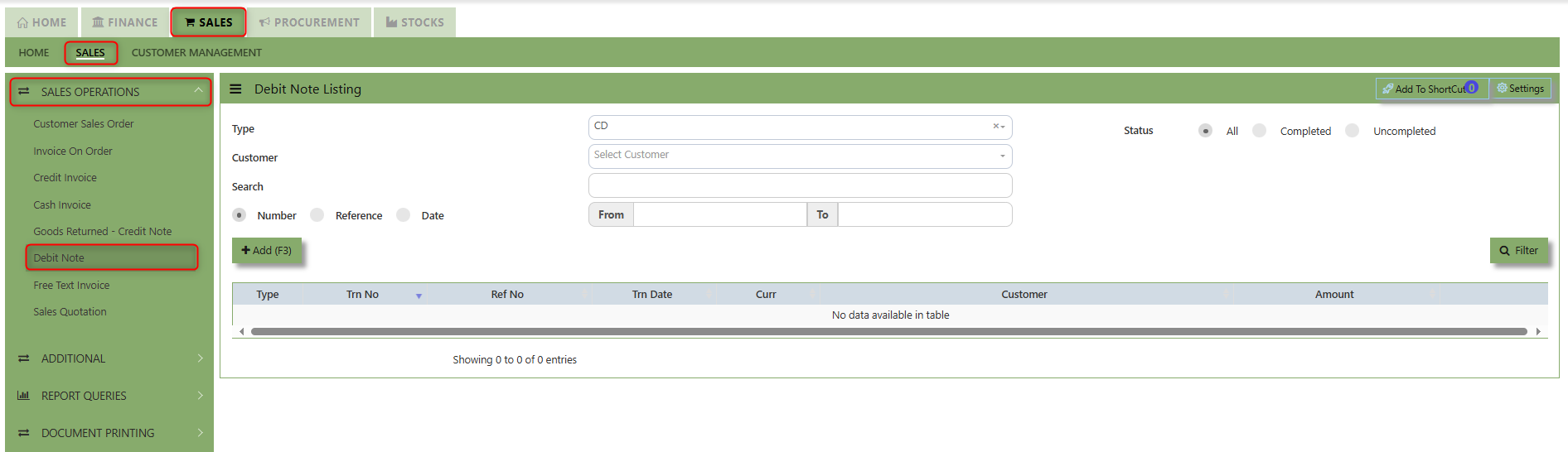
2. Click Add (F3) to create new record.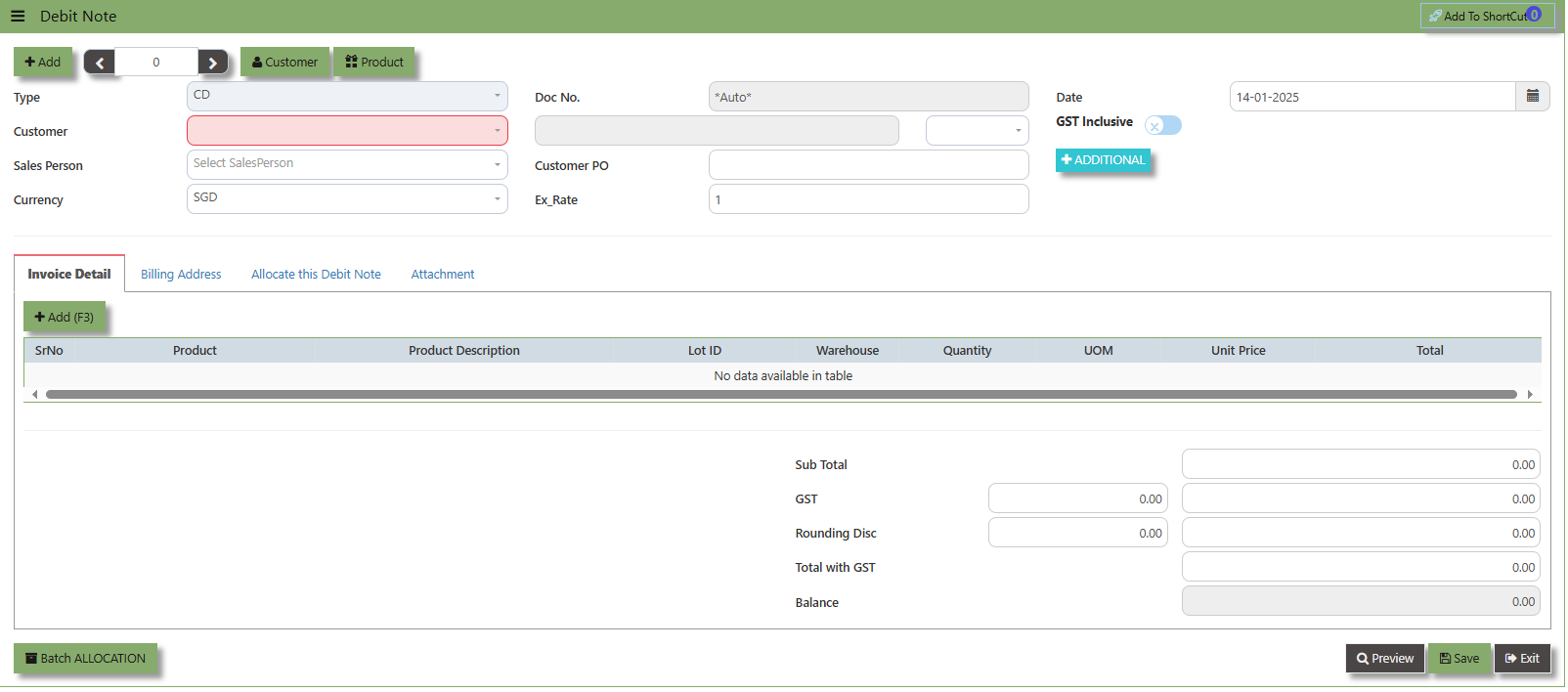
3. Click the Customer - drop-down list to select Customer Name, followed by the Sales Person, PDS, Currency, Rate, Location and Narration if applicable.
4. After updating the header information, go to the Details section to select the items from the Product drop-down list.
Save the transaction after this is done.
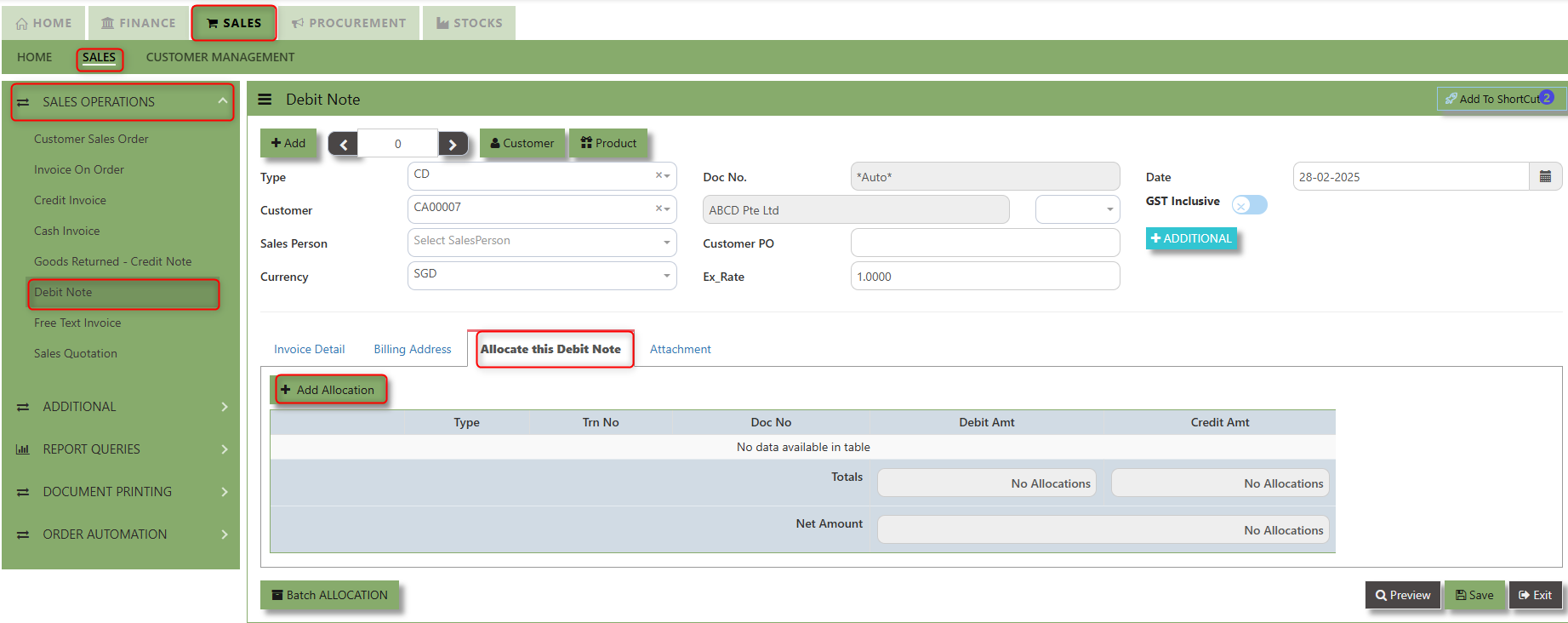
5. The Debit Note also has allocation function. Click on the “Batch Allocation” button for allocation.
__________________________________________________________________________________________________________________________________________
Add to Shortcut - Used to create a shortcut for quick access to a specific Sales Transaction. By clicking this button, users can add the current transaction to a list of shortcuts, allowing them to access the invoice or related functionality quickly and efficiently, without needing to search for it each time.
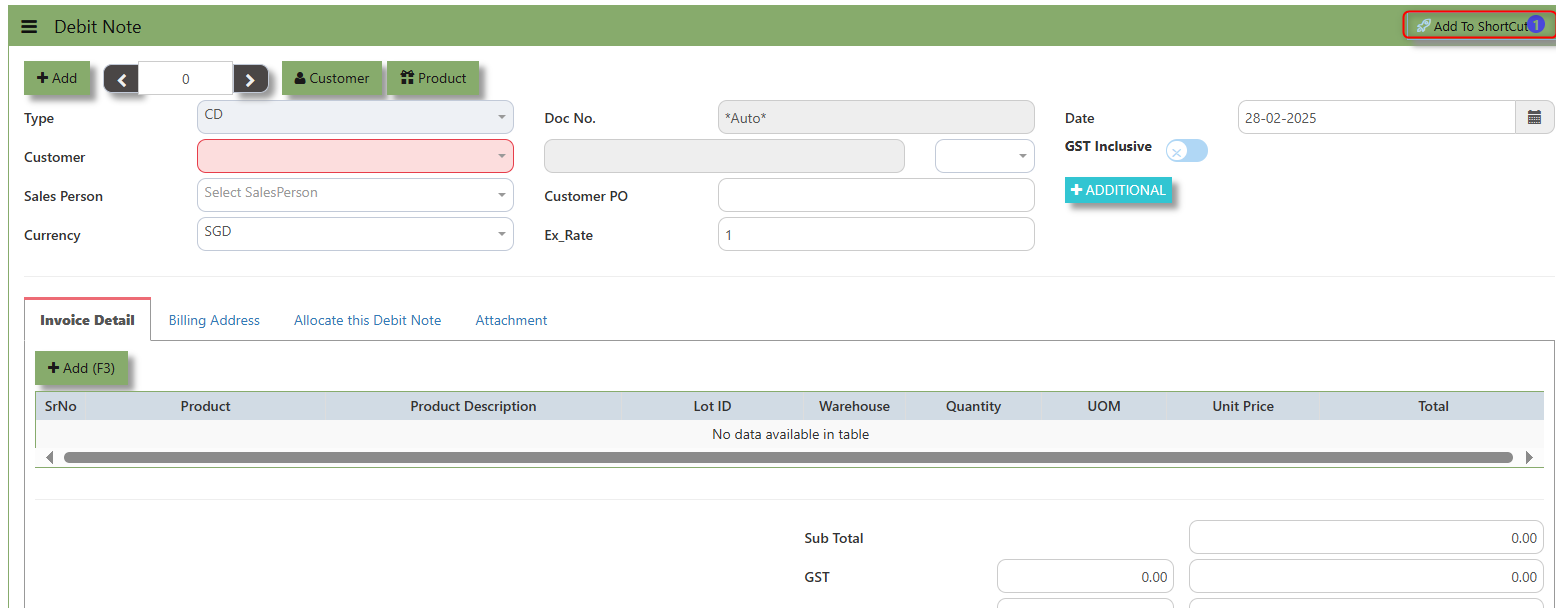
How to use Add to Shortcut?
1. Click "Add to Shortcut" and system will open below windows:
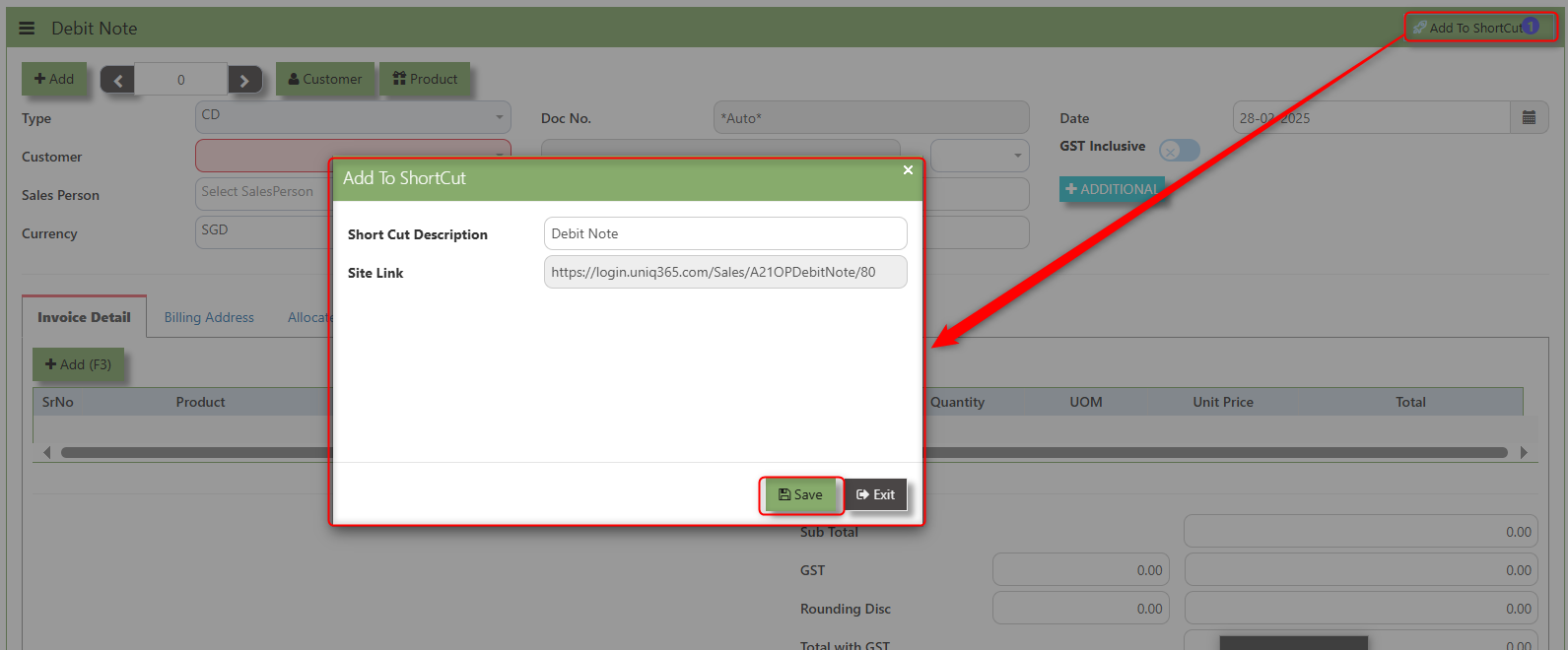
2. Enter Short Cut Description
3. Click SAVE then click OK.
4. User may look to the Homepage for the added function or page. Click on HOME - HOME - SHORTCUT for the screen below.
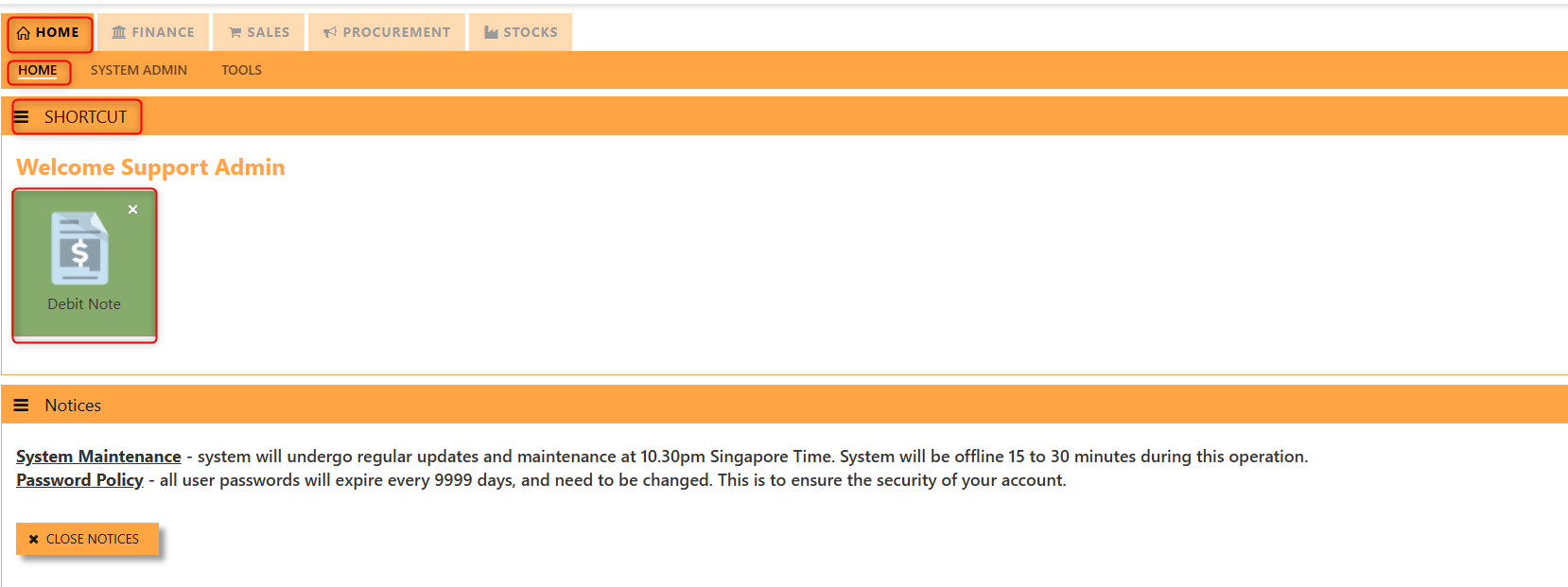
__________________________________________________________________________________________________________________________________________
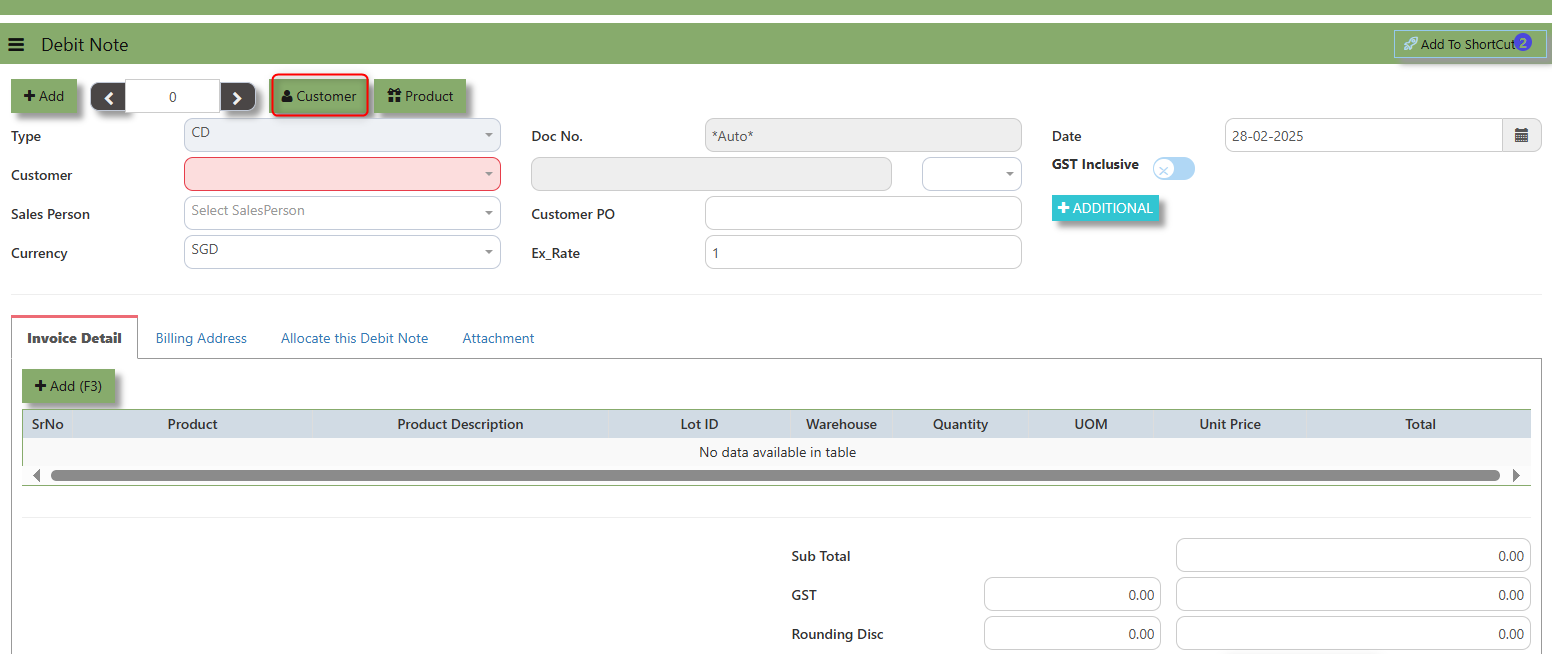
The Customer button provides quick access to detailed customer details under Customer maintenance.
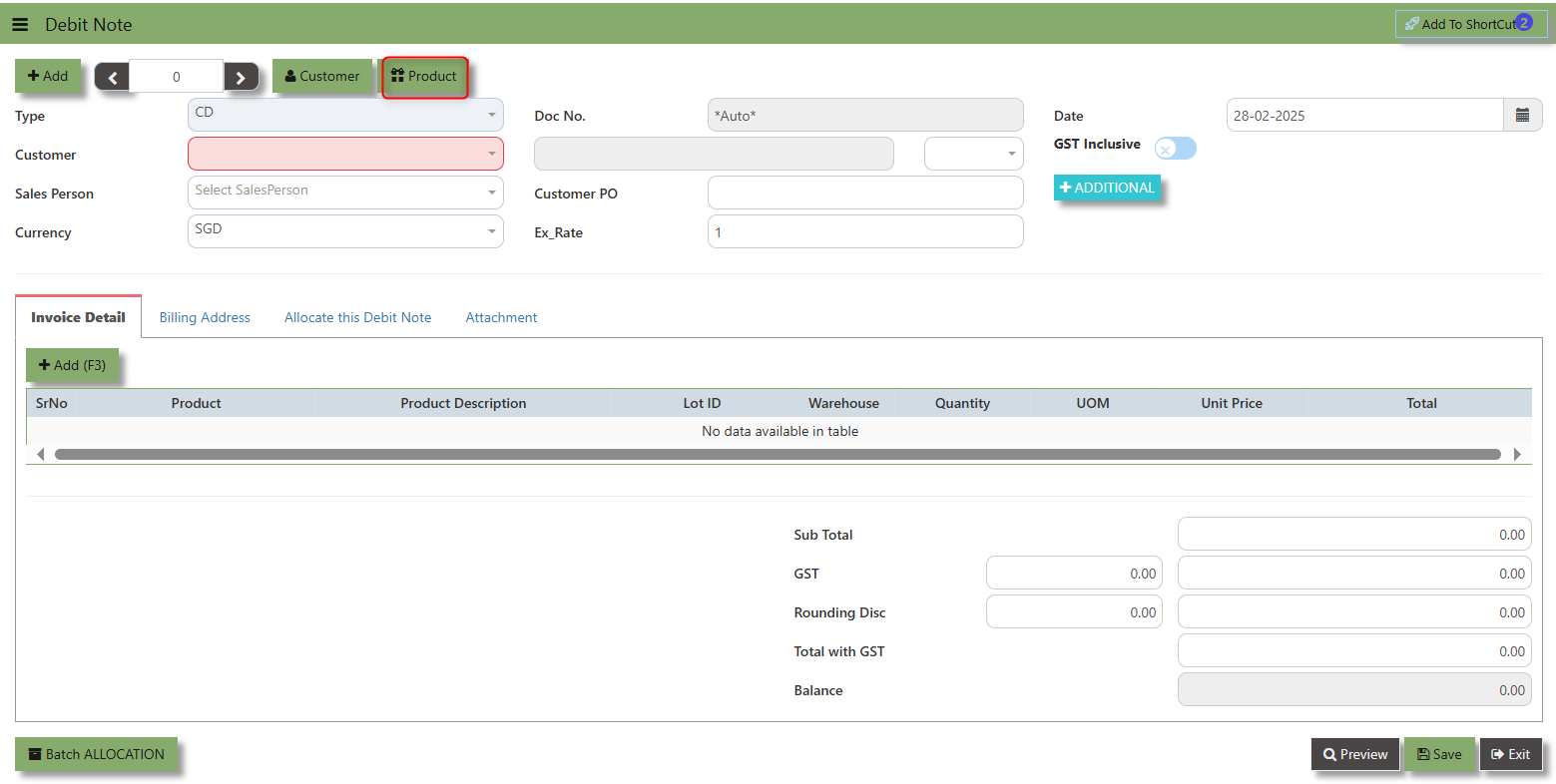
The Product button provides quick access to product and service maintenance.
The GST Inclusive checkbox indicates whether the unit price in the CD include Goods and Services Tax (GST) or not.
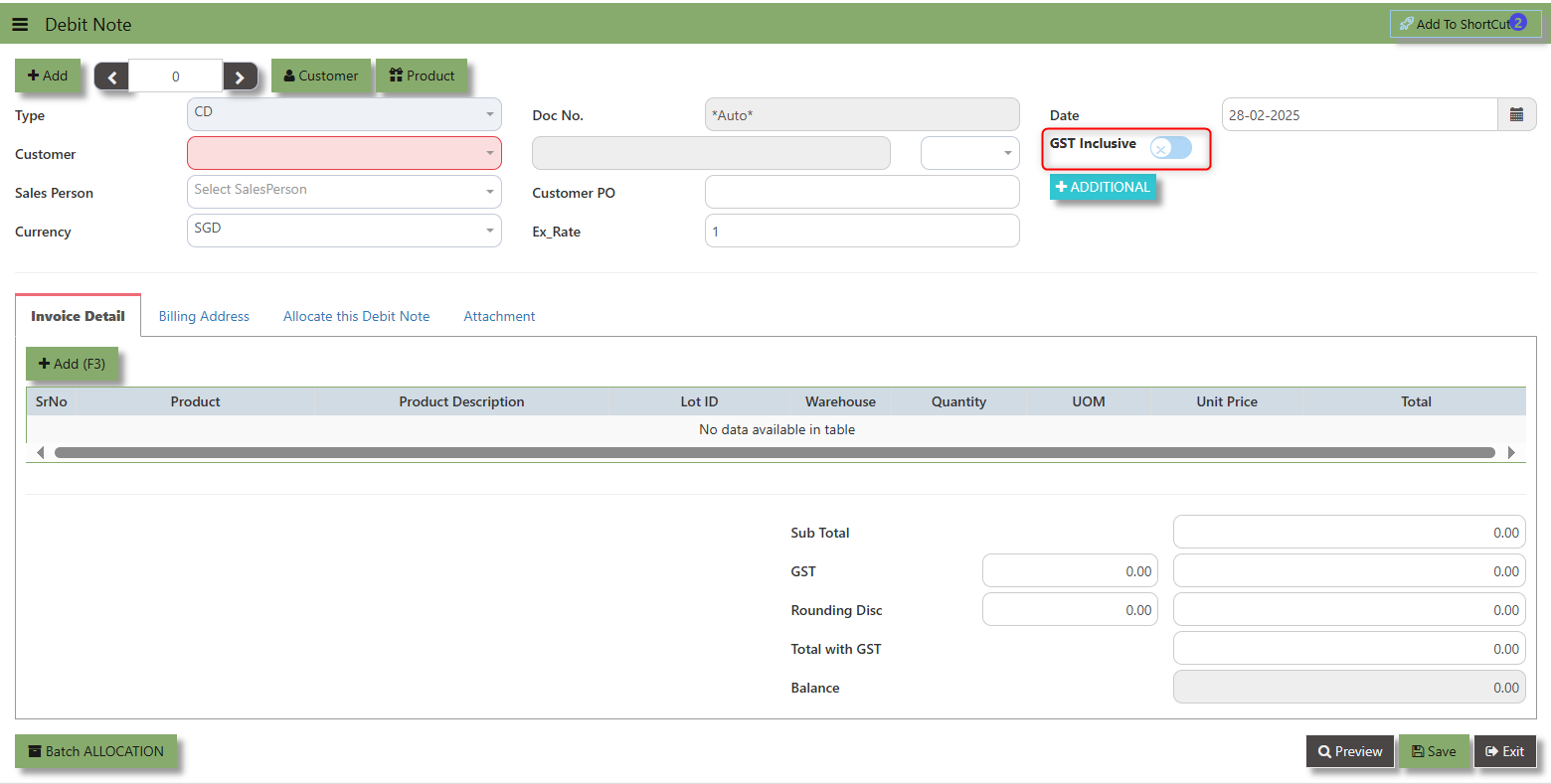
- When ticked (GST Inclusive): provided in the Sales Debit Note already includes the applicable GST amount. The GST amount will not be calculated or displayed separately, as it's already accounted for in the quoted price.
- When not ticked (GST Exclusive): The unit price is considered exclusive of GST. The system will calculate and add the GST based on the applicable tax rate, and the final total will be the sum of the base price plus the GST amount
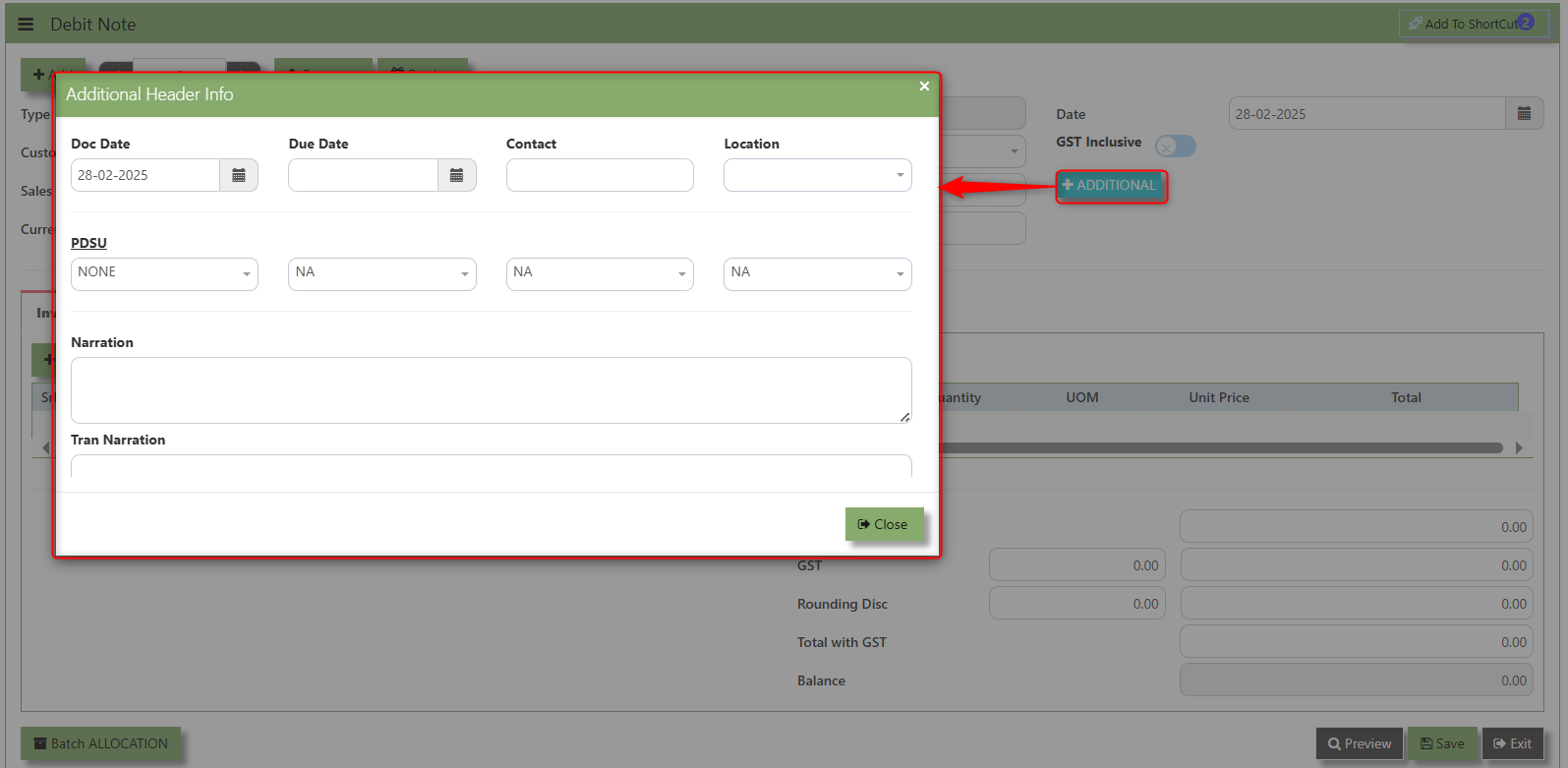
Additional Header Info button is typically used to capture and manage additional information related to the debit at the header level (i.e., Doc Date, Due date , Contact, Location Contact, PDSU, Narration and Transaction Narration). This feature allows users to add extra data or notes that are relevant to the entire sales invoice on order.
___________________________________________________________________________________________________________________________________________
"Billing Address Tab" - section where the Billing Address is maintained. This tab ensures that the Billing Details will is displayed and can be editable according to the customer details.
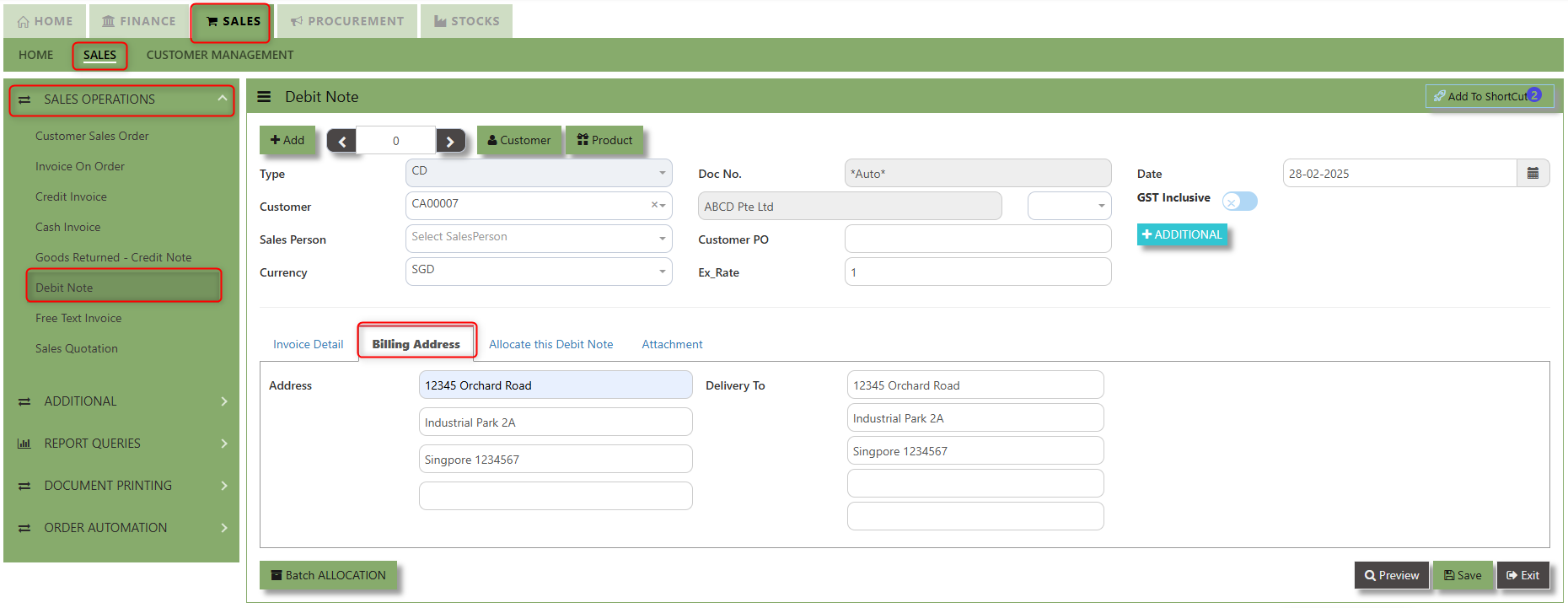
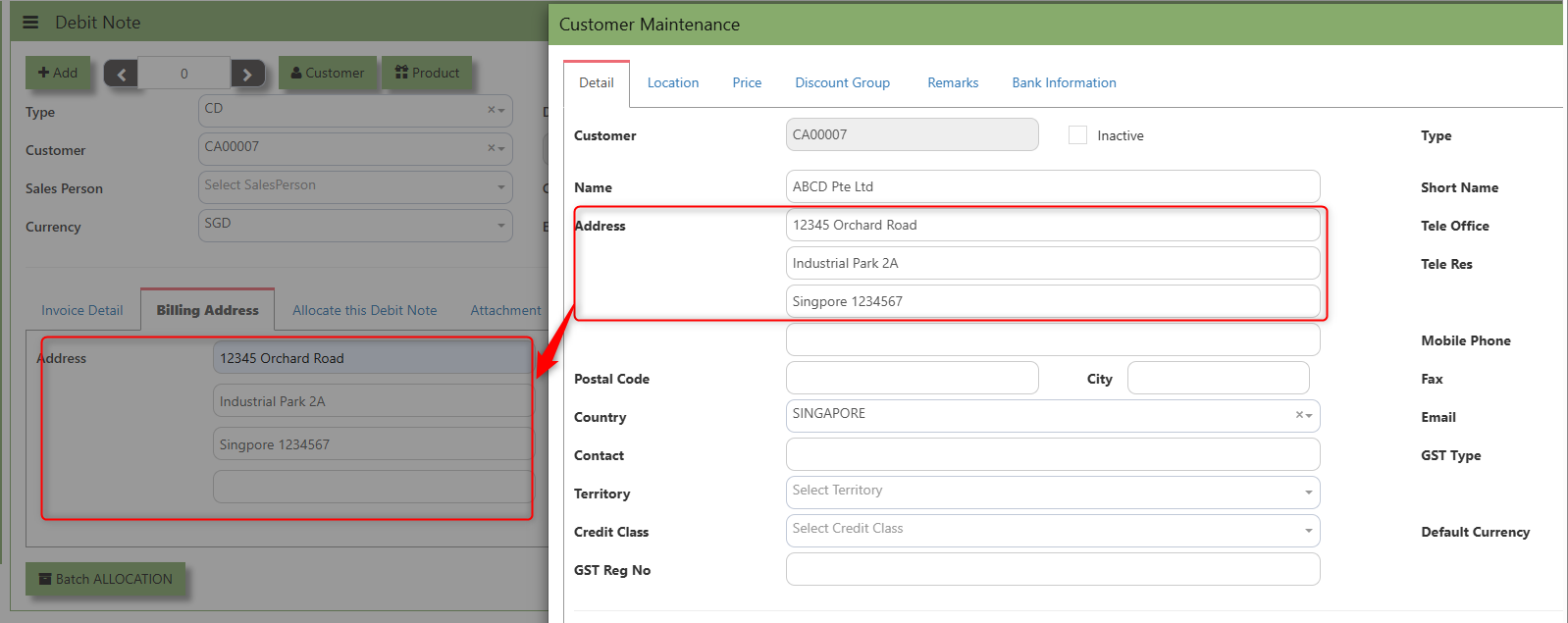
2. The Billing address is defaulted from Customer Maintenance which is the Customer address, it was also editable is needed.
__________________________________________________________________________________________________________________________________________
"Allocate Debit Note Tab" is a feature in UNIQ365 that allows users to allocate debit note to specific invoices or transactions.
___________________________________________________________________________________________________________________________________________
"Attachment Tab" allows users to attach various files and documents related to the debit note. By attaching relevant files, users ensure that all purchase-related information is kept in one place, making the sales process smoother, more transparent, and easier to track.
How to use Attachment Tab?
1. Click on SALES – SALES OPERATIONS – DEBIT NOTE – ATTACHEMENT TAB for the screen below.
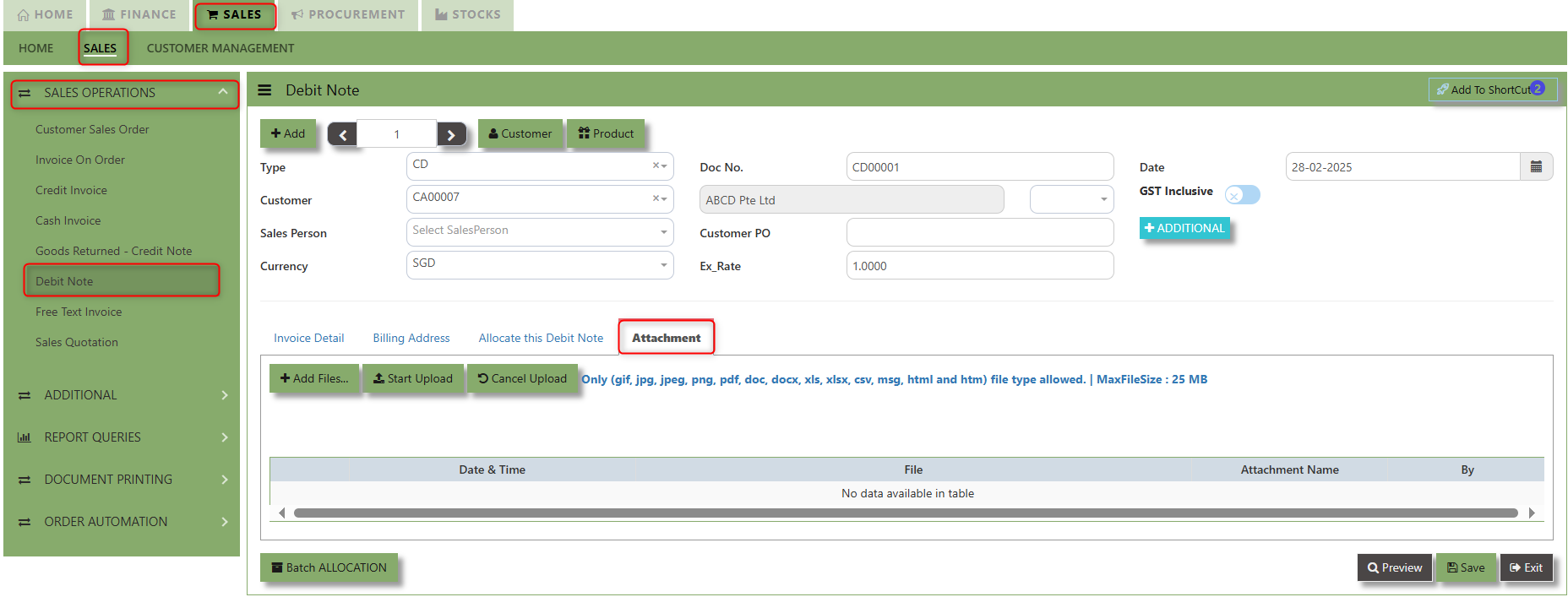
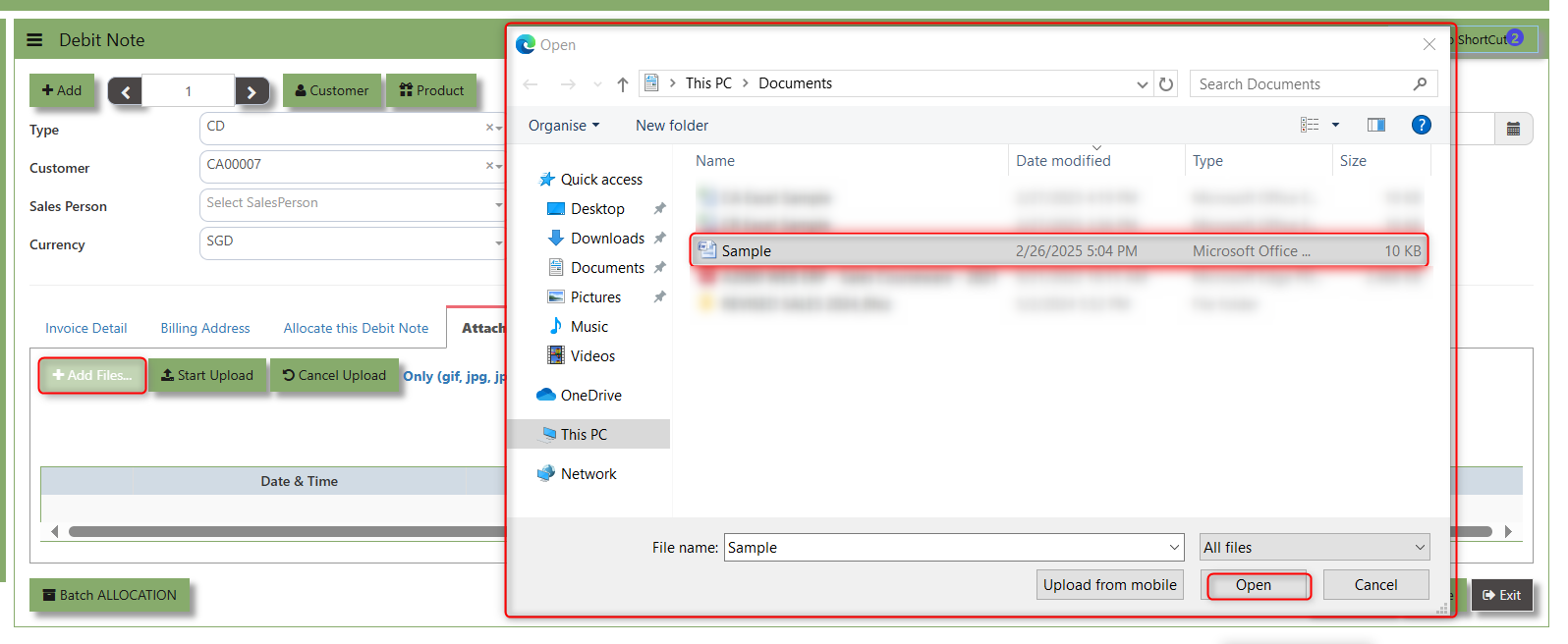
2. Click +Add files and windows will prompt then choose the file you want to upload by clicking open. Kindly take note the file types and maximum size requirements in uploading: Only (gif, jpg, jpeg, png, pdf, doc, docx, xls, xlsx, csv, msg, html and htm) file type allowed. | MaxFileSize : 25 MB
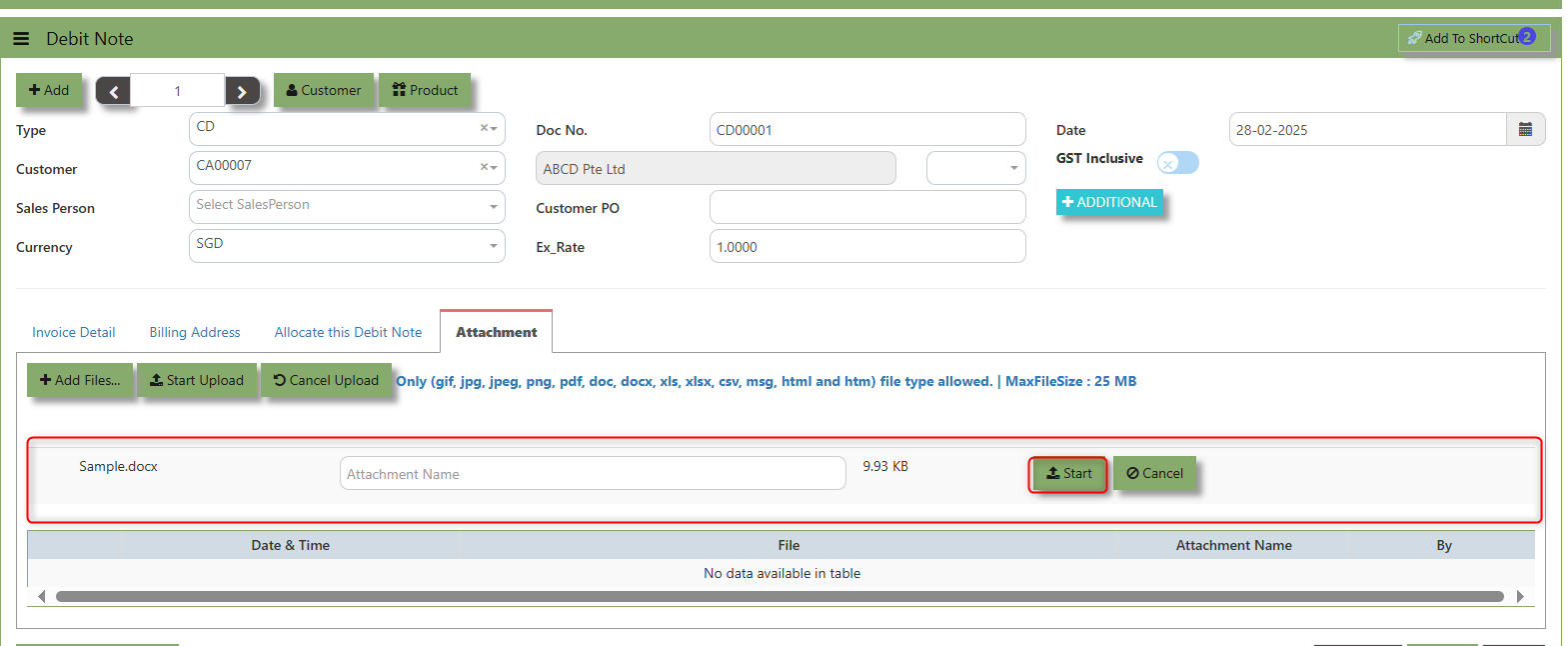
3. Key in the Attachment Name then click start to upload.
4 Once the file attached, click "SAVE" button
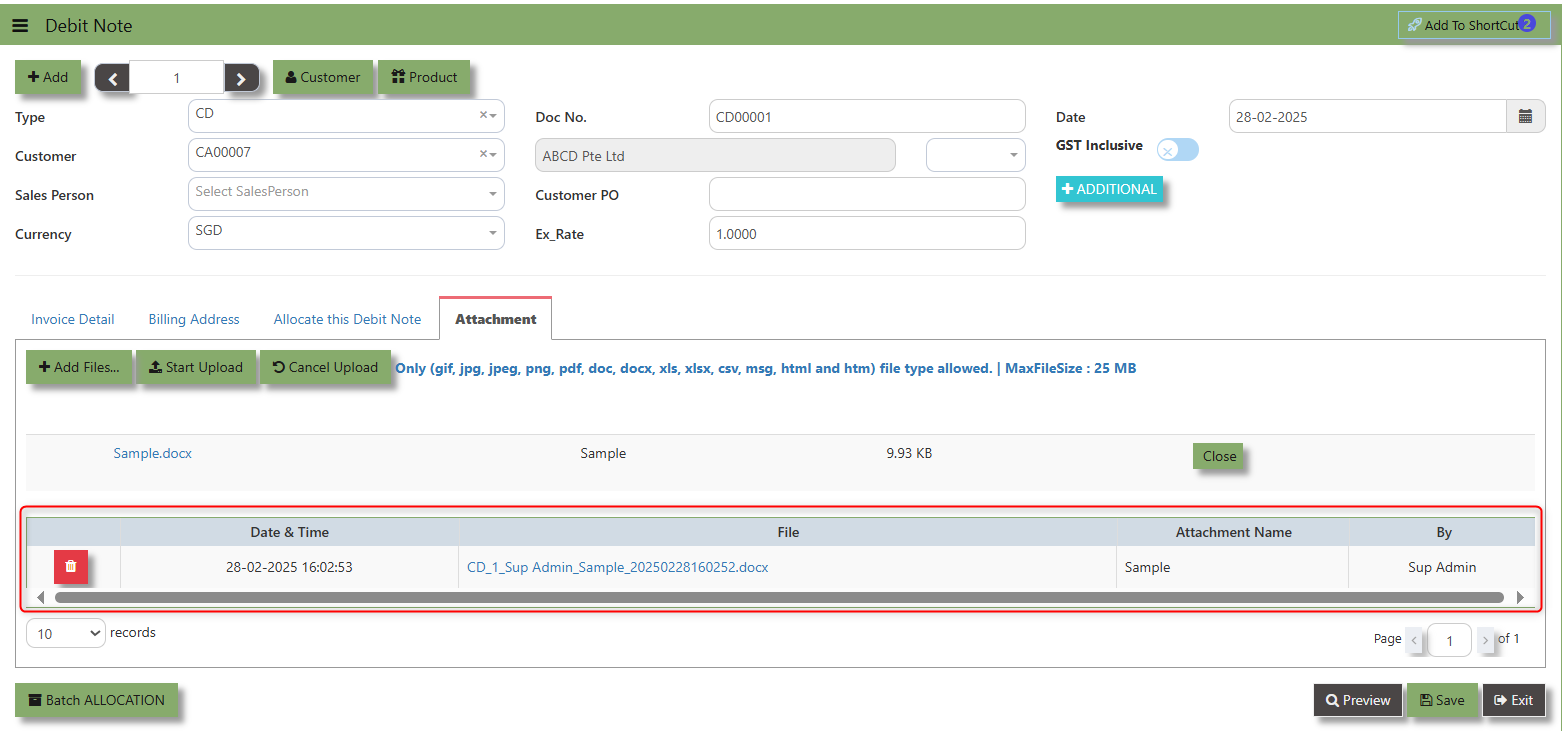
User may opt to cancel the uploading by clicking the "Cancel Upload" button and delete the file uploaded by clicking the "Bin icon" at the line detail.
___________________________________________________________________________________________________________________________________________
Free Text Invoice
The Free Text Invoice is an invoice that is not attached to a sales order and does not require a sales order or packing slip.
How to create Free text invoice?
1.Click on SALES – SALES – SALES OPERATIONS – FREE TEXT INVOICE for the screen below
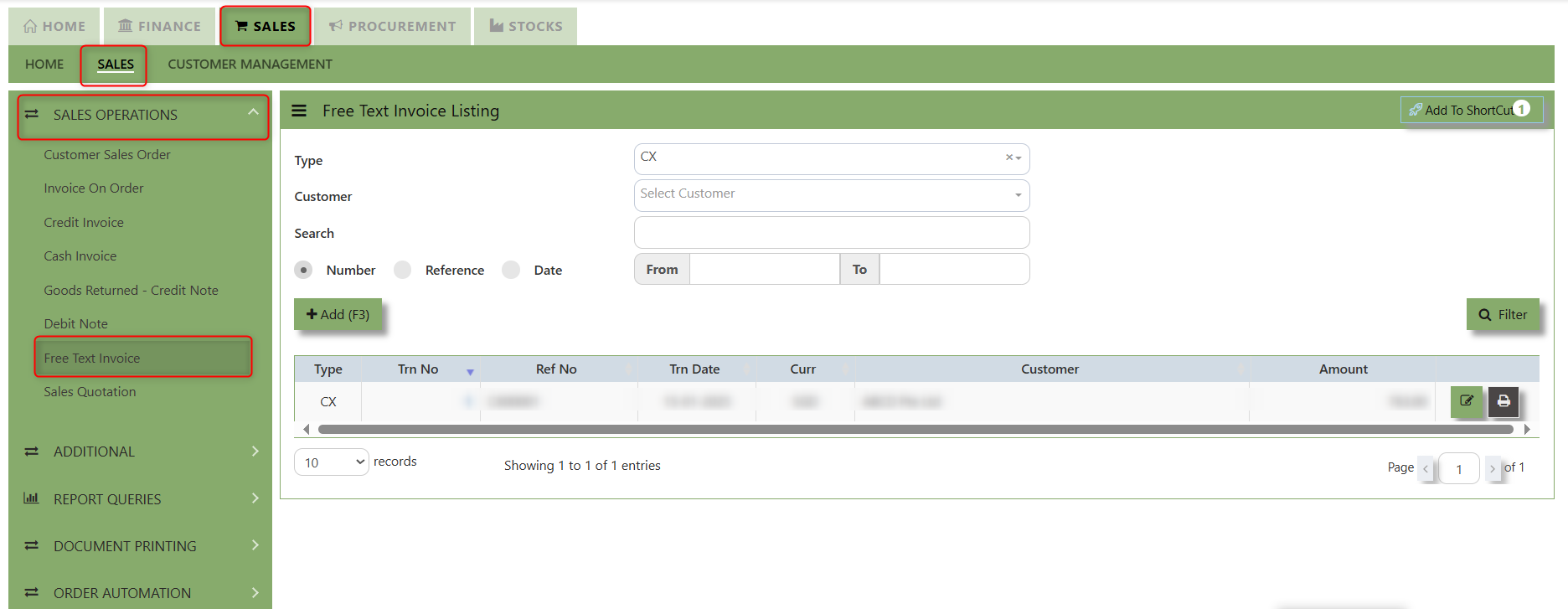
2. Click on Add button or press F3 to create a new transaction
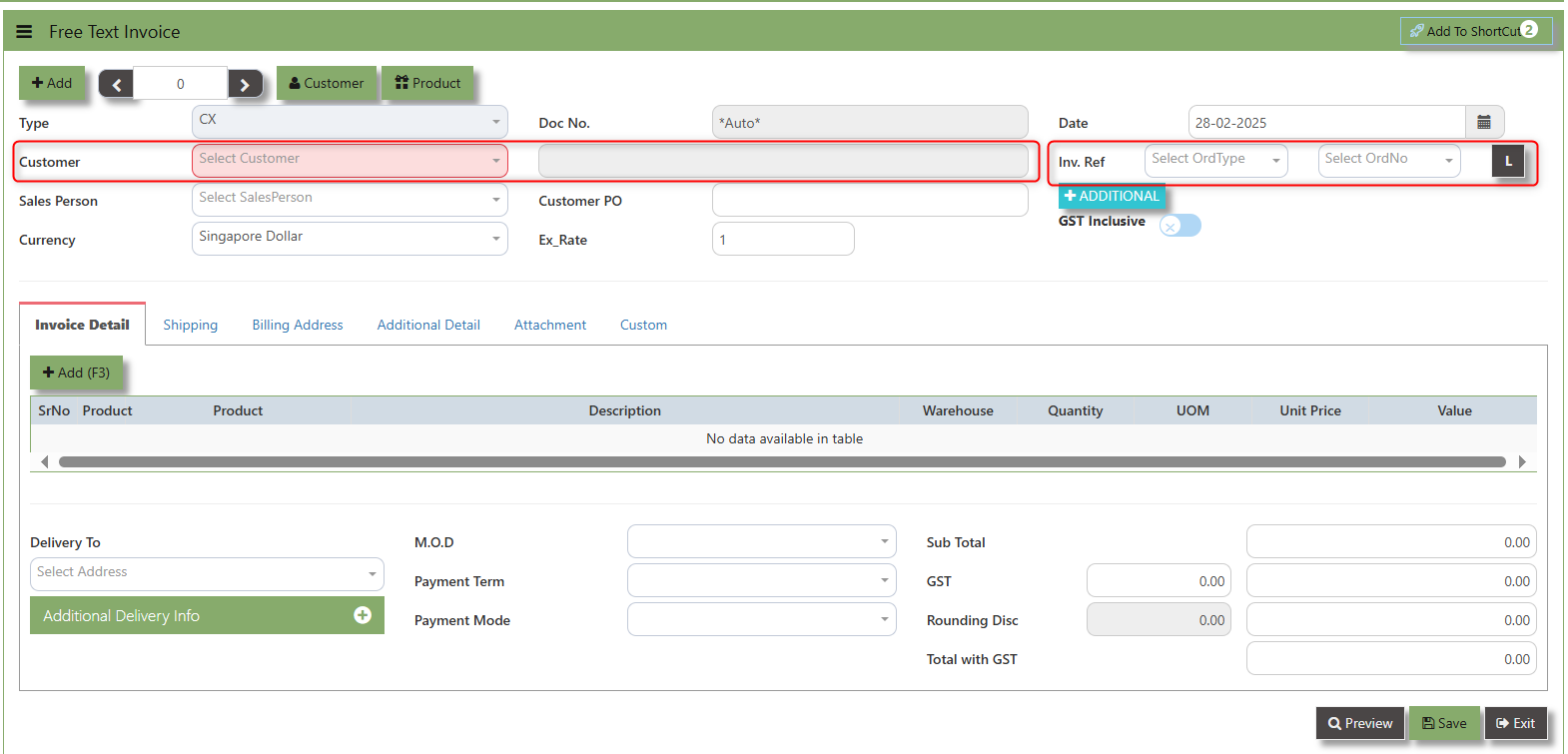
3. Click the Type - drop-down to select transaction type – CX (Free text Invoice).
4. After the transaction type selection, use the tab button to go to the Doc No. and Date fields
5. Click the Customer - drop-down list to select Customer Name, followed by the Sales Person, , Currency, Exchange Rate and Customer PO if applicable.
6. After completing the above steps, you can go to the Inv. Ref to select specific transaction to load in CX, check the loaded transactions details. Save the transaction after this is done.
___________________________________________________________________________________________________________________________________________
Add to Shortcut - Used to create a shortcut for quick access to a specific Sales Transaction . By clicking this button, users can add the current Sales Transaction to a list of shortcuts, allowing them to access the invoice or related functionality quickly and efficiently, without needing to search for it each time.
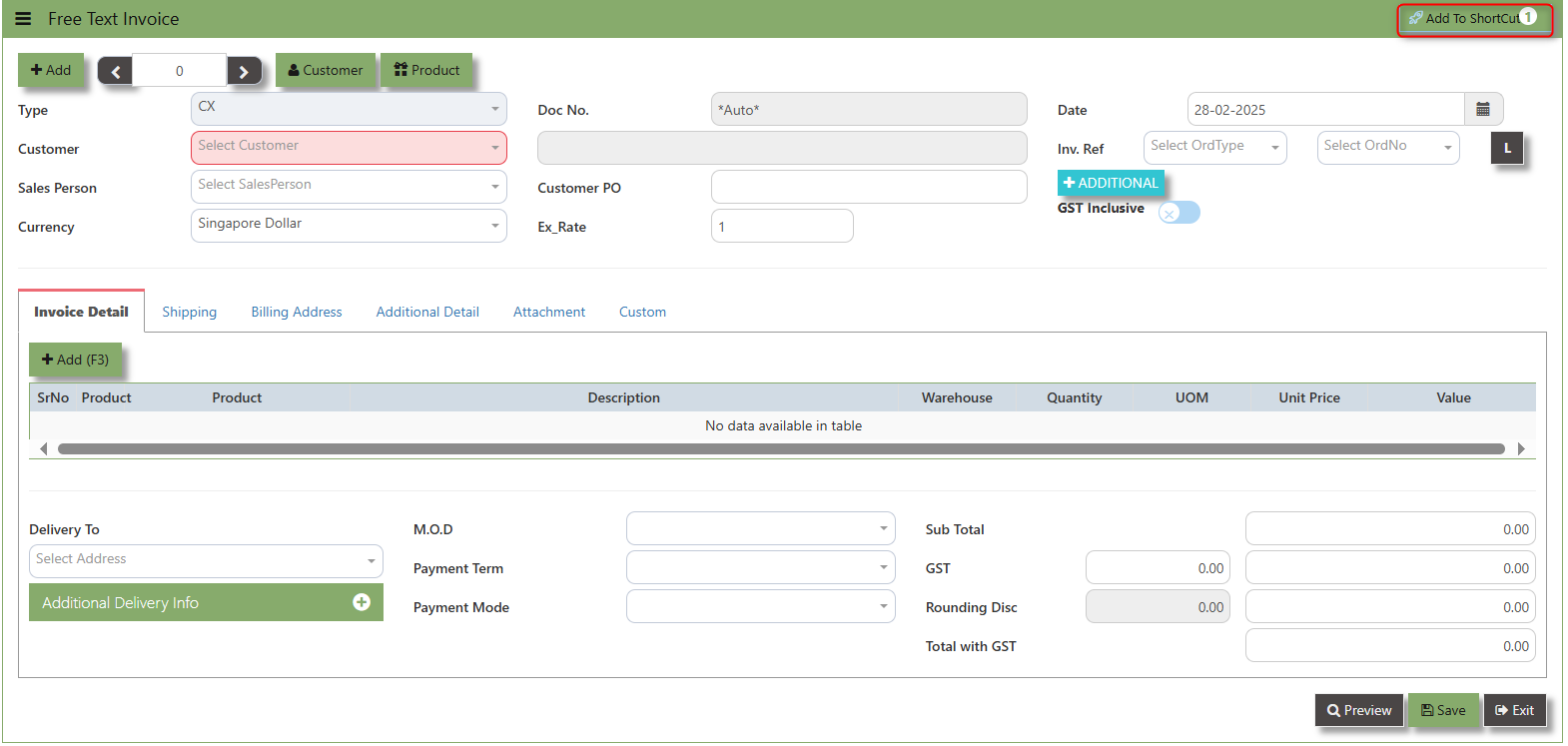
How to use Add to ShortCut?
1. Click "Add to ShortCut" and system will open below windows:
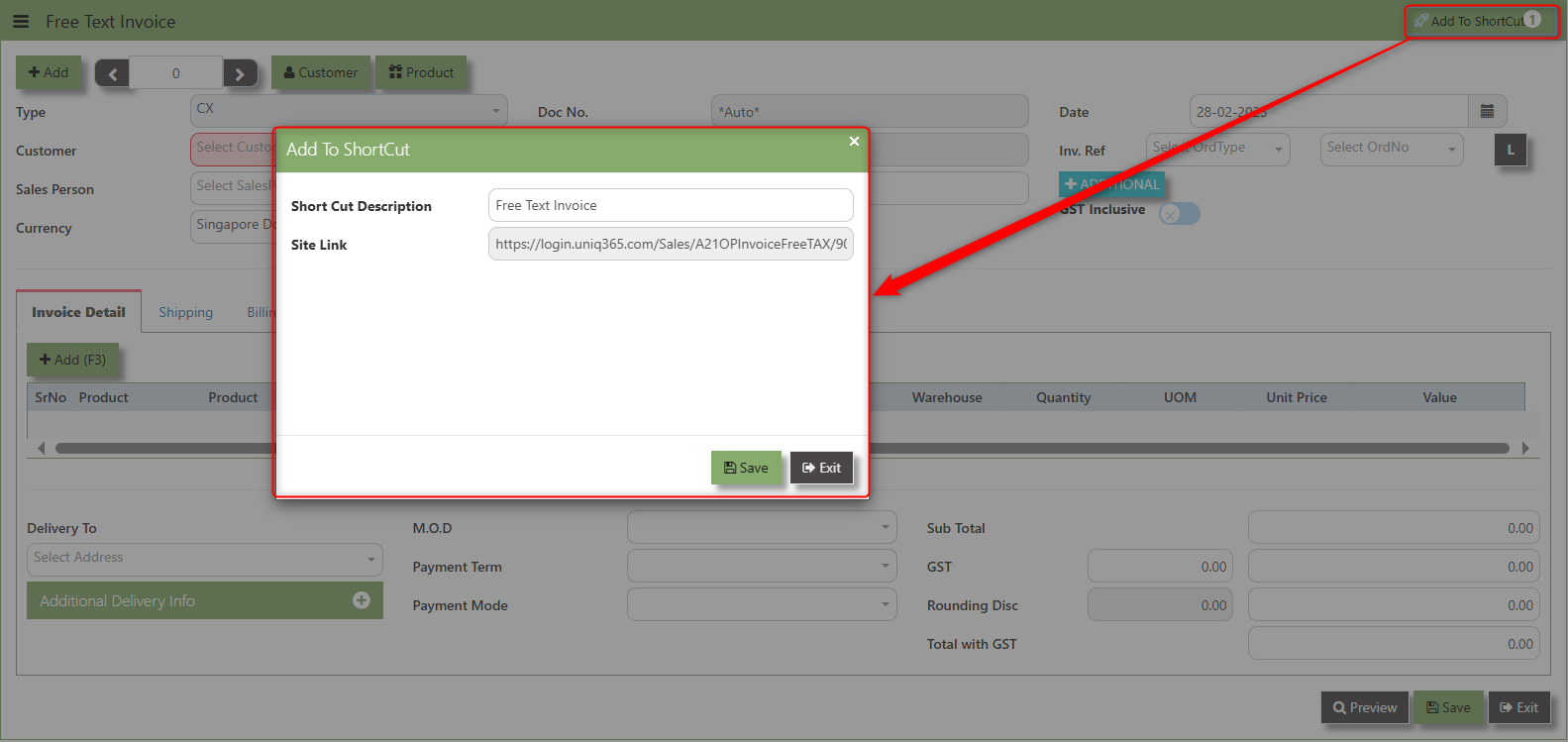
2. Enter Short Cut Description
3. Click SAVE then click OK.
4. User may look to the Homepage for the added function or page. Click on HOME - HOME - SHORTCUT for the screen below
 ___________________________________________________________________________________________________________________________________________
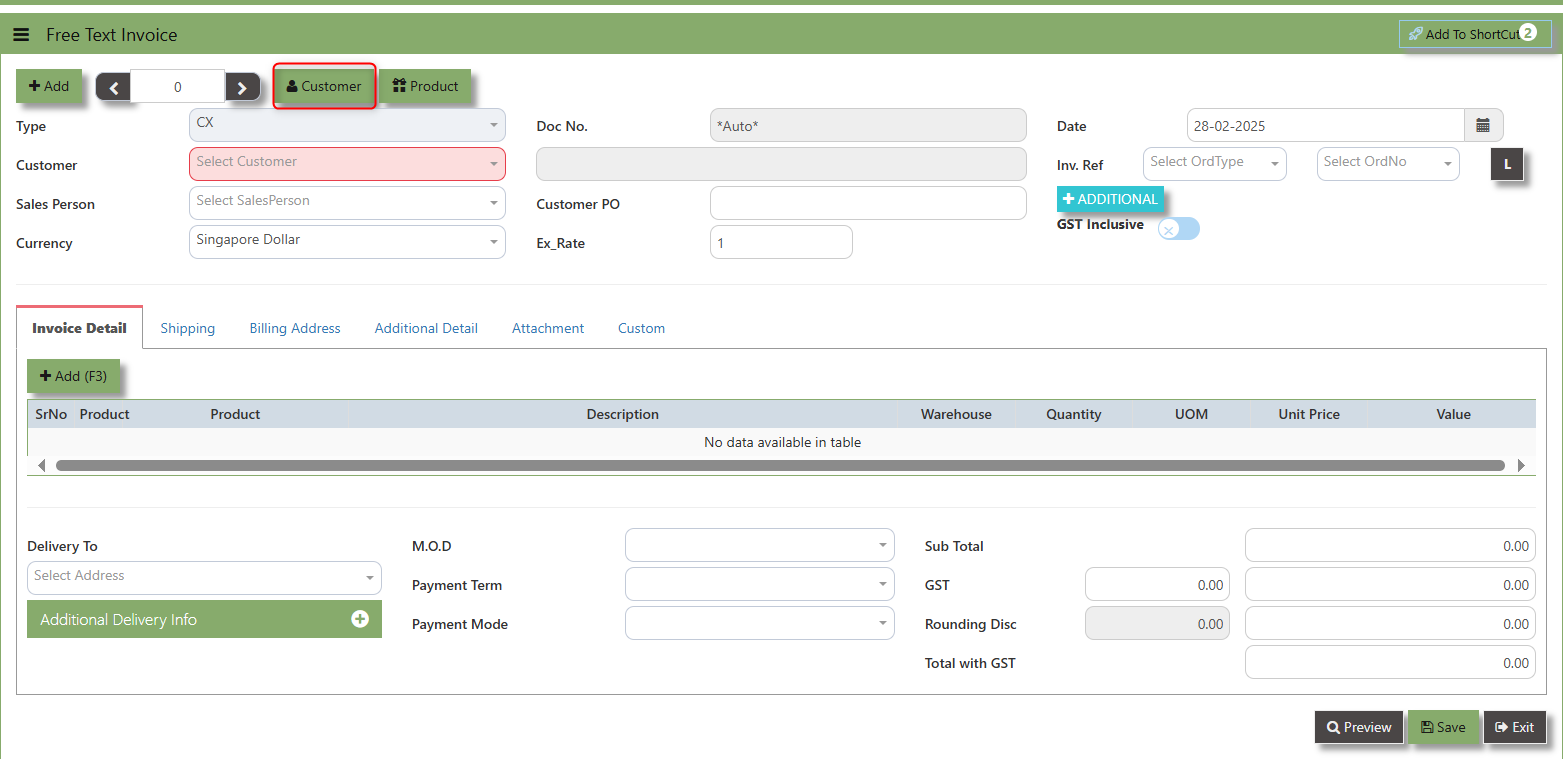
The Customer button provides quick access to detailed supplier profiles under Customer maintenance.
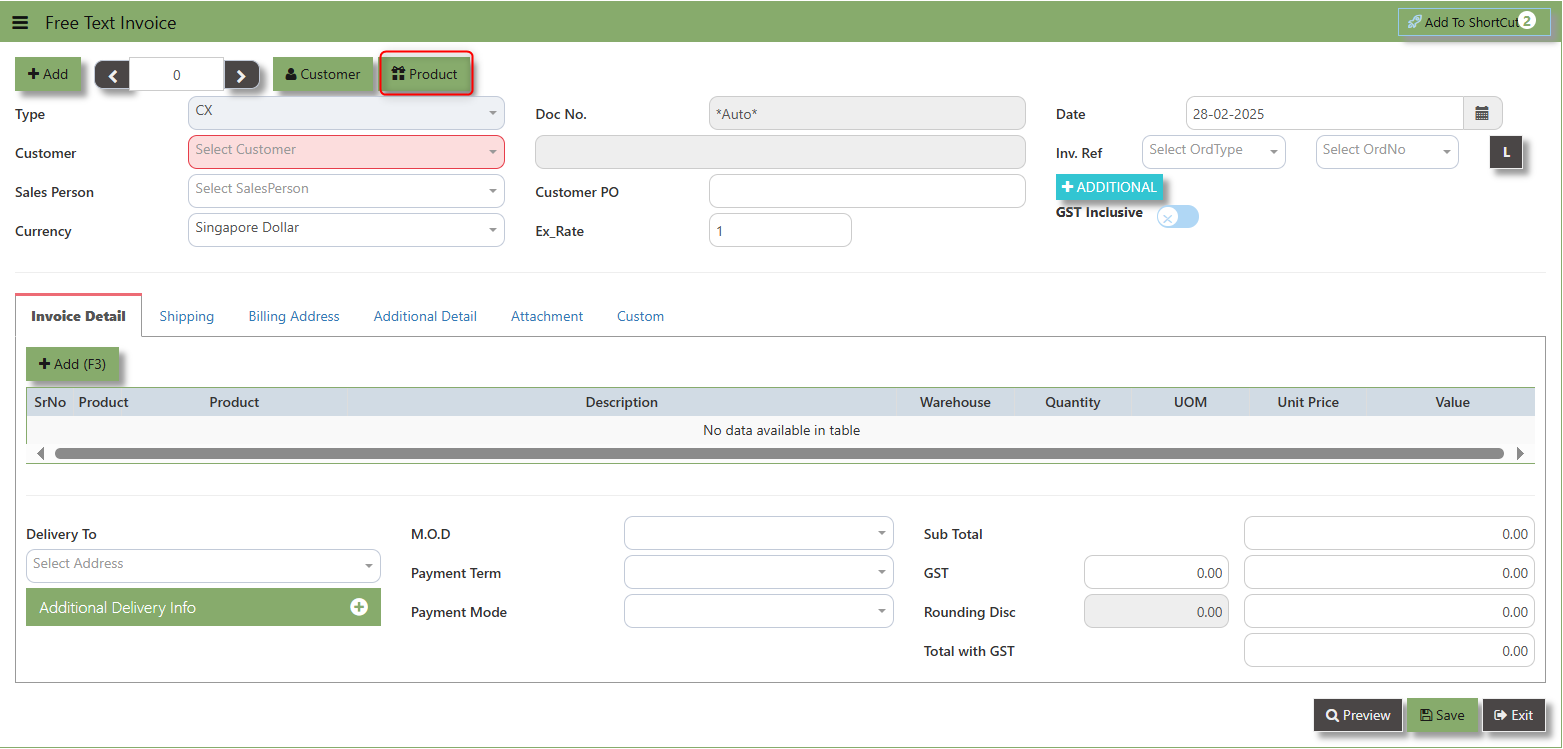
The Product button provides quick access to product and service maintenance.
The GST Inclusive checkbox indicates whether the unit price in the CO include Goods and Services Tax (GST) or not.
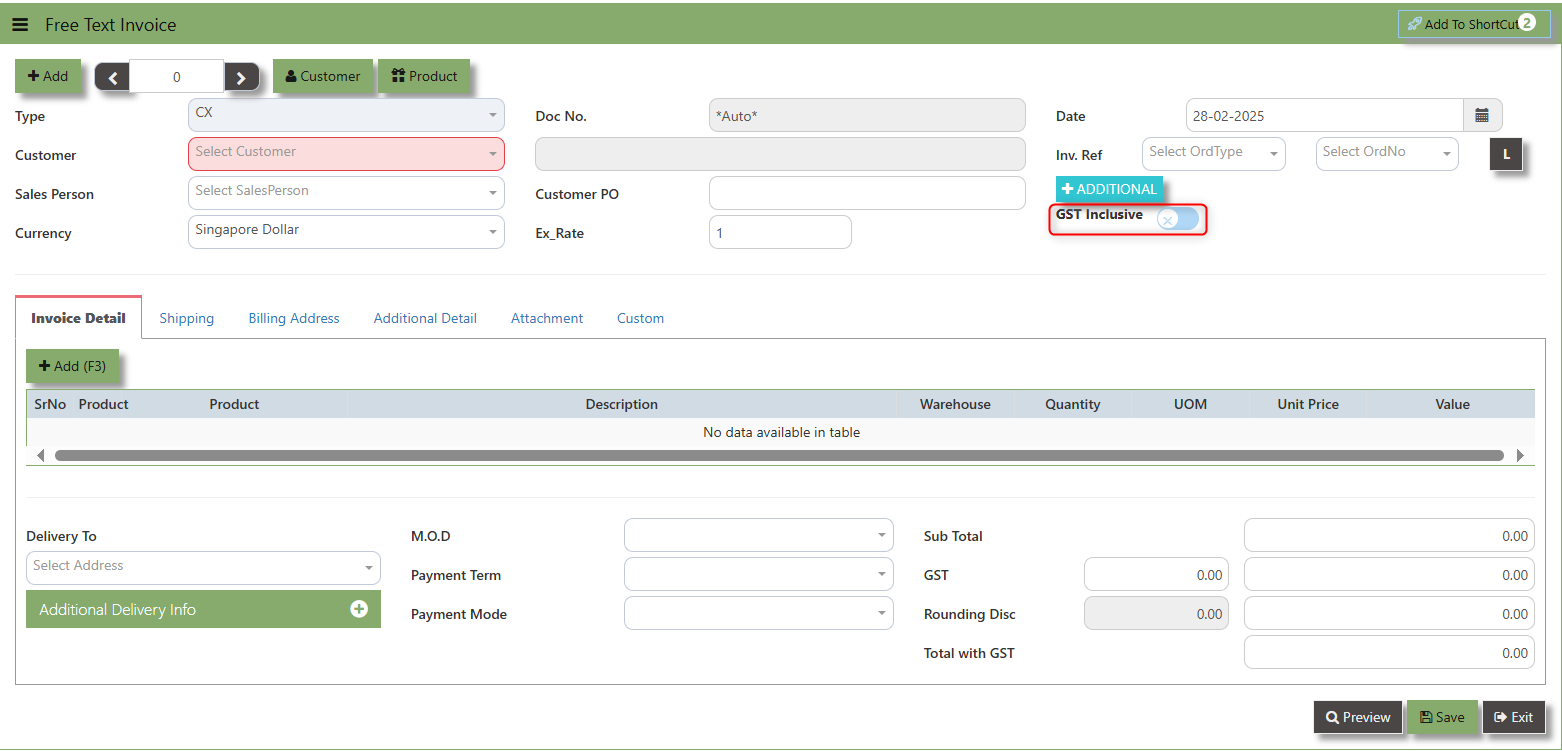
- when ticked (GST Inclusive): provided in the SAles transaction already includes the applicable GST amount.
- When not ticked (GST Exclusive): The unit price is considered exclusive of GST. The system will calculate and add the GST based on the applicable tax rate, and the final total will be the sum of the base price plus the GST amount.
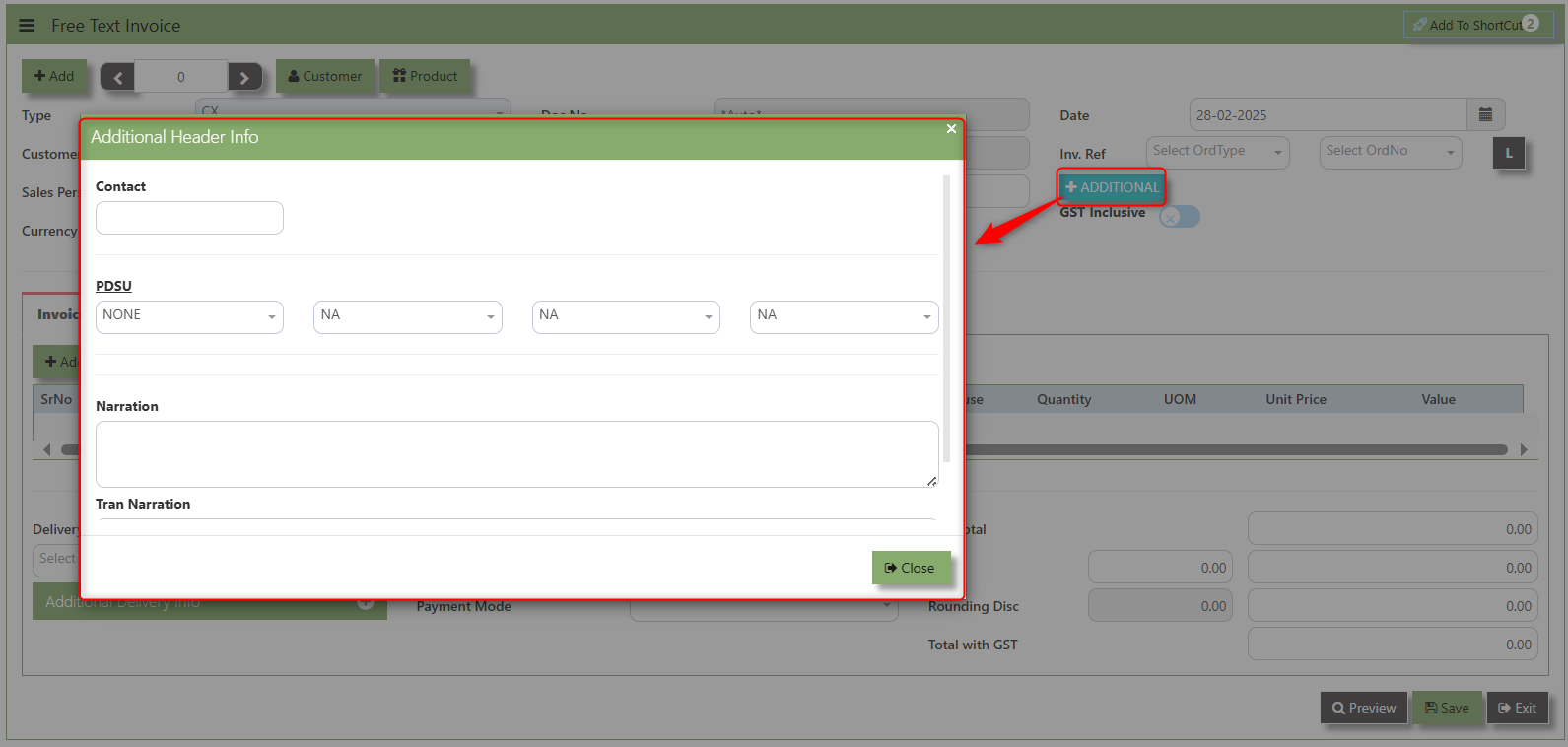
Additional Header Info button is typically used to capture and manage additional information related to the sales order at the header level (i.e., Delivery date, Del Term , Indicative WH , Country, Lead Time, Contact, PDSU, Narration and Transaction Narration). This feature allows users to add extra data or notes that are relevant to the entire sales order.
___________________________________________________________________________________________________________________________________________
Shipping Tab a section where specific shipping-related information is entered and managed for the sold goods or services. This tab ensures that all relevant details regarding the shipment, delivery location, and delivery expectations are captured in the system to facilitate smooth and accurate order fulfilment.
How to set Shipping Info?
1. Click on SALES – SALES OPERATIONS – CUSTOMER SALES ORDER - SHIPPING TAB for the screen below.
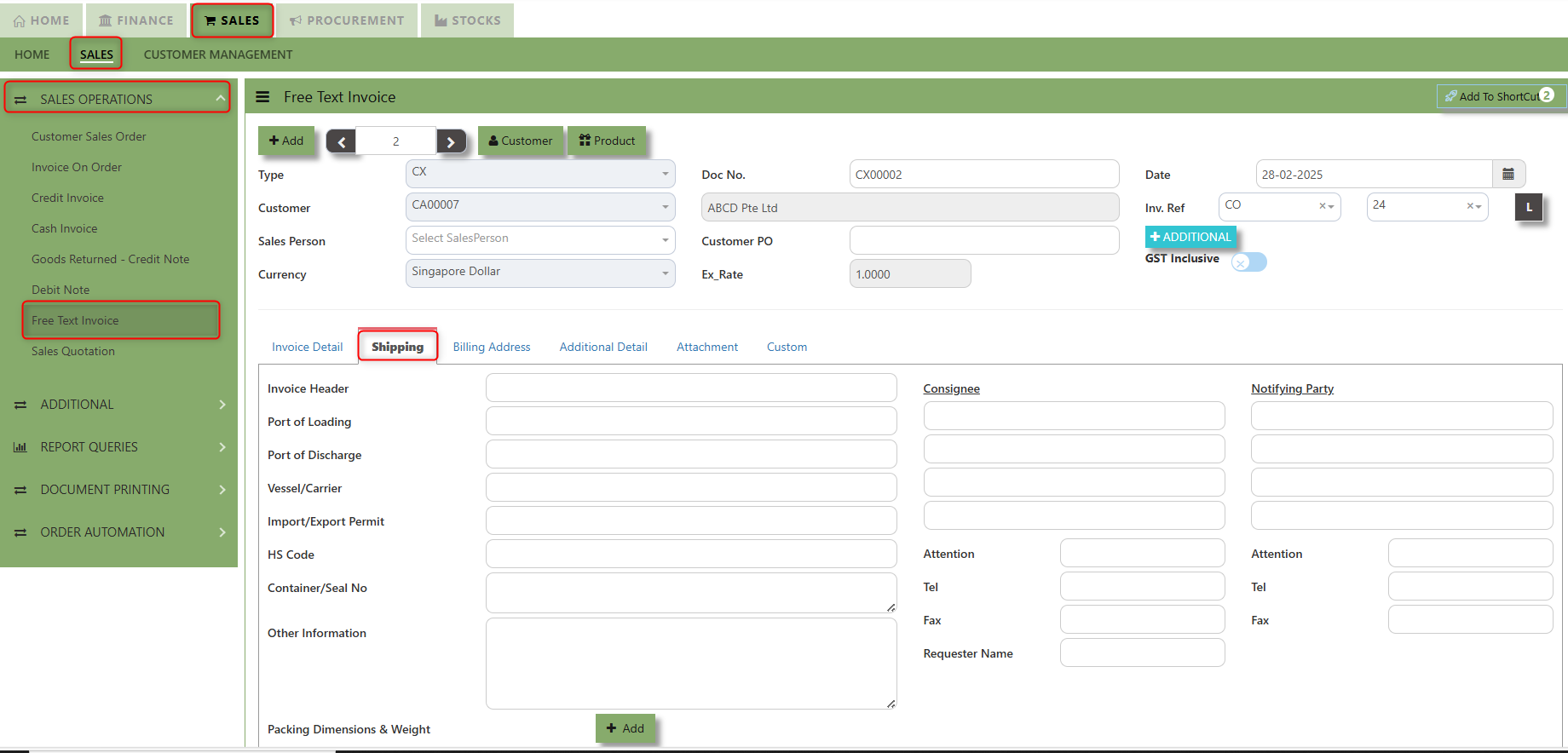
2. Input the below details for the below fields:
-
- Invoice Header
- Port of Loading
- Port of Discharge
- Vessel/Carrier
- Import/Export Permit
- HS Code
- Container/Seal No
- Other Information
- Consignee
- Attention
- Tel
- Fax
- Notifying Party
- Attention
- Tel
- Fax
3. Once keyed in the necessary details, click the next tab and will automatically save all the information then system will prompt you a message.
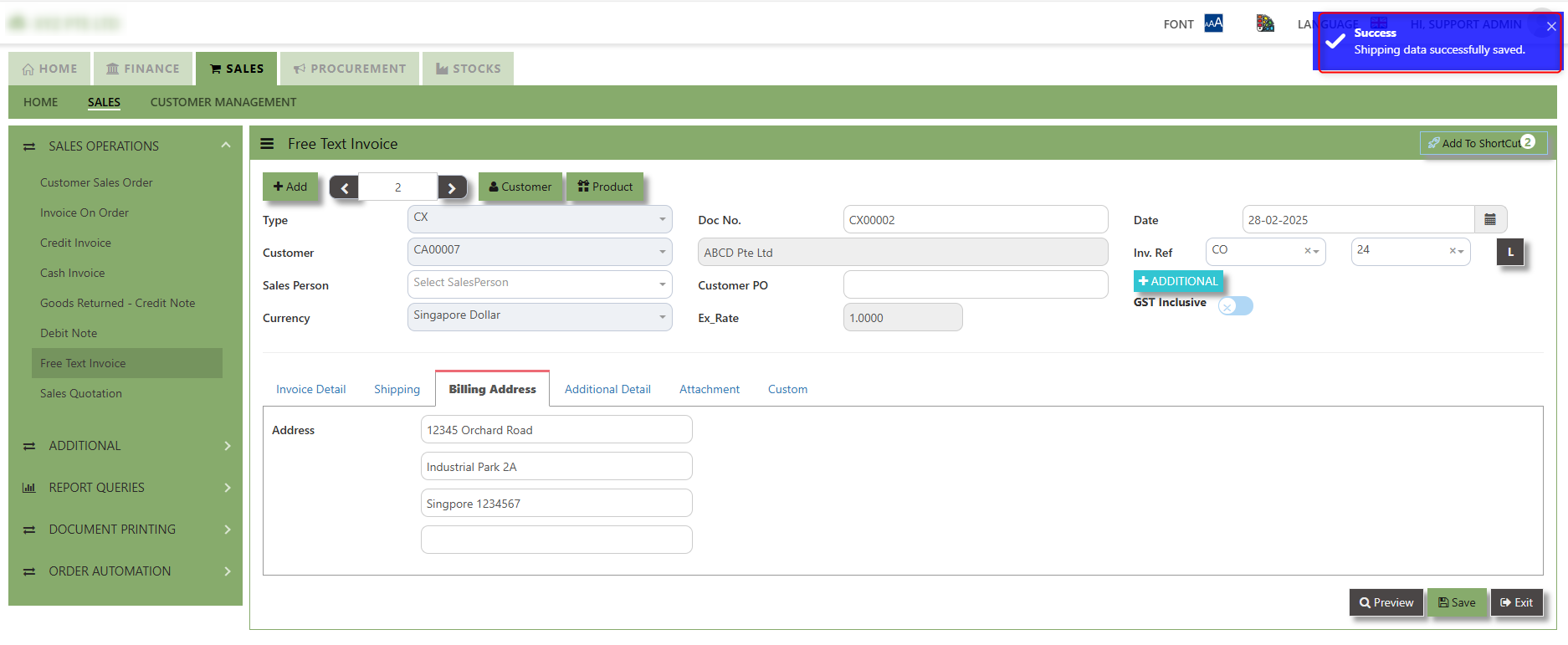
___________________________________________________________________________________________________________________________________________
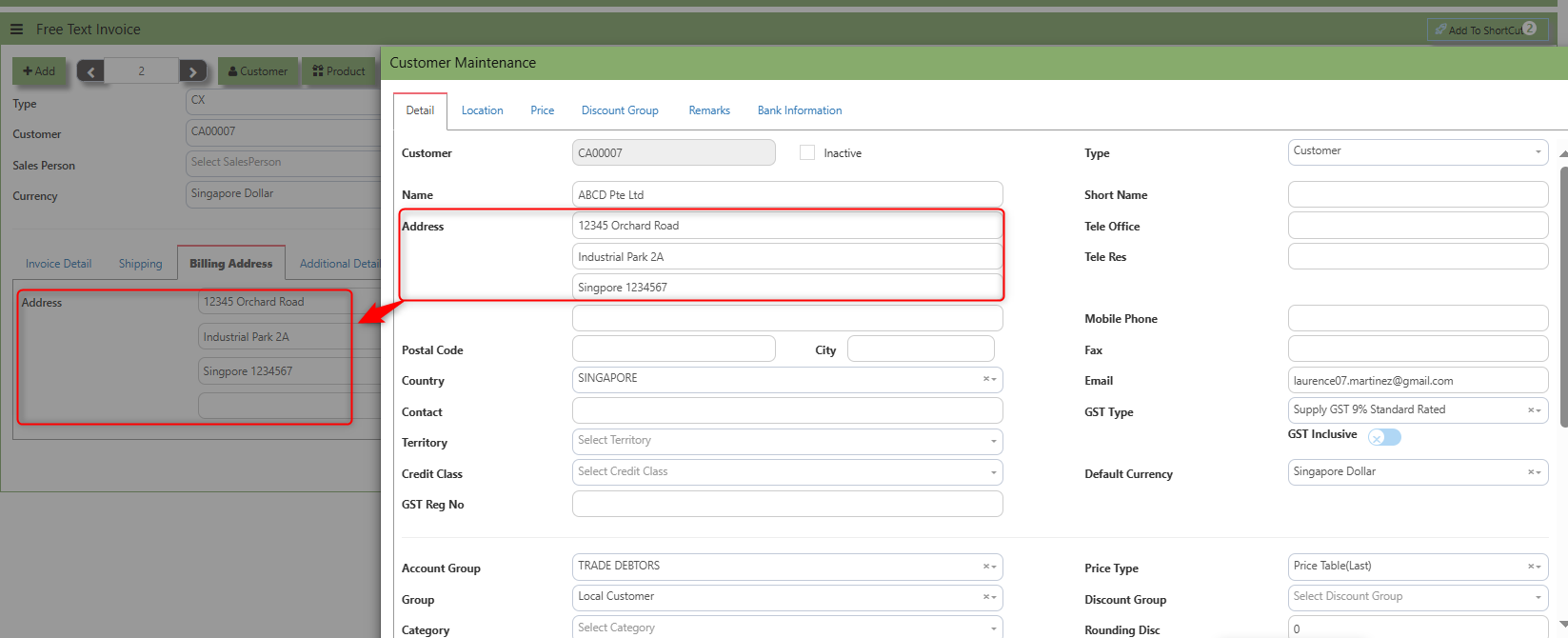
Billing Address - section where the Billing Address is maintained. This tab ensures that the Billing Details will is displayed and can be editable according the customer details.
How to set Billing Address?
1. Click on SALES – SALES OPERATIONS – FREE TEXT INVOICE - BILLING ADDRESS TAB for the screen below.
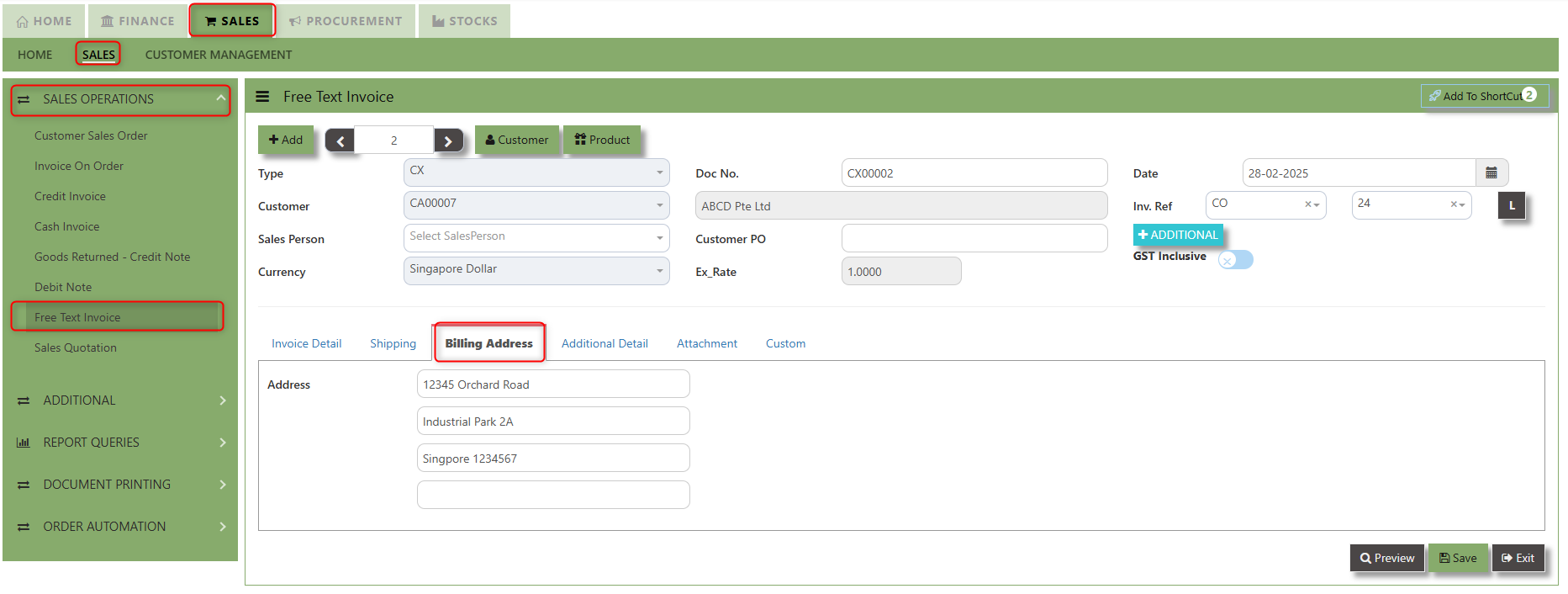
2. The Billing address is defaulted from Customer Maintenance which is the Customer address, it was also editable is needed.
___________________________________________________________________________________________________________________________________________
Additional Detail Tab a section where the additional information is entered . This tab ensures that all relevant details regarding the Narration, Inco Terms , billing address warranty terms Selling conditions , and special instruction are captured in the system to facilitate smooth and accurate sales quotation.
How to set Additional Detail?
1. Click on SALES – SALES OPERATIONS – FREE TEXT INVOICE - BILLING ADDRESS TAB for the screen below.
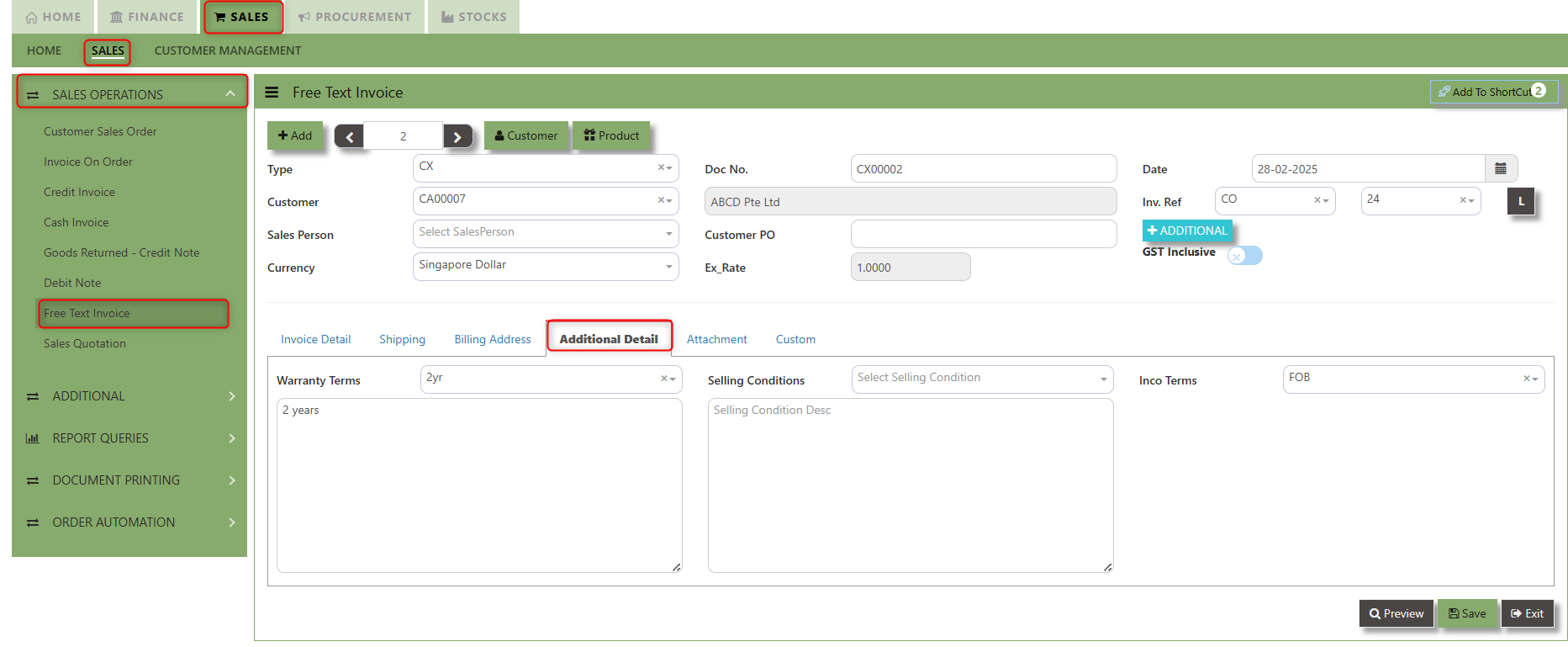
2. Input the below details for the below fields
-
- Warranty Terms
- Selling Condition
- Inco Terms
3. Once keyed in the necessary details, click the next tab and will automatically save all the information.
___________________________________________________________________________________________________________________________________________
"Attachment Tab" allows users to attach various files and documents related to the sales order. By attaching relevant files, users ensure that all purchase-related information is kept in one place, making the sales process smoother, more transparent, and easier to track.
How to use Attachment Tab?
1. Click on SALES – SALES OPERATIONS – FREE TEXT INVOICE – ATTACHEMENT TAB for the screen below.
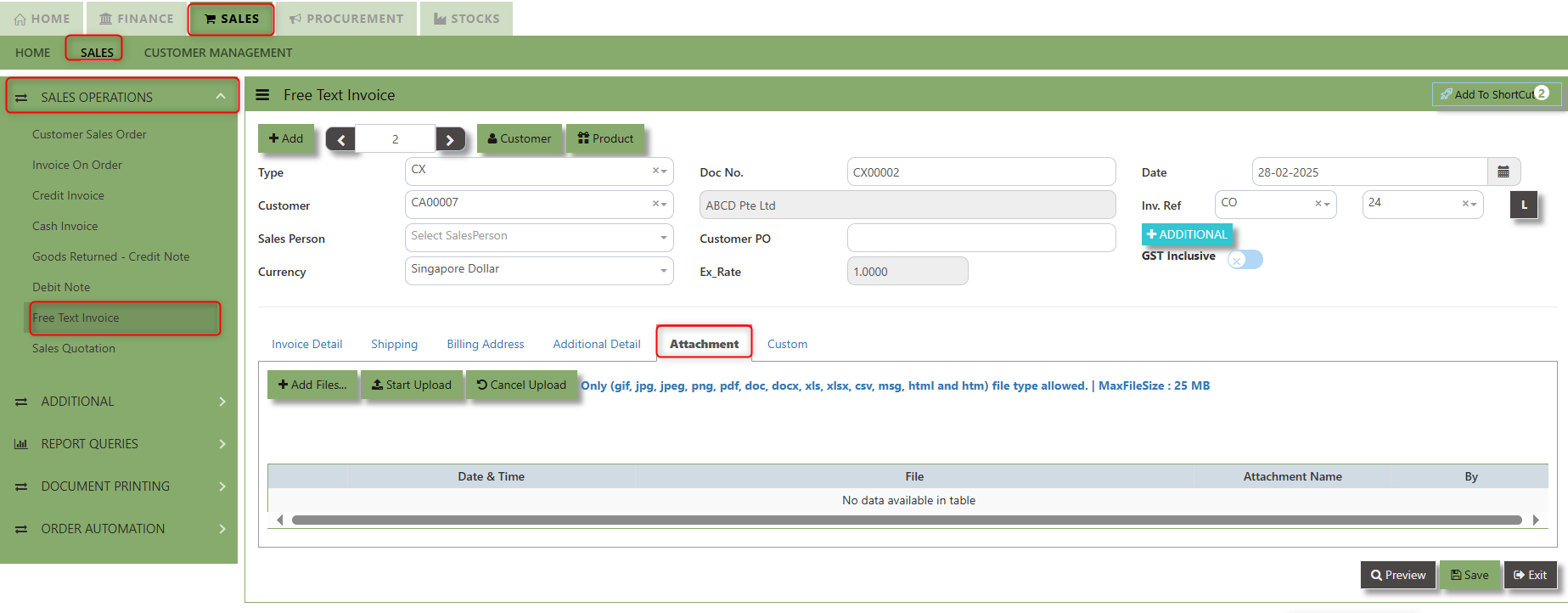
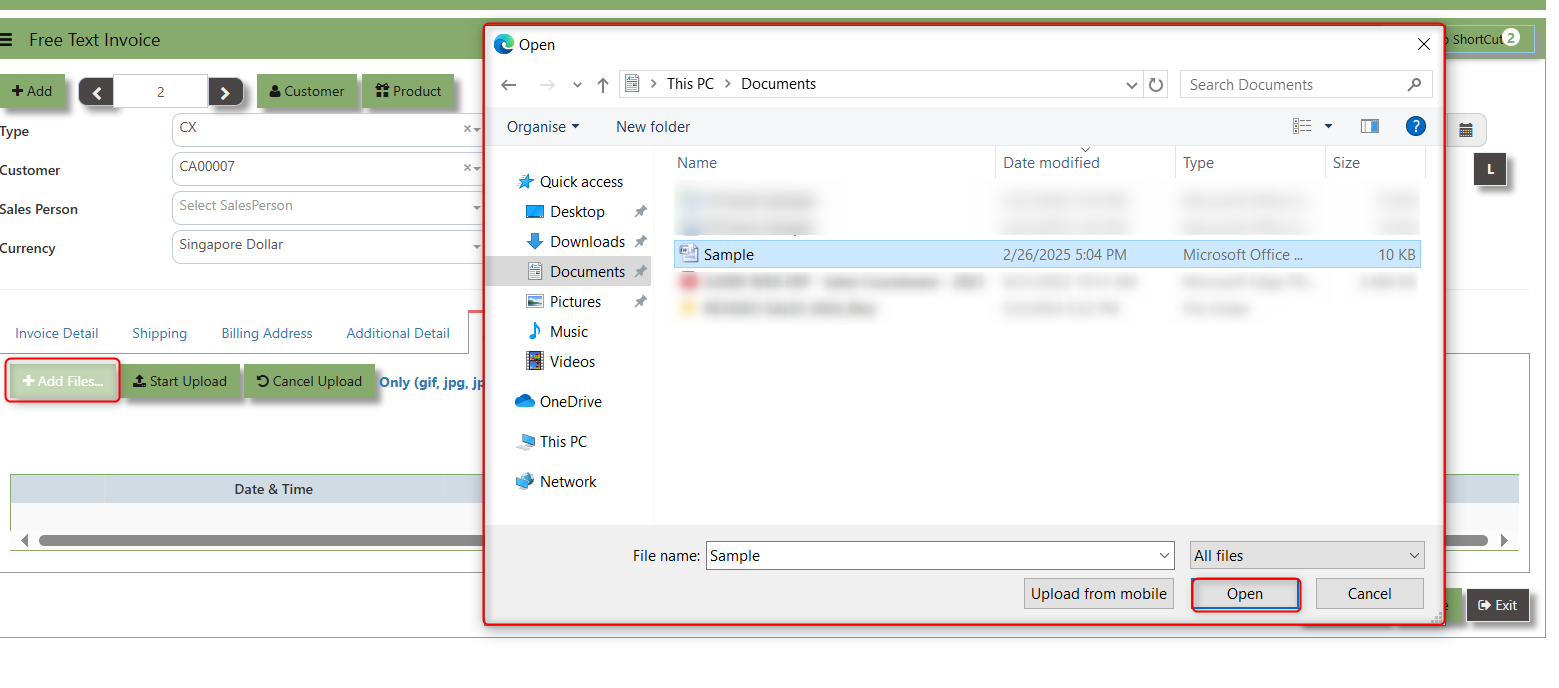
2. Click +Add files and windows will prompt then choose the file you want to upload by clicking open. Kindly take note the file types and maximum size requirements in uploading: Only (gif, jpg, jpeg, png, pdf, doc, docx, xls, xlsx, csv, msg, html and htm) file type allowed. | MaxFileSize : 25 MB
3. Key in the Attachment Name then click start to upload.
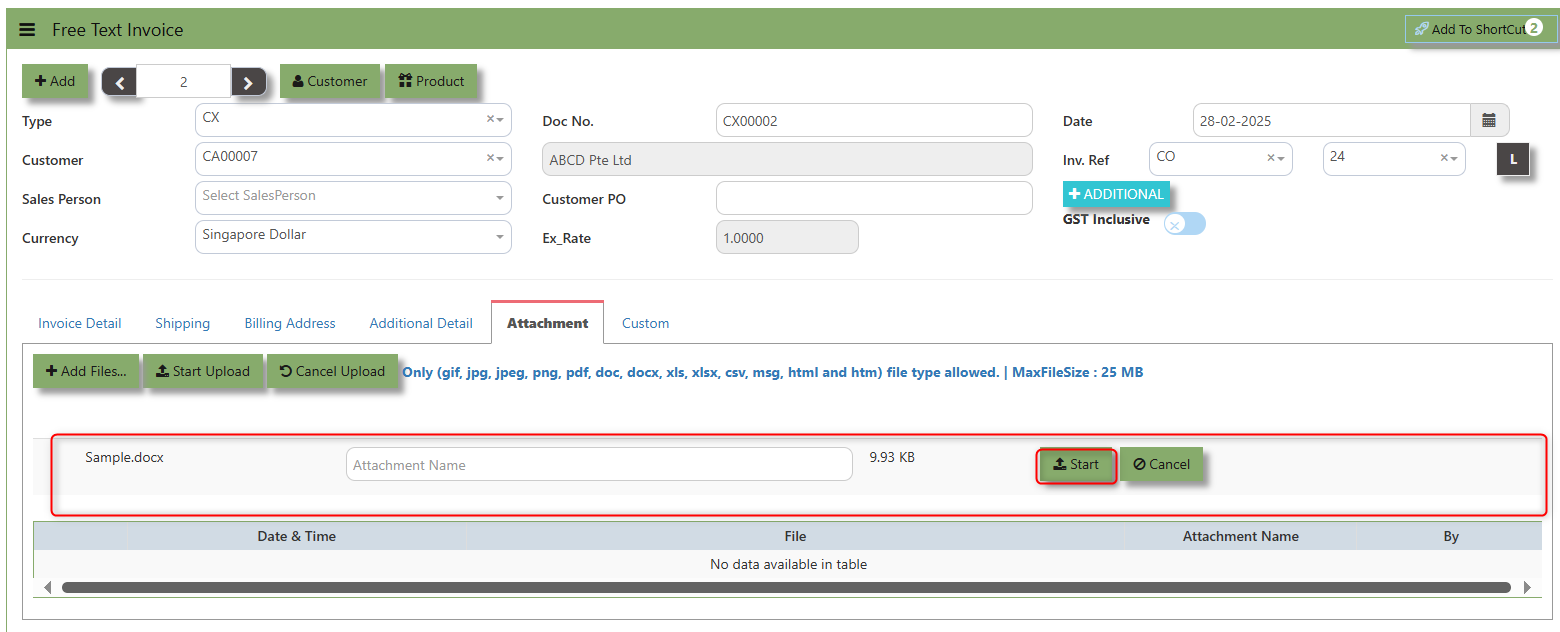
4.Once the file attached, click "SAVE" button
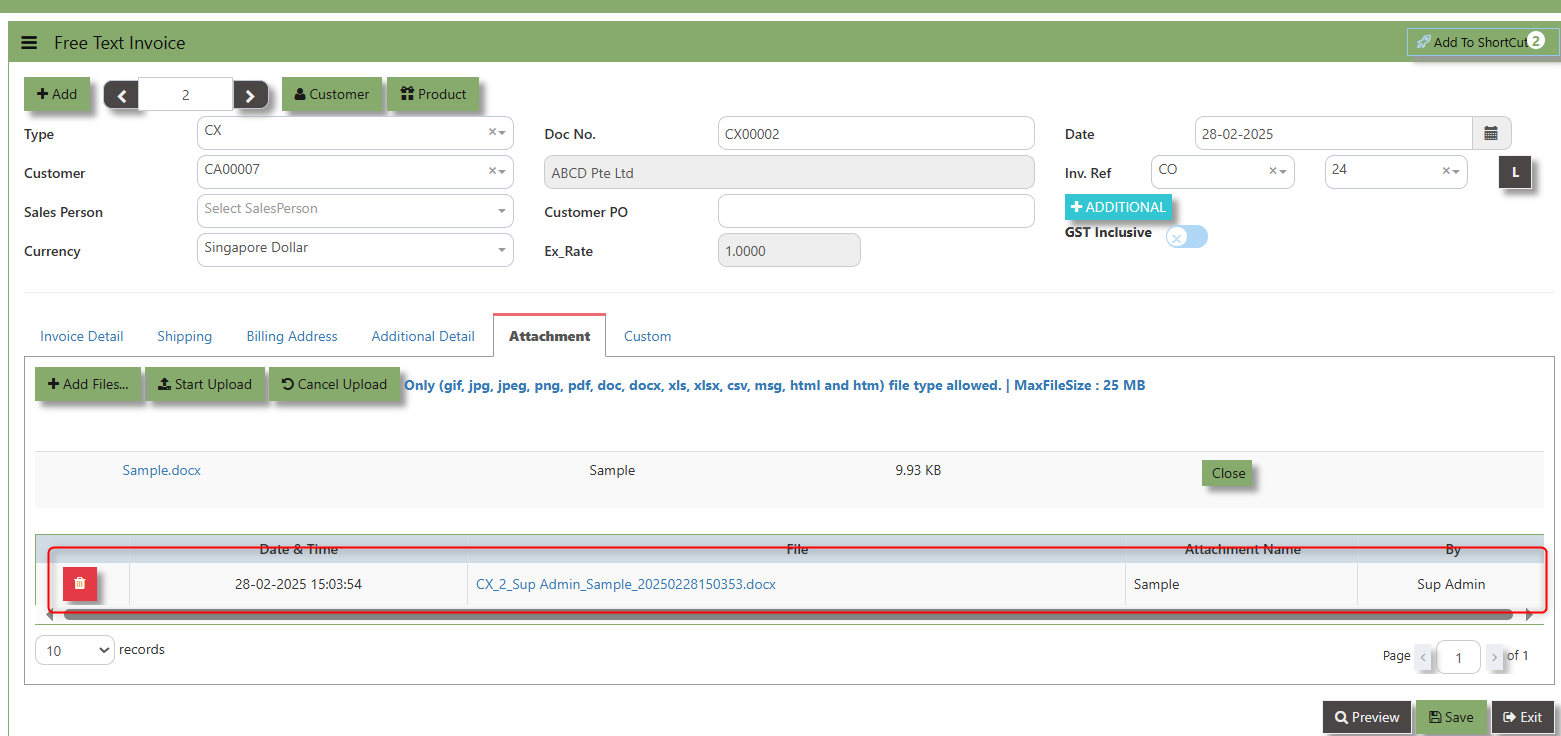
User may opt to cancel the uploading by clicking the "Cancel Upload" button and delete the file uploaded by clicking the "Bin icon" at the line detail.
___________________________________________________________________________________________________________________________________________
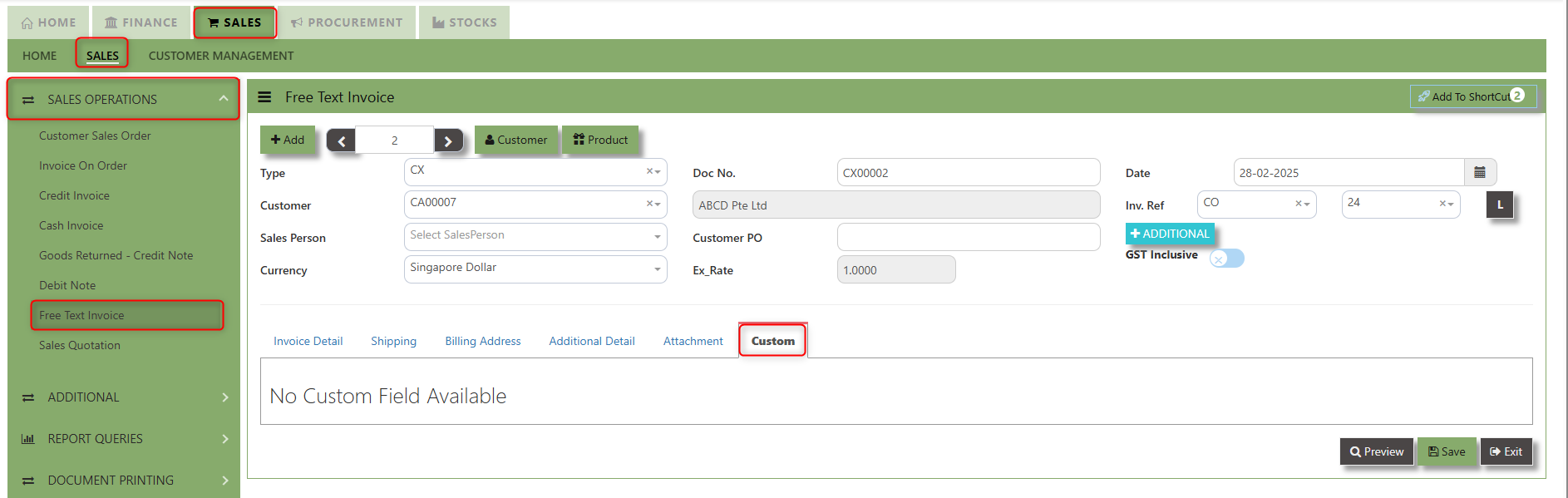
"Custom Tab" provides a space for users to input customized data or additional fields that are specific to their business processes and requirements.
Click on SALES – SALES OPERATIONS – FREE TEXT INVOICE - CUSTOM TAB for the screen below.
Sales Quotation
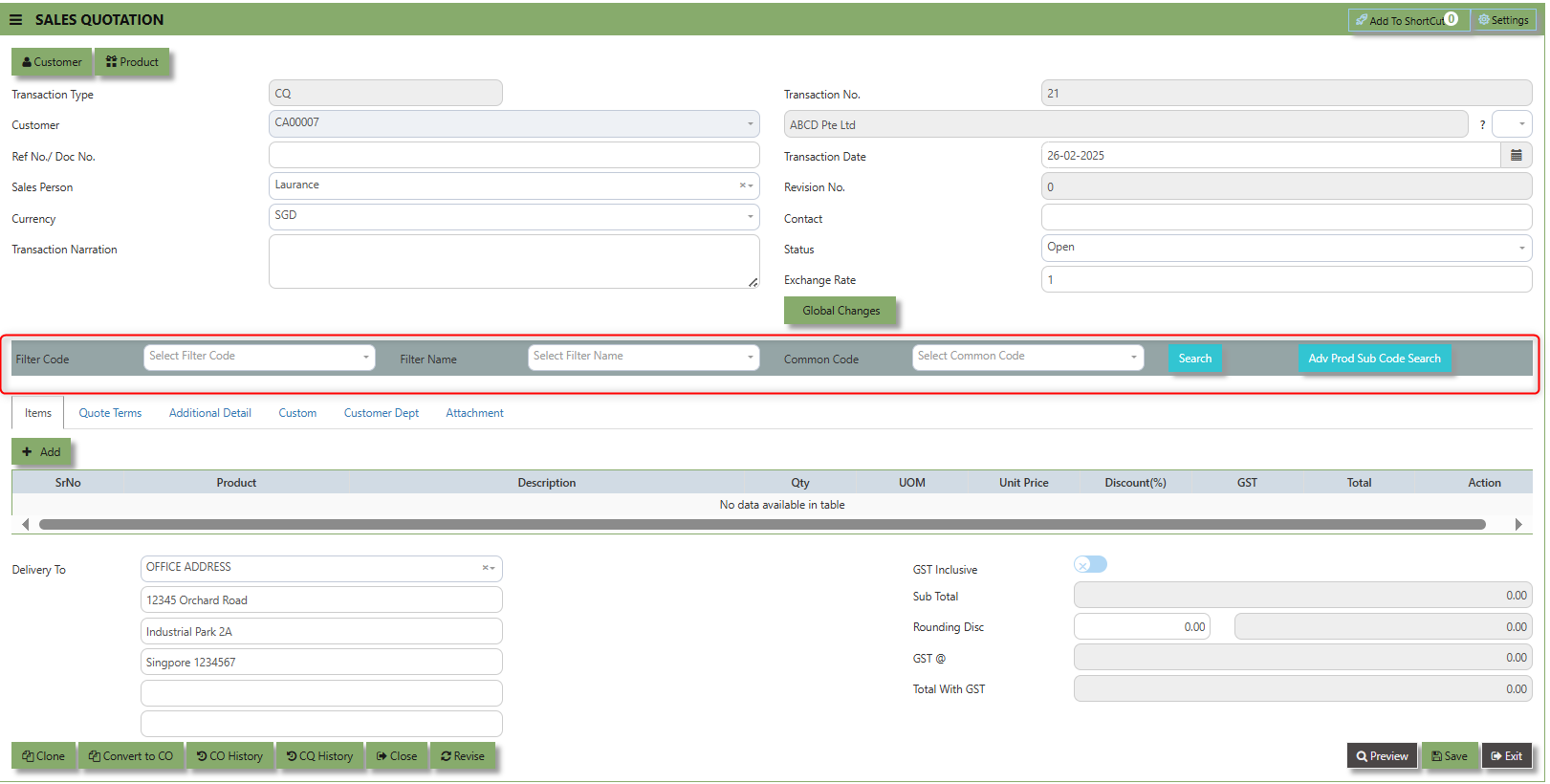
The Sales Quotation form is essentially an administrative document to confirm the approval of a stock request before an order is made. Creation of a Customer Quotation does not perform any accounts posting & is used only as an administrative document to send to the Customer as quotation. Creation of a Customer Quotation will generate a “CQ” number.
How to set Customer Quotation?
1.Click on SALES – SALES OPERATIONS – CUSTOMER SALES ORDER for the screen below.
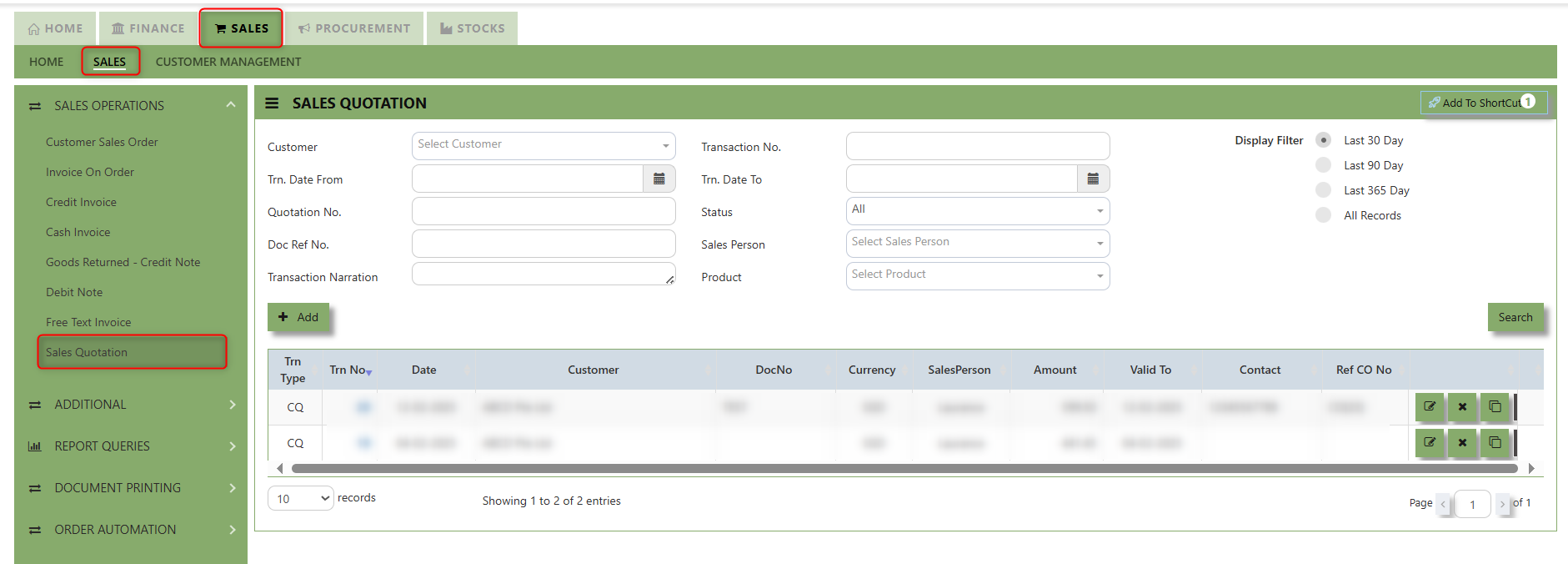
2. Click on Add button or press F3 to create a new transaction.
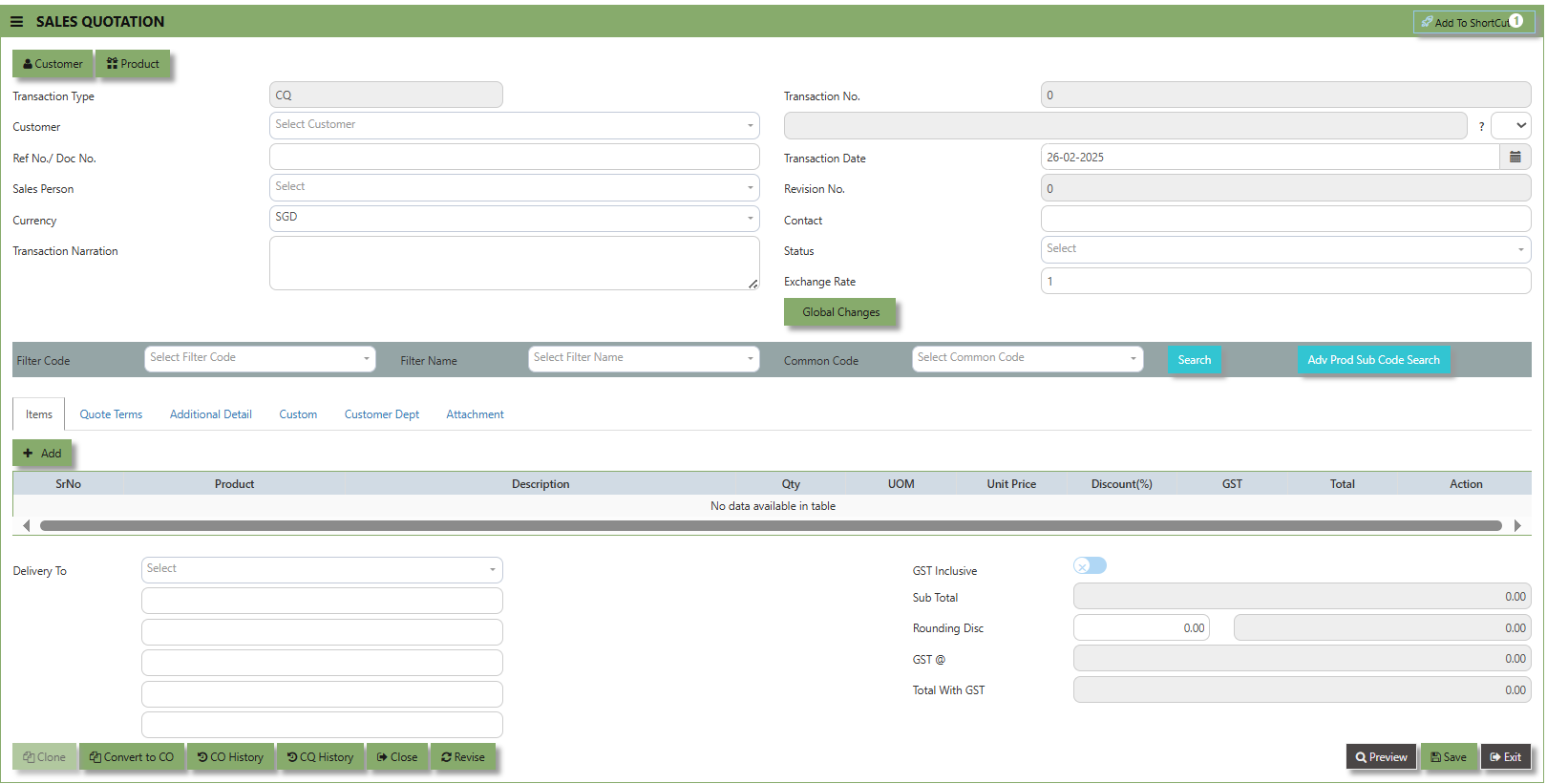
2. Click the Customer - drop-down list to select Customer Name, followed by the Sales Person, PDS, Currency, Rate,
Validity Period, Validity Date, Payment Term, Status, Deliver Term & Lead Time if applicable.
3. After all the header information has been entered, go to the Quotation Details section to select the product from the
Product Code and Name drop-down list. User can also enter information into the Additional Details and Customer Department. Save the transaction after this is done.
___________________________________________________________________________________________________________________________________________
Add to Shortcut - Used to create a shortcut for quick access to a specific Sales Transaction . By clicking this button, users can add the current Sales Quotation to a list of shortcuts, allowing them to access the invoice or related functionality quickly and efficiently, without needing to search for it each time.
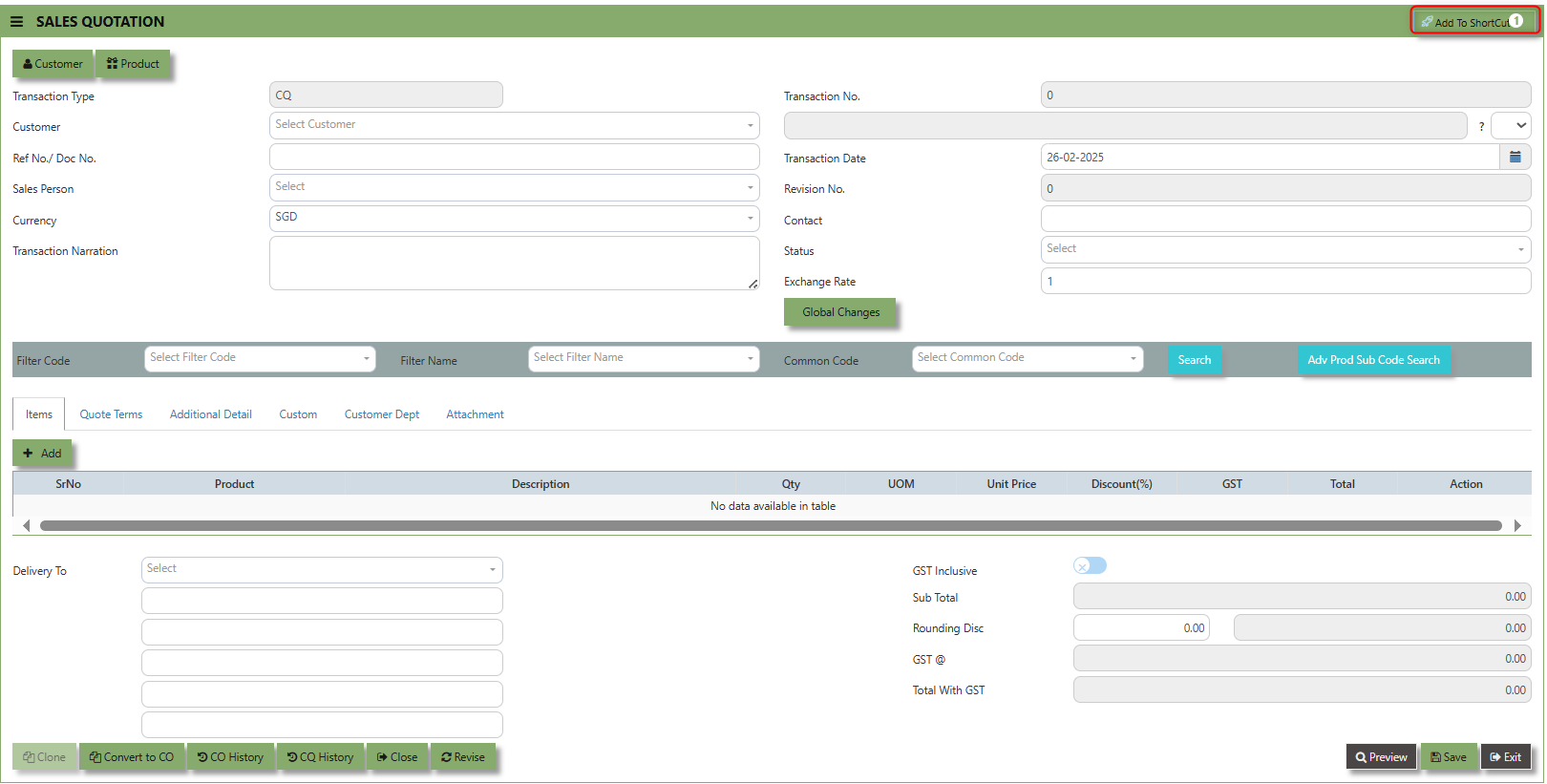
How to use Add to ShortCut?
1. Click "Add to ShortCut" and system will open below windows:
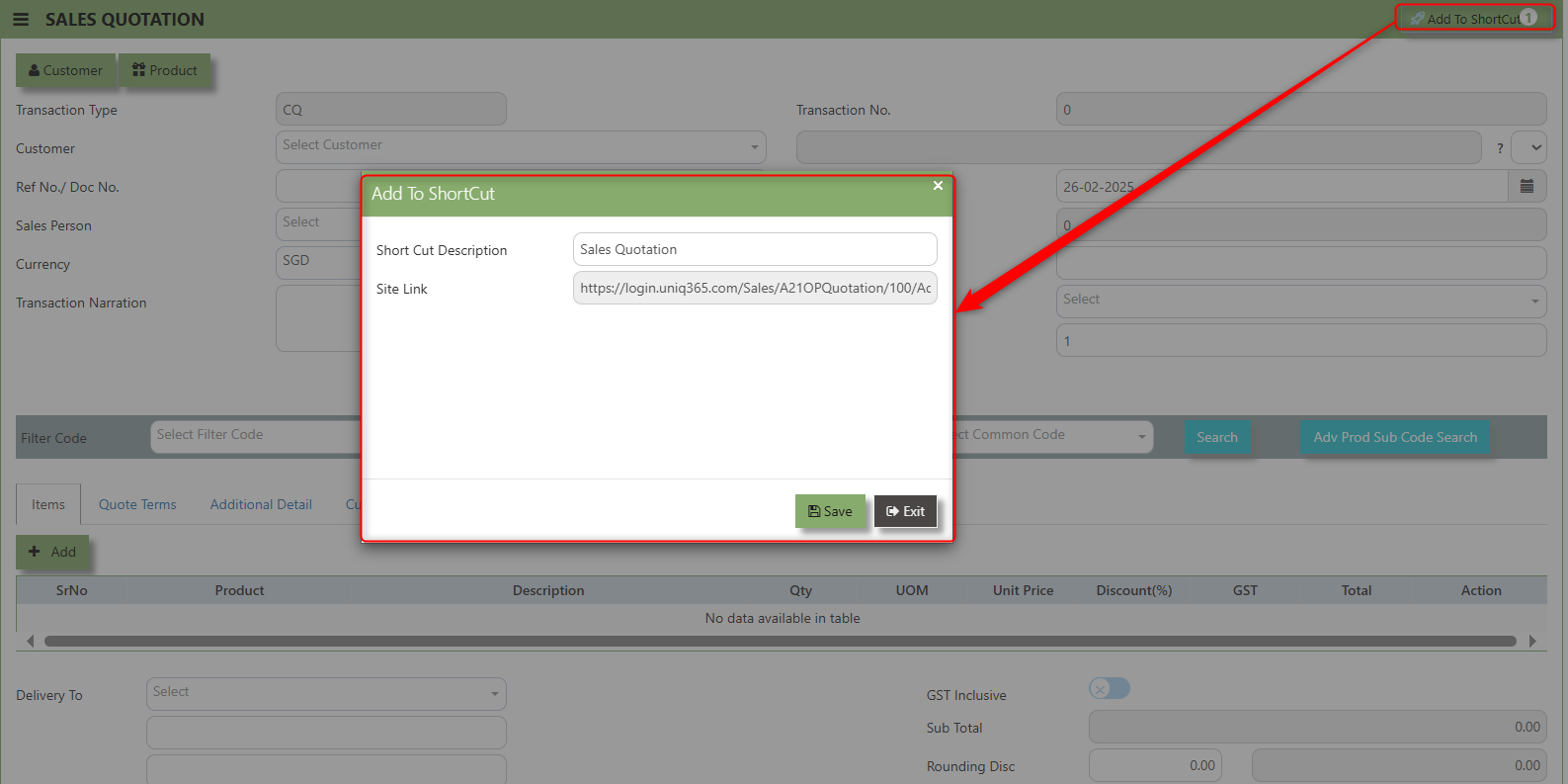
2. Enter Short Cut Description
3. Click SAVE then click OK.
4. User may look to the Homepage for the added function or page. Click on HOME - HOME - SHORTCUT for the screen below.
___________________________________________________________________________________________________________________________________________
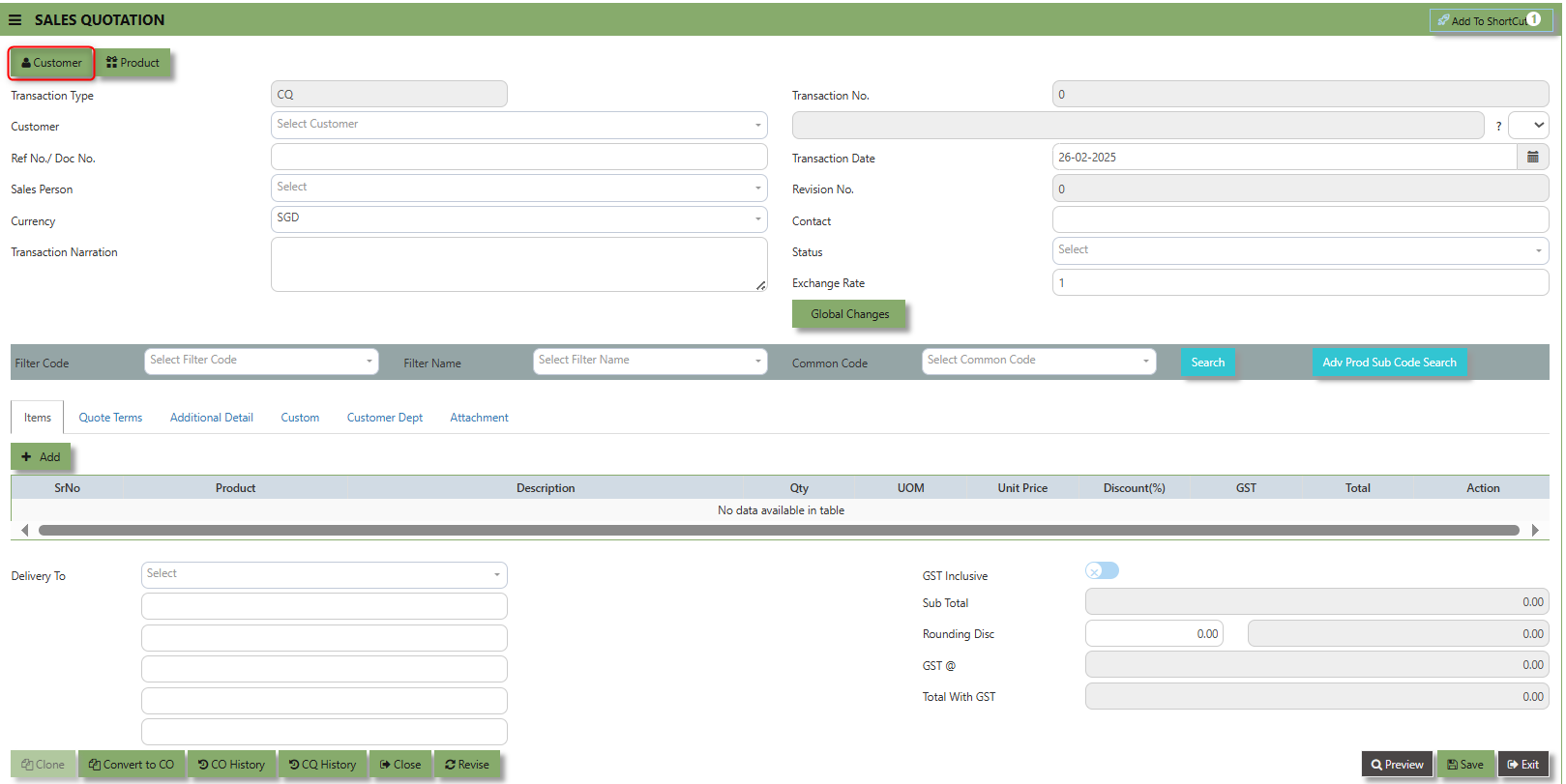
The Customer button provides quick access to detailed supplier profiles under Customer maintenance.
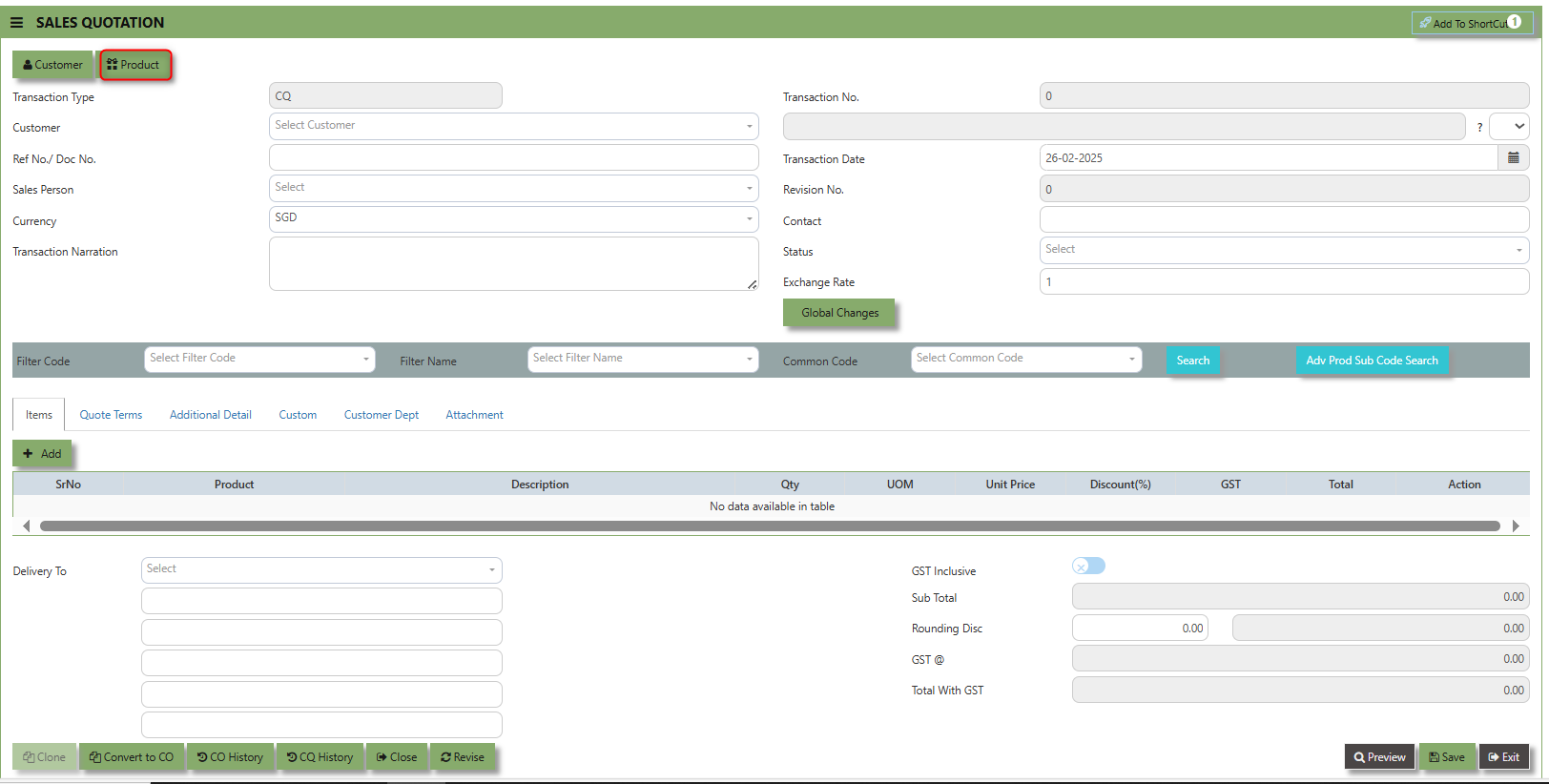
The Product button provides quick access to product and service maintenance.
___________________________________________________________________________________________________________________________________________
The Global Changes Button provides access on the Discount menu in the Sales Quotation . By clicking this button, users can add the current Sales Quotation discount using Global Discount Amount, or Percentage Discount.
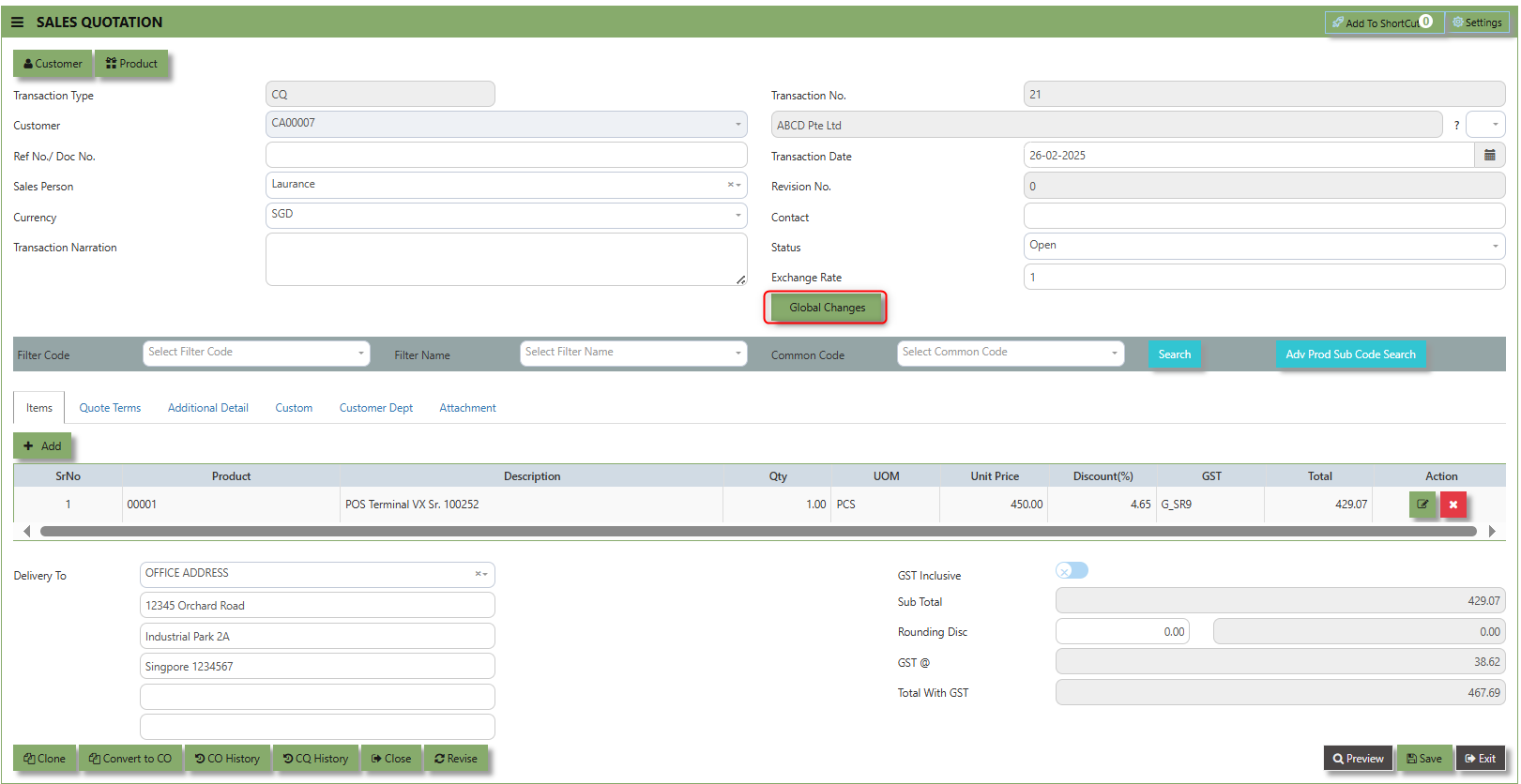
How to use Global Changes?
1.Click "Global Changes" and system will open below windows:
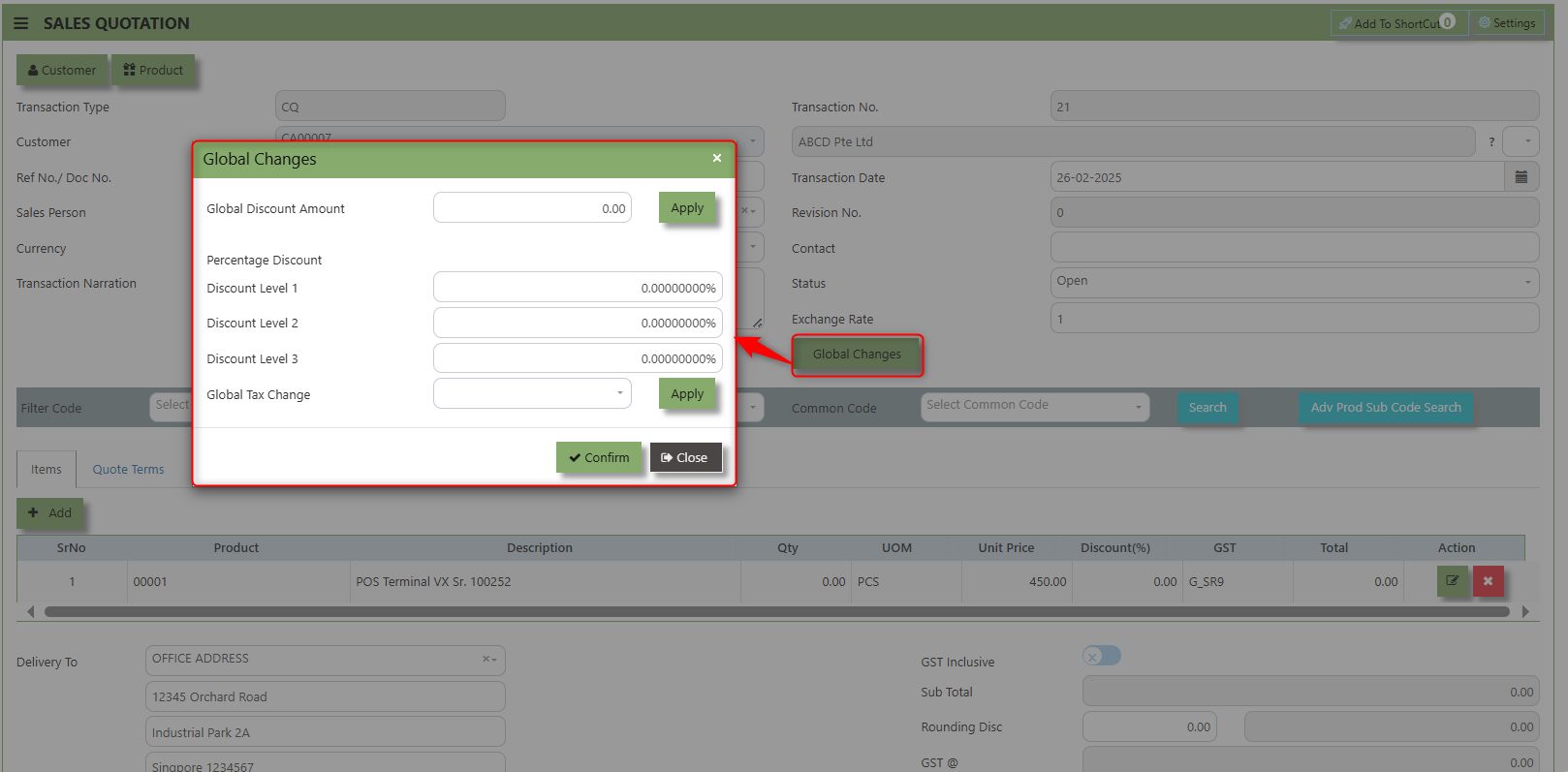
2. Add a Discount to the transaction if its Global Discount Amount or Percentage Discount.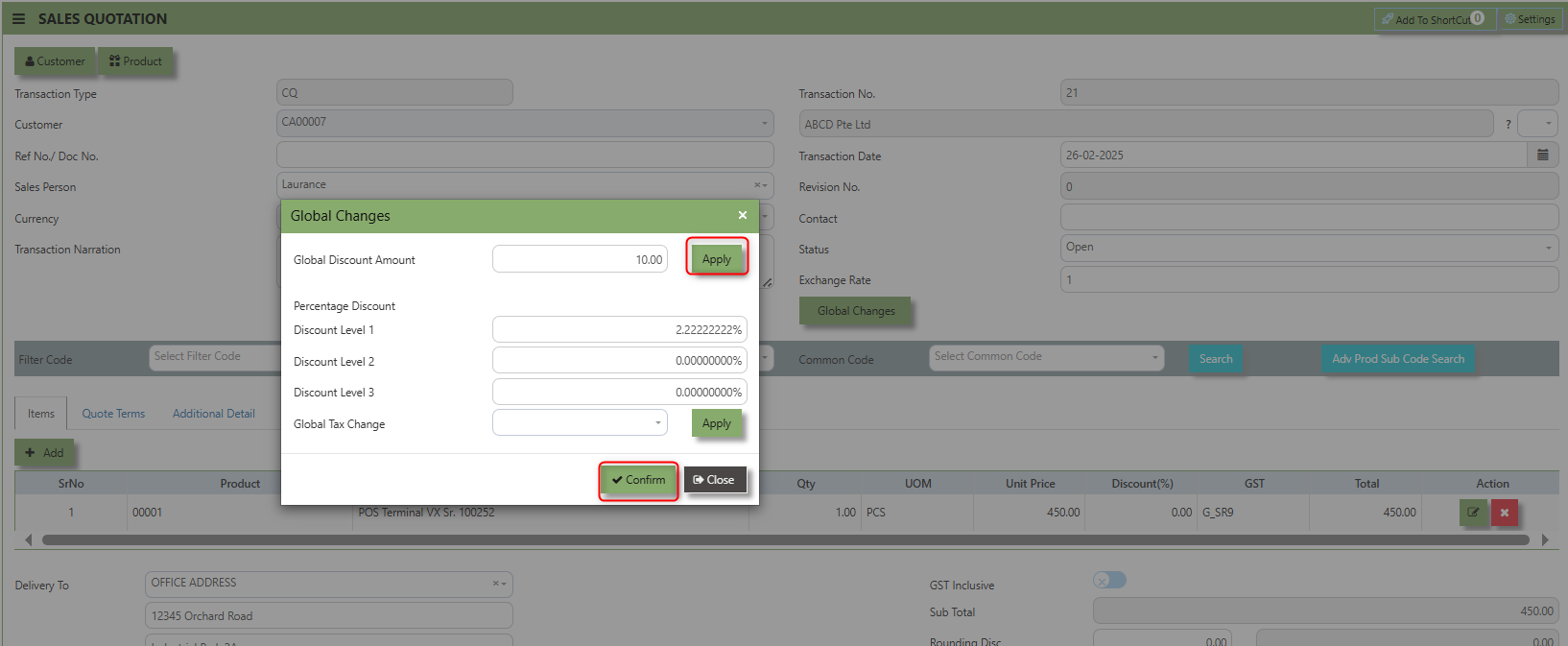
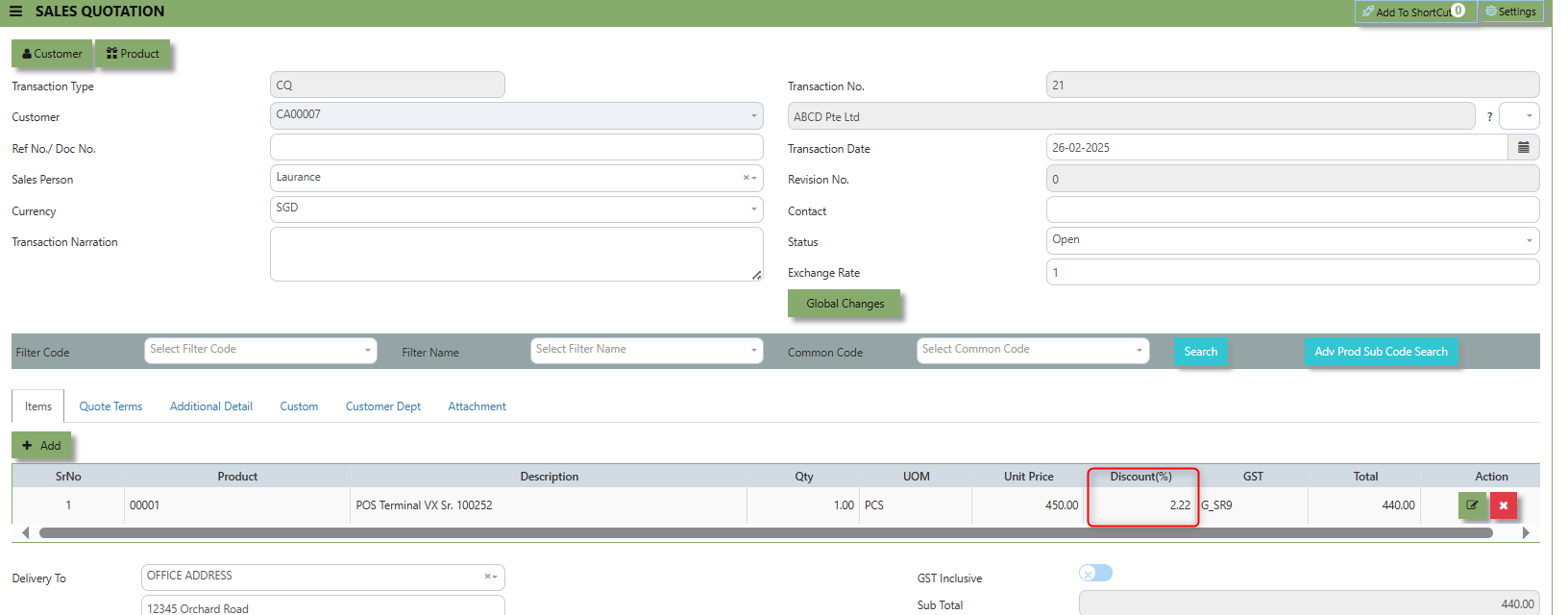
3. Click Apply and Confirm button, the discount will be automatically captured in the line item and in the transaction.
Search and Select Function - this function allows the user to search and select the existing product in the Product Maintenance.
Quote Terms a section where specific quote related information is entered . This tab ensures that all relevant details regarding the sales quotation such as Quotation Number, Customer Reference, PDSU, Validity Period, Payment Term, Other Delivery Term, and delivery date are captured in the system to facilitate smooth and accurate quotation.
How to set Quote Terms?
1. Click on SALES – SALES OPERATIONS – SALES QOUTATION - QUOTE TERMS for the screen below.
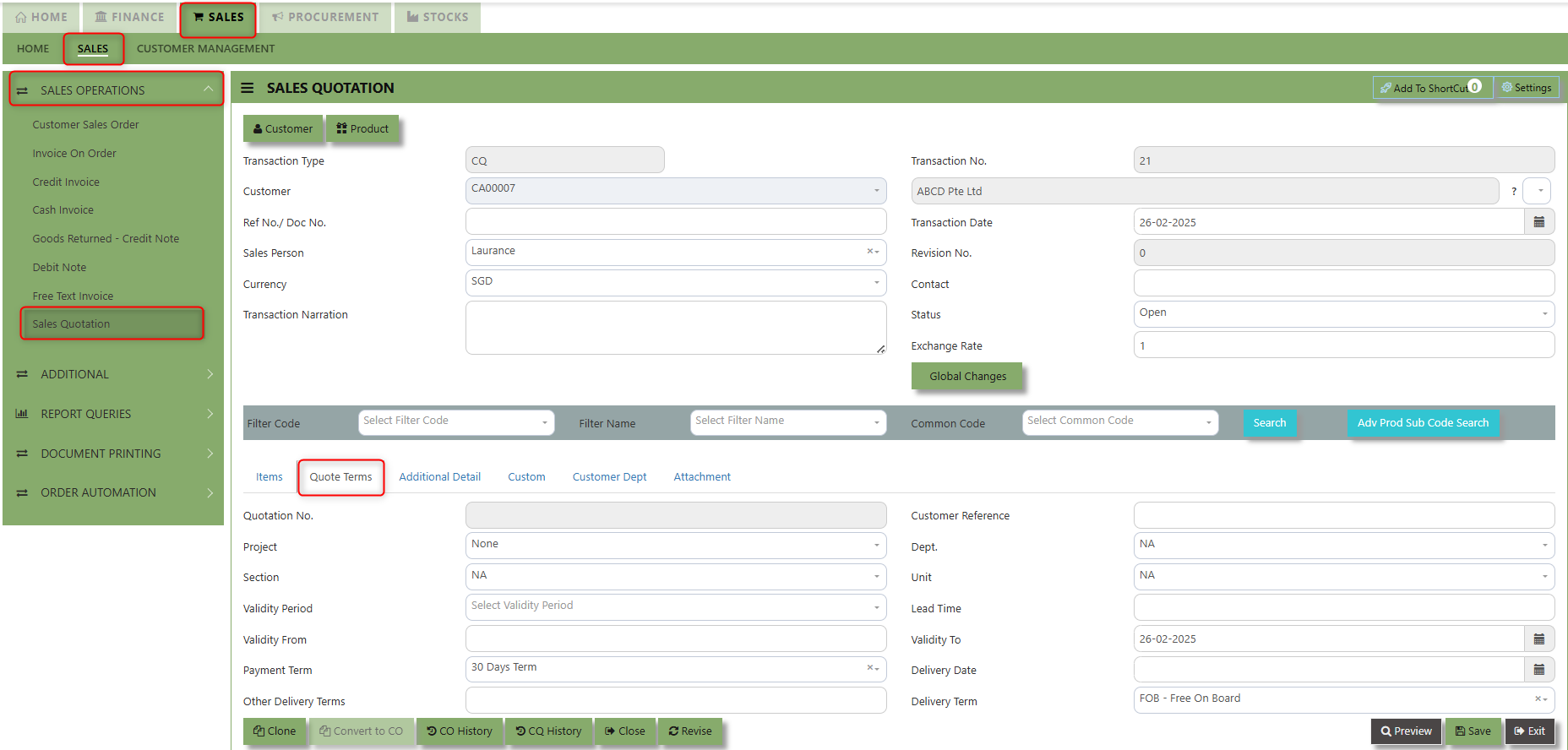
2. Input the below details for the below fields:
-
- Quotation Number
- Customer Reference
- PDSU
- Validity Period,
- Payment Term,
- Other Delivery Term
- Delivery Term
- Delivery Date
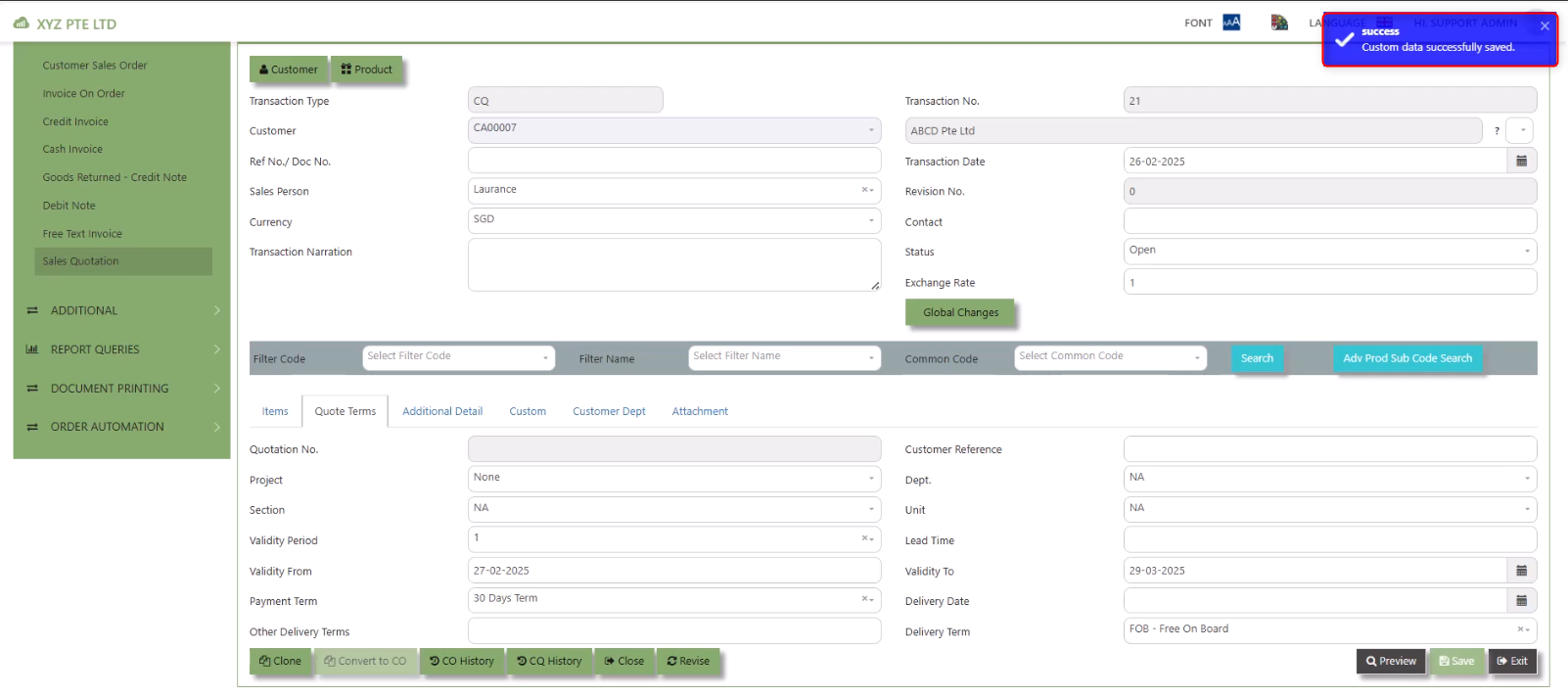
3. Once keyed in the necessary details, click the next tab and will automatically save all the information then system will prompt you a message.
___________________________________________________________________________________________________________________________________________
Additional Detail Tab a section where the additional information is entered . This tab ensures that all relevant details regarding the Narration, Inco Terms , billing address warranty terms Selling conditions , and special instruction are captured in the system to facilitate smooth and accurate sales quotation.
How to set Additional Detail?
1. Click on SALES – SALES OPERATIONS –SALES QUOTATION - ADDITIONAL DETAILS for the screen below.
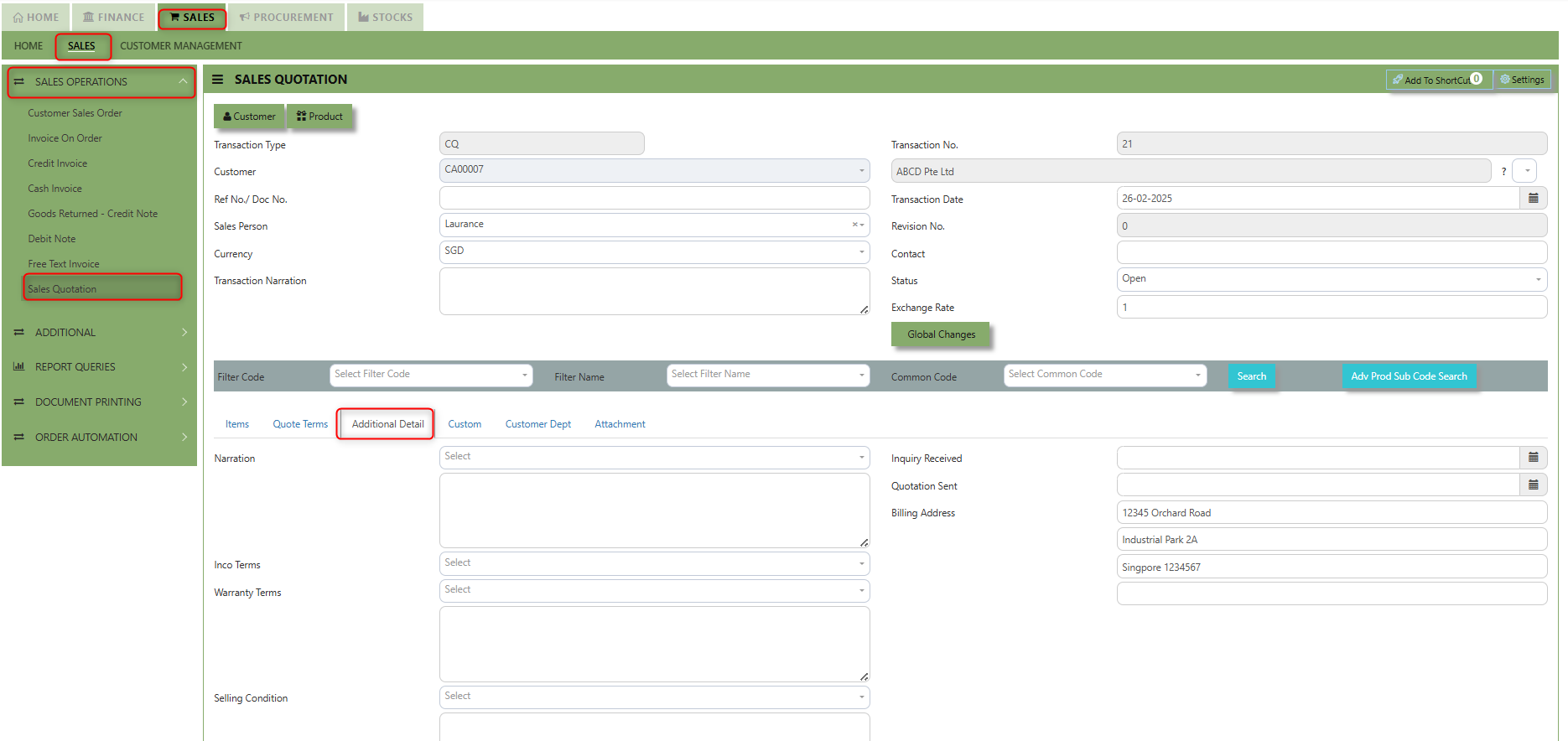
2. Input the below details for the below fields:
-
- Narration
- Billing Address
- Inco Terms
- Warranty Terms
- Selling Condition
- Inquiry Received Date
- Quotation Sent Date
3. Once keyed in the necessary details, click the next tab and will automatically save all the information.
___________________________________________________________________________________________________________________________________________
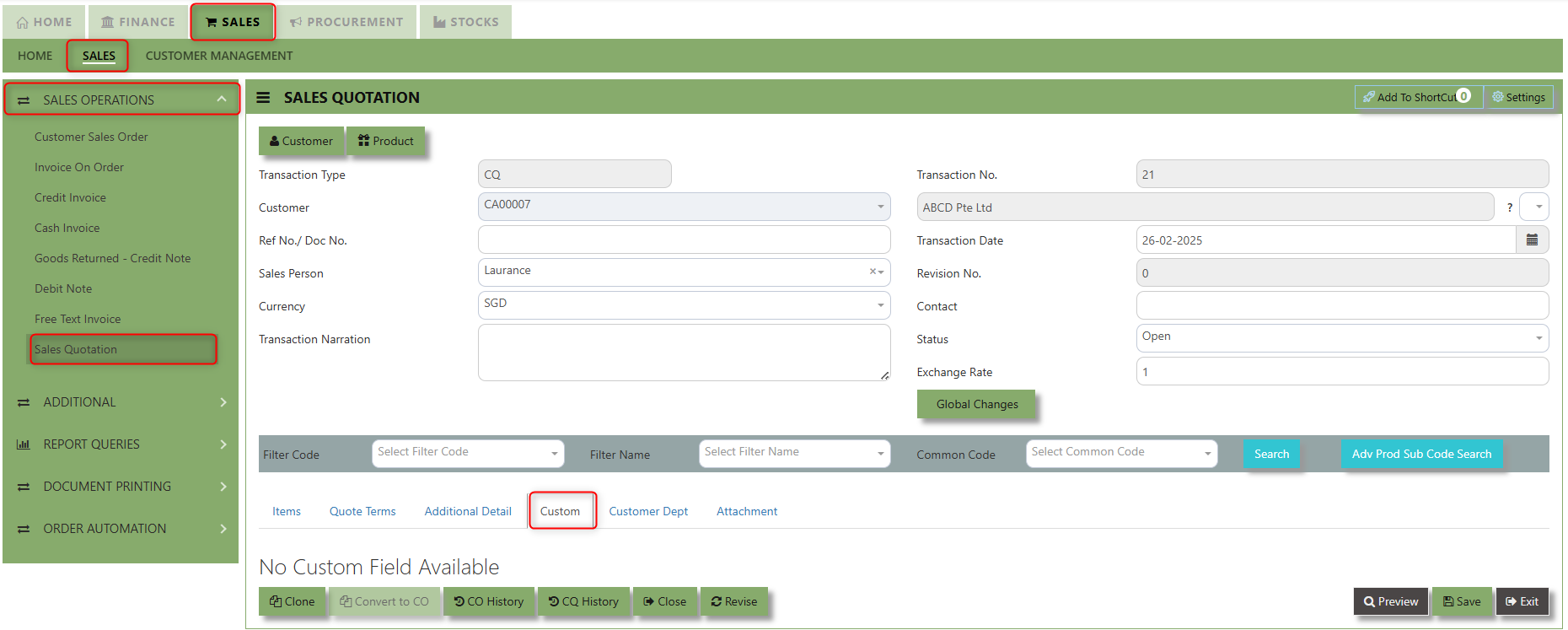
"Custom Tab" provides a space for users to input customized data or additional fields that are specific to their business processes and requirements.
- Click on SALES – SALES OPERATIONS – SALES QUOTATION - CUSTOM for the screen below.

___________________________________________________________________________________________________________________________________________
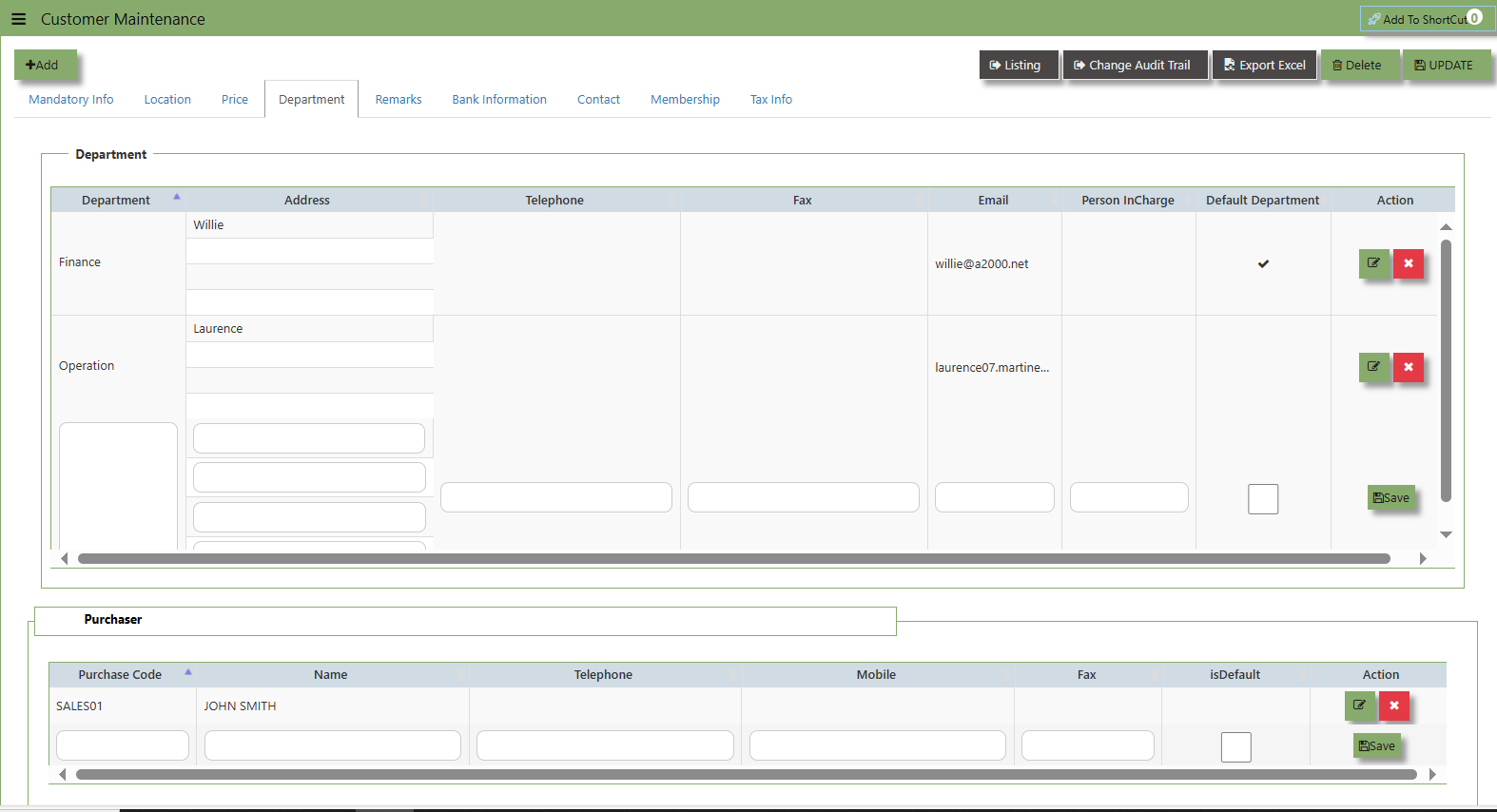
"Customer Dept Tab" section where the Customer Department information is entered. This tab ensures that all relevant details regarding Customer Department details which is linked to the Customer Maintenance under Department Tab
- Click on SALES – SALES OPERATIONS – SALES QUOTATION - CUSTOMER DEPT for the screen below.
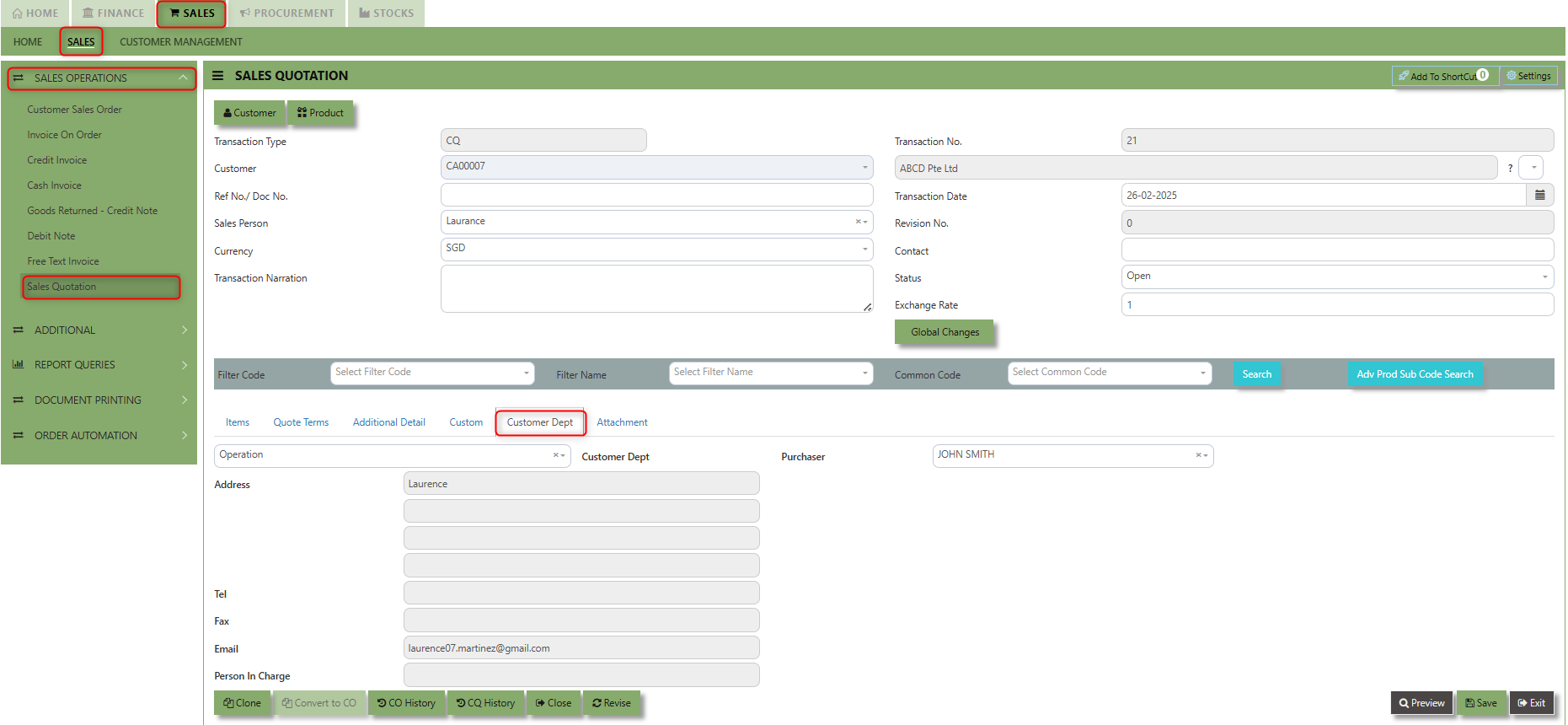
The drop down selection for Customer Dept and Purchaser is maintained in Customer Maintenance under Department Tab
___________________________________________________________________________________________________________________________________________
"Attachment Tab" allows users to attach various files and documents related to the sales order. By attaching relevant files, users ensure that all purchase-related information is kept in one place, making the sales process smoother, more transparent, and easier to track.
How to use Attachment Tab?
1. Click on SALES – SALES OPERATIONS – SALES QUOTATION - ATTACHMENT TAB for the screen below.
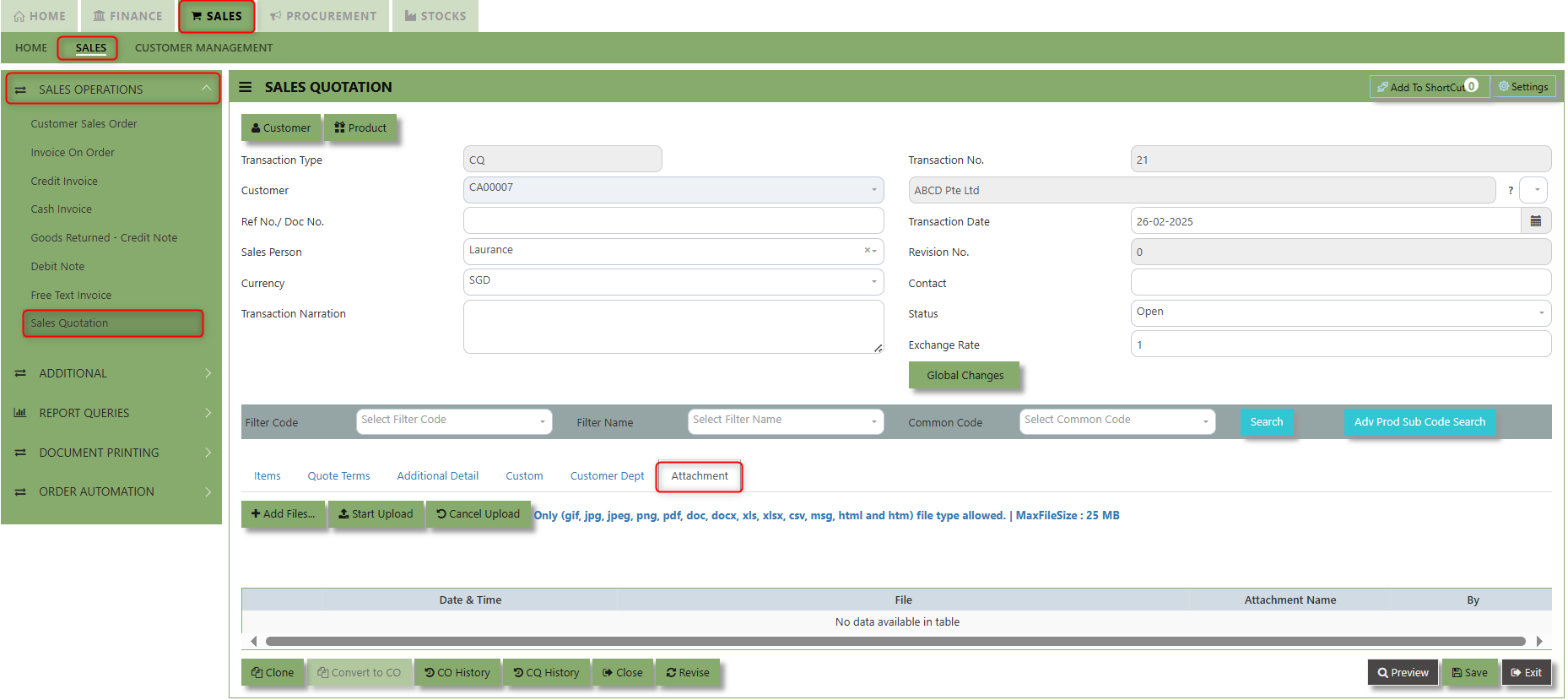
2. Click +Add files and windows will prompt then choose the file you want to upload by clicking open. Kindly take note the file types and maximum size requirements in uploading: Only (gif, jpg, jpeg, png, pdf, doc, docx, xls, xlsx, csv, msg, html and htm) file type allowed. | MaxFileSize : 25 MB
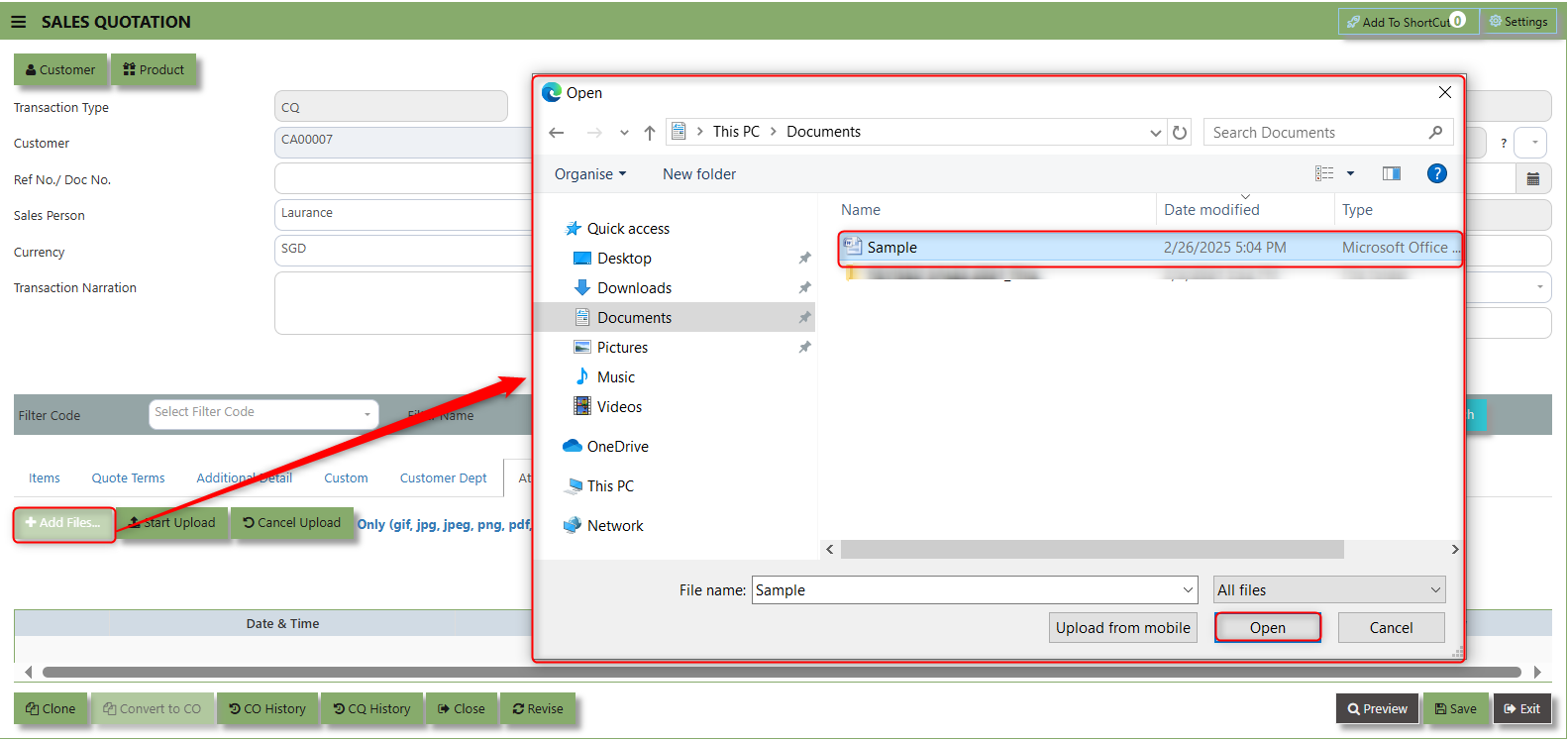
3. Key in the Attachment Name then click start to upload.
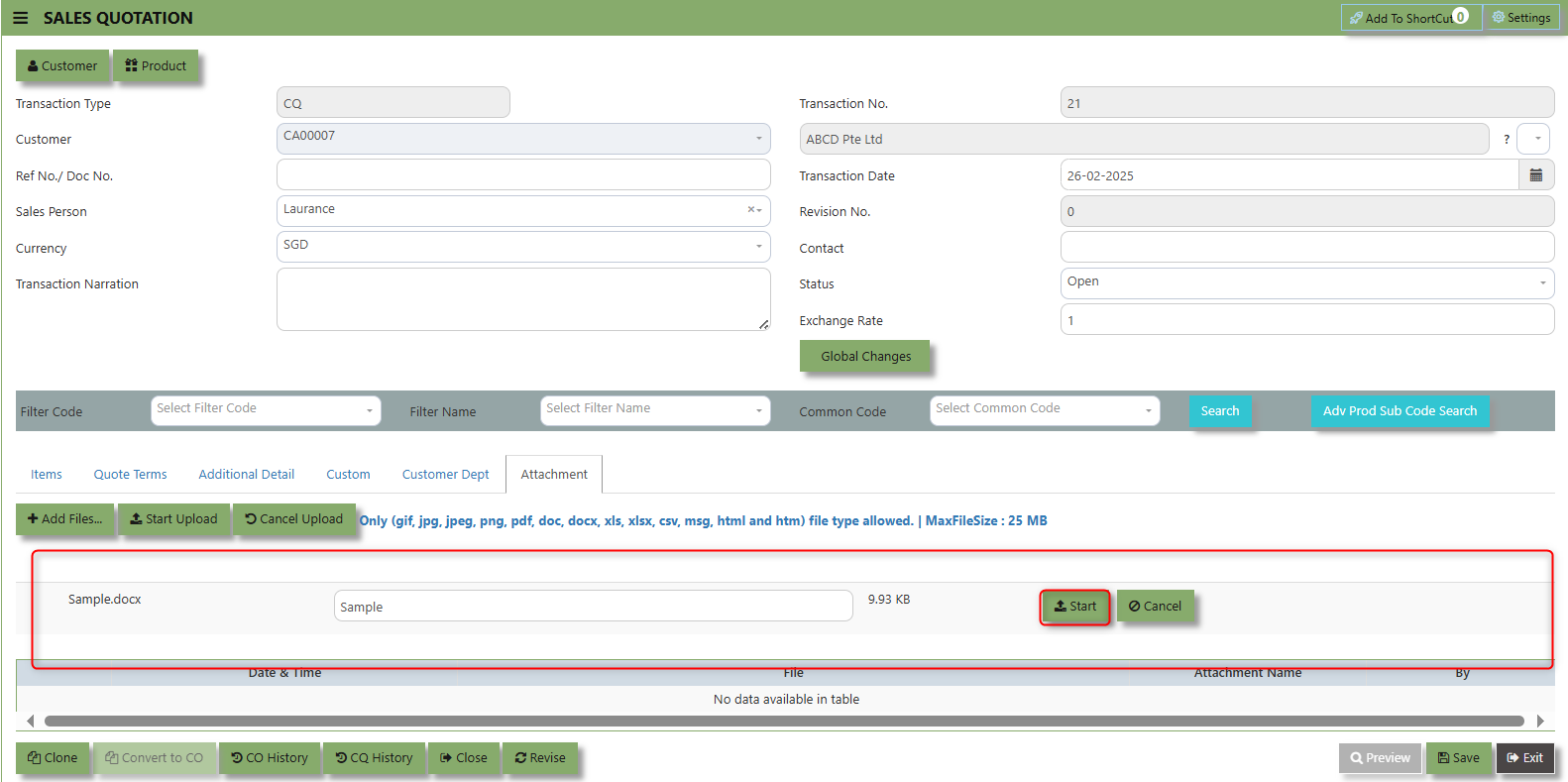
4. Once the file attached, click "SAVE" button
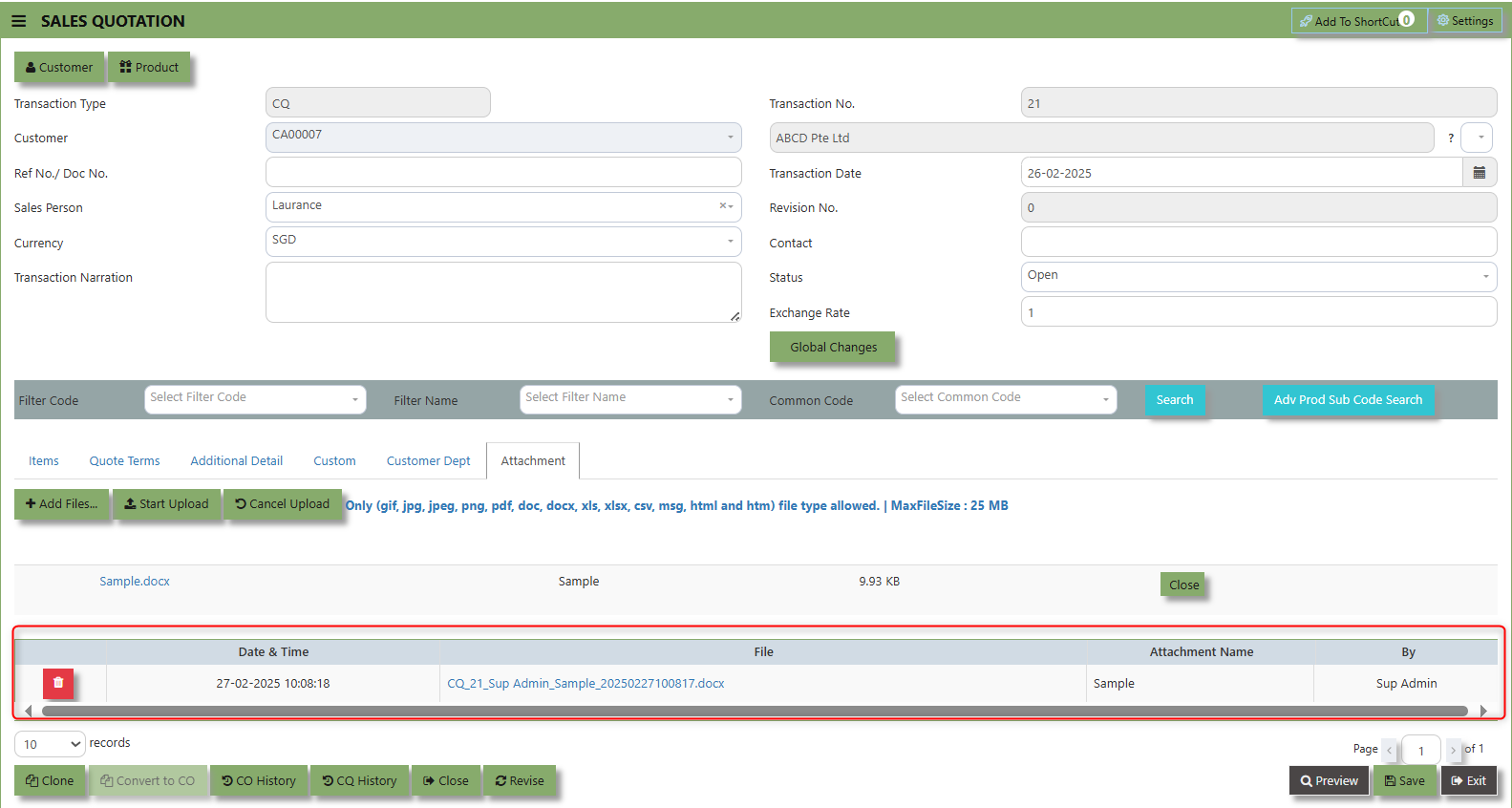
User may opt to cancel the uploading by clicking the "Cancel Upload" button and delete the file uploaded by clicking the "Bin icon" at the line detail.
Reports & Queries
The UNIQ 365 Sales Reports & Queries menu is a user-friendly interface where users can print out the respective reports by specifying the respective fields and sorting criteria. Users can also print the Pending Sales Orders, Sales Order Listing and History Cards, Customer Invoice listings according to their respective PDS (Project, Department, and Section). Detailed reports can also be previewed. The available reports in the Reports/Queries also have the capability to export to Microsoft Word, Excel and PDF. Users can also choose the range according to date, reference number, transaction numbers and Customers for their reports.
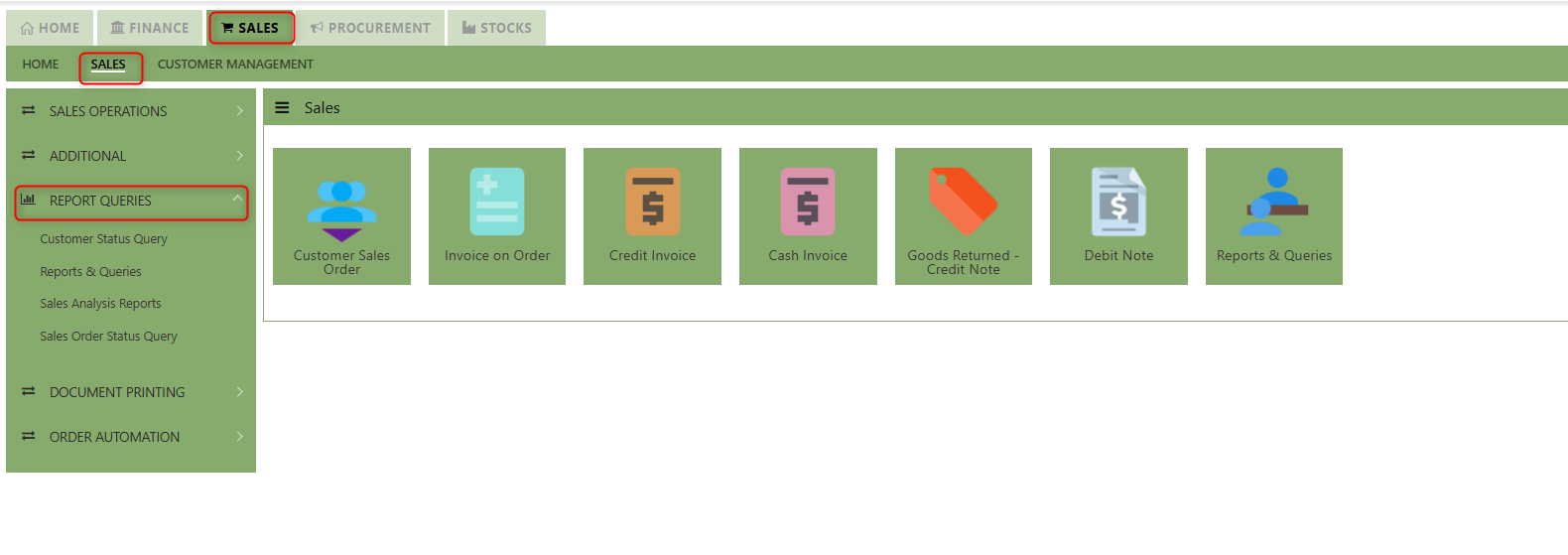
How to locate Report Queries?
- Click on SALES – SALES – REPORT QUERIES for the screen below
Customer Status Query
UNIQ 365 accounting provides a very convenient interface allowing the user to drill down to the detailed transactions.
How to View the Customer Status Query?
1. Click on SALES – SALES – REPORT & QUERIES – CUSTOMER STATUS QUERY for the screen below.
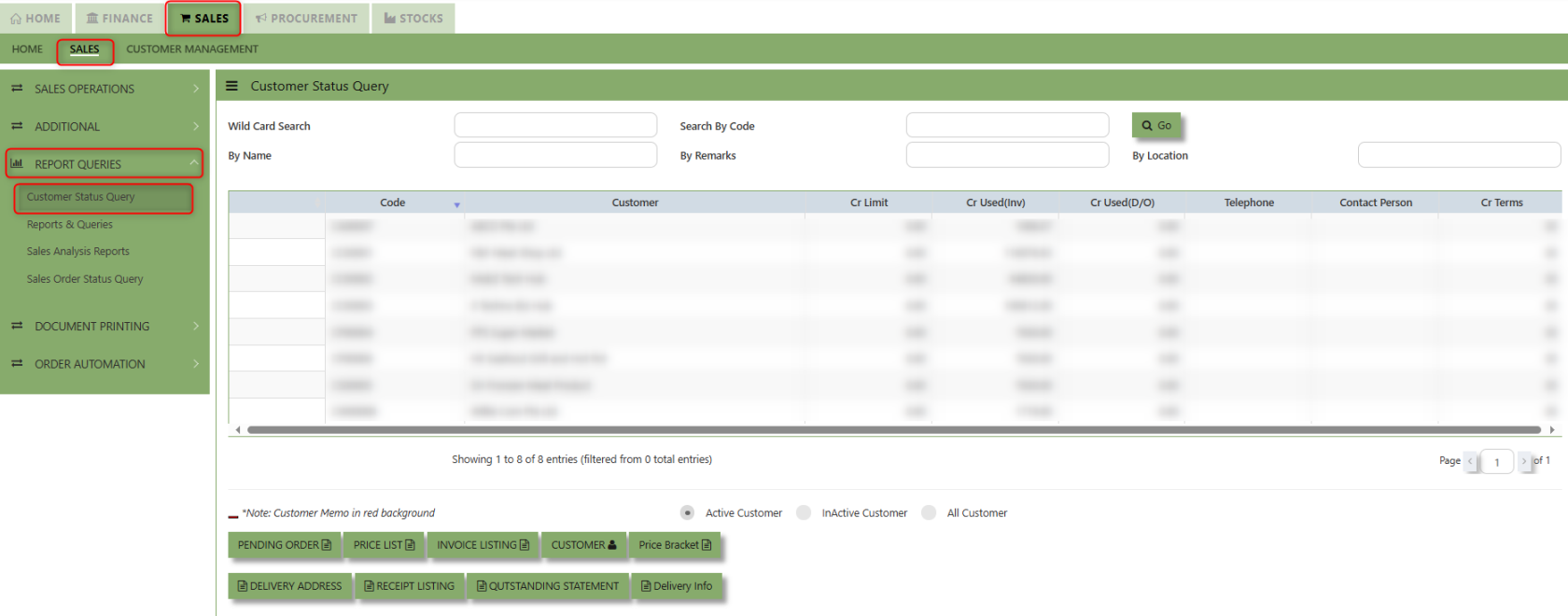
2.You may filter for individual Customers and the following reports can be drilled down to transaction level: (refer the
highlighted screen button.)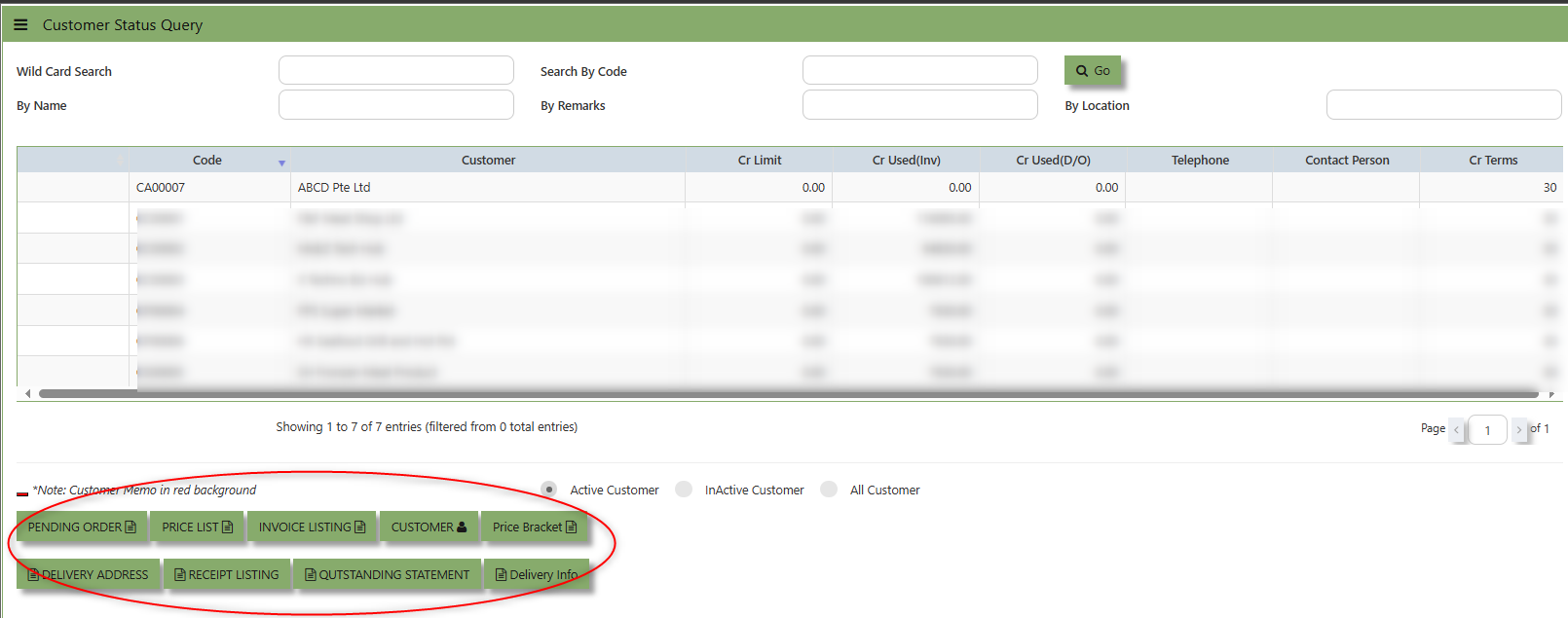
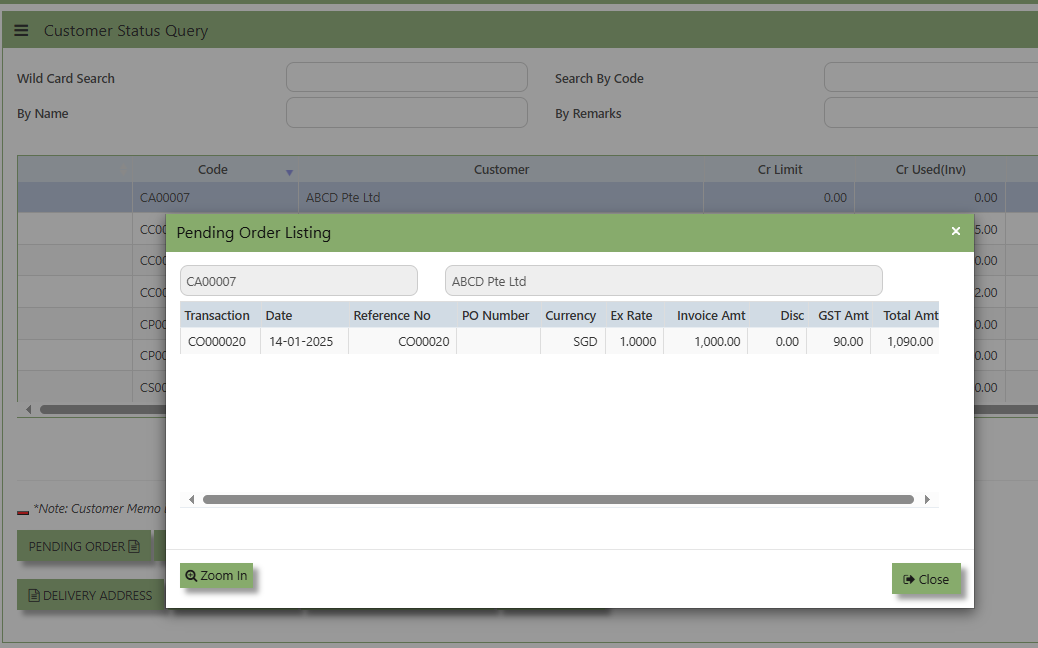
- Pending Orders Button - shows the orders that have been placed with customers but have not yet been fulfilled or processed. You may drill down or visit the transactions by clicking "Zoom In" button inside of this function.

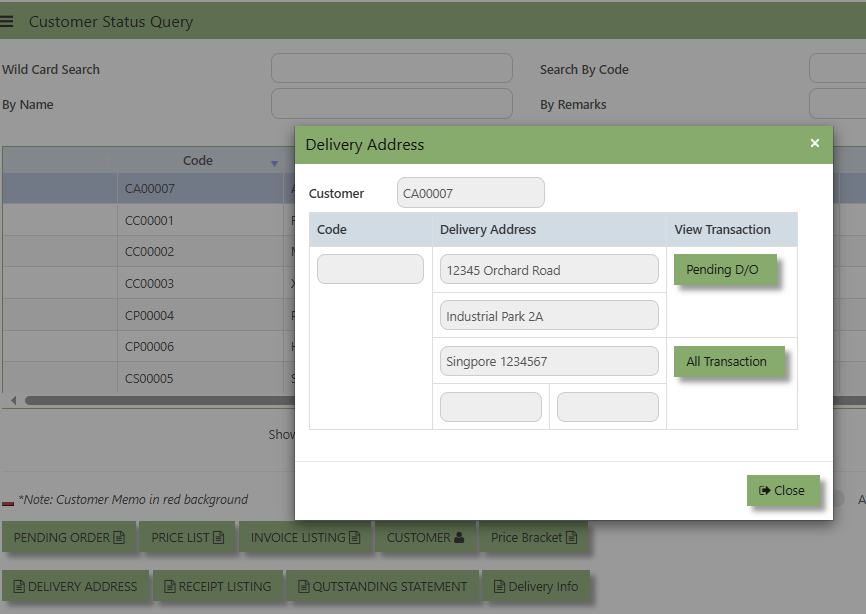
- Delivery Addresses Button - displays the code, pending D/O and delivery addresses associated with the customer.
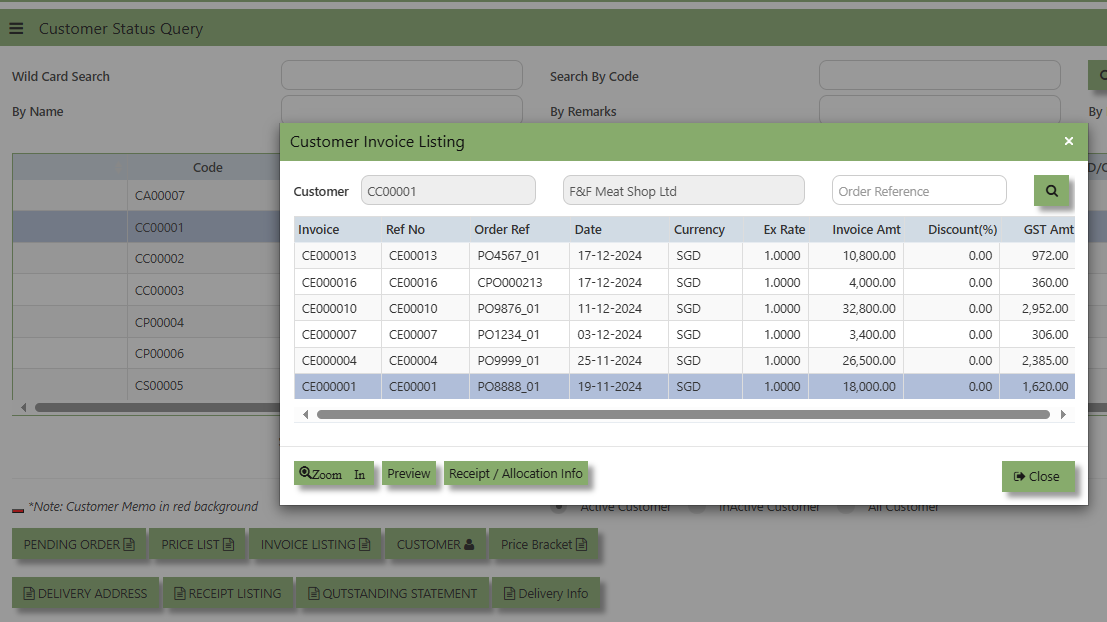
- Invoice Listing Button - will show a list of invoices from customer. These invoices might be in various stages such as unpaid, paid, or pending.
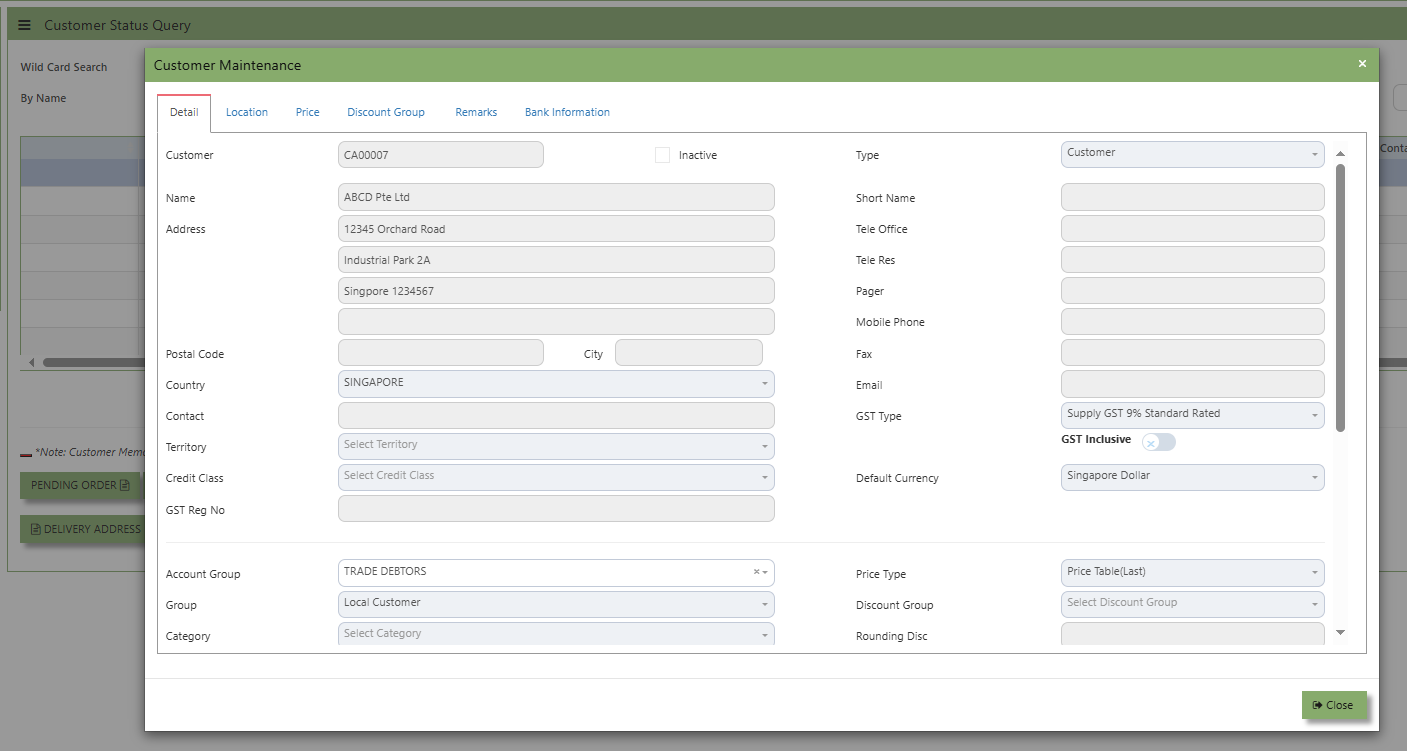
- Customer Button - Allows the user to view or can be used to quickly access customer maintenance of selected Customer. You may drill down or visit the transactions by clicking "Zoom In" button inside of this function.
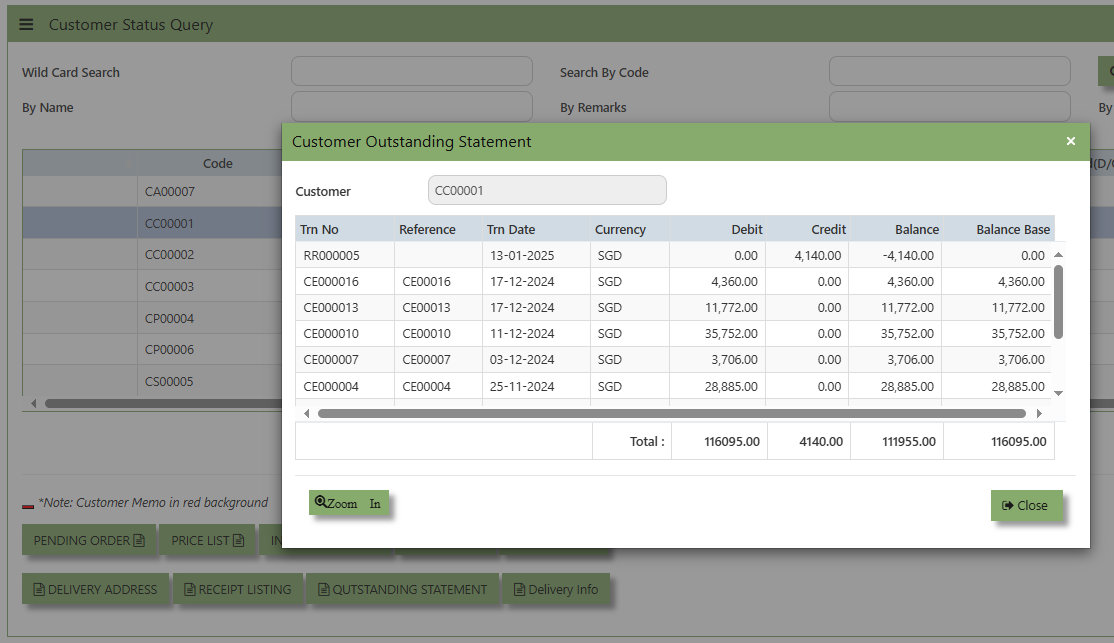
- Outstanding Statement Button - provides an outstanding statement of the customer’s account. It will summarize any unpaid balances or overdue amounts and can be used to review what is outstanding of the customer, including details such as Trn No., Reference, Currency, Double Entry, Balance, Balance Base and Total Amount. You may drill down or visit the transactions by clicking "Zoom In" button inside of this function.
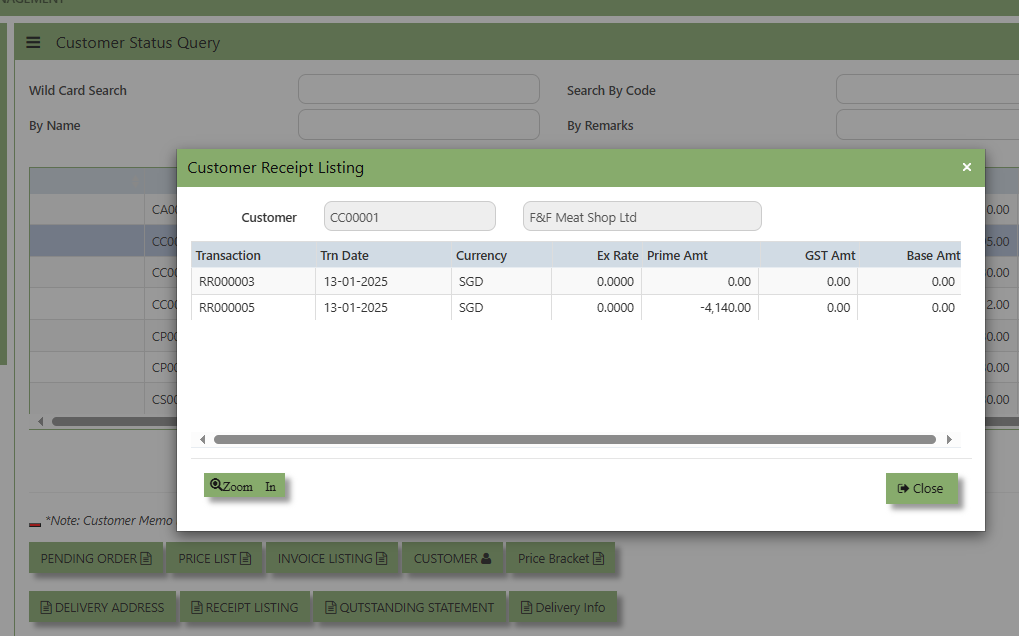
- Customer Receipt Button - will show a list of receipt paid by the customer. You may drill down or visit the transactions by clicking "Zoom In" button inside of this function.
- Delivery Info - will show a list of invoices from customer sorted by Delivery Location. ou may drill down or visit the transactions by clicking "Zoom In" button inside of this function.
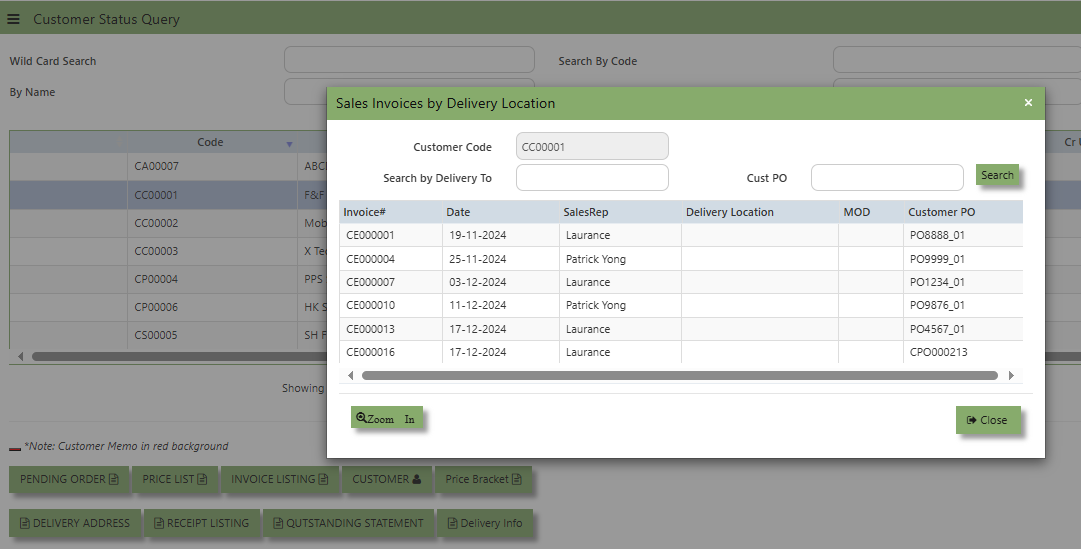
Additional details on the transaction workflow will be covered as part of the Advanced Training.
Report & Queries
UNIQ 365 Reports & Queries interface make it extremely easy for you to take a report in any way you need. Whether it is by date or filtered by departmental or project codes, this option lets you have it. This convenient interface allows the user to drill down to the detail transactions.
How to View the Report & Query?
- Click on SALES – SALES – REPORT QUERIES – REPORT & QUERIES for the screen below .
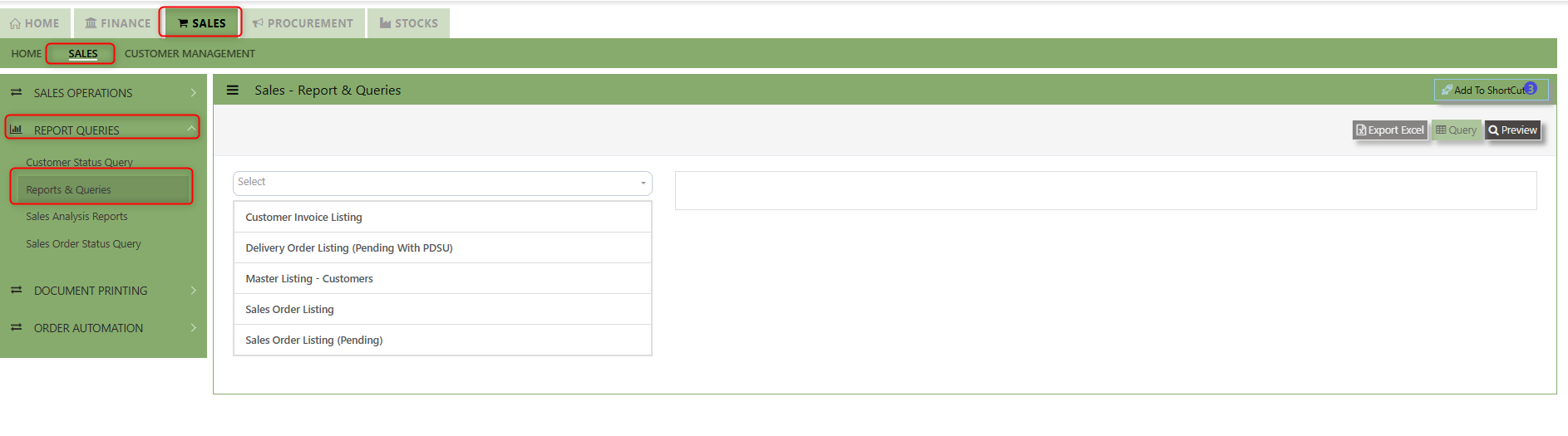
- These reports may be sent to a Preview Screen pop up.
- You may seek by individual report and the following reports can be drilled-down to transaction level:
- Mater Listing - Customer

- Sales Order Listing

- Pending Sales Order

- Pending Sales Delivery Order

- Customer Invoice Listing

- Mater Listing - Customer
- Instead of listing all invoices, you may choose to display only those that are outstanding. From this report, you may also drill down to the document level by clicking Go to Transaction.
- Additional details on the transaction workflow will be covered as part of the Advanced Training
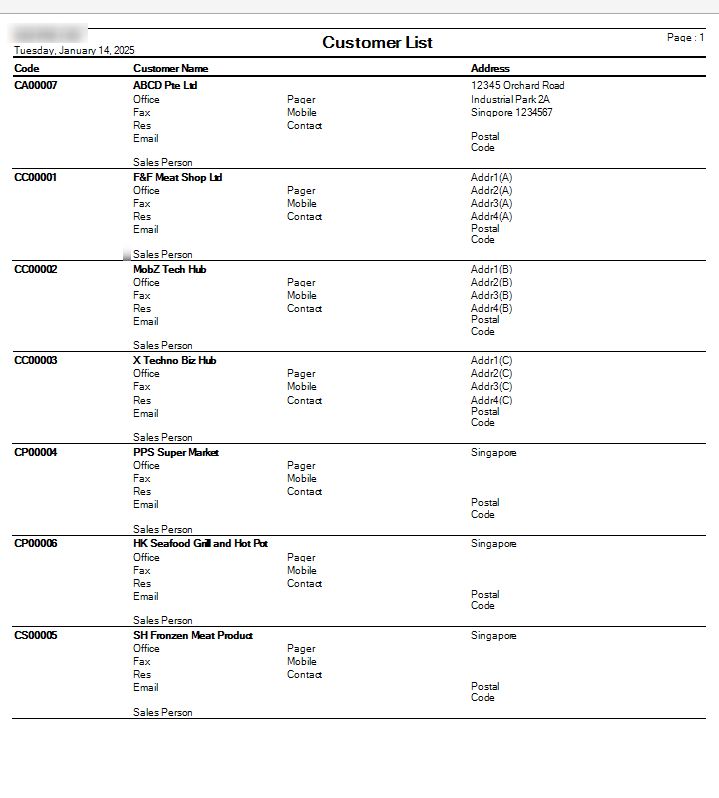
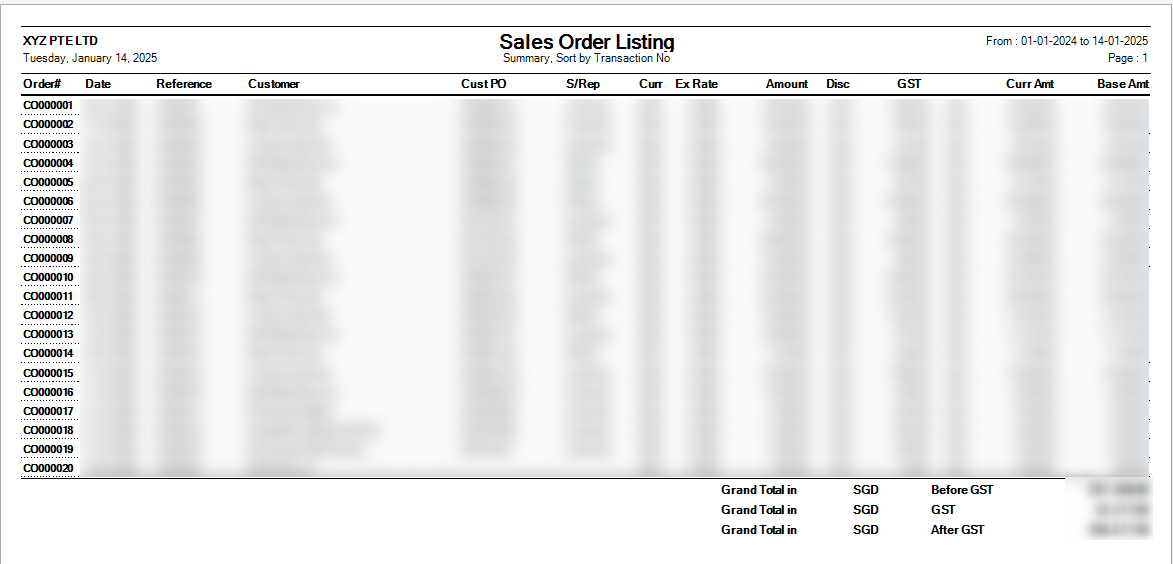
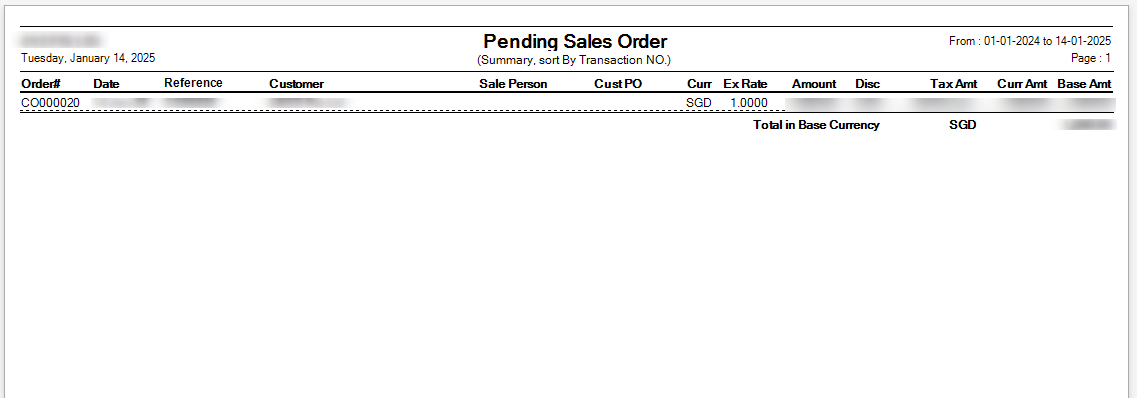
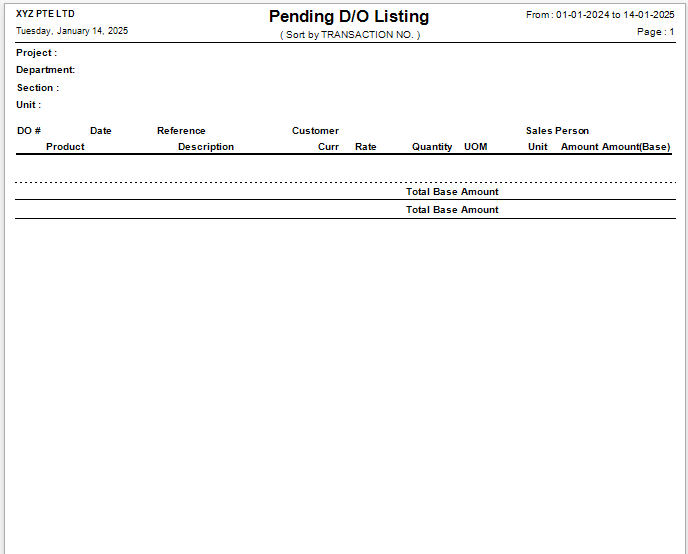
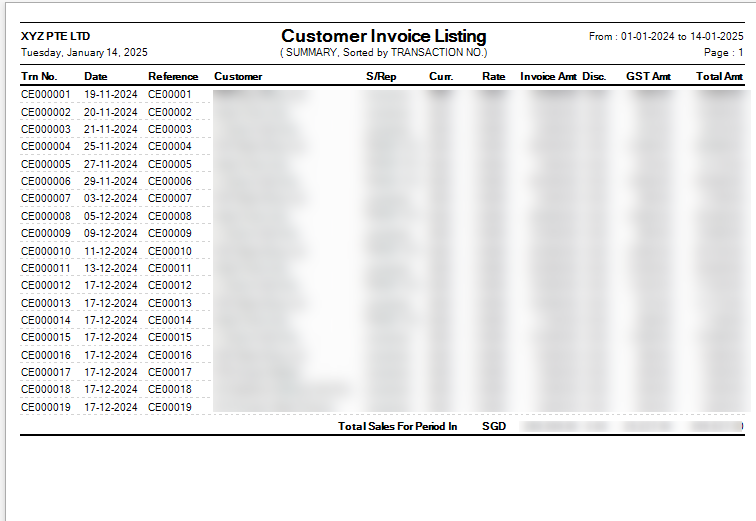
Sales Analysis Report
These reports are meant to provide important Management Information System information for companies to analyze the trend, performance and pattern of their Sales transactions. These reports can be by summary or detailed.
How to View the Sales Analysis Report?
- Click on Sales Operation – Report & Queries – Sales Analysis Report icon for the following screen.

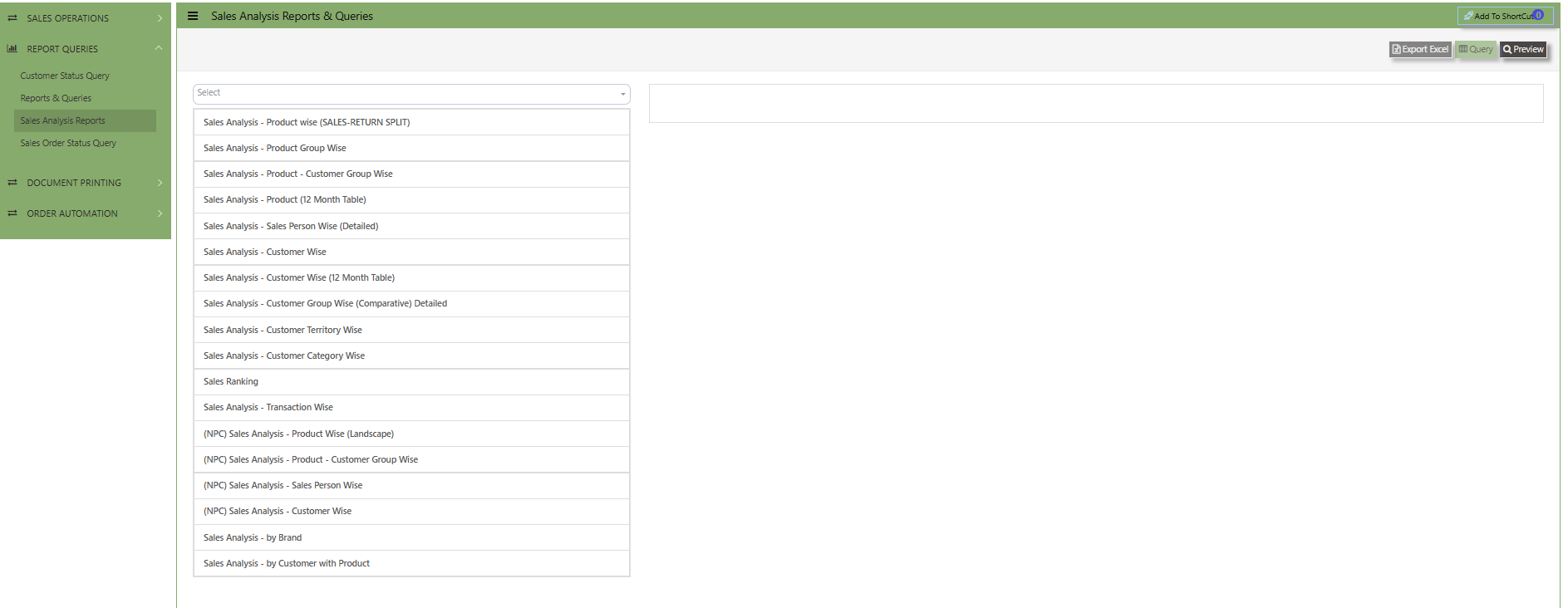
- This option allows the user to view & print the Sales Analysis report in different categories.
- More details on the work flow will be covered as part of the Advanced Training.
Sales Order Status Query
In Uniq365, Sales Order Status Query is a specialized report or query that allows users to view and analyze the status of sales orders (SOs) in real-time. This report helps track the progress of SOs and provides insights into whether an order is open, completed, partially received, canceled, or pending approval, among other statuses.
How to view Sales Order Status Query?
- Click on SALES – SALES – REPORT QUERIES – SALES ORDER STATUS QUERY for the screen below.
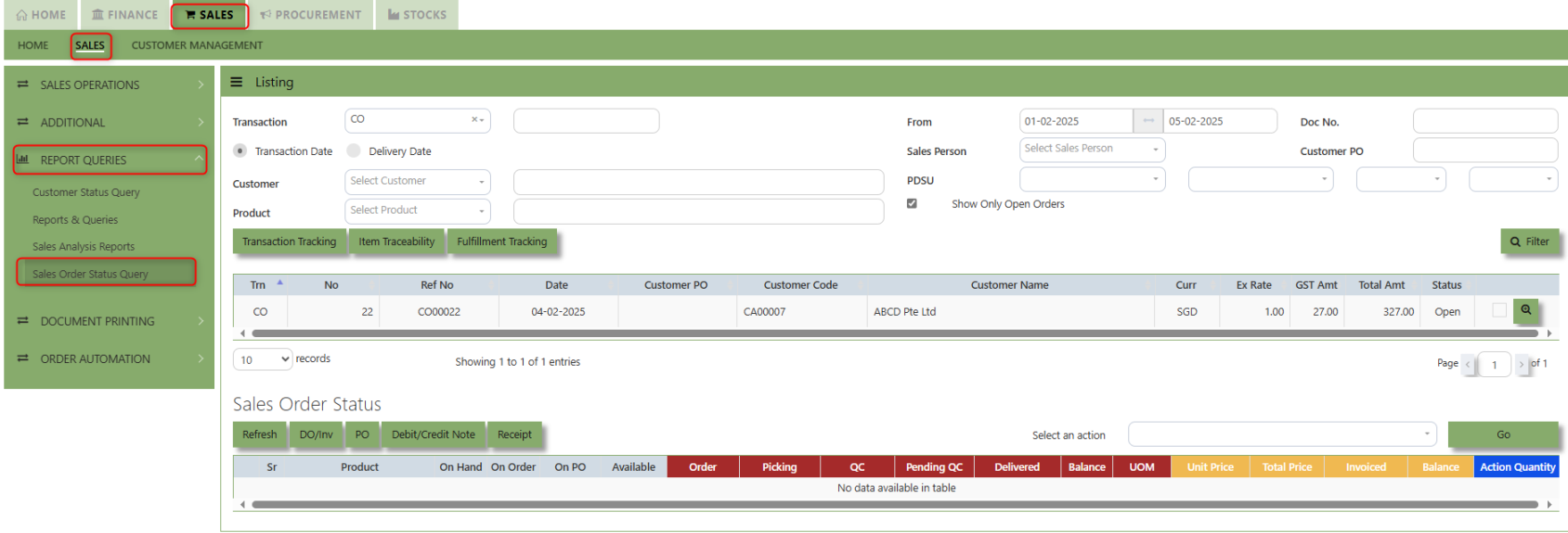
How to use Sales Order Status Query?
- Choose transaction type, Transaction Date or Delivery Date then set the date range, select Customer and Product then click "Filter" button to reflect the data. User may have an option to add filtration by entering Doc. No., Sales Person, Customer PO, PDSU and tick "Show Only Open Orders".

- By selecting the filtered line transaction, details will show under Sales Order Status for user references.

Under "Sales Order Status" below are the buttons that users can utilize:
Refresh Button is used to update or reload the data displayed in the Sales Order Status Query.
DO/Inv Button provides access to the List of Delivery Orders (DO) and Invoices (Inv) associated with the Sales orders.
PO Button provides a quick link to the Purchase Order connected to a sales order, helping users track the fulfillment of purchase orders associated with the Sales order.
Debit\Credit Note Button provides a quick link to the Debit\Credit Note that connected to a sales order, helping users track the fulfillment List of Debit\credit note associated with the Sales order.
Receipt Button provides a quick link to the Receipt Transactions that connected to a sales order, helping users track the fulfillment List of Receipt transactions associated with the Sales order.
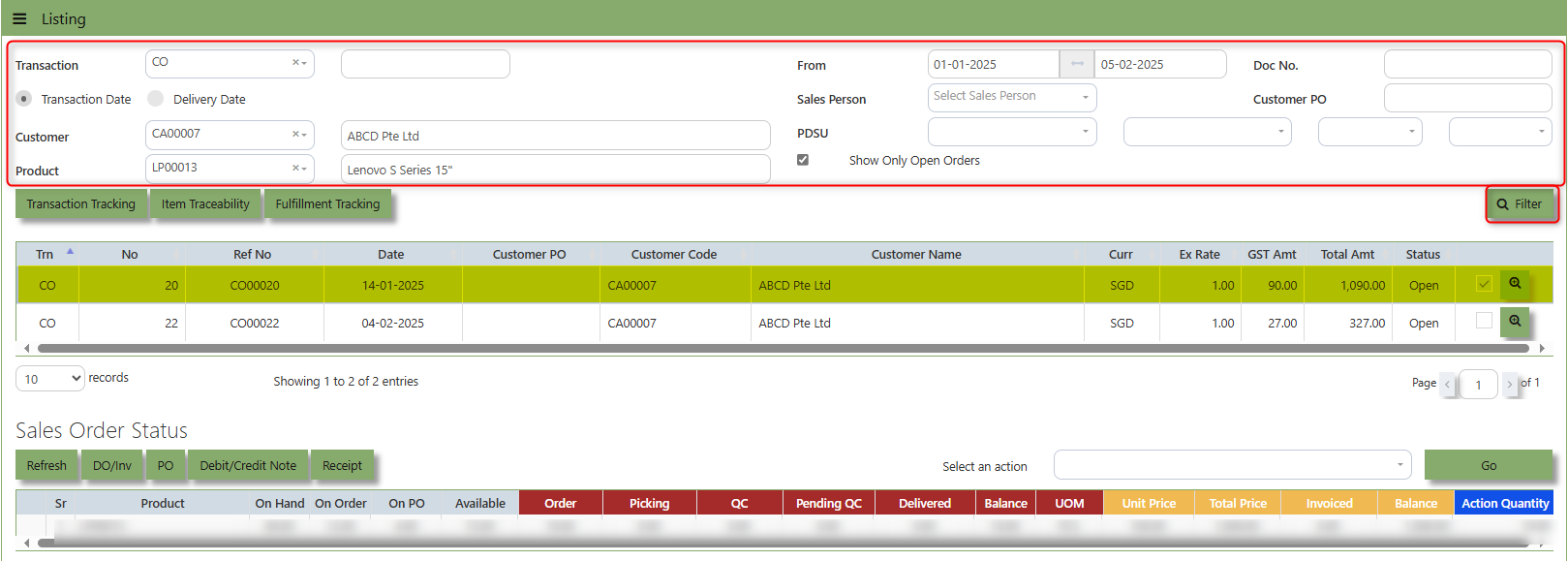
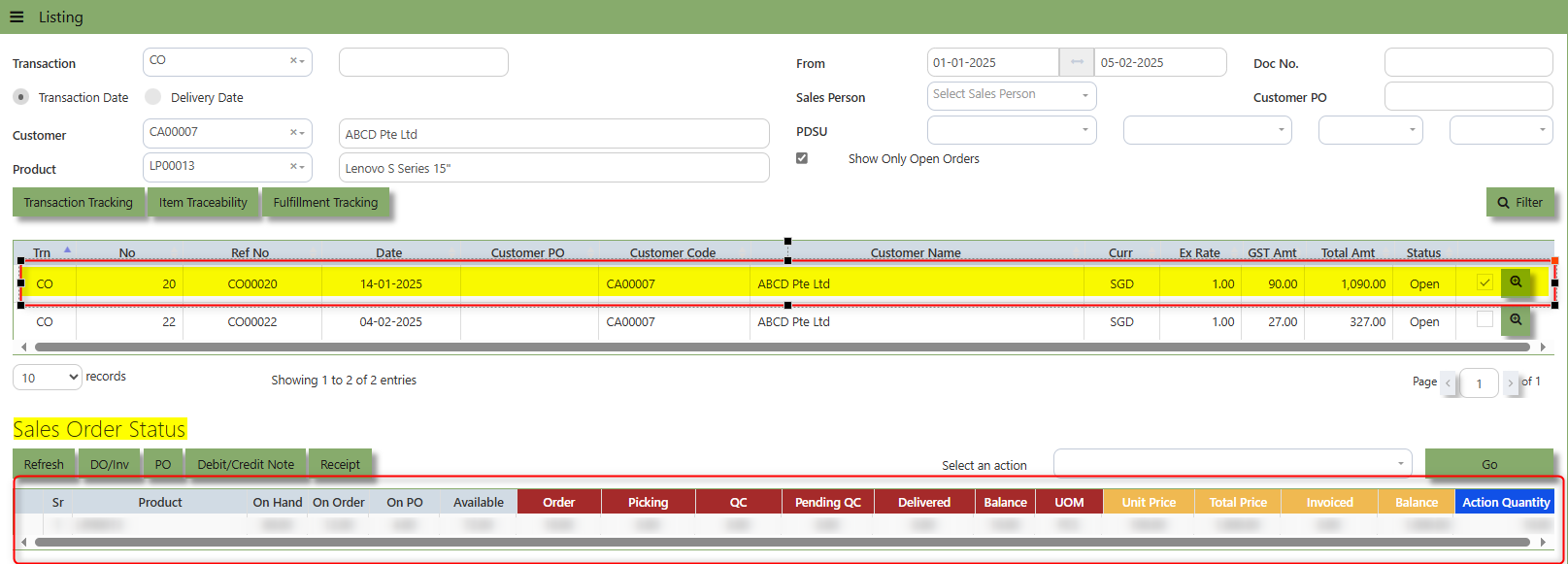
Document Printing
Finally, the document printing option opens the menu for document printing.
How to use Document Printing?
- Click on SALES – SALES – DOCUMENT PRINTING for the screen below.
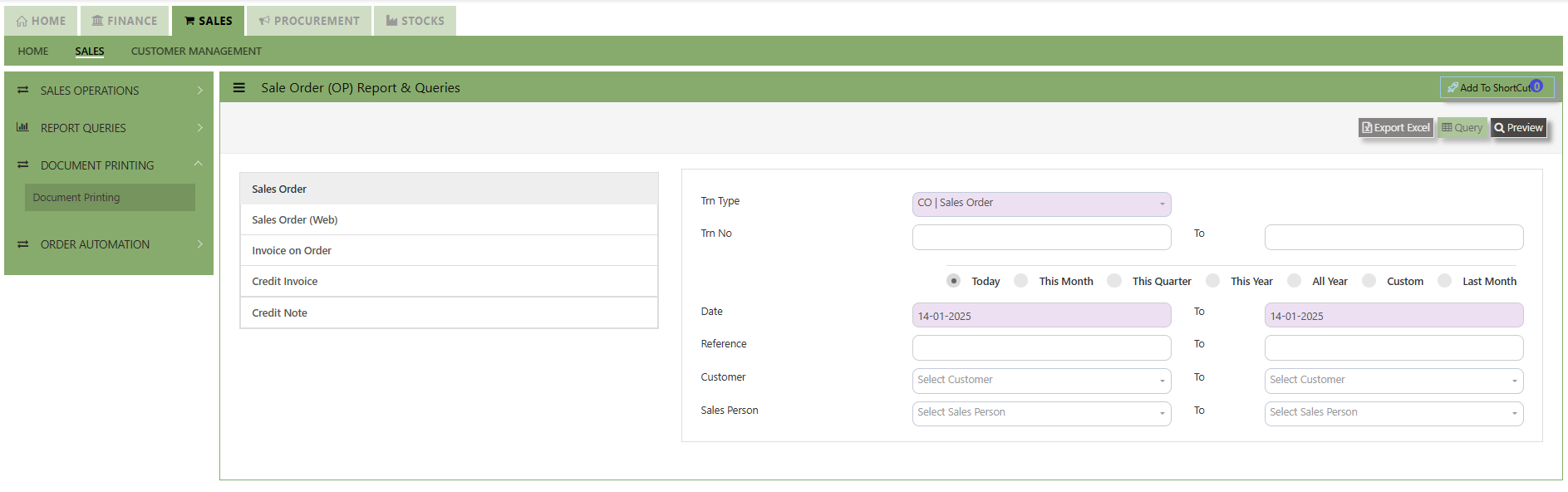
- This option allows user to select the printing of documents a range of document numbers. By previewing the selected report, users can able to download the detailed report into a PDF, XLS, XLSX, DOCX, CSV file, for further analysis, sharing, or record-keeping.