Account Book Creation
- Overview
- Signup for Uniq365
- Additional Accountbook Creation
- Customer Portal - Renew Subscription
- Customer Portal - Update Subscription
Overview
Signup for Uniq365
We have 2 ways to Sign up for Uniq365. One is via the Manual Registration using PARTNERS SUBSCRIPTION PORTAL and second would be the PARTNERS SUBSCRIPTION URL.
PARTNERS SUBSCRIPTION URL
Partner Subscription URL can be found in the Partners Subscription Portal.
a. STEP 1, provide the required field in the Account Info with the given information. Once, done Click the NEXT Button.
- First Name. Fill in the First Name
- Last Name. Fill in the Last Name
- Email address. Supply the information with an active email address. Any form of email will do.
- Password. It must include at least 1 upper letter, 1 lower letter, and 1 number, 1 special character and 8 alphanumeric(s) in length.
- Phone number. Supply the information with an active and valid phone number
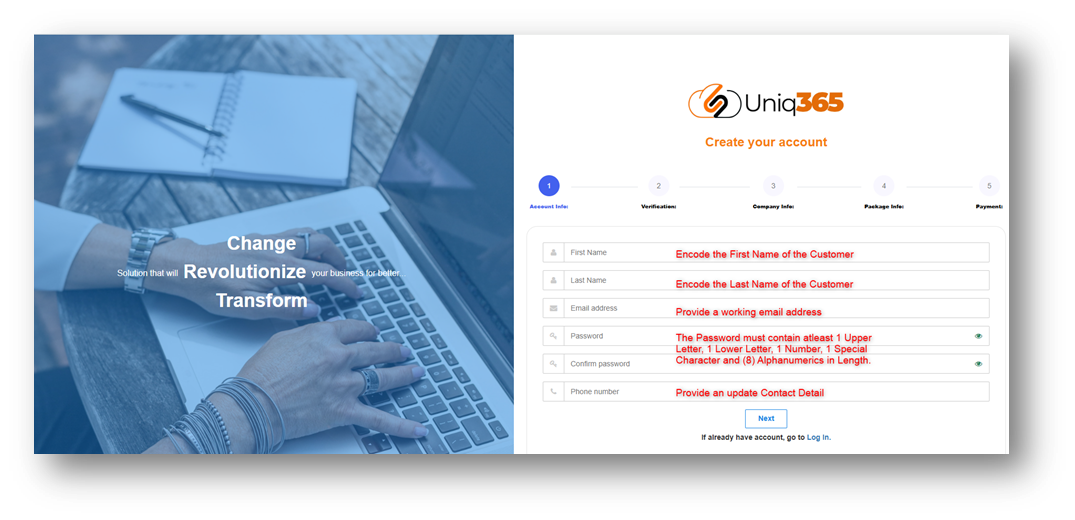
b. STEP 2, Under the Verification step a verification code will be then emailed on the registered contact details.
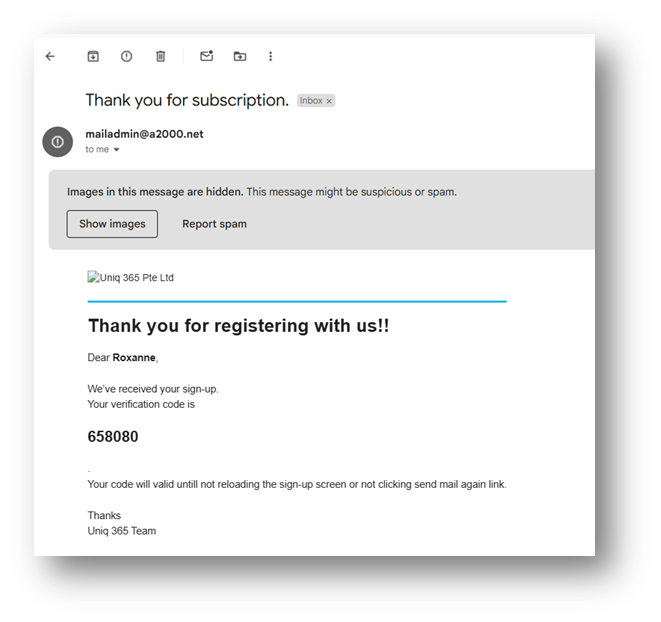
Encode the verification code that you will received on your provided email and click VERIFY.
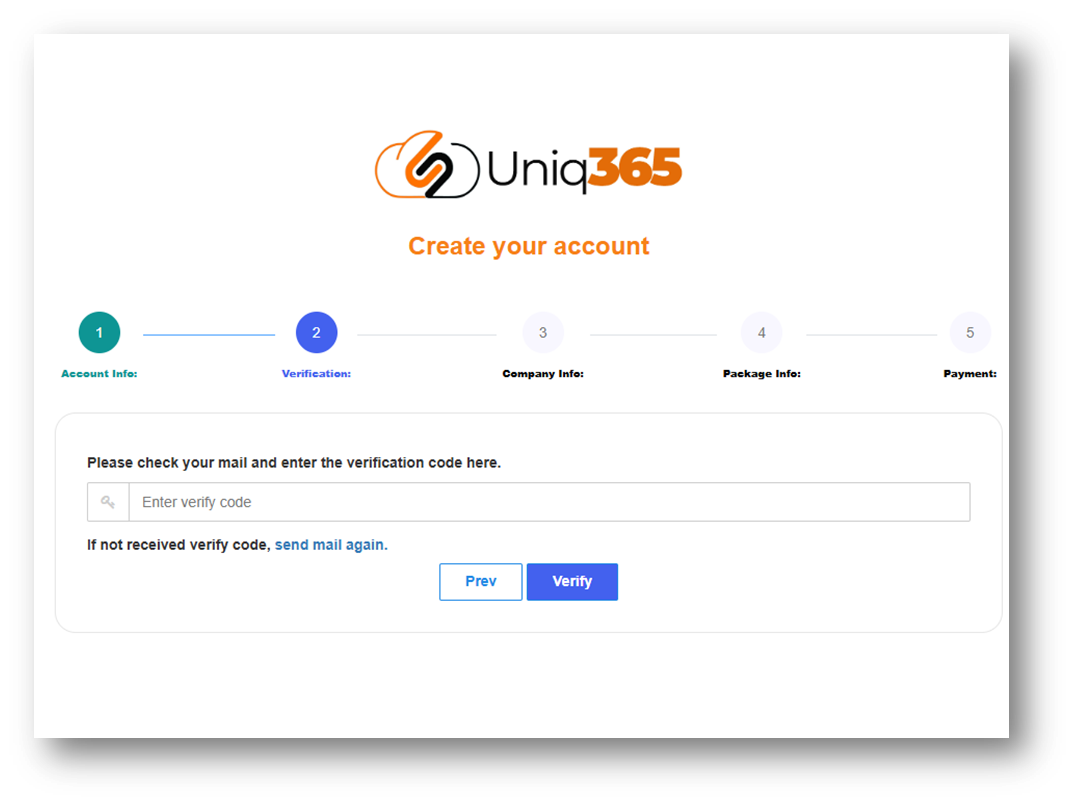
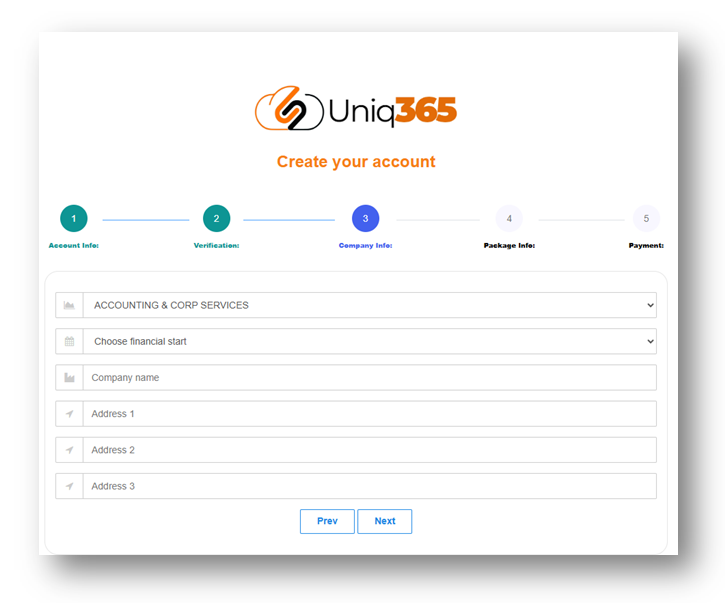
c. STEP 3, Provide the Company Information Needed.
- Industry type. Choose from the dropdown the industry that your company belongs to.
- Financial Start. Enter the start of your financial period.
- Company Name. Encode the name of your company.
- Address. Encode the complete address of your company.
Once all the required information are encoded click NEXT to proceed with the Next Step.
d. STEP 4, Verify the Package Info for the summary.
- Subscription Package. Select the subscription package you want to avail.
- Subscription Package Details. Once the subscription package is selected, details regarding how many users, years of subscription and other inclusion of the package will appear.
- Amounts and discount. The amount that will be paid as well as the discount availed will be shown.
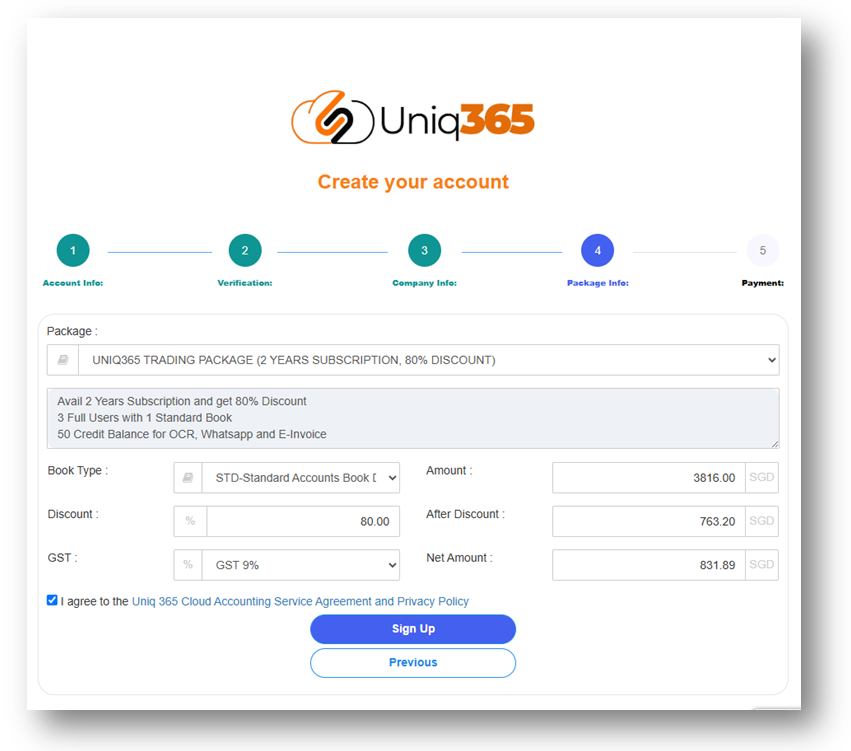
After verifying all the information, TICK the Uniq365 ERP Service Agreement and Privacy Policy.
If you agree to the policy, please tick the box so you can proceed to sign up.
Before you clicked, Sign Up, please makes sure that all your details from 1-4 are correct because once you clicked you can never go back with the previous as it will re-direct you to the next phase which is Payment Confirmation.
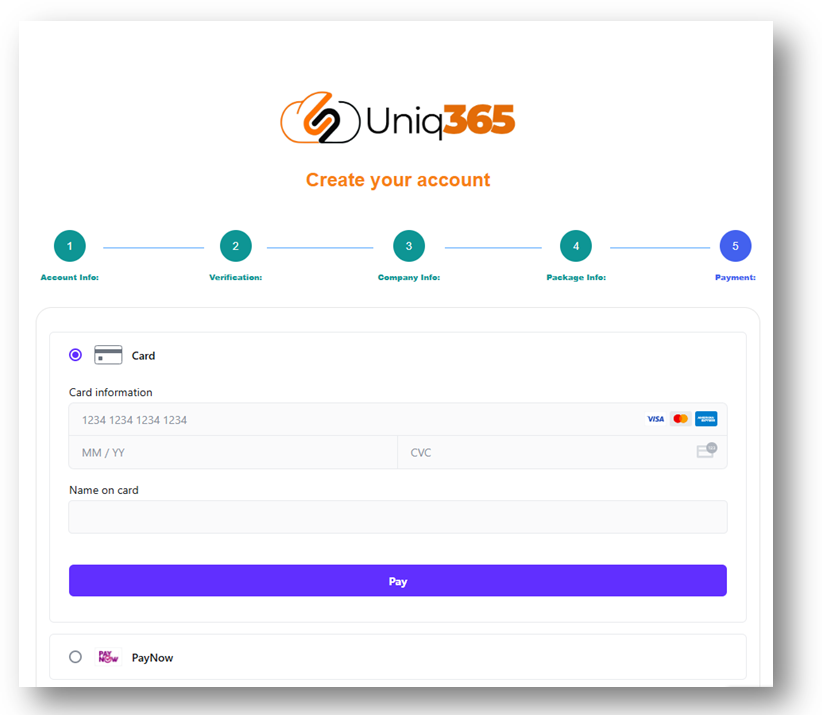
e. STEP 5, Encode the Payment Information as required.
Currently the payment Option that is available in UNIQ365 is Credit Card and PayNow.
PARTNERS SUBSCRIPTION PORTAL
Uniq365 Partner's Subscription Portal is a dedicated online platform designed for partners to manage their customer's subscription-related activities. This portal typically provides a range of features that allow partners to interact with the services or products they are subscribed to, track usage, and perform administrative tasks.
The link can be access provided below.
https://member.uniq365.com/Membership/MemberShipIndirectUsers/Login
__________________________________________________________________________________________________________________________________________
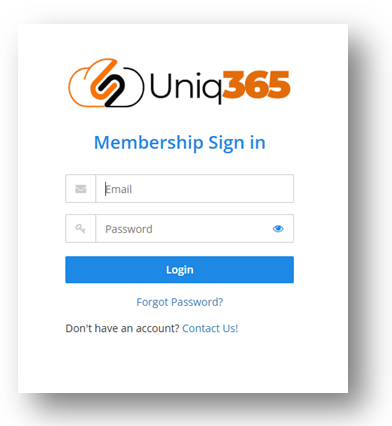
a. Login in the PARTNER SUBSCRIPTION PORTAL using the provided link: https://member.uniq365.com/Membership/MemberShipIndirectUsers/Login
Input the email address and Password accordingly.
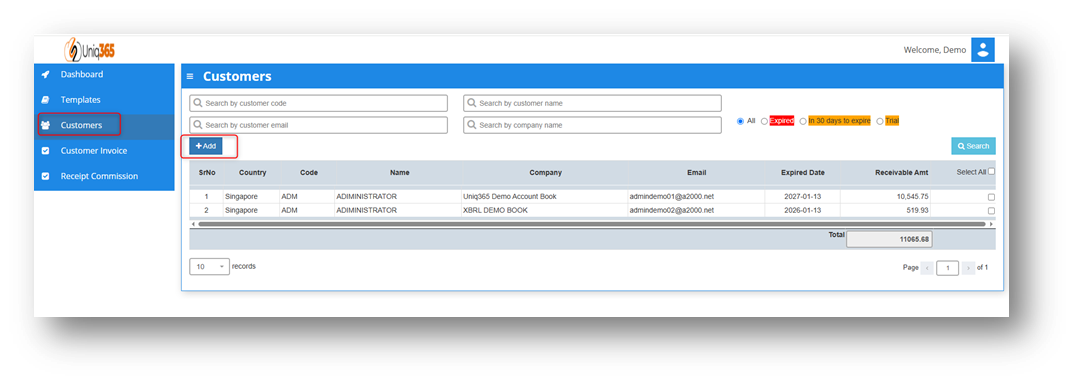
b. Under the Customers TAB Click the +ADD Button, then it will prompt the steps that you need to do in order to proceed with creating a customer.
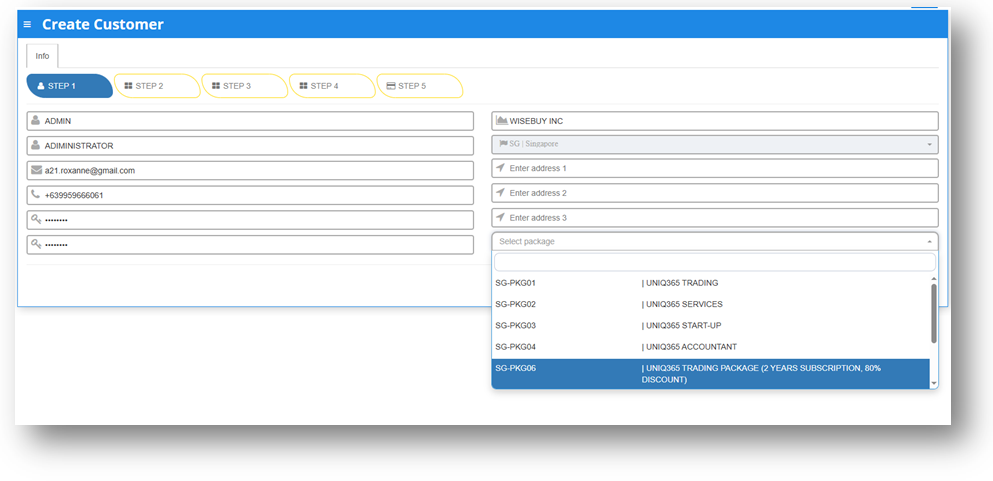
c. STEP 1, Encode the CUSTOMER DETAILS needed.
Fill in the following information required:
- Usercode.
- Username.
- Email Address.
- Phone Number.
- Password.
- Confirm Password.
- Company Name.
- Company Address.
- Select Package.
Once all these following information are filled after selecting package it will direct you to STEP 5 for Payment.
STEPS 2-4 will be following the default for the package that has been selected in the first step. If you want to review the following inclusions of the package you may revisit Steps 2-4.
d. STEP 2, USER DETAILS
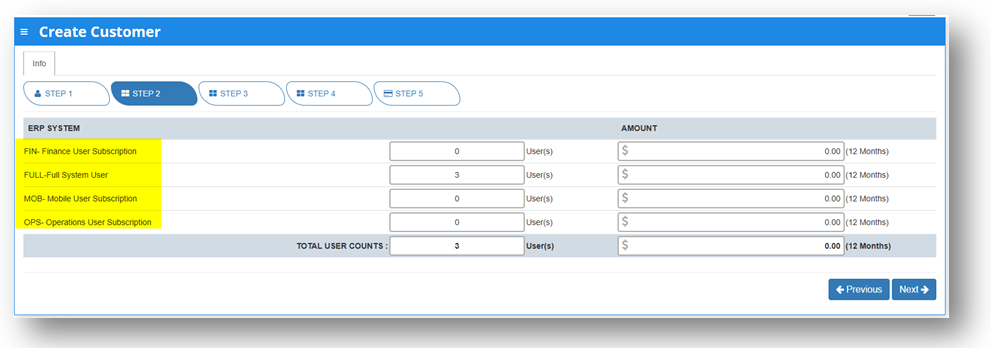
In Step 2: User details, partners can modify the number of users for each type.
TYPES OF USERS
- FINANCE USER. User who are assigned this access can only access the finance tab, which comprises the General Ledger, Cash Book, Accounts Receivables and Accounts Payable module.
- OPERATIONS USER. User who are assigned this access can only access the operational tabs, which comprises the Sales, Procurement and Inventory module.
- MOBILE USER. User who are assigned this access can only access the system via a mobile device to run mobile sales and warehouse functions.
- FULL USER. User who are assigned this access can only access the all the tabs and modules which are accessible to FINANCE, OPERATIONS and MOBILE users
CAN I ADD/REDUCE NEW USERS AT ANYTIME?
Yes, you may add any number of new users in your Subscription Plan. Any users added half-way in the subscription period will be pro-rated to the duration left till the next expiry. For example, in 3 months into your subscription period you may add a new user. This new user will be billed for only 9 months till the end of the mother-contract
No, you may not reduce the number of users halfway through a subscription period. You must wait till the end of subscription period and then reduce according to your needs, only during renewal.
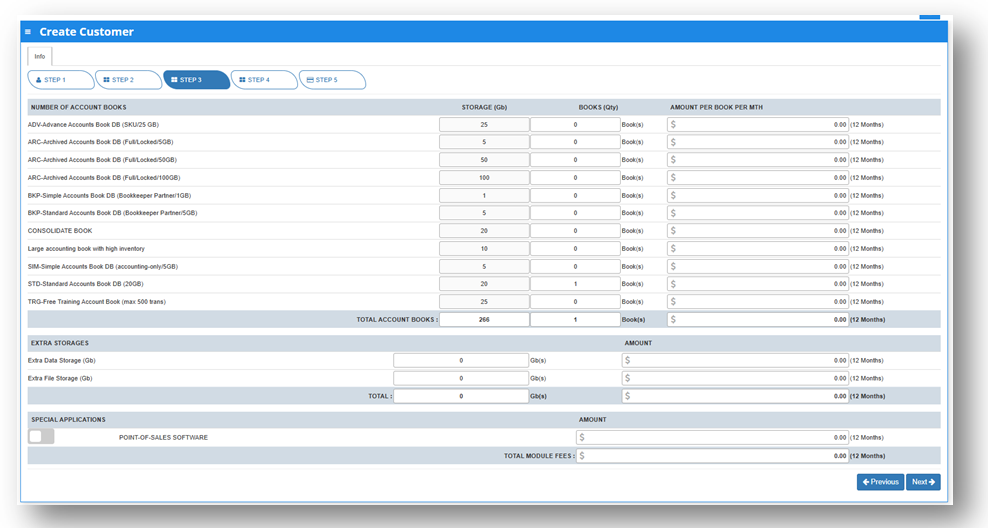
e. STEP 3, Account Book Details, Extra Storage & Special Application(Customization) if ANY.
Depending on the package they have selected, the details on the quantity of storage and account books will be displayed here.
In any event, they can access more storage if they've used up all of their subscription storage by modifying the desired add-ons for this steps.
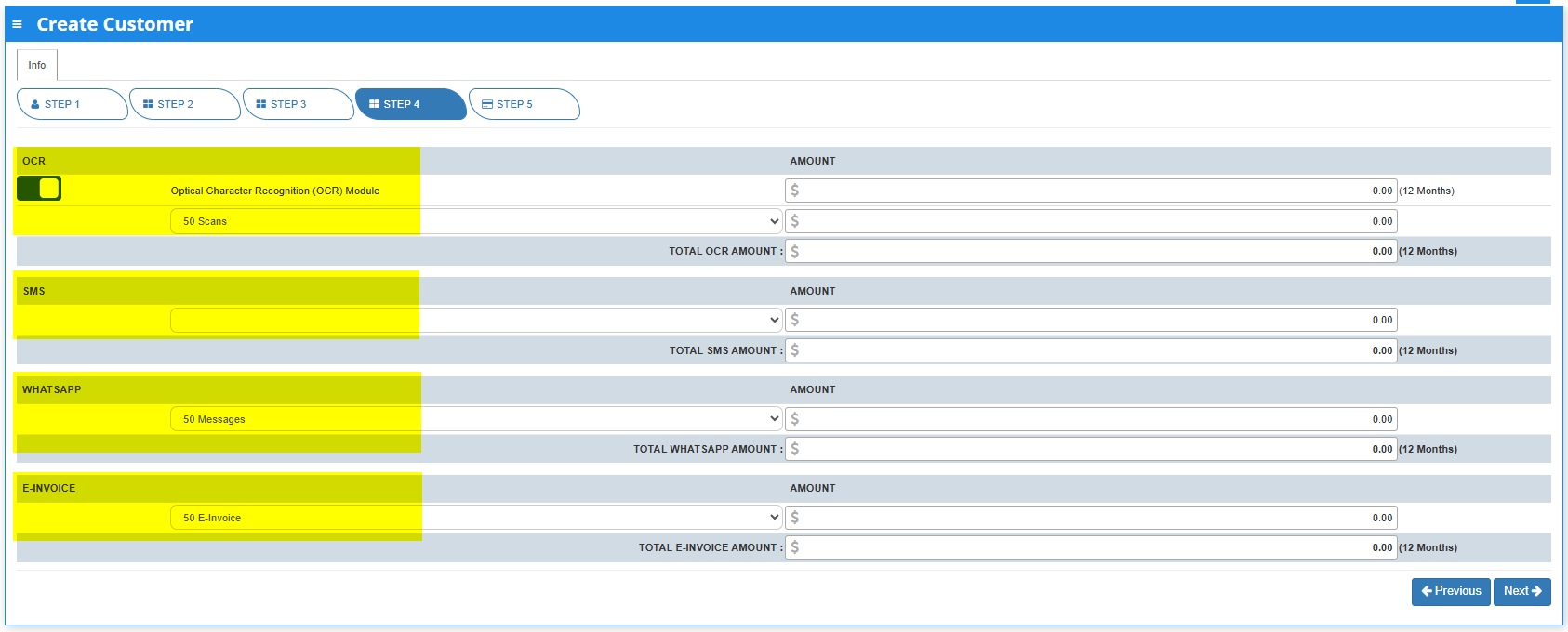
f. STEP4,OCR, SMS, WHATSAPP AND E-INVOICE LIMIT.
Any excess of usage in the package that the customer availed it will be subject to corresponding charges.
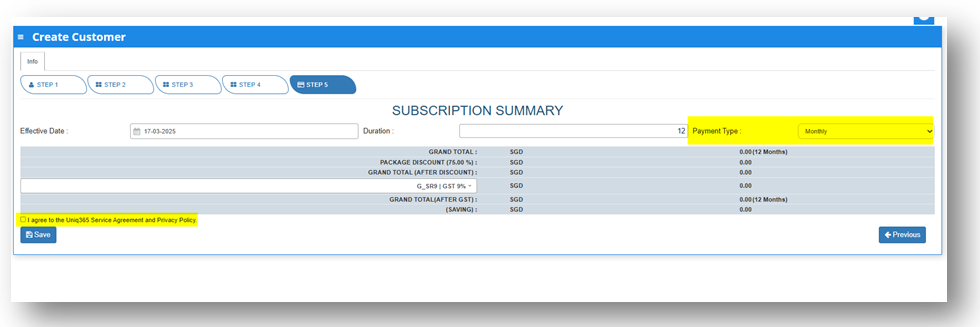
g. STEP 5: SUBSCRIPTION SUMMARY
- Select the payment type in the dropdown, options are either monthly or yearly.
- Tick the box to agree to the A2000ERP Service Agreement & Privacy Policy before saving.
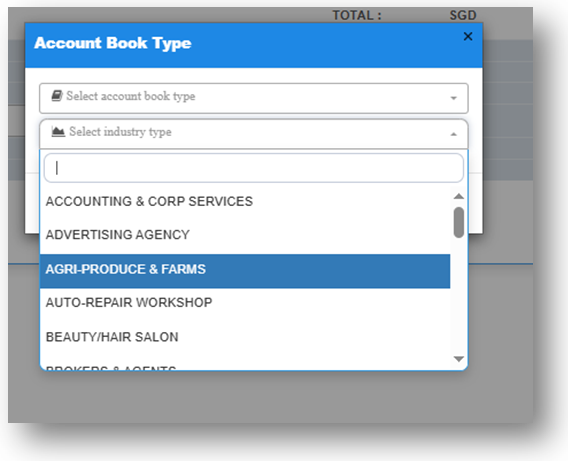
- After saving information, a pop-up message will appear so you can select the account book type and the industry type .
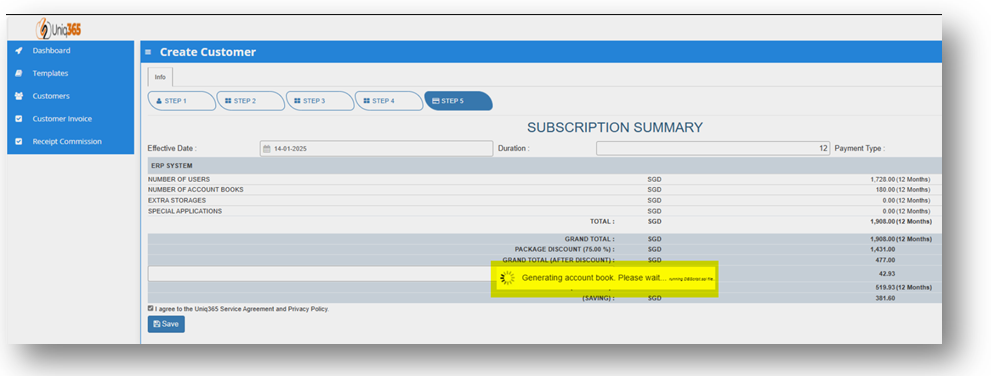
- Once hit save, a message will prompt indicating that system is currently generating account book. Please wait and do not do anything. If there is any interruption during the generation of account book, please reach out to us.
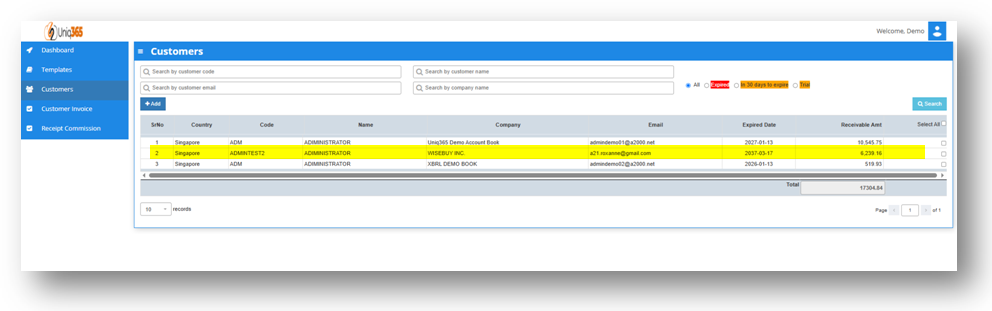
h. To verify for the newly created Customer. Navigate on the Customer's list.
Additional Accountbook Creation
How To Clone an Existing Accountbook
This manual will going to teach you how to Clone an Accountbook.
___________________________________________________________________________________________________________________________________________
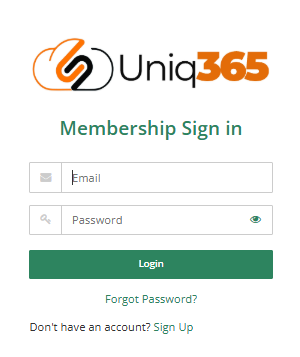
1. Login in the Customer Subscription Portal using this provided link.
https://member.uniq365.com/Membership/MemberShip/Login
Encode the Email and Password Accordingly.
2. Navigate to CLONE DATA and fill up the required fields.

Fill up the following fields:
- Source Accountbook - Pertaining to the Accountbook that you want to copy for the master files.
- Destination Accountbook - Pertaining to the Accountbook destination for cloning purposes.
- Customer Supplier Configuration
Select the Customer/Supplier that you want to add on the new accountbook.
You can Select all or only select prefered customer/supplier.

- Product Configuration
Select Product that you want to add on the new Accountbook.
You can Select all or only select preferred Products.

- Chart of Accounts Configuration
Select specific COA that you want to add on the new Accountbook.
You can Select all or only select preferred COA.
Has the option to delete existing COA Accounts prior to cloning process.

- Warehouse Configuration
Select specific Warehouse that you want to add on the new Accountbook.
You can Select all or only select preferred Warehouse.

- Others Configuration
Select specific Master tables to be carry forward on the new clone Accountbook.

3. Once all are properly configured CLICK the CLONE Button to proceed with the process. Once done check the Company Listing if the new cloned Accountbook is created.

How to Add a New Accountbook in the Customer Subscription Portal
This manual will going to teach you how to create a new additional Accountbook in the Customer Portal.
___________________________________________________________________________________________________________________________________________
- Login in the Customer Subscription Portal using this provided link.
https://member.uniq365.com/Membership/MemberShip/Login
Encode the Email and Password Accordingly.
2. Before Accountbook Creation, check first the Allowable Accountbook for Creation.
You can navigate in UPDATE SUBSCRIPTION -> STEP 3 -> Look for the value STD-Standard Accounts Book DB (20GB) and update accordingly.
You only have to configure this if you have no available balance for accountbook in the Customer Subscription Portal. Continue to STEP 4, STEP 5 and Payment to update successfully.

3. Once you've already added new Accountbook on the Subscription, You can now Add the new book.
Navigate to Company List -> Click +Add New Company

Encode the Required Information on the new Accountbook. Once Done, Click the SAVE Button.

4. Go back to the Company List to verify the newly created Accountbook.

Customer Portal - Renew Subscription
Renew Subscription is where the UNIQ365 Customers can process their Monthly, Yearly Renewal. They have the option to configure their desired number of User Types and classification, No of Books to Configure and enable other custom functionality.
________________________________________________________________________________________________________________________________________________
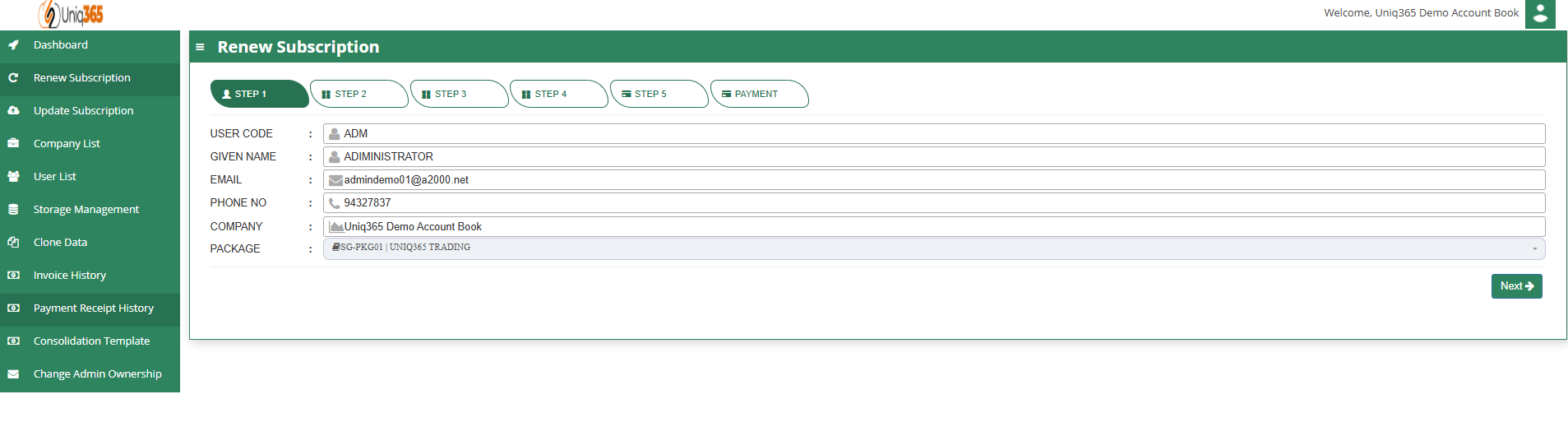
1. STEP 1, CUSTOMER DETAILS
It shows the primary Customer Details such as User Code, Given Name, Email, Phone No, Company and Package Selection.
2. STEP 2, USER TYPE DETAILS
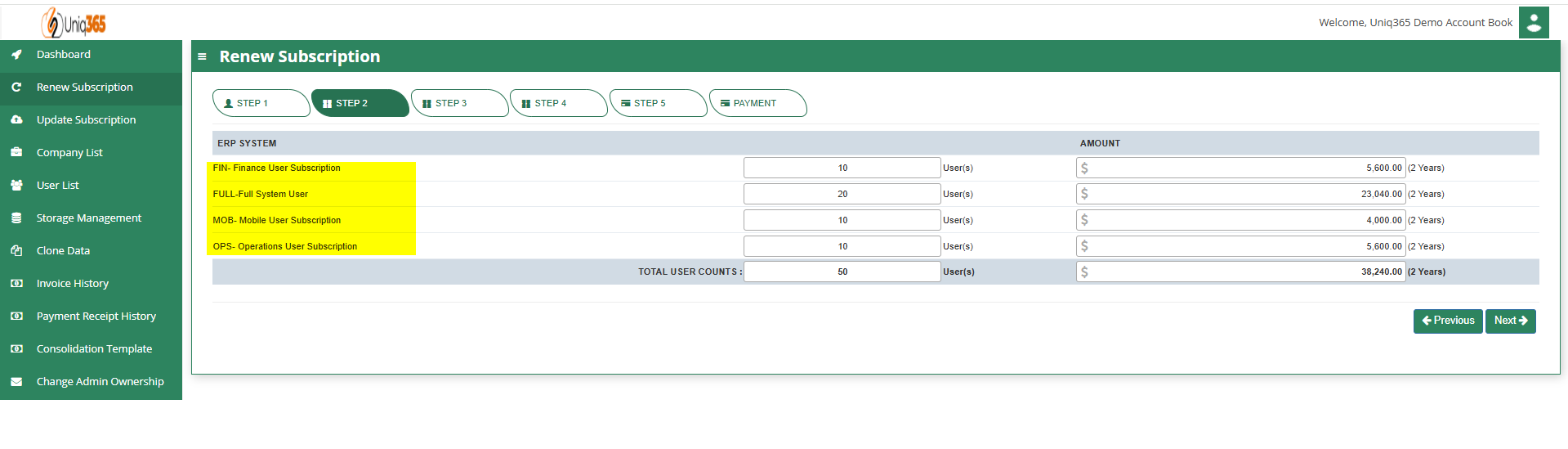
In this step you can revise the number of users (Add/Reduce) If you are reducing the number of users, please deactivate the users from the respective account book(s) first. You cannot reduce the subscription users below the number of distinct users in all your account books.
TYPES OF USERS
- FINANCE USER. User who are assigned this access can only access the finance tab, which comprises the General Ledger, Cash Book, Accounts Receivables and Accounts Payable module.
- OPERATIONS USER. User who are assigned this access can only access the operational tabs, which comprises the Sales, Procurement and Inventory module.
- MOBILE USER. User who are assigned this access can only access the system via a mobile device to run mobile sales and warehouse functions.
- FULL USER. User who are assigned this access can only access the all the tabs and modules which are accessible to FINANCE, OPERATIONS and MOBILE users
CAN I ADD/REDUCE NEW USERS AT ANYTIME?
Yes, you may add any number of new users in your Subscription Plan. Any users added half-way in the subscription period will be pro-rated to the duration left till the next expiry. For example, in 3 months into your subscription period you may add a new user. This new user will be billed for only 9 months till the end of the mother-contract
No, you may not reduce the number of users halfway through a subscription period. You must wait till the end of subscription period and then reduce according to your needs, only during renewal.
3. STEP 3, ACCOUNTBOOK DETAILS, EXTRA STORAGE & SPECIAL APPLICATION(CUSTOMIZATION)
Depending on the package they have selected, the details on the quantity of storage and account books will be displayed here.
In any event, they can access more storage if they've used up all of their subscription storage by modifying the desired add-ons for this steps.
4. STEP 4,OCR, SMS, WHATSAPP AND E-INVOICE LIMIT
Any excess of usage in the package that the customer availed it will be subject to corresponding charges.
5. Step 5, SUBSCRIPTION SUMMARY
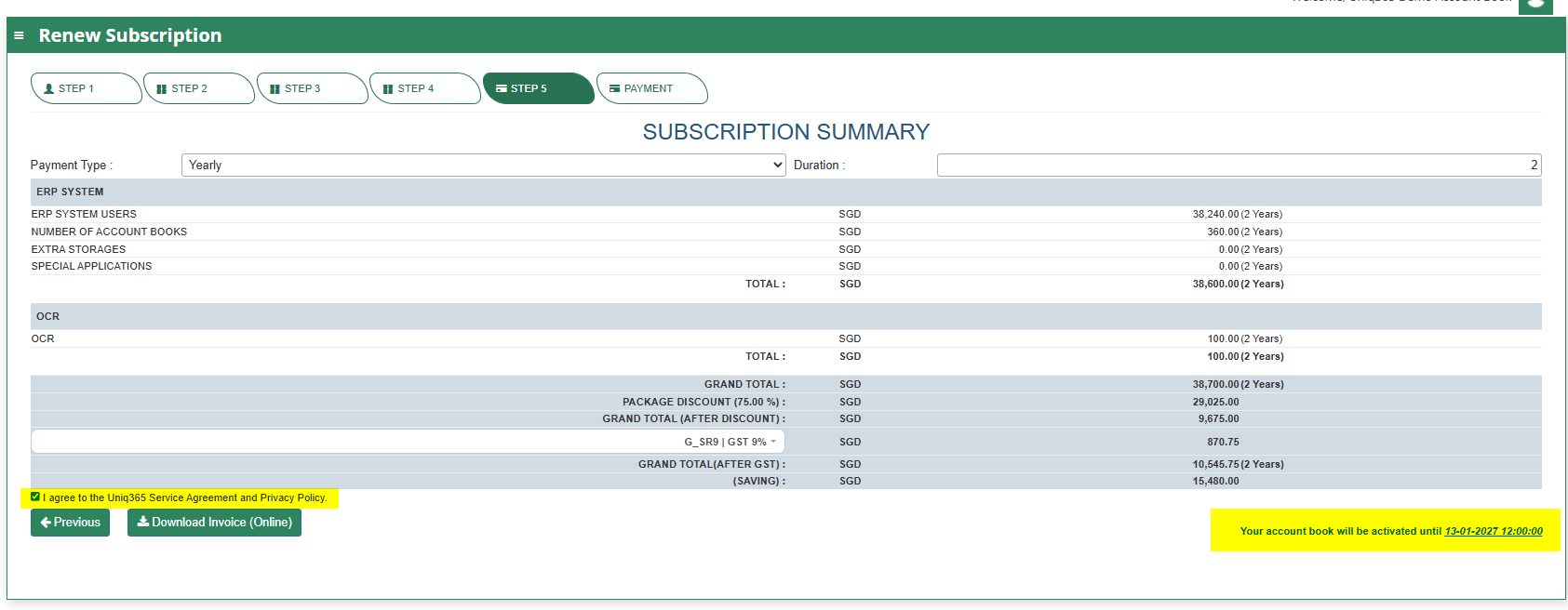
The Subscription Summary will give you an overview of the Summary Payment from Total Number of Users, Total Number of Accountbook, Total Storages and Summary of Special Applications including OCR.
- Payment Type will be classified by Monthly and Yearly as an Option which includes identification of Duration.
- Once all are in place and countercheck, the user needs to agree with the Uniq365 Service Agreement & Privacy Policy before renewing.
- An indication of the validity timeline of the renewal is also indicated on the below right most part of the user interface.
6. STEP 6, PAYMENT
Renewal Payment Option via CREDIT CARD or PAYNOW.
Customer Portal - Update Subscription
Update Subscription is where the UNIQ365 Customers can process any amendments of their current/existing subscription. They have the option to update their desired number of User Types and classification, No of Books to Configure and enable other custom functionality.
________________________________________________________________________________________________________________________________________________
1. STEP 1, CUSTOMER DETAILS
It shows the primary Customer Details such as User Code, Given Name, Email, Phone No, Company and Package Selection.
2. STEP 2, USER TYPE DETAILS
In this step you can revise the number of users (Add/Reduce) If you are reducing the number of users, please deactivate the users from the respective account book(s) first. You cannot reduce the subscription users below the number of distinct users in all your account books.

TYPES OF USERS
- FINANCE USER. User who are assigned this access can only access the finance tab, which comprises the General Ledger, Cash Book, Accounts Receivables and Accounts Payable module.
- OPERATIONS USER. User who are assigned this access can only access the operational tabs, which comprises the Sales, Procurement and Inventory module.
- MOBILE USER. User who are assigned this access can only access the system via a mobile device to run mobile sales and warehouse functions.
- FULL USER. User who are assigned this access can only access the all the tabs and modules which are accessible to FINANCE, OPERATIONS and MOBILE users
CAN I ADD/REDUCE NEW USERS AT ANYTIME?
Yes, you may add any number of new users in your Subscription Plan. Any users added half-way in the subscription period will be pro-rated to the duration left till the next expiry. For example, in 3 months into your subscription period you may add a new user. This new user will be billed for only 9 months till the end of the mother-contract
No, you may not reduce the number of users halfway through a subscription period. You must wait till the end of subscription period and then reduce according to your needs, only during renewal.
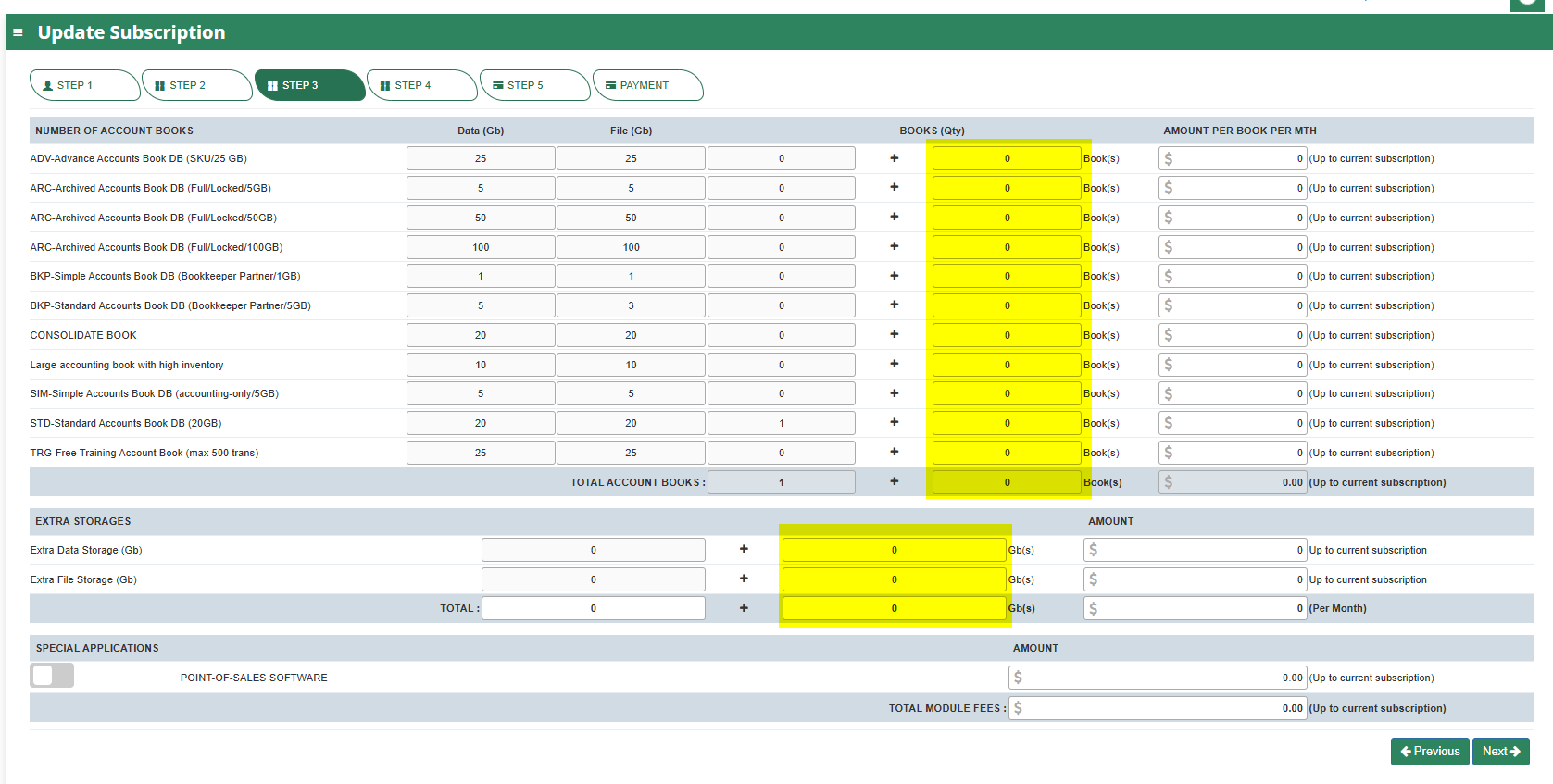
3. STEP 3, ACCOUNTBOOK DETAILS, EXTRA STORAGE & SPECIAL APPLICATION(CUSTOMIZATION)
Depending on the package they have selected, the details on the quantity of storage and account books will be displayed here.
In any event, they can access more storage if they've used up all of their subscription storage by modifying the desired add-ons for this steps.
4. STEP 4,OCR, SMS, WHATSAPP AND E-INVOICE LIMIT
Any excess of usage in the package that the customer availed it will be subject to corresponding charges.

5. Step 5, SUBSCRIPTION SUMMARY
The Subscription Summary will give you an overview of the Summary Payment from Total Number of Users, Total Number of Accountbook, Total Storages and Summary of Special Applications including OCR.
- Payment Type will be classified by Monthly and Yearly as an Option which includes identification of Duration.
- Once all are in place and countercheck, the user needs to agree with the Uniq365 Service Agreement & Privacy Policy before renewing.
- An indication of the validity timeline of the renewal is also indicated on the below right most part of the user interface.
6. STEP 6, PAYMENT
Renewal Payment Option via CREDIT CARD or PAYNOW.